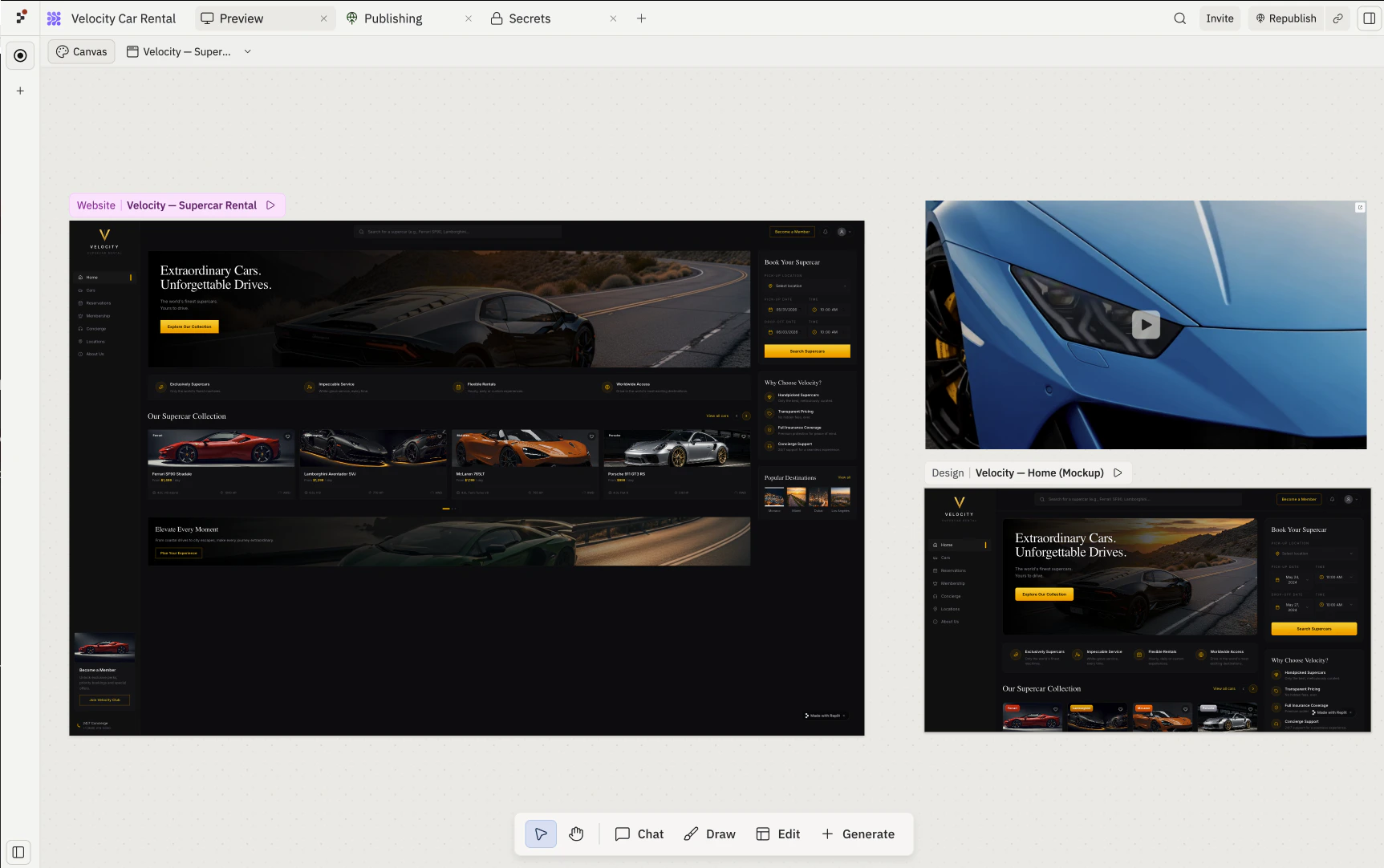
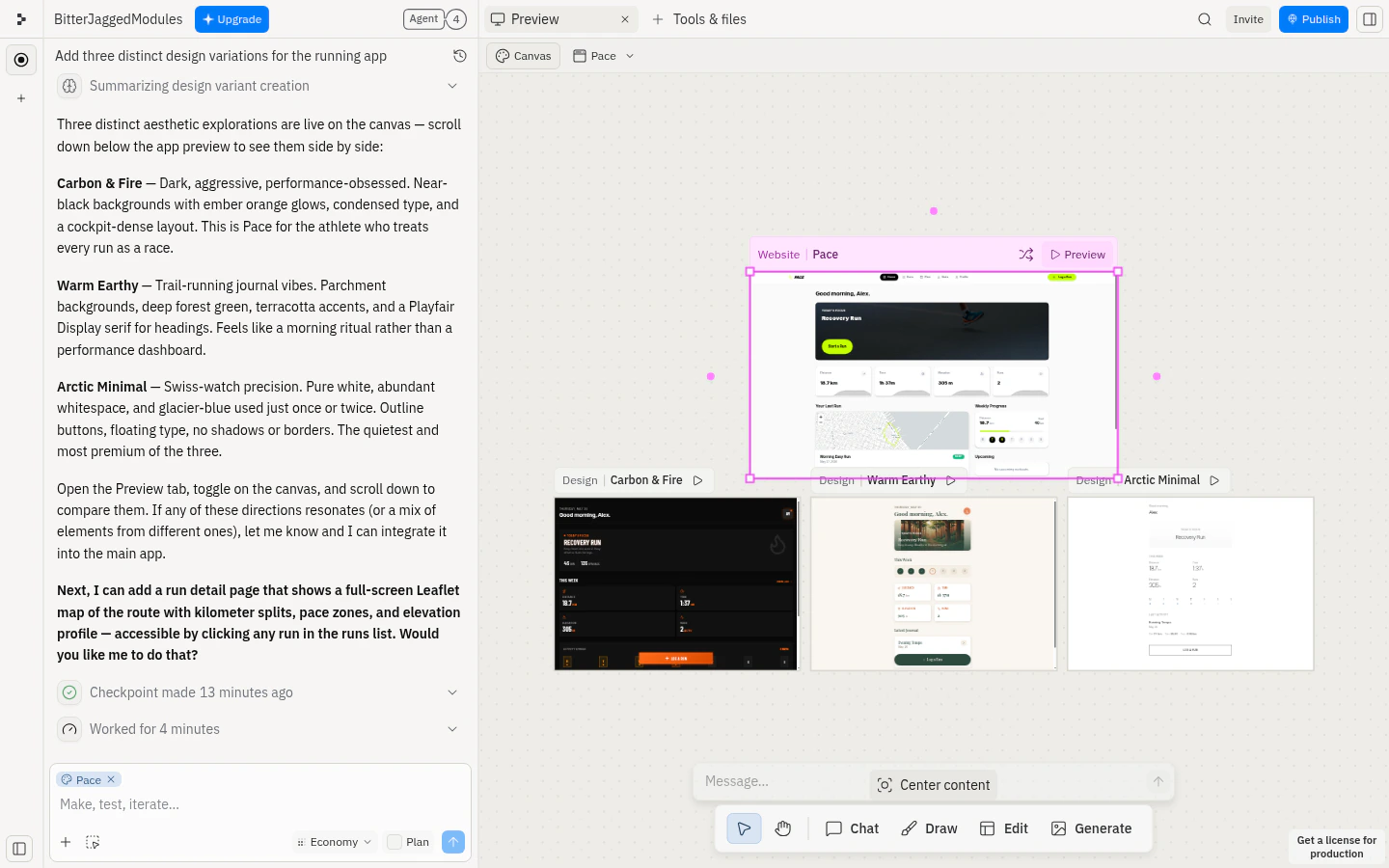
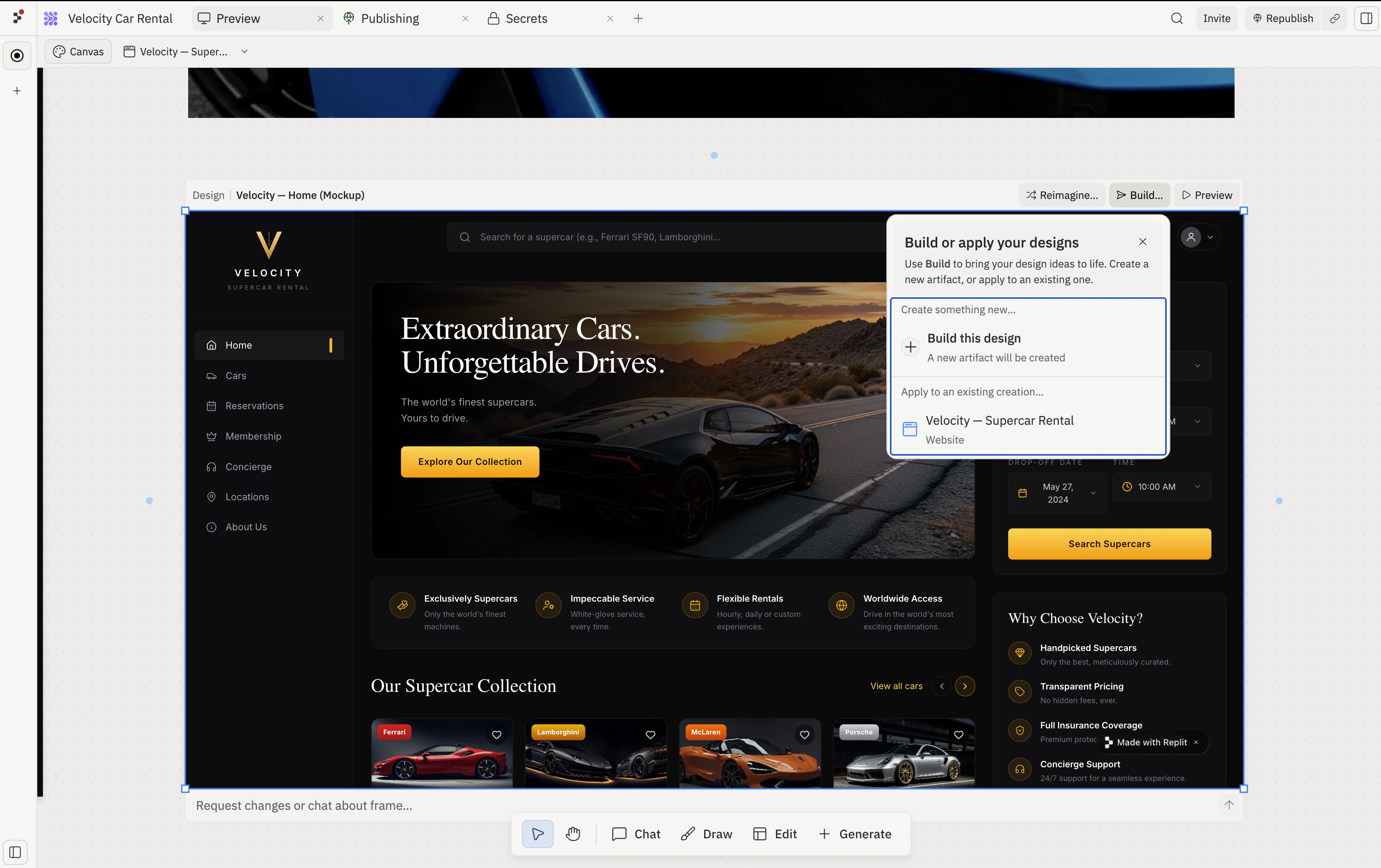
Every tile on the Canvas is a frame. Frames are what you select, drag, and act on. This page covers the frame kinds, the per-frame action bar that surfaces on selection, and the capabilities you trigger from it — Reimagine, Refine, and Build.
Frame kinds
The two main kinds are Artifacts (live, app-backed surfaces) and Designs (mockups). The frame’s top-left header shows which kind it is.
| Kind | Header label | Backed by | Interact like a live app? | Convert to a real app? |
|---|
| Artifact | Website, Slides, etc. | A running artifact | Yes | Already an app. |
| Mobile artifact | Mobile app | A running artifact | Yes (in simulator) | Already an app. |
| Design | Design | Static / interactive mock | Interactive frame only | Yes — via the per-frame Build… menu. See Build. |
| Image | Image | Generated PNG / JPG | No | No — use as a reference. |
| Video | Video | Generated video | No | No. |
| Vector graphic | Graphic | Generated SVG | No | No — embed in a real app. |
Whether a Design frame behaves as a static image or an interactive prototype depends on the Interactive frames capability. When it’s enabled, Design frames respond to clicks and form input like a real page; otherwise they render as a snapshot you can iterate on but not click through.
Per-frame action bar
Selecting a frame surfaces an action bar. The actions depend on the frame’s kind.
Artifact and Design frames
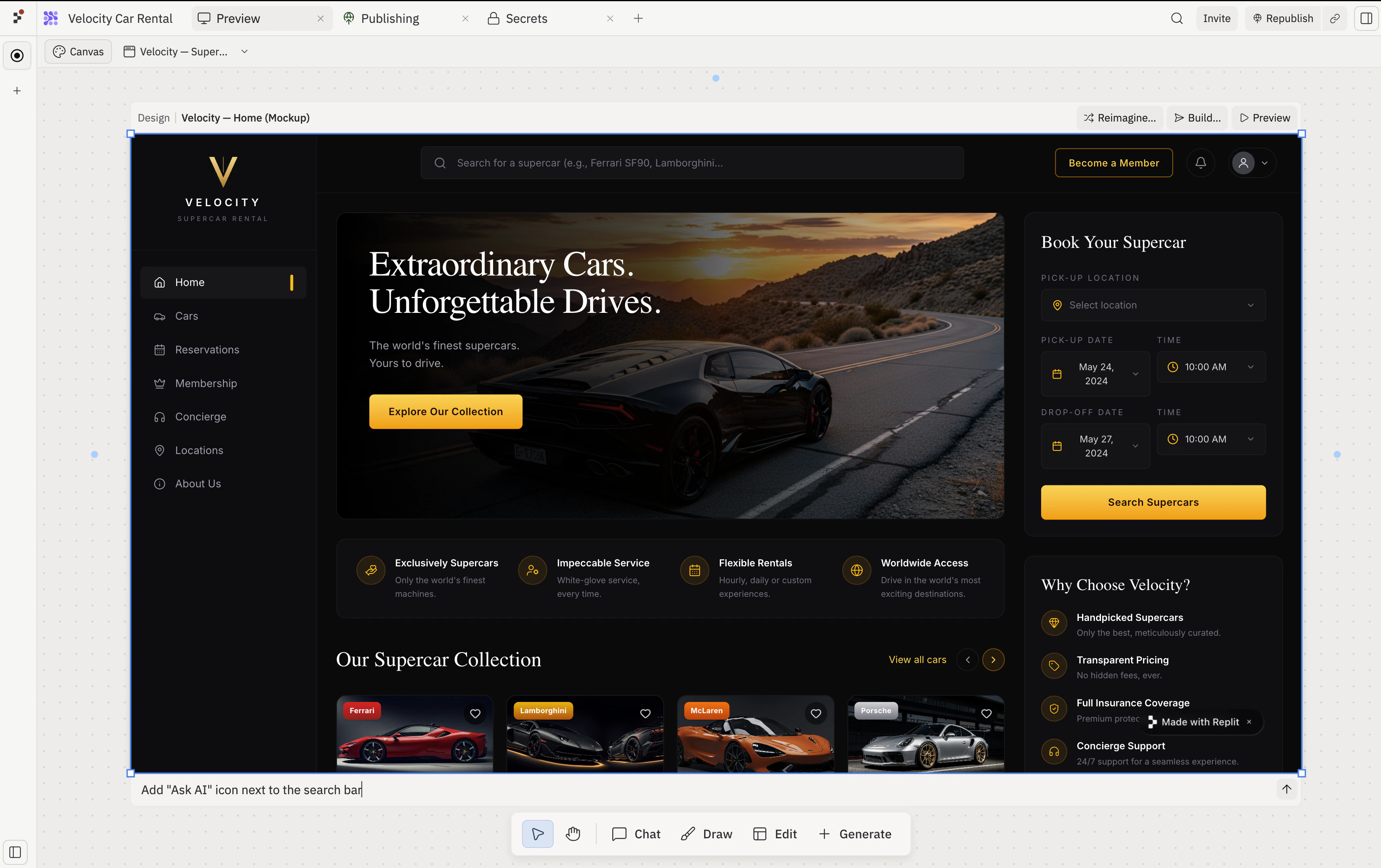
For Artifact (Website, Slides, etc.) and Design frames, the action bar runs across the top of the frame.
The action cluster compresses to icons at narrow widths and reveals labels as the frame gets wider. The full set, in left-to-right order:
| Action | What it does |
|---|
| Reimagine | Opens the Reimagine menu to generate variants of the current frame. |
| Build… | Opens a menu listing every Artifact in the project — choose one to apply the design to it, or choose Build this design to create a new Artifact. Design frames only. See Build. |
| Preview | Enters focus mode on the frame and locks it as the main preview pane. Toggles to Back to Canvas while focused. |
| Inspect | Opens the Visual Editor targeting an element inside the frame. Only visible while the frame is in focus mode and contains a selectable element. |
The action bar respects Read-only mode. When Canvas is locked inside a background-task context, the iteration actions hide and only Preview remains.
- Replace media: upload a new file to swap into the frame, keeping its position and size on Canvas.
- Download: save the media file to your computer.
- Alt text: add alternative text for accessibility and so Agent has more context when the frame is referenced.
Reimagine
Reimagine generates several alternative versions of an existing frame so you can compare design directions side by side.
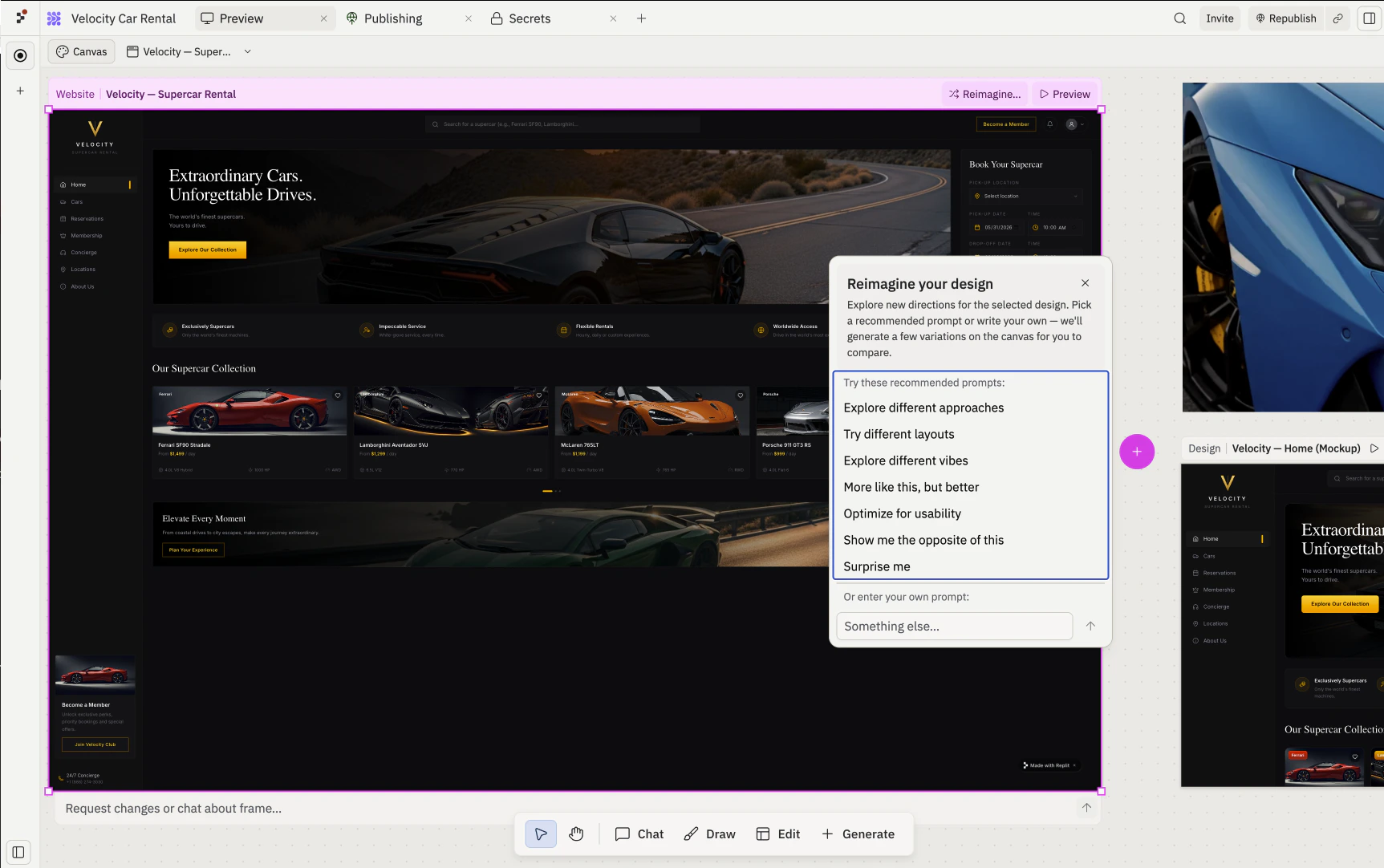
Recommended prompts
Selecting Reimagine opens a popover anchored to the frame with seven preset directions. Each preset is paired with a tuned prompt and a variant count.
| Preset | Variants | Best for |
|---|
| Explore different approaches | 4 | Fundamentally different concepts — vary the IA and interaction model. |
| Try different layouts | 3 | Same content, different spatial organization and hierarchy. |
| Explore different vibes | 3 | Same layout, different aesthetic and tonal direction. |
| More like this, but better | 2 | Polish the current direction without changing the design opinion. |
| Optimize for usability | 3 | Each variation prioritizes a different usability tradeoff. |
| Show me the opposite of this | 2 | Inverts the dominant design choices to surface hidden assumptions. |
| Surprise me | 3 | Agent picks the most underexplored axis to vary. |
Custom prompts
Below the preset list, the Something else… input takes a free-form prompt. Use it when you have a specific direction in mind — for example, “Generate three versions that emphasize trust and credibility for an enterprise audience.” Custom prompts default to three variants.
Refine (inline edits)
Refine is the inline edit loop on a single frame. Select a frame and type your change in the message input that appears below it; Agent rewrites the frame and replaces it in place. There’s no button labeled “Refine” — the inline input is the surface.
Use Refine when you know what you want to change and don’t need to see several alternatives. Example prompts:
- “Make the hero image full-width and add a CTA below it”
- “Switch the navigation to a sidebar layout”
- “Use a softer color palette — less black, more warm gray”
Unlike Reimagine, Refine modifies the selected frame directly rather than producing variants. If you want to keep the original, duplicate the frame first (right-click → Duplicate).
Build
The Build… menu on a selected Design frame graduates the design into a live, running app. The same menu also covers applying the design to an Artifact that already exists.
Build this design
Picking Build this design in the menu starts a new Artifact from the selected Design frame. The new Artifact lands in the project’s artifact list and becomes a live, running app. Build requires Core or Pro.
Apply to an existing Artifact
The Build… menu lists every Artifact in the project. Picking one applies the selected Design’s changes to that Artifact — Agent rewrites the Artifact’s code to match the design, leaving the Design frame on the Canvas for reference.
Related pages
- Canvas — overview and anatomy.
- Toolbar — the floating toolbar; Generate creates new frames.
- Elements — the individual pieces inside a frame.
- Visual Editor — element-level edits inside a focused frame.