

What SEO Agent does
SEO Agent focuses on technical SEO, the structural and machine-readable parts of your app that determine how easily search engines and AI crawlers can discover, index, and understand it. It reviews your project and proposes fixes for issues such as:- Crawlability and indexing:
robots.txt,sitemap.xml, and a crawlable link and page structure. - Page metadata: unique, descriptive
<title>tags and meta descriptions on every page. - Structured data: JSON-LD markup that helps search engines show rich results.
- Open Graph and social tags: the metadata that controls how your links preview when shared.
- Semantic markup: proper heading order, landmark elements, and descriptive
alttext on images.
SEO Agent makes sure the app you have built is technically sound for search,
and does not write content or build topical authority for you.
Before you start
SEO Agent requires:- A published app. SEO Agent audits a live, public web deployment, so publish your app first if you haven’t yet. See SEO Rating for the deployment types that support SEO.
- A paid plan. SEO Agent is available to builders on a paid plan. If you’re on the free plan, you’ll see an upgrade option in the Growth pane.
Where to find it
SEO Agent works on a published app. Until you publish, the Growth pane is locked and prompts you to Go to Publishing.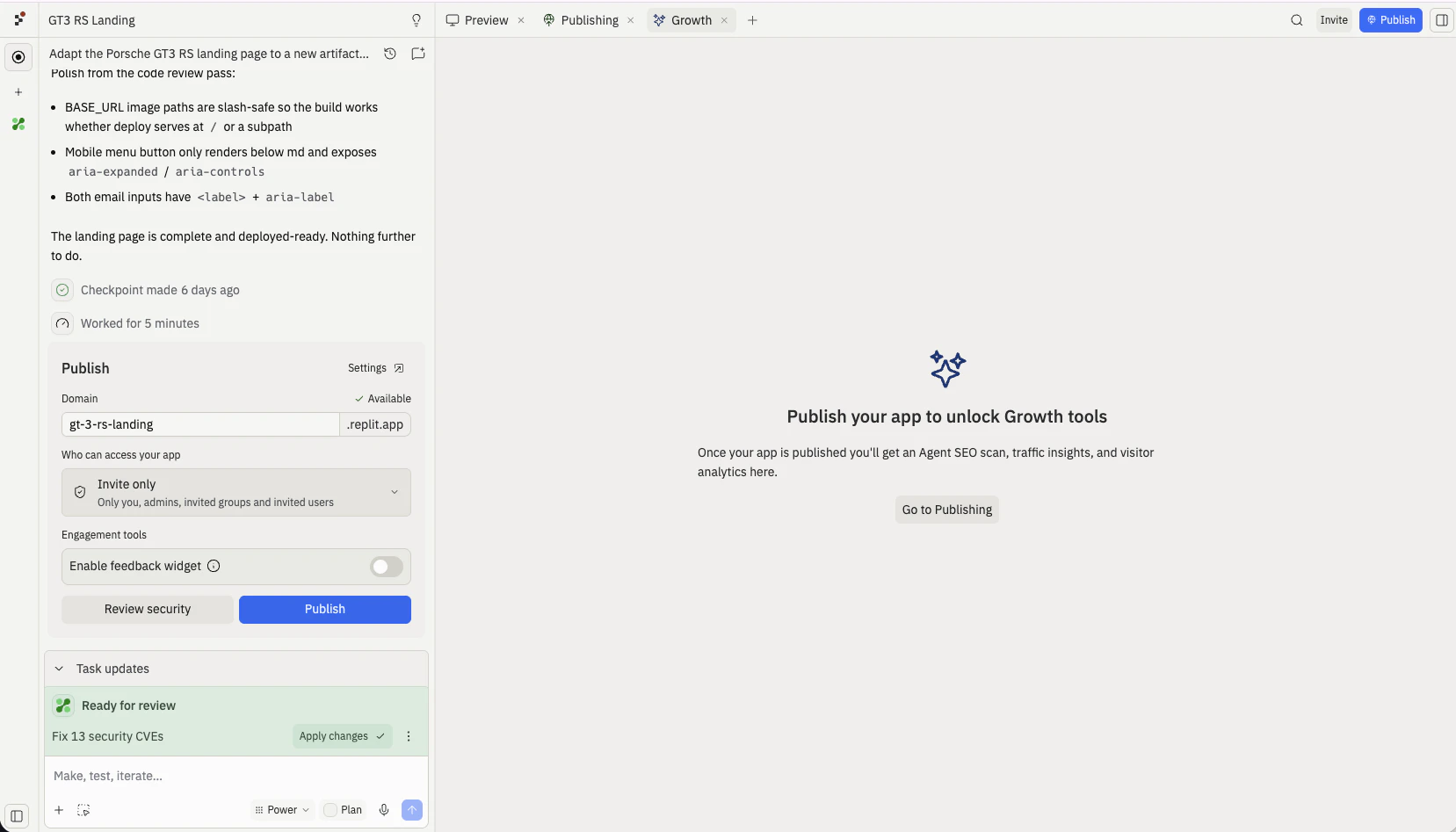
Before you publish, the Growth pane is locked with a Go to Publishing prompt
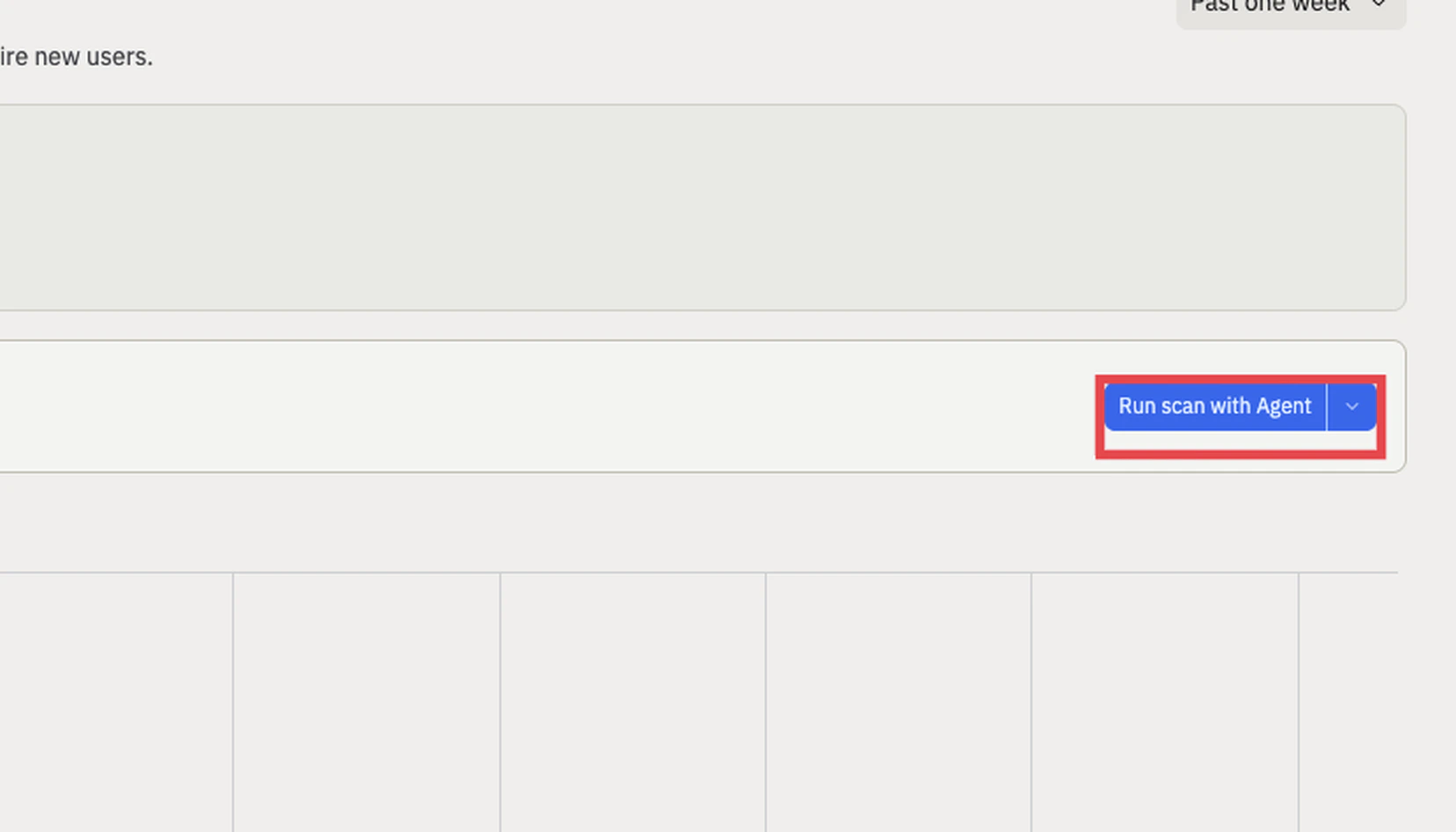
After publishing, the SEO Rating card shows a Run scan with Agent button
SEO Agent and your SEO Rating
The SEO Rating shown next to SEO Agent comes from an automatic Lighthouse audit that runs after every publish and rates your app as Healthy, Needs Work, or Weak. The rating tells you where your app stands. SEO Agent helps you improve it by scanning for issues and applying fixes. Republishing after a fix refreshes the rating. You can also skip the scan UI entirely and just ask Agent directly:Next steps
SEO Rating
See how the Lighthouse SEO rating is calculated, what each rating means, and
which deployment types support it.
Improve your app's SEO
A step-by-step guide to publishing, scoring, and optimizing your app’s SEO.
Add a custom domain
Move your app to your own domain for accurate social previews and stronger
search signals.
Static Deployments
The best deployment type for content-heavy, SEO-critical sites.