

- Compares the schema of your development and production databases.
- Generates the SQL needed to make production match development.
- Asks you to resolve anything ambiguous, such as a renamed column.
- Validates the SQL against a copy of your production database.
- Applies the SQL to production after your app builds and before the new version goes live.
This only applies to databases Replit manages for your app. If your published app connects to an external database such as Supabase, a Neon project you created yourself, or Amazon RDS, Publish doesn’t change that database. Use that provider’s migration workflow instead.
Step 1: Replit detects changes
Publishing starts with a Provision stage. If your development schema differs from production, the Publish pane shows Development database changes detected and starts generating migrations.
Step 2: Answer questions about ambiguous changes
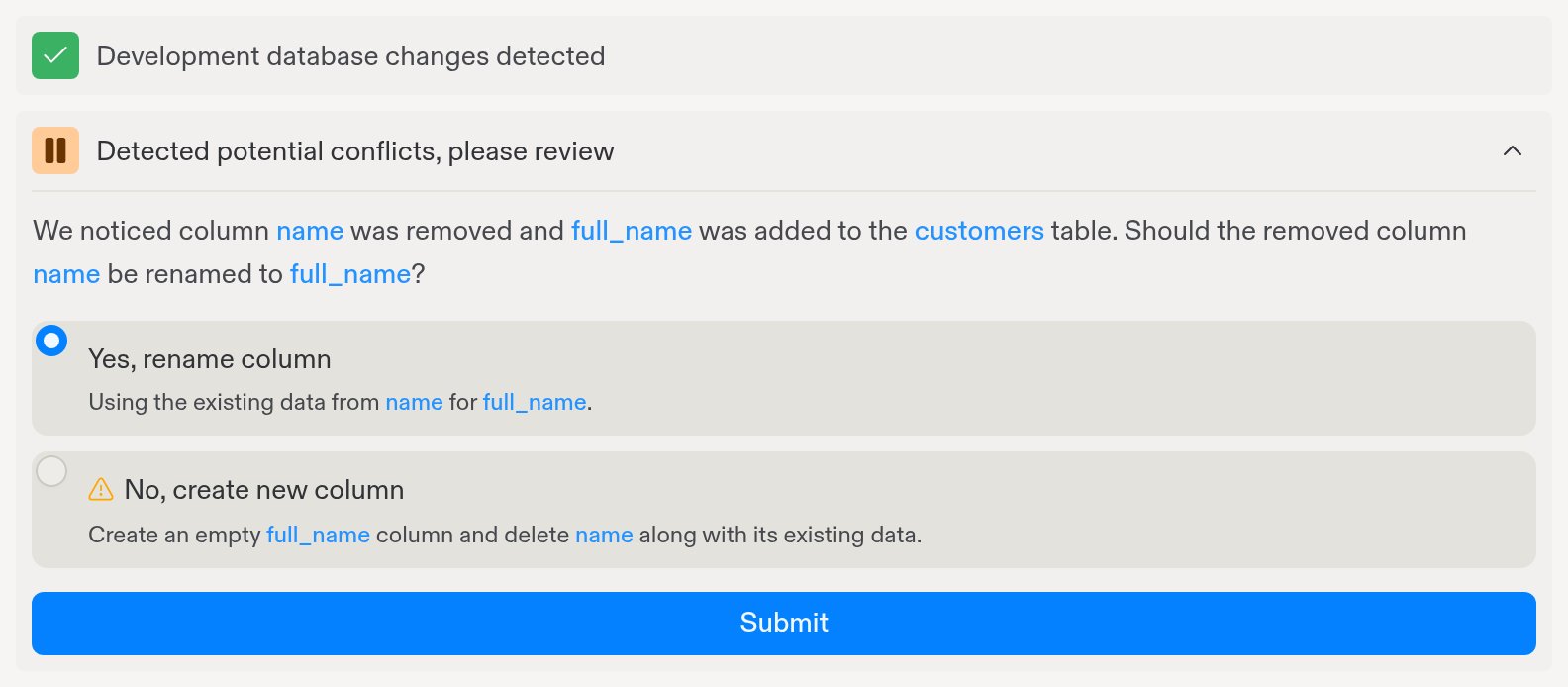
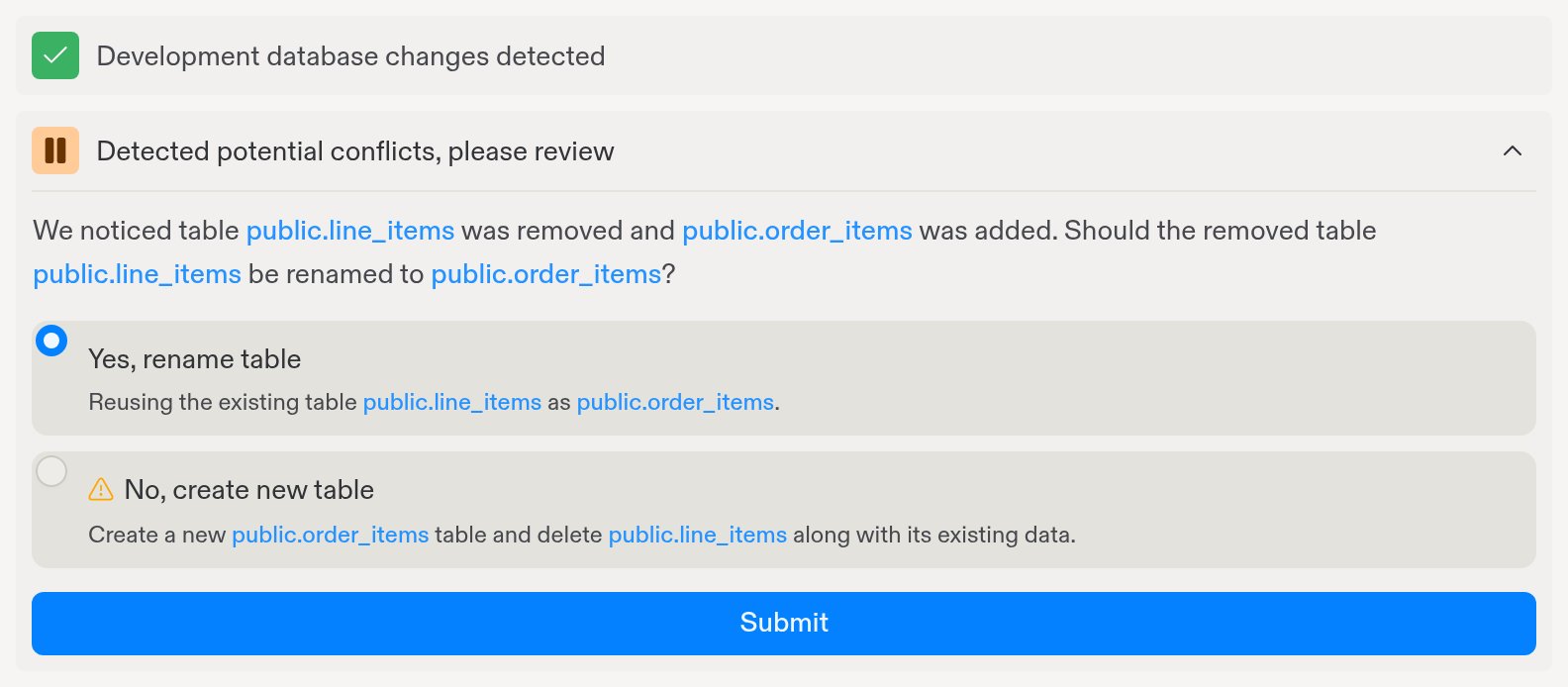
Some schema changes can mean two different things. When Replit can’t tell which you intended, it pauses with Detected potential conflicts, please review and asks you to choose. Pick an option and select Submit.Rename or new?
If a column was removed and another added on the same table, Replit asks whether the old column was renamed.- Yes, rename column keeps the existing data under the new name.
- No, create new column adds an empty column and drops the old one along with its data.
Unique constraint on a table with data
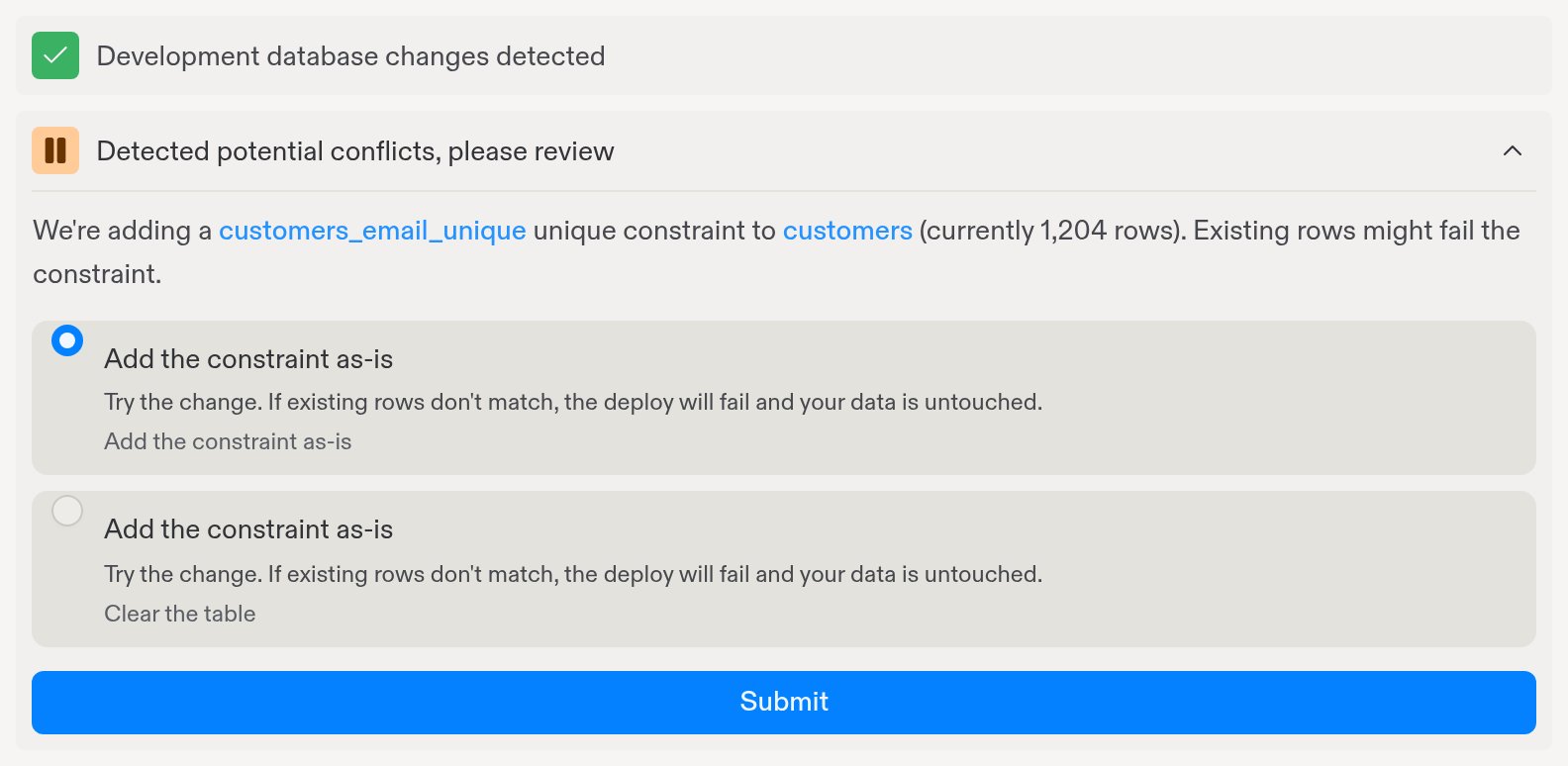
If you add a unique constraint to a table that already has rows in production, Replit tells you how many rows the constraint will check.- Add the constraint as-is fails the migration if any existing rows violate it. You can then fix the data and publish again.
- Remove all rows, then add the constraint clears the table first. This option isn’t offered when other tables reference this one through a foreign key.
Step 3: Review the generated SQL
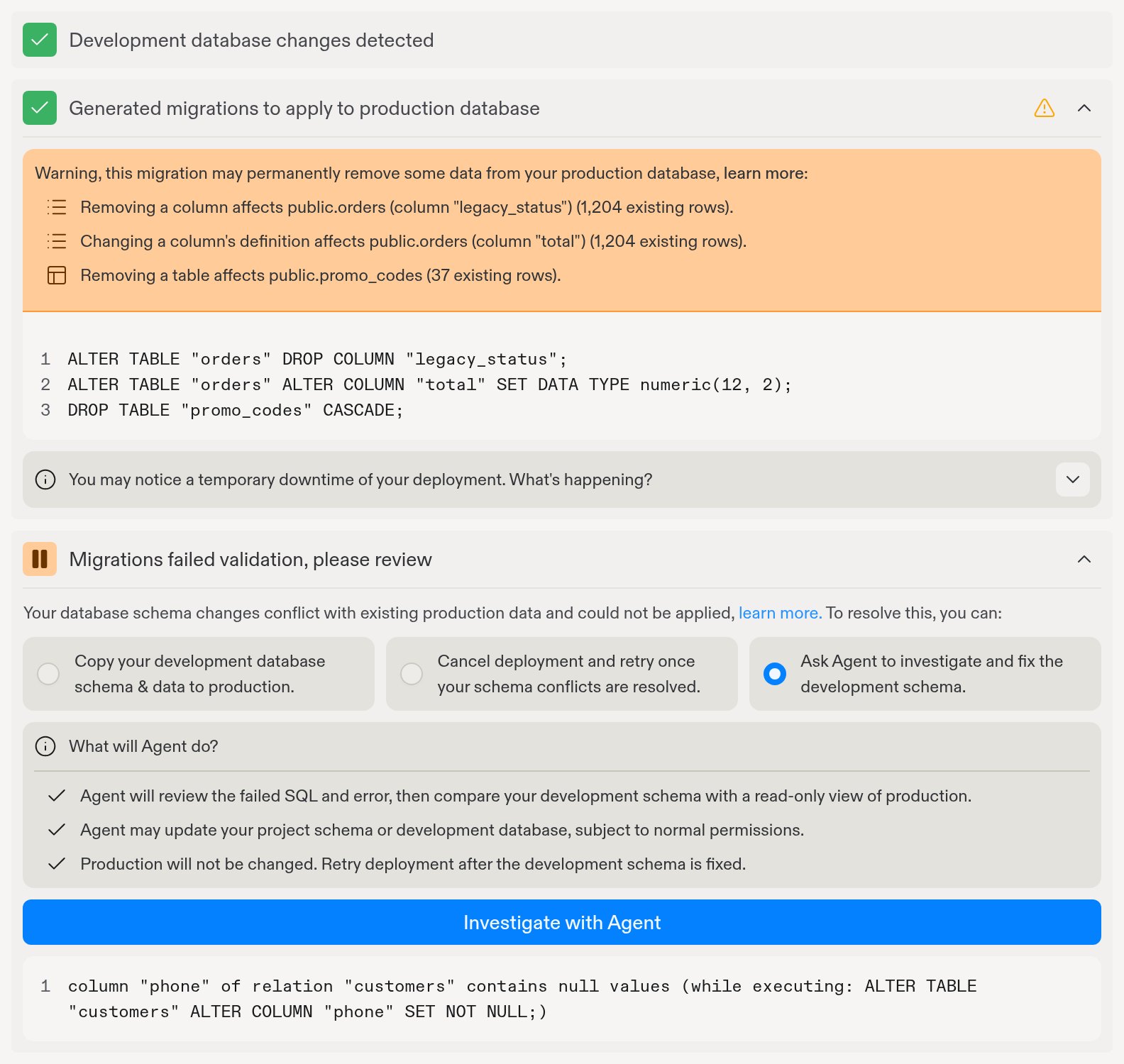
After any questions are answered, the pane shows Generated migrations to apply to production database with the exact SQL Replit will run. Read it before you continue.
- Data-loss warning. When a change could remove data from a table that has rows in production, the pane turns orange and lists each affected table with its row count. Changes that trigger this include:
- Removing or recreating a column or table
- Changing a column’s type or whether it requires a value
- Adding a required column
- Adding or recreating indexes and constraints
- Downtime notice. When a change isn’t compatible with the version of your app that’s currently running, Replit stops the running app before applying the migration so users can’t write to the database mid-change. Expand What’s happening? for details.
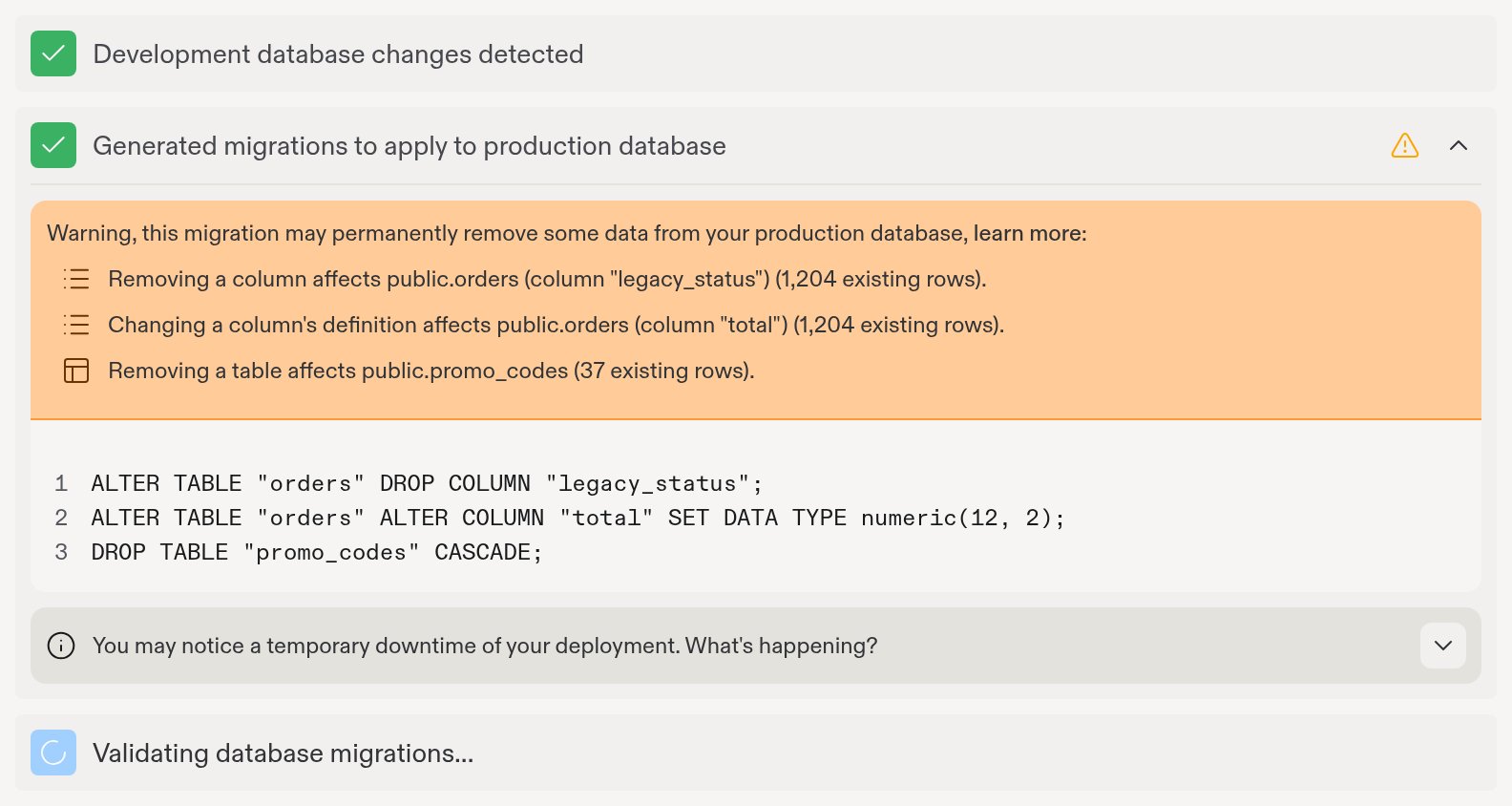
The warning list only includes tables that contain rows in production. A
DROP TABLE on an empty table shows no warning, so read the SQL even when the pane isn’t orange.Step 4: Replit validates the migration
Replit creates a temporary copy of your production database and runs the SQL against it. The pane shows Validating database migrations… and then Database migrations validated successfully.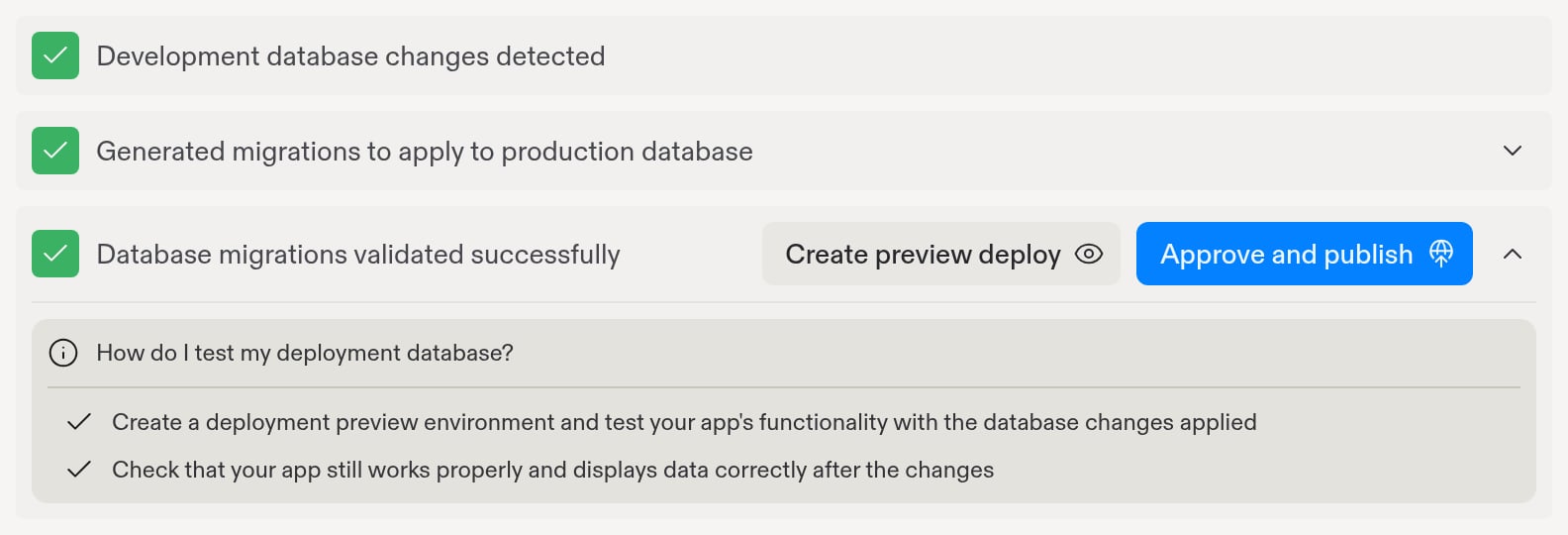
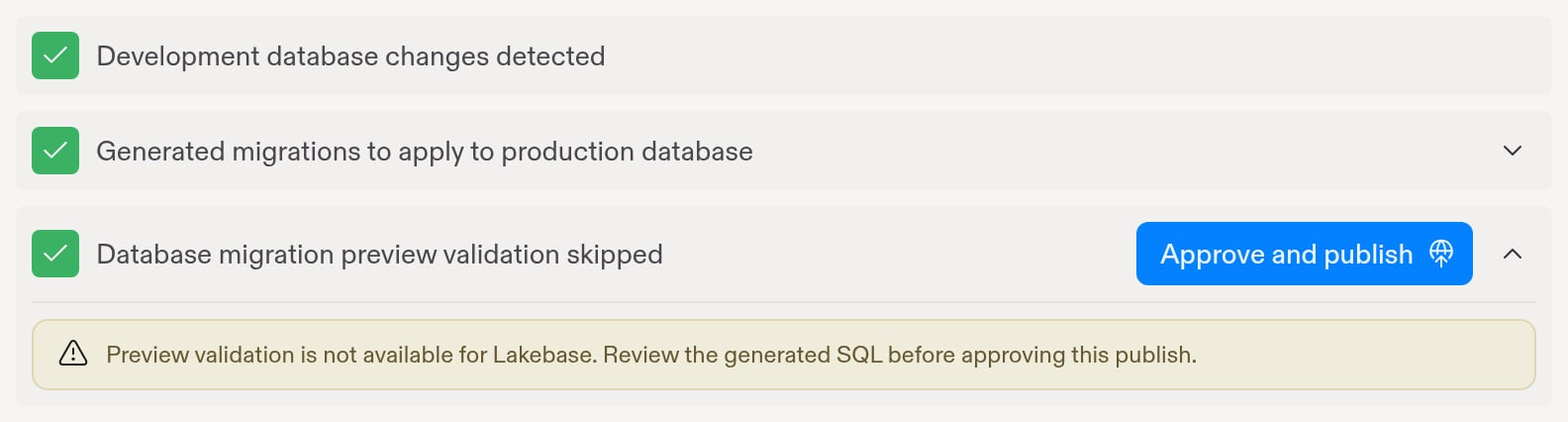
Apps using a Databricks Lakebase database skip this validation step. The pane asks you to review the generated SQL yourself before approving.
Step 5 (optional): Preview your app on the migrated copy
After validation succeeds, you can select Create preview deploy to build your app against the migrated copy of production. When the build finishes, select View preview to open it.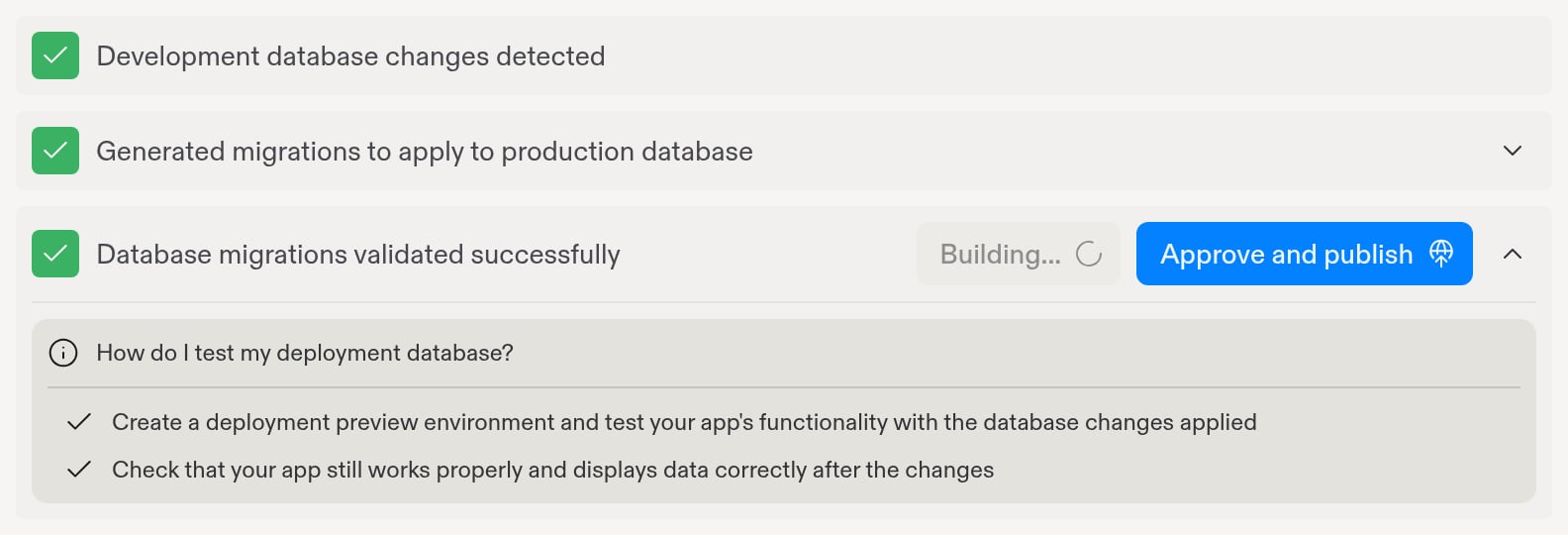
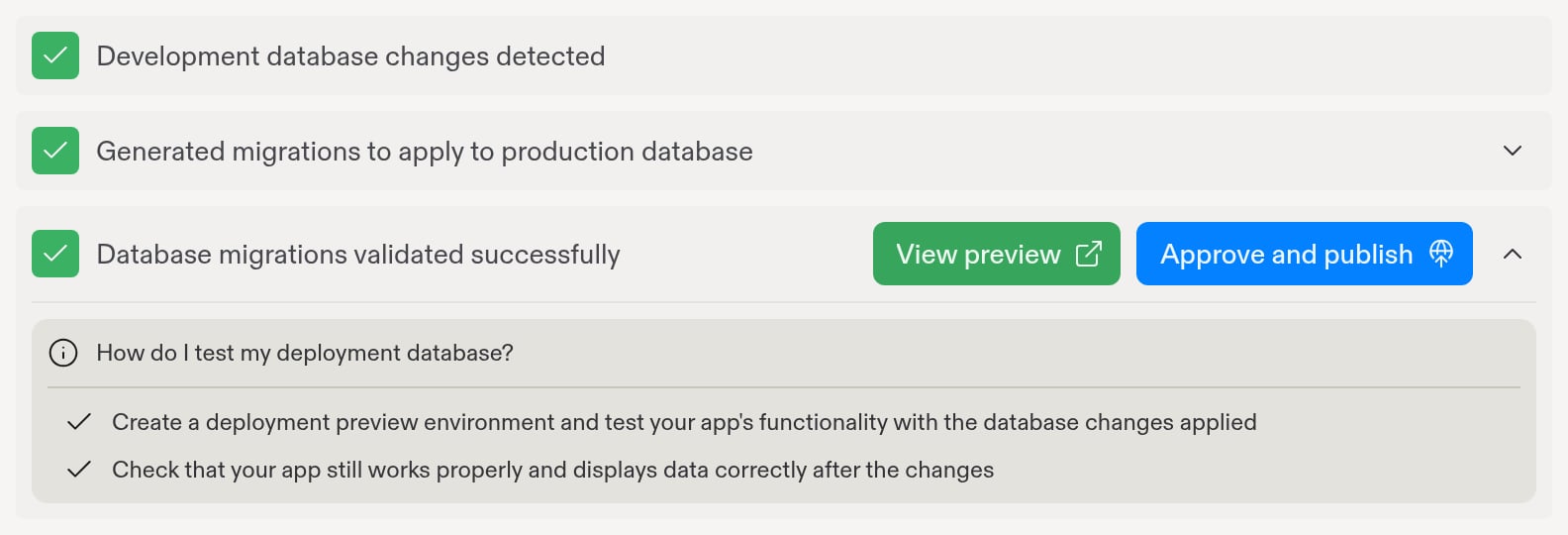
Step 6: Approve and publish
Select Approve and publish to continue. Replit sends the exact SQL you reviewed along with the publish request, so what you saw is what runs. Publishing then proceeds through the remaining stages. The migration runs after your app finishes building and before the new version is promoted:- Security checks
- Build
- Database migration applied to production
- Bundle and promote the new version
drizzle-kit push, db:push, or CREATE TABLE IF NOT EXISTS statements to the deployment build command or your server’s entrypoint. They would run on every publish, outside the review and validation above.
If you ask Agent to republish instead of using the Publish pane and your development and production schemas differ, the republish is blocked and you’re directed back to the Publish pane to review the migration.
Make changes to production manually
For one-off fixes, you can run SQL directly against production from the Database pane: select Production in the database switcher, then use the SQL console. See Work with your data. Replit always compares the actual databases, not your schema file, so any manual change becomes part of the next publish’s comparison. If you add a column by hand in production that doesn’t exist in development, the next publish proposes dropping it.Next steps
- Development and production databases: Understand how your two databases differ.
- Data recovery: Restore development or production data.
- Unsupported database objects: Objects Publish can’t migrate.