Choose and set up a Databricks connector so Replit Agent can build applications backed by your Databricks workspace.
The Databricks connectors are available on the Pro and Enterprise
plans.
The Databricks connectors let Replit Agent query your Databricks workspace. Builders can create dashboards, reporting tools, and data applications using natural language. No SQL expertise is required.Replit supports two Databricks connection types. Choose one based on the identity that should run each query.
You must be a Databricks account admin to complete this step.
The Databricks account admin registers Replit as an OAuth application. The app connection provides the client ID and client secret used to configure Replit.
1
Open the Databricks account console
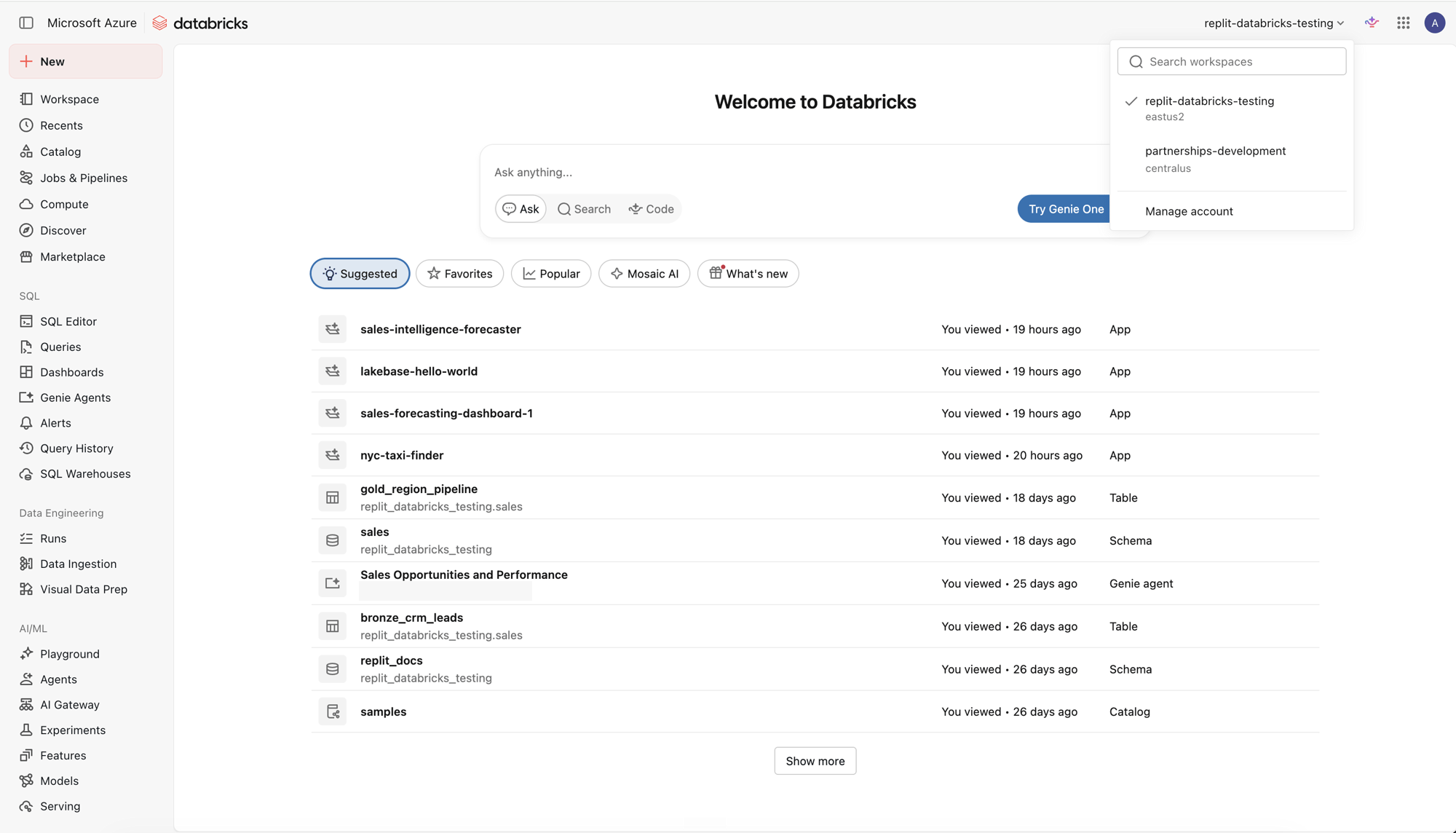
In your Databricks workspace, open the workspace picker in the top-right corner and select Manage account.
2
Open App connections
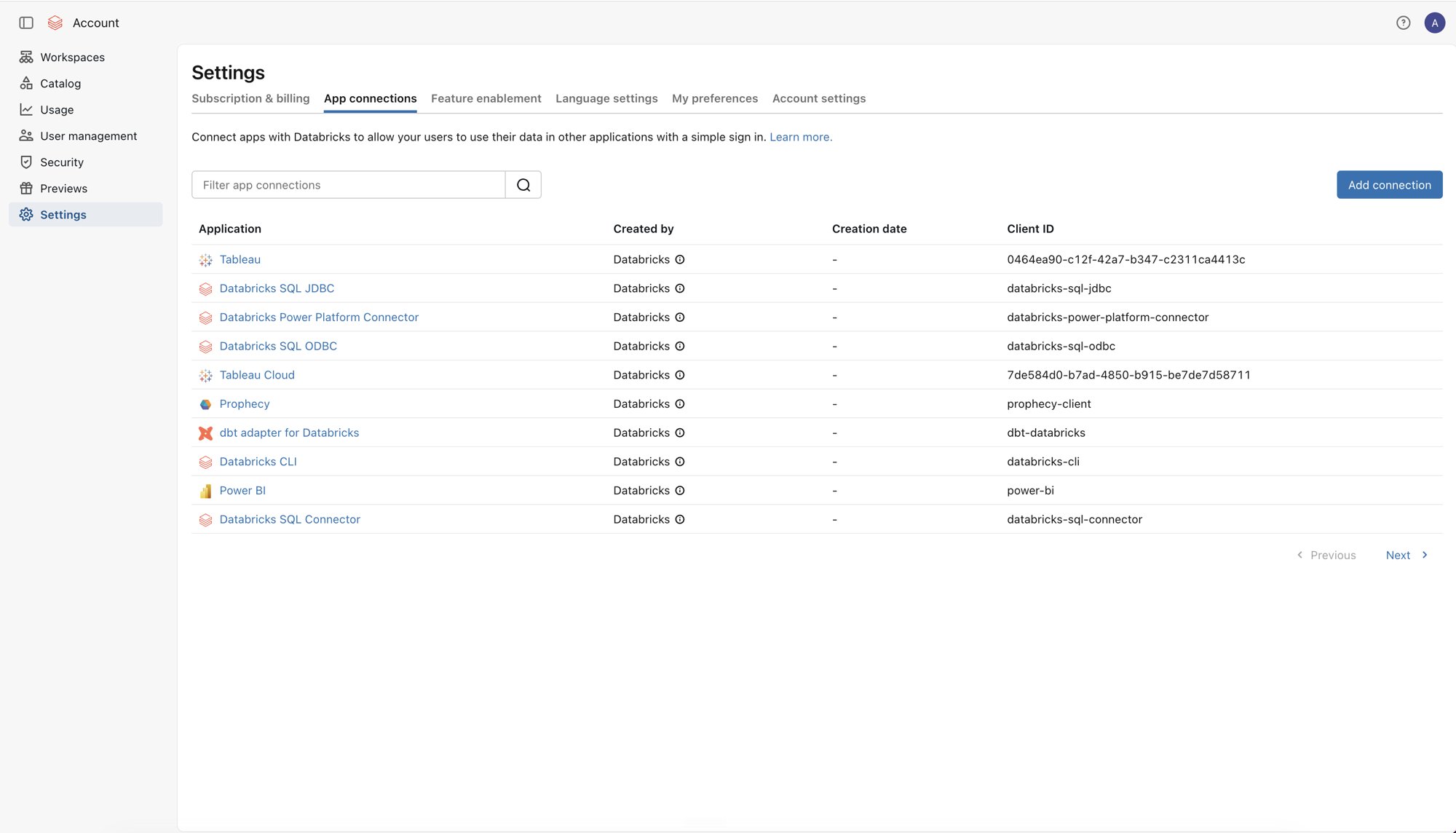
In the account console, select Settings, then open the App connections tab.
3
Configure the Replit connection
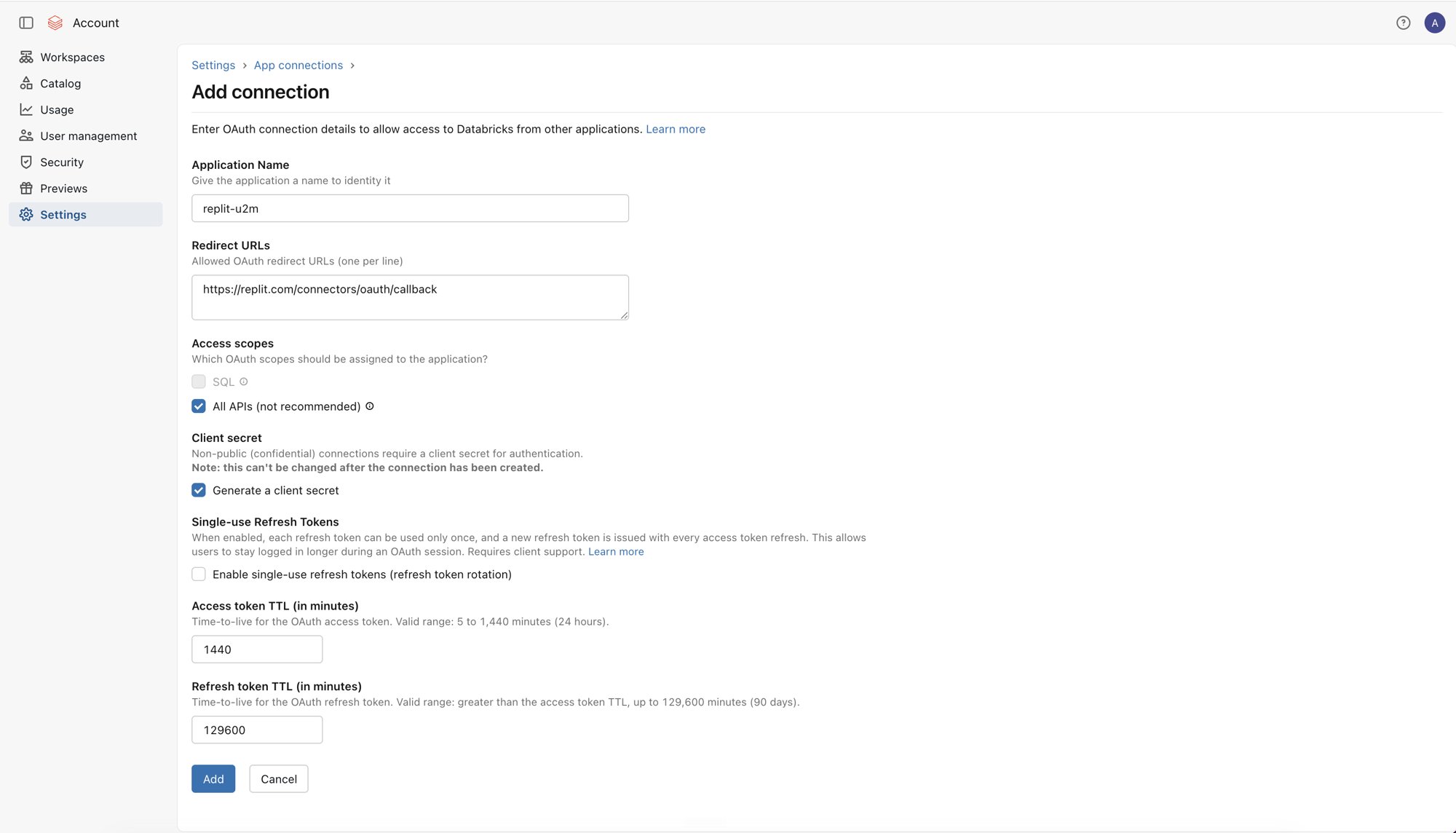
Select Add connection. Enter an application name that identifies Replit, such as replit-u2m.Under Redirect URLs, enter:
https://replit.com/connectors/oauth/callback
Under Access scopes, select All APIs. This allows Agent to use Databricks SQL and the Databricks APIs needed to build and manage Databricks Apps.Select Generate a client secret. Databricks cannot add a secret to this connection after it is created.Set the token lifetimes according to your organization’s security policy. The example uses Access token TTL1440 minutes (24 hours) and Refresh token TTL129600 minutes (90 days), the maximum values shown by Databricks. A shorter refresh token lifetime can require builders to sign in more often.Select Add.
All APIs grants broader access than SQL alone. Control the connector’s effective access with each builder’s Databricks permissions.
4
Store the OAuth credentials
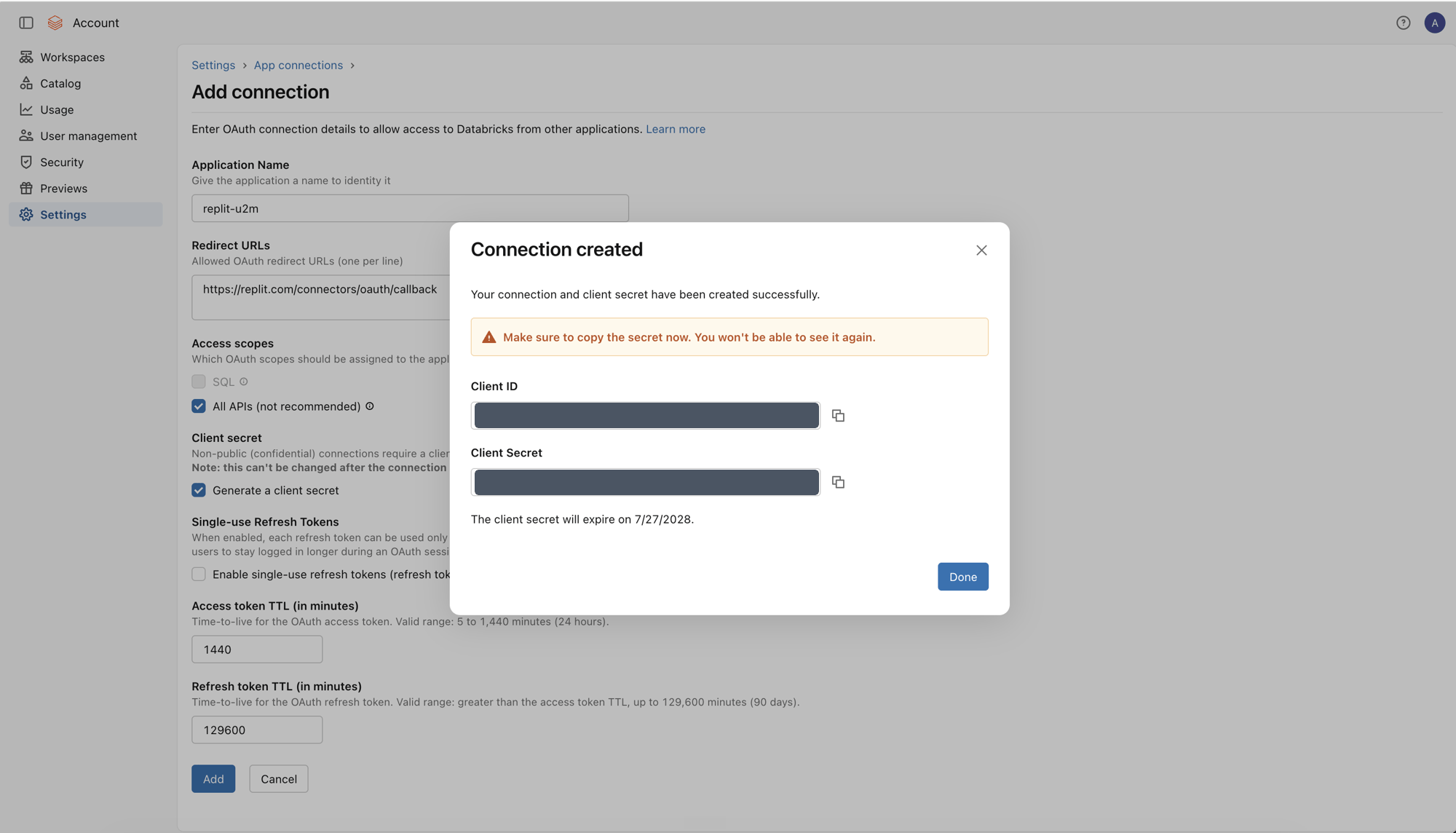
Copy the Client ID and Client Secret, then store them in your organization’s secret manager.
Databricks displays the client secret once. Record its expiration date and rotate the app connection before the secret expires.
New or updated OAuth app connections can take up to 30 minutes to become
available.
Each builder enters the SQL Warehouse details when authorizing the U2M connector. Publish these values somewhere your builders can access, such as an internal onboarding page.
1
Open SQL Warehouses
In the Databricks workspace, select SQL Warehouses and open the warehouse builders should use.
2
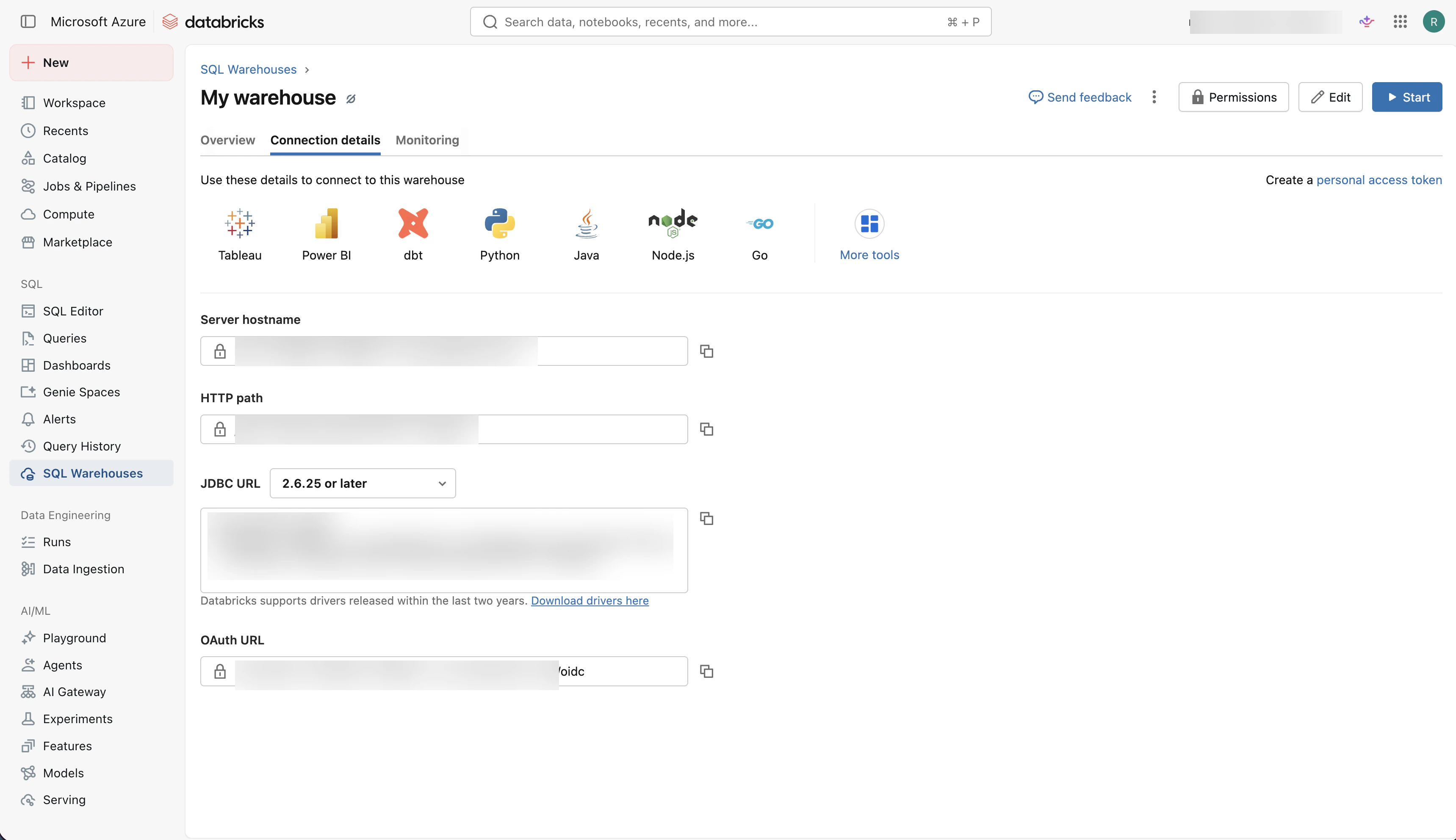
Copy the connection details
Select Connection details, then copy the Server hostname and HTTP path.
You must be a Replit organization admin to configure connectors.
1
Open and enable the U2M connector
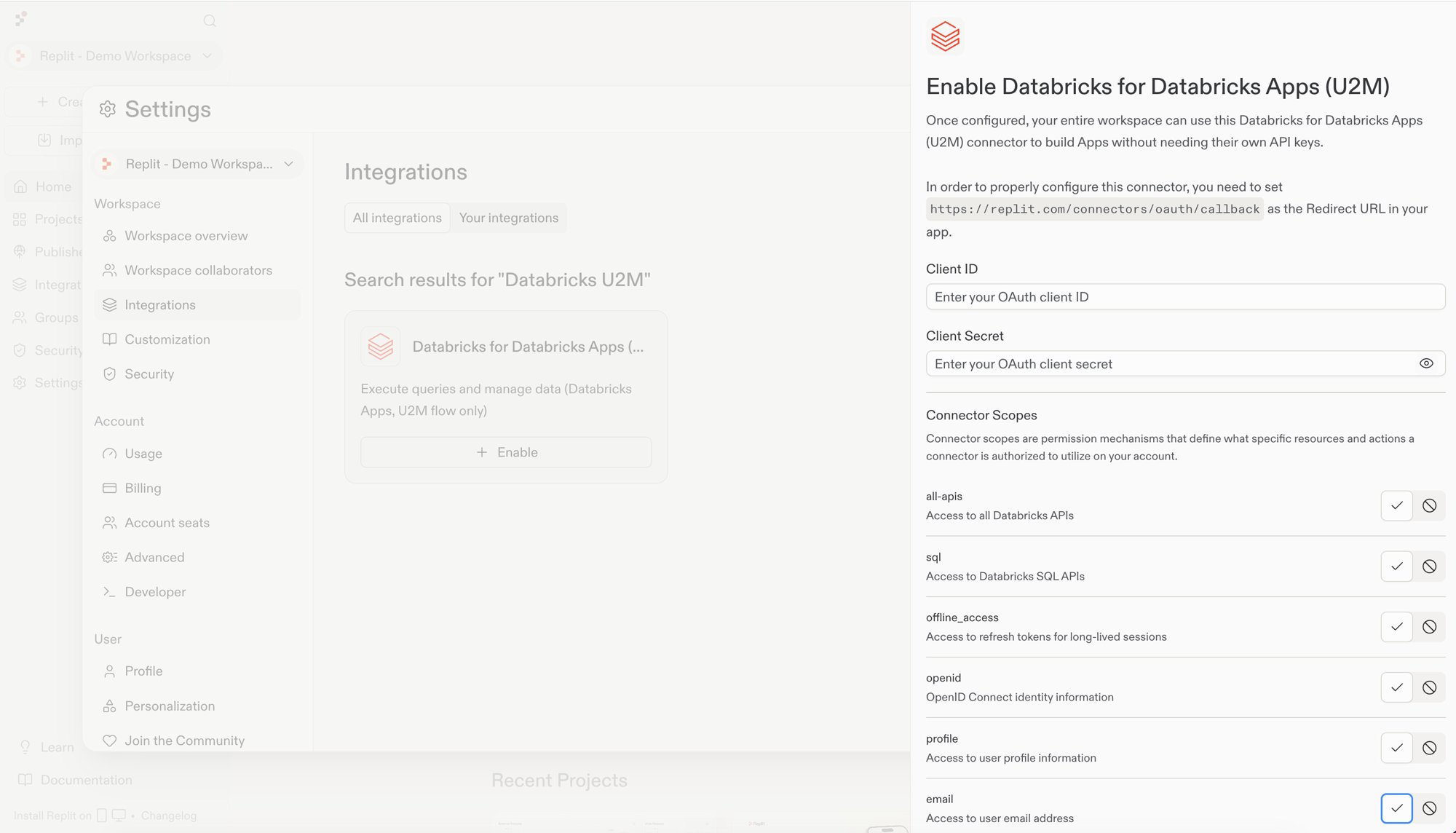
Go to Integrations in Settings. Search for Databricks U2M, find Databricks for Databricks Apps (U2M), and select Enable.Enter the Client ID and Client Secret from the Databricks app connection.Confirm that the redirect URL shown in Replit matches the URL configured in Databricks:
https://replit.com/connectors/oauth/callback
Under Connector Scopes, enable all-apis and offline_access. The offline_access scope gives Replit a refresh token for long-lived sessions.Select Configure.
2
Verify the connector is enabled
Confirm that Databricks for Databricks Apps (U2M) appears under Your integrations.
Each builder signs in with their own Databricks account before using the connector. Replit can refresh the session until the refresh token expires.
1
Sign in to the connector
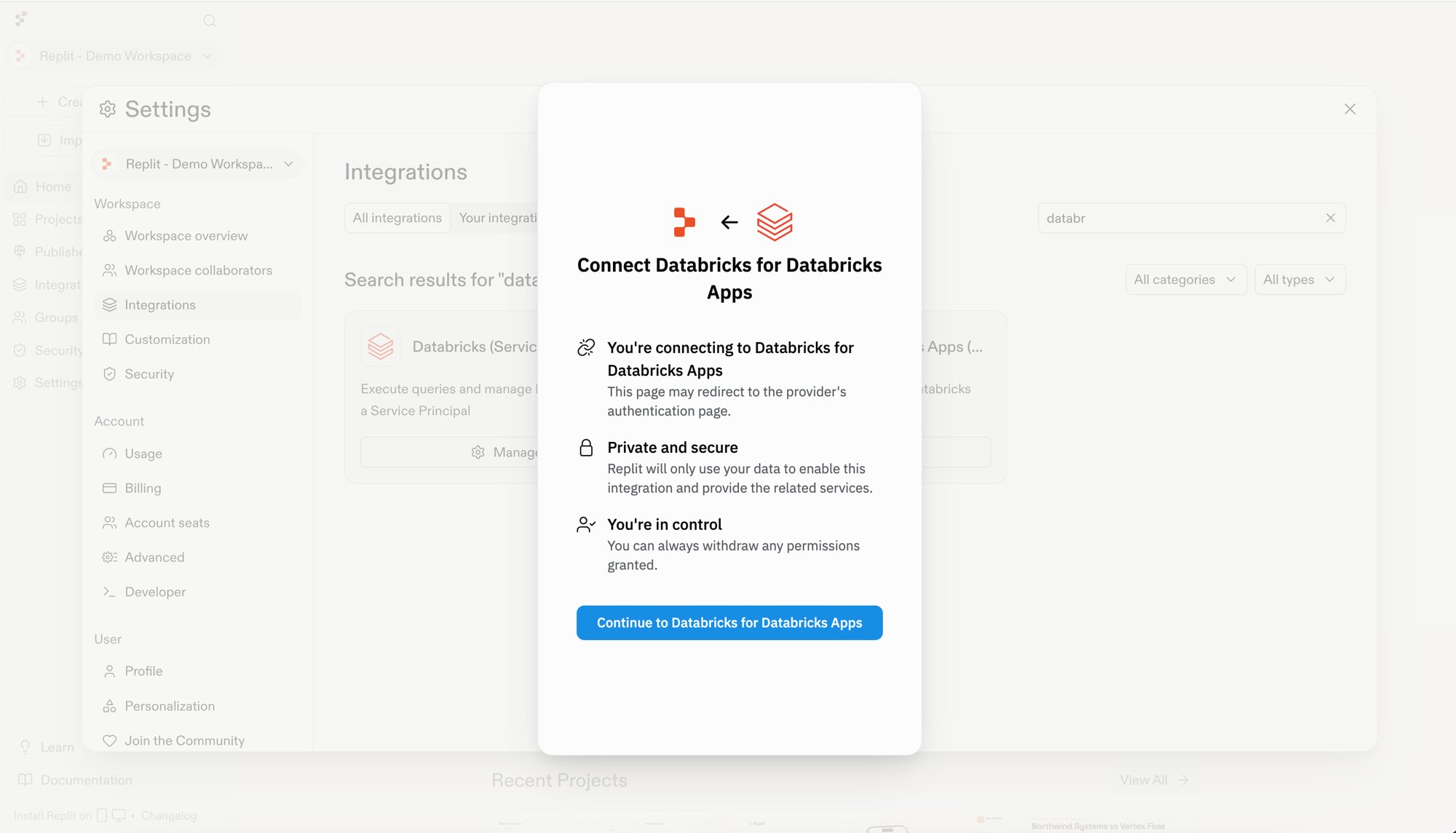
On the Integrations page, find Databricks for Databricks Apps (U2M) and select Sign in. Review the connection details, then select Continue to Databricks for Databricks Apps.
2
Enter the SQL Warehouse details
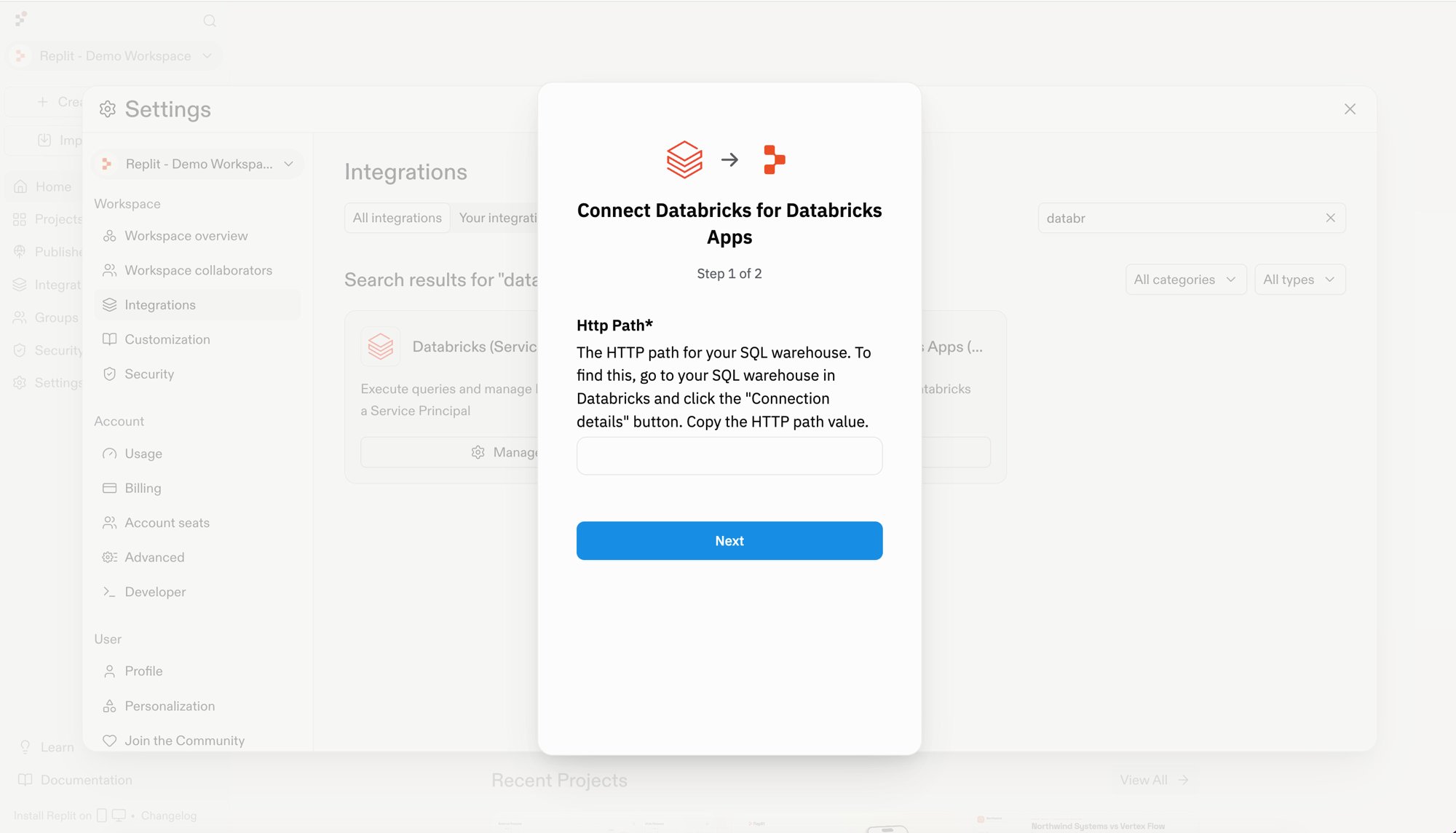
Enter the SQL Warehouse HTTP path provided by your Databricks admin, then select Next.
Replit next asks for the SQL Warehouse Server hostname. Enter it and continue to Databricks. Sign in when prompted, review the requested access, and approve the request.Every query Agent runs through this connection uses your Databricks permissions and is attributed to you in Databricks audit logs.After approval, Databricks returns you to Replit and the connector is ready to use.
You must be a Databricks account admin or workspace admin to complete this
step.
The Databricks admin creates a machine-to-machine identity, called a service principal, that Replit uses to connect to Databricks.
1
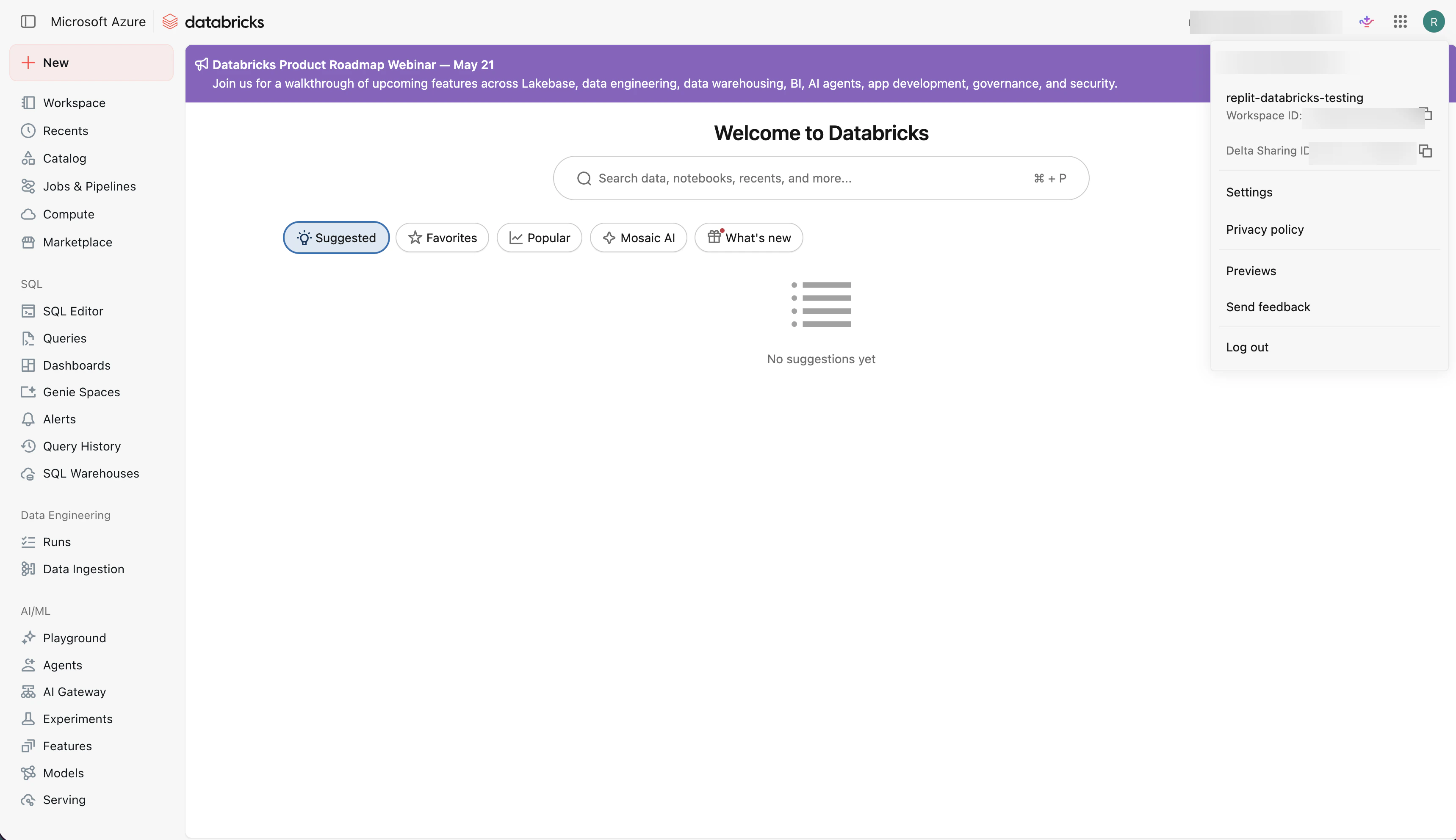
Open Settings
In Databricks, select your avatar in the top-right corner, then select Settings.
2
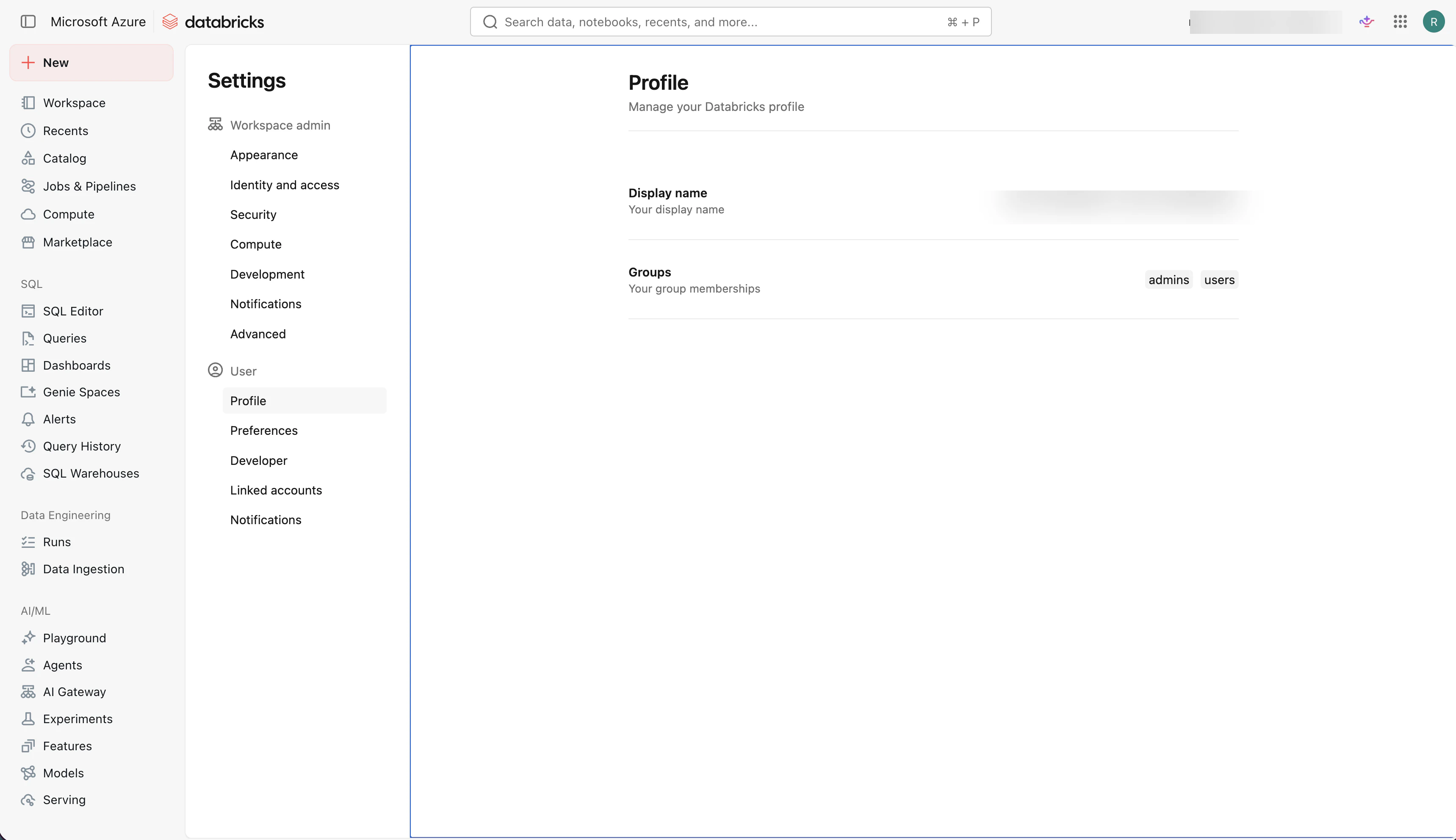
Select Identity and access
In the Settings sidebar, select Identity and access.
3
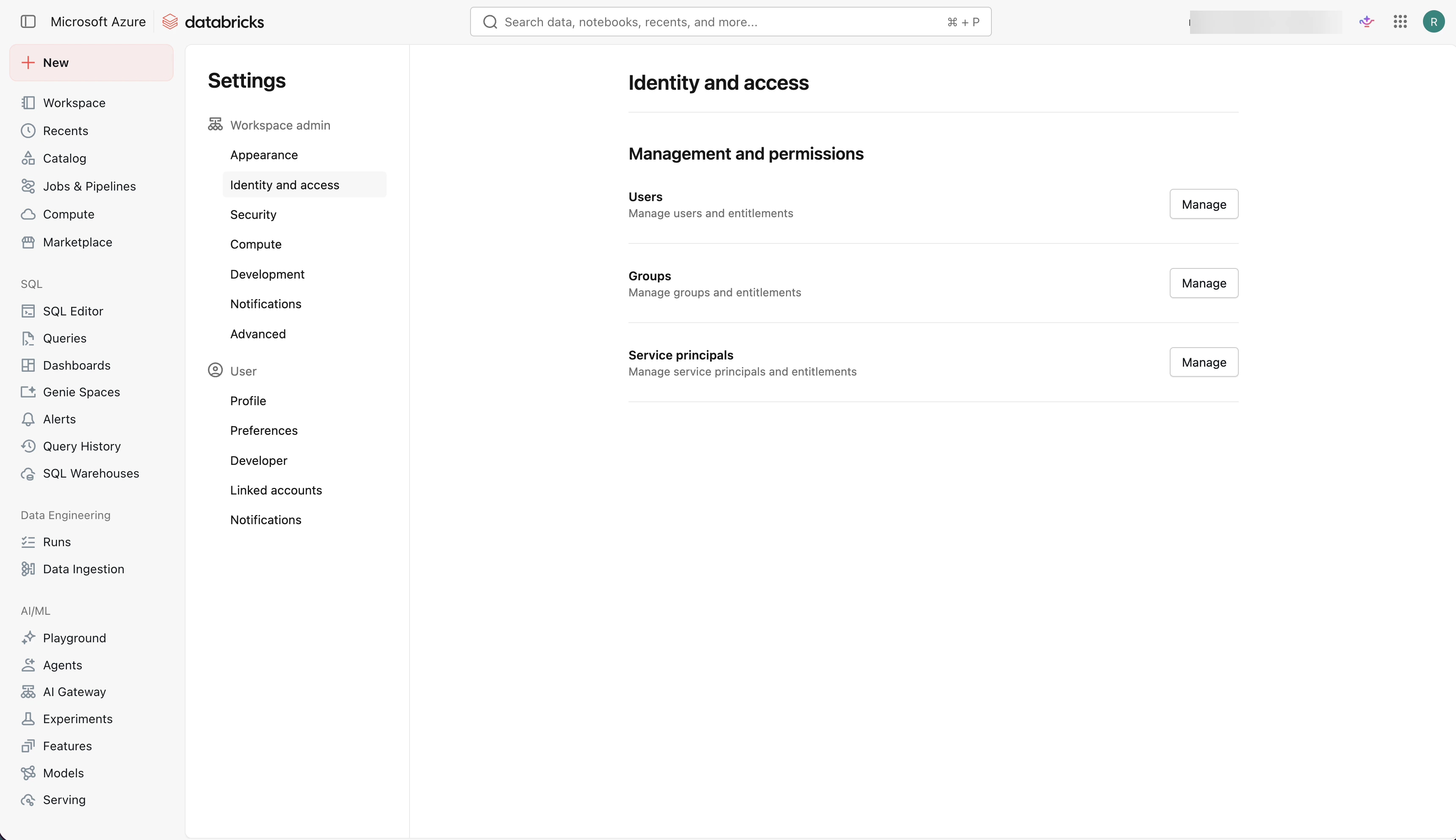
Manage service principals
Under Management and permissions, find Service principals and select Manage.
4
Add a new service principal
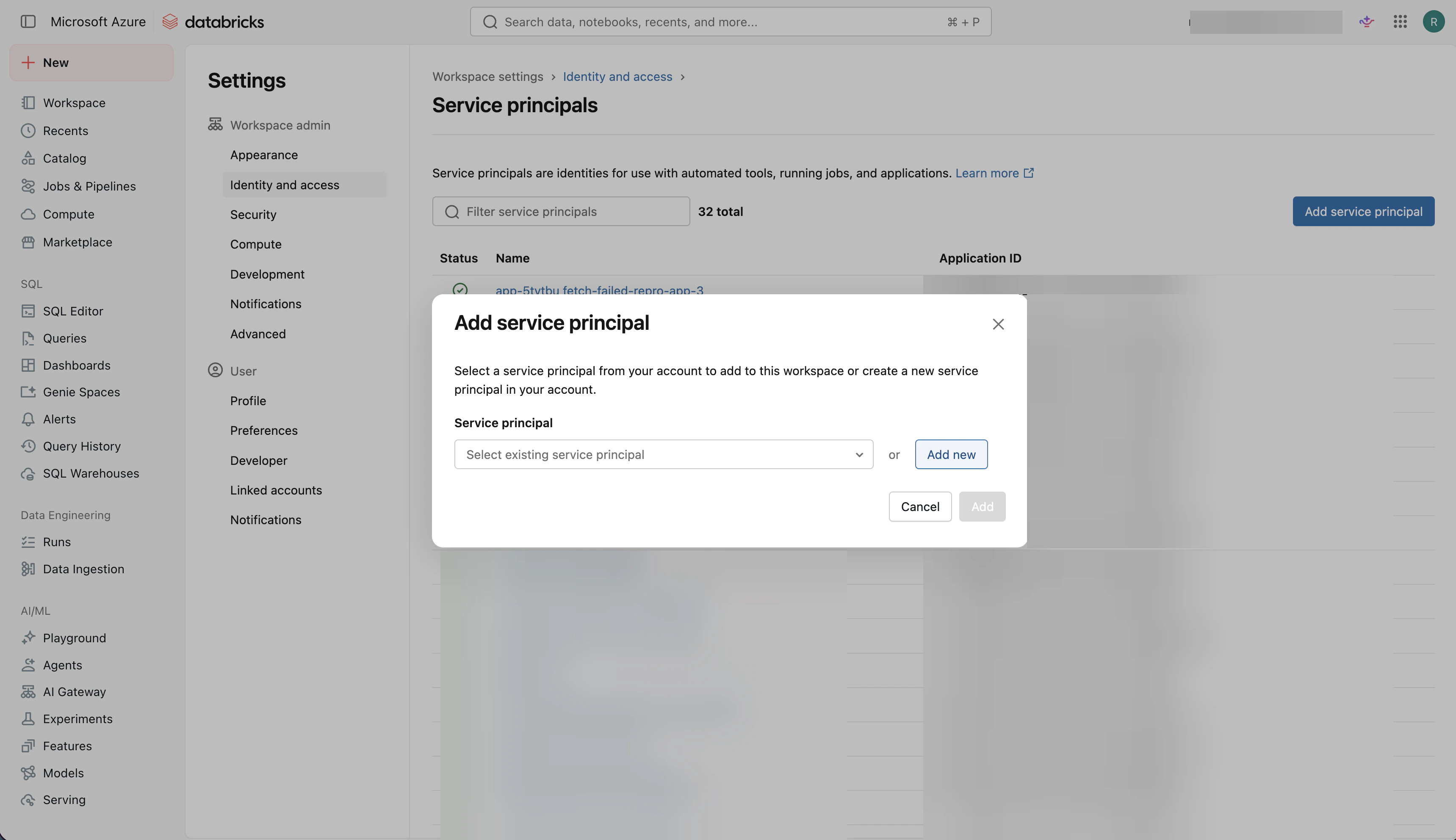
Select Add service principal, then select Add new.
5
Name the service principal
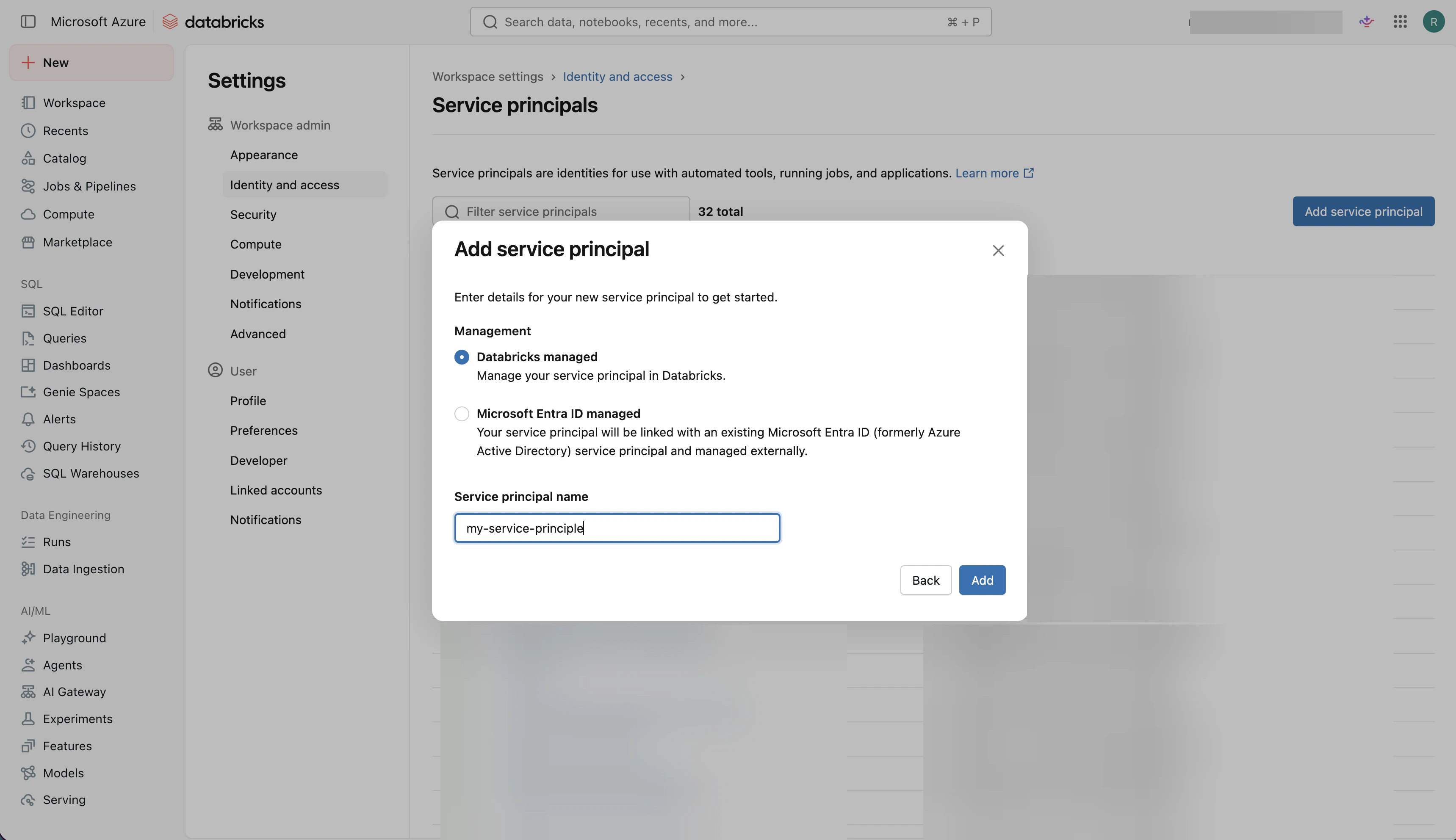
Enter a clear name for the service principal, then select Add.
6
Confirm the service principal details
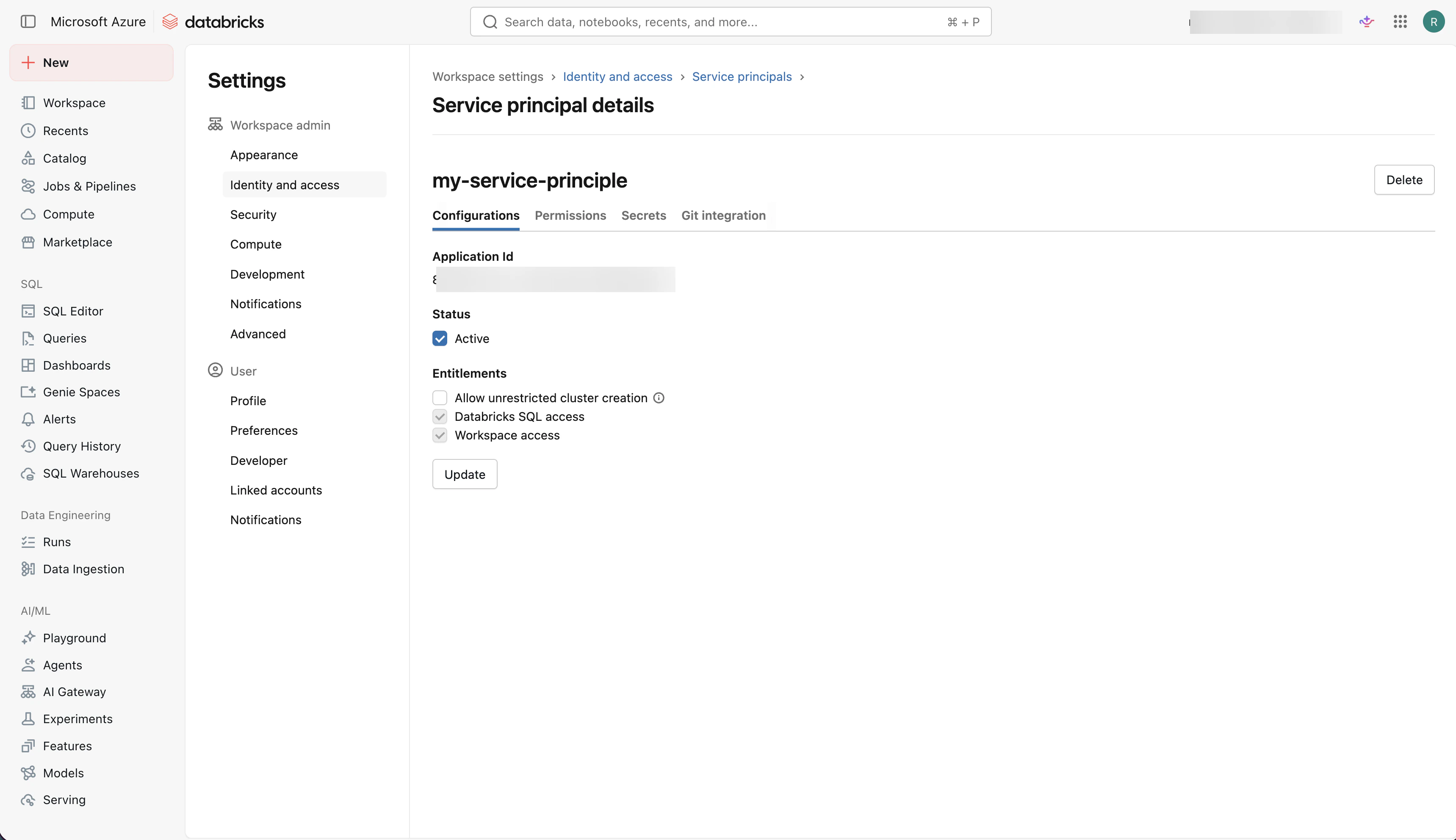
After Databricks creates the service principal, confirm it is active. Keep this page open if you need the service principal details while configuring the Replit connector.
7
Grant access
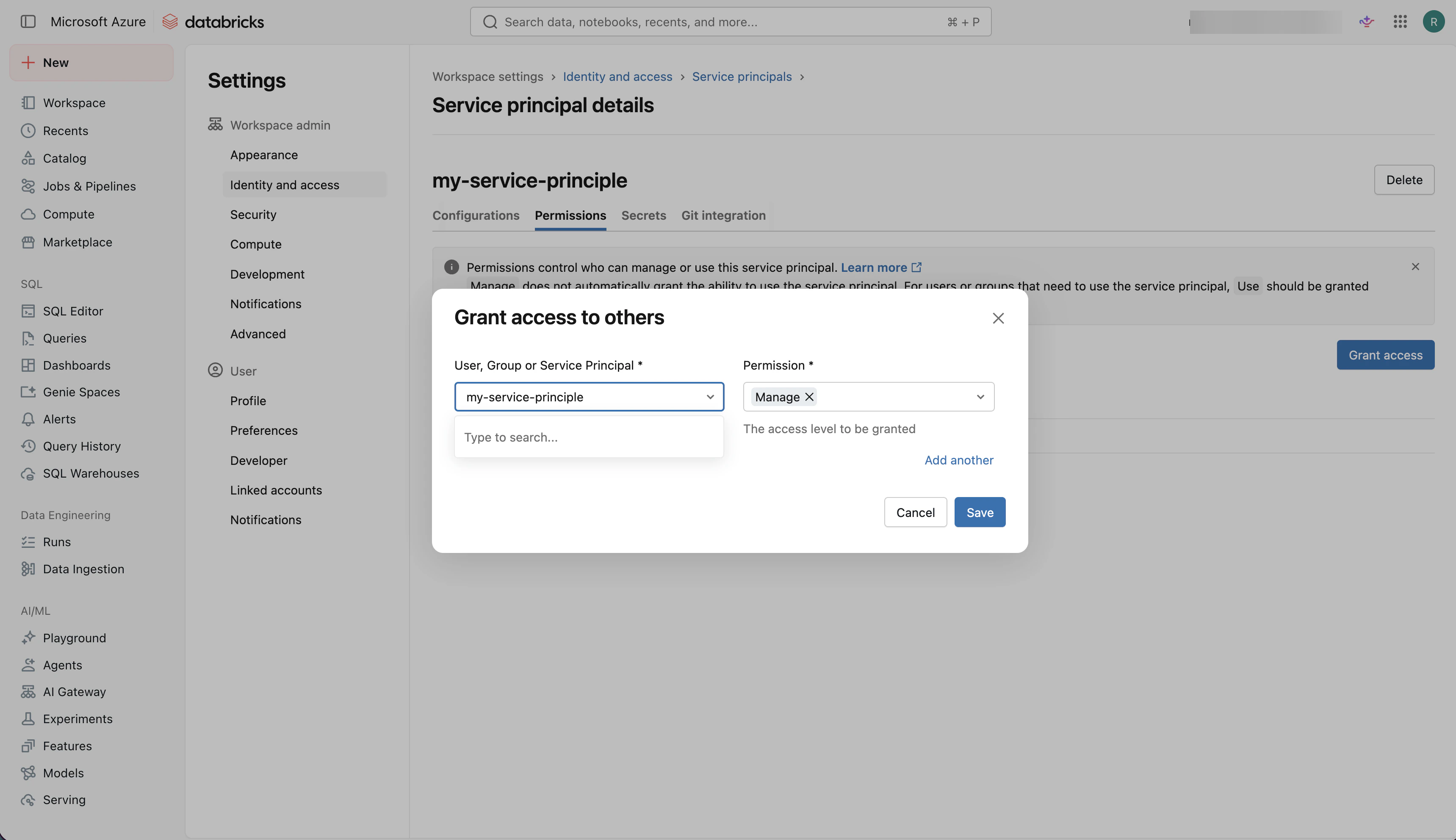
Open the Permissions tab, select Grant access, choose the service principal, set the permission to Manage, then select Save.
The Replit connector needs Databricks SQL Warehouse connection details to route queries to the right compute resource.
1
Open SQL Warehouses
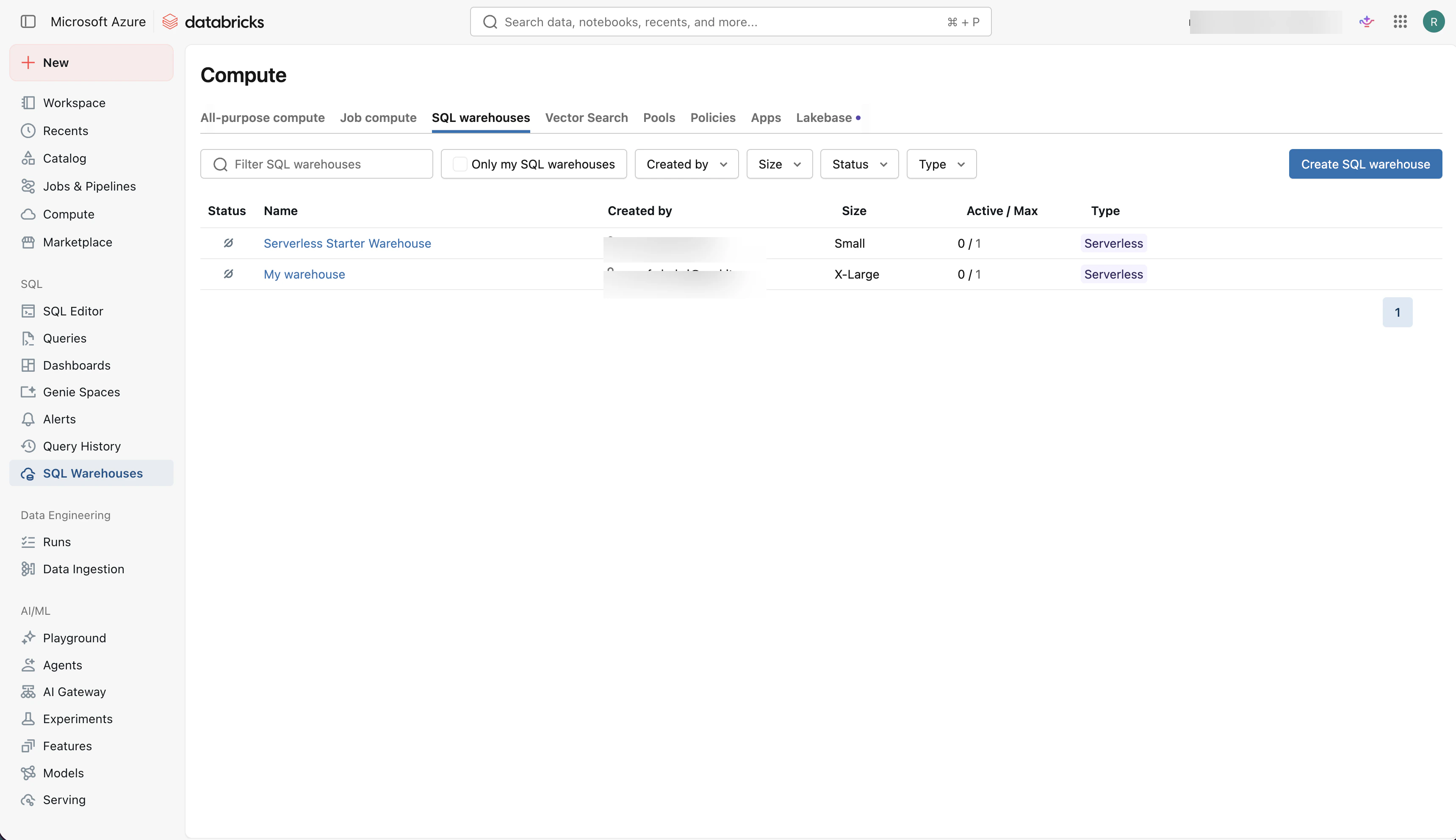
In the Databricks sidebar, select SQL Warehouses.
2
Select or create a warehouse
Select the SQL Warehouse you want Replit Agent to use. If you do not already have one, select Create SQL warehouse and create a new warehouse.
3
Copy connection details
Open the warehouse and select Connection details. Locate the Server hostname and HTTP path values. You need these values when creating the Databricks connector in Replit.
You must be a Replit organization admin to configure connectors.
The Replit admin adds the Databricks connection details to Replit so builders can use the connector.
1
Navigate to Integrations
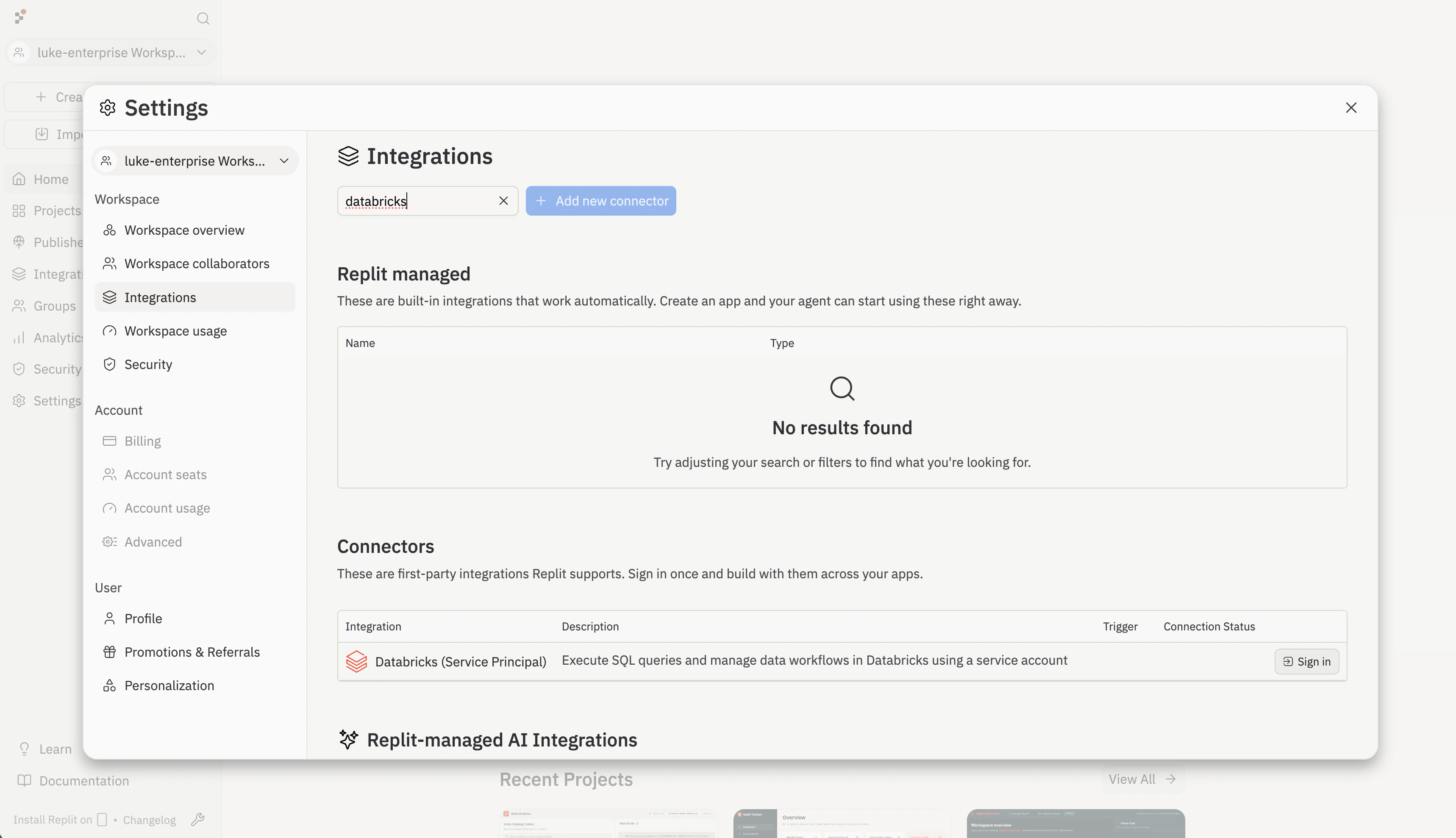
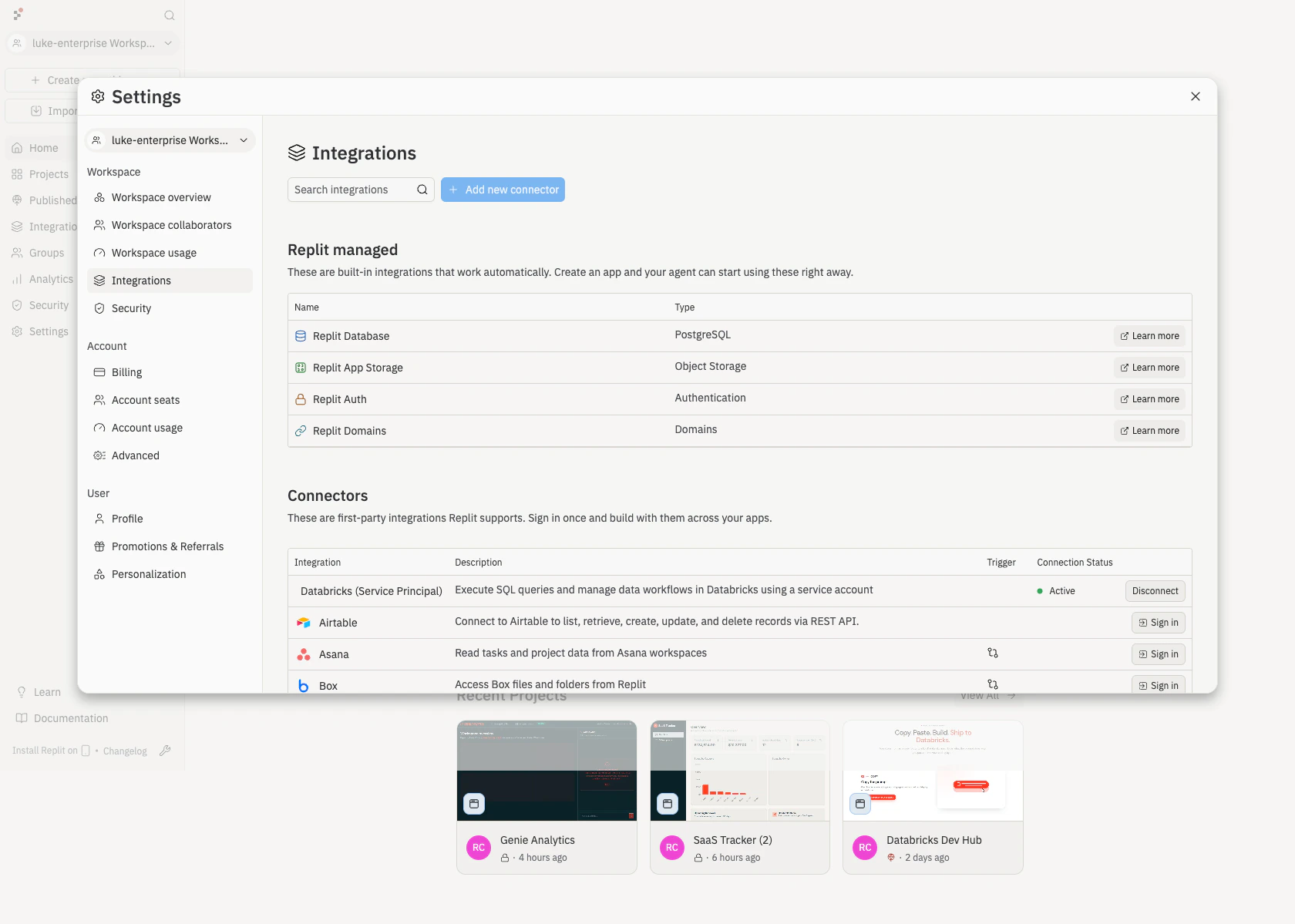
Go to Integrations in Settings. Under Connectors, find Databricks (Service Principal) and select Sign in.
2
Confirm the connection
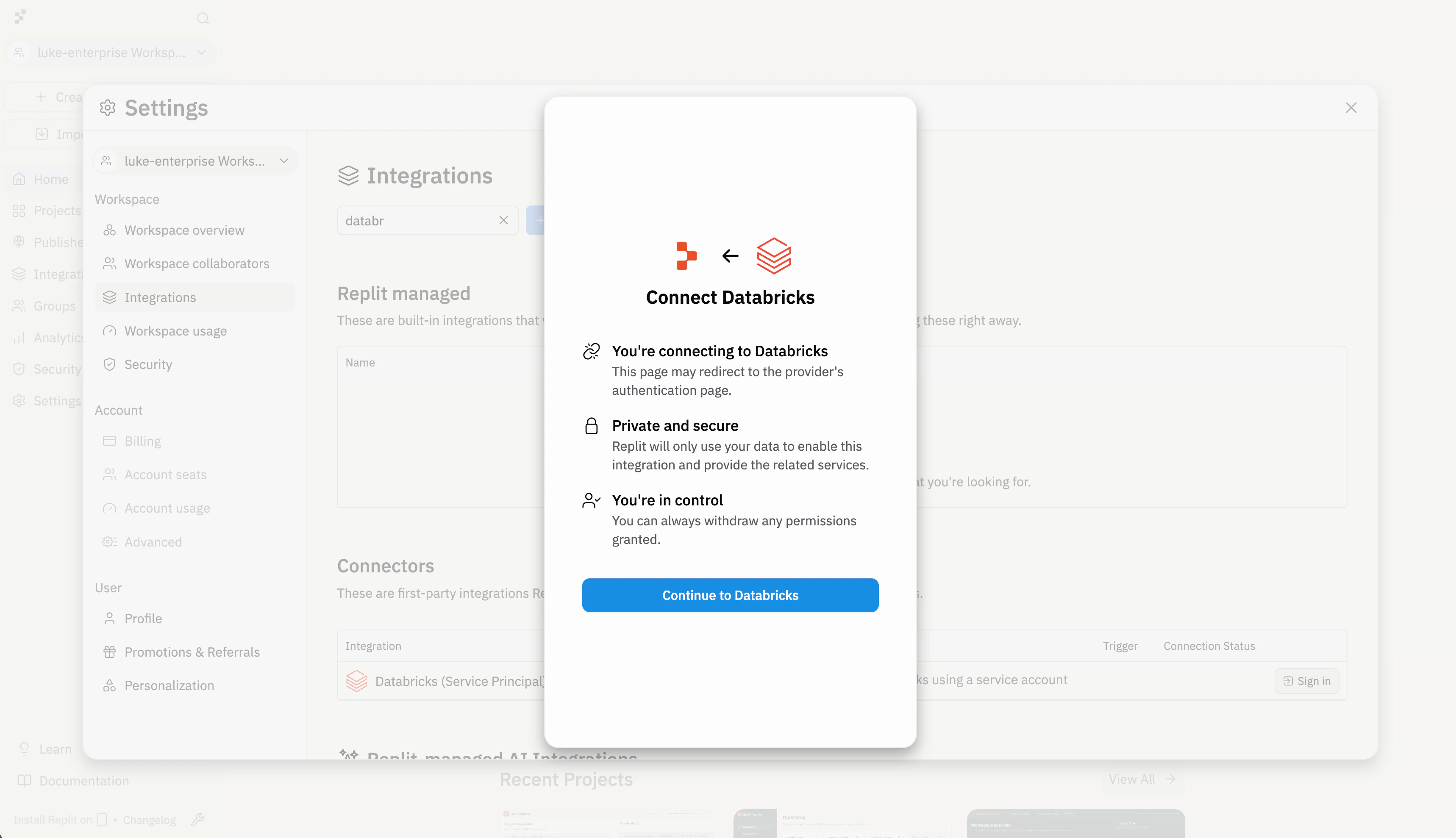
Replit shows a confirmation dialog before redirecting to Databricks for authentication. Review the details and select Continue to Databricks.
3
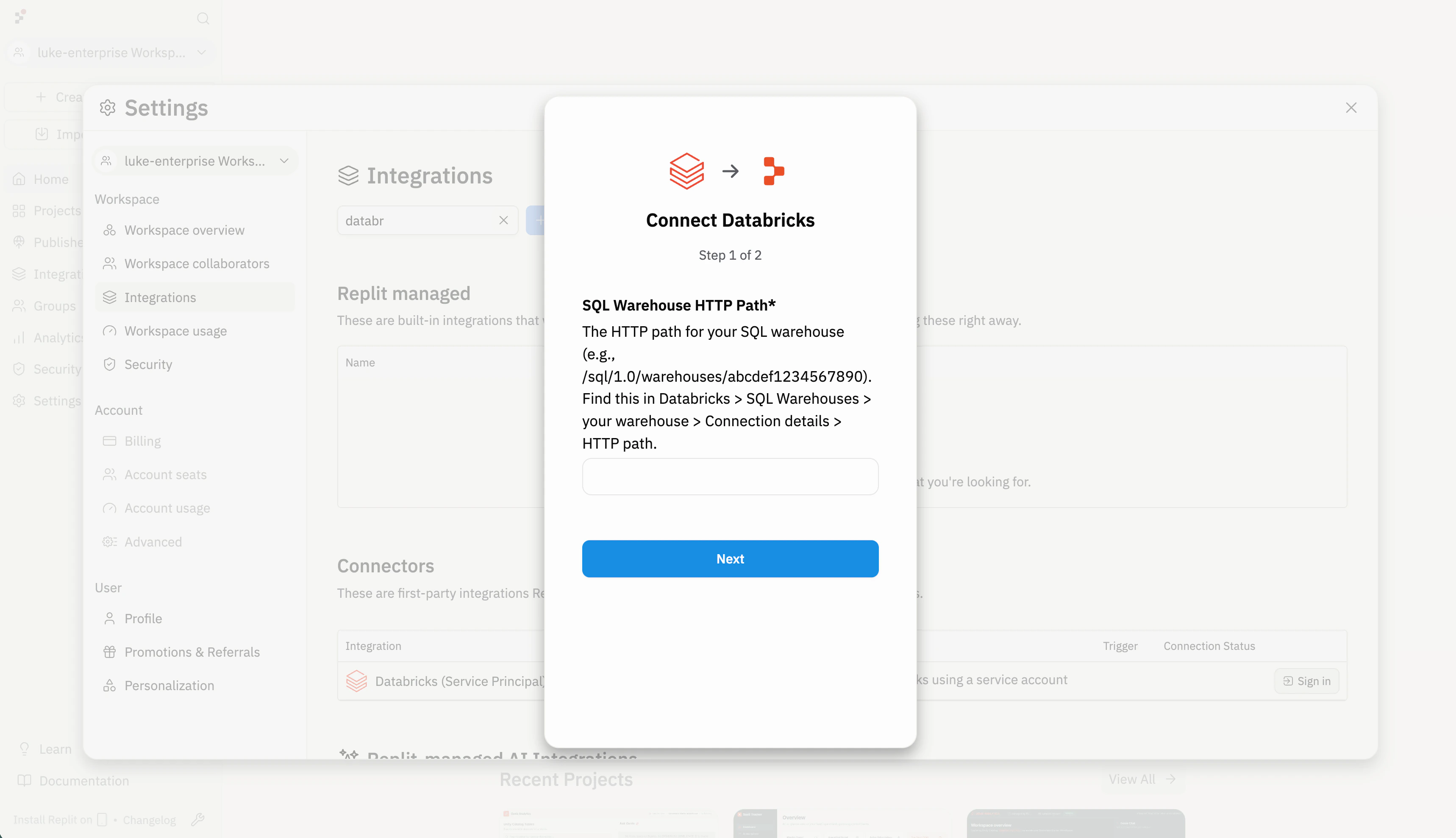
Enter the SQL Warehouse HTTP path
Paste the HTTP path from your Databricks SQL Warehouse connection details (for example, /sql/1.0/warehouses/abcdef1234567890), then select Next.
4
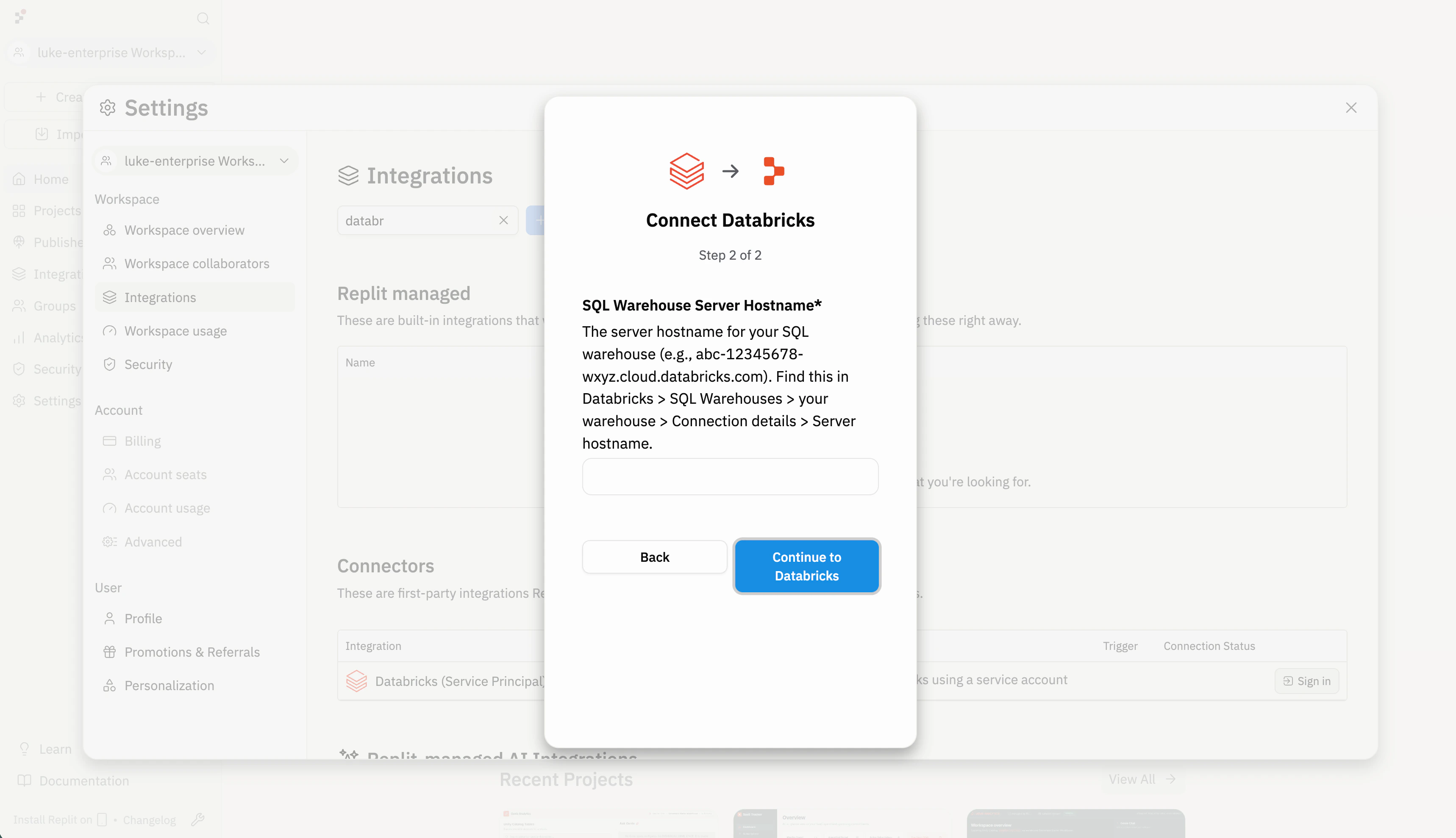
Enter the SQL Warehouse server hostname
Paste the Server hostname from the same connection details (for example, abc-12345678-wxyz.cloud.databricks.com), then select Continue to Databricks to complete authentication.
5
Configure access
Use Role-Based Access Control to choose which members or groups in your organization can use this connector.
6
Verify the connector is active
Back on the Integrations page, confirm that Databricks (Service Principal) appears under Connectors with an Active connection status.
After connecting with either method, builders can create applications that use Databricks data with Agent.
1
Select the Databricks App template for deployment
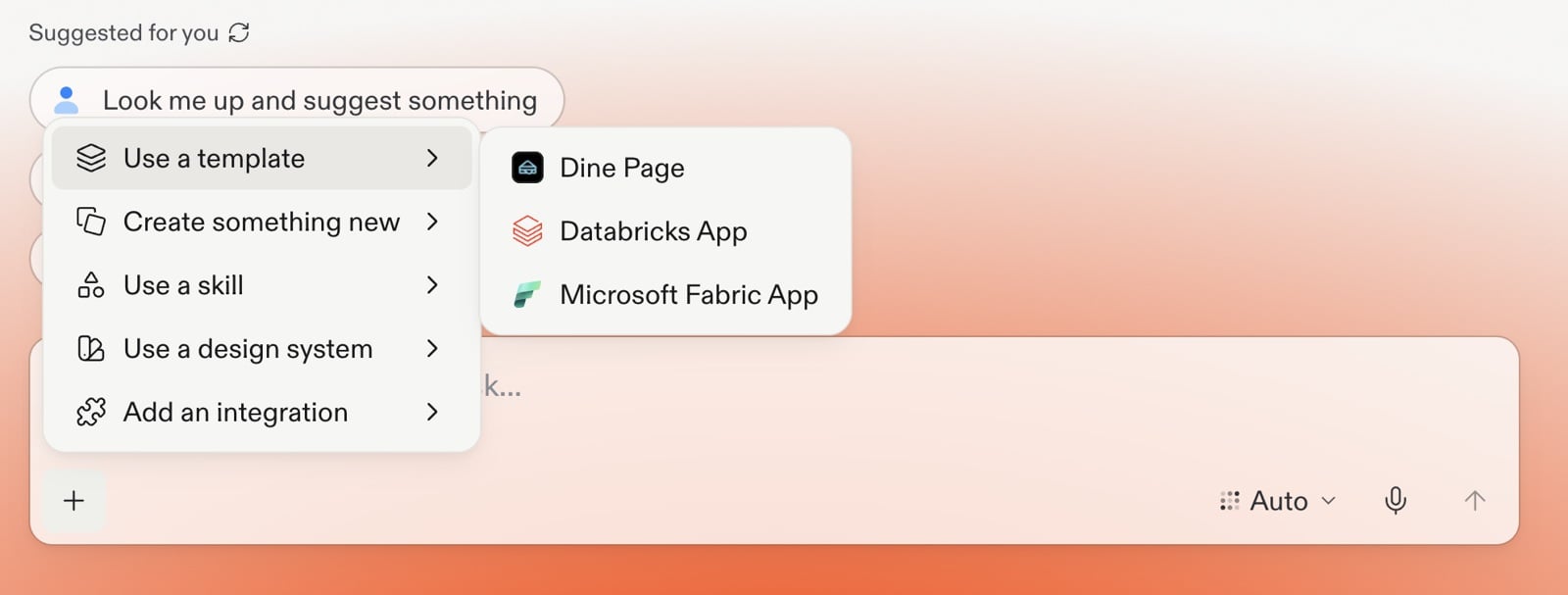
Select the Databricks App template when you want to deploy the finished app to your Databricks environment. You do not need the template to use a configured connector to access Databricks data and assets.From the Replit home page, select + in the prompt box, open Use a template, and choose Databricks App.
Apps you publish with the Databricks App template use Lakebase as their
managed production PostgreSQL database. Build and test against the development
database in Replit. When you publish, Replit prepares a Lakebase database in
your Databricks workspace and applies your schema changes.Use Lakebase for application state such as user accounts, settings, and
transactions. Continue to use a SQL Warehouse for analytics and Unity Catalog
data.
1
Build with the development database
Ask Agent to add the application data your project needs. Use the
Database tool to review tables and data while you build. See
Development and production databases
for how the two databases differ.
2
Prepare the production database
Start publishing your Databricks App. Review the schema changes that Replit
applies to Lakebase before you continue. See
Making safe changes to your production database
for changes that need planning.
3
Publish your app
Publish the app to create or update its Lakebase database. Replit connects
the published app to Lakebase automatically.
Apps published with other templates use a standard Replit
production database
instead of Lakebase.
Check the Databricks permissions for the identity running the query. With
U2M, this is the individual builder. With the service principal connector,
it is the shared service principal. The identity may have metadata access
but no read permission on the data. Grant the required catalog, schema, or
table permissions and try again.
The connector cannot reach the SQL Warehouse
Verify that the Server hostname and HTTP path match the SQL Warehouse
connection details in Databricks. For U2M, check the values entered by the
affected builder. Also confirm that the warehouse is running and the query
identity has permission to use it.
Authentication fails
For U2M, confirm the Databricks app connection lists
https://replit.com/connectors/oauth/callback under Redirect URLs, with
no trailing slash. If authentication fails for every builder, verify the
shared Client ID and Client Secret, confirm the secret has not expired, and
make sure the scopes in Replit match the Databricks app connection.For the service principal connector, verify that the service principal
details entered in Replit match the service principal created in Databricks.
If credentials were rotated, update the connector in Replit.
The connector asks me to sign in again
This can happen with U2M when the refresh token expires or is revoked.
Complete the Databricks authorization flow again. If builders must reconnect
more often than your security policy requires, review the app connection’s
token lifetimes.