

- Steer sends the message to the active turn. Agent uses the new context as it continues working.
- Queue saves the message for the next turn. Agent starts it after the active turn finishes.
Steering chats
Steer is the default send behavior for follow-up messages in chats and Projects. You can change either preference to Queue.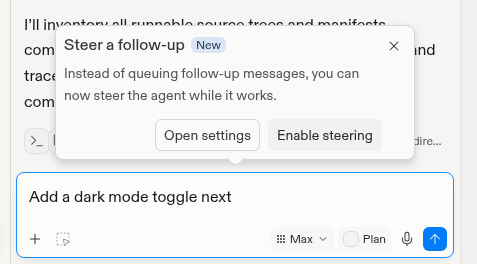
Agent can steer a follow-up instead of queuing it.
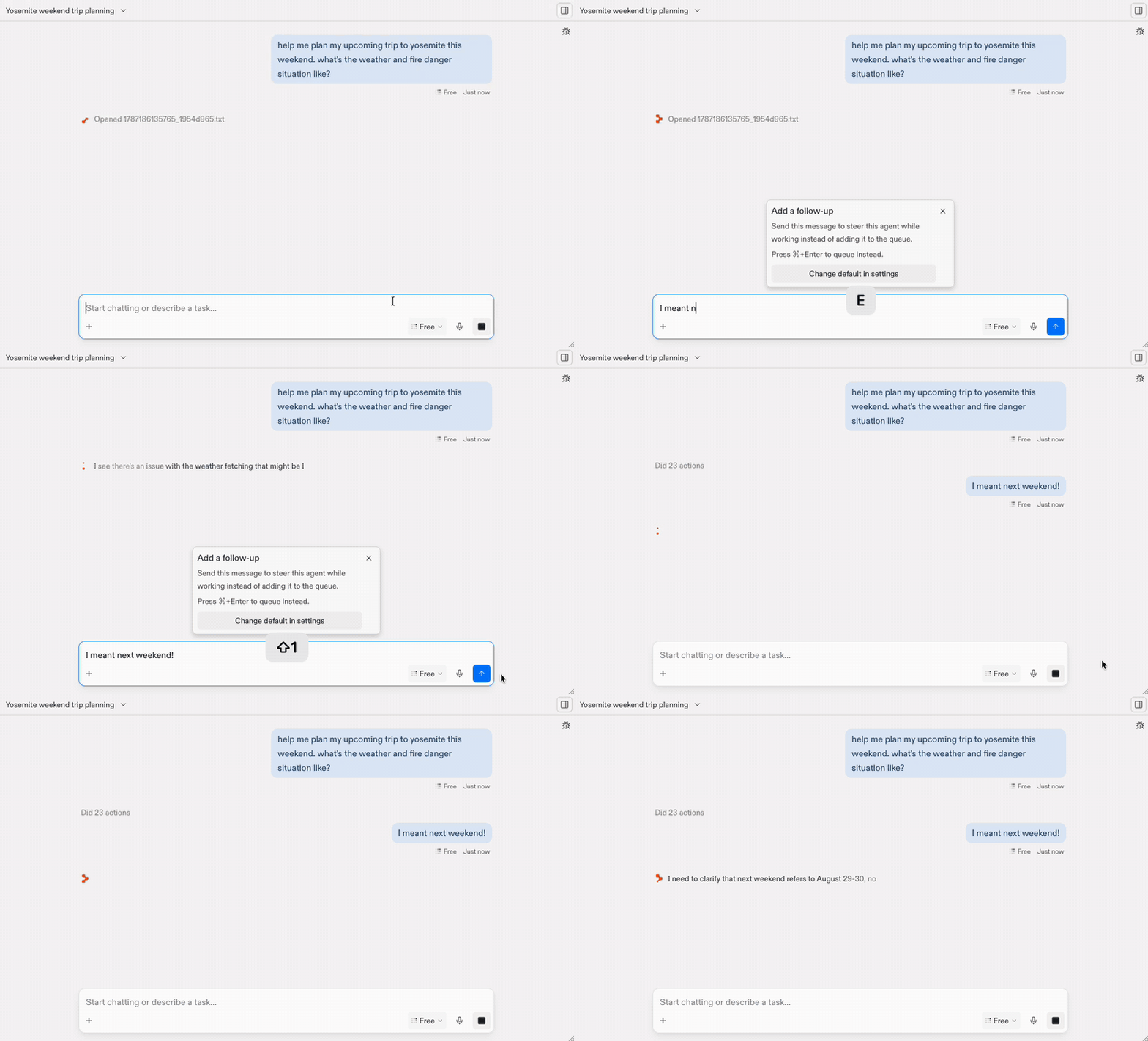
Steering a correction into Agent's active turn.
Choose how Replit sends follow-ups
You can set separate send behaviors for chats and Projects:- Go to Personalization in Settings.
- Expand Agent.
- Set Chat send behavior and Project send behavior to Steer or Queue.
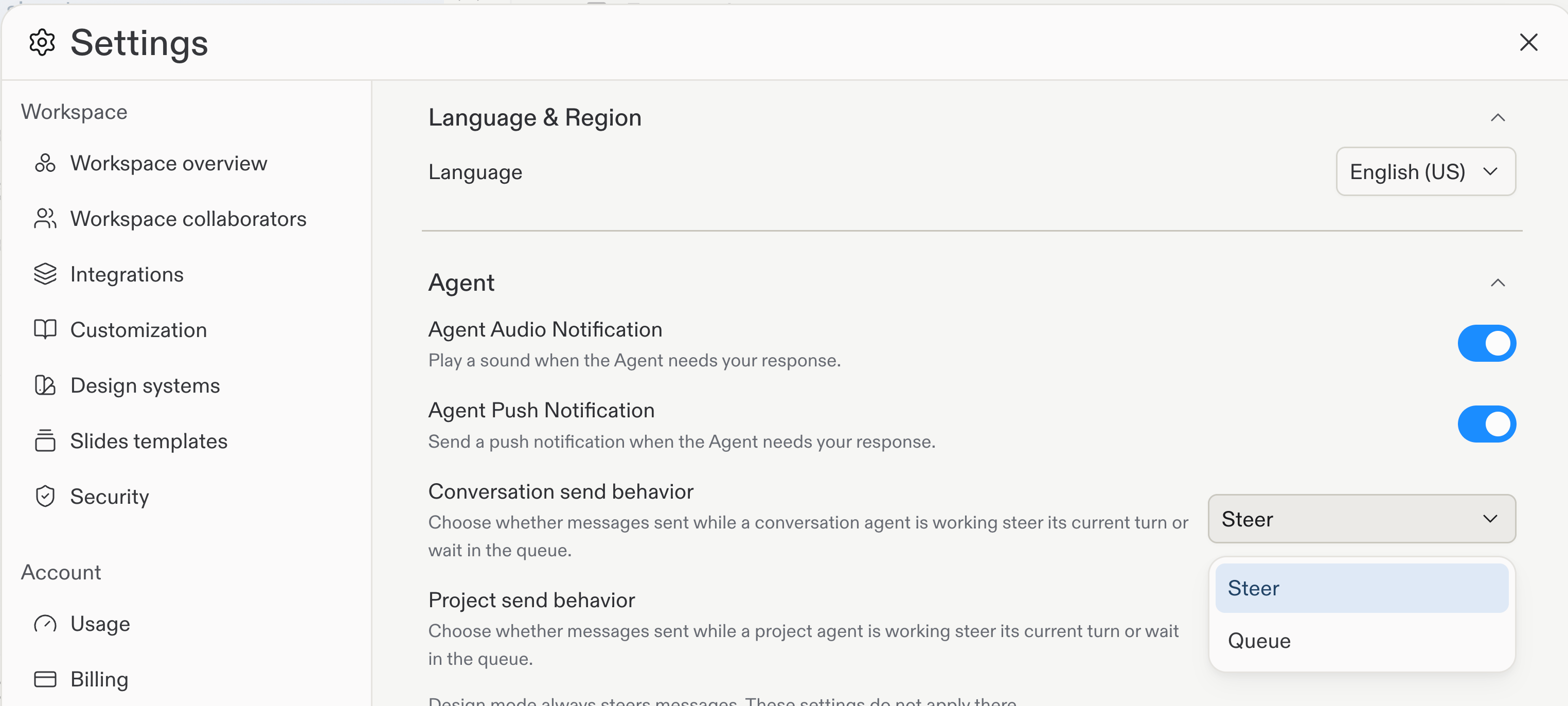
Chat and Project send behavior settings in the Agent section.
Design mode always steers follow-up messages. Chat and Project send
behavior settings do not apply in Design mode.
Cmd+Enter (Mac) or Ctrl+Enter (Windows and Linux).
Work with queued messages
When you queue a follow-up message, the Message Queue appears as a drawer above the chat input. Agent processes queued messages in order after the active turn finishes. The drawer closes after Agent completes all queued messages. All message options are available with the Queue, including Visual Editor and file attachments.Agent processes queued messages automatically only while an active Project
Editor session is connected on desktop or mobile.
Manage the queue
When the queue drawer is open, you can:- Steer now: Move a queued message into the active turn.
- Edit messages: Change a queued message before Agent processes it.
- Delete messages: Remove messages you no longer need.
- Reorder messages: Drag messages to change their processing order.
- Add messages: Send more follow-ups to the queue.