

Before you start
You need a Replit account. This guide uses Free Mode, which uses intelligent model routing to select the model. The goal is to practice a repeatable prompting loop:- Describe one useful outcome.
- Add observable success criteria.
- Set boundaries for what not to build yet.
- Test the result in Preview.
- Ask for one focused improvement.
Build the first version
1
Start a new Website
Start a new chat and choose Website as the artifact. You can select it from the New menu or from Add attachment → Create something new → Website in the prompt box.Open the mode selector and choose Free.
2
Describe the outcome and success criteria
Use this prompt: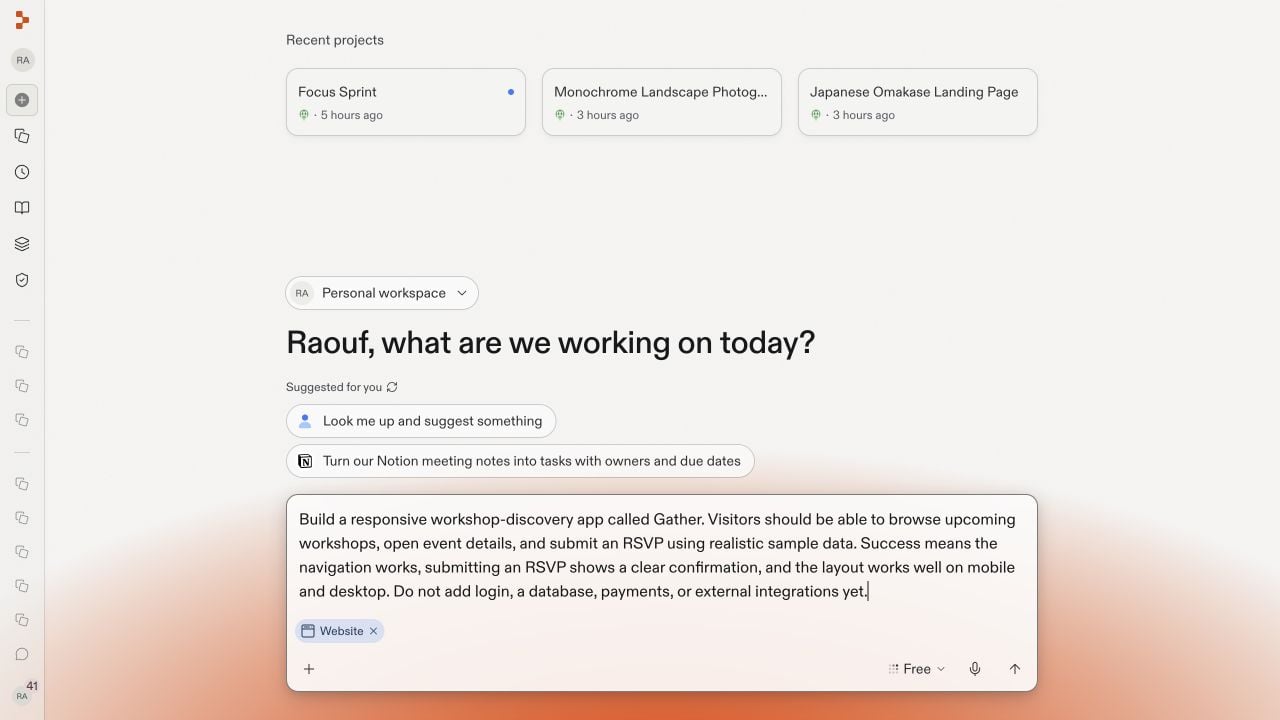
3
Let Agent build in Free Mode
Send the prompt. Agent plans the artifact, creates the app, starts it, and checks the result. Follow progress in chat and wait until Agent presents a Website artifact and Preview is running.Free Mode may take a few minutes for a complete first build. If Replit recommends a higher mode for a more complex request, you can decide whether to escalate; this Gather build completes in Free Mode.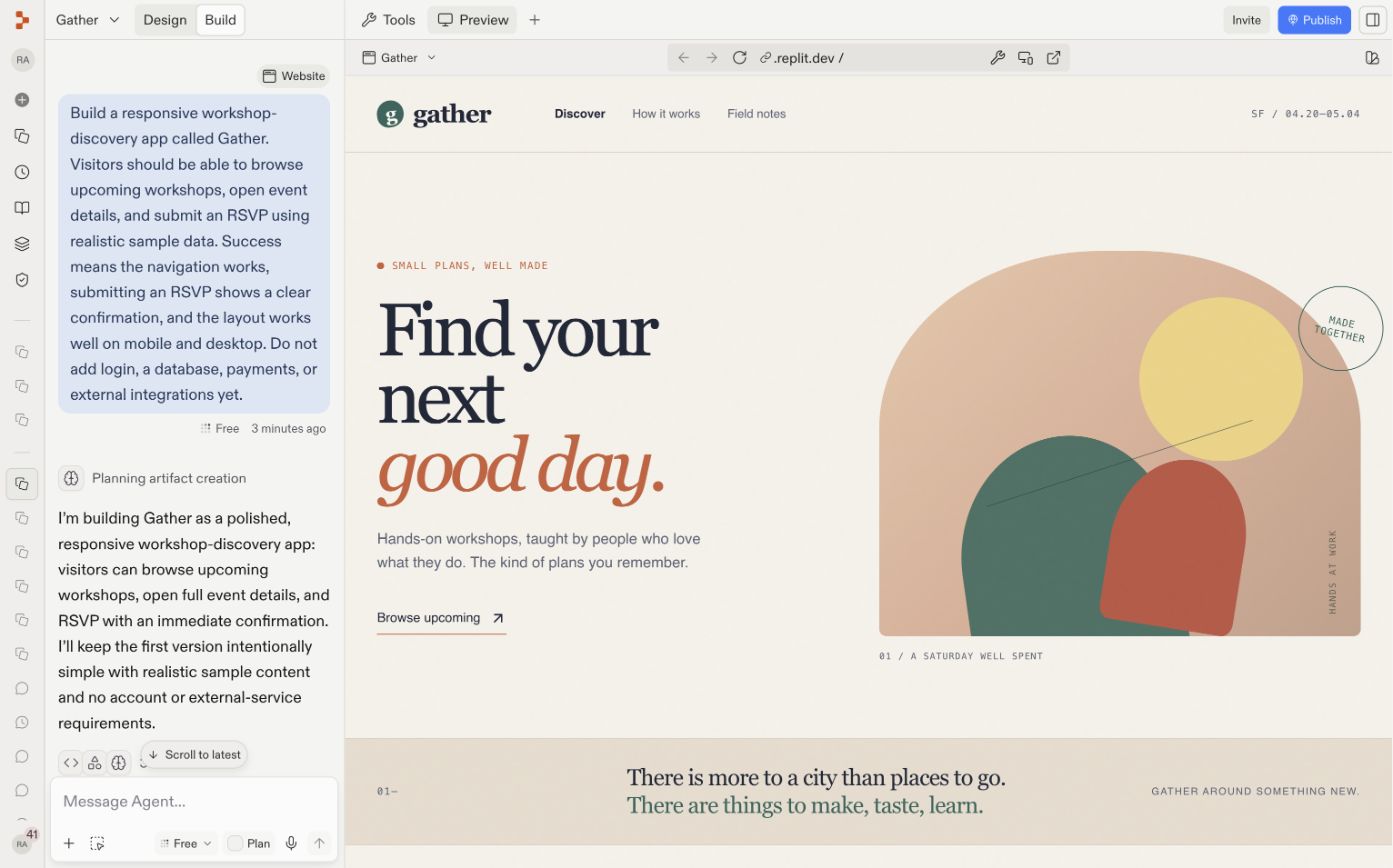
4
Test the result in Preview
Use the app like a visitor. Check that you can:
- Browse the workshop list.
- Open a workshop detail page.
- Submit an RSVP.
- See a clear confirmation after submitting.
- Use the main navigation.
- Resize Preview to a phone-sized width.
Improve the app with a focused prompt
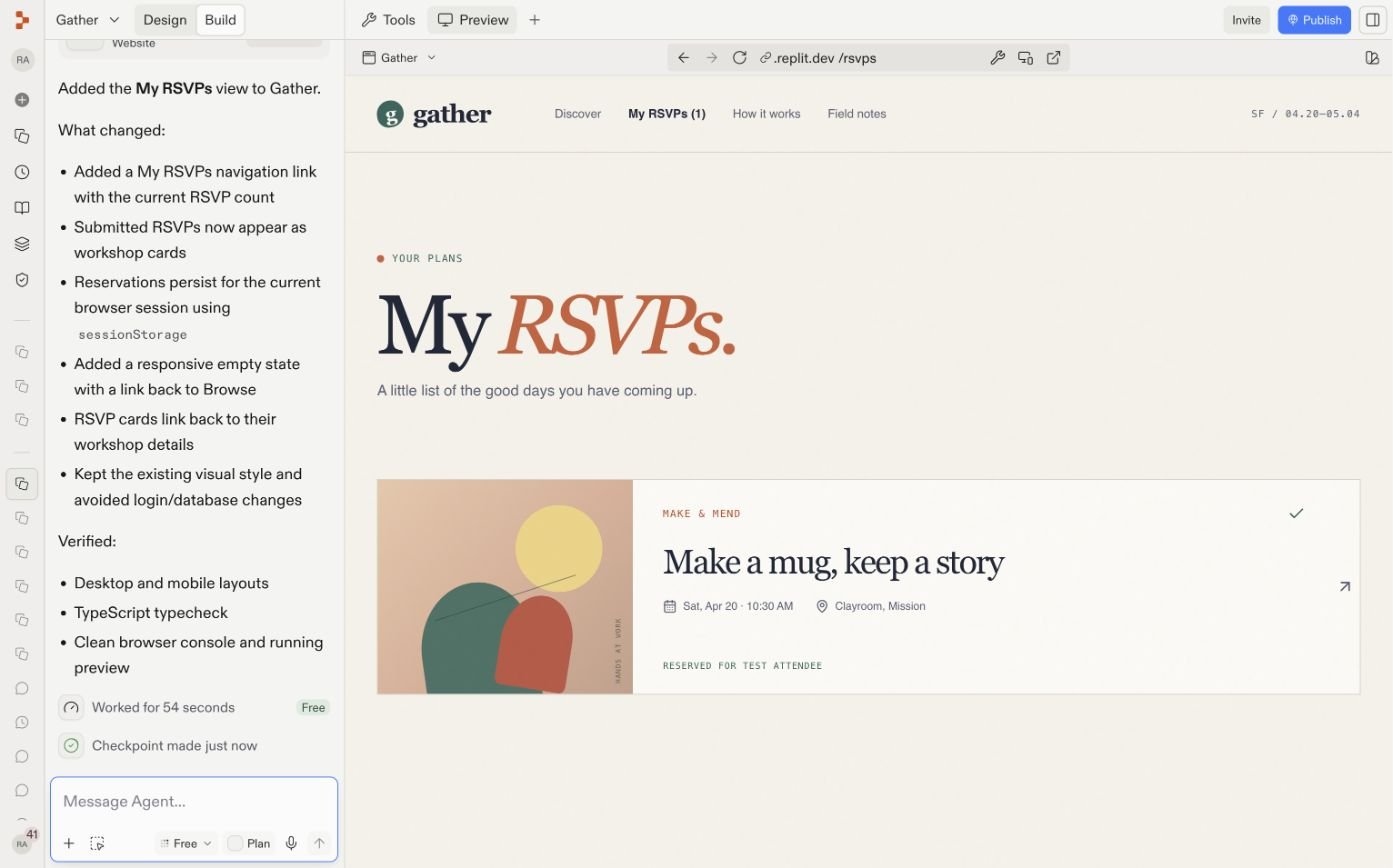
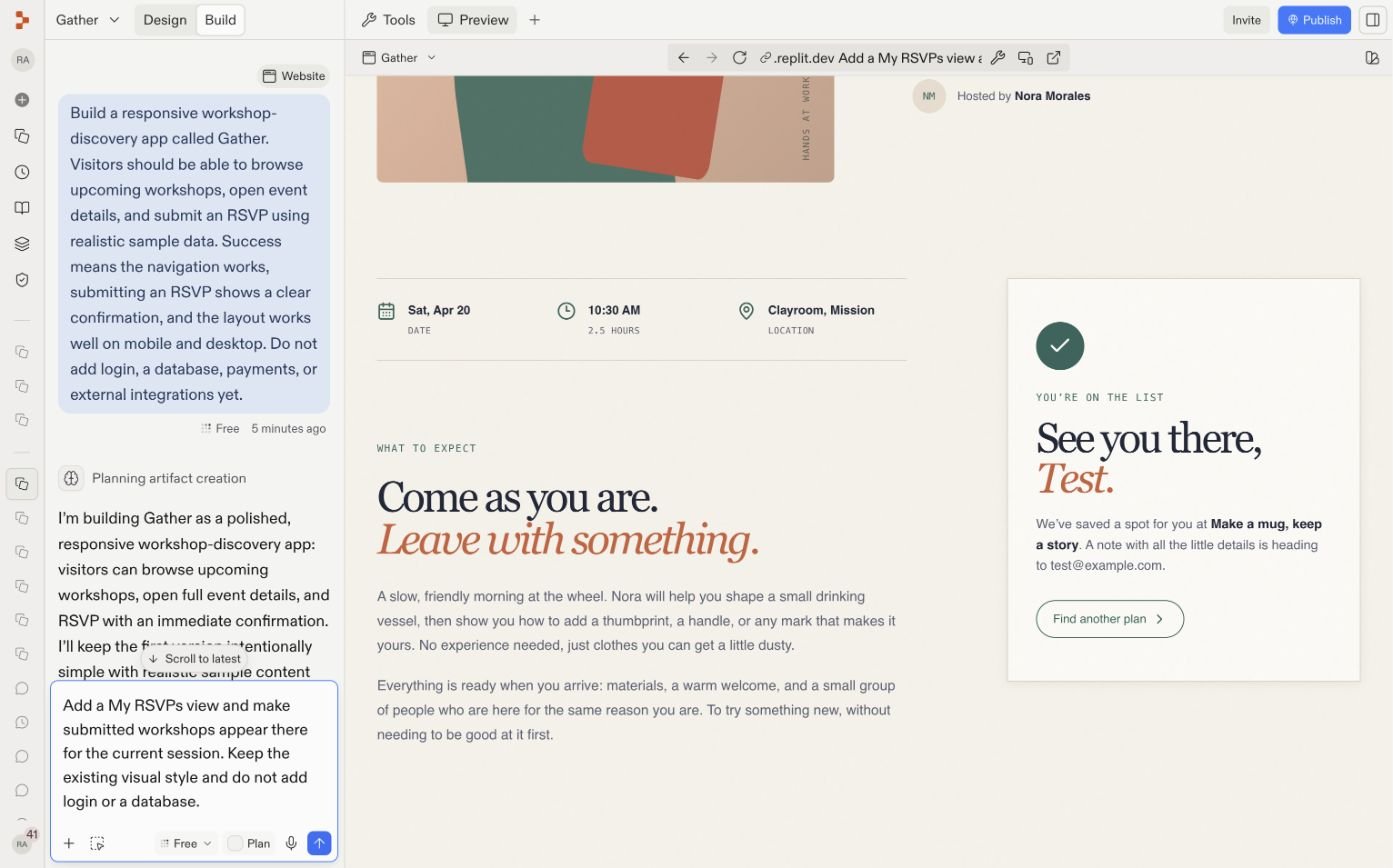
Once the core experience works, ask for one clear improvement at a time. For Gather, add a session-only view of submitted RSVPs:Add a My RSVPs view and make submitted workshops appear there for the current session. Keep the existing visual style and do not add login or a database.
Grow your app
The first prompt deliberately postpones production capabilities. Add them when the core experience is ready:Add login
Give attendees accounts and private RSVP history.
Add a database
Persist workshops and RSVPs across sessions.
Add payments
Sell tickets for paid workshops.
Add integrations
Send confirmations or connect calendars and other services.