

If you’re not sure whether a team workspace is the right fit, see Personal & Team Workspaces for the difference between the two, when to use each, and plan availability.
Create a team workspace
1
Open workspace switcher
In the home page, click your workspace name in the top-left corner.
2
Create a new workspace
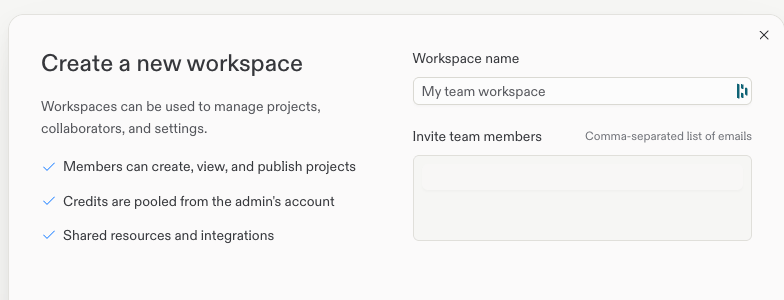
Select Create workspace and choose a name for your team workspace.
3
Invite members
Enter one or more email addresses (comma-separated) in the invite field. Invitees receive an invitation and gain access to all projects in the workspace once they accept.
Manage members
If you didn’t invite members during setup, or need to add more later, go to Settings > Workspace collaborators in your team workspace and invite members by email or Replit username.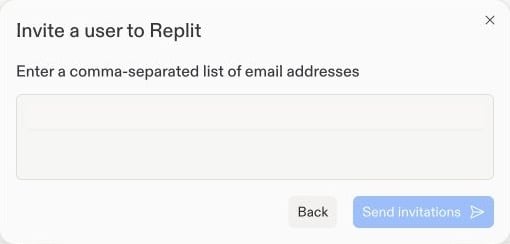
- Remove members to revoke their access to all workspace projects.
- Transfer projects from personal workspaces into the team workspace — see Transfer app to teams.
Next steps
Invite teammates
Invite people to a specific project and build together with Agent.
Personal & Team Workspaces
Understand the difference, choose the right type, and review plan availability.
Pro and Enterprise
Enterprise features: SSO/SAML, groups, permissions, and audit logs.