

Connect a pre-listed MCP server
Replit ships with a curated list of MCP servers for popular services like Stripe, Linear, Notion, Sentry, and more. Connecting is a single sign-in click.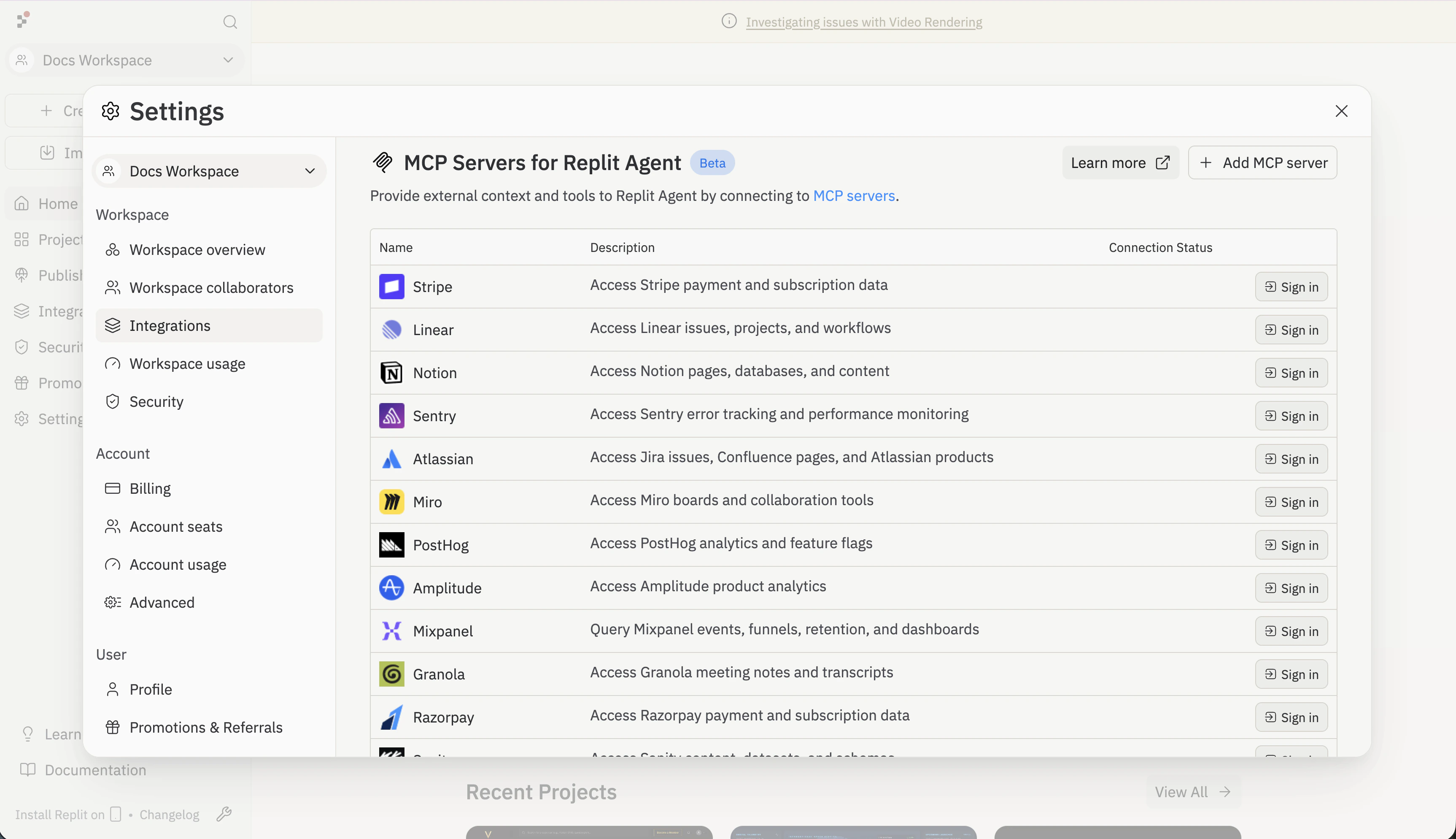
1
Open the Integrations pane
Go to replit.com/integrations and scroll to MCP Servers for Replit Agent.
2
Pick a server
Find the service you want to connect — Stripe, Linear, Notion, Sentry, Atlassian, Miro, PostHog, Amplitude, Mixpanel, Granola, Razorpay, and others.
3
Sign in
Click Sign in next to the server. You’ll be guided through the OAuth flow with that service. Once connected, the server’s connection status updates and Agent can use its tools.
Add a custom MCP server
If the server you want isn’t in the pre-listed catalog, add it by URL.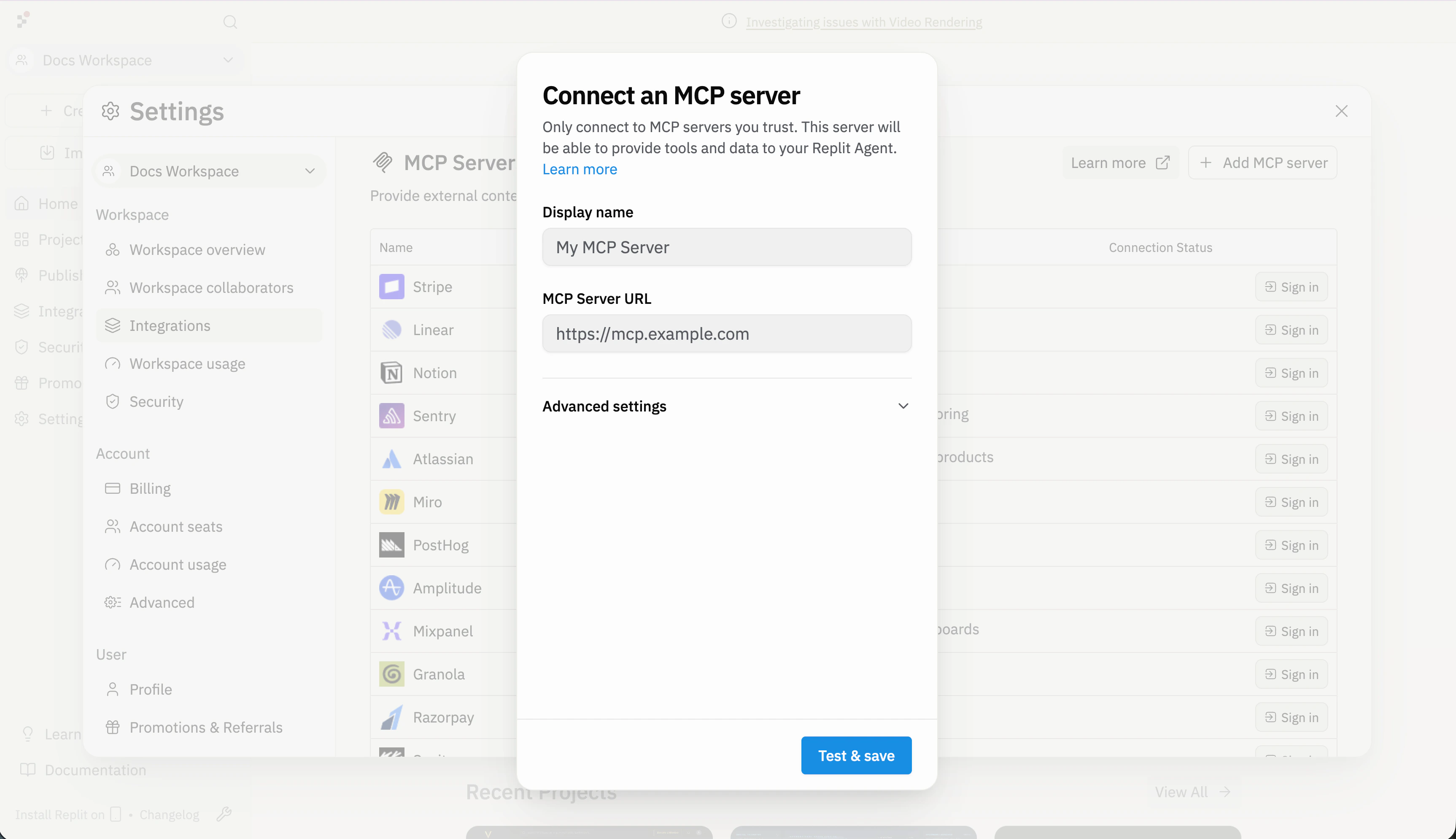
1
Open the add-server dialog
On the MCP Servers settings pane, click + Add MCP server.
2
Set a display name
Provide a recognizable name — Agent uses it to reference the server in chat logs.
3
Enter the server URL
Paste the MCP server’s HTTPS endpoint. Open Advanced settings to add custom headers (e.g.
X-API-Key) if the server needs authentication.4
Test & save
Click Test & save. Replit attempts to connect and walks you through any OAuth flow the server requires. Once saved, the connection appears under MCP Servers with its status.
Use MCP tools in Agent
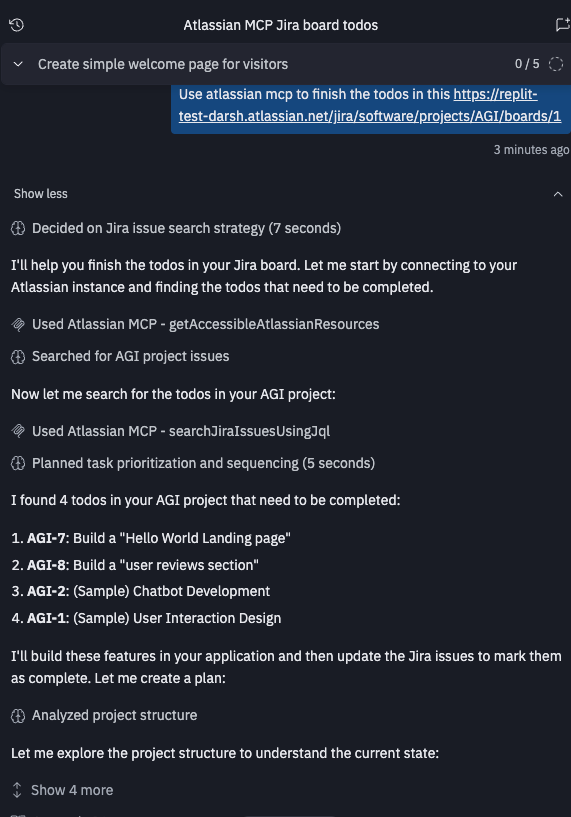
After a server is connected, Agent automatically fetches its tool list and makes the capabilities available across all your projects. To use a server, just mention it in chat:Use the Notion MCP server to find the most recent meeting notes.
Share an install link
Install links let anyone add your MCP server to Replit with a single click — useful for documentation, READMEs, or anywhere you want to promote your integration. Use the form below to generate an install link and a clickable badge for your server: For the link format, see the install link reference.Next steps
Model Context Protocol
Understand what MCP is, how it works, and the capabilities it unlocks for AI.
MCP list
Browse the curated list of MCP servers with one-click install buttons.