

Before you start
You need a Replit account. Building a new app from a Design frame requires Core or Pro. See Build your design and Billing for plan details. The goal is to finish one complete loop:- Choose a template in Replit Design,
- Build it with Agent,
- Test the app,
- Publish, and share.
Choose, build, and publish a template
1
Browse design templates
Open replit.com/design. Browse the featured templates or filter by Landing Pages, Mobile, Prototypes, and other formats.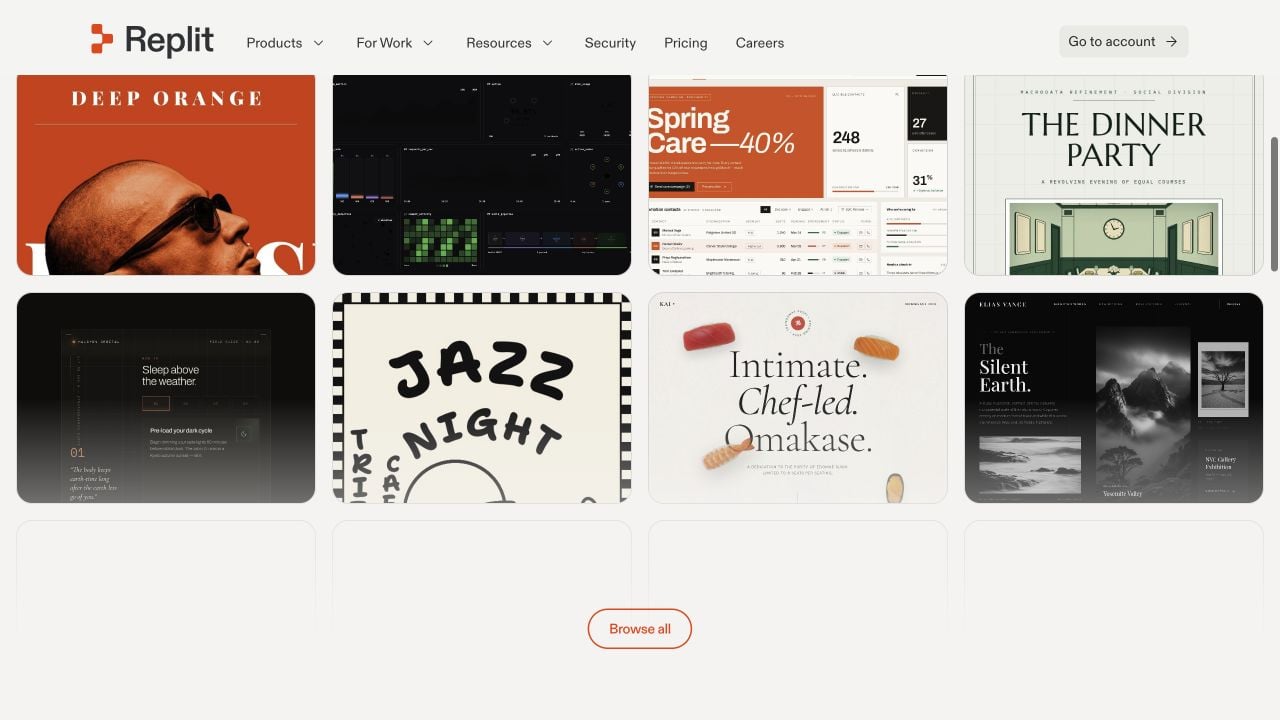
2
Preview and use a template
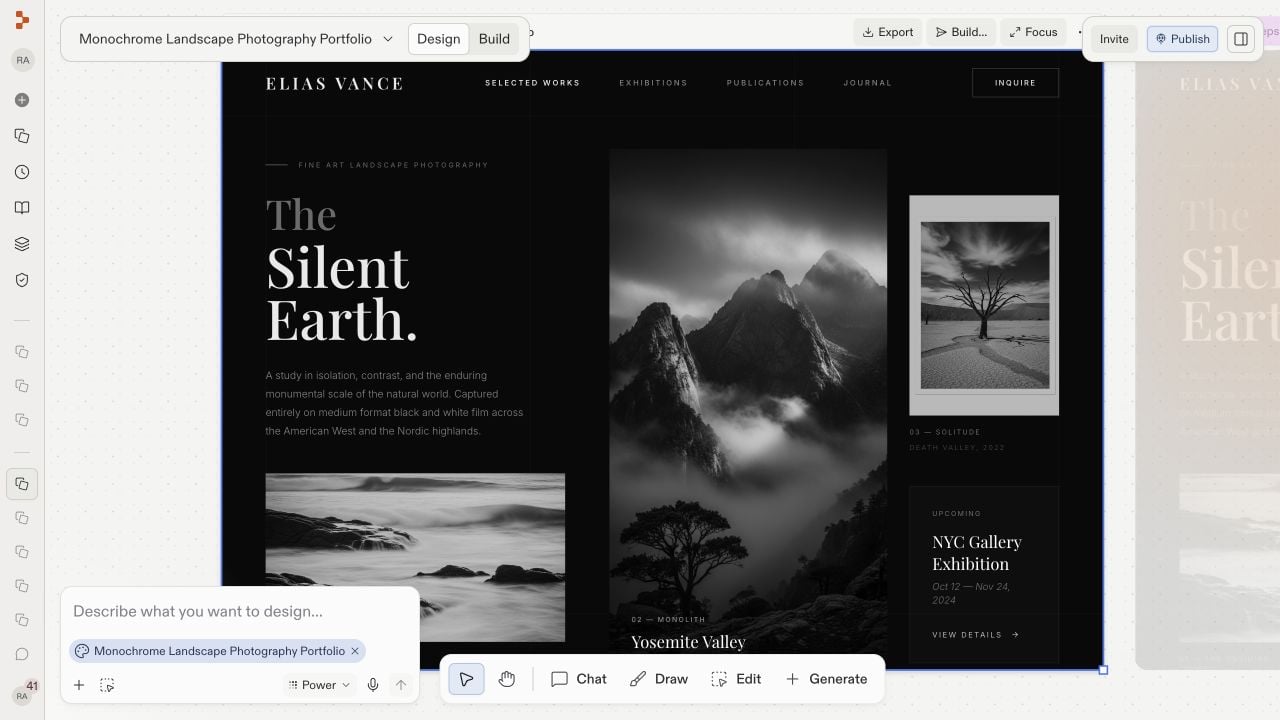
Select a template to inspect it, then select Use template. Replit creates a new project and places the template on the Design canvas. If you started from a template’s cover page instead, see Start from a template for the remix flow.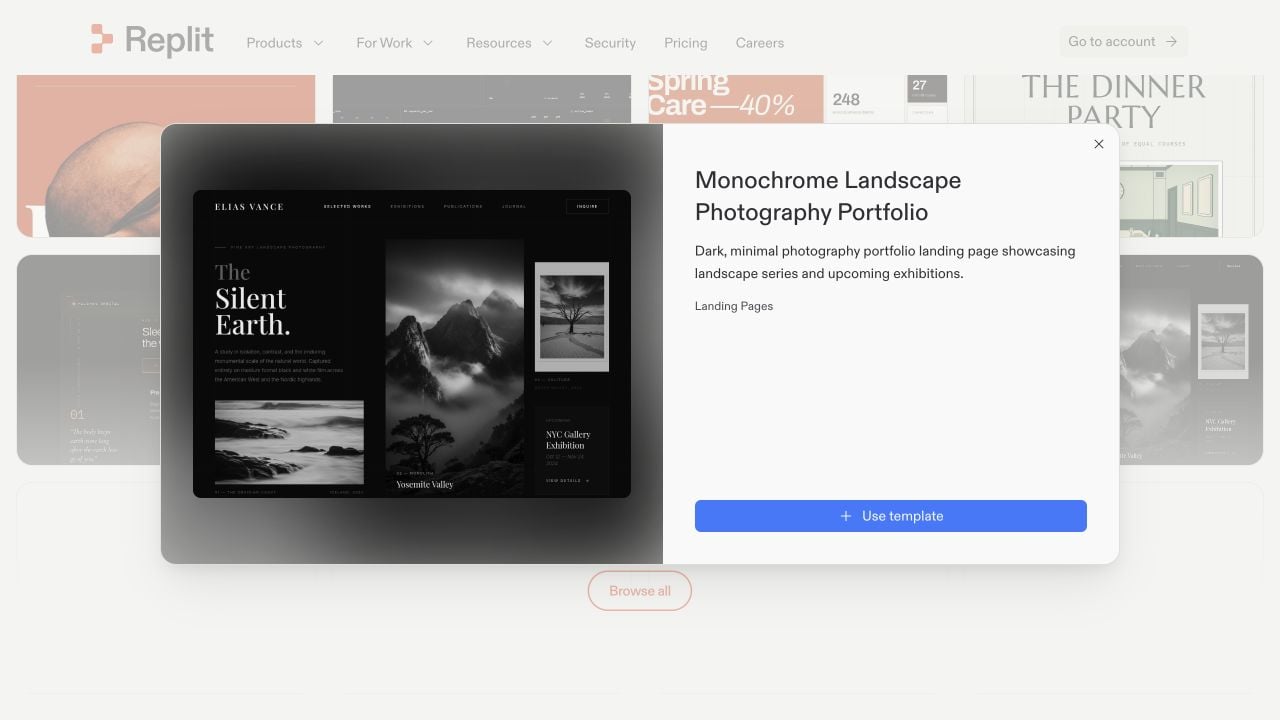
3
Turn the design into a website
A template starts as a design mockup. Before it can be published, switch to Build and ask Agent to turn the selected design into a functional website. For example: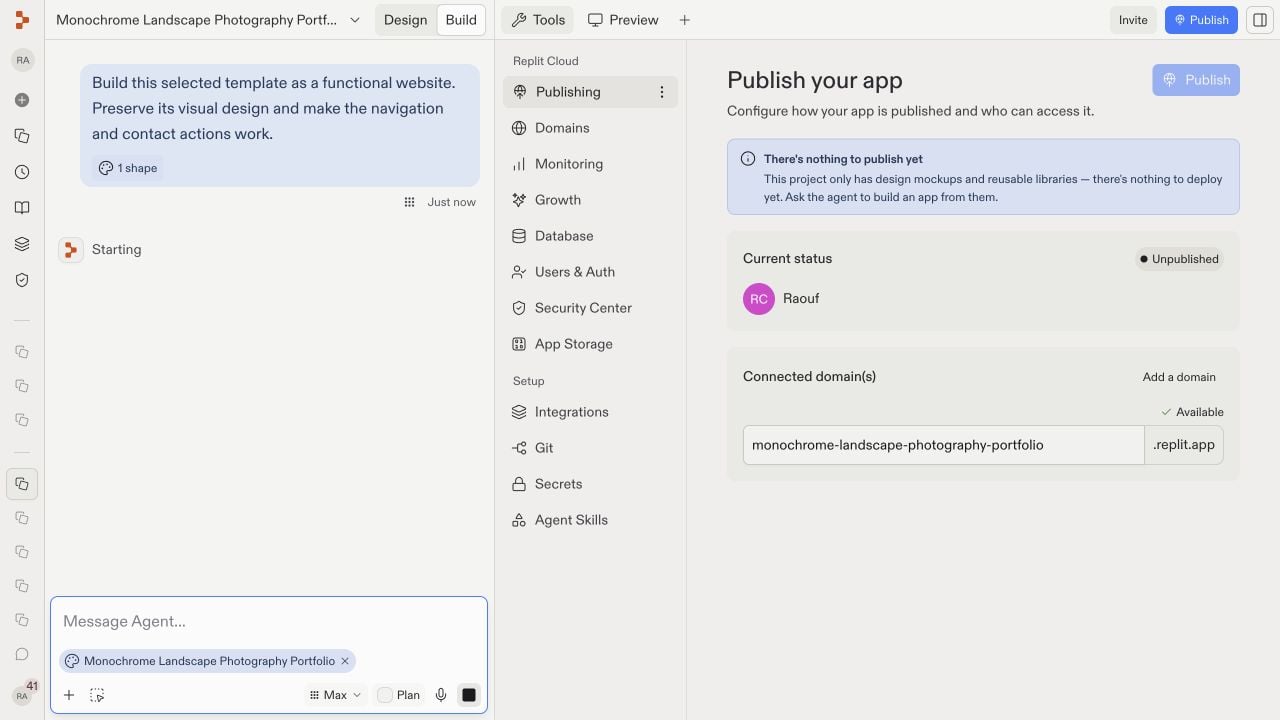
Build this selected template as a functional website. Preserve its visual design and make its navigation and contact actions work.Agent creates a website artifact in the same project and uses the selected design as its source.
The Publish button is also visible in Design. If the project contains only design mockups, Publishing reports that there is nothing to deploy yet and directs you to ask Agent to build an app. After a Website artifact exists, you can publish from either Design or Build.
4
Confirm the app works in Preview
When Agent finishes, open Preview and use the app like a visitor. Preview is where you test the app while you are building, before publishing it.Check that you can: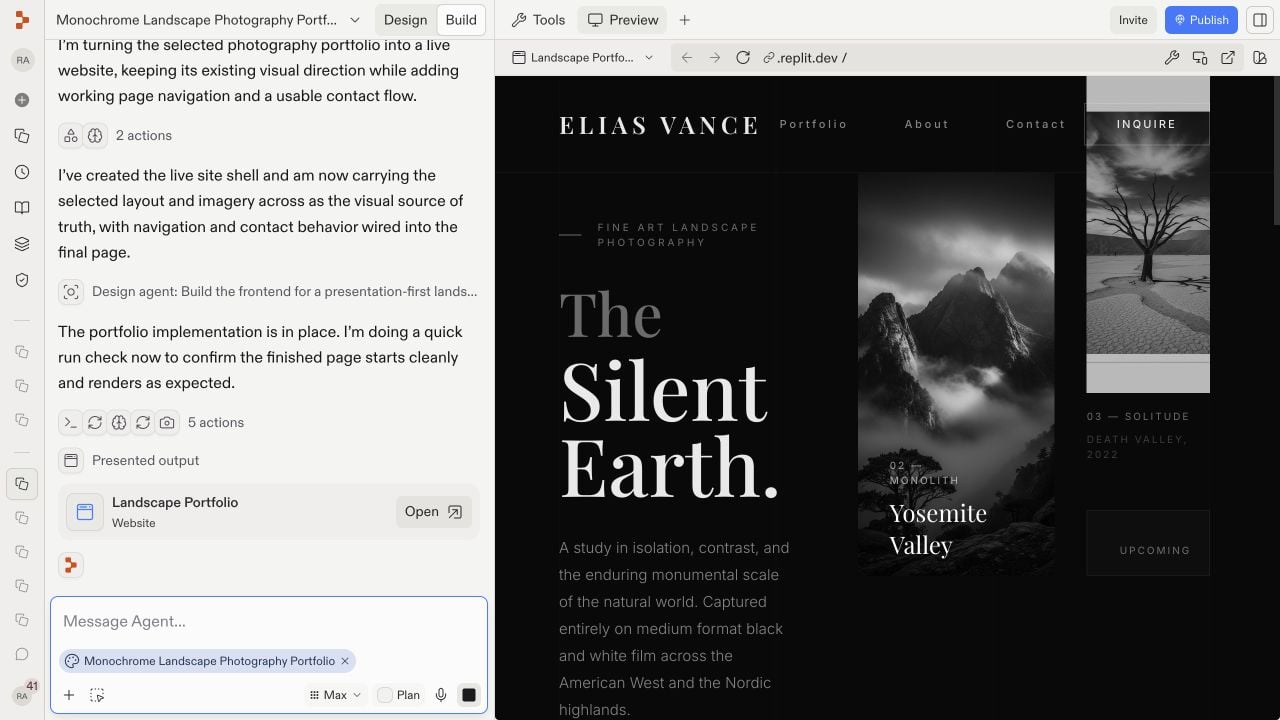
- Follow the main navigation.
- Use the template’s buttons and forms.
- See a clear success or validation state after an action.
- Refresh the page and use the site again.
- Resize Preview to a phone-sized width.
5
Publish your app
When Preview works, select Publish. Confirm the generated subdomain, choose who can access the app, and review the security settings. Then select Publish in the dialog.Publishing creates a public version of your app with a URL you can share.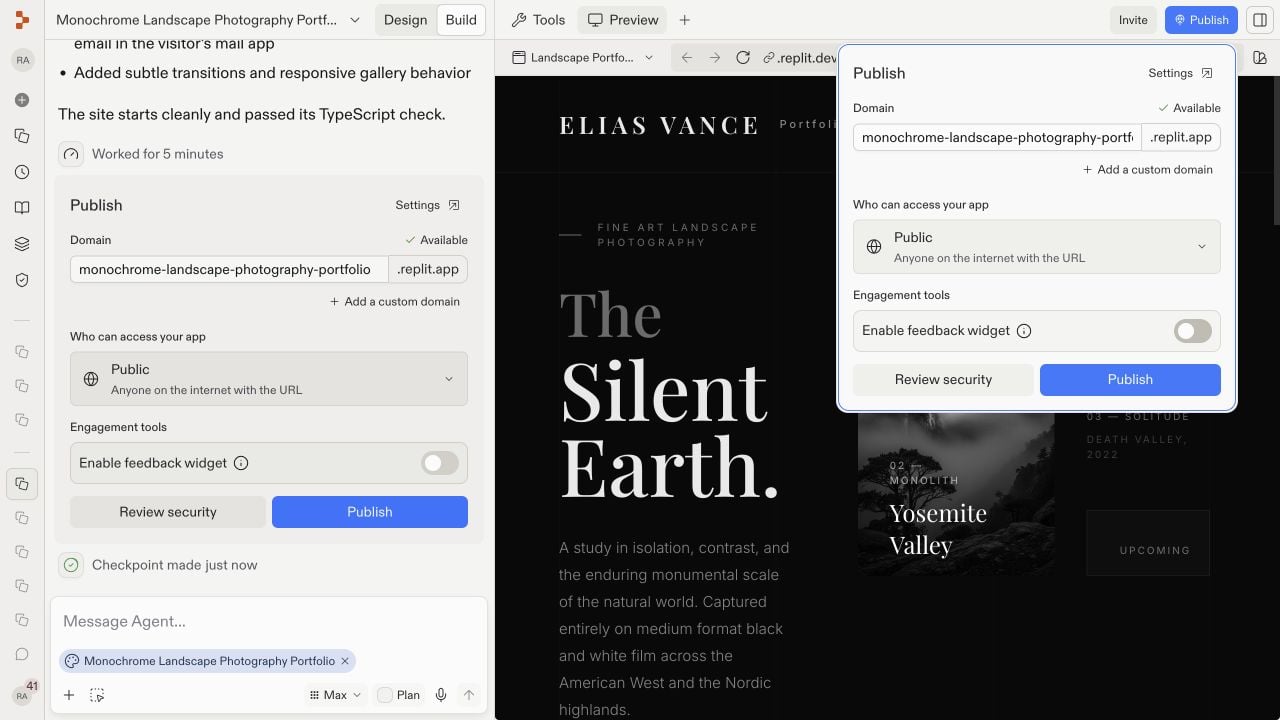
6
Open your published app
Open the public URL in a new browser tab and repeat the same checks. The app should work outside the Project Editor before you share it.If the published app behaves differently from Preview, check the publishing logs and any production settings the app needs. For common publishing problems, see Troubleshoot publishing.
🎉 Congratulations — you shipped your first app
You went from a design template to a live, shareable URL. Along the way you:- Chose and remixed a template from Replit Design.
- Asked Agent to turn the selected design into a functional website.
- Tested the result in Preview.
- Published the app and opened it at its public URL.
Next steps
Design with Canvas
Explore visual variations and apply a new design without rebuilding.
Explore Design →
Build in parallel
Run multiple Agent tasks at once so different parts of the app move forward together.
Learn more →
Vibe coding 101
Learn how to guide Agent from idea to working app.
Open the guide →
Add a database
Save app data after refresh.
Continue →