

- Build the design as a new app in the same project
- Apply the design’s look to an app you already have
- Roll back safely either way, Agent makes a checkpoint before it starts
Two paths from frame to app
The Build… menu on a selected Design frame covers both: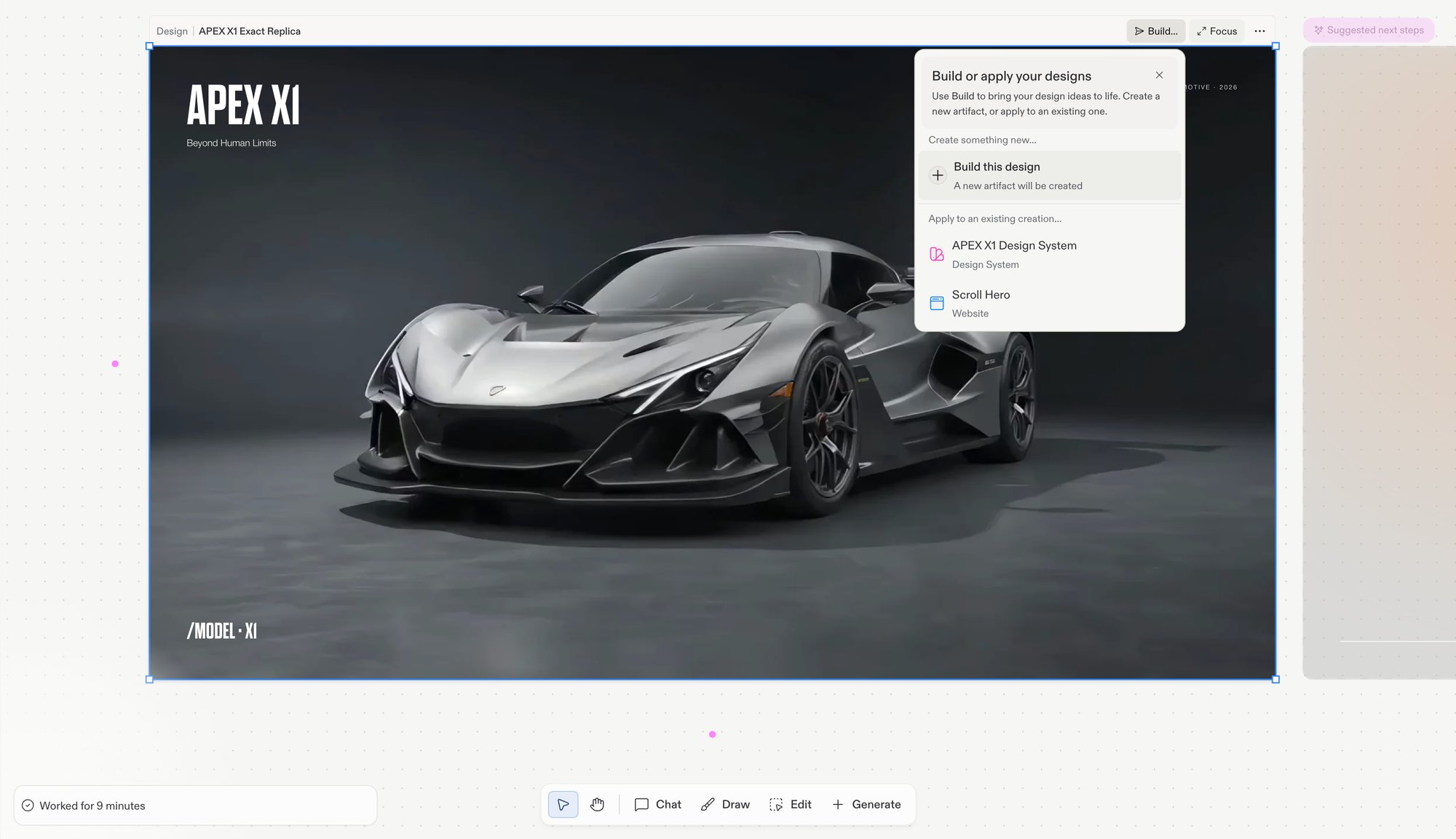
The Build… menu: create a new artifact, or apply the design to an existing one.
Build this design
Picking Build this design starts a new artifact from the frame. Agent builds the layout, styling, and assets into a live, running app that lands in your project’s artifact list.Apply to an existing app
The menu also lists every artifact in the project. Picking one applies the design to it: Agent rewrites the artifact’s code to match the frame, and the Design frame stays on the canvas for reference. This is how you restyle an app you’ve already built without starting over.The flow
1
Pick the design to build
Settle on the frame you want to ship. Compare candidates side by side on the
canvas first — building closes this round of exploration, though Agent makes
a checkpoint so you can always roll back.
2
Hand it to Agent
Select the frame, choose Build… in its action bar, and pick your path: a
new artifact or an existing one. Agent builds the design, layout, styling,
and assets, and reports its progress in the chat.
3
Review the build
Agent reports what it changed and makes a checkpoint. Open the result to see
the design live, and keep chatting to adjust anything that didn’t translate.
Building a new app from a Design frame requires Core or Pro; applying a design
and every other Replit Design capability work on every plan. See
Billing for plan details.
After you build: make it real
Building the frame gives you a running app with your design in place. The mockup only pretended to work; now Agent can add the real thing. Ask for what you need in chat:- Let people sign in: add user accounts with Replit Auth, users sign in with their Replit accounts with zero setup, or bring your own provider.
- Save real data: store and retrieve orders, messages, and preferences with the built-in Database.
- Charge for it: add payments and subscriptions with Monetization integrations.
- Connect other services: Agent activates integrations automatically based on your prompts, from email to Slack to Google services.
Ship it and grow it
When the app works, put it in front of people and keep improving it:- Publish: ship it from the Publishing tool, then see After you publish for updating the live app.
- Get a real address: buy or connect a custom domain.
- Get found: run the SEO Agent for a technical audit with one-click fixes.
- Hear from your visitors: add the feedback widget so people can report issues and ideas you can send straight to Agent.
- Keep it healthy: track status, performance, and uptime with published app monitoring.
Next steps
- Build and publish from a template: follow the complete gallery-to-live-site quickstart.
- Design vs. Build: when to start in each entry point.
- Create a design system: extract the design you shipped so the next one starts on brand.