

Switch the model
Open the mode selector in the chat composer (it shows the current mode, such as Power), then select Primary model and pick from the list. Open the mode selector in the chat composer (it shows the current mode, such as Max). Select the primary model row, which is labeled with the mode name (such as Primary Max model), then pick a model from the list or keep Automatically choose.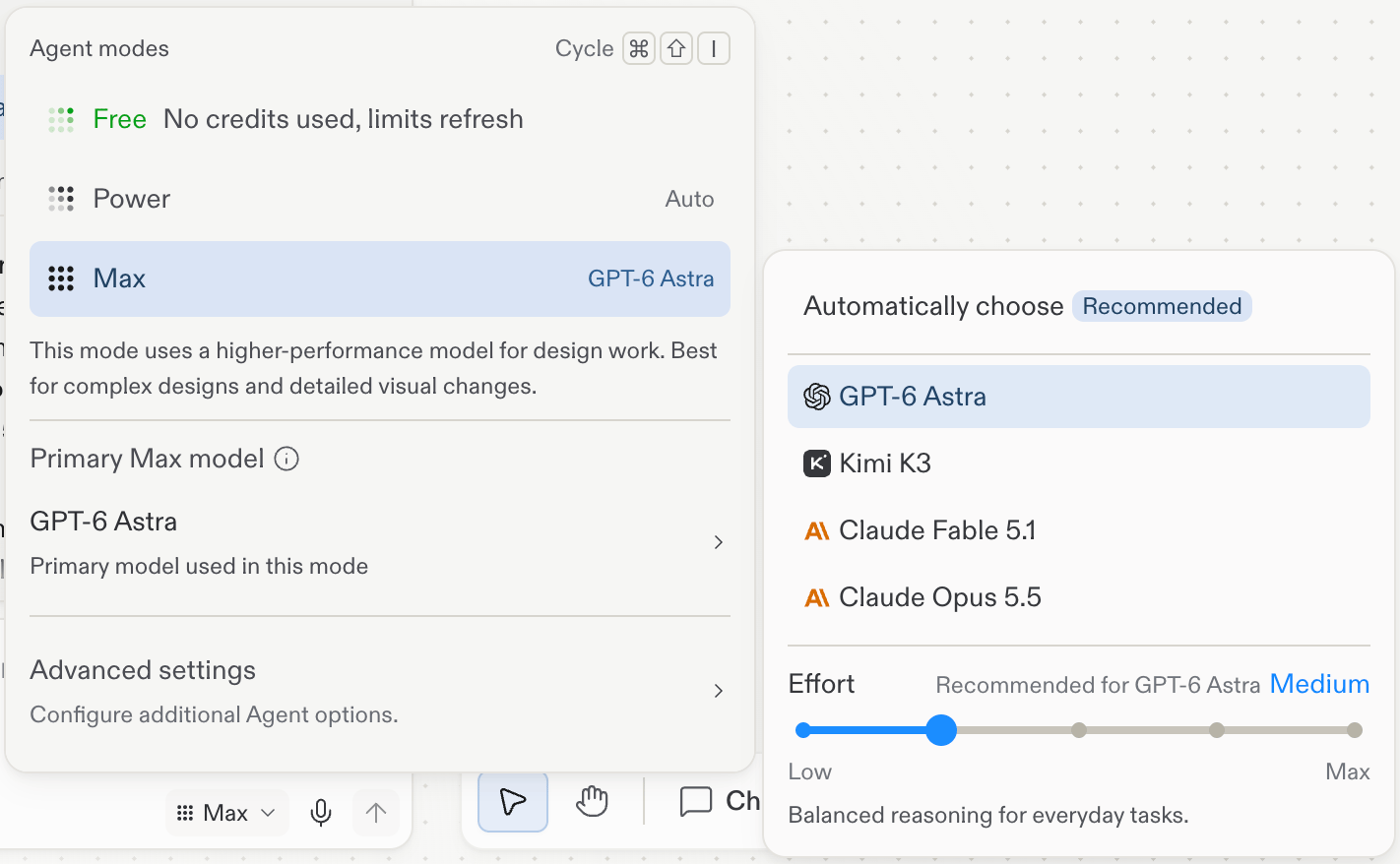
Max selected in the Agent modes popover, with the Primary Max model list and the Effort slider.
The model lineup changes as new models ship. Check the in-product menu for what your account can use today.
- Mode (Free Mode, Power Mode, or Max Mode): the balance between speed, cost, and capability. Max Mode uses a higher-performance model for design work, best for complex designs and detailed visual changes. See Agent modes for the full reference.
- Effort: how much reasoning the model spends per response, from Low (fastest) to Max. Each model shows its recommended setting.
Explore across models
Model switching is another axis of exploration, alongside suggestions:- Same brief, different designer: generate a frame, switch the model, and send the same prompt again. Both directions land as frames on the canvas, so you can compare them side by side.
- Match the model to the work: use the recommended model for most work, and switch when a design calls for a different sensibility, or when you want a second opinion on a direction you’re unsure about.
- Switch anytime: the model applies to your next message, so you can change it mid-project without losing anything on the canvas.
Next steps
- Explore: the full exploration toolkit at a glance.
- Explore suggestions: one-click directions proposed from your selected frame.