

- Generate and arrange design frames on an infinite board
- Iterate on each frame with chat, suggestions, and the toolbar
- Target any piece of a frame and change just that piece
- Pull in templates and real-product inspiration without leaving the board
The board at a glance
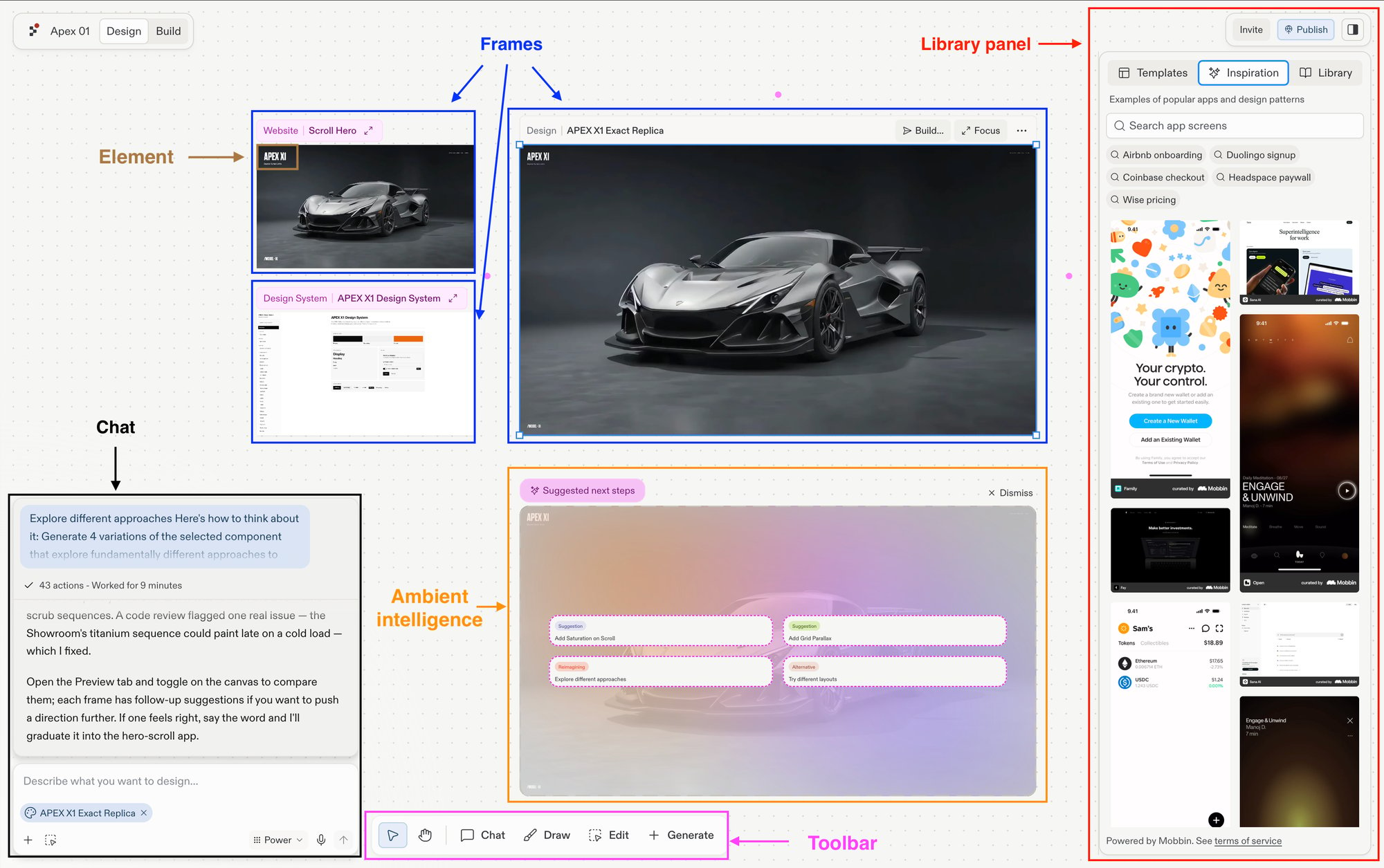
- Canvas: the design view of the Project Editor, an infinite pan-and-zoom board that holds every frame, shape, and note.
- Frames: every tile on Canvas. Frames can be live artifacts (websites, slides), design mockups, images, videos, or vector graphics.
- Elements: the individual pieces inside a frame, such as headings, buttons, images, and form fields.
- Chat: the Agent chat docked on the canvas. Describe what you want to make, or select a frame and ask for small or larger edits; minimize it for a full canvas.
- Ambient intelligence: suggested next steps that appear beside a selected frame, each one click from generating a new direction. See Explore suggestions for how it works.
- Toolbar: the floating bar at the bottom of Canvas with the Interact, Pan, Chat, Draw, Edit, and Generate tools.
- Library panel: starter templates, Mobbin-curated inspiration, and your own past creations, ready to drop onto the canvas.
How they fit together
Each component picks up where the previous one leaves off, from a blank board to a design you can build.1. Put frames on the canvas
Generate frames from a chat prompt or the toolbar’s Generate menu. A frame can be a design mockup, a web app, a mobile app, slides, an image, a video, or a vector graphic.2. Iterate on a frame
Select any frame to work on it individually. Chat about it in your own words, follow a suggestion to branch a new direction, or Focus it to work up close. When it’s right, Build it into a live app.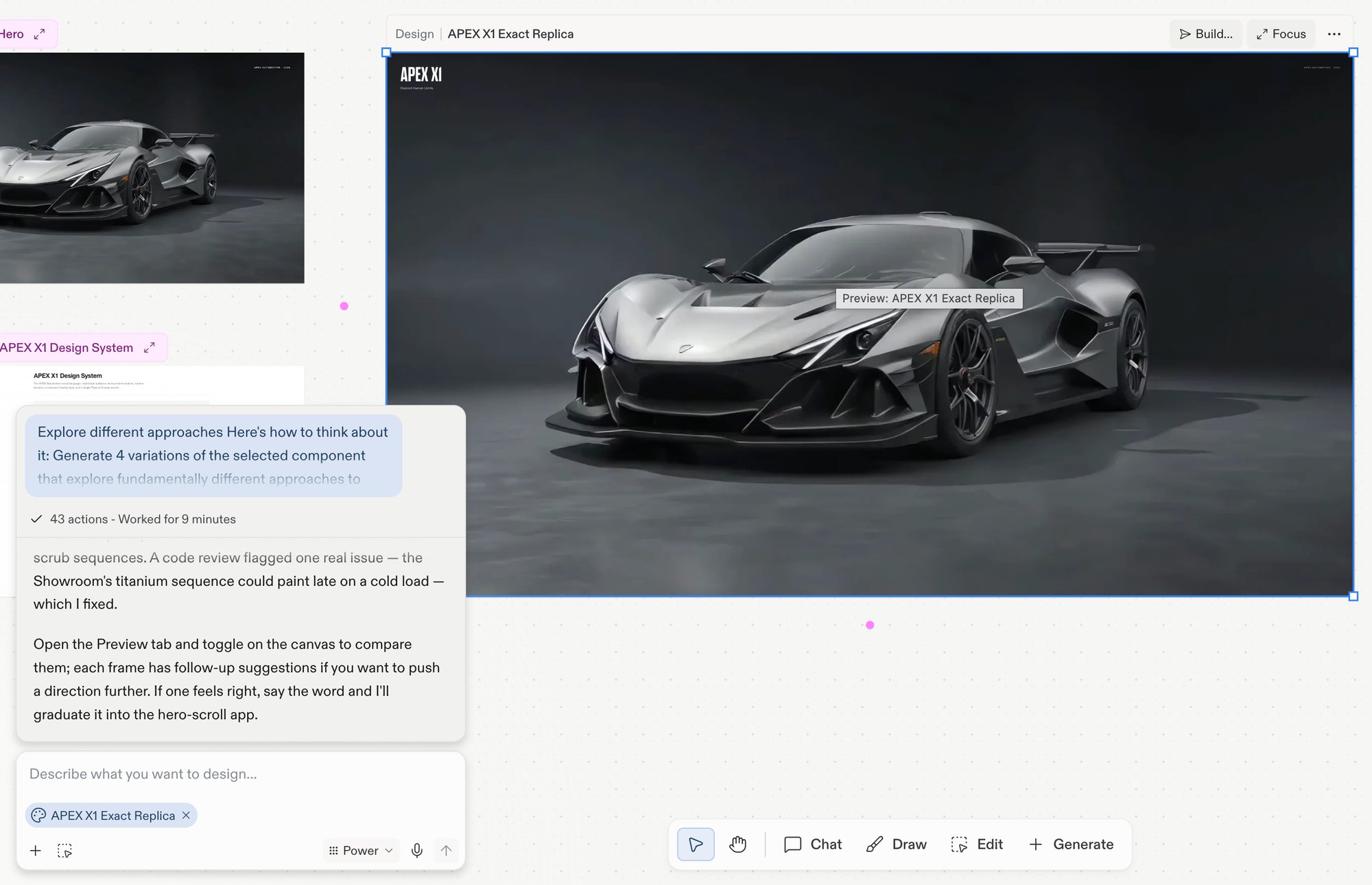
A selected frame with its action bar: Build, Focus, and more options.
3. Edit, annotate, or generate with the toolbar
The toolbar covers three jobs: Edit selects a single element inside a frame and opens the Visual Editor, Draw annotates the board with sketches, arrows, and sticky notes that Agent reads, and Generate creates the images, videos, and vector graphics your design needs.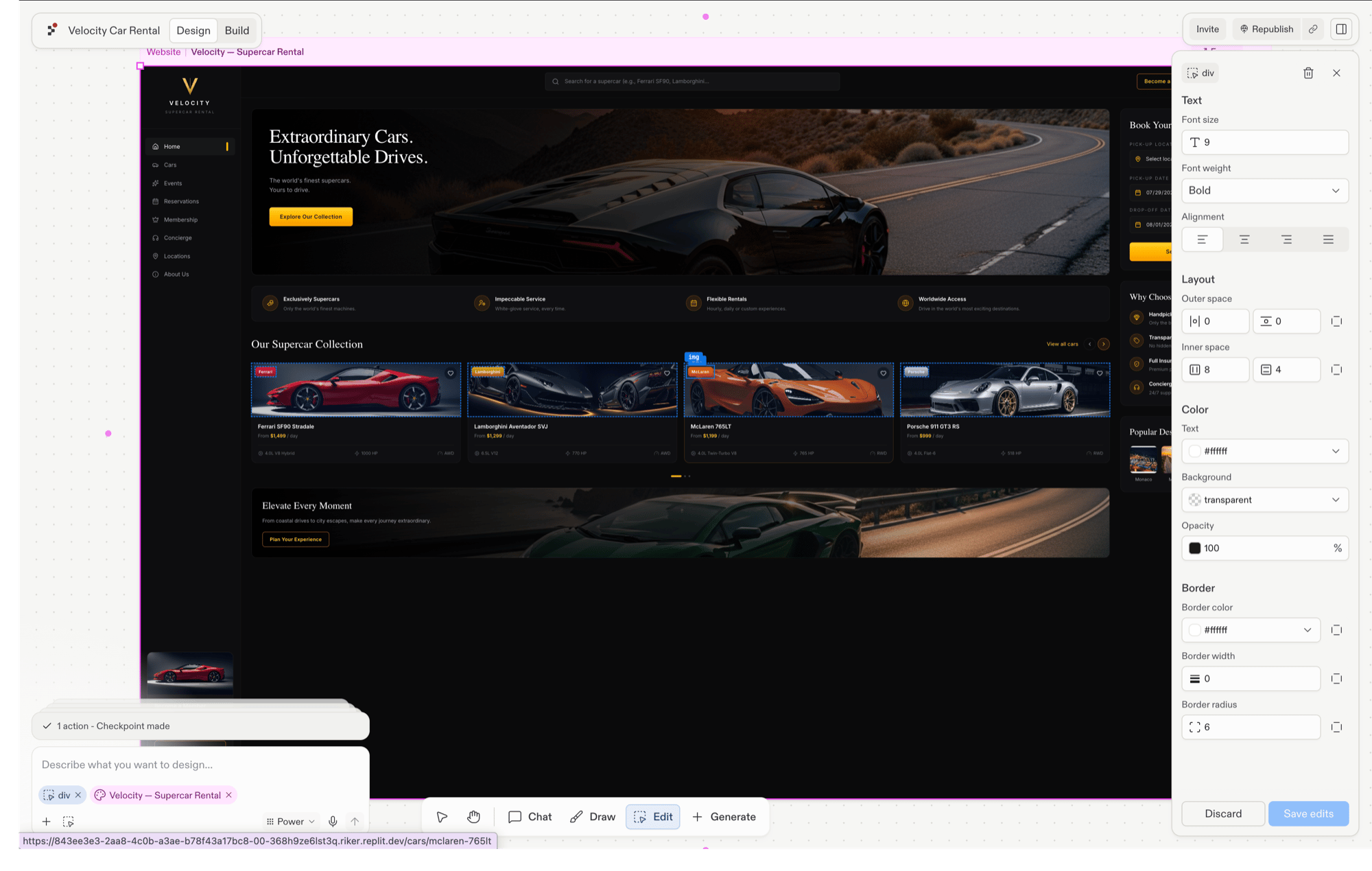
An element selected with the Edit tool, with the Visual Editor open on the right.
4. Pull inspiration from the library panel
For inspiration and starting points, open the library panel. Templates land on the canvas as live, editable frames; Mobbin-curated inspiration lands as a static reference image to steer your next generation.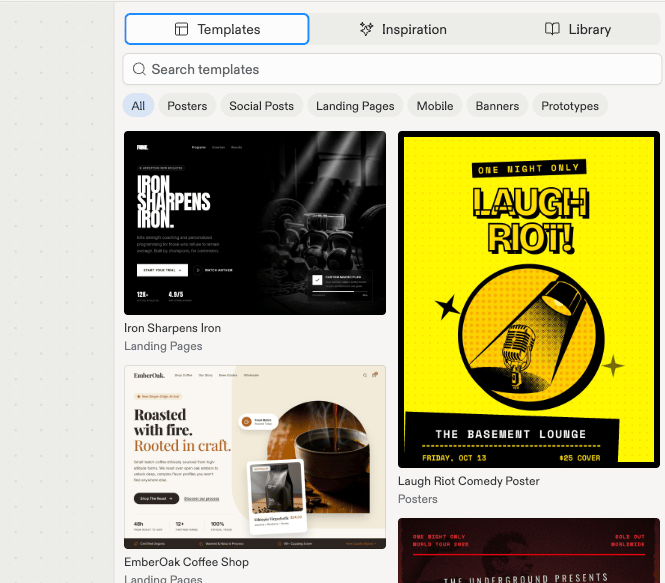
The library panel's Templates tab: searchable starter frames, grouped by kind.
Explore each component
Canvas
The infinite board where you generate, arrange, and iterate on frames.
Frames
Frame kinds, the per-frame action bar, Build, and Focus.
Elements
Select and edit the individual pieces inside a frame.
Chat
Brief Agent about the board, a frame, or a single element.
Ambient intelligence
One-click suggested next steps beside your selected frame.
Toolbar
The full tool catalog, keyboard shortcuts, and board gestures.
Library panel
Templates, Mobbin-curated inspiration, and your own creations.
Next steps
- Design your first screen: generate your first frames from a prompt.
- What is Replit Design: the full journey from prompt to on-brand app.