

Add a template
Search templates or browse by kind: posters, social posts, landing pages, mobile, banners, and prototypes. Click or drag one to add it to your design; it lands as a live, editable frame you can restyle and build on.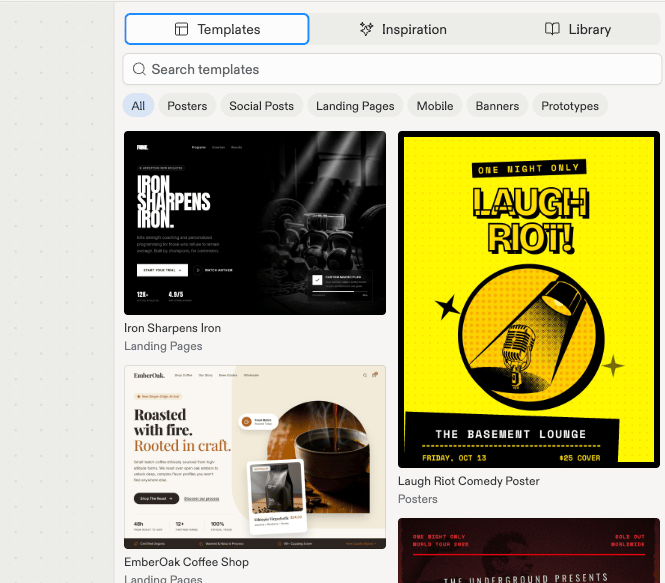
The Templates tab: searchable starter frames, grouped by kind.
Add inspiration
App screenshots from real products, curated by Mobbin. Click one and it lands on the canvas as a static image to reference, not part of your design. Use it to steer: point at it in chat, or reference it in your next generation (“a hero like this, but for a bakery”).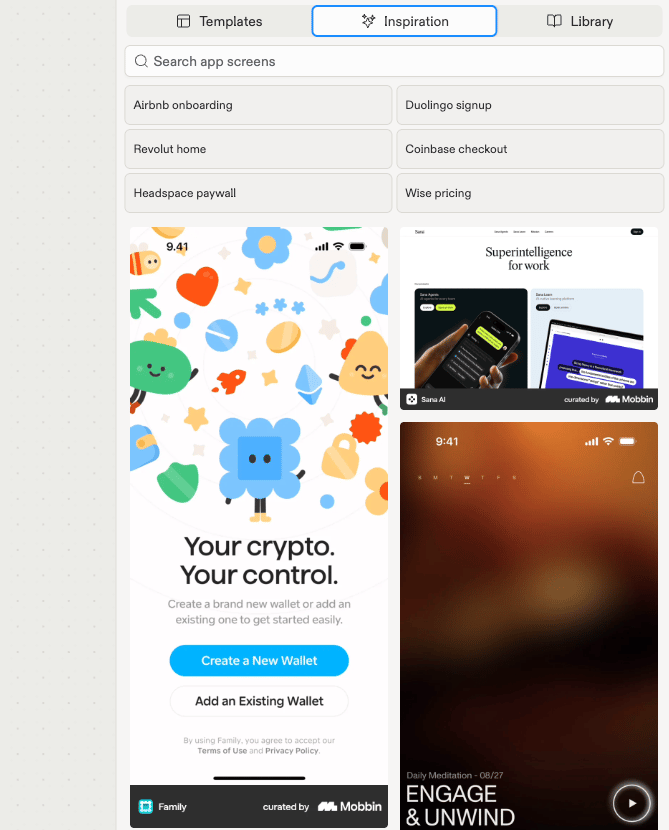
The Inspiration tab: app screens to look at, curated by Mobbin.
Next steps
- Explore suggestions: branch new directions from the frame you added.
- Chat about your design: steer a template or reference an inspiration in your own words.