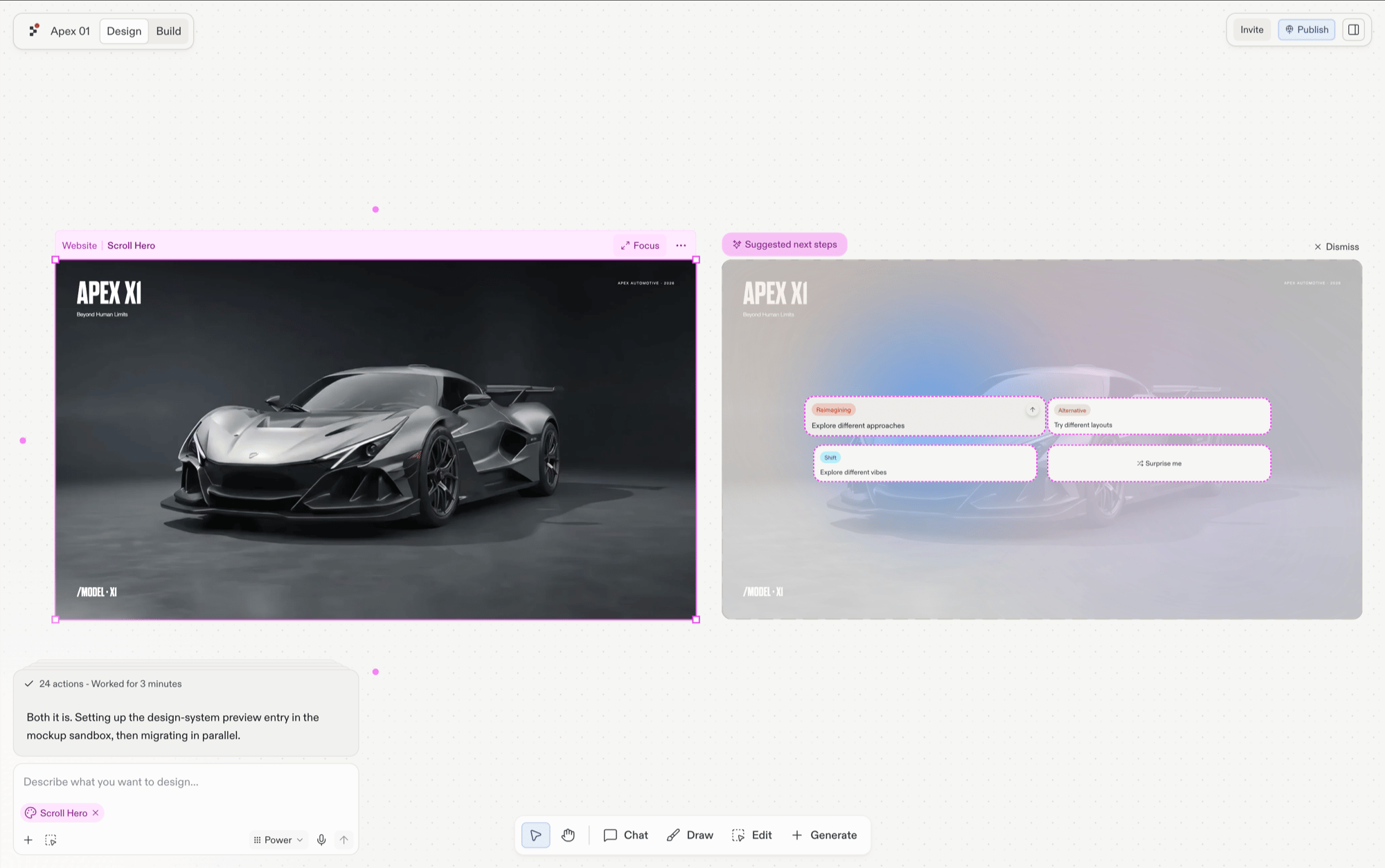
Select a design frame and Replit Design suggests what to design next; one click generates a new direction, and the winner can be applied to your app.
Suggestions are the center of the Replit Design interface. Instead of facing a blank prompt box and needing to know what to ask for, you select a design frame and Replit Design proposes what to try next. Each suggestion is one click away from becoming a new generation.
When you select a generated design frame, suggestions appear alongside it. They’re grounded in what you’re looking at, so exploring doesn’t require design vocabulary. Click one and Replit Design generates the result as a new frame; your original stays put.
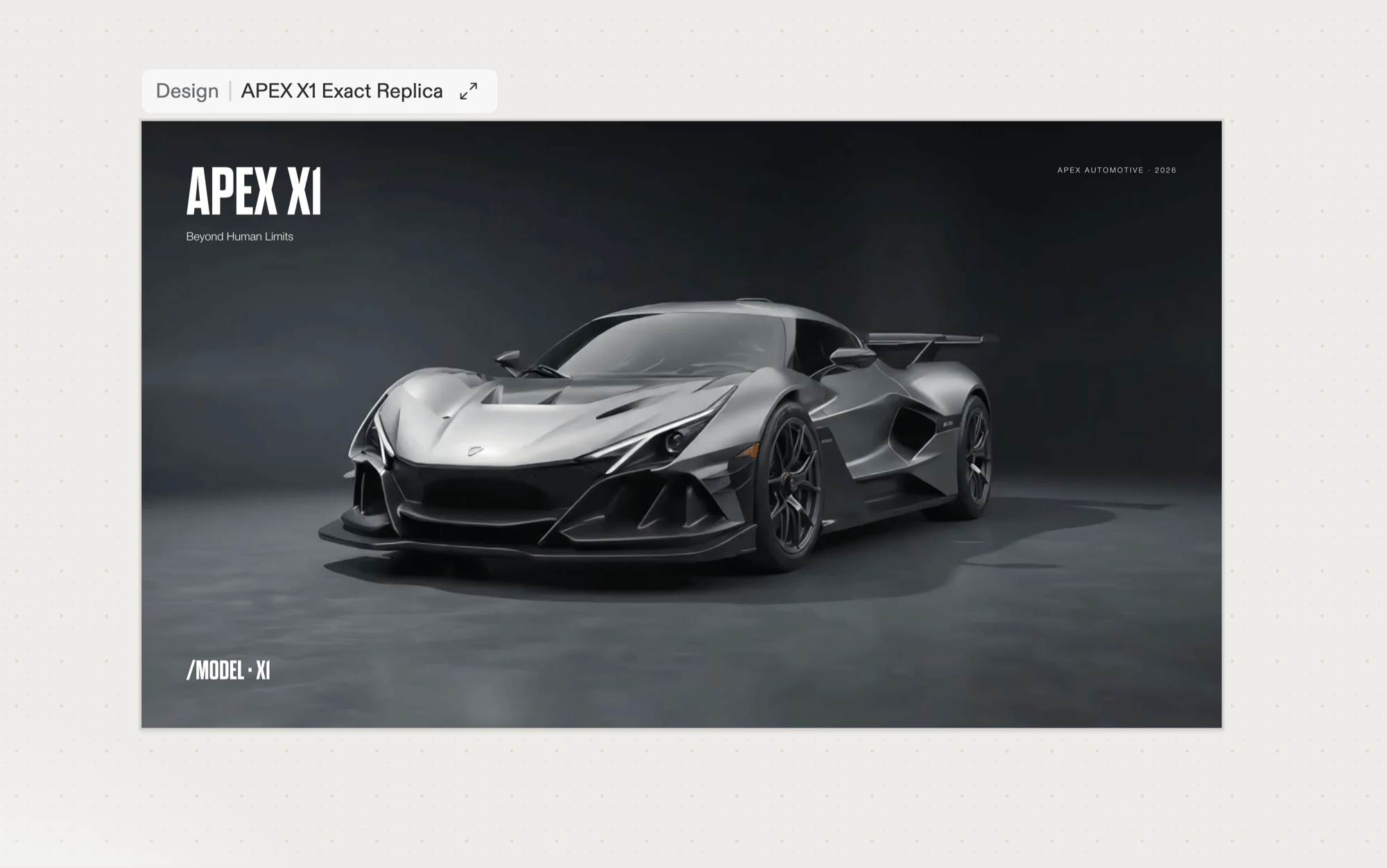
Suggestions appear beside the selected frame, grounded in what you’re looking at. Review them and click one, you don’t need to add anything.
3
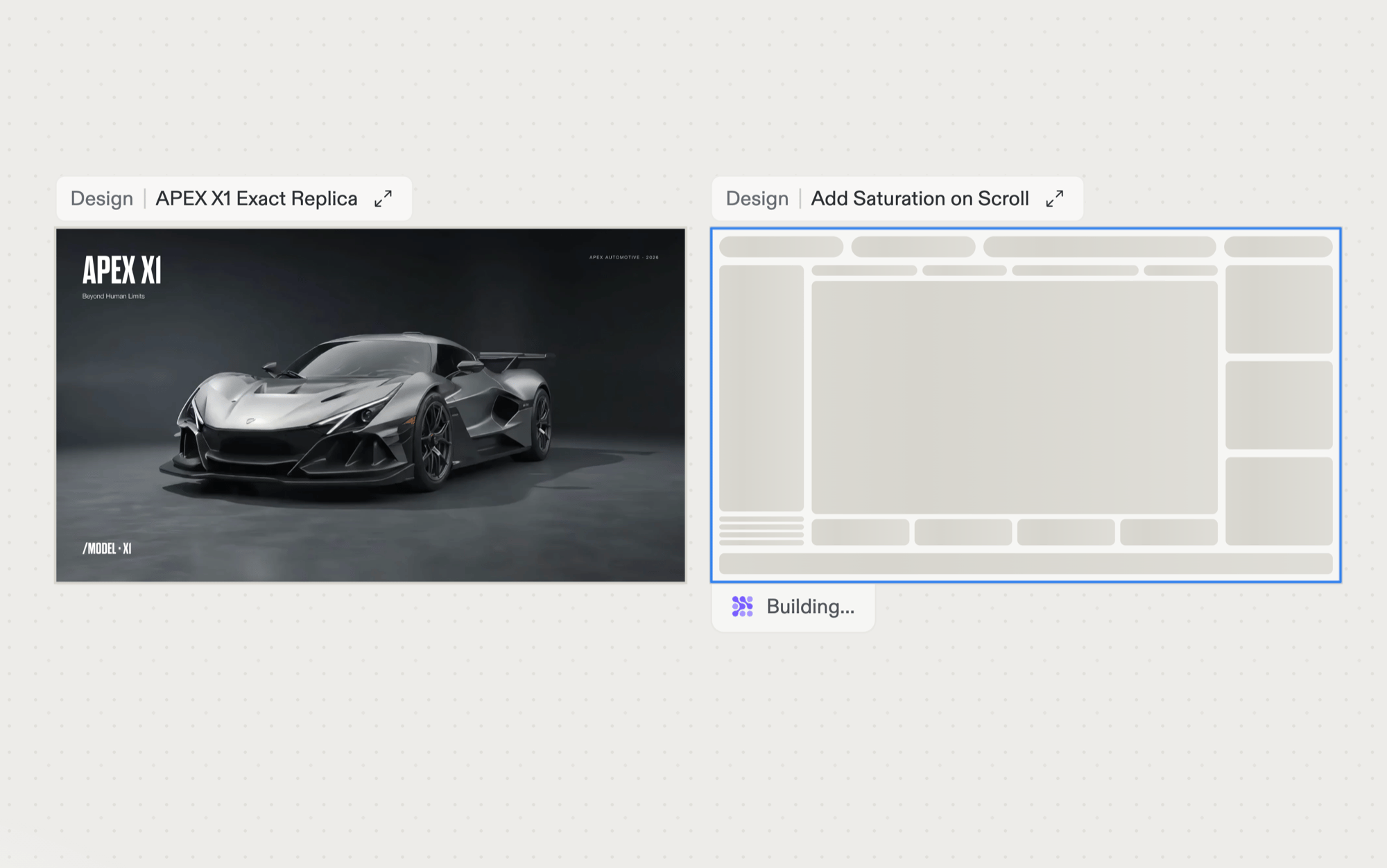
Agent builds it on click
The moment you click, Agent starts building the suggestion as a new frame next to the original. Your earlier frames stay on the canvas, so nothing is lost by exploring.
4
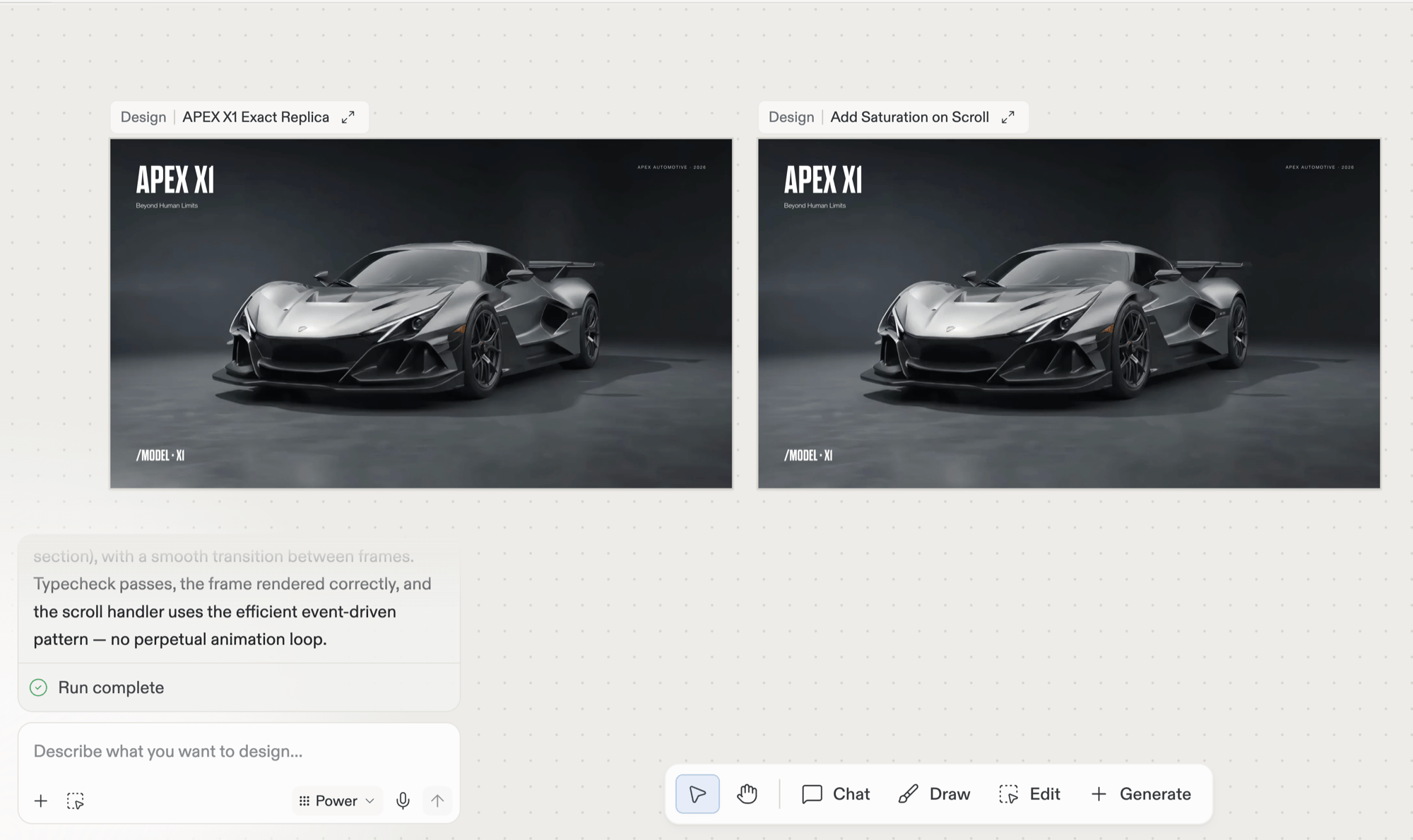
Observe the changes
The finished frame lands next to the original so you can compare the two side by side. The chat panel summarizes what changed.
5
Apply the winning design to your app
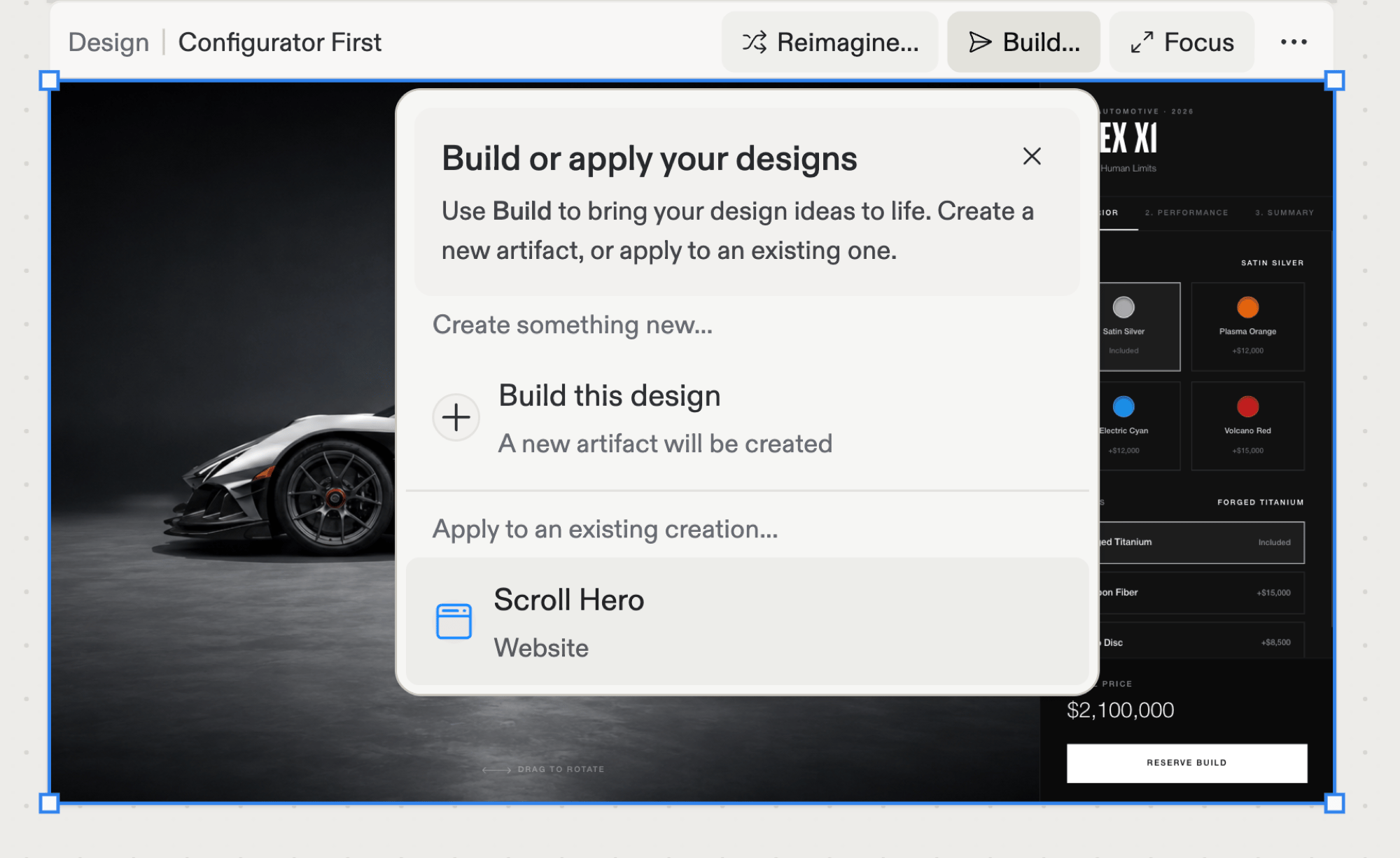
Keep selecting and branching until one direction feels right; fresh suggestions appear for whichever frame you select. The winner doesn’t have to stay a mockup: select it, choose Build… in its action bar, and pick your existing app under Apply to an existing creation. Agent rewrites the app’s code to match the design, leaving the frame on the canvas for reference.
The Build menu: apply the winning frame to an app you already have.
See Build your design for the full flow, including building the frame as a new app instead. To polish details before applying, refine with chat.
Explore in directions, not steps. Suggestions branch; following one doesn’t commit you. Generate a few and compare on the canvas.
Mix in your own words. Suggestions and the design chatbox work together: click suggestions to explore broadly, chat to steer precisely. Chat isn’t just for polish; a message like “try the nav on the left” opens a new direction too.
{"docsConfig":{"theme":"aspen","$schema":"https://mintlify.com/docs.json","name":"Replit","colors":{"primary":"#FF3C00","light":"#FF3C00","dark":"#FF3C00"},"logo":{"light":"https://mintcdn.com/replit/j4of5To8jzehz0JK/logo/light.svg?fit=max\u0026auto=format\u0026n=j4of5To8jzehz0JK\u0026q=85\u0026s=6209cb5927b56fd1781133af05428373","dark":"https://mintcdn.com/replit/j4of5To8jzehz0JK/logo/dark.svg?fit=max\u0026auto=format\u0026n=j4of5To8jzehz0JK\u0026q=85\u0026s=9cbba158300d48c49d8b888e71015495","href":"/welcome"},"favicon":"https://mintcdn.com/replit/CmOMKRnamiqG44eH/favicon.ico?fit=max\u0026auto=format\u0026n=CmOMKRnamiqG44eH\u0026q=85\u0026s=c89a6df6f537373c946c7a5f0ac65475","appearance":{"default":"light"},"background":{"color":{"light":"#F6F5F4","dark":"#1E1E1F"}},"navbar":{"links":[],"primary":{"type":"button","label":"Start Building","href":"https://replit.com?ref=docs"}},"footer":{"socials":{"x":"https://x.com/replit","linkedin":"https://www.linkedin.com/company/repl-it","youtube":"https://www.youtube.com/@replit"}},"seo":{"metatags":{"og:site_name":"Replit Docs","twitter:site":"@replit","twitter:creator":"@replit","author":"Replit"},"indexing":"all"},"fonts":{"heading":{"family":"ABC Diatype Plus","weight":400,"source":"https://cdn.replit.com/dotcom/fonts/ABCDiatypePlusVariable.woff2","format":"woff2"},"body":{"family":"ABC Diatype Plus","weight":400,"source":"https://cdn.replit.com/dotcom/fonts/ABCDiatypePlusVariable.woff2","format":"woff2"}},"integrations":{"segment":{"key":"dMePKGC4BqfBivpe0Hvl8IoPpzSHgjdX"}},"contextual":{"options":["copy","view"],"display":"header"},"thumbnails":{"appearance":"light","background":"https://mintcdn.com/replit/j4of5To8jzehz0JK/thumb.png?fit=max\u0026auto=format\u0026n=j4of5To8jzehz0JK\u0026q=85\u0026s=a7db7f0256b2fa06810fb4d378e63cc5","fonts":{"family":"ABC Diatype Plus"}},"styling":{"latex":true},"navigation":{"languages":[{"language":"en","href":"welcome"},{"language":"fr","navbar":{"links":[],"primary":{"type":"button","label":"Commencer à créer","href":"https://replit.com?ref=docs"}},"href":"fr/welcome"},{"language":"pt","hidden":false,"navbar":{"links":[],"primary":{"type":"button","label":"Comece a criar","href":"https://replit.com?ref=docs"}},"href":"pt/welcome"},{"language":"ja","hidden":false,"navbar":{"links":[],"primary":{"type":"button","label":"作成を開始","href":"https://replit.com?ref=docs"}},"href":"ja/welcome"},{"language":"ko","hidden":false,"navbar":{"links":[],"primary":{"type":"button","label":"빌드 시작하기","href":"https://replit.com?ref=docs"}},"href":"ko/welcome"}]}},"deployment":{"deploymentMetadataValue":{"subdomain":"replit","hasAudioNarration":false,"actualSubdomain":"replit","customDomains":["docs.replit.com","docs.repl.it"],"gitSource":{"type":"github","owner":"replit","repo":"replit-docs","deployBranch":"main","contentDirectory":"docs","isPrivate":true,"mountPath":"","label":""},"chroma":{"liveDeploymentHistoryId":"6aebe22b52cea225c8dcec43","collectionId":"470b54ac-8b82-44eb-a43b-4dba5dcba725","schemaVersion":"v3","latestBuiltDeploymentHistoryId":"6aebe22b52cea225c8dcec43"},"feedback":{"thumbs":true,"issues":true,"edits":false},"entitlements":{"AI_CHAT":{"status":"DISABLED"},"REMOVE_BRANDING":{"status":"ENABLED"},"CONTEXTUAL_FEEDBACK":{"status":"ENABLED"},"CODE_SNIPPET_FEEDBACK":{"status":"ENABLED"},"WEB_MCP":{"status":"ENABLED"},"NARRATION":{"status":"DISABLED"}},"buildId":"6aee55254219cf14872521f4","clientVersion":"0.0.4076","searchFilterCounts":[{"language":"en","tag":"Features","count":360},{"language":"fr","tag":"Fonctionnalités","count":359},{"language":"ja","tag":"機能","count":359},{"language":"ko","tag":"기능","count":359},{"language":"pt","tag":"Funcionalidades","count":359},{"language":"en","tag":"Changelog","count":100},{"language":"fr","tag":"Journal des modifications","count":99},{"language":"ja","tag":"変更履歴","count":99},{"language":"ko","tag":"변경 내역","count":99},{"language":"pt","tag":"Registro de alterações","count":99},{"language":"en","tag":"Apps","count":41},{"language":"fr","tag":"Apps","count":41},{"language":"ja","tag":"Apps","count":41},{"language":"ko","tag":"Apps","count":41},{"language":"pt","tag":"Apps","count":41},{"language":"en","tag":"Enterprise","count":40},{"language":"fr","tag":"Entreprise","count":40},{"language":"ja","tag":"Enterprise","count":40},{"language":"ko","tag":"Enterprise","count":40},{"language":"pt","tag":"Enterprise","count":40},{"language":"en","tag":"Use cases","count":39},{"language":"fr","tag":"Use cases","count":39},{"language":"ja","tag":"Use cases","count":39},{"language":"ko","tag":"Use cases","count":39},{"language":"pt","tag":"Use cases","count":39},{"language":"en","tag":"Chats","count":25},{"language":"en","tag":"Designs","count":25},{"language":"fr","tag":"Chats","count":25},{"language":"fr","tag":"Designs","count":25},{"language":"ja","tag":"Chats","count":25},{"language":"ja","tag":"Designs","count":25},{"language":"ko","tag":"Chats","count":25},{"language":"ko","tag":"Designs","count":25},{"language":"pt","tag":"Chats","count":25},{"language":"pt","tag":"Designs","count":25},{"language":"en","tag":"Trust \u0026 Billing","count":23},{"language":"fr","tag":"Confiance et facturation","count":23},{"language":"ja","tag":"信頼と請求","count":23},{"language":"ko","tag":"신뢰 및 결제","count":23},{"language":"pt","tag":"Confiança e faturamento","count":23},{"language":"en","tag":"Web","count":22},{"language":"fr","tag":"Web","count":22},{"language":"ja","tag":"Web","count":22},{"language":"ko","tag":"Web","count":22},{"language":"pt","tag":"Web","count":22},{"language":"en","tag":"Help","count":20},{"language":"fr","tag":"Help","count":20},{"language":"ja","tag":"Help","count":20},{"language":"ko","tag":"Help","count":20},{"language":"pt","tag":"Help","count":20}]},"assistantConfig":{"deflection":{"enabled":true,"email":"support@replit.com"}},"basePath":"","hasChatPermissions":false,"hasWebMcpPermissions":true,"toggles":[{"name":"kill-isr","enabled":true,"variant":{"name":"disabled","enabled":false,"feature_enabled":true},"impressionData":false},{"name":"agent-mintlify-slack","enabled":true,"variant":{"name":"disabled","enabled":false,"feature_enabled":true},"impressionData":false},{"name":"agent-integrations-settings","enabled":true,"variant":{"name":"disabled","enabled":false,"feature_enabled":true},"impressionData":false},{"name":"rbac-expansion","enabled":true,"variant":{"name":"disabled","enabled":false,"feature_enabled":true},"impressionData":false},{"name":"automations-pr-grouping","enabled":true,"variant":{"name":"disabled","enabled":false,"feature_enabled":true},"impressionData":false},{"name":"custom-prefix","enabled":true,"variant":{"name":"disabled","enabled":false,"feature_enabled":true},"impressionData":false},{"name":"analytics-v7","enabled":true,"variant":{"name":"disabled","enabled":false,"feature_enabled":true},"impressionData":false},{"name":"user-flows-analytics","enabled":true,"variant":{"name":"disabled","enabled":false,"feature_enabled":true},"impressionData":false},{"name":"no-publish-flow","enabled":true,"variant":{"name":"disabled","enabled":false,"feature_enabled":true},"impressionData":false},{"name":"workos-onboarding","enabled":true,"variant":{"name":"disabled","enabled":false,"feature_enabled":true},"impressionData":false},{"name":"llms-txt-v2","enabled":true,"variant":{"name":"disabled","enabled":false,"feature_enabled":true},"impressionData":false},{"name":"snapshot-serving-live","enabled":true,"variant":{"name":"disabled","enabled":false,"feature_enabled":true},"impressionData":false},{"name":"stripTemperatureMiddleware","enabled":true,"variant":{"name":"disabled","enabled":false,"feature_enabled":true},"impressionData":false},{"name":"support-platform-pylon-zendesk","enabled":true,"variant":{"name":"disabled","enabled":false,"feature_enabled":true},"impressionData":false},{"name":"snapshot-serving","enabled":true,"variant":{"name":"disabled","enabled":false,"feature_enabled":true},"impressionData":false},{"name":"instant-rollback","enabled":true,"variant":{"name":"disabled","enabled":false,"feature_enabled":true},"impressionData":false},{"name":"granular-notifications-server","enabled":true,"variant":{"name":"disabled","enabled":false,"feature_enabled":true},"impressionData":false},{"name":"granular-notifications","enabled":true,"variant":{"name":"disabled","enabled":false,"feature_enabled":true},"impressionData":false},{"name":"automations-fable","enabled":true,"variant":{"name":"disabled","enabled":false,"feature_enabled":true},"impressionData":false},{"name":"fixed-ai-action-pricing","enabled":true,"variant":{"name":"disabled","enabled":false,"feature_enabled":true},"impressionData":false},{"name":"automation-resolve-merge-conflict","enabled":true,"variant":{"name":"disabled","enabled":false,"feature_enabled":true},"impressionData":false},{"name":"scoped-publishing","enabled":true,"variant":{"name":"disabled","enabled":false,"feature_enabled":true},"impressionData":false},{"name":"mintql","enabled":true,"variant":{"name":"disabled","enabled":false,"feature_enabled":true},"impressionData":false},{"name":"page-level-analytics","enabled":true,"variant":{"name":"disabled","enabled":false,"feature_enabled":true},"impressionData":false},{"name":"editor-version-history-v2","enabled":true,"variant":{"name":"disabled","enabled":false,"feature_enabled":true},"impressionData":false},{"name":"billing-page-v2","enabled":true,"variant":{"name":"disabled","enabled":false,"feature_enabled":true},"impressionData":false},{"name":"full-page-search","enabled":true,"variant":{"name":"disabled","enabled":false,"feature_enabled":true},"impressionData":false},{"name":"workspace-projects","enabled":true,"variant":{"name":"disabled","enabled":false,"feature_enabled":true},"impressionData":false},{"name":"assistant-v5","enabled":true,"variant":{"name":"disabled","enabled":false,"feature_enabled":true},"impressionData":false},{"name":"fork-pr-previews","enabled":true,"variant":{"name":"disabled","enabled":false,"feature_enabled":true},"impressionData":false},{"name":"revalidation-jwt","enabled":true,"variant":{"name":"disabled","enabled":false,"feature_enabled":true},"impressionData":false},{"name":"workos-sso-scim","enabled":true,"variant":{"name":"disabled","enabled":false,"feature_enabled":true},"impressionData":false},{"name":"hobby-abuse-scan","enabled":true,"variant":{"name":"disabled","enabled":false,"feature_enabled":true},"impressionData":false},{"name":"dashboard-inbox","enabled":true,"variant":{"name":"disabled","enabled":false,"feature_enabled":true},"impressionData":false},{"name":"workos-signup","enabled":true,"variant":{"name":"disabled","enabled":false,"feature_enabled":true},"impressionData":false},{"name":"turbopuffer-dual-write","enabled":true,"variant":{"name":"disabled","enabled":false,"feature_enabled":true},"impressionData":false},{"name":"workos-enabled","enabled":true,"variant":{"name":"disabled","enabled":false,"feature_enabled":true},"impressionData":false},{"name":"approve-review-flow","enabled":true,"variant":{"name":"disabled","enabled":false,"feature_enabled":true},"impressionData":false},{"name":"editor-metadata","enabled":true,"variant":{"name":"disabled","enabled":false,"feature_enabled":true},"impressionData":false},{"name":"sso-setup-deadline-banner","enabled":true,"variant":{"name":"disabled","enabled":false,"feature_enabled":true},"impressionData":false},{"name":"turbopuffer-serve","enabled":true,"variant":{"name":"disabled","enabled":false,"feature_enabled":true},"impressionData":false},{"name":"live-agents","enabled":true,"variant":{"name":"disabled","enabled":false,"feature_enabled":true},"impressionData":false},{"name":"comment-mode","enabled":true,"variant":{"name":"disabled","enabled":false,"feature_enabled":true},"impressionData":false}],"googleFontsInlined":false},"customCss":[{"filePath":"styles.css","href":"/_mintlify/custom/replit/795eee5cda55dee3/styles.css"}],"page":{"pagePath":"design/explore-suggestions","slug":"/design/explore-suggestions","pageMetadata":{"title":"Explore suggestions","description":"Select a design frame and Replit Design suggests what to design next; one click generates a new direction, and the winner can be applied to your app.","icon":"lightbulb","href":"/design/explore-suggestions"},"description":{"compiledSource":"\"use strict\";\nconst {jsx: _jsx} = arguments[0];\nconst {useMDXComponents: _provideComponents} = arguments[0];\nfunction _createMdxContent(props) {\n const _components = {\n p: \"p\",\n ..._provideComponents(),\n ...props.components\n };\n return _jsx(_components.p, {\n children: \"Select a design frame and Replit Design suggests what to design next; one click generates a new direction, and the winner can be applied to your app.\"\n });\n}\nfunction MDXContent(props = {}) {\n const {wrapper: MDXLayout} = {\n ..._provideComponents(),\n ...props.components\n };\n return MDXLayout ? _jsx(MDXLayout, {\n ...props,\n children: _jsx(_createMdxContent, {\n ...props\n })\n }) : _createMdxContent(props);\n}\nreturn {\n default: MDXContent\n};\n","frontmatter":{},"scope":{}},"pageType":"default","mdx":{"mdxSource":{"compiledSource":"\"use strict\";const{Fragment:_Fragment,jsx:_jsx,jsxs:_jsxs}=arguments[0];const{useMDXComponents:_provideComponents}=arguments[0];function _createMdxContent(props){const _components={a:`a`,em:`em`,li:`li`,p:`p`,strong:`strong`,ul:`ul`,..._provideComponents(),...props.components},{Frame,Heading,OptimizedImage,Step,Steps}=_components;if(!Frame)_missingMdxReference(`Frame`,true);if(!Heading)_missingMdxReference(`Heading`,true);if(!OptimizedImage)_missingMdxReference(`OptimizedImage`,true);if(!Step)_missingMdxReference(`Step`,true);if(!Steps)_missingMdxReference(`Steps`,true);return _jsxs(_Fragment,{children:[_jsx(_components.p,{children:`Suggestions are the center of the Replit Design interface. Instead of facing a blank prompt box and needing to know what to ask for, you select a design frame and Replit Design proposes what to try next. Each suggestion is one click away from becoming a new generation.`}),`\n`,_jsx(Frame,{children:_jsx(OptimizedImage,{src:`https://mintcdn.com/replit/9Q_lVrxG2Dh35jz1/images/design/replit-design/ambient-iq.png?fit=max\u0026auto=format\u0026n=9Q_lVrxG2Dh35jz1\u0026q=85\u0026s=7f39fec76cde3f60e3a20e6c5a13d8db`,alt:`A selected Website frame showing an APEX X1 supercar hero, with a Suggested next steps panel beside it offering suggestion chips such as Explore different approaches, Try different layouts, Explore different vibes, and Surprise me`,\"data-og-width\":`2000`,width:`2000`,\"data-og-height\":`1254`,height:`1254`,\"data-path\":`images/design/replit-design/ambient-iq.png`,\"data-optimize\":`true`,\"data-opv\":`3`,srcset:`https://mintcdn.com/replit/9Q_lVrxG2Dh35jz1/images/design/replit-design/ambient-iq.png?w=280\u0026fit=max\u0026auto=format\u0026n=9Q_lVrxG2Dh35jz1\u0026q=85\u0026s=6424e030ddfc68ec83dba132241c8312 280w, https://mintcdn.com/replit/9Q_lVrxG2Dh35jz1/images/design/replit-design/ambient-iq.png?w=560\u0026fit=max\u0026auto=format\u0026n=9Q_lVrxG2Dh35jz1\u0026q=85\u0026s=3f696ff05b245116f4ca530e745a105a 560w, https://mintcdn.com/replit/9Q_lVrxG2Dh35jz1/images/design/replit-design/ambient-iq.png?w=840\u0026fit=max\u0026auto=format\u0026n=9Q_lVrxG2Dh35jz1\u0026q=85\u0026s=64cdc56d1cad7bcc856fdf9ecb0c0cc4 840w, https://mintcdn.com/replit/9Q_lVrxG2Dh35jz1/images/design/replit-design/ambient-iq.png?w=1100\u0026fit=max\u0026auto=format\u0026n=9Q_lVrxG2Dh35jz1\u0026q=85\u0026s=9d63a1c84bb235bc946fdd14677d43a9 1100w, https://mintcdn.com/replit/9Q_lVrxG2Dh35jz1/images/design/replit-design/ambient-iq.png?w=1650\u0026fit=max\u0026auto=format\u0026n=9Q_lVrxG2Dh35jz1\u0026q=85\u0026s=89094c99cd81d120f2a96c01cc4ab7db 1650w, https://mintcdn.com/replit/9Q_lVrxG2Dh35jz1/images/design/replit-design/ambient-iq.png?w=2500\u0026fit=max\u0026auto=format\u0026n=9Q_lVrxG2Dh35jz1\u0026q=85\u0026s=d016498f7219df192c44c01e5657c6fa 2500w`})}),`\n`,_jsx(Heading,{level:`2`,id:`how-suggestions-work`,children:`How suggestions work`}),`\n`,_jsx(_components.p,{children:`When you select a generated design frame, suggestions appear alongside it. They’re grounded in what you’re looking at, so exploring doesn’t require design vocabulary. Click one and Replit Design generates the result as a new frame; your original stays put.`}),`\n`,_jsx(Heading,{level:`2`,id:`what-suggestions-propose`,children:`What suggestions propose`}),`\n`,_jsx(_components.p,{children:`Suggestions answer different exploration questions:`}),`\n`,_jsxs(_components.ul,{children:[`\n`,_jsxs(_components.li,{children:[_jsx(_components.strong,{children:`A new look`}),`: the same design in a different direction, such as a dark editorial variant or a different layout.`]}),`\n`,_jsxs(_components.li,{children:[_jsx(_components.strong,{children:`An extension`}),`: a section or page your design implies but doesn’t have yet, such as a pricing section or a contact page.`]}),`\n`,_jsxs(_components.li,{children:[_jsx(_components.strong,{children:`A new context`}),`: your design somewhere else, such as a mobile viewport.`]}),`\n`]}),`\n`,_jsx(Heading,{level:`2`,id:`explore-with-suggestions`,children:`Explore with suggestions`}),`\n`,_jsx(_components.p,{children:`The loop is deliberately short:`}),`\n`,_jsxs(Steps,{children:[_jsxs(Step,{title:`Select a generated frame`,children:[_jsx(_components.p,{children:`Click any generated design frame on the canvas.`}),_jsx(Frame,{children:_jsx(OptimizedImage,{src:`https://mintcdn.com/replit/9Q_lVrxG2Dh35jz1/images/design/replit-design/ambient-select-frame.png?fit=max\u0026auto=format\u0026n=9Q_lVrxG2Dh35jz1\u0026q=85\u0026s=0eb316c59e669b8c3f9dd9e468dc1ce4`,alt:`A Design frame labeled APEX X1 Exact Replica showing a gray supercar hero page on the canvas`,\"data-og-width\":`2000`,width:`2000`,\"data-og-height\":`1252`,height:`1252`,\"data-path\":`images/design/replit-design/ambient-select-frame.png`,\"data-optimize\":`true`,\"data-opv\":`3`,srcset:`https://mintcdn.com/replit/9Q_lVrxG2Dh35jz1/images/design/replit-design/ambient-select-frame.png?w=280\u0026fit=max\u0026auto=format\u0026n=9Q_lVrxG2Dh35jz1\u0026q=85\u0026s=f093d5261e90d53912a4c2d737b306a4 280w, https://mintcdn.com/replit/9Q_lVrxG2Dh35jz1/images/design/replit-design/ambient-select-frame.png?w=560\u0026fit=max\u0026auto=format\u0026n=9Q_lVrxG2Dh35jz1\u0026q=85\u0026s=19b5c52cc9c91befe2f7b60a791023c5 560w, https://mintcdn.com/replit/9Q_lVrxG2Dh35jz1/images/design/replit-design/ambient-select-frame.png?w=840\u0026fit=max\u0026auto=format\u0026n=9Q_lVrxG2Dh35jz1\u0026q=85\u0026s=c8116efae9abc42b4e340cbfd3aaceff 840w, https://mintcdn.com/replit/9Q_lVrxG2Dh35jz1/images/design/replit-design/ambient-select-frame.png?w=1100\u0026fit=max\u0026auto=format\u0026n=9Q_lVrxG2Dh35jz1\u0026q=85\u0026s=9599ba068bb21f9129f70f1dfc739584 1100w, https://mintcdn.com/replit/9Q_lVrxG2Dh35jz1/images/design/replit-design/ambient-select-frame.png?w=1650\u0026fit=max\u0026auto=format\u0026n=9Q_lVrxG2Dh35jz1\u0026q=85\u0026s=bddccc77e78e466ebdb9ff37e3cf4f9f 1650w, https://mintcdn.com/replit/9Q_lVrxG2Dh35jz1/images/design/replit-design/ambient-select-frame.png?w=2500\u0026fit=max\u0026auto=format\u0026n=9Q_lVrxG2Dh35jz1\u0026q=85\u0026s=11ed51afdde488209d92460ee66d7f17 2500w`})})]}),_jsx(Step,{title:`Pick a suggestion`,children:_jsx(_components.p,{children:`Suggestions appear beside the selected frame, grounded in what you’re looking at. Review them and click one, you don’t need to add anything.`})}),_jsxs(Step,{title:`Agent builds it on click`,children:[_jsx(_components.p,{children:`The moment you click, Agent starts building the suggestion as a new frame next to the original. Your earlier frames stay on the canvas, so nothing is lost by exploring.`}),_jsx(Frame,{children:_jsx(OptimizedImage,{src:`https://mintcdn.com/replit/9Q_lVrxG2Dh35jz1/images/design/replit-design/ambient-suggestion-building.png?fit=max\u0026auto=format\u0026n=9Q_lVrxG2Dh35jz1\u0026q=85\u0026s=ec2866d4a77b9a0765c1faaf9c8970e2`,alt:`A new Design frame titled 'Add Saturation on Scroll' rendering as a skeleton layout with a Building… indicator, next to the original APEX X1 frame`,\"data-og-width\":`2000`,width:`2000`,\"data-og-height\":`1252`,height:`1252`,\"data-path\":`images/design/replit-design/ambient-suggestion-building.png`,\"data-optimize\":`true`,\"data-opv\":`3`,srcset:`https://mintcdn.com/replit/9Q_lVrxG2Dh35jz1/images/design/replit-design/ambient-suggestion-building.png?w=280\u0026fit=max\u0026auto=format\u0026n=9Q_lVrxG2Dh35jz1\u0026q=85\u0026s=c2006dab4db7e913fc1bcb2c351ce9ba 280w, https://mintcdn.com/replit/9Q_lVrxG2Dh35jz1/images/design/replit-design/ambient-suggestion-building.png?w=560\u0026fit=max\u0026auto=format\u0026n=9Q_lVrxG2Dh35jz1\u0026q=85\u0026s=c1587a044ccdf13c121ef6d28b7c9931 560w, https://mintcdn.com/replit/9Q_lVrxG2Dh35jz1/images/design/replit-design/ambient-suggestion-building.png?w=840\u0026fit=max\u0026auto=format\u0026n=9Q_lVrxG2Dh35jz1\u0026q=85\u0026s=e36007bbd5027a382ce0483a369741ad 840w, https://mintcdn.com/replit/9Q_lVrxG2Dh35jz1/images/design/replit-design/ambient-suggestion-building.png?w=1100\u0026fit=max\u0026auto=format\u0026n=9Q_lVrxG2Dh35jz1\u0026q=85\u0026s=0e941a2115d4a604b19537b8e0f04a3d 1100w, https://mintcdn.com/replit/9Q_lVrxG2Dh35jz1/images/design/replit-design/ambient-suggestion-building.png?w=1650\u0026fit=max\u0026auto=format\u0026n=9Q_lVrxG2Dh35jz1\u0026q=85\u0026s=7a9d6af3397886ccbd3af650b3ba9008 1650w, https://mintcdn.com/replit/9Q_lVrxG2Dh35jz1/images/design/replit-design/ambient-suggestion-building.png?w=2500\u0026fit=max\u0026auto=format\u0026n=9Q_lVrxG2Dh35jz1\u0026q=85\u0026s=b8b689a1be5cb79960fff5e2f3f12158 2500w`})})]}),_jsxs(Step,{title:`Observe the changes`,children:[_jsx(_components.p,{children:`The finished frame lands next to the original so you can compare the two side by side. The chat panel summarizes what changed.`}),_jsx(Frame,{children:_jsx(OptimizedImage,{src:`https://mintcdn.com/replit/9Q_lVrxG2Dh35jz1/images/design/replit-design/ambient-suggestion-result.png?fit=max\u0026auto=format\u0026n=9Q_lVrxG2Dh35jz1\u0026q=85\u0026s=576559f27cd6dba45bb3c391a7773ae5`,alt:`Two finished Design frames side by side on the canvas, the original APEX X1 Exact Replica and the completed Add Saturation on Scroll variant, with a 'Run complete' summary in the chat panel`,\"data-og-width\":`2000`,width:`2000`,\"data-og-height\":`1189`,height:`1189`,\"data-path\":`images/design/replit-design/ambient-suggestion-result.png`,\"data-optimize\":`true`,\"data-opv\":`3`,srcset:`https://mintcdn.com/replit/9Q_lVrxG2Dh35jz1/images/design/replit-design/ambient-suggestion-result.png?w=280\u0026fit=max\u0026auto=format\u0026n=9Q_lVrxG2Dh35jz1\u0026q=85\u0026s=c04b3cb722424216d8ac7100f22cf230 280w, https://mintcdn.com/replit/9Q_lVrxG2Dh35jz1/images/design/replit-design/ambient-suggestion-result.png?w=560\u0026fit=max\u0026auto=format\u0026n=9Q_lVrxG2Dh35jz1\u0026q=85\u0026s=db21181096388011c3276eecace04533 560w, https://mintcdn.com/replit/9Q_lVrxG2Dh35jz1/images/design/replit-design/ambient-suggestion-result.png?w=840\u0026fit=max\u0026auto=format\u0026n=9Q_lVrxG2Dh35jz1\u0026q=85\u0026s=1d94d602e54e3f102d29699f89b42cb0 840w, https://mintcdn.com/replit/9Q_lVrxG2Dh35jz1/images/design/replit-design/ambient-suggestion-result.png?w=1100\u0026fit=max\u0026auto=format\u0026n=9Q_lVrxG2Dh35jz1\u0026q=85\u0026s=415581a49d6172d98498336524275c59 1100w, https://mintcdn.com/replit/9Q_lVrxG2Dh35jz1/images/design/replit-design/ambient-suggestion-result.png?w=1650\u0026fit=max\u0026auto=format\u0026n=9Q_lVrxG2Dh35jz1\u0026q=85\u0026s=9f9b901b8ca994a1fd56d758930441e1 1650w, https://mintcdn.com/replit/9Q_lVrxG2Dh35jz1/images/design/replit-design/ambient-suggestion-result.png?w=2500\u0026fit=max\u0026auto=format\u0026n=9Q_lVrxG2Dh35jz1\u0026q=85\u0026s=2d2a2ed9b3fe7ee53543e6112dbfc8f7 2500w`})})]}),_jsxs(Step,{title:`Apply the winning design to your app`,children:[_jsxs(_components.p,{children:[`Keep selecting and branching until one direction feels right; fresh suggestions appear for whichever frame you select. The winner doesn’t have to stay a mockup: select it, choose `,_jsx(_components.strong,{children:`Build…`}),` in its action bar, and pick your existing app under `,_jsx(_components.strong,{children:`Apply to an existing creation`}),`. Agent rewrites the app’s code to match the design, leaving the frame on the canvas for reference.`]}),_jsx(Frame,{caption:`The Build menu: apply the winning frame to an app you already have.`,children:_jsx(OptimizedImage,{src:`https://mintcdn.com/replit/9Q_lVrxG2Dh35jz1/images/design/replit-design/explore-variants-apply.png?fit=max\u0026auto=format\u0026n=9Q_lVrxG2Dh35jz1\u0026q=85\u0026s=85738e29a0bd530f30cd62352b2a986a`,alt:`The Build menu open on a selected variant with two options: 'Build this design', which creates a new artifact, and 'Apply to an existing creation' listing the project's Website artifact`,\"data-og-width\":`2000`,width:`2000`,\"data-og-height\":`1226`,height:`1226`,\"data-path\":`images/design/replit-design/explore-variants-apply.png`,\"data-optimize\":`true`,\"data-opv\":`3`,srcset:`https://mintcdn.com/replit/9Q_lVrxG2Dh35jz1/images/design/replit-design/explore-variants-apply.png?w=280\u0026fit=max\u0026auto=format\u0026n=9Q_lVrxG2Dh35jz1\u0026q=85\u0026s=4b539379afc58e5746bfe7e16a572257 280w, https://mintcdn.com/replit/9Q_lVrxG2Dh35jz1/images/design/replit-design/explore-variants-apply.png?w=560\u0026fit=max\u0026auto=format\u0026n=9Q_lVrxG2Dh35jz1\u0026q=85\u0026s=f3265df216654f98952504d9764c5a3c 560w, https://mintcdn.com/replit/9Q_lVrxG2Dh35jz1/images/design/replit-design/explore-variants-apply.png?w=840\u0026fit=max\u0026auto=format\u0026n=9Q_lVrxG2Dh35jz1\u0026q=85\u0026s=9f3c346e11762aa624d256263cc19074 840w, https://mintcdn.com/replit/9Q_lVrxG2Dh35jz1/images/design/replit-design/explore-variants-apply.png?w=1100\u0026fit=max\u0026auto=format\u0026n=9Q_lVrxG2Dh35jz1\u0026q=85\u0026s=aef12329e0a3eba8895cffd431a06046 1100w, https://mintcdn.com/replit/9Q_lVrxG2Dh35jz1/images/design/replit-design/explore-variants-apply.png?w=1650\u0026fit=max\u0026auto=format\u0026n=9Q_lVrxG2Dh35jz1\u0026q=85\u0026s=5930bb0c66e07a1b668caaafadd03af6 1650w, https://mintcdn.com/replit/9Q_lVrxG2Dh35jz1/images/design/replit-design/explore-variants-apply.png?w=2500\u0026fit=max\u0026auto=format\u0026n=9Q_lVrxG2Dh35jz1\u0026q=85\u0026s=397599247d5f806401153835dd9359e6 2500w`})}),_jsxs(_components.p,{children:[`See `,_jsx(_components.a,{href:`/design/build-your-design`,children:`Build your design`}),` for the full flow, including building the frame as a new app instead. To polish details before applying, `,_jsx(_components.a,{href:`/design/chat-about-your-design`,children:`refine with chat`}),`.`]})]})]}),`\n`,_jsx(Heading,{level:`2`,id:`tips`,children:`Tips`}),`\n`,_jsxs(_components.ul,{children:[`\n`,_jsxs(_components.li,{children:[_jsx(_components.strong,{children:`Explore in directions, not steps.`}),` Suggestions branch; following one doesn’t commit you. Generate a few and compare on the canvas.`]}),`\n`,_jsxs(_components.li,{children:[_jsx(_components.strong,{children:`Mix in your own words.`}),` Suggestions and the `,_jsx(_components.a,{href:`/design/chat-about-your-design`,children:`design chatbox`}),` work together: click suggestions to explore broadly, chat to steer precisely. Chat isn’t just for polish; a message like `,_jsx(_components.em,{children:`“try the nav on the left”`}),` opens a new direction too.`]}),`\n`,_jsxs(_components.li,{children:[_jsx(_components.strong,{children:`Switch the model for a different sensibility.`}),` Each model explores differently; see `,_jsx(_components.a,{href:`/design/explore-with-different-models`,children:`Explore with different models`}),`.`]}),`\n`]})]})}function MDXContent(props={}){const{wrapper:MDXLayout}={..._provideComponents(),...props.components};return MDXLayout?_jsx(MDXLayout,{...props,children:_jsx(_createMdxContent,{...props})}):_createMdxContent(props)}return{default:MDXContent};function _missingMdxReference(id,component){throw new Error(`Expected `+(component?`component`:`object`)+\" `\"+id+\"` to be defined: you likely forgot to import, pass, or provide it.\")}","frontmatter":{},"scope":{"config":{},"pageMetadata":{"title":"Explore suggestions","description":"Select a design frame and Replit Design suggests what to design next; one click generates a new direction, and the winner can be applied to your app.","icon":"lightbulb","href":"/design/explore-suggestions"}}},"mdxSourceWithNoJs":null},"mdxExtracts":{"tableOfContents":[{"title":"How suggestions work","slug":"how-suggestions-work","depth":2,"children":[]},{"title":"What suggestions propose","slug":"what-suggestions-propose","depth":2,"children":[]},{"title":"Explore with suggestions","slug":"explore-with-suggestions","depth":2,"children":[]},{"title":"Tips","slug":"tips","depth":2,"children":[]}],"codeExamples":{}},"jsLinks":[],"subdomain":"replit","siteName":"Replit","title":"Explore suggestions - Replit","navMaps":{"firstHrefInVersion":{},"firstHrefInLanguage":{"en":{"href":"/design/explore-suggestions","matchLevel":0},"fr":{"href":"/fr/design/explore-suggestions","matchLevel":1},"pt":{"href":"/pt/design/explore-suggestions","matchLevel":1},"ja":{"href":"/ja/design/explore-suggestions","matchLevel":1},"ko":{"href":"/ko/design/explore-suggestions","matchLevel":1}}},"lastModified":"2026-07-29T15:47:19.952Z","originalFileLocation":"design/explore-suggestions.mdx","locale":"en"},"headHtml":"\u003cscript data-mint-head>(function(){var d=document.documentElement,p=null;if(!p){try{p=localStorage.getItem(\"isDarkMode\")}catch(e){}if(p==='true')p='dark';else if(p==='false')p='light';if(p!=='light'\u0026\u0026p!=='dark'\u0026\u0026p!=='system')p=\"light\"}var r=p==='system'?(matchMedia(\"(prefers-color-scheme: dark)\").matches?'dark':'light'):p;d.classList.remove(r==='dark'?'light':'dark');d.classList.add(r);d.setAttribute(\"data-theme-preference\",p)})();\u003c/script>\u003cmeta data-mint-head name=\"description\" content=\"Select a design frame and Replit Design suggests what to design next; one click generates a new direction, and the winner can be applied to your app.\">\u003cmeta data-mint-head name=\"application-name\" content=\"Replit\">\u003cmeta data-mint-head name=\"generator\" content=\"Mintlify\">\u003clink data-mint-head rel=\"icon\" type=\"image/png\" sizes=\"192x192\" href=\"/mintlify-assets/_mintlify/favicons/replit/bmCuvIiWqqoyeE2o/_generated/favicon/android-chrome-192x192.png\" media=\"(prefers-color-scheme: light)\">\u003clink data-mint-head rel=\"apple-touch-icon\" type=\"image/png\" sizes=\"180x180\" href=\"/mintlify-assets/_mintlify/favicons/replit/bmCuvIiWqqoyeE2o/_generated/favicon/apple-touch-icon.png\">\u003clink data-mint-head rel=\"icon\" type=\"image/png\" sizes=\"16x16\" href=\"/mintlify-assets/_mintlify/favicons/replit/bmCuvIiWqqoyeE2o/_generated/favicon/favicon-16x16.png\" media=\"(prefers-color-scheme: light)\">\u003clink data-mint-head rel=\"icon\" type=\"image/png\" sizes=\"32x32\" href=\"/mintlify-assets/_mintlify/favicons/replit/bmCuvIiWqqoyeE2o/_generated/favicon/favicon-32x32.png\" media=\"(prefers-color-scheme: light)\">\u003clink data-mint-head rel=\"shortcut icon\" type=\"image/x-icon\" href=\"/mintlify-assets/_mintlify/favicons/replit/bmCuvIiWqqoyeE2o/_generated/favicon/favicon.ico\" media=\"(prefers-color-scheme: light)\">\u003clink data-mint-head rel=\"icon\" type=\"image/png\" sizes=\"192x192\" href=\"/mintlify-assets/_mintlify/favicons/replit/bmCuvIiWqqoyeE2o/_generated/favicon-dark/android-chrome-192x192.png\" media=\"(prefers-color-scheme: dark)\">\u003clink data-mint-head rel=\"icon\" type=\"image/png\" sizes=\"16x16\" href=\"/mintlify-assets/_mintlify/favicons/replit/bmCuvIiWqqoyeE2o/_generated/favicon-dark/favicon-16x16.png\" media=\"(prefers-color-scheme: dark)\">\u003clink data-mint-head rel=\"icon\" type=\"image/png\" sizes=\"32x32\" href=\"/mintlify-assets/_mintlify/favicons/replit/bmCuvIiWqqoyeE2o/_generated/favicon-dark/favicon-32x32.png\" media=\"(prefers-color-scheme: dark)\">\u003clink data-mint-head rel=\"shortcut icon\" type=\"image/x-icon\" href=\"/mintlify-assets/_mintlify/favicons/replit/bmCuvIiWqqoyeE2o/_generated/favicon-dark/favicon.ico\" media=\"(prefers-color-scheme: dark)\">\u003cmeta data-mint-head property=\"og:title\" content=\"Explore suggestions - Replit\">\u003cmeta data-mint-head property=\"og:description\" content=\"Select a design frame and Replit Design suggests what to design next; one click generates a new direction, and the winner can be applied to your app.\">\u003cmeta data-mint-head property=\"og:site_name\" content=\"Replit Docs\">\u003cmeta data-mint-head property=\"og:url\" content=\"https://docs.replit.com/design/explore-suggestions\">\u003cmeta data-mint-head property=\"og:type\" content=\"website\">\u003cmeta data-mint-head property=\"og:image\" content=\"https://replit.mintlify.site/_mintlify/api/og/v2?division=Explore\u0026amp;title=Explore+suggestions\u0026amp;description=Select+a+design+frame+and+Replit+Design+suggests+what+to+design+next%3B+one+click+generates+a+new+direction%2C+and+the+winner+can+be+applied+to+your+app.\u0026amp;theme=c1942b8f9ebd95f98c5c7c23\u0026amp;signature=82c54ed193bfe7e4f78fb2a174a73ee5f5fd3a2a96fb013a85b7964f42b70eac\">\u003cmeta data-mint-head property=\"og:image:width\" content=\"1200\">\u003cmeta data-mint-head property=\"og:image:height\" content=\"630\">\u003cmeta data-mint-head name=\"twitter:card\" content=\"summary_large_image\">\u003cmeta data-mint-head name=\"twitter:title\" content=\"Explore suggestions - Replit\">\u003cmeta data-mint-head name=\"twitter:description\" content=\"Select a design frame and Replit Design suggests what to design next; one click generates a new direction, and the winner can be applied to your app.\">\u003cmeta data-mint-head name=\"twitter:image\" content=\"https://replit.mintlify.site/_mintlify/api/og/v2?division=Explore\u0026amp;title=Explore+suggestions\u0026amp;description=Select+a+design+frame+and+Replit+Design+suggests+what+to+design+next%3B+one+click+generates+a+new+direction%2C+and+the+winner+can+be+applied+to+your+app.\u0026amp;theme=c1942b8f9ebd95f98c5c7c23\u0026amp;signature=82c54ed193bfe7e4f78fb2a174a73ee5f5fd3a2a96fb013a85b7964f42b70eac\">\u003cmeta data-mint-head name=\"twitter:image:width\" content=\"1200\">\u003cmeta data-mint-head name=\"twitter:image:height\" content=\"630\">\u003cmeta data-mint-head name=\"msapplication-config\" content=\"/mintlify-assets/_mintlify/favicons/replit/bmCuvIiWqqoyeE2o/_generated/favicon/browserconfig.xml\">\u003cmeta data-mint-head name=\"apple-mobile-web-app-title\" content=\"Replit\">\u003cmeta data-mint-head name=\"msapplication-TileColor\" content=\"#FF3C00\">\u003cmeta data-mint-head name=\"twitter:creator\" content=\"@replit\">\u003cmeta data-mint-head name=\"author\" content=\"Replit\">\u003clink data-mint-head rel=\"canonical\" href=\"https://docs.replit.com/design/explore-suggestions\">\u003clink data-mint-head rel=\"alternate\" type=\"application/xml\" href=\"/sitemap.xml\">\u003clink data-mint-head rel=\"alternate\" type=\"text/markdown\" href=\"/design/explore-suggestions.md\">\u003clink data-mint-head rel=\"alternate\" hreflang=\"en\" href=\"https://docs.replit.com/design/explore-suggestions\">\u003clink data-mint-head rel=\"alternate\" hreflang=\"fr\" href=\"https://docs.replit.com/fr/design/explore-suggestions\">\u003clink data-mint-head rel=\"alternate\" hreflang=\"pt\" href=\"https://docs.replit.com/pt/design/explore-suggestions\">\u003clink data-mint-head rel=\"alternate\" hreflang=\"ja\" href=\"https://docs.replit.com/ja/design/explore-suggestions\">\u003clink data-mint-head rel=\"alternate\" hreflang=\"ko\" href=\"https://docs.replit.com/ko/design/explore-suggestions\">\u003clink data-mint-head rel=\"alternate\" hreflang=\"x-default\" href=\"https://docs.replit.com/design/explore-suggestions\">\u003cscript data-mint-head type=\"application/ld+json\">{\"@context\":\"https://schema.org\",\"@graph\":[{\"@type\":\"Organization\",\"@id\":\"https://docs.replit.com/#organization\",\"name\":\"Replit\",\"url\":\"https://docs.replit.com\",\"logo\":{\"@type\":\"ImageObject\",\"url\":\"https://mintcdn.com/replit/j4of5To8jzehz0JK/logo/light.svg?fit=max\u0026auto=format\u0026n=j4of5To8jzehz0JK\u0026q=85\u0026s=6209cb5927b56fd1781133af05428373\"}},{\"@type\":\"WebSite\",\"@id\":\"https://docs.replit.com#website\",\"name\":\"Replit\",\"url\":\"https://docs.replit.com\",\"publisher\":{\"@id\":\"https://docs.replit.com/#organization\"}},{\"@type\":\"WebPage\",\"@id\":\"https://docs.replit.com/design/explore-suggestions#webpage\",\"url\":\"https://docs.replit.com/design/explore-suggestions\",\"name\":\"Explore suggestions\",\"description\":\"Select a design frame and Replit Design suggests what to design next; one click generates a new direction, and the winner can be applied to your app.\",\"dateModified\":\"2026-07-29T15:47:19.952Z\",\"isPartOf\":{\"@id\":\"https://docs.replit.com#website\"},\"breadcrumb\":{\"@id\":\"https://docs.replit.com/design/explore-suggestions#breadcrumb\"}},{\"@type\":\"BreadcrumbList\",\"@id\":\"https://docs.replit.com/design/explore-suggestions#breadcrumb\",\"itemListElement\":[{\"@type\":\"ListItem\",\"position\":1,\"name\":\"Explore\",\"item\":\"https://docs.replit.com/design/explore\"},{\"@type\":\"ListItem\",\"position\":2,\"name\":\"Explore suggestions\",\"item\":\"https://docs.replit.com/design/explore-suggestions\"}]},{\"@type\":[\"Article\",\"TechArticle\"],\"@id\":\"https://docs.replit.com/design/explore-suggestions#article\",\"headline\":\"Explore suggestions\",\"name\":\"Explore suggestions\",\"description\":\"Select a design frame and Replit Design suggests what to design next; one click generates a new direction, and the winner can be applied to your app.\",\"url\":\"https://docs.replit.com/design/explore-suggestions\",\"mainEntityOfPage\":{\"@id\":\"https://docs.replit.com/design/explore-suggestions#webpage\"},\"dateModified\":\"2026-07-29T15:47:19.952Z\",\"publisher\":{\"@id\":\"https://docs.replit.com/#organization\"},\"isPartOf\":{\"@id\":\"https://docs.replit.com#website\"}}]}\u003c/script>","siteName":"Replit","nav":{"global":null,"languages":[{"language":"en","tabs":[{"tab":"Home","pages":[{"title":"Home","href":"/welcome"}]},{"tab":"Chats","pages":[{"title":"Chats","href":"/chat/overview"}]},{"tab":"Apps","dropdowns":[{"dropdown":"Web","icon":"globe","pages":[{"group":"Quickstarts","pages":[{"title":"Build your first app","sidebarTitle":"Build your first app","icon":"rocket","href":"/build/your-first-app"},{"title":"Build and publish from a template","sidebarTitle":"Build from a template","icon":"palette","href":"/build/build-and-publish-from-template"},{"title":"Build with Free Mode","sidebarTitle":"Build with Free Mode","icon":"seedling","href":"/build/build-with-free-mode"},{"title":"Publish your app","sidebarTitle":"Publish your app","icon":"cloud-arrow-up","href":"/build/publish-your-app"}]},{"group":"Build paths","pages":[{"title":"Prototype a product idea","sidebarTitle":"Prototype an idea","icon":"lightbulb","href":"/build/prototype-an-idea"},{"title":"Launch a landing page","sidebarTitle":"Launch a landing page","icon":"rectangle-list","href":"/build/landing-page"},{"title":"Build a Shopify storefront","sidebarTitle":"Build a Shopify storefront","icon":"bag-shopping","href":"/build/ecommerce-store"},{"title":"Create a dashboard from data","sidebarTitle":"Create a dashboard","icon":"chart-simple","href":"/build/dashboard"},{"title":"Build a mobile app","sidebarTitle":"Build a mobile app","icon":"mobile-screen","href":"/build/mobile-app"}]},{"group":"Grow your app","pages":[{"title":"Add login","sidebarTitle":"Add login","icon":"user-lock","href":"/build/add-login"},{"title":"Add a database","sidebarTitle":"Add a database","icon":"database","href":"/build/add-database"},{"title":"Add integrations","sidebarTitle":"Add integrations","icon":"plug","href":"/build/add-integrations"},{"title":"Add a custom domain","sidebarTitle":"Add a custom domain","icon":"globe","href":"/build/add-custom-domain"}]},{"group":"Publish and operate","pages":[{"title":"Purchase a domain","sidebarTitle":"Purchase a domain","icon":"cart-shopping","href":"/build/domain-purchasing"},{"title":"Enable Feedback Widget","sidebarTitle":"Enable Feedback Widget","icon":"comment","href":"/build/enable-feedback"},{"title":"Improve your app's SEO","sidebarTitle":"Improve SEO","icon":"magnifying-glass-chart","href":"/build/improve-seo"},{"title":"Troubleshoot publishing","icon":"triangle-exclamation","href":"/build/troubleshooting"}]},{"group":"Connect \u0026 integrate","pages":[{"title":"Use Agent Skills","sidebarTitle":"Use Agent Skills","icon":"puzzle-piece","href":"/build/use-agent-skills"},{"title":"Connect via MCP","sidebarTitle":"Connect via MCP","icon":"server","href":"/build/connect-via-mcp"}]},{"group":"Collaborate","pages":[{"title":"Invite teammates","sidebarTitle":"Invite teammates","icon":"user-plus","href":"/build/invite-teammates"},{"title":"Create a team workspace","sidebarTitle":"Create a team workspace","icon":"users-rectangle","href":"/build/create-a-team-workspace"}]},{"group":"Import","pages":[{"title":"Import from a provider","sidebarTitle":"Import from a provider","icon":"file-import","href":"/build/import-from-providers"}]}]},{"dropdown":"Mobile","icon":"mobile","groups":[{"group":"Quickstarts","pages":[{"title":"Start your first mobile app","sidebarTitle":"Start your mobile app","icon":"wand-magic-sparkles","href":"/build/mobile-first-app"},{"title":"Preview and test on your phone","sidebarTitle":"Test with Expo Go","icon":"mobile","href":"/build/mobile-preview-testing"}]},{"group":"Publish for iOS","pages":[{"title":"Set up your Apple Developer account","sidebarTitle":"Set up your account","icon":"apple","href":"/build/mobile-apple-account"},{"title":"Upload your app to App Store Connect","sidebarTitle":"Upload your app","icon":"cloud-arrow-up","href":"/build/mobile-upload-ios"},{"title":"Beta test with TestFlight","sidebarTitle":"Test on TestFlight","icon":"flask","href":"/build/mobile-testflight"},{"title":"Submit to the App Store","sidebarTitle":"Submit for App Store","icon":"paper-plane","href":"/build/mobile-publish-ios"}]},{"group":"Add features and grow your app","pages":[{"title":"Add login","sidebarTitle":"Add login","icon":"right-to-bracket","href":"/build/mobile-login"},{"title":"Add payments with RevenueCat","sidebarTitle":"Add payments","icon":"credit-card","href":"/build/mobile-payments"},{"title":"Store images in your mobile app","sidebarTitle":"Save player images","icon":"image","href":"/build/mobile-store-images"},{"title":"Add haptics","sidebarTitle":"Add haptics","icon":"wave-square","href":"/build/mobile-haptics"},{"title":"Use iOS native components","sidebarTitle":"Use native UI","icon":"apple","href":"/build/mobile-native-components"},{"title":"Use the camera","sidebarTitle":"Add camera","icon":"camera","href":"/build/mobile-camera"},{"title":"Access contacts","sidebarTitle":"Add contacts","icon":"address-book","href":"/build/mobile-contacts"},{"title":"Send push notifications","sidebarTitle":"Send notifications","icon":"bell","href":"/build/mobile-push-notifications"},{"title":"Collect reviews and ratings","sidebarTitle":"Collect reviews","icon":"star","href":"/build/mobile-collect-reviews"}]},{"group":"Design","pages":[{"title":"Design your app","sidebarTitle":"Design your app","icon":"palette","href":"/build/mobile-design"},{"title":"Generate an app icon","sidebarTitle":"Generate app icon","icon":"image","href":"/build/mobile-app-icon"},{"title":"Generate App Store screenshots","sidebarTitle":"Generate store assets","icon":"images","href":"/build/mobile-store-screenshots"}]},{"group":"Collaborate","pages":[{"title":"Build PixelGames with a team","sidebarTitle":"Invite your team","icon":"users","href":"/build/mobile-invite-team"}]}]}]},{"tab":"Code","pages":[{"title":"Code","href":"/build/code/code-with-replit"}]},{"tab":"Designs","groups":[{"group":"Replit Design","pages":[{"title":"What is Replit Design","sidebarTitle":"What is Replit Design","icon":"palette","href":"/design/what-is-replit-design"},{"title":"Design vs. Build","sidebarTitle":"Design vs. Build","icon":"code-compare","href":"/design/design-vs-build"}]},{"group":"Quickstart","pages":[{"title":"Design your first screen","icon":"rocket","href":"/design/design-your-first-screen"},{"title":"Start from a template","icon":"layer-group","href":"/design/start-from-a-template"},{"title":"Import Figma designs into Replit Design","sidebarTitle":"Import from Figma","icon":"pen-ruler","href":"/design/import-figma-designs-into-replit-design"},{"title":"Import Claude designs into Replit Design","sidebarTitle":"Import from Claude","icon":"file-import","href":"/design/import-claude-designs-into-replit-design"},{"title":"Import a website into Replit Design","sidebarTitle":"Import from URL","icon":"link","href":"/design/import-a-website-into-replit-design"}]},{"group":"Core components","pages":[{"title":"Replit Design components","sidebarTitle":"Overview","icon":"layer-group","href":"/design/core-components"},{"title":"Canvas","sidebarTitle":"Canvas","icon":"object-group","href":"/design/canvas"},{"title":"Frames","sidebarTitle":"Frames","icon":"square-dashed","href":"/design/frames"},{"title":"Elements","sidebarTitle":"Elements","icon":"object-ungroup","href":"/design/elements"},{"title":"Toolbar","sidebarTitle":"Toolbar","icon":"toolbox","href":"/design/toolbar"},{"title":"Library panel","icon":"images","href":"/design/library-panel"}]},{"group":"Explore","pages":[{"title":"Explore","sidebarTitle":"Overview","description":"Go wide before you commit: follow suggestions, pull in templates and inspiration, and switch models, all landing as new frames.","icon":"compass","href":"/design/explore"},{"title":"Explore suggestions","icon":"lightbulb","href":"/design/explore-suggestions"},{"title":"Explore with different models","sidebarTitle":"Explore with models","description":"Switch the model behind Replit Design to explore different directions: each model brings its own design sensibility and frontend strengths.","icon":"microchip","href":"/design/explore-with-different-models"},{"title":"Add templates and inspiration to your design","sidebarTitle":"Templates \u0026 inspiration","icon":"shapes","href":"/design/add-templates-and-inspiration"}]},{"group":"Refine","pages":[{"title":"Refine","sidebarTitle":"Overview","icon":"sliders","href":"/design/refine"},{"title":"Chat about your design","sidebarTitle":"Chat","icon":"comments","href":"/design/chat-about-your-design"},{"title":"Visual Editor","sidebarTitle":"Visual Editor","icon":"pen-to-square","href":"/design/visual-editor"}]},{"group":"Build","pages":[{"title":"Build your design","sidebarTitle":"Build your design","icon":"rocket","href":"/design/build-your-design"}]},{"group":"Design systems","pages":[{"title":"Design systems, explained","icon":"swatchbook","href":"/design/design-systems-explained"},{"title":"Create a design system","icon":"droplet","href":"/design/create-a-design-system"},{"title":"Design system contents and DESIGN.md","icon":"file-lines","href":"/design/design-md"},{"title":"Apply a design system to an existing app","icon":"paint-roller","href":"/design/apply-design-system"}]}]},{"tab":"Use cases","pages":[{"title":"Use cases","href":"/use-cases"}]},{"tab":"Learn","pages":[{"title":"Learn","href":"/learn/foundations/what-is-an-app"}]},{"tab":"Features","pages":[{"title":"Features","href":"/features/collaboration/workspaces"}]},{"tab":"Trust \u0026 Billing","pages":[{"title":"Trust \u0026 Billing","href":"/category/billing"}]},{"tab":"Enterprise","pages":[{"title":"Enterprise","href":"/teams/welcome"}]}]},{"language":"fr","navbar":{"links":[],"primary":{"type":"button","label":"Commencer à créer","href":"https://replit.com?ref=docs"}},"pages":[{"title":"fr","href":"/fr/design/explore-suggestions"}]},{"language":"pt","navbar":{"links":[],"primary":{"type":"button","label":"Comece a criar","href":"https://replit.com?ref=docs"}},"hidden":false,"pages":[{"title":"pt","href":"/pt/design/explore-suggestions"}]},{"language":"ja","navbar":{"links":[],"primary":{"type":"button","label":"作成を開始","href":"https://replit.com?ref=docs"}},"hidden":false,"pages":[{"title":"ja","href":"/ja/design/explore-suggestions"}]},{"language":"ko","navbar":{"links":[],"primary":{"type":"button","label":"빌드 시작하기","href":"https://replit.com?ref=docs"}},"hidden":false,"pages":[{"title":"ko","href":"/ko/design/explore-suggestions"}]}]},"basePath":"","title":"Explore suggestions - Replit","buildId":"dpl_8LJbrAiZvr1K98WQNZXCyY5AvT34","deploymentId":"dpl_8LJbrAiZvr1K98WQNZXCyY5AvT34","dynamics":["07c022d89b","a74be98ba7"],"chunks":["Frame-NdetNziF.js","DynamicMarkdown-CD8713Yy.js","zoom-image-lightbox-DMoL6lHz.js","lightbox-handle-r17bVUz3.js"]}