

- Chat with Agent in your own words, about a whole frame or a single element
- Adjust elements directly with the Visual Editor, with simple edits applied instantly and without spending credits
Chat
Brief Agent like you’d brief a designer mid-review. Select a frame and describe the changes in the main chat (“warmer colors”, “the hero feels empty”), or select the Chat tool in the toolbar and click an element to scope your message to just that piece.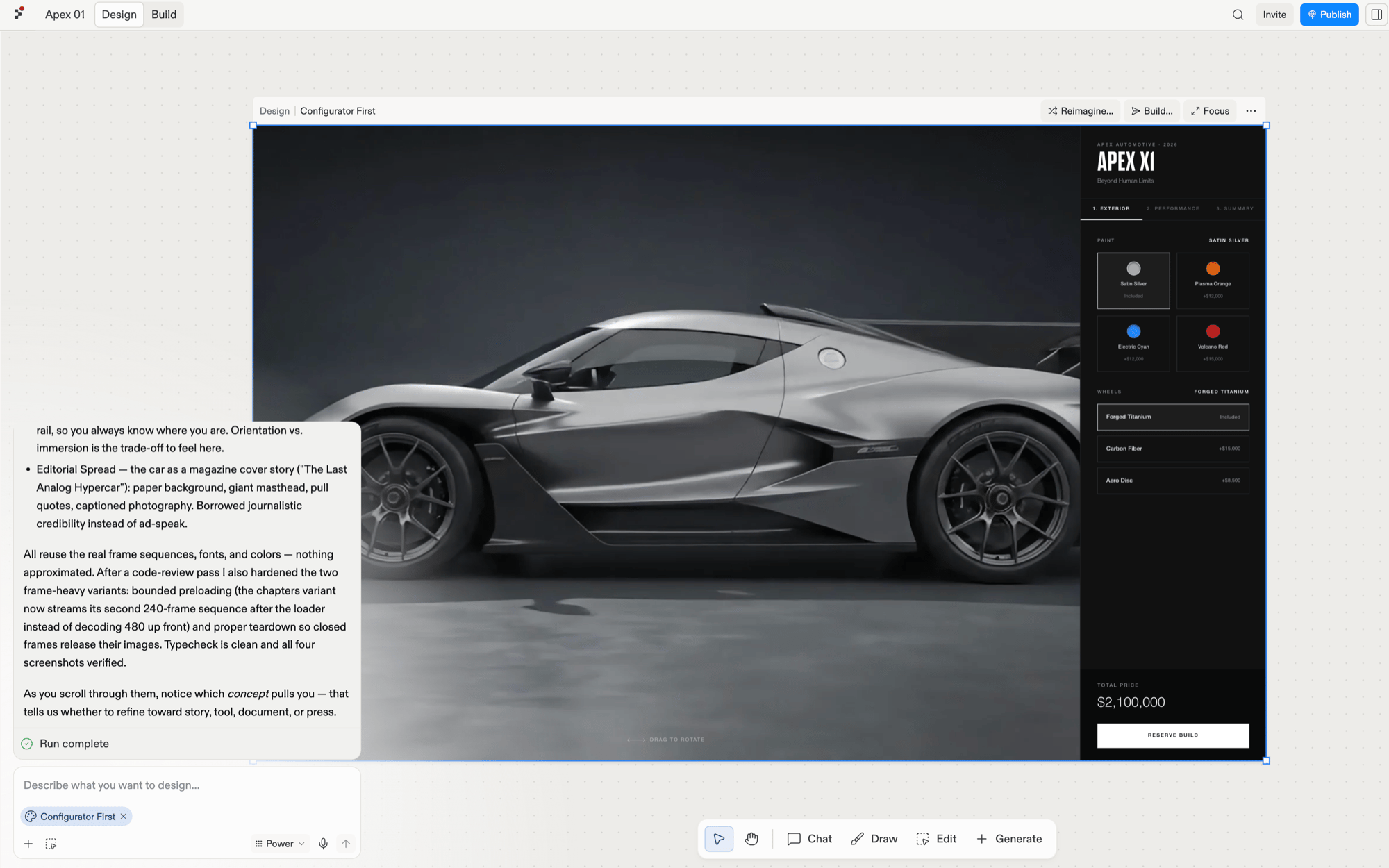
The selected frame attaches to the main chat as a chip.
Visual Editor
When you know exactly what you want, skip the prompt. Select the Edit tool in the toolbar and click any element; the Visual Editor opens with the properties that element can edit, such as content, layout, color, and border. Simple edits, like text changes, color picks, and spacing tweaks, apply to the source code instantly without spending credits.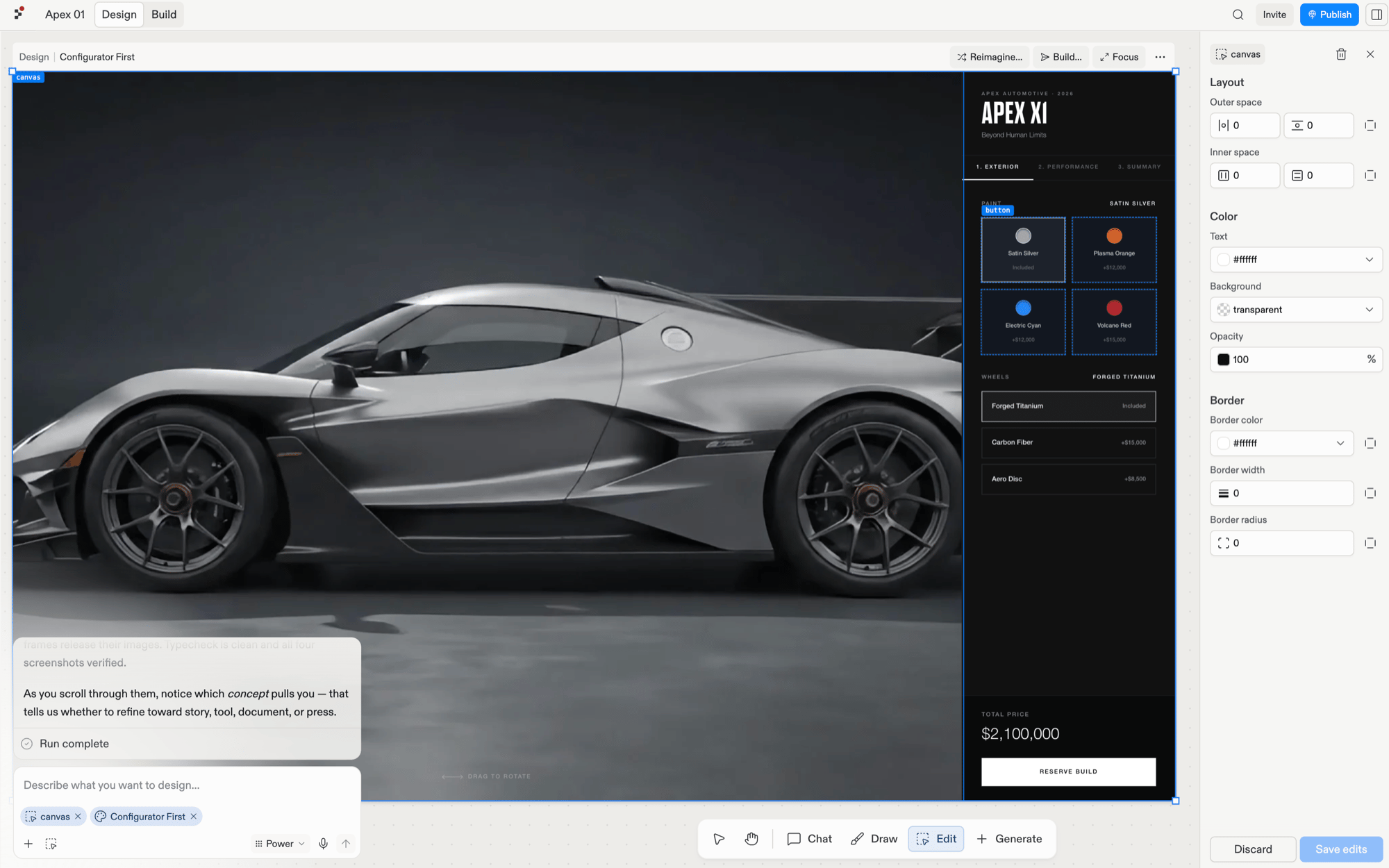
The Edit tool active with an element selected, and the Visual Editor showing its editable properties.
Which one to reach for
The two combine naturally: chat to get a direction in place, then click in with the Visual Editor to perfect the details.
Explore each tool
Chat
Steer a frame or a single element in your own words.
Visual Editor
Direct, credit-free edits to text, colors, layout, and images.
Next steps
When the frame is right, stop refining and make it real:- Build your design: turn the frame into a working app.
- Create a design system: extract what you refined so every future frame starts on brand.