


What you’ll achieve
By the end of this guide, you will have:- A custom-designed candle storefront backed by a real Shopify store.
- Products and prices created in Shopify and rendered on the storefront.
- A working cart that sends buyers to Shopify checkout.
- A clear path to go live: claim the store, turn on payments, and launch.
What you’ll learn
You will learn how to:- Describe a store so Agent recommends Shopify and provisions it for you.
- Connect Shopify without handling any API keys.
- Add and publish products by chatting with Agent.
- Refine the design and the buyer flow.
- Take the store from development to a live, sellable storefront.
Connect Shopify
Shopify is available to all builders on all apps, and you connect it right in the conversation. Start by describing the store you want to build.1
Describe your store
Copy the prompt and paste it into the prompt box on replit.com, or click Build on Replit to open Replit with the prompt prefilled.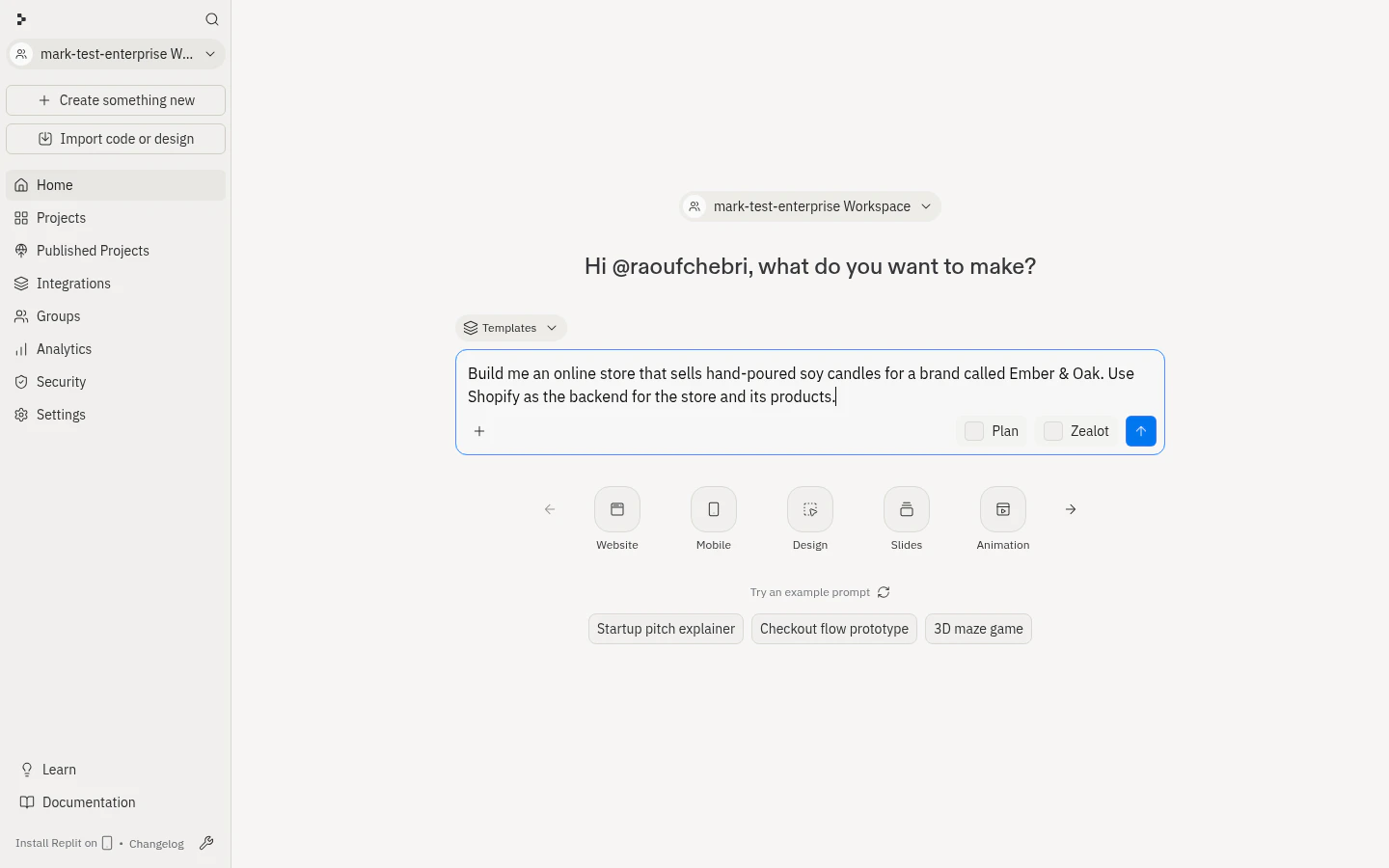
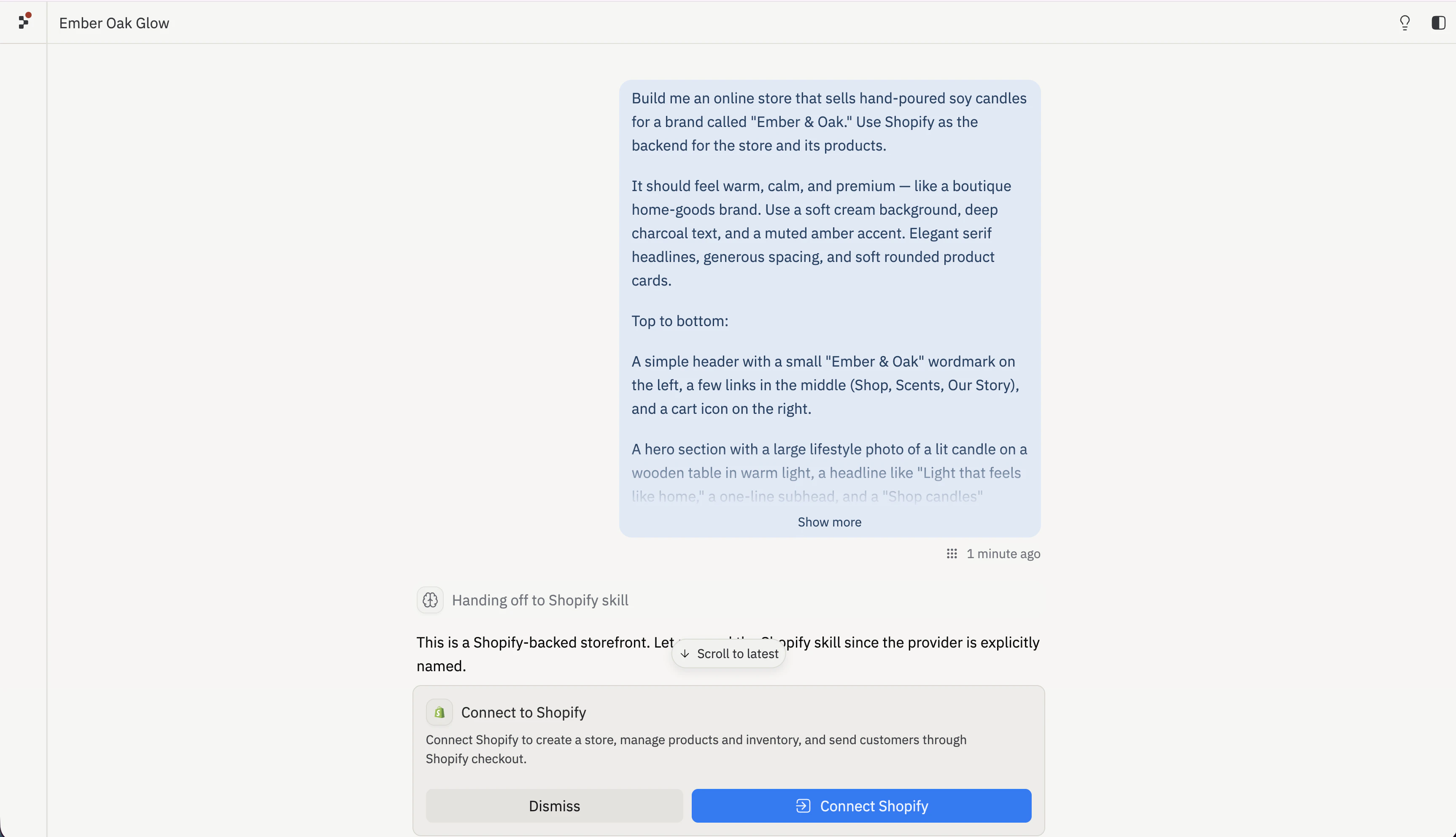
2
Approve creating a Shopify store
Agent asks to create a Shopify store for your app. Approve it, and Agent provisions a Replit-owned development store and connects it. No additional configuration needed.
Your email is shared with Shopify so you can claim the store later.The store starts password-protected and can’t take real payments until you go live, so you can build freely without risk.
Each Shopify store is scoped to a single app. If you build a second store
later, Agent provisions a fresh Shopify store for that app. For the full
connector details, see Connect Shopify.
Build the storefront
With Shopify connected, Agent designs and builds the storefront against your store.1
Let Agent build the front end
Agent generates the storefront from your prompt — the hero, product grid, cart, and supporting sections. When it finishes, the right pane switches to Preview so you can scroll the page and click through the design.
2
Add your first products
A new store starts with an empty catalog. Ask Agent to add a product, and it creates the product in Shopify and publishes it to the storefront.The product is created in your Shopify store and appears in the storefront product grid.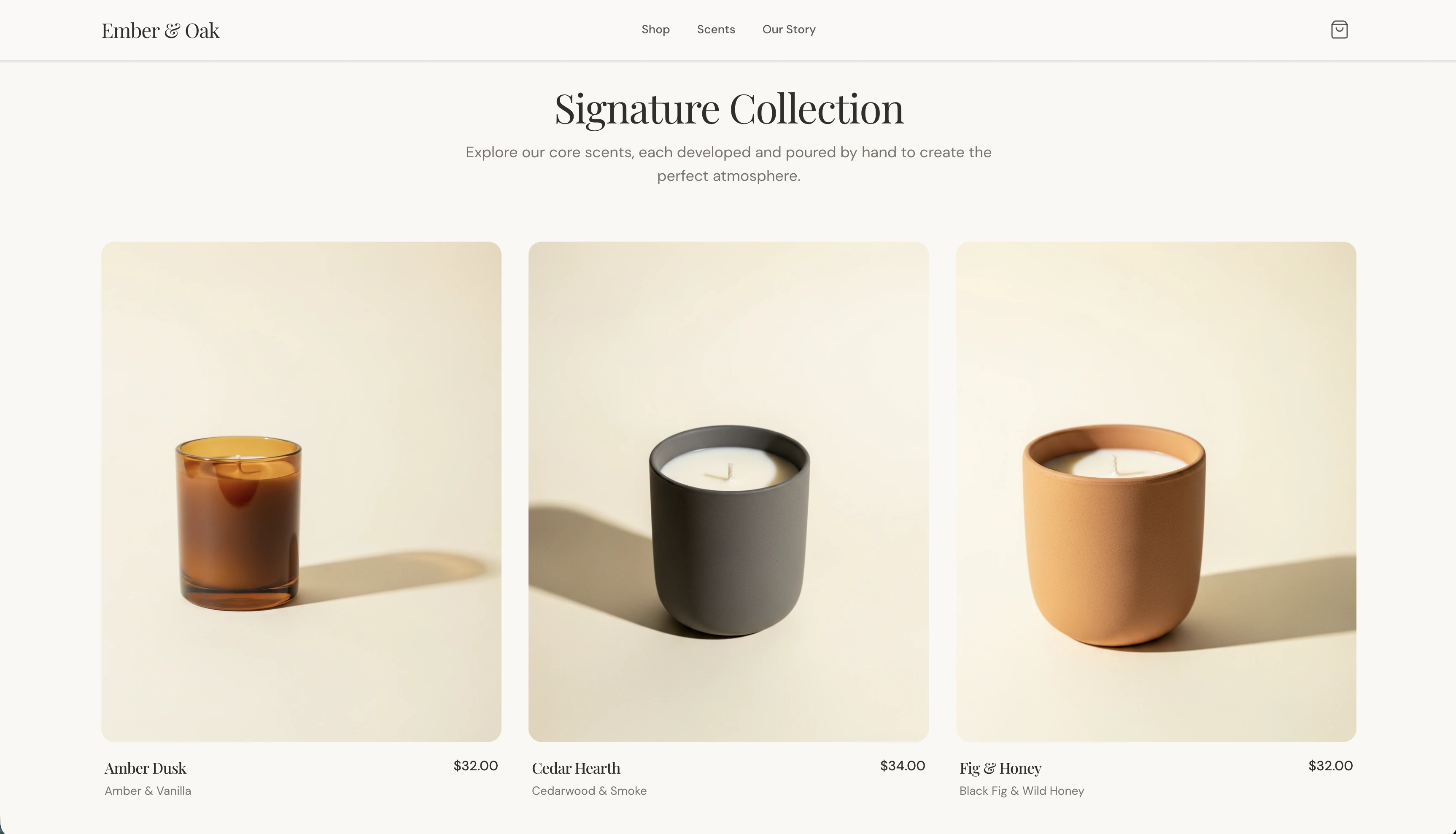
3
Fill out the catalog
Keep adding products by describing them. Agent creates each one in Shopify with its price, description, and image.
Iterate on the design and checkout
Every part of the storefront is editable through conversation. Refine the look, then check the buyer flow end to end.1
Refine the design
Describe what you want to change, and Agent updates the storefront.
2
Test the cart and checkout
In Preview, add a candle to the cart and start checkout. The cart sends buyers to Shopify’s hosted checkout. During development your store is password-protected, so the checkout preview may show a password page — that’s expected and doesn’t mean anything is broken.
Ship it
Going live happens on Shopify. Ask Agent to start the Go Live flow, then complete the merchant-owned steps.1
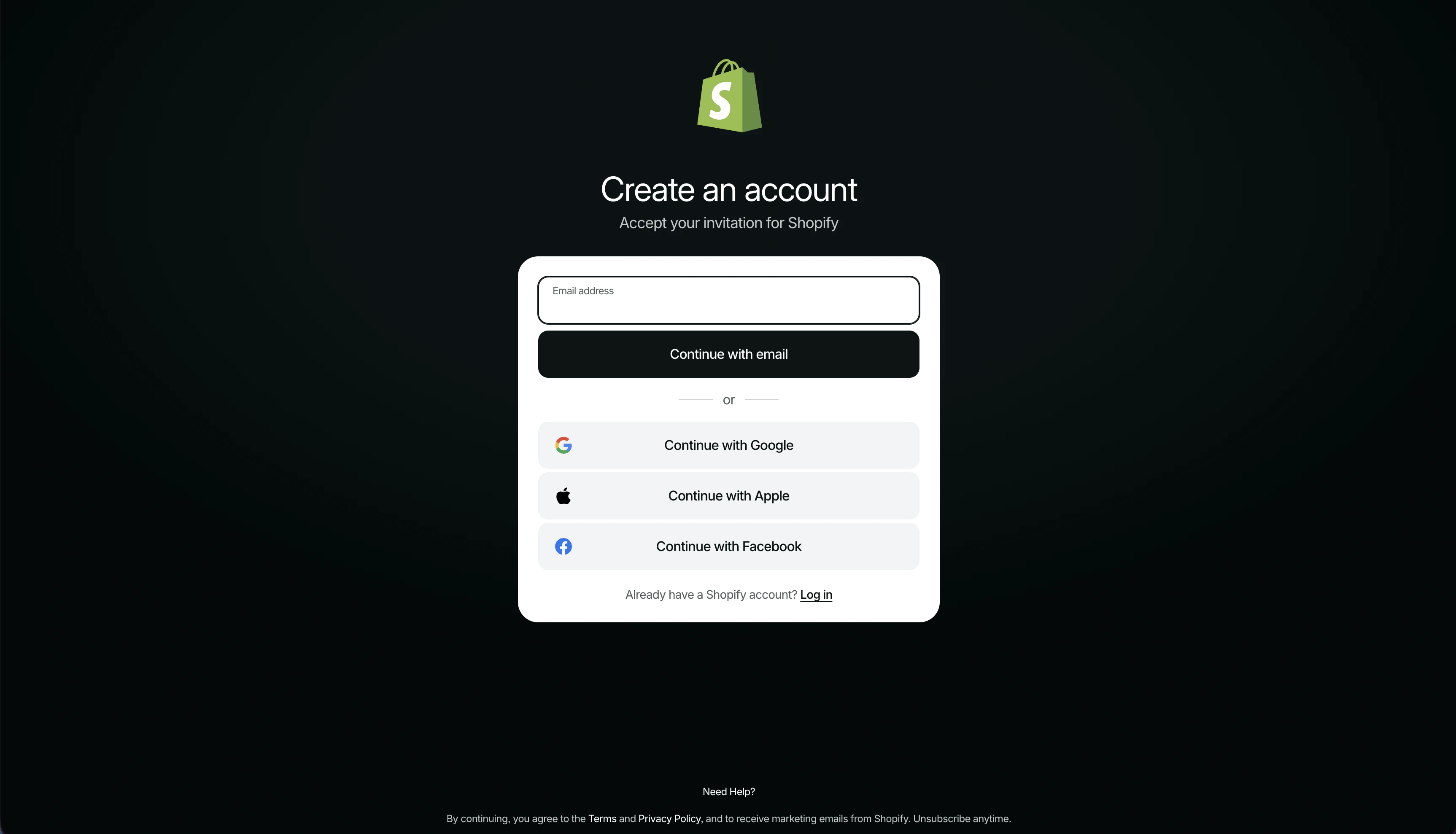
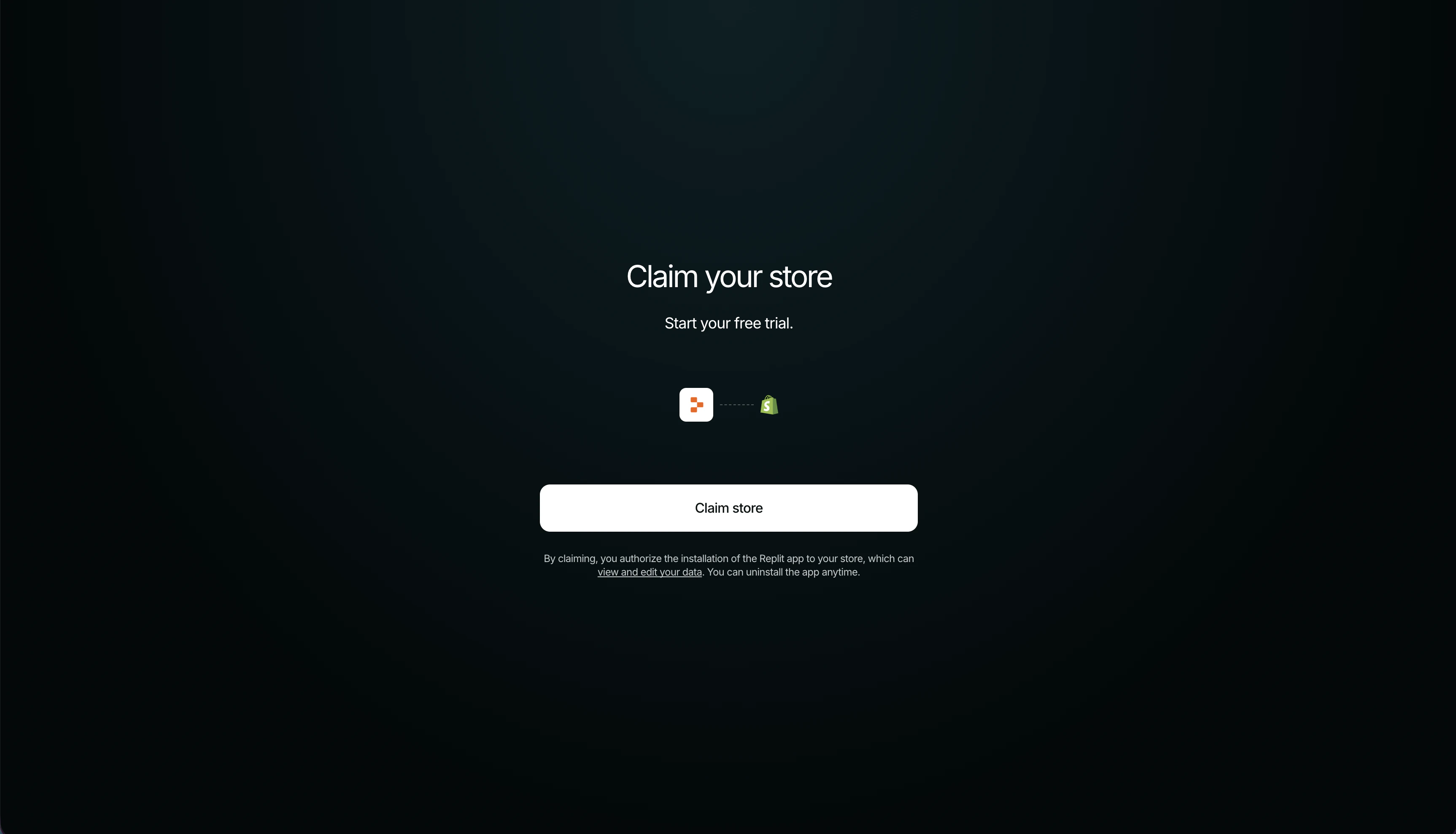
Claim your store in Shopify
Claiming happens on Shopify and is the one step that takes place outside
Replit. Because your email was shared with Shopify when the store was
created, you can claim it from the link Replit provides or the email Shopify
sends.Shopify emails you a Store owner invitation that walks you through the
steps. Open it and select Get started.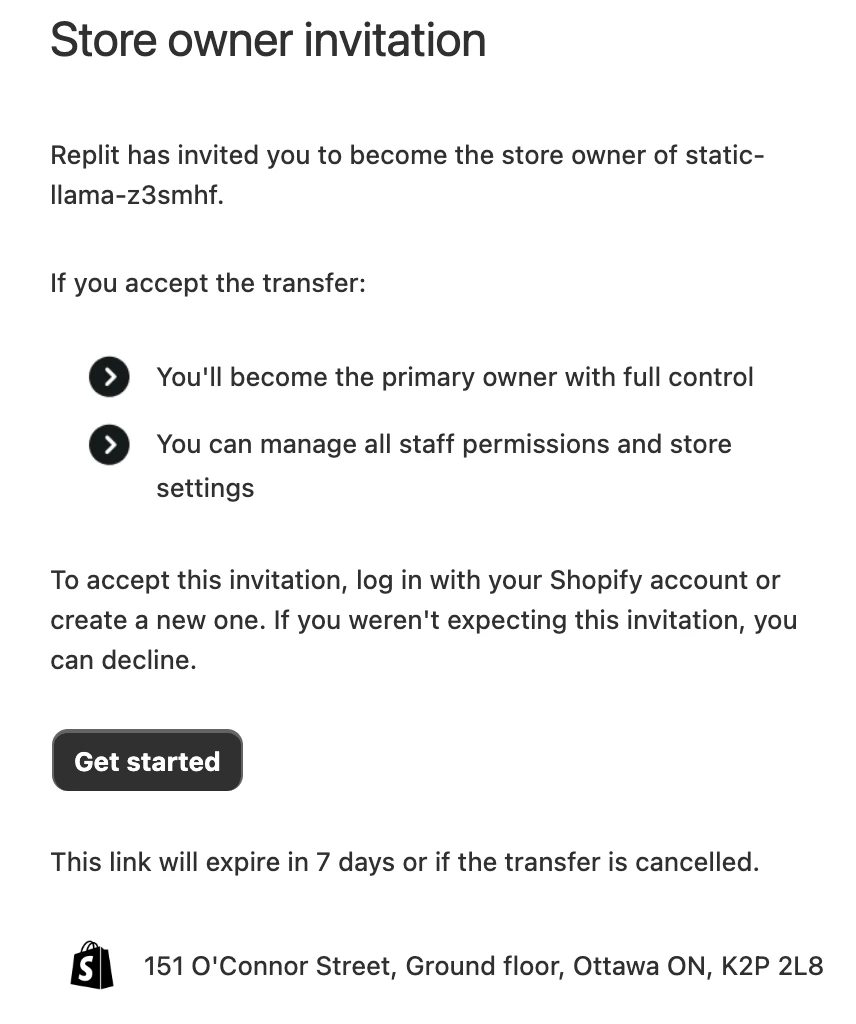
2
Choose a plan and turn on payments
Pick a Shopify plan and activate Shopify Payments or another provider.
Shopify collects the identity and banking details needed to pay you — none
of that happens in Replit.
3
Configure shipping, taxes, and a domain
Set your shipping rates and review taxes in Shopify, and optionally connect
a custom domain.
4
Launch and publish
Remove the storefront password in Shopify to open the store to buyers. Back
in Replit, click Publish to deploy your storefront to its public URL.
Payments, identity verification, taxes, shipping, and fraud checks stay on
Shopify. For the full go-live checklist and connector details, see Connect
Shopify.
Next steps
Connect Shopify
The connector reference: how the Shopify connection works and the full
go-live checklist.
Add a custom domain
Give your store a branded URL before you launch.
Improve SEO
Help buyers find your store in search.
Launch a landing page
Build a focused campaign page to drive traffic to your store.