Invite collaborators to your Replit Workspace: open Workspace collaborators, choose a Member, Guest, or Viewer role, and send invitations to multiple email addresses.
Invite collaborators to your team Workspace so they can build with you. Choose the access they need, then invite one person or several people at once.
If your organization manages membership through an identity provider, use that provider’s provisioning process for internal teammates. See SCIM provisioning. Enterprise Guests must use email addresses outside your organization’s SSO domains.
1
Open Workspace collaborators
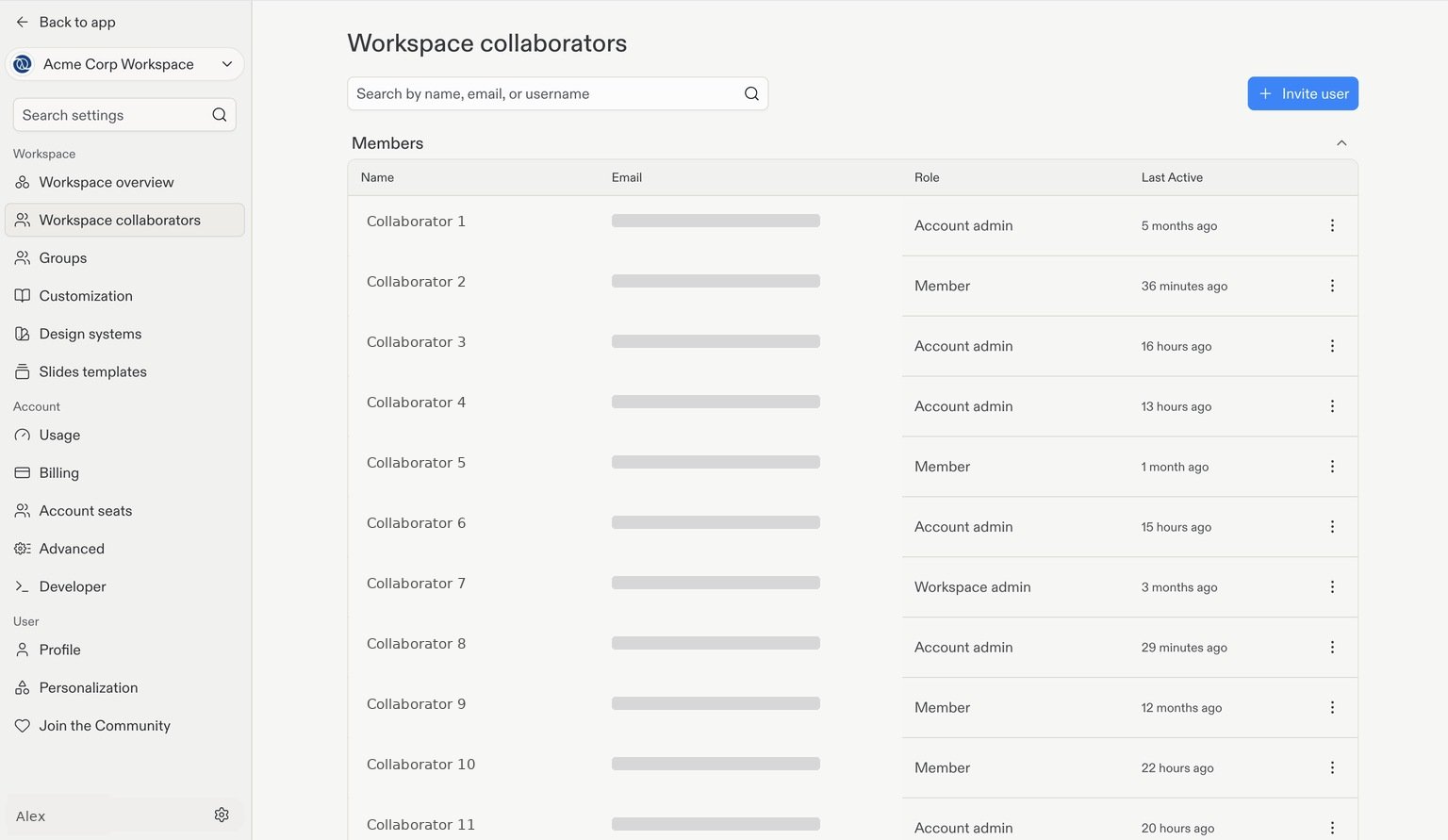
Select your team Workspace, then go to Workspace collaborators in Settings.This page shows your current collaborators and their roles. Select + Invite user in the top-right corner.
Workspace collaborators. Emails and usernames are hidden, and names are examples.
2
Choose a role
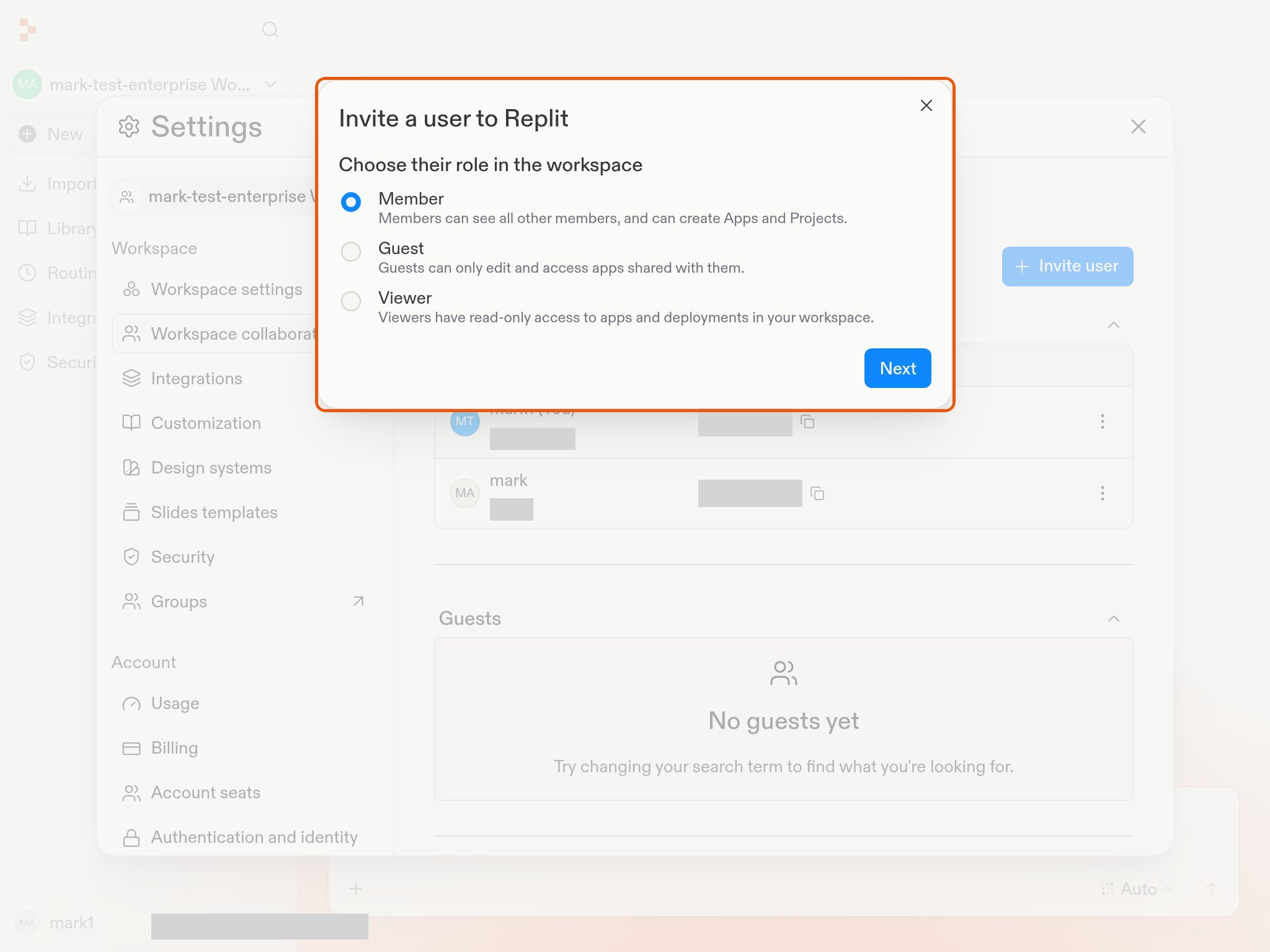
Choose the role for the people you’re inviting:
Member: Can see other members and create apps and projects.
Guest: Can only access and edit apps shared with them.
Viewer: Has read-only access to apps and deployments in the Workspace.
Select Next.
3
Enter email addresses and send invitations
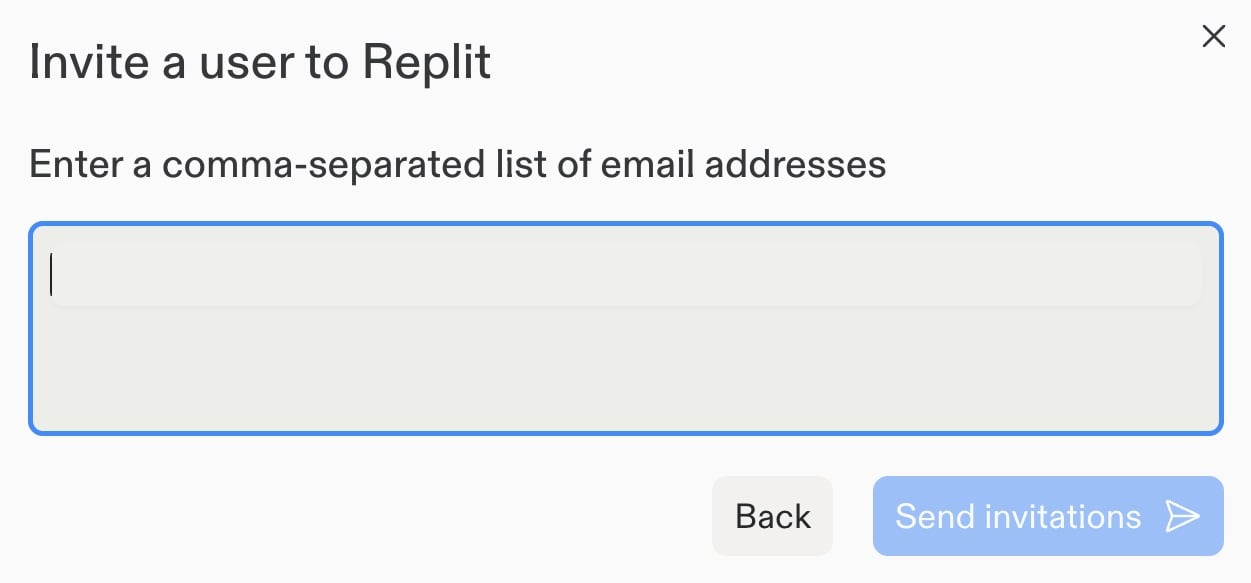
Enter one or more email addresses. To invite multiple people with the selected role, separate their addresses with commas, for example: alex@example.com, sam@example.com, jordan@example.com.Review the addresses, then select Send invitations.
Repeat the process with a different role if other collaborators need different access.
Connect the services your team needs to build applications.
Was this page helpful?
{"docsConfig":{"theme":"aspen","$schema":"https://mintlify.com/docs.json","name":"Replit","colors":{"primary":"#FF3C00","light":"#FF3C00","dark":"#FF3C00"},"logo":{"light":"https://mintcdn.com/replit/j4of5To8jzehz0JK/logo/light.svg?fit=max\u0026auto=format\u0026n=j4of5To8jzehz0JK\u0026q=85\u0026s=6209cb5927b56fd1781133af05428373","dark":"https://mintcdn.com/replit/j4of5To8jzehz0JK/logo/dark.svg?fit=max\u0026auto=format\u0026n=j4of5To8jzehz0JK\u0026q=85\u0026s=9cbba158300d48c49d8b888e71015495","href":"/welcome"},"favicon":"https://mintcdn.com/replit/CmOMKRnamiqG44eH/favicon.ico?fit=max\u0026auto=format\u0026n=CmOMKRnamiqG44eH\u0026q=85\u0026s=c89a6df6f537373c946c7a5f0ac65475","appearance":{"default":"light"},"background":{"color":{"light":"#F6F5F4","dark":"#1E1E1F"}},"navbar":{"links":[],"primary":{"type":"button","label":"Start Building","href":"https://replit.com?ref=docs"}},"footer":{"socials":{"x":"https://x.com/replit","linkedin":"https://www.linkedin.com/company/repl-it","youtube":"https://www.youtube.com/@replit"}},"seo":{"metatags":{"og:site_name":"Replit Docs","twitter:site":"@replit","twitter:creator":"@replit","author":"Replit"},"indexing":"all"},"fonts":{"heading":{"family":"ABC Diatype Plus","weight":400,"source":"https://cdn.replit.com/dotcom/fonts/ABCDiatypePlusVariable.woff2","format":"woff2"},"body":{"family":"ABC Diatype Plus","weight":400,"source":"https://cdn.replit.com/dotcom/fonts/ABCDiatypePlusVariable.woff2","format":"woff2"}},"integrations":{"segment":{"key":"dMePKGC4BqfBivpe0Hvl8IoPpzSHgjdX"}},"contextual":{"options":["copy","view"],"display":"header"},"thumbnails":{"appearance":"light","background":"https://mintcdn.com/replit/j4of5To8jzehz0JK/thumb.png?fit=max\u0026auto=format\u0026n=j4of5To8jzehz0JK\u0026q=85\u0026s=a7db7f0256b2fa06810fb4d378e63cc5","fonts":{"family":"ABC Diatype Plus"}},"styling":{"latex":true},"navigation":{"languages":[{"language":"en","href":"welcome"},{"language":"fr","navbar":{"links":[],"primary":{"type":"button","label":"Commencer à créer","href":"https://replit.com?ref=docs"}},"href":"fr/welcome"},{"language":"pt","hidden":false,"navbar":{"links":[],"primary":{"type":"button","label":"Comece a criar","href":"https://replit.com?ref=docs"}},"href":"pt/welcome"},{"language":"ja","hidden":false,"navbar":{"links":[],"primary":{"type":"button","label":"作成を開始","href":"https://replit.com?ref=docs"}},"href":"ja/welcome"},{"language":"ko","hidden":false,"navbar":{"links":[],"primary":{"type":"button","label":"빌드 시작하기","href":"https://replit.com?ref=docs"}},"href":"ko/welcome"}]}},"deployment":{"deploymentMetadataValue":{"subdomain":"replit","hasAudioNarration":false,"actualSubdomain":"replit","customDomains":["docs.replit.com","docs.repl.it"],"gitSource":{"type":"github","owner":"replit","repo":"replit-docs","deployBranch":"main","contentDirectory":"docs","isPrivate":true,"mountPath":"","label":""},"chroma":{"liveDeploymentHistoryId":"6ae261983a46d9e984411385","collectionId":"1d6e5825-7a0c-4810-80c8-903bd5e6d4e9","schemaVersion":"v3","latestBuiltDeploymentHistoryId":"6ae261983a46d9e984411385"},"feedback":{"thumbs":true,"issues":true,"edits":false},"entitlements":{"AI_CHAT":{"status":"ENABLED"},"REMOVE_BRANDING":{"status":"ENABLED"},"CONTEXTUAL_FEEDBACK":{"status":"ENABLED"},"CODE_SNIPPET_FEEDBACK":{"status":"ENABLED"},"WEB_MCP":{"status":"ENABLED"},"NARRATION":{"status":"ENABLED"}},"buildId":"6ae261983a46d9e984411385","clientVersion":"0.0.4006","searchFilterCounts":[{"language":"en","tag":"Features","count":356},{"language":"fr","tag":"Fonctionnalités","count":354},{"language":"ja","tag":"機能","count":354},{"language":"ko","tag":"기능","count":354},{"language":"pt","tag":"Funcionalidades","count":354},{"language":"en","tag":"Changelog","count":98},{"language":"fr","tag":"Journal des modifications","count":98},{"language":"ja","tag":"変更履歴","count":98},{"language":"ko","tag":"변경 내역","count":98},{"language":"pt","tag":"Registro de alterações","count":98},{"language":"en","tag":"Apps","count":41},{"language":"fr","tag":"Apps","count":41},{"language":"ja","tag":"Apps","count":41},{"language":"ko","tag":"Apps","count":41},{"language":"pt","tag":"Apps","count":41},{"language":"en","tag":"Enterprise","count":40},{"language":"fr","tag":"Entreprise","count":40},{"language":"ja","tag":"Enterprise","count":40},{"language":"ko","tag":"Enterprise","count":40},{"language":"pt","tag":"Enterprise","count":40},{"language":"en","tag":"Use cases","count":35},{"language":"fr","tag":"Use cases","count":35},{"language":"ja","tag":"Use cases","count":35},{"language":"ko","tag":"Use cases","count":35},{"language":"pt","tag":"Use cases","count":35},{"language":"en","tag":"Chats","count":25},{"language":"en","tag":"Designs","count":25},{"language":"fr","tag":"Chats","count":25},{"language":"fr","tag":"Designs","count":25},{"language":"ja","tag":"Chats","count":25},{"language":"ja","tag":"Designs","count":25},{"language":"ko","tag":"Chats","count":25},{"language":"ko","tag":"Designs","count":25},{"language":"pt","tag":"Chats","count":25},{"language":"pt","tag":"Designs","count":25},{"language":"en","tag":"Trust \u0026 Billing","count":23},{"language":"fr","tag":"Confiance et facturation","count":23},{"language":"ja","tag":"信頼と請求","count":23},{"language":"ko","tag":"신뢰 및 결제","count":23},{"language":"pt","tag":"Confiança e faturamento","count":23},{"language":"en","tag":"Web","count":22},{"language":"fr","tag":"Web","count":22},{"language":"ja","tag":"Web","count":22},{"language":"ko","tag":"Web","count":22},{"language":"pt","tag":"Web","count":22},{"language":"en","tag":"Help","count":20},{"language":"fr","tag":"Help","count":20},{"language":"ja","tag":"Help","count":20},{"language":"ko","tag":"Help","count":20},{"language":"pt","tag":"Help","count":20}]},"assistantConfig":{"deflection":{"enabled":true,"email":"support@replit.com"}},"basePath":"","hasChatPermissions":true,"hasWebMcpPermissions":true,"toggles":[{"name":"kill-isr","enabled":true,"variant":{"name":"disabled","enabled":false,"feature_enabled":true},"impressionData":false},{"name":"agent-mintlify-slack","enabled":true,"variant":{"name":"disabled","enabled":false,"feature_enabled":true},"impressionData":false},{"name":"editor-v7-file-tree","enabled":true,"variant":{"name":"disabled","enabled":false,"feature_enabled":true},"impressionData":false},{"name":"agent-integrations-settings","enabled":true,"variant":{"name":"disabled","enabled":false,"feature_enabled":true},"impressionData":false},{"name":"automations-pr-grouping","enabled":true,"variant":{"name":"disabled","enabled":false,"feature_enabled":true},"impressionData":false},{"name":"custom-prefix","enabled":true,"variant":{"name":"disabled","enabled":false,"feature_enabled":true},"impressionData":false},{"name":"analytics-v7","enabled":true,"variant":{"name":"disabled","enabled":false,"feature_enabled":true},"impressionData":false},{"name":"user-flows-analytics","enabled":true,"variant":{"name":"disabled","enabled":false,"feature_enabled":true},"impressionData":false},{"name":"no-publish-flow","enabled":true,"variant":{"name":"disabled","enabled":false,"feature_enabled":true},"impressionData":false},{"name":"workos-onboarding","enabled":true,"variant":{"name":"disabled","enabled":false,"feature_enabled":true},"impressionData":false},{"name":"llms-txt-v2","enabled":true,"variant":{"name":"disabled","enabled":false,"feature_enabled":true},"impressionData":false},{"name":"pause-universal-search-reconcile","enabled":true,"variant":{"name":"disabled","enabled":false,"feature_enabled":true},"impressionData":false},{"name":"snapshot-serving-live","enabled":true,"variant":{"name":"disabled","enabled":false,"feature_enabled":true},"impressionData":false},{"name":"stripTemperatureMiddleware","enabled":true,"variant":{"name":"disabled","enabled":false,"feature_enabled":true},"impressionData":false},{"name":"per-site-search-delta","enabled":true,"variant":{"name":"disabled","enabled":false,"feature_enabled":true},"impressionData":false},{"name":"support-platform-pylon-zendesk","enabled":true,"variant":{"name":"disabled","enabled":false,"feature_enabled":true},"impressionData":false},{"name":"snapshot-serving","enabled":true,"variant":{"name":"disabled","enabled":false,"feature_enabled":true},"impressionData":false},{"name":"instant-rollback","enabled":true,"variant":{"name":"disabled","enabled":false,"feature_enabled":true},"impressionData":false},{"name":"granular-notifications-server","enabled":true,"variant":{"name":"disabled","enabled":false,"feature_enabled":true},"impressionData":false},{"name":"granular-notifications","enabled":true,"variant":{"name":"disabled","enabled":false,"feature_enabled":true},"impressionData":false},{"name":"editor-private-page-search","enabled":true,"variant":{"name":"disabled","enabled":false,"feature_enabled":true},"impressionData":false},{"name":"automations-fable","enabled":true,"variant":{"name":"disabled","enabled":false,"feature_enabled":true},"impressionData":false},{"name":"fixed-ai-action-pricing","enabled":true,"variant":{"name":"disabled","enabled":false,"feature_enabled":true},"impressionData":false},{"name":"automation-resolve-merge-conflict","enabled":true,"variant":{"name":"disabled","enabled":false,"feature_enabled":true},"impressionData":false},{"name":"scoped-publishing","enabled":true,"variant":{"name":"disabled","enabled":false,"feature_enabled":true},"impressionData":false},{"name":"mintql","enabled":true,"variant":{"name":"disabled","enabled":false,"feature_enabled":true},"impressionData":false},{"name":"page-level-analytics","enabled":true,"variant":{"name":"disabled","enabled":false,"feature_enabled":true},"impressionData":false},{"name":"editor-version-history-v2","enabled":true,"variant":{"name":"disabled","enabled":false,"feature_enabled":true},"impressionData":false},{"name":"editor-nav-generations","enabled":true,"variant":{"name":"disabled","enabled":false,"feature_enabled":true},"impressionData":false},{"name":"billing-page-v2","enabled":true,"variant":{"name":"disabled","enabled":false,"feature_enabled":true},"impressionData":false},{"name":"workspace-projects","enabled":true,"variant":{"name":"disabled","enabled":false,"feature_enabled":true},"impressionData":false},{"name":"assistant-v5","enabled":true,"variant":{"name":"disabled","enabled":false,"feature_enabled":true},"impressionData":false},{"name":"byok-sep-25","enabled":true,"variant":{"name":"disabled","enabled":false,"feature_enabled":true},"impressionData":false},{"name":"fork-pr-previews","enabled":true,"variant":{"name":"disabled","enabled":false,"feature_enabled":true},"impressionData":false},{"name":"revalidation-jwt","enabled":true,"variant":{"name":"disabled","enabled":false,"feature_enabled":true},"impressionData":false},{"name":"vite-origin","enabled":true,"variant":{"name":"disabled","enabled":false,"feature_enabled":true},"impressionData":false},{"name":"editor-agent-model-picker","enabled":true,"variant":{"name":"disabled","enabled":false,"feature_enabled":true},"impressionData":false},{"name":"billing-updated-9-15","enabled":true,"variant":{"name":"disabled","enabled":false,"feature_enabled":true},"impressionData":false},{"name":"workos-sso-scim","enabled":true,"variant":{"name":"disabled","enabled":false,"feature_enabled":true},"impressionData":false},{"name":"hobby-abuse-scan","enabled":true,"variant":{"name":"disabled","enabled":false,"feature_enabled":true},"impressionData":false},{"name":"dashboard-inbox","enabled":true,"variant":{"name":"disabled","enabled":false,"feature_enabled":true},"impressionData":false},{"name":"workos-signup","enabled":true,"variant":{"name":"disabled","enabled":false,"feature_enabled":true},"impressionData":false},{"name":"workos-enabled","enabled":true,"variant":{"name":"disabled","enabled":false,"feature_enabled":true},"impressionData":false}],"googleFontsInlined":false},"customCss":[{"filePath":"styles.css","href":"/_mintlify/custom/replit/d6ac49b4be1dab72/styles.css"}],"page":{"pagePath":"teams/add-collaborators","slug":"/teams/add-collaborators","pageMetadata":{"title":"Add collaborators","sidebarTitle":"Add collaborators","description":"Invite collaborators to your Replit Workspace: open Workspace collaborators, choose a Member, Guest, or Viewer role, and send invitations to multiple email addresses.","icon":"user-plus","href":"/teams/add-collaborators"},"description":{"compiledSource":"\"use strict\";\nconst {jsx: _jsx} = arguments[0];\nconst {useMDXComponents: _provideComponents} = arguments[0];\nfunction _createMdxContent(props) {\n const _components = {\n p: \"p\",\n ..._provideComponents(),\n ...props.components\n };\n return _jsx(_components.p, {\n children: \"Invite collaborators to your Replit Workspace: open Workspace collaborators, choose a Member, Guest, or Viewer role, and send invitations to multiple email addresses.\"\n });\n}\nfunction MDXContent(props = {}) {\n const {wrapper: MDXLayout} = {\n ..._provideComponents(),\n ...props.components\n };\n return MDXLayout ? _jsx(MDXLayout, {\n ...props,\n children: _jsx(_createMdxContent, {\n ...props\n })\n }) : _createMdxContent(props);\n}\nreturn {\n default: MDXContent\n};\n","frontmatter":{},"scope":{}},"pageType":"default","mdx":{"mdxSource":{"compiledSource":"\"use strict\";const{Fragment:_Fragment,jsx:_jsx,jsxs:_jsxs}=arguments[0];const{useMDXComponents:_provideComponents}=arguments[0];function _createMdxContent(props){const _components={a:`a`,code:`code`,li:`li`,p:`p`,strong:`strong`,ul:`ul`,..._provideComponents(),...props.components},{Card,Frame,Heading,Note,OptimizedImage,Step,Steps}=_components;if(!Card)_missingMdxReference(`Card`,true);if(!Frame)_missingMdxReference(`Frame`,true);if(!Heading)_missingMdxReference(`Heading`,true);if(!Note)_missingMdxReference(`Note`,true);if(!OptimizedImage)_missingMdxReference(`OptimizedImage`,true);if(!Step)_missingMdxReference(`Step`,true);if(!Steps)_missingMdxReference(`Steps`,true);return _jsxs(_Fragment,{children:[_jsx(_components.p,{children:`Invite collaborators to your team Workspace so they can build with you. Choose the access they need, then invite one person or several people at once.`}),`\n`,_jsx(Note,{children:_jsxs(_components.p,{children:[`If your organization manages membership through an identity provider, use that provider’s provisioning process for internal teammates. See `,_jsx(_components.a,{href:`/teams/identity-and-access-management/scim`,children:`SCIM provisioning`}),`. Enterprise Guests must use email addresses outside your organization’s SSO domains.`]})}),`\n`,_jsxs(Steps,{children:[_jsxs(Step,{title:`Open Workspace collaborators`,children:[_jsxs(_components.p,{children:[`Select your team Workspace, then go to `,_jsx(_components.a,{href:`https://replit.com/settings/invitedUsers`,children:`Workspace collaborators`}),` in `,_jsx(_components.strong,{children:`Settings`}),`.`]}),_jsxs(_components.p,{children:[`This page shows your current collaborators and their roles. Select `,_jsx(_components.strong,{children:`+ Invite user`}),` in the top-right corner.`]}),_jsx(Frame,{caption:`Workspace collaborators. Emails and usernames are hidden, and names are examples.`,children:_jsx(OptimizedImage,{src:`https://mintcdn.com/replit/4GRNrFZsQB2Pgalf/images/workspace/enterprise-collaborators.jpg?fit=max\u0026auto=format\u0026n=4GRNrFZsQB2Pgalf\u0026q=85\u0026s=b3dfd24c16b6bfc078bd3e69b4dfe966`,alt:`Workspace collaborators page with a member list, roles, and an Invite user button at the top right. Member identities are hidden.`,\"data-og-width\":`1536`,width:`1536`,\"data-og-height\":`891`,height:`891`,\"data-path\":`images/workspace/enterprise-collaborators.jpg`,\"data-optimize\":`true`,\"data-opv\":`3`,srcset:`https://mintcdn.com/replit/4GRNrFZsQB2Pgalf/images/workspace/enterprise-collaborators.jpg?w=280\u0026fit=max\u0026auto=format\u0026n=4GRNrFZsQB2Pgalf\u0026q=85\u0026s=eea0d610120cd9b3fdc971d0da45cd7e 280w, https://mintcdn.com/replit/4GRNrFZsQB2Pgalf/images/workspace/enterprise-collaborators.jpg?w=560\u0026fit=max\u0026auto=format\u0026n=4GRNrFZsQB2Pgalf\u0026q=85\u0026s=9fe8fbb5f935f1baa90adab10ac6ddf6 560w, https://mintcdn.com/replit/4GRNrFZsQB2Pgalf/images/workspace/enterprise-collaborators.jpg?w=840\u0026fit=max\u0026auto=format\u0026n=4GRNrFZsQB2Pgalf\u0026q=85\u0026s=1bab82a38a674a7138577851a33557b3 840w, https://mintcdn.com/replit/4GRNrFZsQB2Pgalf/images/workspace/enterprise-collaborators.jpg?w=1100\u0026fit=max\u0026auto=format\u0026n=4GRNrFZsQB2Pgalf\u0026q=85\u0026s=8c5197b6212d904b33b3e10a03da8bb5 1100w, https://mintcdn.com/replit/4GRNrFZsQB2Pgalf/images/workspace/enterprise-collaborators.jpg?w=1650\u0026fit=max\u0026auto=format\u0026n=4GRNrFZsQB2Pgalf\u0026q=85\u0026s=1238417dd380ff4969bbf3b2466020ba 1650w, https://mintcdn.com/replit/4GRNrFZsQB2Pgalf/images/workspace/enterprise-collaborators.jpg?w=2500\u0026fit=max\u0026auto=format\u0026n=4GRNrFZsQB2Pgalf\u0026q=85\u0026s=48902d09cd157de14fb7a771299be3e8 2500w`})})]}),_jsxs(Step,{title:`Choose a role`,children:[_jsx(_components.p,{children:`Choose the role for the people you’re inviting:`}),_jsxs(_components.ul,{children:[`\n`,_jsxs(_components.li,{children:[_jsx(_components.strong,{children:`Member`}),`: Can see other members and create apps and projects.`]}),`\n`,_jsxs(_components.li,{children:[_jsx(_components.strong,{children:`Guest`}),`: Can only access and edit apps shared with them.`]}),`\n`,_jsxs(_components.li,{children:[_jsx(_components.strong,{children:`Viewer`}),`: Has read-only access to apps and deployments in the Workspace.`]}),`\n`]}),_jsxs(_components.p,{children:[`Select `,_jsx(_components.strong,{children:`Next`}),`.`]}),_jsx(Frame,{children:_jsx(OptimizedImage,{src:`https://mintcdn.com/replit/xym32lrdfq7qFDTa/images/workspace/enterprise-invite-role.jpg?fit=max\u0026auto=format\u0026n=xym32lrdfq7qFDTa\u0026q=85\u0026s=69e436cfaad7ea597f1651cc90a386ff`,alt:`Invite a user to Replit dialog with Member, Guest, and Viewer choices and a Next button.`,\"data-og-width\":`2048`,width:`2048`,\"data-og-height\":`1536`,height:`1536`,\"data-path\":`images/workspace/enterprise-invite-role.jpg`,\"data-optimize\":`true`,\"data-opv\":`3`,srcset:`https://mintcdn.com/replit/xym32lrdfq7qFDTa/images/workspace/enterprise-invite-role.jpg?w=280\u0026fit=max\u0026auto=format\u0026n=xym32lrdfq7qFDTa\u0026q=85\u0026s=b7e5f1971be2a5f1ecbc6e2a5eefe66a 280w, https://mintcdn.com/replit/xym32lrdfq7qFDTa/images/workspace/enterprise-invite-role.jpg?w=560\u0026fit=max\u0026auto=format\u0026n=xym32lrdfq7qFDTa\u0026q=85\u0026s=7d3dbdb1cfb082ef169faf9f87960a5e 560w, https://mintcdn.com/replit/xym32lrdfq7qFDTa/images/workspace/enterprise-invite-role.jpg?w=840\u0026fit=max\u0026auto=format\u0026n=xym32lrdfq7qFDTa\u0026q=85\u0026s=66b6eb87c89bcbf7176ce72b4b31165d 840w, https://mintcdn.com/replit/xym32lrdfq7qFDTa/images/workspace/enterprise-invite-role.jpg?w=1100\u0026fit=max\u0026auto=format\u0026n=xym32lrdfq7qFDTa\u0026q=85\u0026s=77c151c86e77c39ce07c7013907e120b 1100w, https://mintcdn.com/replit/xym32lrdfq7qFDTa/images/workspace/enterprise-invite-role.jpg?w=1650\u0026fit=max\u0026auto=format\u0026n=xym32lrdfq7qFDTa\u0026q=85\u0026s=c2d9396e54976a3322d0efc1b4ea0bbd 1650w, https://mintcdn.com/replit/xym32lrdfq7qFDTa/images/workspace/enterprise-invite-role.jpg?w=2500\u0026fit=max\u0026auto=format\u0026n=xym32lrdfq7qFDTa\u0026q=85\u0026s=770304bbcd4e2523b495306a7823057b 2500w`})})]}),_jsxs(Step,{title:`Enter email addresses and send invitations`,children:[_jsxs(_components.p,{children:[`Enter one or more email addresses. To invite multiple people with the selected role, separate their addresses with commas, for example: `,_jsx(_components.code,{children:`alex@example.com, sam@example.com, jordan@example.com`}),`.`]}),_jsxs(_components.p,{children:[`Review the addresses, then select `,_jsx(_components.strong,{children:`Send invitations`}),`.`]}),_jsx(Frame,{children:_jsx(OptimizedImage,{src:`https://mintcdn.com/replit/4GRNrFZsQB2Pgalf/images/workspace/enterprise-invite-emails.jpg?fit=max\u0026auto=format\u0026n=4GRNrFZsQB2Pgalf\u0026q=85\u0026s=c392e1546d9398513fa8a49644ddab87`,alt:`Invitation dialog with a field for a comma-separated list of email addresses and a Send invitations button.`,\"data-og-width\":`1251`,width:`1251`,\"data-og-height\":`583`,height:`583`,\"data-path\":`images/workspace/enterprise-invite-emails.jpg`,\"data-optimize\":`true`,\"data-opv\":`3`,srcset:`https://mintcdn.com/replit/4GRNrFZsQB2Pgalf/images/workspace/enterprise-invite-emails.jpg?w=280\u0026fit=max\u0026auto=format\u0026n=4GRNrFZsQB2Pgalf\u0026q=85\u0026s=557be43feea4b8e3f8be855ba02f2778 280w, https://mintcdn.com/replit/4GRNrFZsQB2Pgalf/images/workspace/enterprise-invite-emails.jpg?w=560\u0026fit=max\u0026auto=format\u0026n=4GRNrFZsQB2Pgalf\u0026q=85\u0026s=6aa05e950a2fd9b8300bd4e26d8d2e28 560w, https://mintcdn.com/replit/4GRNrFZsQB2Pgalf/images/workspace/enterprise-invite-emails.jpg?w=840\u0026fit=max\u0026auto=format\u0026n=4GRNrFZsQB2Pgalf\u0026q=85\u0026s=b19e9a32d58e1711740db7fa7be3cd6e 840w, https://mintcdn.com/replit/4GRNrFZsQB2Pgalf/images/workspace/enterprise-invite-emails.jpg?w=1100\u0026fit=max\u0026auto=format\u0026n=4GRNrFZsQB2Pgalf\u0026q=85\u0026s=0c6d17d25d0bd4b32254a54ce1a9b80c 1100w, https://mintcdn.com/replit/4GRNrFZsQB2Pgalf/images/workspace/enterprise-invite-emails.jpg?w=1650\u0026fit=max\u0026auto=format\u0026n=4GRNrFZsQB2Pgalf\u0026q=85\u0026s=e3715b3f3fcfd38afc42ba7002d75e83 1650w, https://mintcdn.com/replit/4GRNrFZsQB2Pgalf/images/workspace/enterprise-invite-emails.jpg?w=2500\u0026fit=max\u0026auto=format\u0026n=4GRNrFZsQB2Pgalf\u0026q=85\u0026s=94a63ffda96328e8d2989d0e3acc9679 2500w`})}),_jsx(_components.p,{children:`Repeat the process with a different role if other collaborators need different access.`})]})]}),`\n`,_jsxs(_components.p,{children:[`For more about access and invitations, see `,_jsx(_components.a,{href:`/teams/identity-and-access-management/managing-members`,children:`Managing members`}),`.`]}),`\n`,_jsx(Heading,{level:`2`,id:`next-step`,children:`Next step`}),`\n`,_jsx(Card,{title:`Manage connectors`,icon:`plug`,href:`/replitai/managing-connectors`,children:_jsx(_components.p,{children:`Connect the services your team needs to build applications.`})})]})}function MDXContent(props={}){const{wrapper:MDXLayout}={..._provideComponents(),...props.components};return MDXLayout?_jsx(MDXLayout,{...props,children:_jsx(_createMdxContent,{...props})}):_createMdxContent(props)}return{default:MDXContent};function _missingMdxReference(id,component){throw new Error(`Expected `+(component?`component`:`object`)+\" `\"+id+\"` to be defined: you likely forgot to import, pass, or provide it.\")}","frontmatter":{},"scope":{"config":{},"pageMetadata":{"title":"Add collaborators","sidebarTitle":"Add collaborators","description":"Invite collaborators to your Replit Workspace: open Workspace collaborators, choose a Member, Guest, or Viewer role, and send invitations to multiple email addresses.","icon":"user-plus","href":"/teams/add-collaborators"}}},"mdxSourceWithNoJs":null},"mdxExtracts":{"tableOfContents":[{"title":"Next step","slug":"next-step","depth":2,"children":[]}],"codeExamples":{}},"jsLinks":[],"subdomain":"replit","siteName":"Replit","title":"Add collaborators - Replit","navMaps":{"firstHrefInVersion":{},"firstHrefInLanguage":{"en":{"href":"/teams/add-collaborators","matchLevel":0},"fr":{"href":"/fr/teams/add-collaborators","matchLevel":1},"pt":{"href":"/pt/teams/add-collaborators","matchLevel":1},"ja":{"href":"/ja/teams/add-collaborators","matchLevel":1},"ko":{"href":"/ko/teams/add-collaborators","matchLevel":1}}},"lastModified":"2026-10-14T17:35:47.415Z","originalFileLocation":"teams/add-collaborators.mdx","locale":"en"},"headHtml":"\u003cscript data-mint-head>(function(){var d=document.documentElement,p=null;if(!p){try{p=localStorage.getItem(\"isDarkMode\")}catch(e){}if(p==='true')p='dark';else if(p==='false')p='light';if(p!=='light'\u0026\u0026p!=='dark'\u0026\u0026p!=='system')p=\"light\"}var r=p==='system'?(matchMedia(\"(prefers-color-scheme: dark)\").matches?'dark':'light'):p;d.classList.remove(r==='dark'?'light':'dark');d.classList.add(r);d.setAttribute(\"data-theme-preference\",p)})();\u003c/script>\u003cmeta data-mint-head name=\"description\" content=\"Invite collaborators to your Replit Workspace: open Workspace collaborators, choose a Member, Guest, or Viewer role, and send invitations to multiple email addresses.\">\u003cmeta data-mint-head name=\"application-name\" content=\"Replit\">\u003cmeta data-mint-head name=\"generator\" content=\"Mintlify\">\u003clink data-mint-head rel=\"icon\" type=\"image/png\" sizes=\"192x192\" href=\"/mintlify-assets/_mintlify/favicons/replit/bmCuvIiWqqoyeE2o/_generated/favicon/android-chrome-192x192.png\" media=\"(prefers-color-scheme: light)\">\u003clink data-mint-head rel=\"apple-touch-icon\" type=\"image/png\" sizes=\"180x180\" href=\"/mintlify-assets/_mintlify/favicons/replit/bmCuvIiWqqoyeE2o/_generated/favicon/apple-touch-icon.png\">\u003clink data-mint-head rel=\"icon\" type=\"image/png\" sizes=\"16x16\" href=\"/mintlify-assets/_mintlify/favicons/replit/bmCuvIiWqqoyeE2o/_generated/favicon/favicon-16x16.png\" media=\"(prefers-color-scheme: light)\">\u003clink data-mint-head rel=\"icon\" type=\"image/png\" sizes=\"32x32\" href=\"/mintlify-assets/_mintlify/favicons/replit/bmCuvIiWqqoyeE2o/_generated/favicon/favicon-32x32.png\" media=\"(prefers-color-scheme: light)\">\u003clink data-mint-head rel=\"shortcut icon\" type=\"image/x-icon\" href=\"/mintlify-assets/_mintlify/favicons/replit/bmCuvIiWqqoyeE2o/_generated/favicon/favicon.ico\" media=\"(prefers-color-scheme: light)\">\u003clink data-mint-head rel=\"icon\" type=\"image/png\" sizes=\"192x192\" href=\"/mintlify-assets/_mintlify/favicons/replit/bmCuvIiWqqoyeE2o/_generated/favicon-dark/android-chrome-192x192.png\" media=\"(prefers-color-scheme: dark)\">\u003clink data-mint-head rel=\"icon\" type=\"image/png\" sizes=\"16x16\" href=\"/mintlify-assets/_mintlify/favicons/replit/bmCuvIiWqqoyeE2o/_generated/favicon-dark/favicon-16x16.png\" media=\"(prefers-color-scheme: dark)\">\u003clink data-mint-head rel=\"icon\" type=\"image/png\" sizes=\"32x32\" href=\"/mintlify-assets/_mintlify/favicons/replit/bmCuvIiWqqoyeE2o/_generated/favicon-dark/favicon-32x32.png\" media=\"(prefers-color-scheme: dark)\">\u003clink data-mint-head rel=\"shortcut icon\" type=\"image/x-icon\" href=\"/mintlify-assets/_mintlify/favicons/replit/bmCuvIiWqqoyeE2o/_generated/favicon-dark/favicon.ico\" media=\"(prefers-color-scheme: dark)\">\u003cmeta data-mint-head property=\"og:title\" content=\"Add collaborators - Replit\">\u003cmeta data-mint-head property=\"og:description\" content=\"Invite collaborators to your Replit Workspace: open Workspace collaborators, choose a Member, Guest, or Viewer role, and send invitations to multiple email addresses.\">\u003cmeta data-mint-head property=\"og:site_name\" content=\"Replit Docs\">\u003cmeta data-mint-head property=\"og:url\" content=\"https://docs.replit.com/teams/add-collaborators\">\u003cmeta data-mint-head property=\"og:type\" content=\"website\">\u003cmeta data-mint-head property=\"og:image\" content=\"https://replit.mintlify.app/_mintlify/api/og/v2?division=Workspace+Essentials\u0026amp;title=Add+collaborators\u0026amp;description=Invite+collaborators+to+your+Replit+Workspace%3A+open+Workspace+collaborators%2C+choose+a+Member%2C+Guest%2C+or+Viewer+role%2C+and+send+invitations+to+multiple+email+addr\u0026amp;theme=c1942b8f9ebd95f98c5c7c23\u0026amp;signature=495372d128094c188b74f203e344aa1c50ac0e014ec53187076bb219c1bbf8ab\">\u003cmeta data-mint-head property=\"og:image:width\" content=\"1200\">\u003cmeta data-mint-head property=\"og:image:height\" content=\"630\">\u003cmeta data-mint-head name=\"twitter:card\" content=\"summary_large_image\">\u003cmeta data-mint-head name=\"twitter:title\" content=\"Add collaborators - Replit\">\u003cmeta data-mint-head name=\"twitter:description\" content=\"Invite collaborators to your Replit Workspace: open Workspace collaborators, choose a Member, Guest, or Viewer role, and send invitations to multiple email addresses.\">\u003cmeta data-mint-head name=\"twitter:image\" content=\"https://replit.mintlify.app/_mintlify/api/og/v2?division=Workspace+Essentials\u0026amp;title=Add+collaborators\u0026amp;description=Invite+collaborators+to+your+Replit+Workspace%3A+open+Workspace+collaborators%2C+choose+a+Member%2C+Guest%2C+or+Viewer+role%2C+and+send+invitations+to+multiple+email+addr\u0026amp;theme=c1942b8f9ebd95f98c5c7c23\u0026amp;signature=495372d128094c188b74f203e344aa1c50ac0e014ec53187076bb219c1bbf8ab\">\u003cmeta data-mint-head name=\"twitter:image:width\" content=\"1200\">\u003cmeta data-mint-head name=\"twitter:image:height\" content=\"630\">\u003cmeta data-mint-head name=\"msapplication-config\" content=\"/mintlify-assets/_mintlify/favicons/replit/bmCuvIiWqqoyeE2o/_generated/favicon/browserconfig.xml\">\u003cmeta data-mint-head name=\"apple-mobile-web-app-title\" content=\"Replit\">\u003cmeta data-mint-head name=\"msapplication-TileColor\" content=\"#FF3C00\">\u003cmeta data-mint-head name=\"twitter:creator\" content=\"@replit\">\u003cmeta data-mint-head name=\"author\" content=\"Replit\">\u003clink data-mint-head rel=\"canonical\" href=\"https://docs.replit.com/teams/add-collaborators\">\u003clink data-mint-head rel=\"alternate\" type=\"application/xml\" href=\"/sitemap.xml\">\u003clink data-mint-head rel=\"alternate\" type=\"text/markdown\" href=\"/teams/add-collaborators.md\">\u003clink data-mint-head rel=\"alternate\" hreflang=\"en\" href=\"https://docs.replit.com/teams/add-collaborators\">\u003clink data-mint-head rel=\"alternate\" hreflang=\"fr\" href=\"https://docs.replit.com/fr/teams/add-collaborators\">\u003clink data-mint-head rel=\"alternate\" hreflang=\"pt\" href=\"https://docs.replit.com/pt/teams/add-collaborators\">\u003clink data-mint-head rel=\"alternate\" hreflang=\"ja\" href=\"https://docs.replit.com/ja/teams/add-collaborators\">\u003clink data-mint-head rel=\"alternate\" hreflang=\"ko\" href=\"https://docs.replit.com/ko/teams/add-collaborators\">\u003clink data-mint-head rel=\"alternate\" hreflang=\"x-default\" href=\"https://docs.replit.com/teams/add-collaborators\">\u003cscript data-mint-head type=\"application/ld+json\">{\"@context\":\"https://schema.org\",\"@graph\":[{\"@type\":\"Organization\",\"@id\":\"https://docs.replit.com/#organization\",\"name\":\"Replit\",\"url\":\"https://docs.replit.com\",\"logo\":{\"@type\":\"ImageObject\",\"url\":\"https://mintcdn.com/replit/j4of5To8jzehz0JK/logo/light.svg?fit=max\u0026auto=format\u0026n=j4of5To8jzehz0JK\u0026q=85\u0026s=6209cb5927b56fd1781133af05428373\"}},{\"@type\":\"WebSite\",\"@id\":\"https://docs.replit.com#website\",\"name\":\"Replit\",\"url\":\"https://docs.replit.com\",\"publisher\":{\"@id\":\"https://docs.replit.com/#organization\"}},{\"@type\":\"WebPage\",\"@id\":\"https://docs.replit.com/teams/add-collaborators#webpage\",\"url\":\"https://docs.replit.com/teams/add-collaborators\",\"name\":\"Add collaborators\",\"description\":\"Invite collaborators to your Replit Workspace: open Workspace collaborators, choose a Member, Guest, or Viewer role, and send invitations to multiple email addresses.\",\"dateModified\":\"2026-10-14T17:35:47.415Z\",\"isPartOf\":{\"@id\":\"https://docs.replit.com#website\"},\"breadcrumb\":{\"@id\":\"https://docs.replit.com/teams/add-collaborators#breadcrumb\"}},{\"@type\":\"BreadcrumbList\",\"@id\":\"https://docs.replit.com/teams/add-collaborators#breadcrumb\",\"itemListElement\":[{\"@type\":\"ListItem\",\"position\":1,\"name\":\"Workspace Essentials\",\"item\":\"https://docs.replit.com/teams/create-an-account\"},{\"@type\":\"ListItem\",\"position\":2,\"name\":\"Add collaborators\",\"item\":\"https://docs.replit.com/teams/add-collaborators\"}]},{\"@type\":[\"Article\",\"TechArticle\"],\"@id\":\"https://docs.replit.com/teams/add-collaborators#article\",\"headline\":\"Add collaborators\",\"name\":\"Add collaborators\",\"description\":\"Invite collaborators to your Replit Workspace: open Workspace collaborators, choose a Member, Guest, or Viewer role, and send invitations to multiple email addresses.\",\"url\":\"https://docs.replit.com/teams/add-collaborators\",\"mainEntityOfPage\":{\"@id\":\"https://docs.replit.com/teams/add-collaborators#webpage\"},\"dateModified\":\"2026-10-14T17:35:47.415Z\",\"publisher\":{\"@id\":\"https://docs.replit.com/#organization\"},\"isPartOf\":{\"@id\":\"https://docs.replit.com#website\"}}]}\u003c/script>","siteName":"Replit","nav":{"global":null,"languages":[{"language":"en","tabs":[{"tab":"Home","pages":[{"title":"Home","href":"/welcome"}]},{"tab":"Chats","pages":[{"title":"Chats","href":"/chat/overview"}]},{"tab":"Apps","dropdowns":[{"dropdown":"Web","icon":"globe","pages":[{"group":"Quickstarts","pages":[{"title":"Build your first app","sidebarTitle":"Build your first app","icon":"rocket","href":"/build/your-first-app"},{"title":"Build and publish from a template","sidebarTitle":"Build from a template","icon":"palette","href":"/build/build-and-publish-from-template"},{"title":"Build with Free Mode","sidebarTitle":"Build with Free Mode","icon":"seedling","href":"/build/build-with-free-mode"},{"title":"Publish your app","sidebarTitle":"Publish your app","icon":"cloud-arrow-up","href":"/build/publish-your-app"}]},{"group":"Build paths","pages":[{"title":"Prototype a product idea","sidebarTitle":"Prototype an idea","icon":"lightbulb","href":"/build/prototype-an-idea"},{"title":"Launch a landing page","sidebarTitle":"Launch a landing page","icon":"rectangle-list","href":"/build/landing-page"},{"title":"Build a Shopify storefront","sidebarTitle":"Build a Shopify storefront","icon":"bag-shopping","href":"/build/ecommerce-store"},{"title":"Create a dashboard from data","sidebarTitle":"Create a dashboard","icon":"chart-simple","href":"/build/dashboard"},{"title":"Build a mobile app","sidebarTitle":"Build a mobile app","icon":"mobile-screen","href":"/build/mobile-app"}]},{"group":"Grow your app","pages":[{"title":"Add login","sidebarTitle":"Add login","icon":"user-lock","href":"/build/add-login"},{"title":"Add a database","sidebarTitle":"Add a database","icon":"database","href":"/build/add-database"},{"title":"Add integrations","sidebarTitle":"Add integrations","icon":"plug","href":"/build/add-integrations"},{"title":"Add a custom domain","sidebarTitle":"Add a custom domain","icon":"globe","href":"/build/add-custom-domain"}]},{"group":"Publish and operate","pages":[{"title":"Purchase a domain","sidebarTitle":"Purchase a domain","icon":"cart-shopping","href":"/build/domain-purchasing"},{"title":"Enable Feedback Widget","sidebarTitle":"Enable Feedback Widget","icon":"comment","href":"/build/enable-feedback"},{"title":"Improve your app's SEO","sidebarTitle":"Improve SEO","icon":"magnifying-glass-chart","href":"/build/improve-seo"},{"title":"Troubleshoot publishing","icon":"triangle-exclamation","href":"/build/troubleshooting"}]},{"group":"Connect \u0026 integrate","pages":[{"title":"Use Agent Skills","sidebarTitle":"Use Agent Skills","icon":"puzzle-piece","href":"/build/use-agent-skills"},{"title":"Connect via MCP","sidebarTitle":"Connect via MCP","icon":"server","href":"/build/connect-via-mcp"}]},{"group":"Collaborate","pages":[{"title":"Invite teammates","sidebarTitle":"Invite teammates","icon":"user-plus","href":"/build/invite-teammates"},{"title":"Create a team workspace","sidebarTitle":"Create a team workspace","icon":"users-rectangle","href":"/build/create-a-team-workspace"}]},{"group":"Import","pages":[{"title":"Import from a provider","sidebarTitle":"Import from a provider","icon":"file-import","href":"/build/import-from-providers"}]}]},{"dropdown":"Mobile","icon":"mobile","groups":[{"group":"Quickstarts","pages":[{"title":"Start your first mobile app","sidebarTitle":"Start your mobile app","icon":"wand-magic-sparkles","href":"/build/mobile-first-app"},{"title":"Preview and test on your phone","sidebarTitle":"Test with Expo Go","icon":"mobile","href":"/build/mobile-preview-testing"}]},{"group":"Publish for iOS","pages":[{"title":"Set up your Apple Developer account","sidebarTitle":"Set up your account","icon":"apple","href":"/build/mobile-apple-account"},{"title":"Upload your app to App Store Connect","sidebarTitle":"Upload your app","icon":"cloud-arrow-up","href":"/build/mobile-upload-ios"},{"title":"Beta test with TestFlight","sidebarTitle":"Test on TestFlight","icon":"flask","href":"/build/mobile-testflight"},{"title":"Submit to the App Store","sidebarTitle":"Submit for App Store","icon":"paper-plane","href":"/build/mobile-publish-ios"}]},{"group":"Add features and grow your app","pages":[{"title":"Add login","sidebarTitle":"Add login","icon":"right-to-bracket","href":"/build/mobile-login"},{"title":"Add payments with RevenueCat","sidebarTitle":"Add payments","icon":"credit-card","href":"/build/mobile-payments"},{"title":"Store images in your mobile app","sidebarTitle":"Save player images","icon":"image","href":"/build/mobile-store-images"},{"title":"Add haptics","sidebarTitle":"Add haptics","icon":"wave-square","href":"/build/mobile-haptics"},{"title":"Use iOS native components","sidebarTitle":"Use native UI","icon":"apple","href":"/build/mobile-native-components"},{"title":"Use the camera","sidebarTitle":"Add camera","icon":"camera","href":"/build/mobile-camera"},{"title":"Access contacts","sidebarTitle":"Add contacts","icon":"address-book","href":"/build/mobile-contacts"},{"title":"Send push notifications","sidebarTitle":"Send notifications","icon":"bell","href":"/build/mobile-push-notifications"},{"title":"Collect reviews and ratings","sidebarTitle":"Collect reviews","icon":"star","href":"/build/mobile-collect-reviews"}]},{"group":"Design","pages":[{"title":"Design your app","sidebarTitle":"Design your app","icon":"palette","href":"/build/mobile-design"},{"title":"Generate an app icon","sidebarTitle":"Generate app icon","icon":"image","href":"/build/mobile-app-icon"},{"title":"Generate App Store screenshots","sidebarTitle":"Generate store assets","icon":"images","href":"/build/mobile-store-screenshots"}]},{"group":"Collaborate","pages":[{"title":"Build PixelGames with a team","sidebarTitle":"Invite your team","icon":"users","href":"/build/mobile-invite-team"}]}]}]},{"tab":"Code","pages":[{"title":"Code","href":"/build/code/code-with-replit"}]},{"tab":"Designs","pages":[{"title":"Designs","href":"/design/what-is-replit-design"}]},{"tab":"Use cases","pages":[{"title":"Use cases","href":"/use-cases"}]},{"tab":"Learn","pages":[{"title":"Learn","href":"/learn/foundations/what-is-an-app"}]},{"tab":"Features","pages":[{"title":"Features","href":"/features/collaboration/workspaces"}]},{"tab":"Trust \u0026 Billing","pages":[{"title":"Trust \u0026 Billing","href":"/category/billing"}]},{"tab":"Enterprise","groups":[{"group":"Overview","pages":[{"title":"Getting started","sidebarTitle":"Getting started","icon":"building","href":"/teams/welcome"}]},{"group":"Workspace Essentials","pages":[{"title":"Create an account","sidebarTitle":"Create an account","icon":"building","href":"/teams/create-an-account"},{"title":"Create your Workspace","sidebarTitle":"Create your Workspace","icon":"building","href":"/teams/create-your-workspace"},{"title":"Configure single sign-on (SAML SSO)","sidebarTitle":"Configure SAML SSO","description":"Configure SAML single sign-on for Replit Enterprise: enable setup in Advanced settings, choose your identity provider, and complete your organization's configuration.","icon":"id-card","href":"/teams/configure-saml-sso"},{"title":"Add collaborators","sidebarTitle":"Add collaborators","icon":"user-plus","href":"/teams/add-collaborators"},{"title":"Manage connectors","sidebarTitle":"Manage connectors","description":"Set up and manage connectors on Core, Pro, and Enterprise plans. Centralized admin controls, scoped access, and audit tracking.","icon":"plug","href":"/replitai/managing-connectors"},{"title":"Groups and permissions","sidebarTitle":"Groups and permissions","icon":"user-group","href":"/teams/groups-and-permissions"},{"title":"Privacy and deployment settings","sidebarTitle":"Privacy and deployment settings","icon":"shield-halved","href":"/teams/privacy-and-deployment-settings"},{"title":"Agent modes and models","sidebarTitle":"Agent modes and models","icon":"microchip","href":"/teams/modes-and-model-providers"},{"title":"Security","sidebarTitle":"Security","icon":"shield-check","href":"/teams/security"},{"title":"Observability","sidebarTitle":"Observability","icon":"chart-line","href":"/teams/observability"},{"title":"Standardization","sidebarTitle":"Standardization","icon":"layer-group","href":"/teams/standardization"},{"title":"Advanced settings","sidebarTitle":"Advanced settings","icon":"sliders","href":"/teams/advanced-settings"}]},{"group":"Enterprise","pages":[{"title":"Replit Pro and Enterprise","sidebarTitle":"Overview","icon":"building","href":"/category/teams"},{"title":"Bring Your Own Cloud","sidebarTitle":"Bring Your Own Cloud","icon":"cloud","href":"/teams/bring-your-own-cloud"},{"title":"Information Security","icon":"shield-check","href":"/teams/information-security/overview"},{"title":"Source control settings","sidebarTitle":"Source control settings","icon":"code-branch","href":"/teams/enterprise-privacy-settings"}]},{"group":"Warehouse Connectors","pages":[{"title":"Warehouse Connectors","sidebarTitle":"Overview","icon":"warehouse","href":"/connectors/warehouses/overview"},{"title":"Databricks Connectors","sidebarTitle":"Databricks","icon":"database","href":"/connectors/warehouses/databricks"},{"title":"Build Data Apps on Microsoft Fabric","sidebarTitle":"Microsoft Fabric","icon":"chart-column","href":"/connectors/warehouses/microsoft-fabric"},{"title":"Snowflake Connectors","sidebarTitle":"Snowflake","icon":"snowflake","href":"/connectors/warehouses/snowflake"}]},{"group":"Identity and Access Management","pages":[{"title":"Managing Members","icon":"users","href":"/teams/identity-and-access-management/managing-members"},{"title":"Roles, Groups and Access","sidebarTitle":"Roles, Groups and Access","icon":"user-group","href":"/teams/identity-and-access-management/groups-and-permissions"},{"title":"Account and Workspace Admins","sidebarTitle":"Account and Workspace Admins","icon":"user-shield","href":"/teams/identity-and-access-management/account-and-workspace-admins"},{"title":"Access Management","icon":"key","href":"/teams/identity-and-access-management/repl-access-management"},{"title":"Single sign-on (SAML SSO)","icon":"id-card","href":"/teams/identity-and-access-management/saml"},{"title":"SCIM","icon":"arrows-rotate","href":"/teams/identity-and-access-management/scim"},{"title":"Audit Logs","sidebarTitle":"Audit Logs","icon":"clipboard-list","href":"/teams/identity-and-access-management/audit-logs"},{"title":"Compliance API","sidebarTitle":"Compliance API","icon":"shield-check","href":"/teams/identity-and-access-management/compliance-api"},{"title":"Viewer Seats","icon":"eye","href":"/teams/identity-and-access-management/viewer-seats"},{"title":"Transfer App to Teams","sidebarTitle":"Transfer App to Teams","icon":"arrow-right-arrow-left","href":"/teams/identity-and-access-management/transfer-app-to-teams"},{"title":"Manually copy a project to another workspace","sidebarTitle":"Manual project copy","icon":"copy","href":"/teams/identity-and-access-management/manually-copy-projects"}]},{"group":"Billing for Enterprise","pages":[{"title":"Overview","sidebarTitle":"Introduction","icon":"coins","href":"/billing/teams-billing/overview"},{"title":"Managing Seats","icon":"chair","href":"/billing/teams-billing/managing-seats"},{"title":"Analytics Dashboard","sidebarTitle":"Analytics Dashboard","icon":"chart-pie","href":"/billing/teams-billing/analytics-dashboard"},{"title":"Cancellation","icon":"circle-xmark","href":"/billing/teams-billing/cancellation"}]}]}]},{"language":"fr","navbar":{"links":[],"primary":{"type":"button","label":"Commencer à créer","href":"https://replit.com?ref=docs"}},"pages":[{"title":"fr","href":"/fr/teams/add-collaborators"}]},{"language":"pt","navbar":{"links":[],"primary":{"type":"button","label":"Comece a criar","href":"https://replit.com?ref=docs"}},"hidden":false,"pages":[{"title":"pt","href":"/pt/teams/add-collaborators"}]},{"language":"ja","navbar":{"links":[],"primary":{"type":"button","label":"作成を開始","href":"https://replit.com?ref=docs"}},"hidden":false,"pages":[{"title":"ja","href":"/ja/teams/add-collaborators"}]},{"language":"ko","navbar":{"links":[],"primary":{"type":"button","label":"빌드 시작하기","href":"https://replit.com?ref=docs"}},"hidden":false,"pages":[{"title":"ko","href":"/ko/teams/add-collaborators"}]}]},"title":"Add collaborators - Replit","buildId":"dpl_2xiSHD9XEvLsPGPcfoMtkLTB3dy9","deploymentId":"dpl_2xiSHD9XEvLsPGPcfoMtkLTB3dy9","dynamics":["07c022d89b","a74be98ba7"],"chunks":["Frame-DYplxqhs.js","DynamicMarkdown-Cc6AuSHS.js","zoom-image-lightbox-BNnMwe0F.js","lightbox-handle-r17bVUz3.js"]}