Create a Replit account or sign in to an existing one, then complete the self-serve Enterprise signup. You can set up your organization’s subscription online without contacting sales. Already have an Enterprise account? Move on to Create your Workspace. If you have a Replit account but haven’t joined Enterprise yet, sign in and follow the signup steps below, or use the Billing upgrade alternative.
1

Select Enterprise on the pricing page

Open the Replit pricing page, locate Enterprise, and select Get started.
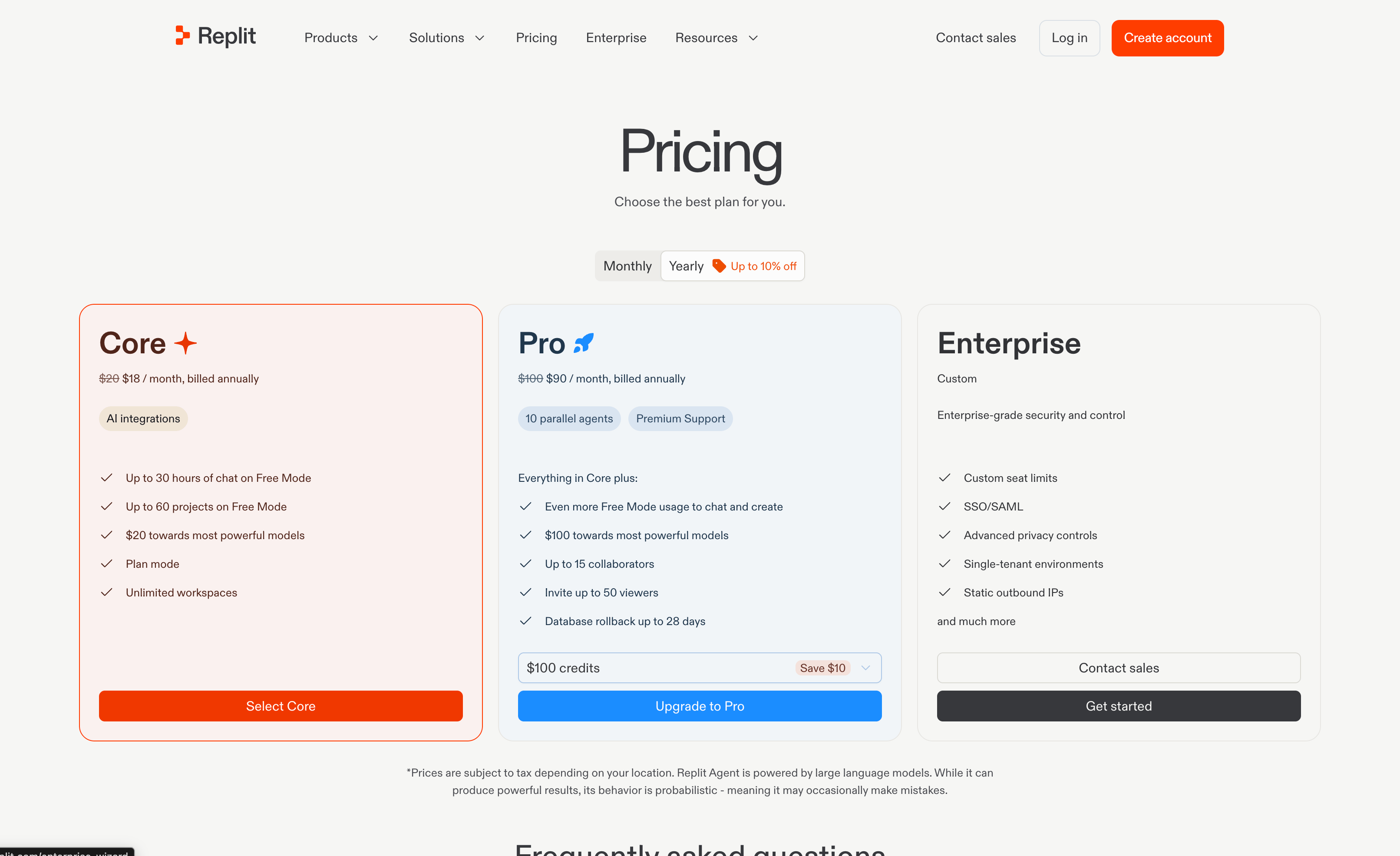
Replit pricing page with Core, Pro, and Enterprise plans. The Enterprise card includes a Get started button below Contact sales.
If your company already has an Enterprise subscription, ask an existing administrator to invite you instead of starting another subscription.
2

Create an account or log in

Log in with the Replit account you want to use to administer your organization. If you don’t have an account, select Sign up at the bottom of the page to create one.
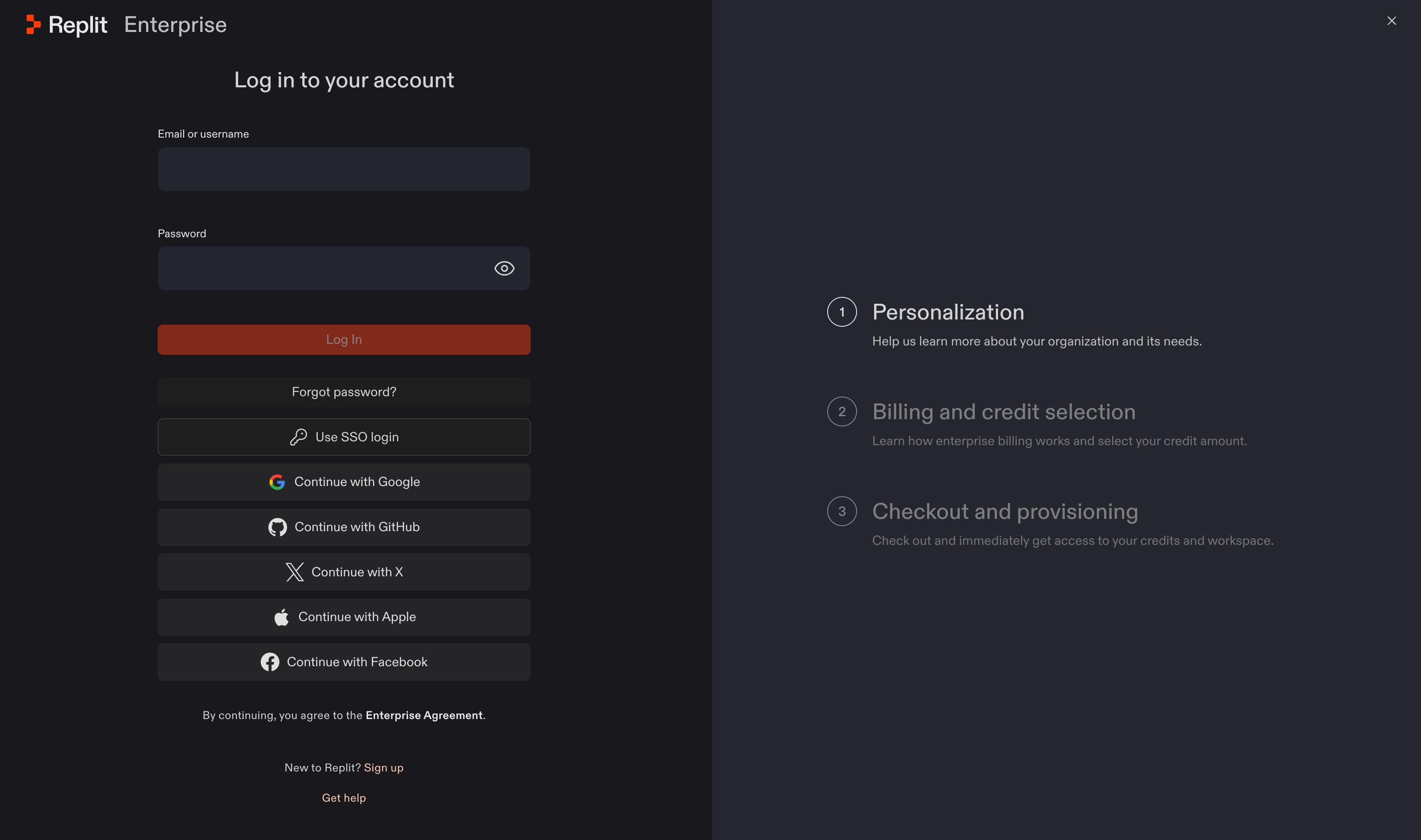
Replit Enterprise login page with login options and a Sign up link. The right panel lists Personalization, Billing and credit selection, and Checkout and provisioning.
If you’re already signed in to Replit, you can start from Settings → Billing under Account instead. Select Upgrade next to Change plan.
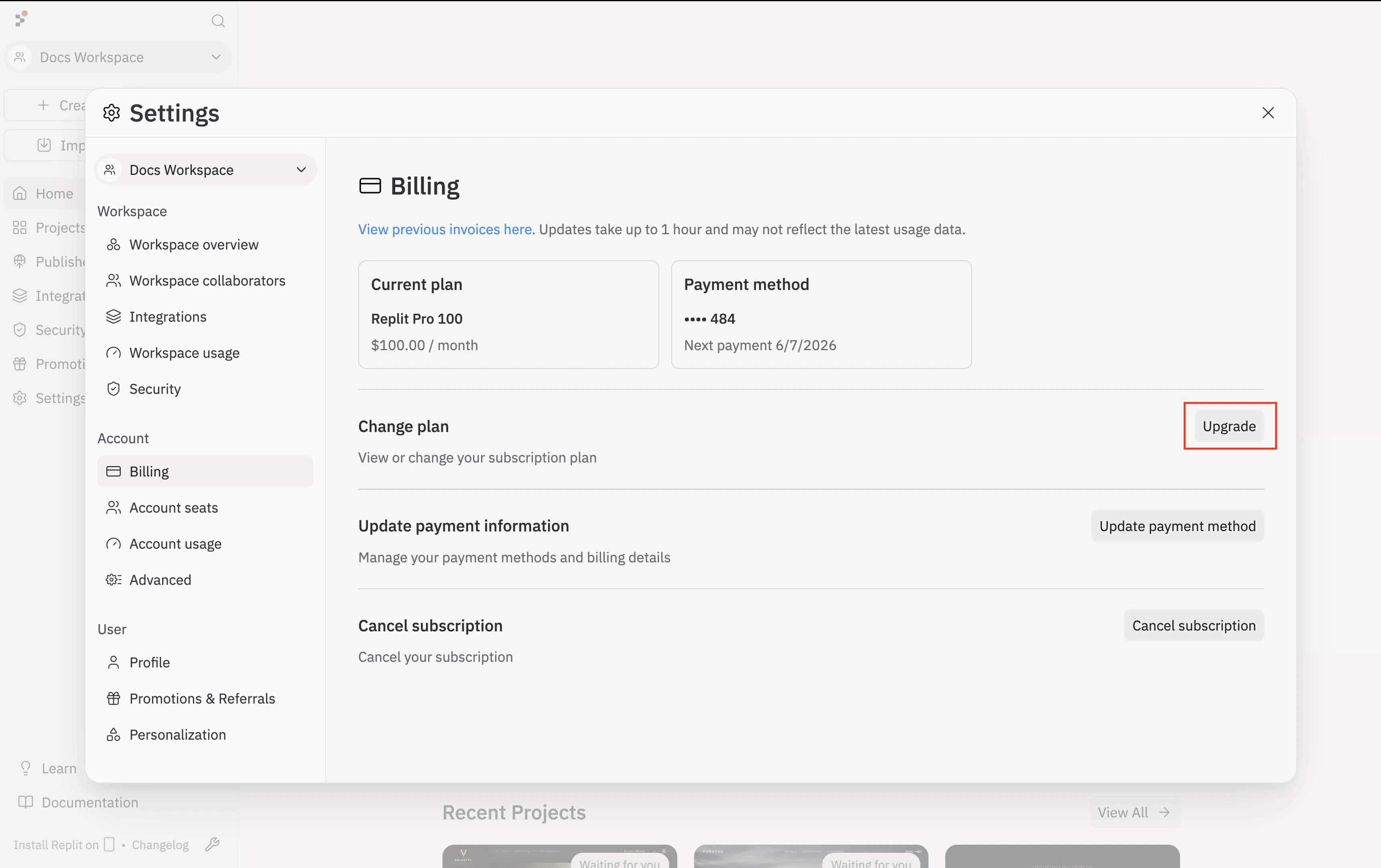
Account Billing settings with the Upgrade button highlighted.
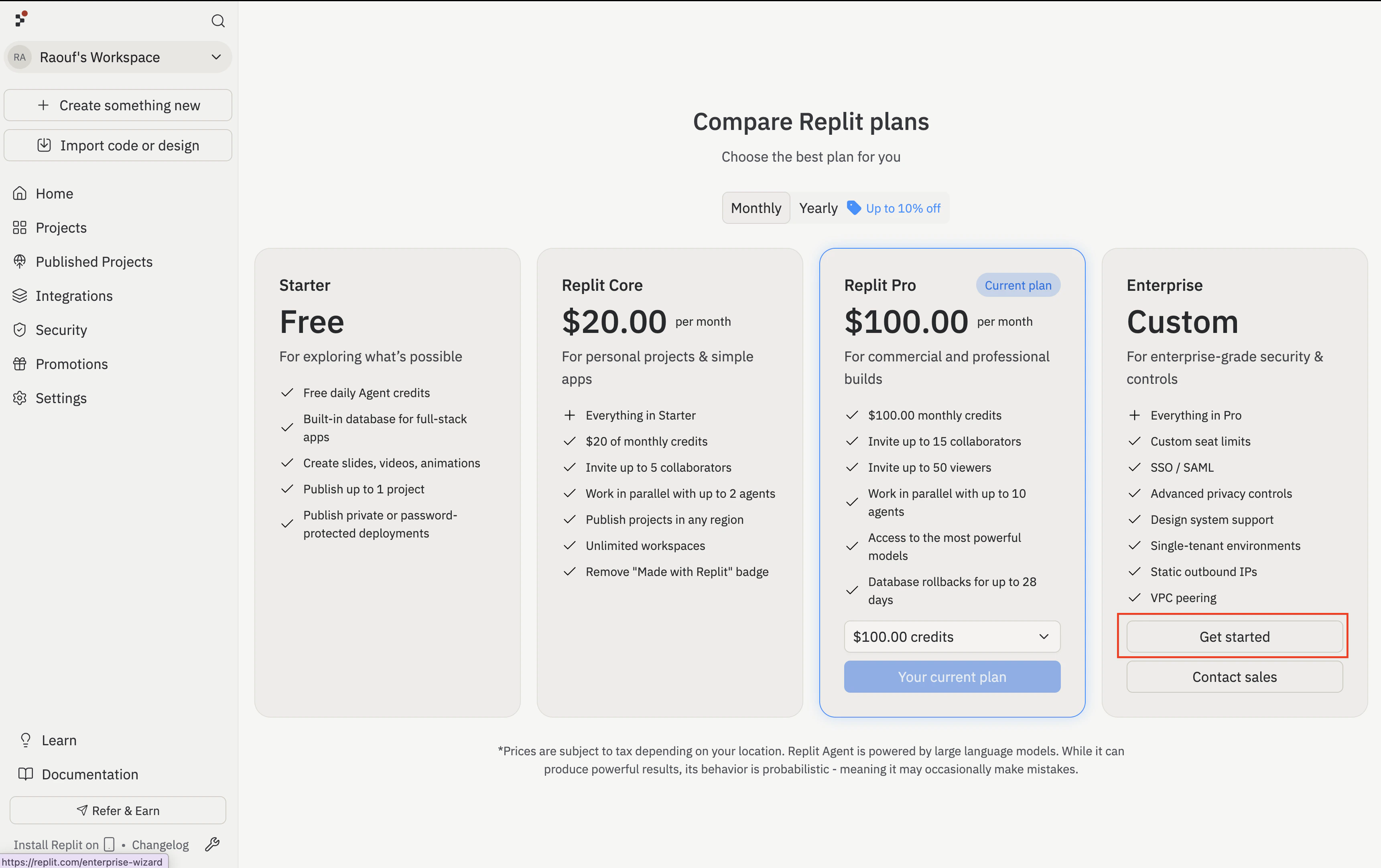
On the Compare Replit plans screen, select Get started under Enterprise / Custom, then continue with the organization setup below.
Replit plan comparison with Get started highlighted in the Enterprise column.
3

Name your organization

On the Personalization step, enter your Organization name and select Continue.
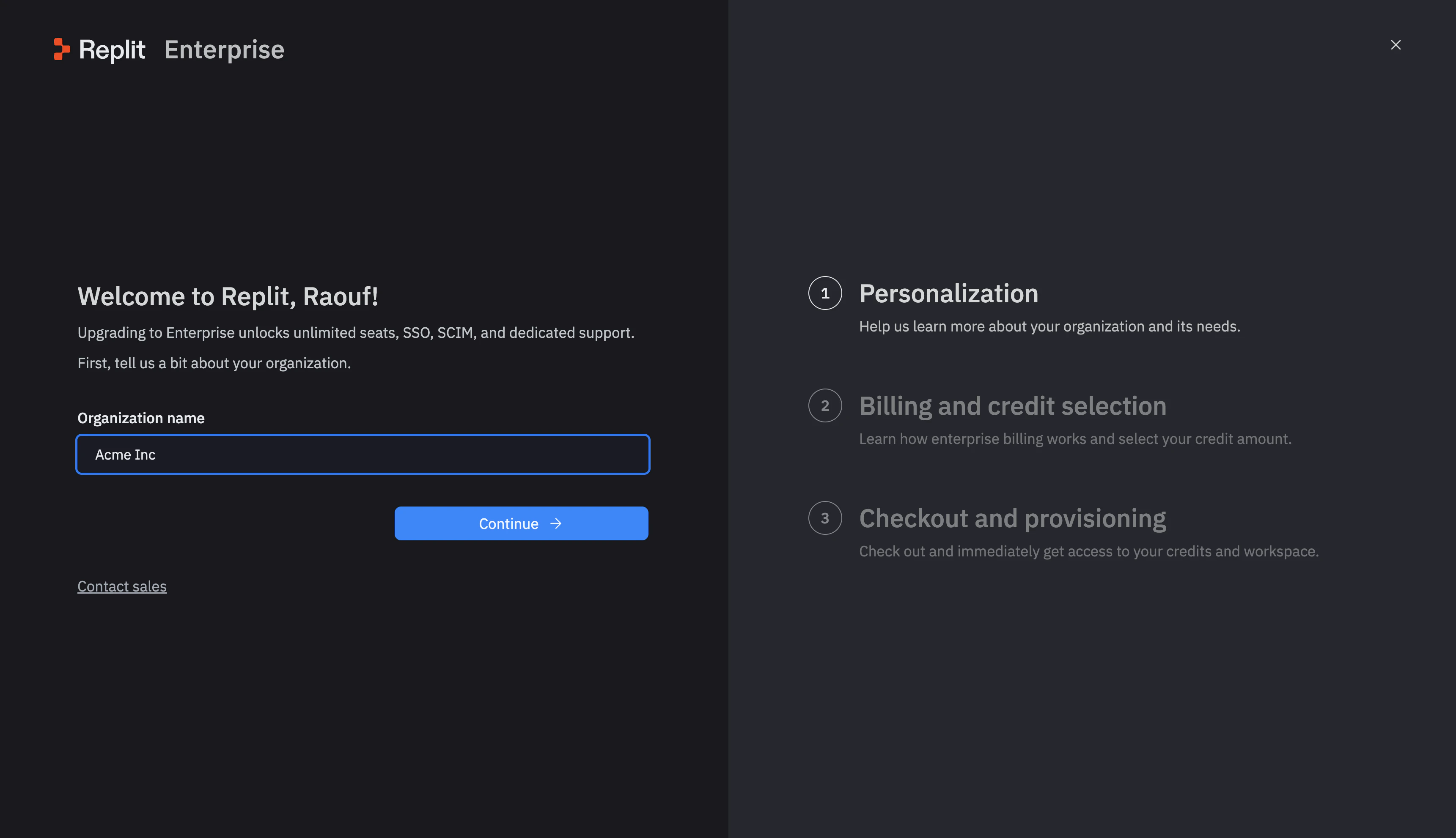
Enterprise setup wizard with an Organization name field and Continue button.
4

Review billing and your credit commitment

Review the How billing works screen, which explains the annual credit commitment and pay-as-you-go usage after you reach your credit limit. Select Continue.
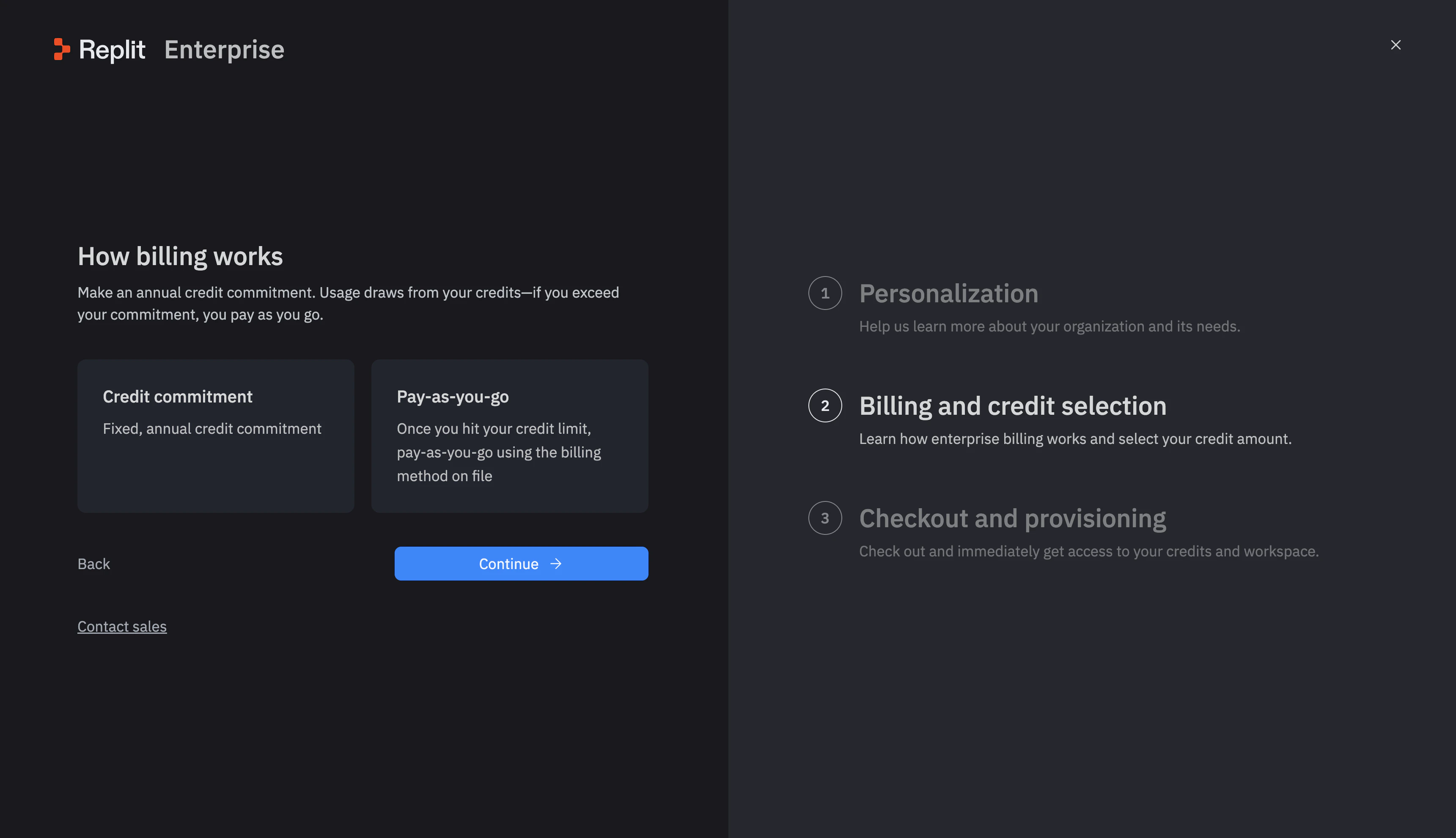
Enterprise setup screen explaining credit commitment and pay-as-you-go billing.
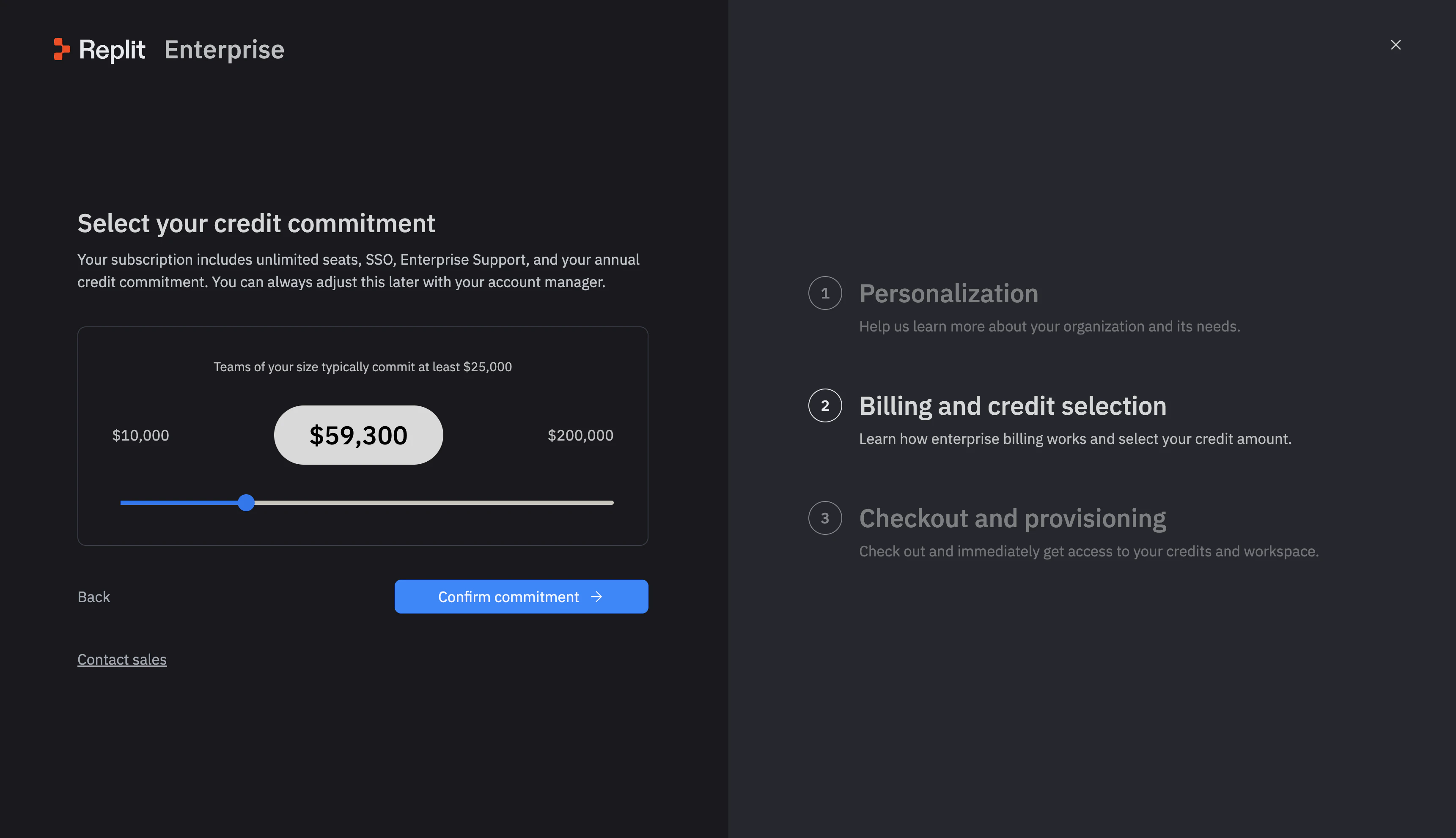
If you choose a credit commitment, use the slider on Select your credit commitment to choose your annual amount. Review the amount before selecting Confirm commitment. See Replit Enterprise billing for more details.
Annual credit commitment slider with a Confirm commitment button. The amount shown is an example.
5

Complete checkout

On Checkout and provisioning, enter your billing details and review the plan, credit commitment, and billing terms before completing your purchase.After checkout, continue to Create your Workspace.

Next step

Create your Workspace

Set up the shared space where your team builds.