

What this enables
1. Create the tunnel in Replit
- In Replit, use the workspace selector to choose the workspace that owns your projects. Open Settings → Workspace overview and scroll to Tunnels.
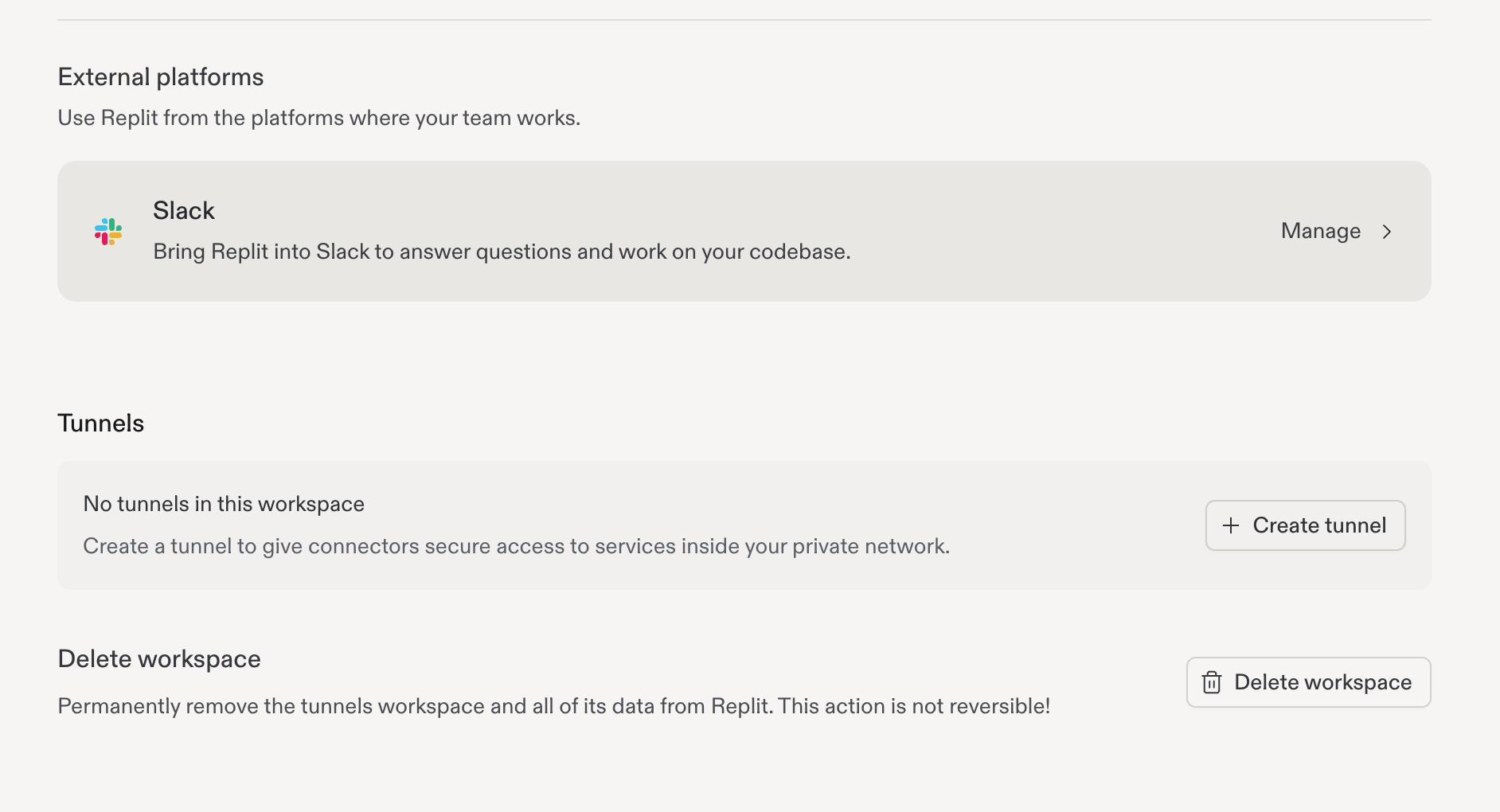
Open the Tunnels section in your workspace settings.
- Click Create tunnel and enter a descriptive name.
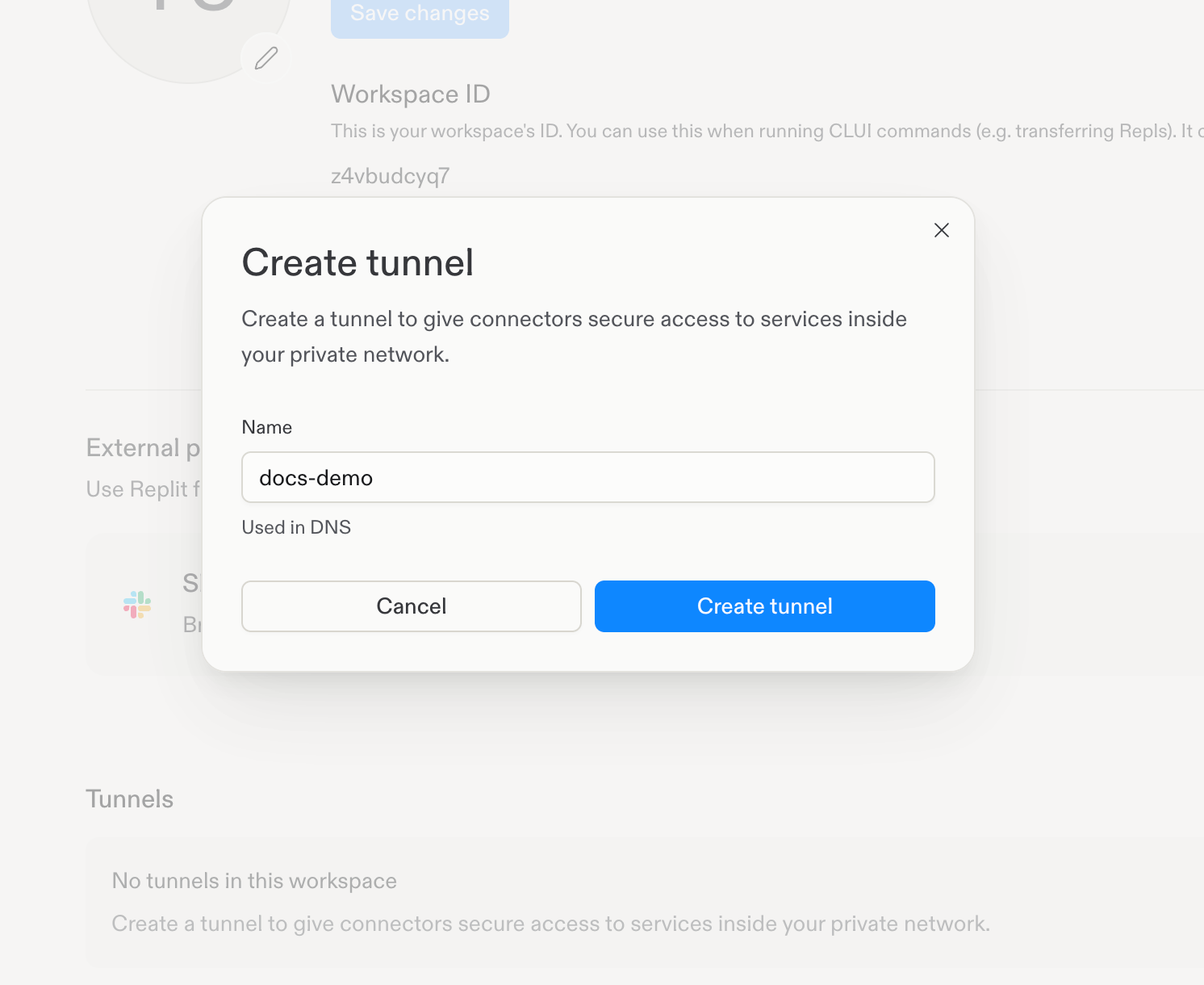
Create a tunnel.
- In the Save your enrollment key dialog, use the copy buttons beside Tunnel ID and Enrollment key. Save the enrollment key in your approved secrets manager before clicking I’ve saved my key. The key is shown only once and cannot be viewed again after closing this dialog.
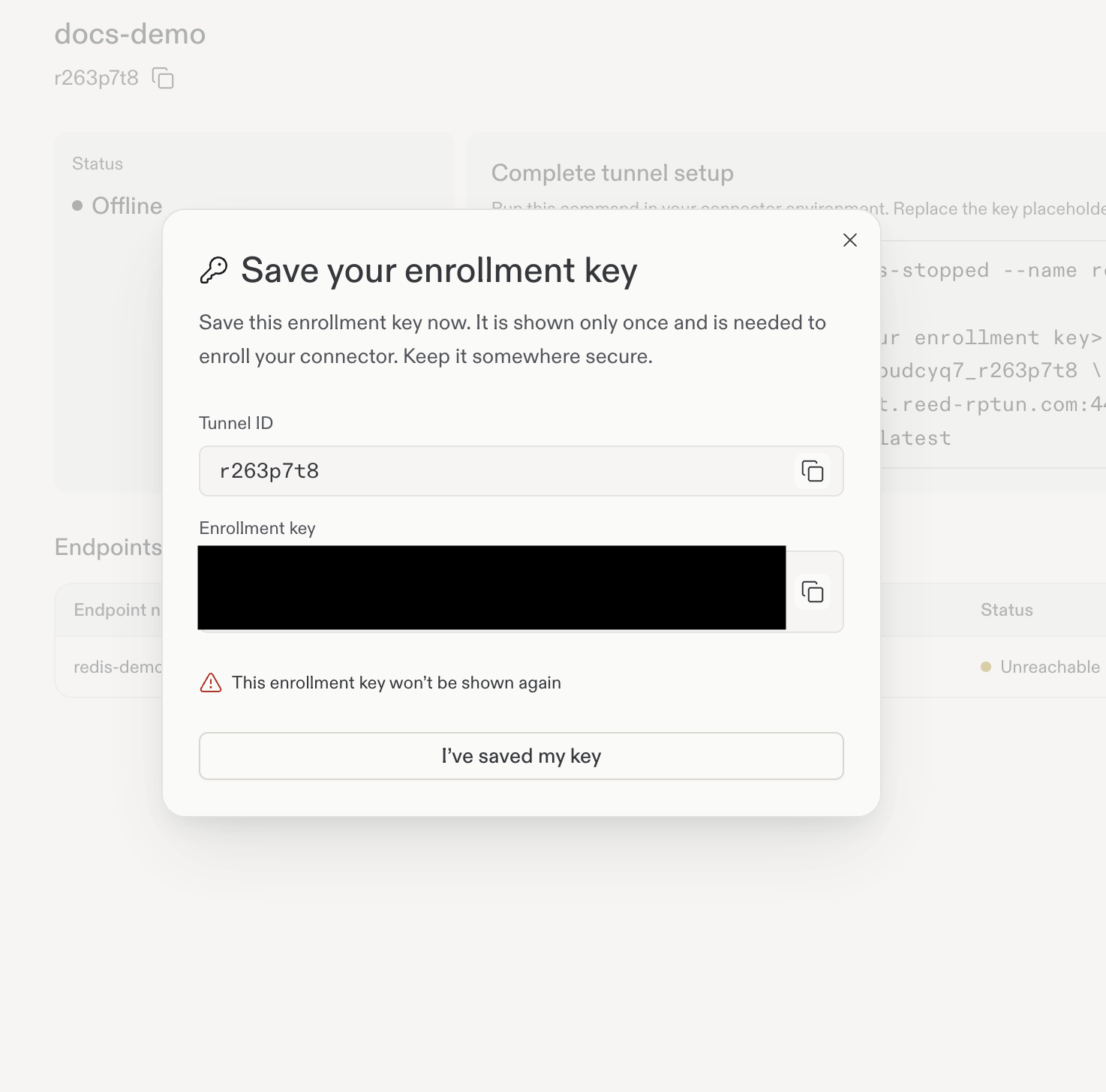
The one-time enrollment-key dialog. The key is intentionally hidden in this screenshot.
- Open Settings → Workspace overview → Tunnels and select your tunnel. Its ID appears beneath the tunnel name with a copy button. Before the connector is online, the Complete tunnel setup panel shows the Docker command. Replace the enrollment-key placeholder with the key you saved.
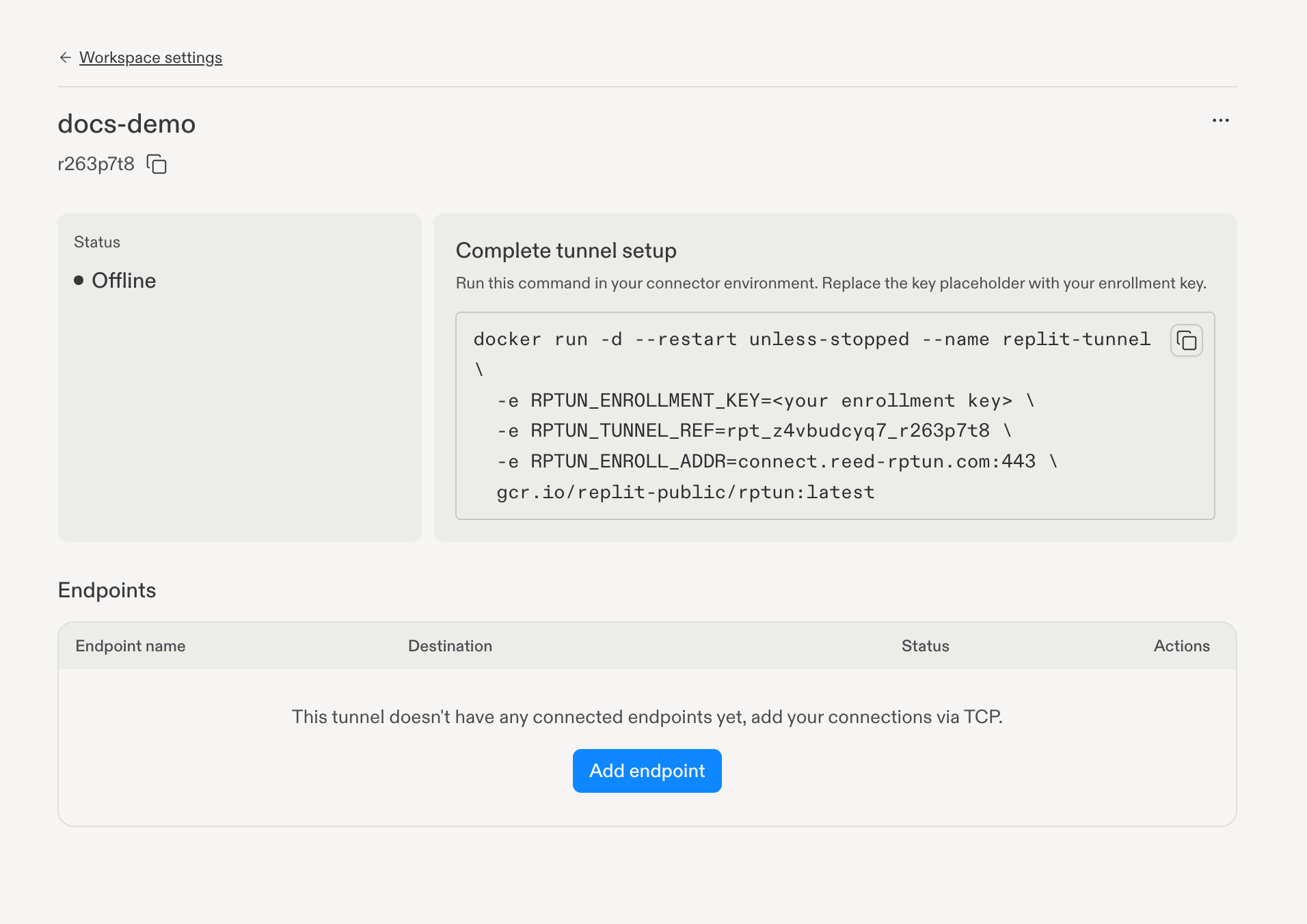
Copy the Docker command from Complete tunnel setup.
RPTUN_TUNNEL_REF and RPTUN_ENROLL_ADDR values from the setup command into tunnelRef and enrollAddr. Copy the container image from the command’s final line into image. The full tunnel reference is different from the short tunnel ID shown beneath the tunnel name. The enrollment key comes from the one-time key dialog, not from the setup command.
Run the Docker command on a host that can resolve and reach your private service. For Kubernetes, use the Helm chart below.
2. Deploy the connector with Helm
This example chart runs the customer-side connector on Kubernetes. Adapt it to your cluster’s standards and validate it in a non-production environment before you roll it out.Create the chart files
Create this directory structure:replit-tunnel-connector/Chart.yaml
replit-tunnel-connector/values.yaml
replit-tunnel-connector/templates/deployment.yaml
Configure your tunnel
Create the namespace and provision the enrollment key through your approved secret-management process. The example expects a Secret namedreplit-tunnel-enrollment with a field named enrollment-key in namespace replit-tunnels. Do not put the enrollment key in Helm values, source control, or --set arguments.
customer-values.yaml — replace the three placeholders using your own tunnel’s generated setup command:
Render and install
With Helm andkubectl configured for your intended Kubernetes cluster, run these commands from the directory containing customer-values.yaml and the chart directory. The namespace and Secret must already exist:
Recreate strategy, so updates cause downtime. It creates no public Service or LoadBalancer and defines no health probes. Kubernetes readiness alone does not prove tunnel connectivity: confirm Online in Replit and complete the project Shell tests below.
Before production use, validate resources, CPU architecture, writable-state needs, security context, restart behavior and outbound network requirements. The connector must reach your private service’s DNS hostname and TCP port. Obtain the complete connector egress requirements from Replit.
For troubleshooting, review logs locally and redact credentials and private information before sharing:
3. Confirm the connector is online
Return to Settings → Workspace overview → Tunnels and select your tunnel. Wait for the Status card to show Online. If it stays offline, check enrollment configuration, outbound network access, pod events, and connector logs.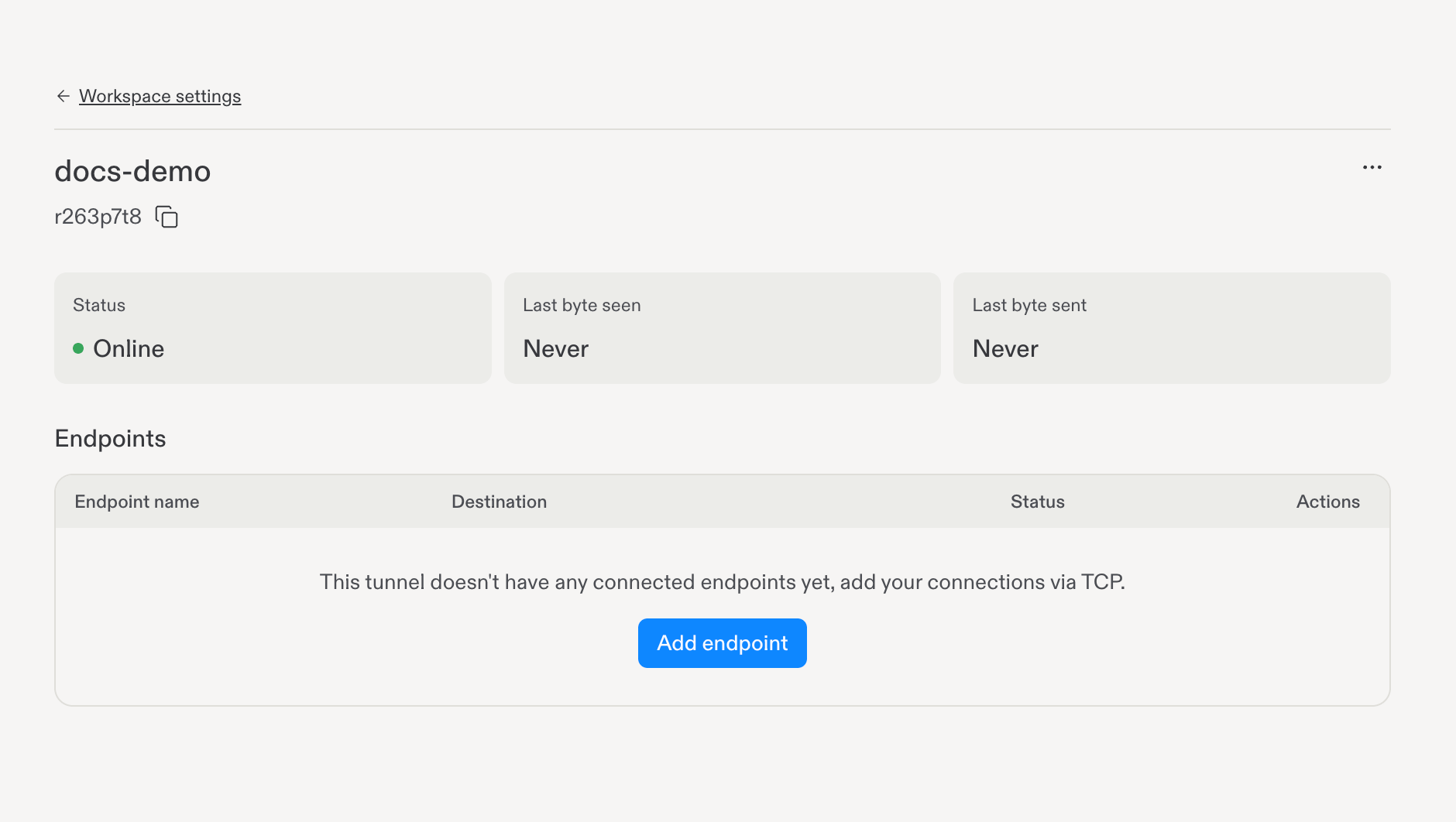
Online means the connector is connected. Never is expected before any application traffic.
4. Register a private endpoint
- On the tunnel details page, click Add endpoint in the Endpoints section.
- Enter a descriptive name and the private destination hostname with its TCP port, for example database.internal.example:5432.
- Use a hostname resolvable from the connector’s network. The current UI does not support IP-address destinations.
- Select Test connection. A green check means the connector can reach the destination.
- Add the endpoint and confirm it appears in the table.
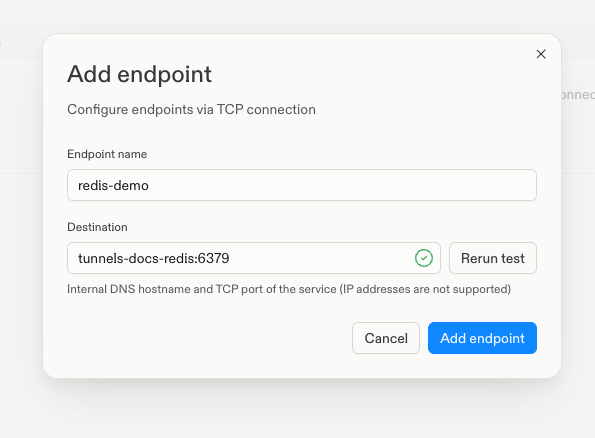
Successful connection test: the green check beside Destination confirms the connector can reach the service.
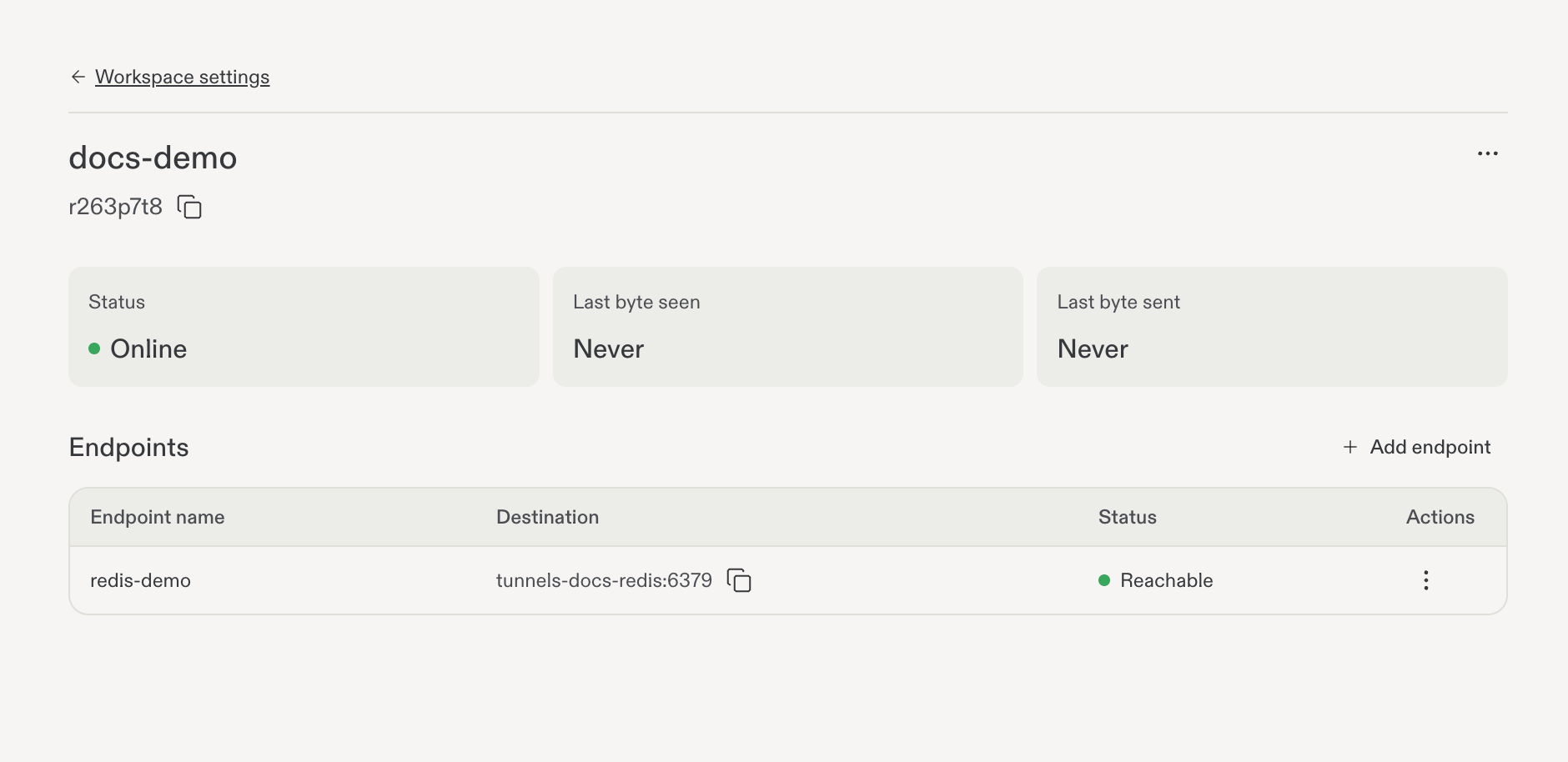
Saved Redis endpoint with the connector Online and destination Reachable.
5. Verify endpoint resolution in a Replit project Shell
Use the workspace selector to return to the workspace that owns the tunnel, open a project there, and open the Shell tab in the project editor. Run the following checks in that Shell, not in a standalone chat.Confirm the hostname resolves
Use the hostname from the endpoint’s Destination field without the port or a URL scheme:Test the service connection
Use your service’s native client for a lightweight request, with its normal TLS and authentication requirements. For Redis:6379 is Redis’s default port. Replace it if needed to match the port of your registered endpoint.
Expected result: PONG. This is Redis’s application-level PING, not ICMP network ping.
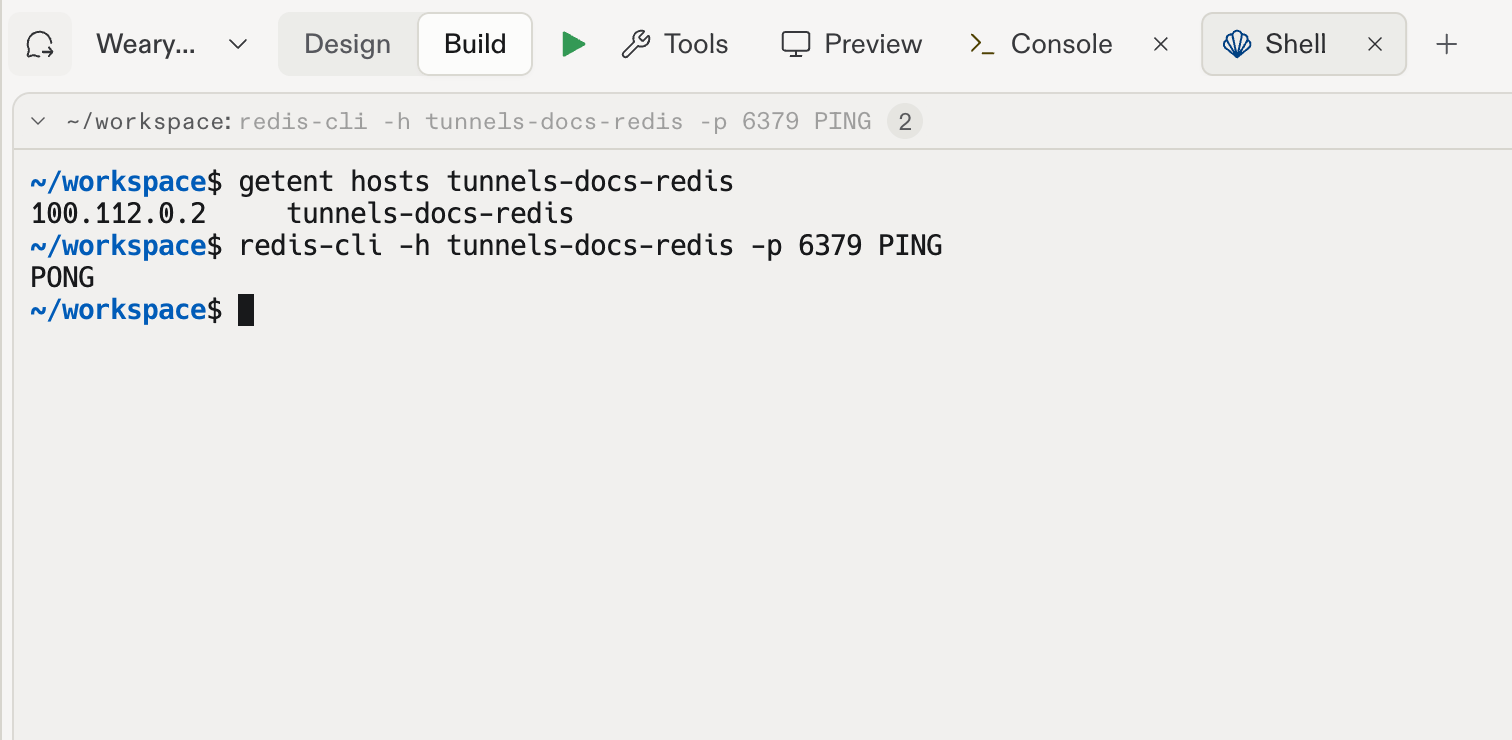
Hostname resolution and a successful Redis PONG in the project Shell.
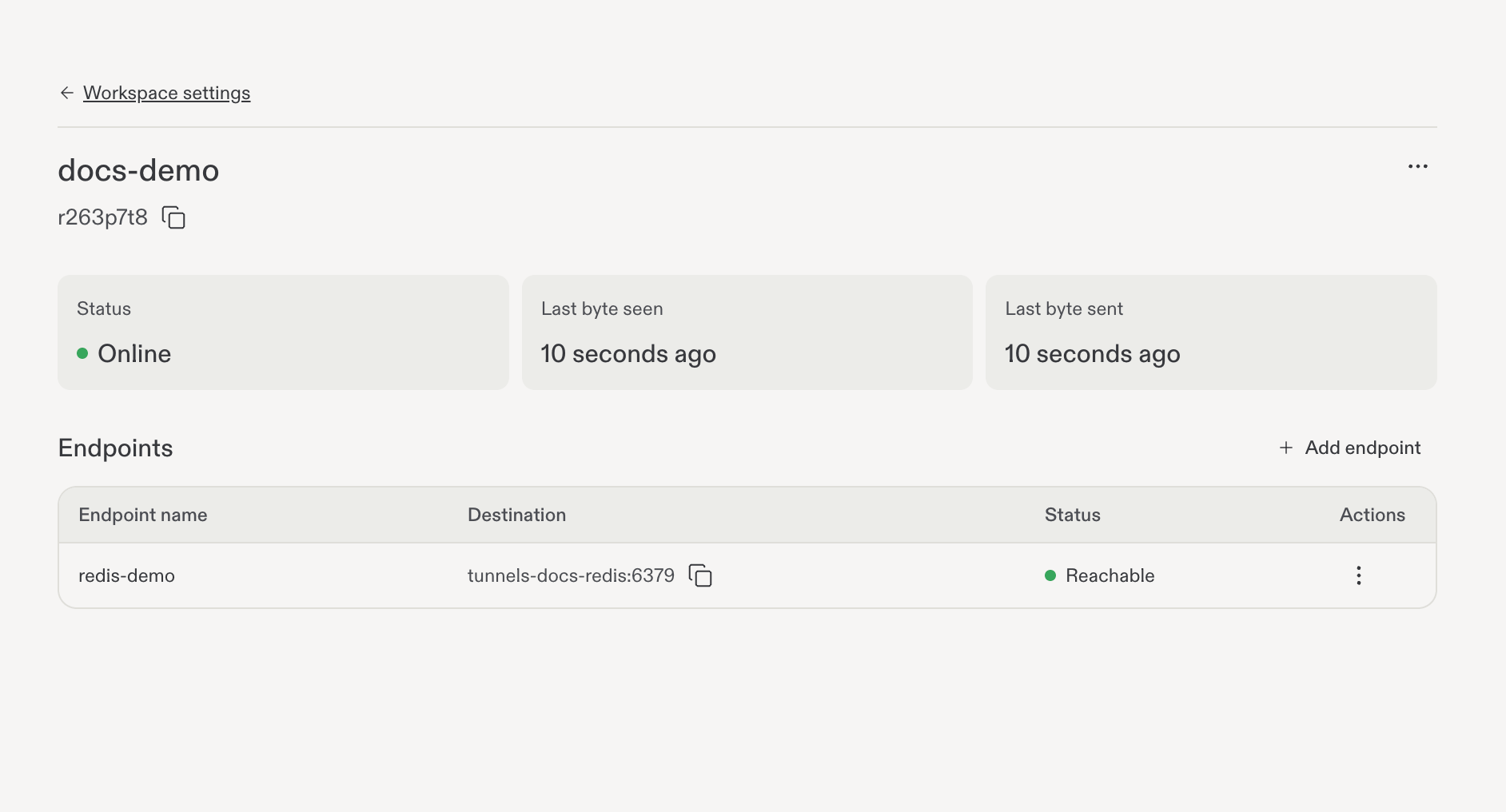
Tunnel activity after the successful Redis request.
6. Manage enrollment keys
Back in the tunnels dashboard, open the three-dot menu beside the tunnel name and select Manage enrollment key.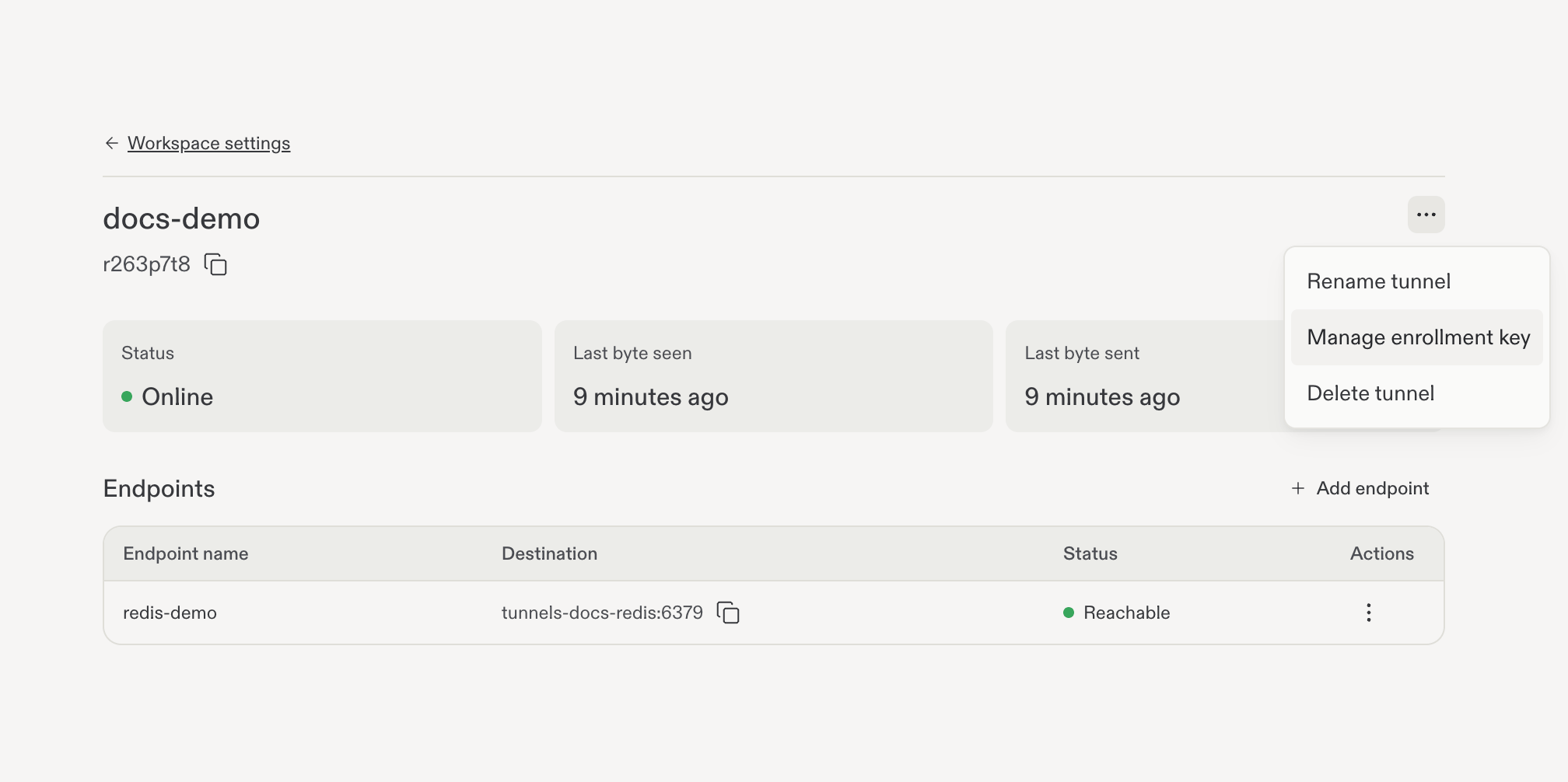
Open enrollment-key management.
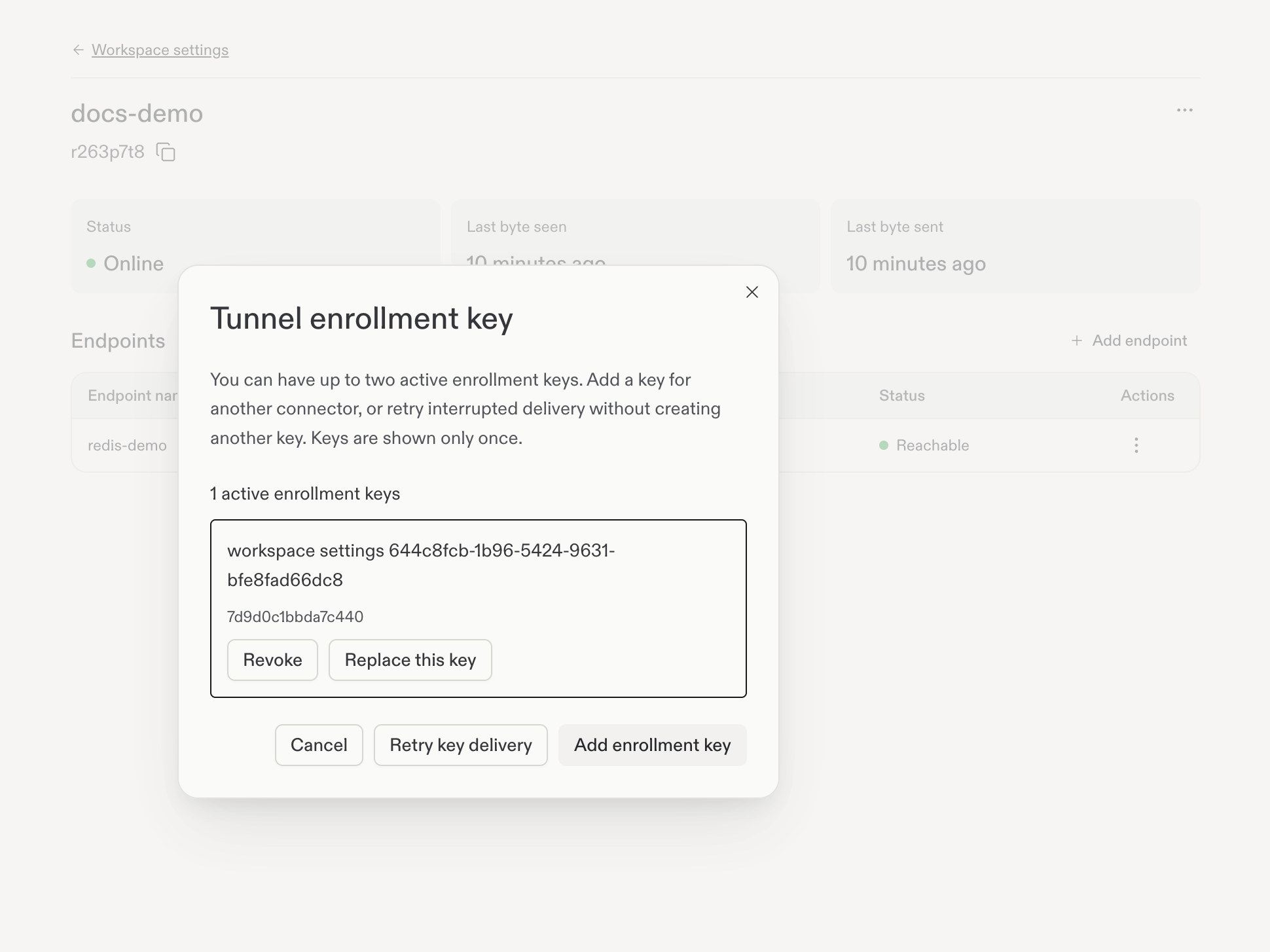
Active key list and available actions.
Add an enrollment key
Choose Add enrollment key when a slot is available. It opens the same Save your enrollment key dialog shown during initial setup. Copy the new key immediately and save it securely: it is shown only once. If both key slots are occupied, identify the key to revoke or replace before continuing. Do not revoke a key blindly. Retry key delivery is for an interrupted request, not for displaying a previously delivered key again.Revoke an enrollment key
Choose Revoke on the intended key, check the selected key details, and choose Confirm selected key revocation. This blocks future enrollment using that key.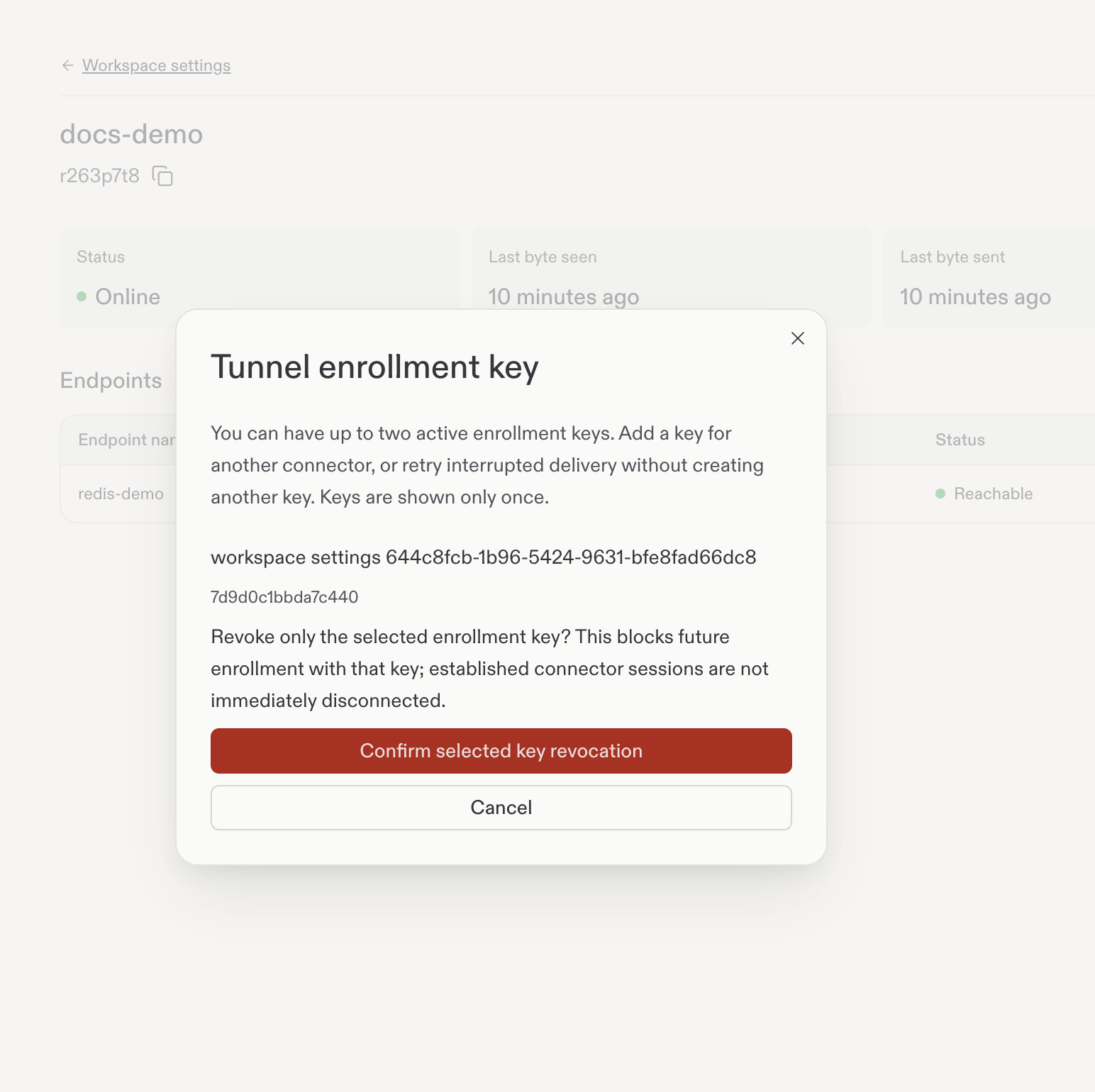
Review and confirm revocation of the selected key.
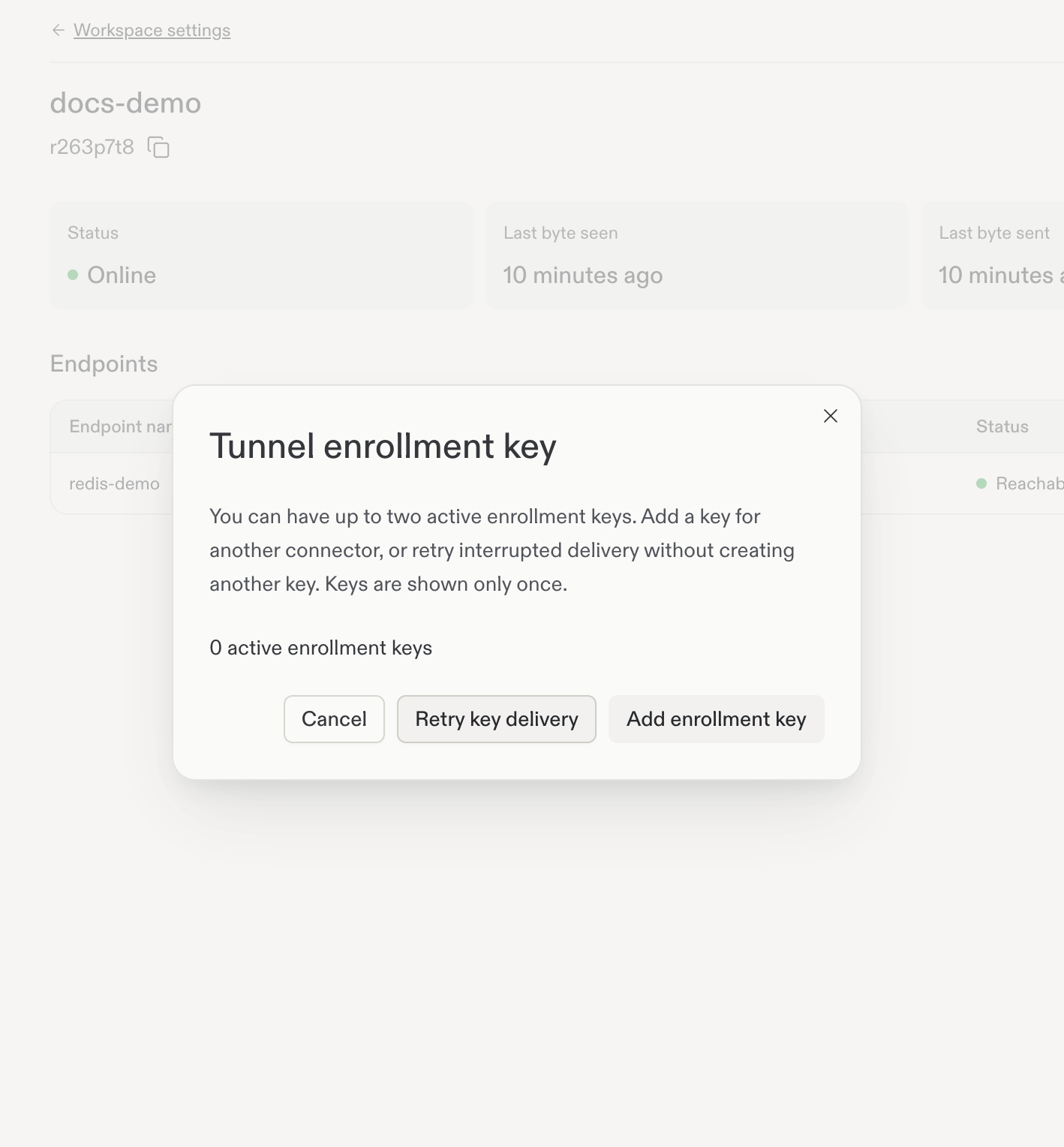
After revocation, the active key count updates. The established connector can still be Online.
Update a connector after changing its key
Provision the new key through your approved secrets manager. Restart the connector deployment after the Secret update:Recreate strategy. Do not assume that revocation alone terminates an existing connection.
7. Disconnect and clean up
When the connector stops, the tunnel becomes Offline and the endpoint should not be treated as reachable.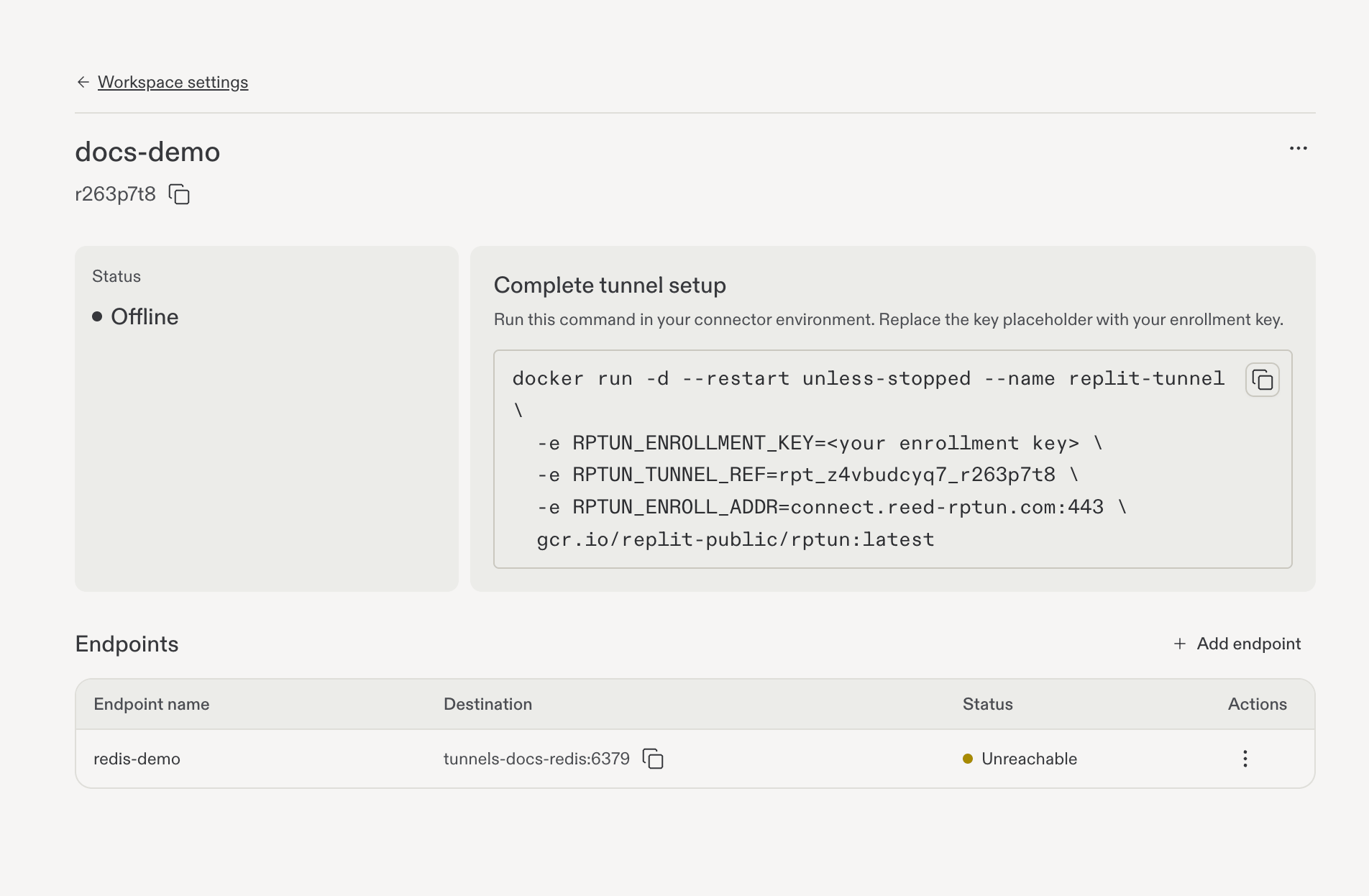
Tunnel Offline and endpoint Unreachable after disconnecting the connector.