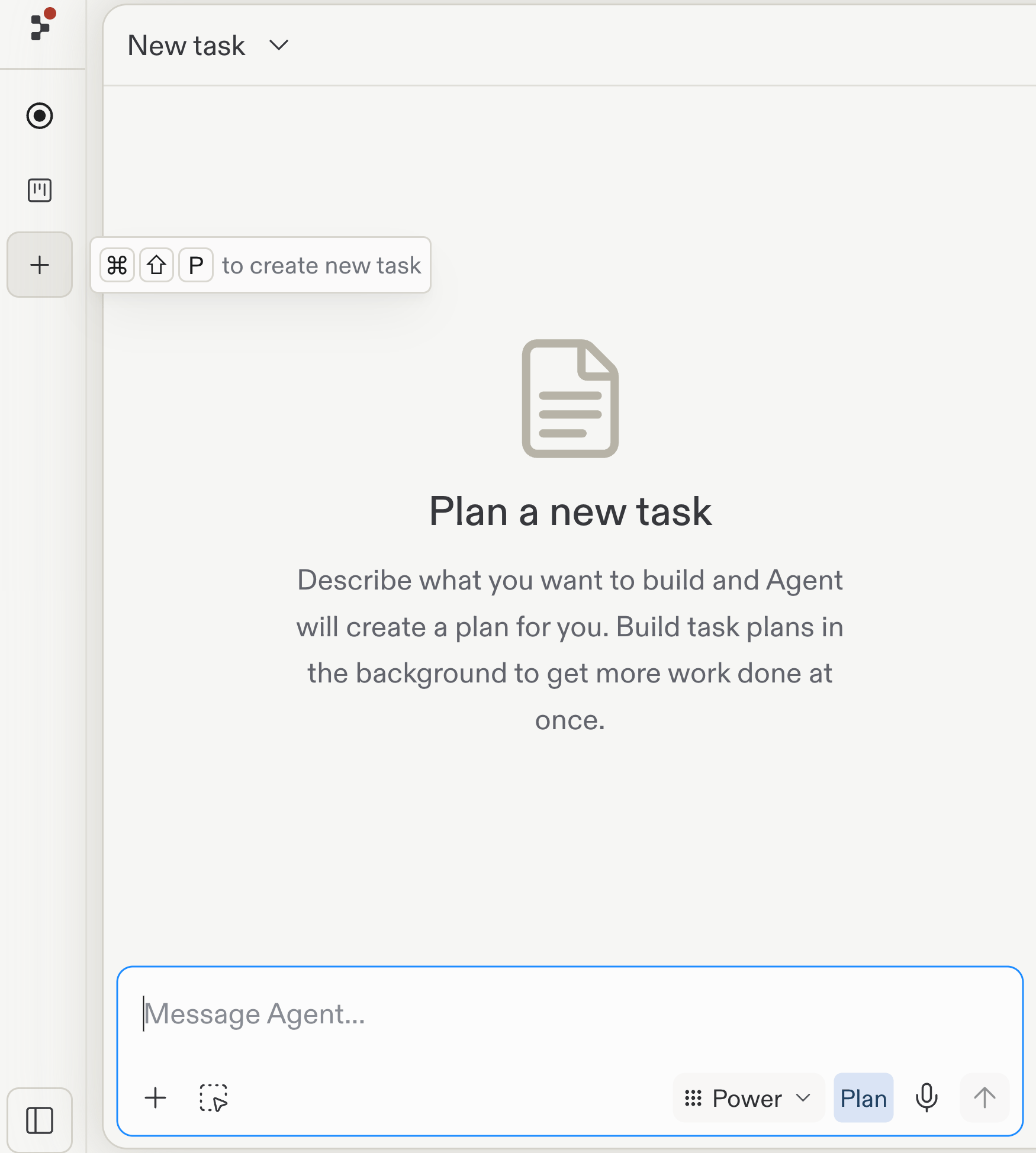
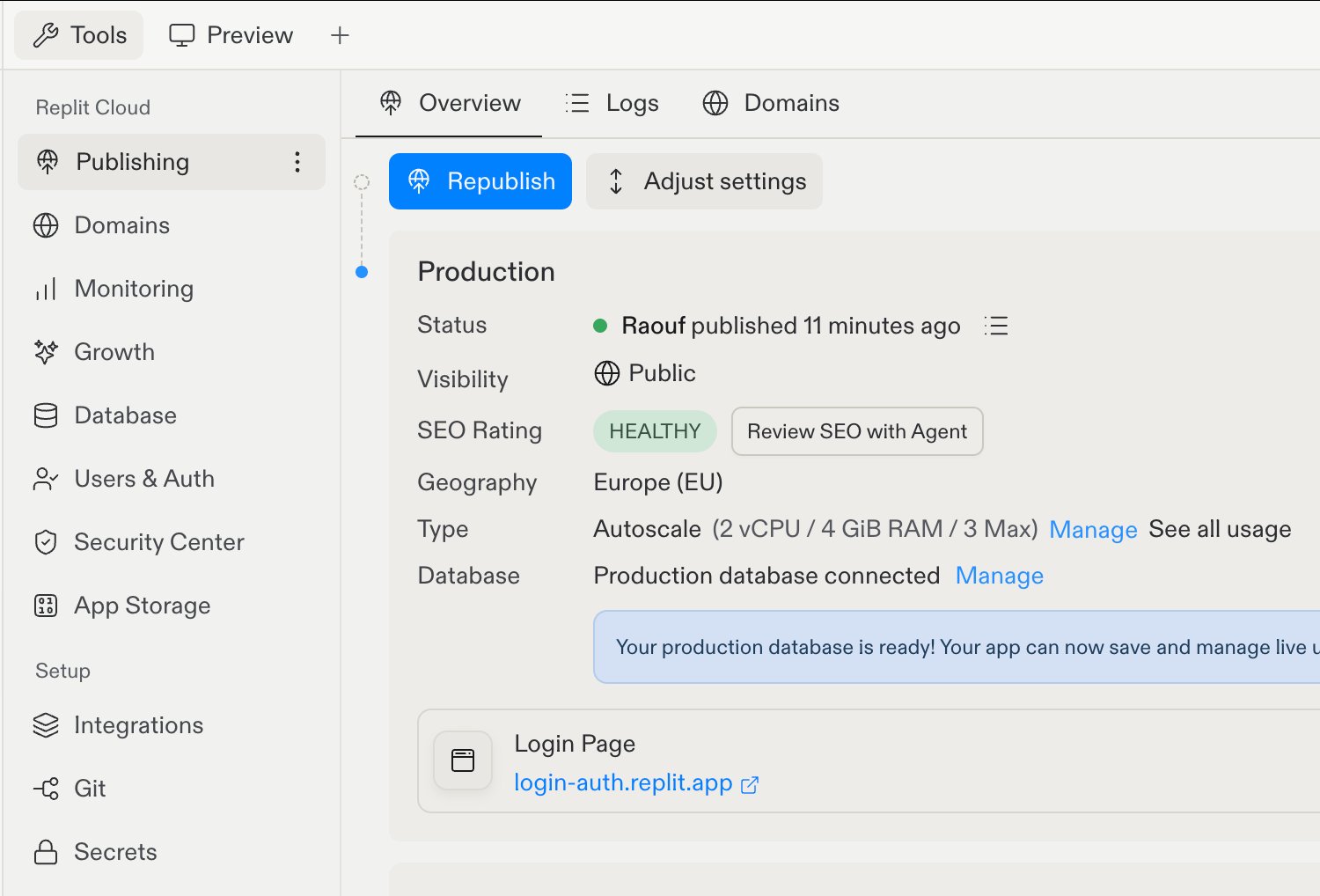
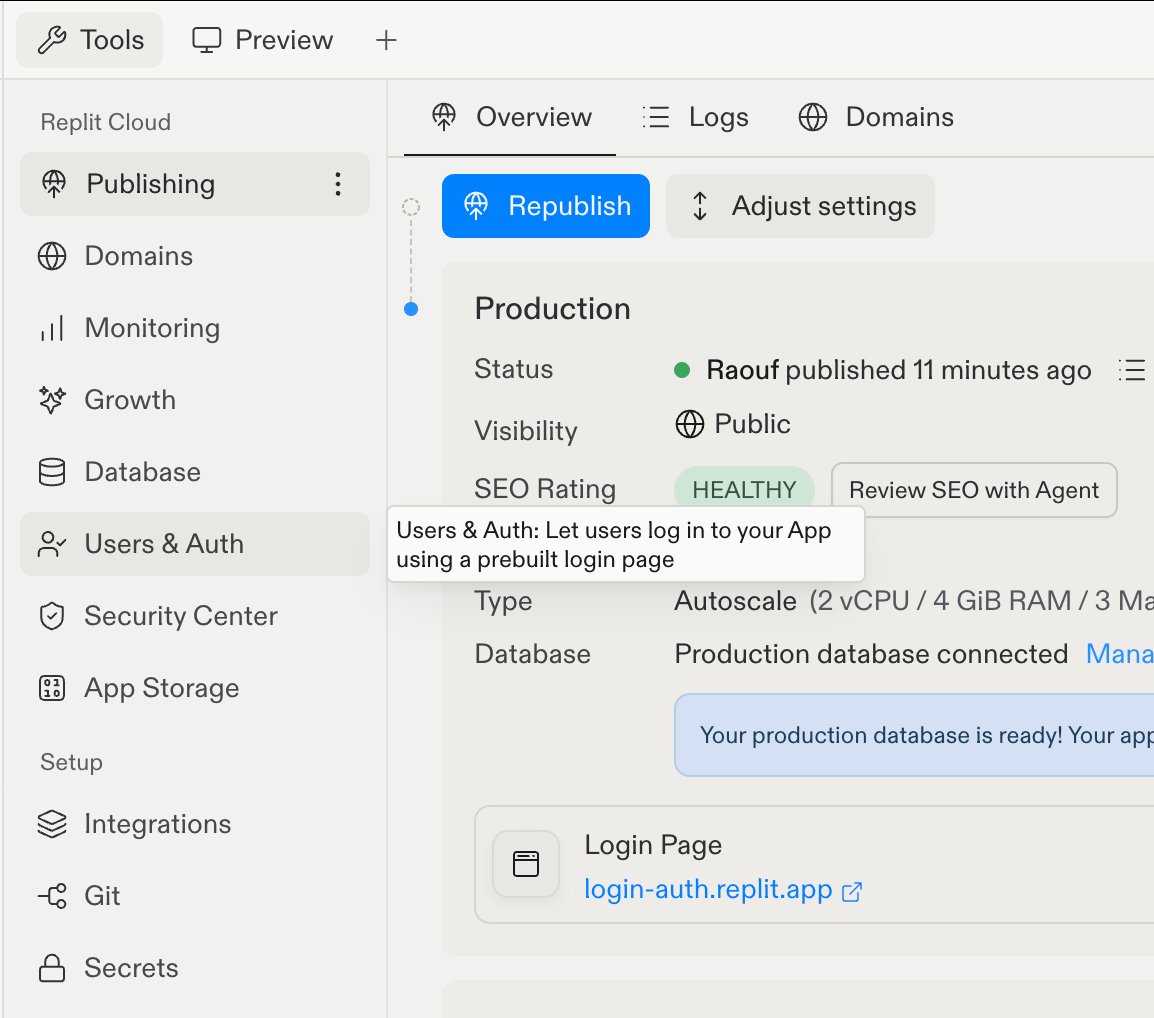
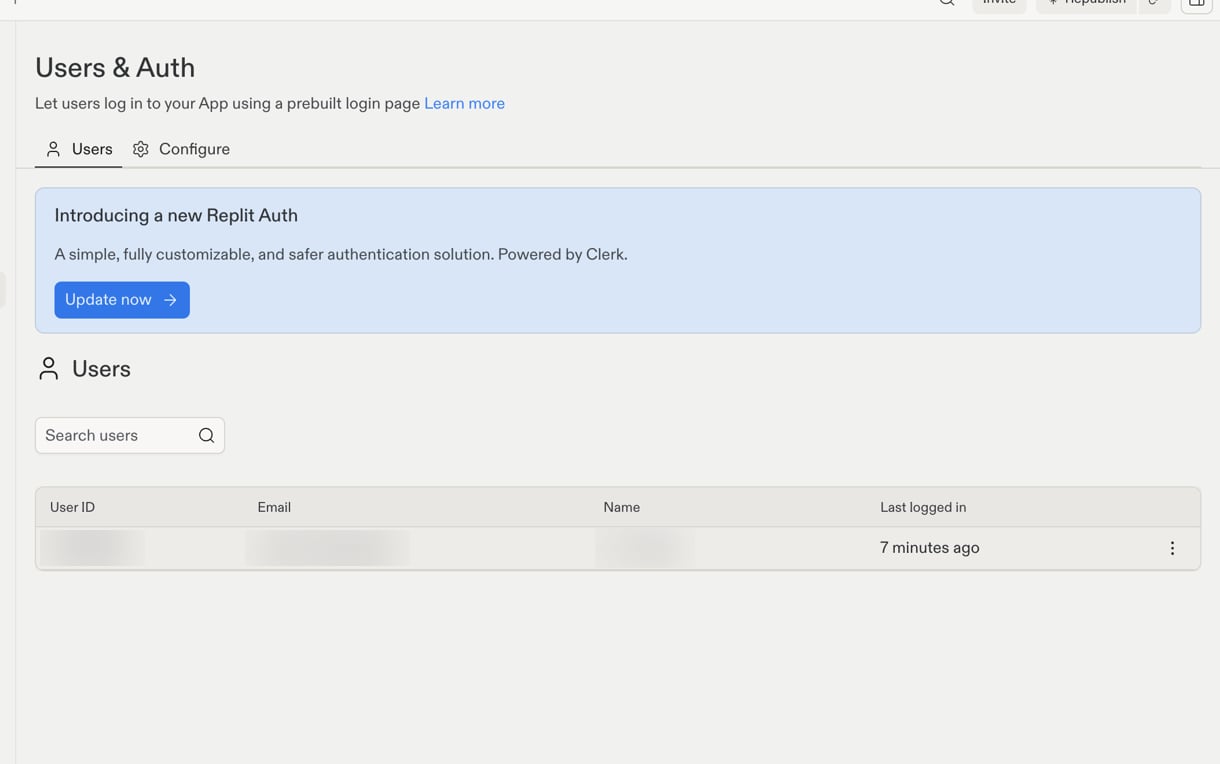
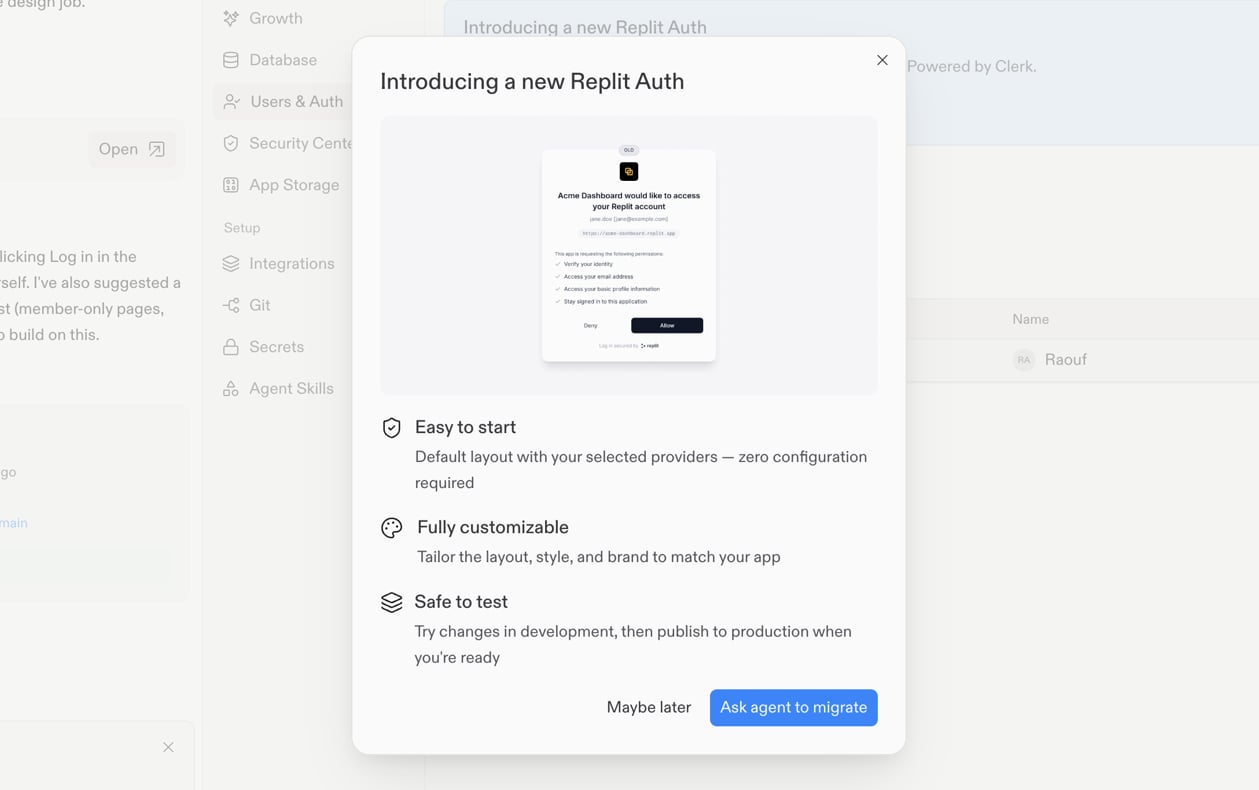
Use Agent to move an existing Replit Auth app to Clerk Auth while preserving your app’s user data.
Use this guide to move an existing Replit Auth app to Clerk Auth. Agent handles the migration for eligible apps, so returning users keep access to their existing data.
This automated migration is for apps that use Replit Auth. If your app uses a different authentication system, do not use this flow.
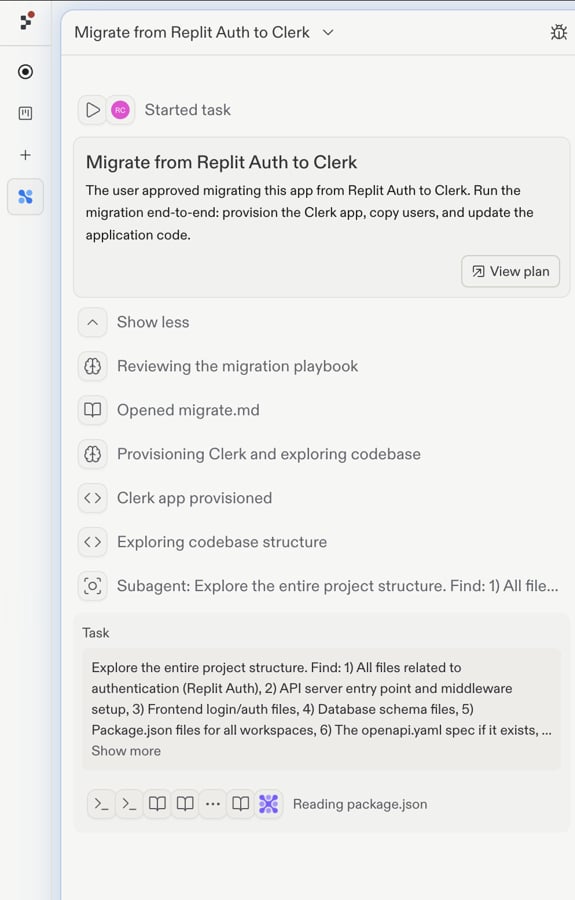
Whichever way you start, Agent creates the Migrate from Replit Auth to Clerk task and prepares the migration plan. Select View plan and review the plan before the task proceeds.
The Migrate from Replit Auth to Clerk task starts with a View plan action so you can review the migration playbook.
Do not change your app’s authentication code or Clerk credentials while Agent is working.
Agent changes only your app’s authentication code. It does not update your app’s existing database data or schema. Your tables and relationships remain intact.Your existing users remain connected to the records they already own, such as profiles, saved work, and permissions.
Expect Agent to work for 10 minutes to an hour. The data migration itself can take several minutes for smaller apps and up to a couple of hours for apps with many users. Agent does not begin changing your app’s code until that migration completes.
{"docsConfig":{"theme":"aspen","$schema":"https://mintlify.com/docs.json","name":"Replit","colors":{"primary":"#FF3C00","light":"#FF3C00","dark":"#FF3C00"},"logo":{"light":"https://mintcdn.com/replit/j4of5To8jzehz0JK/logo/light.svg?fit=max\u0026auto=format\u0026n=j4of5To8jzehz0JK\u0026q=85\u0026s=6209cb5927b56fd1781133af05428373","dark":"https://mintcdn.com/replit/j4of5To8jzehz0JK/logo/dark.svg?fit=max\u0026auto=format\u0026n=j4of5To8jzehz0JK\u0026q=85\u0026s=9cbba158300d48c49d8b888e71015495","href":"/welcome"},"favicon":"https://mintcdn.com/replit/CmOMKRnamiqG44eH/favicon.ico?fit=max\u0026auto=format\u0026n=CmOMKRnamiqG44eH\u0026q=85\u0026s=c89a6df6f537373c946c7a5f0ac65475","appearance":{"default":"light"},"background":{"color":{"light":"#F6F5F4","dark":"#1E1E1F"}},"navbar":{"links":[],"primary":{"type":"button","label":"Start Building","href":"https://replit.com?ref=docs"}},"footer":{"socials":{"x":"https://x.com/replit","linkedin":"https://www.linkedin.com/company/repl-it","youtube":"https://www.youtube.com/@replit"}},"seo":{"metatags":{"og:site_name":"Replit Docs","twitter:site":"@replit","twitter:creator":"@replit","author":"Replit"},"indexing":"all"},"fonts":{"heading":{"family":"ABC Diatype Plus","weight":400,"source":"https://cdn.replit.com/dotcom/fonts/ABCDiatypePlusVariable.woff2","format":"woff2"},"body":{"family":"ABC Diatype Plus","weight":400,"source":"https://cdn.replit.com/dotcom/fonts/ABCDiatypePlusVariable.woff2","format":"woff2"}},"integrations":{"segment":{"key":"dMePKGC4BqfBivpe0Hvl8IoPpzSHgjdX"}},"contextual":{"options":["copy","view"],"display":"header"},"thumbnails":{"appearance":"light","background":"https://mintcdn.com/replit/j4of5To8jzehz0JK/thumb.png?fit=max\u0026auto=format\u0026n=j4of5To8jzehz0JK\u0026q=85\u0026s=a7db7f0256b2fa06810fb4d378e63cc5","fonts":{"family":"ABC Diatype Plus"}},"styling":{"latex":true},"navigation":{"languages":[{"language":"en","href":"welcome"},{"language":"fr","navbar":{"links":[],"primary":{"type":"button","label":"Commencer à créer","href":"https://replit.com?ref=docs"}},"href":"fr/welcome"},{"language":"pt","hidden":false,"navbar":{"links":[],"primary":{"type":"button","label":"Comece a criar","href":"https://replit.com?ref=docs"}},"href":"pt/welcome"},{"language":"ja","hidden":false,"navbar":{"links":[],"primary":{"type":"button","label":"作成を開始","href":"https://replit.com?ref=docs"}},"href":"ja/welcome"},{"language":"ko","hidden":false,"navbar":{"links":[],"primary":{"type":"button","label":"빌드 시작하기","href":"https://replit.com?ref=docs"}},"href":"ko/welcome"}]}},"deployment":{"deploymentMetadataValue":{"subdomain":"replit","hasAudioNarration":false,"actualSubdomain":"replit","customDomains":["docs.replit.com","docs.repl.it"],"gitSource":{"type":"github","owner":"replit","repo":"replit-docs","deployBranch":"main","contentDirectory":"docs","isPrivate":true,"mountPath":"","label":""},"chroma":{"liveDeploymentHistoryId":"6aebe22b52cea225c8dcec43","collectionId":"470b54ac-8b82-44eb-a43b-4dba5dcba725","schemaVersion":"v3","latestBuiltDeploymentHistoryId":"6aebe22b52cea225c8dcec43"},"feedback":{"thumbs":true,"issues":true,"edits":false},"entitlements":{"AI_CHAT":{"status":"DISABLED"},"REMOVE_BRANDING":{"status":"ENABLED"},"CONTEXTUAL_FEEDBACK":{"status":"ENABLED"},"CODE_SNIPPET_FEEDBACK":{"status":"ENABLED"},"WEB_MCP":{"status":"ENABLED"},"NARRATION":{"status":"DISABLED"}},"buildId":"6aebe22b52cea225c8dcec43","clientVersion":"0.0.4071","searchFilterCounts":[{"language":"en","tag":"Features","count":359},{"language":"fr","tag":"Fonctionnalités","count":359},{"language":"ja","tag":"機能","count":359},{"language":"ko","tag":"기능","count":359},{"language":"pt","tag":"Funcionalidades","count":359},{"language":"en","tag":"Changelog","count":99},{"language":"fr","tag":"Journal des modifications","count":99},{"language":"ja","tag":"変更履歴","count":99},{"language":"ko","tag":"변경 내역","count":99},{"language":"pt","tag":"Registro de alterações","count":99},{"language":"en","tag":"Apps","count":41},{"language":"fr","tag":"Apps","count":41},{"language":"ja","tag":"Apps","count":41},{"language":"ko","tag":"Apps","count":41},{"language":"pt","tag":"Apps","count":41},{"language":"en","tag":"Enterprise","count":40},{"language":"fr","tag":"Entreprise","count":40},{"language":"ja","tag":"Enterprise","count":40},{"language":"ko","tag":"Enterprise","count":40},{"language":"pt","tag":"Enterprise","count":40},{"language":"en","tag":"Use cases","count":39},{"language":"fr","tag":"Use cases","count":39},{"language":"ja","tag":"Use cases","count":39},{"language":"ko","tag":"Use cases","count":39},{"language":"pt","tag":"Use cases","count":39},{"language":"en","tag":"Chats","count":25},{"language":"en","tag":"Designs","count":25},{"language":"fr","tag":"Chats","count":25},{"language":"fr","tag":"Designs","count":25},{"language":"ja","tag":"Chats","count":25},{"language":"ja","tag":"Designs","count":25},{"language":"ko","tag":"Chats","count":25},{"language":"ko","tag":"Designs","count":25},{"language":"pt","tag":"Chats","count":25},{"language":"pt","tag":"Designs","count":25},{"language":"en","tag":"Trust \u0026 Billing","count":23},{"language":"fr","tag":"Confiance et facturation","count":23},{"language":"ja","tag":"信頼と請求","count":23},{"language":"ko","tag":"신뢰 및 결제","count":23},{"language":"pt","tag":"Confiança e faturamento","count":23},{"language":"en","tag":"Web","count":22},{"language":"fr","tag":"Web","count":22},{"language":"ja","tag":"Web","count":22},{"language":"ko","tag":"Web","count":22},{"language":"pt","tag":"Web","count":22},{"language":"en","tag":"Help","count":20},{"language":"fr","tag":"Help","count":20},{"language":"ja","tag":"Help","count":20},{"language":"ko","tag":"Help","count":20},{"language":"pt","tag":"Help","count":20}]},"assistantConfig":{"deflection":{"enabled":true,"email":"support@replit.com"}},"basePath":"","hasChatPermissions":false,"hasWebMcpPermissions":true,"toggles":[{"name":"kill-isr","enabled":true,"variant":{"name":"disabled","enabled":false,"feature_enabled":true},"impressionData":false},{"name":"agent-mintlify-slack","enabled":true,"variant":{"name":"disabled","enabled":false,"feature_enabled":true},"impressionData":false},{"name":"agent-integrations-settings","enabled":true,"variant":{"name":"disabled","enabled":false,"feature_enabled":true},"impressionData":false},{"name":"rbac-expansion","enabled":true,"variant":{"name":"disabled","enabled":false,"feature_enabled":true},"impressionData":false},{"name":"automations-pr-grouping","enabled":true,"variant":{"name":"disabled","enabled":false,"feature_enabled":true},"impressionData":false},{"name":"custom-prefix","enabled":true,"variant":{"name":"disabled","enabled":false,"feature_enabled":true},"impressionData":false},{"name":"analytics-v7","enabled":true,"variant":{"name":"disabled","enabled":false,"feature_enabled":true},"impressionData":false},{"name":"user-flows-analytics","enabled":true,"variant":{"name":"disabled","enabled":false,"feature_enabled":true},"impressionData":false},{"name":"no-publish-flow","enabled":true,"variant":{"name":"disabled","enabled":false,"feature_enabled":true},"impressionData":false},{"name":"workos-onboarding","enabled":true,"variant":{"name":"disabled","enabled":false,"feature_enabled":true},"impressionData":false},{"name":"llms-txt-v2","enabled":true,"variant":{"name":"disabled","enabled":false,"feature_enabled":true},"impressionData":false},{"name":"snapshot-serving-live","enabled":true,"variant":{"name":"disabled","enabled":false,"feature_enabled":true},"impressionData":false},{"name":"stripTemperatureMiddleware","enabled":true,"variant":{"name":"disabled","enabled":false,"feature_enabled":true},"impressionData":false},{"name":"support-platform-pylon-zendesk","enabled":true,"variant":{"name":"disabled","enabled":false,"feature_enabled":true},"impressionData":false},{"name":"snapshot-serving","enabled":true,"variant":{"name":"disabled","enabled":false,"feature_enabled":true},"impressionData":false},{"name":"instant-rollback","enabled":true,"variant":{"name":"disabled","enabled":false,"feature_enabled":true},"impressionData":false},{"name":"granular-notifications-server","enabled":true,"variant":{"name":"disabled","enabled":false,"feature_enabled":true},"impressionData":false},{"name":"granular-notifications","enabled":true,"variant":{"name":"disabled","enabled":false,"feature_enabled":true},"impressionData":false},{"name":"automations-fable","enabled":true,"variant":{"name":"disabled","enabled":false,"feature_enabled":true},"impressionData":false},{"name":"fixed-ai-action-pricing","enabled":true,"variant":{"name":"disabled","enabled":false,"feature_enabled":true},"impressionData":false},{"name":"automation-resolve-merge-conflict","enabled":true,"variant":{"name":"disabled","enabled":false,"feature_enabled":true},"impressionData":false},{"name":"scoped-publishing","enabled":true,"variant":{"name":"disabled","enabled":false,"feature_enabled":true},"impressionData":false},{"name":"mintql","enabled":true,"variant":{"name":"disabled","enabled":false,"feature_enabled":true},"impressionData":false},{"name":"page-level-analytics","enabled":true,"variant":{"name":"disabled","enabled":false,"feature_enabled":true},"impressionData":false},{"name":"editor-version-history-v2","enabled":true,"variant":{"name":"disabled","enabled":false,"feature_enabled":true},"impressionData":false},{"name":"billing-page-v2","enabled":true,"variant":{"name":"disabled","enabled":false,"feature_enabled":true},"impressionData":false},{"name":"full-page-search","enabled":true,"variant":{"name":"disabled","enabled":false,"feature_enabled":true},"impressionData":false},{"name":"workspace-projects","enabled":true,"variant":{"name":"disabled","enabled":false,"feature_enabled":true},"impressionData":false},{"name":"assistant-v5","enabled":true,"variant":{"name":"disabled","enabled":false,"feature_enabled":true},"impressionData":false},{"name":"fork-pr-previews","enabled":true,"variant":{"name":"disabled","enabled":false,"feature_enabled":true},"impressionData":false},{"name":"revalidation-jwt","enabled":true,"variant":{"name":"disabled","enabled":false,"feature_enabled":true},"impressionData":false},{"name":"vite-origin","enabled":true,"variant":{"name":"disabled","enabled":false,"feature_enabled":true},"impressionData":false},{"name":"workos-sso-scim","enabled":true,"variant":{"name":"disabled","enabled":false,"feature_enabled":true},"impressionData":false},{"name":"hobby-abuse-scan","enabled":true,"variant":{"name":"disabled","enabled":false,"feature_enabled":true},"impressionData":false},{"name":"dashboard-inbox","enabled":true,"variant":{"name":"disabled","enabled":false,"feature_enabled":true},"impressionData":false},{"name":"workos-signup","enabled":true,"variant":{"name":"disabled","enabled":false,"feature_enabled":true},"impressionData":false},{"name":"turbopuffer-dual-write","enabled":true,"variant":{"name":"disabled","enabled":false,"feature_enabled":true},"impressionData":false},{"name":"workos-enabled","enabled":true,"variant":{"name":"disabled","enabled":false,"feature_enabled":true},"impressionData":false},{"name":"approve-review-flow","enabled":true,"variant":{"name":"disabled","enabled":false,"feature_enabled":true},"impressionData":false},{"name":"sso-setup-deadline-banner","enabled":true,"variant":{"name":"disabled","enabled":false,"feature_enabled":true},"impressionData":false},{"name":"turbopuffer-serve","enabled":true,"variant":{"name":"disabled","enabled":false,"feature_enabled":true},"impressionData":false},{"name":"live-agents","enabled":true,"variant":{"name":"disabled","enabled":false,"feature_enabled":true},"impressionData":false}],"googleFontsInlined":false},"customCss":[{"filePath":"styles.css","href":"/_mintlify/custom/replit/795eee5cda55dee3/styles.css"}],"page":{"pagePath":"features/auth-and-identity/migrate-auth-to-clerk","slug":"/features/auth-and-identity/migrate-auth-to-clerk","pageMetadata":{"title":"Migrate from Replit Auth to Clerk","sidebarTitle":"Migrate to Clerk","description":"Use Agent to move an existing Replit Auth app to Clerk Auth while preserving your app's user data.","icon":"right-left","href":"/features/auth-and-identity/migrate-auth-to-clerk"},"description":{"compiledSource":"\"use strict\";\nconst {jsx: _jsx} = arguments[0];\nconst {useMDXComponents: _provideComponents} = arguments[0];\nfunction _createMdxContent(props) {\n const _components = {\n p: \"p\",\n ..._provideComponents(),\n ...props.components\n };\n return _jsx(_components.p, {\n children: \"Use Agent to move an existing Replit Auth app to Clerk Auth while preserving your app’s user data.\"\n });\n}\nfunction MDXContent(props = {}) {\n const {wrapper: MDXLayout} = {\n ..._provideComponents(),\n ...props.components\n };\n return MDXLayout ? _jsx(MDXLayout, {\n ...props,\n children: _jsx(_createMdxContent, {\n ...props\n })\n }) : _createMdxContent(props);\n}\nreturn {\n default: MDXContent\n};\n","frontmatter":{},"scope":{}},"pageType":"default","mdx":{"mdxSource":{"compiledSource":"\"use strict\";const{Fragment:_Fragment,jsx:_jsx,jsxs:_jsxs}=arguments[0];const{useMDXComponents:_provideComponents}=arguments[0];function _createMdxContent(props){const _components={a:`a`,li:`li`,ol:`ol`,p:`p`,strong:`strong`,ul:`ul`,..._provideComponents(),...props.components},{Frame,Heading,Note,OptimizedImage,Step,Steps}=_components;if(!Frame)_missingMdxReference(`Frame`,true);if(!Heading)_missingMdxReference(`Heading`,true);if(!Note)_missingMdxReference(`Note`,true);if(!OptimizedImage)_missingMdxReference(`OptimizedImage`,true);if(!Step)_missingMdxReference(`Step`,true);if(!Steps)_missingMdxReference(`Steps`,true);return _jsxs(_Fragment,{children:[_jsxs(_components.p,{children:[`Use this guide to move an existing `,_jsx(_components.a,{href:`/features/auth-and-identity/authentication`,children:`Replit Auth`}),` app to `,_jsx(_components.a,{href:`/features/auth-and-identity/clerk-auth`,children:`Clerk Auth`}),`. Agent handles the migration for eligible apps, so returning users keep access to their existing data.`]}),`\n`,_jsx(Note,{children:_jsx(_components.p,{children:`This automated migration is for apps that use Replit Auth. If your app uses a different authentication system, do not use this flow.`})}),`\n`,_jsx(Heading,{level:`2`,id:`start-the-migration`,children:`Start the migration`}),`\n`,_jsx(_components.p,{children:`Agent migrations should always run in a new task.`}),`\n`,_jsx(_components.p,{children:`You can start the migration in either of these ways:`}),`\n`,_jsx(Heading,{level:`3`,id:`start-from-agent`,children:`Start from Agent`}),`\n`,_jsxs(Steps,{children:[_jsxs(Step,{title:`Create a new task`,children:[_jsxs(_components.p,{children:[`Select `,_jsx(_components.strong,{children:`+`}),` in the sidebar, or press `,_jsx(_components.strong,{children:`Cmd+Shift+P`}),` (Mac) or `,_jsx(_components.strong,{children:`Ctrl+Shift+P`}),` (Windows), to create a new task.`]}),_jsx(Frame,{caption:`Plan a new task: describe what you want and Agent creates a plan for you.`,children:_jsx(OptimizedImage,{src:`https://mintcdn.com/replit/HAkP_ROSRoShmzzT/images/workspace/auth/replit-auth-to-clerk-new-task.png?fit=max\u0026auto=format\u0026n=HAkP_ROSRoShmzzT\u0026q=85\u0026s=37874894a973063219f18ff14a409501`,alt:`The New task view with the create-new-task button highlighted in the sidebar, a tooltip showing the Cmd Shift P shortcut, and the Plan a new task empty state above the Message Agent composer`,\"data-og-width\":`1750`,width:`1750`,\"data-og-height\":`1948`,height:`1948`,\"data-path\":`images/workspace/auth/replit-auth-to-clerk-new-task.png`,\"data-optimize\":`true`,\"data-opv\":`3`,srcset:`https://mintcdn.com/replit/HAkP_ROSRoShmzzT/images/workspace/auth/replit-auth-to-clerk-new-task.png?w=280\u0026fit=max\u0026auto=format\u0026n=HAkP_ROSRoShmzzT\u0026q=85\u0026s=51fe7d351bbafd3ec9e898949c5131cc 280w, https://mintcdn.com/replit/HAkP_ROSRoShmzzT/images/workspace/auth/replit-auth-to-clerk-new-task.png?w=560\u0026fit=max\u0026auto=format\u0026n=HAkP_ROSRoShmzzT\u0026q=85\u0026s=0cf68058df0711cf49648d02d9a54d89 560w, https://mintcdn.com/replit/HAkP_ROSRoShmzzT/images/workspace/auth/replit-auth-to-clerk-new-task.png?w=840\u0026fit=max\u0026auto=format\u0026n=HAkP_ROSRoShmzzT\u0026q=85\u0026s=0e075a68a705eed3839bcd7191b426ac 840w, https://mintcdn.com/replit/HAkP_ROSRoShmzzT/images/workspace/auth/replit-auth-to-clerk-new-task.png?w=1100\u0026fit=max\u0026auto=format\u0026n=HAkP_ROSRoShmzzT\u0026q=85\u0026s=2d93ddb32895c737f2824530f2ec16fa 1100w, https://mintcdn.com/replit/HAkP_ROSRoShmzzT/images/workspace/auth/replit-auth-to-clerk-new-task.png?w=1650\u0026fit=max\u0026auto=format\u0026n=HAkP_ROSRoShmzzT\u0026q=85\u0026s=f37ad771f2e0eccd2f6ee42a79d8fb5c 1650w, https://mintcdn.com/replit/HAkP_ROSRoShmzzT/images/workspace/auth/replit-auth-to-clerk-new-task.png?w=2500\u0026fit=max\u0026auto=format\u0026n=HAkP_ROSRoShmzzT\u0026q=85\u0026s=071b6c1ceeb580ca15a8aceda26936d9 2500w`})})]}),_jsx(Step,{title:`Use Agent to migrate`,children:_jsx(_components.p,{children:`In the new task, ask Agent to migrate your app from Replit Auth to Clerk.`})})]}),`\n`,_jsx(Heading,{level:`3`,id:`start-from-the-auth-pane`,children:`Start from the Auth pane`}),`\n`,_jsxs(Steps,{children:[_jsxs(Step,{title:`Open Tools`,children:[_jsxs(_components.p,{children:[`In the Project Editor, open `,_jsx(_components.strong,{children:`Tools`}),`.`]}),_jsx(Frame,{caption:`The Tools tab opens the tool list alongside the active tool.`,children:_jsx(OptimizedImage,{src:`https://mintcdn.com/replit/HAkP_ROSRoShmzzT/images/workspace/auth/replit-auth-to-clerk-open-tools.png?fit=max\u0026auto=format\u0026n=HAkP_ROSRoShmzzT\u0026q=85\u0026s=08fa9a797fdaef123ad8097a04c48254`,alt:`The Project Editor Tools tab open, showing the tool list with Publishing, Domains, Monitoring, Users \u0026 Auth, and more beside the Publishing overview`,\"data-og-width\":`1500`,width:`1500`,\"data-og-height\":`1018`,height:`1018`,\"data-path\":`images/workspace/auth/replit-auth-to-clerk-open-tools.png`,\"data-optimize\":`true`,\"data-opv\":`3`,srcset:`https://mintcdn.com/replit/HAkP_ROSRoShmzzT/images/workspace/auth/replit-auth-to-clerk-open-tools.png?w=280\u0026fit=max\u0026auto=format\u0026n=HAkP_ROSRoShmzzT\u0026q=85\u0026s=84ac83ef9914fdeb01206cea1f4b199a 280w, https://mintcdn.com/replit/HAkP_ROSRoShmzzT/images/workspace/auth/replit-auth-to-clerk-open-tools.png?w=560\u0026fit=max\u0026auto=format\u0026n=HAkP_ROSRoShmzzT\u0026q=85\u0026s=2db6d18cb94429849ef6dc10226af1e0 560w, https://mintcdn.com/replit/HAkP_ROSRoShmzzT/images/workspace/auth/replit-auth-to-clerk-open-tools.png?w=840\u0026fit=max\u0026auto=format\u0026n=HAkP_ROSRoShmzzT\u0026q=85\u0026s=d54f59c9d2ea5c4ee67dd15dc065c84e 840w, https://mintcdn.com/replit/HAkP_ROSRoShmzzT/images/workspace/auth/replit-auth-to-clerk-open-tools.png?w=1100\u0026fit=max\u0026auto=format\u0026n=HAkP_ROSRoShmzzT\u0026q=85\u0026s=b3a5cd24456fa6277f1e672eaaed63ea 1100w, https://mintcdn.com/replit/HAkP_ROSRoShmzzT/images/workspace/auth/replit-auth-to-clerk-open-tools.png?w=1650\u0026fit=max\u0026auto=format\u0026n=HAkP_ROSRoShmzzT\u0026q=85\u0026s=5ca2a26bd0ba49cc637db28b23dfe55c 1650w, https://mintcdn.com/replit/HAkP_ROSRoShmzzT/images/workspace/auth/replit-auth-to-clerk-open-tools.png?w=2500\u0026fit=max\u0026auto=format\u0026n=HAkP_ROSRoShmzzT\u0026q=85\u0026s=83309fa681ea94ed0d1976065da56b30 2500w`})})]}),_jsx(Step,{title:`Select Users \u0026 Auth`,children:_jsx(Frame,{caption:`Users \u0026 Auth in the tool list.`,children:_jsx(OptimizedImage,{src:`https://mintcdn.com/replit/HAkP_ROSRoShmzzT/images/workspace/auth/replit-auth-to-clerk-users-auth.png?fit=max\u0026auto=format\u0026n=HAkP_ROSRoShmzzT\u0026q=85\u0026s=301ed2722dba42beb848e02a47148aa3`,alt:`The tool list with Users \u0026 Auth highlighted and a tooltip reading 'Let users log in to your App using a prebuilt login page'`,\"data-og-width\":`1154`,width:`1154`,\"data-og-height\":`1018`,height:`1018`,\"data-path\":`images/workspace/auth/replit-auth-to-clerk-users-auth.png`,\"data-optimize\":`true`,\"data-opv\":`3`,srcset:`https://mintcdn.com/replit/HAkP_ROSRoShmzzT/images/workspace/auth/replit-auth-to-clerk-users-auth.png?w=280\u0026fit=max\u0026auto=format\u0026n=HAkP_ROSRoShmzzT\u0026q=85\u0026s=c8febbccfaec61c68d76c69a70209cff 280w, https://mintcdn.com/replit/HAkP_ROSRoShmzzT/images/workspace/auth/replit-auth-to-clerk-users-auth.png?w=560\u0026fit=max\u0026auto=format\u0026n=HAkP_ROSRoShmzzT\u0026q=85\u0026s=14a3e95bb27799cc80fb211343fd431f 560w, https://mintcdn.com/replit/HAkP_ROSRoShmzzT/images/workspace/auth/replit-auth-to-clerk-users-auth.png?w=840\u0026fit=max\u0026auto=format\u0026n=HAkP_ROSRoShmzzT\u0026q=85\u0026s=987a4571474db3fb114f778d651d8901 840w, https://mintcdn.com/replit/HAkP_ROSRoShmzzT/images/workspace/auth/replit-auth-to-clerk-users-auth.png?w=1100\u0026fit=max\u0026auto=format\u0026n=HAkP_ROSRoShmzzT\u0026q=85\u0026s=6f7669b8585b858bbf7b8509a8a8216d 1100w, https://mintcdn.com/replit/HAkP_ROSRoShmzzT/images/workspace/auth/replit-auth-to-clerk-users-auth.png?w=1650\u0026fit=max\u0026auto=format\u0026n=HAkP_ROSRoShmzzT\u0026q=85\u0026s=73c11df15ce4ec48599014900d976f49 1650w, https://mintcdn.com/replit/HAkP_ROSRoShmzzT/images/workspace/auth/replit-auth-to-clerk-users-auth.png?w=2500\u0026fit=max\u0026auto=format\u0026n=HAkP_ROSRoShmzzT\u0026q=85\u0026s=a4a39b4daa6d02fa05c97742afb561ee 2500w`})})}),_jsxs(Step,{title:`Select Update now`,children:[_jsxs(_components.p,{children:[`In the `,_jsx(_components.strong,{children:`Introducing a new Replit Auth`}),` banner, select `,_jsx(_components.strong,{children:`Update now`}),`.`]}),_jsx(Frame,{caption:`The Users \u0026 Auth tool shows the Introducing a new Replit Auth banner and its Update now action.`,children:_jsx(OptimizedImage,{src:`https://mintcdn.com/replit/HAkP_ROSRoShmzzT/images/workspace/auth/replit-auth-to-clerk-banner.png?fit=max\u0026auto=format\u0026n=HAkP_ROSRoShmzzT\u0026q=85\u0026s=c115f201dc69c4b014a7134145c27c4a`,alt:`Project Editor with Users \u0026 Auth selected and the Introducing a new Replit Auth banner showing an Update now button`,\"data-og-width\":`1220`,width:`1220`,\"data-og-height\":`764`,height:`764`,\"data-path\":`images/workspace/auth/replit-auth-to-clerk-banner.png`,\"data-optimize\":`true`,\"data-opv\":`3`,srcset:`https://mintcdn.com/replit/HAkP_ROSRoShmzzT/images/workspace/auth/replit-auth-to-clerk-banner.png?w=280\u0026fit=max\u0026auto=format\u0026n=HAkP_ROSRoShmzzT\u0026q=85\u0026s=4a3a7b59eb0f040c1391d138721e4c85 280w, https://mintcdn.com/replit/HAkP_ROSRoShmzzT/images/workspace/auth/replit-auth-to-clerk-banner.png?w=560\u0026fit=max\u0026auto=format\u0026n=HAkP_ROSRoShmzzT\u0026q=85\u0026s=5f4b7a5815a95ab6974cf058bc549baa 560w, https://mintcdn.com/replit/HAkP_ROSRoShmzzT/images/workspace/auth/replit-auth-to-clerk-banner.png?w=840\u0026fit=max\u0026auto=format\u0026n=HAkP_ROSRoShmzzT\u0026q=85\u0026s=ebb7dc8ab098c4d3098c82d00d251737 840w, https://mintcdn.com/replit/HAkP_ROSRoShmzzT/images/workspace/auth/replit-auth-to-clerk-banner.png?w=1100\u0026fit=max\u0026auto=format\u0026n=HAkP_ROSRoShmzzT\u0026q=85\u0026s=5325c0cbac6091b18b85873789390439 1100w, https://mintcdn.com/replit/HAkP_ROSRoShmzzT/images/workspace/auth/replit-auth-to-clerk-banner.png?w=1650\u0026fit=max\u0026auto=format\u0026n=HAkP_ROSRoShmzzT\u0026q=85\u0026s=d02a6341d374747de3aa913dfb07ea25 1650w, https://mintcdn.com/replit/HAkP_ROSRoShmzzT/images/workspace/auth/replit-auth-to-clerk-banner.png?w=2500\u0026fit=max\u0026auto=format\u0026n=HAkP_ROSRoShmzzT\u0026q=85\u0026s=f03639eac255ad71a211728bbbb231de 2500w`})})]}),_jsxs(Step,{title:`Ask agent to migrate`,children:[_jsxs(_components.p,{children:[`Select `,_jsx(_components.strong,{children:`Ask agent to migrate`}),` in the dialog.`]}),_jsx(Frame,{caption:`The migration overview dialog explains the Clerk Auth update and offers Ask agent to migrate.`,children:_jsx(OptimizedImage,{src:`https://mintcdn.com/replit/HAkP_ROSRoShmzzT/images/workspace/auth/replit-auth-to-clerk-dialog.png?fit=max\u0026auto=format\u0026n=HAkP_ROSRoShmzzT\u0026q=85\u0026s=83d3d51db78ea750472bb5a98c989eb8`,alt:`Introducing a new Replit Auth dialog with an Ask agent to migrate button`,\"data-og-width\":`1259`,width:`1259`,\"data-og-height\":`790`,height:`790`,\"data-path\":`images/workspace/auth/replit-auth-to-clerk-dialog.png`,\"data-optimize\":`true`,\"data-opv\":`3`,srcset:`https://mintcdn.com/replit/HAkP_ROSRoShmzzT/images/workspace/auth/replit-auth-to-clerk-dialog.png?w=280\u0026fit=max\u0026auto=format\u0026n=HAkP_ROSRoShmzzT\u0026q=85\u0026s=60fe032d5317c203bad857060bd83982 280w, https://mintcdn.com/replit/HAkP_ROSRoShmzzT/images/workspace/auth/replit-auth-to-clerk-dialog.png?w=560\u0026fit=max\u0026auto=format\u0026n=HAkP_ROSRoShmzzT\u0026q=85\u0026s=dc7307dc96fcdf6ab4988c1e3e656739 560w, https://mintcdn.com/replit/HAkP_ROSRoShmzzT/images/workspace/auth/replit-auth-to-clerk-dialog.png?w=840\u0026fit=max\u0026auto=format\u0026n=HAkP_ROSRoShmzzT\u0026q=85\u0026s=661410a62801d3fd2b8f98f27ba255ae 840w, https://mintcdn.com/replit/HAkP_ROSRoShmzzT/images/workspace/auth/replit-auth-to-clerk-dialog.png?w=1100\u0026fit=max\u0026auto=format\u0026n=HAkP_ROSRoShmzzT\u0026q=85\u0026s=73de9e34799323c033f63c6b39b30d43 1100w, https://mintcdn.com/replit/HAkP_ROSRoShmzzT/images/workspace/auth/replit-auth-to-clerk-dialog.png?w=1650\u0026fit=max\u0026auto=format\u0026n=HAkP_ROSRoShmzzT\u0026q=85\u0026s=b31010991939ff48767ab3f806bc51e1 1650w, https://mintcdn.com/replit/HAkP_ROSRoShmzzT/images/workspace/auth/replit-auth-to-clerk-dialog.png?w=2500\u0026fit=max\u0026auto=format\u0026n=HAkP_ROSRoShmzzT\u0026q=85\u0026s=3b1b4d9ce277a9ed6de6d65d5cfc97cf 2500w`})})]})]}),`\n`,_jsx(Heading,{level:`3`,id:`review-the-migration-plan`,children:`Review the migration plan`}),`\n`,_jsxs(_components.p,{children:[`Whichever way you start, Agent creates the `,_jsx(_components.strong,{children:`Migrate from Replit Auth to Clerk`}),` task and prepares the migration plan. Select `,_jsx(_components.strong,{children:`View plan`}),` and review the plan before the task proceeds.`]}),`\n`,_jsx(Frame,{caption:`The Migrate from Replit Auth to Clerk task starts with a View plan action so you can review the migration playbook.`,children:_jsx(OptimizedImage,{src:`https://mintcdn.com/replit/HAkP_ROSRoShmzzT/images/workspace/auth/replit-auth-to-clerk-task.png?fit=max\u0026auto=format\u0026n=HAkP_ROSRoShmzzT\u0026q=85\u0026s=91b6d45806c6d55e83b3579f7cdcb59a`,alt:`Agent task titled Migrate from Replit Auth to Clerk with a View plan button and migration-playbook review activity`,\"data-og-width\":`575`,width:`575`,\"data-og-height\":`900`,height:`900`,\"data-path\":`images/workspace/auth/replit-auth-to-clerk-task.png`,\"data-optimize\":`true`,\"data-opv\":`3`,srcset:`https://mintcdn.com/replit/HAkP_ROSRoShmzzT/images/workspace/auth/replit-auth-to-clerk-task.png?w=280\u0026fit=max\u0026auto=format\u0026n=HAkP_ROSRoShmzzT\u0026q=85\u0026s=a18433001eea05ffc6fc0bf332269913 280w, https://mintcdn.com/replit/HAkP_ROSRoShmzzT/images/workspace/auth/replit-auth-to-clerk-task.png?w=560\u0026fit=max\u0026auto=format\u0026n=HAkP_ROSRoShmzzT\u0026q=85\u0026s=eafc4c3b766050d52f09683cdb359ec4 560w, https://mintcdn.com/replit/HAkP_ROSRoShmzzT/images/workspace/auth/replit-auth-to-clerk-task.png?w=840\u0026fit=max\u0026auto=format\u0026n=HAkP_ROSRoShmzzT\u0026q=85\u0026s=e378fe6d019b817f2179a0445ce96697 840w, https://mintcdn.com/replit/HAkP_ROSRoShmzzT/images/workspace/auth/replit-auth-to-clerk-task.png?w=1100\u0026fit=max\u0026auto=format\u0026n=HAkP_ROSRoShmzzT\u0026q=85\u0026s=fdb2610b28e33c92f21e7f3d1b301b1e 1100w, https://mintcdn.com/replit/HAkP_ROSRoShmzzT/images/workspace/auth/replit-auth-to-clerk-task.png?w=1650\u0026fit=max\u0026auto=format\u0026n=HAkP_ROSRoShmzzT\u0026q=85\u0026s=2f40d3106f44ee2eb82faebbab40a66f 1650w, https://mintcdn.com/replit/HAkP_ROSRoShmzzT/images/workspace/auth/replit-auth-to-clerk-task.png?w=2500\u0026fit=max\u0026auto=format\u0026n=HAkP_ROSRoShmzzT\u0026q=85\u0026s=5abf7e321fc175b3a7cf403f31c7f6d3 2500w`})}),`\n`,_jsx(_components.p,{children:`Do not change your app’s authentication code or Clerk credentials while Agent is working.`}),`\n`,_jsx(Heading,{level:`2`,id:`what-agent-does`,children:`What Agent does`}),`\n`,_jsx(_components.p,{children:`Agent completes the migration in this order:`}),`\n`,_jsxs(_components.ol,{children:[`\n`,_jsx(_components.li,{children:`It moves your Replit Auth user data to Clerk, including account identity details and supported sign-in credentials.`}),`\n`,_jsx(_components.li,{children:`It waits for the data migration to finish before changing your app.`}),`\n`,_jsx(_components.li,{children:`It updates your app’s sign-in and session logic, restarts the app, and runs available automated checks.`}),`\n`]}),`\n`,_jsx(Heading,{level:`2`,id:`your-app-data-stays-in-place`,children:`Your app data stays in place`}),`\n`,_jsx(_components.p,{children:`Agent changes only your app’s authentication code. It does not update your app’s existing database data or schema. Your tables and relationships remain intact.`}),`\n`,_jsx(_components.p,{children:`Your existing users remain connected to the records they already own, such as profiles, saved work, and permissions.`}),`\n`,_jsx(Heading,{level:`2`,id:`how-long-it-takes`,children:`How long it takes`}),`\n`,_jsx(_components.p,{children:`Expect Agent to work for 10 minutes to an hour. The data migration itself can take several minutes for smaller apps and up to a couple of hours for apps with many users. Agent does not begin changing your app’s code until that migration completes.`}),`\n`,_jsx(Heading,{level:`2`,id:`after-the-migration`,children:`After the migration`}),`\n`,_jsx(_components.p,{children:`Before publishing, test the updated app in Development:`}),`\n`,_jsxs(_components.ol,{children:[`\n`,_jsx(_components.li,{children:`Sign in with an existing account and confirm its saved data is available.`}),`\n`,_jsx(_components.li,{children:`Sign out and sign back in.`}),`\n`,_jsx(_components.li,{children:`Create a new test account and confirm it can use the app as expected.`}),`\n`]}),`\n`,_jsx(Heading,{level:`2`,id:`additional-resources`,children:`Additional resources`}),`\n`,_jsxs(_components.ul,{children:[`\n`,_jsxs(_components.li,{children:[_jsx(_components.a,{href:`/features/auth-and-identity/clerk-auth`,children:`Clerk Auth overview`}),` — How Clerk Auth works on Replit`]}),`\n`,_jsxs(_components.li,{children:[_jsx(_components.a,{href:`/features/auth-and-identity/custom-auth-migration`,children:`Plan a custom auth migration`}),` — Plan a migration from a custom authentication system`]}),`\n`]})]})}function MDXContent(props={}){const{wrapper:MDXLayout}={..._provideComponents(),...props.components};return MDXLayout?_jsx(MDXLayout,{...props,children:_jsx(_createMdxContent,{...props})}):_createMdxContent(props)}return{default:MDXContent};function _missingMdxReference(id,component){throw new Error(`Expected `+(component?`component`:`object`)+\" `\"+id+\"` to be defined: you likely forgot to import, pass, or provide it.\")}","frontmatter":{},"scope":{"config":{},"pageMetadata":{"title":"Migrate from Replit Auth to Clerk","sidebarTitle":"Migrate to Clerk","description":"Use Agent to move an existing Replit Auth app to Clerk Auth while preserving your app's user data.","icon":"right-left","href":"/features/auth-and-identity/migrate-auth-to-clerk"}}},"mdxSourceWithNoJs":null},"mdxExtracts":{"tableOfContents":[{"title":"Start the migration","slug":"start-the-migration","depth":2,"children":[{"title":"Start from Agent","slug":"start-from-agent","depth":3,"children":[]},{"title":"Start from the Auth pane","slug":"start-from-the-auth-pane","depth":3,"children":[]},{"title":"Review the migration plan","slug":"review-the-migration-plan","depth":3,"children":[]}]},{"title":"What Agent does","slug":"what-agent-does","depth":2,"children":[]},{"title":"Your app data stays in place","slug":"your-app-data-stays-in-place","depth":2,"children":[]},{"title":"How long it takes","slug":"how-long-it-takes","depth":2,"children":[]},{"title":"After the migration","slug":"after-the-migration","depth":2,"children":[]},{"title":"Additional resources","slug":"additional-resources","depth":2,"children":[]}],"codeExamples":{}},"jsLinks":[],"subdomain":"replit","siteName":"Replit","title":"Migrate from Replit Auth to Clerk - Replit","navMaps":{"firstHrefInVersion":{},"firstHrefInLanguage":{"en":{"href":"/features/auth-and-identity/migrate-auth-to-clerk","matchLevel":0},"fr":{"href":"/fr/features/auth-and-identity/migrate-auth-to-clerk","matchLevel":1},"pt":{"href":"/pt/features/auth-and-identity/migrate-auth-to-clerk","matchLevel":1},"ja":{"href":"/ja/features/auth-and-identity/migrate-auth-to-clerk","matchLevel":1},"ko":{"href":"/ko/features/auth-and-identity/migrate-auth-to-clerk","matchLevel":1}}},"lastModified":"2026-08-14T10:55:30.381Z","originalFileLocation":"features/auth-and-identity/migrate-auth-to-clerk.mdx","locale":"en"},"headHtml":"\u003cscript data-mint-head>(function(){var d=document.documentElement,p=null;if(!p){try{p=localStorage.getItem(\"isDarkMode\")}catch(e){}if(p==='true')p='dark';else if(p==='false')p='light';if(p!=='light'\u0026\u0026p!=='dark'\u0026\u0026p!=='system')p=\"light\"}var r=p==='system'?(matchMedia(\"(prefers-color-scheme: dark)\").matches?'dark':'light'):p;d.classList.remove(r==='dark'?'light':'dark');d.classList.add(r);d.setAttribute(\"data-theme-preference\",p)})();\u003c/script>\u003cmeta data-mint-head name=\"description\" content=\"Use Agent to move an existing Replit Auth app to Clerk Auth while preserving your app\u0026#x27;s user data.\">\u003cmeta data-mint-head name=\"application-name\" content=\"Replit\">\u003cmeta data-mint-head name=\"generator\" content=\"Mintlify\">\u003clink data-mint-head rel=\"icon\" type=\"image/png\" sizes=\"192x192\" href=\"/mintlify-assets/_mintlify/favicons/replit/bmCuvIiWqqoyeE2o/_generated/favicon/android-chrome-192x192.png\" media=\"(prefers-color-scheme: light)\">\u003clink data-mint-head rel=\"apple-touch-icon\" type=\"image/png\" sizes=\"180x180\" href=\"/mintlify-assets/_mintlify/favicons/replit/bmCuvIiWqqoyeE2o/_generated/favicon/apple-touch-icon.png\">\u003clink data-mint-head rel=\"icon\" type=\"image/png\" sizes=\"16x16\" href=\"/mintlify-assets/_mintlify/favicons/replit/bmCuvIiWqqoyeE2o/_generated/favicon/favicon-16x16.png\" media=\"(prefers-color-scheme: light)\">\u003clink data-mint-head rel=\"icon\" type=\"image/png\" sizes=\"32x32\" href=\"/mintlify-assets/_mintlify/favicons/replit/bmCuvIiWqqoyeE2o/_generated/favicon/favicon-32x32.png\" media=\"(prefers-color-scheme: light)\">\u003clink data-mint-head rel=\"shortcut icon\" type=\"image/x-icon\" href=\"/mintlify-assets/_mintlify/favicons/replit/bmCuvIiWqqoyeE2o/_generated/favicon/favicon.ico\" media=\"(prefers-color-scheme: light)\">\u003clink data-mint-head rel=\"icon\" type=\"image/png\" sizes=\"192x192\" href=\"/mintlify-assets/_mintlify/favicons/replit/bmCuvIiWqqoyeE2o/_generated/favicon-dark/android-chrome-192x192.png\" media=\"(prefers-color-scheme: dark)\">\u003clink data-mint-head rel=\"icon\" type=\"image/png\" sizes=\"16x16\" href=\"/mintlify-assets/_mintlify/favicons/replit/bmCuvIiWqqoyeE2o/_generated/favicon-dark/favicon-16x16.png\" media=\"(prefers-color-scheme: dark)\">\u003clink data-mint-head rel=\"icon\" type=\"image/png\" sizes=\"32x32\" href=\"/mintlify-assets/_mintlify/favicons/replit/bmCuvIiWqqoyeE2o/_generated/favicon-dark/favicon-32x32.png\" media=\"(prefers-color-scheme: dark)\">\u003clink data-mint-head rel=\"shortcut icon\" type=\"image/x-icon\" href=\"/mintlify-assets/_mintlify/favicons/replit/bmCuvIiWqqoyeE2o/_generated/favicon-dark/favicon.ico\" media=\"(prefers-color-scheme: dark)\">\u003cmeta data-mint-head property=\"og:title\" content=\"Migrate from Replit Auth to Clerk - Replit\">\u003cmeta data-mint-head property=\"og:description\" content=\"Use Agent to move an existing Replit Auth app to Clerk Auth while preserving your app\u0026#x27;s user data.\">\u003cmeta data-mint-head property=\"og:site_name\" content=\"Replit Docs\">\u003cmeta data-mint-head property=\"og:url\" content=\"https://docs.replit.com/features/auth-and-identity/migrate-auth-to-clerk\">\u003cmeta data-mint-head property=\"og:type\" content=\"website\">\u003cmeta data-mint-head property=\"og:image\" content=\"https://replit.mintlify.app/_mintlify/api/og/v2?division=Users+%26+Auth\u0026amp;title=Migrate+from+Replit+Auth+to+Clerk\u0026amp;description=Use+Agent+to+move+an+existing+Replit+Auth+app+to+Clerk+Auth+while+preserving+your+app%27s+user+data.\u0026amp;theme=c1942b8f9ebd95f98c5c7c23\u0026amp;signature=a9a1e66b9157ecf95de98723fe718cb8287dbbb9ff5771b4037bc003fe0069b0\">\u003cmeta data-mint-head property=\"og:image:width\" content=\"1200\">\u003cmeta data-mint-head property=\"og:image:height\" content=\"630\">\u003cmeta data-mint-head name=\"twitter:card\" content=\"summary_large_image\">\u003cmeta data-mint-head name=\"twitter:title\" content=\"Migrate from Replit Auth to Clerk - Replit\">\u003cmeta data-mint-head name=\"twitter:description\" content=\"Use Agent to move an existing Replit Auth app to Clerk Auth while preserving your app\u0026#x27;s user data.\">\u003cmeta data-mint-head name=\"twitter:image\" content=\"https://replit.mintlify.app/_mintlify/api/og/v2?division=Users+%26+Auth\u0026amp;title=Migrate+from+Replit+Auth+to+Clerk\u0026amp;description=Use+Agent+to+move+an+existing+Replit+Auth+app+to+Clerk+Auth+while+preserving+your+app%27s+user+data.\u0026amp;theme=c1942b8f9ebd95f98c5c7c23\u0026amp;signature=a9a1e66b9157ecf95de98723fe718cb8287dbbb9ff5771b4037bc003fe0069b0\">\u003cmeta data-mint-head name=\"twitter:image:width\" content=\"1200\">\u003cmeta data-mint-head name=\"twitter:image:height\" content=\"630\">\u003cmeta data-mint-head name=\"msapplication-config\" content=\"/mintlify-assets/_mintlify/favicons/replit/bmCuvIiWqqoyeE2o/_generated/favicon/browserconfig.xml\">\u003cmeta data-mint-head name=\"apple-mobile-web-app-title\" content=\"Replit\">\u003cmeta data-mint-head name=\"msapplication-TileColor\" content=\"#FF3C00\">\u003cmeta data-mint-head name=\"twitter:creator\" content=\"@replit\">\u003cmeta data-mint-head name=\"author\" content=\"Replit\">\u003clink data-mint-head rel=\"canonical\" href=\"https://docs.replit.com/features/auth-and-identity/migrate-auth-to-clerk\">\u003clink data-mint-head rel=\"alternate\" type=\"application/xml\" href=\"/sitemap.xml\">\u003clink data-mint-head rel=\"alternate\" type=\"text/markdown\" href=\"/features/auth-and-identity/migrate-auth-to-clerk.md\">\u003clink data-mint-head rel=\"alternate\" hreflang=\"en\" href=\"https://docs.replit.com/features/auth-and-identity/migrate-auth-to-clerk\">\u003clink data-mint-head rel=\"alternate\" hreflang=\"fr\" href=\"https://docs.replit.com/fr/features/auth-and-identity/migrate-auth-to-clerk\">\u003clink data-mint-head rel=\"alternate\" hreflang=\"pt\" href=\"https://docs.replit.com/pt/features/auth-and-identity/migrate-auth-to-clerk\">\u003clink data-mint-head rel=\"alternate\" hreflang=\"ja\" href=\"https://docs.replit.com/ja/features/auth-and-identity/migrate-auth-to-clerk\">\u003clink data-mint-head rel=\"alternate\" hreflang=\"ko\" href=\"https://docs.replit.com/ko/features/auth-and-identity/migrate-auth-to-clerk\">\u003clink data-mint-head rel=\"alternate\" hreflang=\"x-default\" href=\"https://docs.replit.com/features/auth-and-identity/migrate-auth-to-clerk\">\u003cscript data-mint-head type=\"application/ld+json\">{\"@context\":\"https://schema.org\",\"@graph\":[{\"@type\":\"Organization\",\"@id\":\"https://docs.replit.com/#organization\",\"name\":\"Replit\",\"url\":\"https://docs.replit.com\",\"logo\":{\"@type\":\"ImageObject\",\"url\":\"https://mintcdn.com/replit/j4of5To8jzehz0JK/logo/light.svg?fit=max\u0026auto=format\u0026n=j4of5To8jzehz0JK\u0026q=85\u0026s=6209cb5927b56fd1781133af05428373\"}},{\"@type\":\"WebSite\",\"@id\":\"https://docs.replit.com#website\",\"name\":\"Replit\",\"url\":\"https://docs.replit.com\",\"publisher\":{\"@id\":\"https://docs.replit.com/#organization\"}},{\"@type\":\"WebPage\",\"@id\":\"https://docs.replit.com/features/auth-and-identity/migrate-auth-to-clerk#webpage\",\"url\":\"https://docs.replit.com/features/auth-and-identity/migrate-auth-to-clerk\",\"name\":\"Migrate from Replit Auth to Clerk\",\"description\":\"Use Agent to move an existing Replit Auth app to Clerk Auth while preserving your app's user data.\",\"dateModified\":\"2026-08-14T10:55:30.381Z\",\"isPartOf\":{\"@id\":\"https://docs.replit.com#website\"},\"breadcrumb\":{\"@id\":\"https://docs.replit.com/features/auth-and-identity/migrate-auth-to-clerk#breadcrumb\"}},{\"@type\":\"BreadcrumbList\",\"@id\":\"https://docs.replit.com/features/auth-and-identity/migrate-auth-to-clerk#breadcrumb\",\"itemListElement\":[{\"@type\":\"ListItem\",\"position\":1,\"name\":\"Users \u0026 Auth\",\"item\":\"https://docs.replit.com/features/auth-and-identity/overview\"},{\"@type\":\"ListItem\",\"position\":2,\"name\":\"Migrate from Replit Auth to Clerk\",\"item\":\"https://docs.replit.com/features/auth-and-identity/migrate-auth-to-clerk\"}]},{\"@type\":[\"Article\",\"TechArticle\"],\"@id\":\"https://docs.replit.com/features/auth-and-identity/migrate-auth-to-clerk#article\",\"headline\":\"Migrate from Replit Auth to Clerk\",\"name\":\"Migrate from Replit Auth to Clerk\",\"description\":\"Use Agent to move an existing Replit Auth app to Clerk Auth while preserving your app's user data.\",\"url\":\"https://docs.replit.com/features/auth-and-identity/migrate-auth-to-clerk\",\"mainEntityOfPage\":{\"@id\":\"https://docs.replit.com/features/auth-and-identity/migrate-auth-to-clerk#webpage\"},\"dateModified\":\"2026-08-14T10:55:30.381Z\",\"publisher\":{\"@id\":\"https://docs.replit.com/#organization\"},\"isPartOf\":{\"@id\":\"https://docs.replit.com#website\"}}]}\u003c/script>","siteName":"Replit","nav":{"global":null,"languages":[{"language":"en","tabs":[{"tab":"Home","pages":[{"title":"Home","href":"/welcome"}]},{"tab":"Chats","pages":[{"title":"Chats","href":"/chat/overview"}]},{"tab":"Apps","dropdowns":[{"dropdown":"Web","icon":"globe","pages":[{"group":"Quickstarts","pages":[{"title":"Build your first app","sidebarTitle":"Build your first app","icon":"rocket","href":"/build/your-first-app"},{"title":"Build and publish from a template","sidebarTitle":"Build from a template","icon":"palette","href":"/build/build-and-publish-from-template"},{"title":"Build with Free Mode","sidebarTitle":"Build with Free Mode","icon":"seedling","href":"/build/build-with-free-mode"},{"title":"Publish your app","sidebarTitle":"Publish your app","icon":"cloud-arrow-up","href":"/build/publish-your-app"}]},{"group":"Build paths","pages":[{"title":"Prototype a product idea","sidebarTitle":"Prototype an idea","icon":"lightbulb","href":"/build/prototype-an-idea"},{"title":"Launch a landing page","sidebarTitle":"Launch a landing page","icon":"rectangle-list","href":"/build/landing-page"},{"title":"Build a Shopify storefront","sidebarTitle":"Build a Shopify storefront","icon":"bag-shopping","href":"/build/ecommerce-store"},{"title":"Create a dashboard from data","sidebarTitle":"Create a dashboard","icon":"chart-simple","href":"/build/dashboard"},{"title":"Build a mobile app","sidebarTitle":"Build a mobile app","icon":"mobile-screen","href":"/build/mobile-app"}]},{"group":"Grow your app","pages":[{"title":"Add login","sidebarTitle":"Add login","icon":"user-lock","href":"/build/add-login"},{"title":"Add a database","sidebarTitle":"Add a database","icon":"database","href":"/build/add-database"},{"title":"Add integrations","sidebarTitle":"Add integrations","icon":"plug","href":"/build/add-integrations"},{"title":"Add a custom domain","sidebarTitle":"Add a custom domain","icon":"globe","href":"/build/add-custom-domain"}]},{"group":"Publish and operate","pages":[{"title":"Purchase a domain","sidebarTitle":"Purchase a domain","icon":"cart-shopping","href":"/build/domain-purchasing"},{"title":"Enable Feedback Widget","sidebarTitle":"Enable Feedback Widget","icon":"comment","href":"/build/enable-feedback"},{"title":"Improve your app's SEO","sidebarTitle":"Improve SEO","icon":"magnifying-glass-chart","href":"/build/improve-seo"},{"title":"Troubleshoot publishing","icon":"triangle-exclamation","href":"/build/troubleshooting"}]},{"group":"Connect \u0026 integrate","pages":[{"title":"Use Agent Skills","sidebarTitle":"Use Agent Skills","icon":"puzzle-piece","href":"/build/use-agent-skills"},{"title":"Connect via MCP","sidebarTitle":"Connect via MCP","icon":"server","href":"/build/connect-via-mcp"}]},{"group":"Collaborate","pages":[{"title":"Invite teammates","sidebarTitle":"Invite teammates","icon":"user-plus","href":"/build/invite-teammates"},{"title":"Create a team workspace","sidebarTitle":"Create a team workspace","icon":"users-rectangle","href":"/build/create-a-team-workspace"}]},{"group":"Import","pages":[{"title":"Import from a provider","sidebarTitle":"Import from a provider","icon":"file-import","href":"/build/import-from-providers"}]}]},{"dropdown":"Mobile","icon":"mobile","groups":[{"group":"Quickstarts","pages":[{"title":"Start your first mobile app","sidebarTitle":"Start your mobile app","icon":"wand-magic-sparkles","href":"/build/mobile-first-app"},{"title":"Preview and test on your phone","sidebarTitle":"Test with Expo Go","icon":"mobile","href":"/build/mobile-preview-testing"}]},{"group":"Publish for iOS","pages":[{"title":"Set up your Apple Developer account","sidebarTitle":"Set up your account","icon":"apple","href":"/build/mobile-apple-account"},{"title":"Upload your app to App Store Connect","sidebarTitle":"Upload your app","icon":"cloud-arrow-up","href":"/build/mobile-upload-ios"},{"title":"Beta test with TestFlight","sidebarTitle":"Test on TestFlight","icon":"flask","href":"/build/mobile-testflight"},{"title":"Submit to the App Store","sidebarTitle":"Submit for App Store","icon":"paper-plane","href":"/build/mobile-publish-ios"}]},{"group":"Add features and grow your app","pages":[{"title":"Add login","sidebarTitle":"Add login","icon":"right-to-bracket","href":"/build/mobile-login"},{"title":"Add payments with RevenueCat","sidebarTitle":"Add payments","icon":"credit-card","href":"/build/mobile-payments"},{"title":"Store images in your mobile app","sidebarTitle":"Save player images","icon":"image","href":"/build/mobile-store-images"},{"title":"Add haptics","sidebarTitle":"Add haptics","icon":"wave-square","href":"/build/mobile-haptics"},{"title":"Use iOS native components","sidebarTitle":"Use native UI","icon":"apple","href":"/build/mobile-native-components"},{"title":"Use the camera","sidebarTitle":"Add camera","icon":"camera","href":"/build/mobile-camera"},{"title":"Access contacts","sidebarTitle":"Add contacts","icon":"address-book","href":"/build/mobile-contacts"},{"title":"Send push notifications","sidebarTitle":"Send notifications","icon":"bell","href":"/build/mobile-push-notifications"},{"title":"Collect reviews and ratings","sidebarTitle":"Collect reviews","icon":"star","href":"/build/mobile-collect-reviews"}]},{"group":"Design","pages":[{"title":"Design your app","sidebarTitle":"Design your app","icon":"palette","href":"/build/mobile-design"},{"title":"Generate an app icon","sidebarTitle":"Generate app icon","icon":"image","href":"/build/mobile-app-icon"},{"title":"Generate App Store screenshots","sidebarTitle":"Generate store assets","icon":"images","href":"/build/mobile-store-screenshots"}]},{"group":"Collaborate","pages":[{"title":"Build PixelGames with a team","sidebarTitle":"Invite your team","icon":"users","href":"/build/mobile-invite-team"}]}]}]},{"tab":"Code","pages":[{"title":"Code","href":"/build/code/code-with-replit"}]},{"tab":"Designs","pages":[{"title":"Designs","href":"/design/what-is-replit-design"}]},{"tab":"Use cases","pages":[{"title":"Use cases","href":"/use-cases"}]},{"tab":"Learn","pages":[{"title":"Learn","href":"/learn/foundations/what-is-an-app"}]},{"tab":"Features","anchors":[{"anchor":"Features","icon":"book-open","groups":[{"group":"Workspace \u0026 Admin","pages":[{"title":"Workspaces","sidebarTitle":"Workspaces","icon":"building","href":"/features/collaboration/workspaces"},{"title":"Personal \u0026 Team Workspaces","sidebarTitle":"Personal \u0026 Team Workspaces","icon":"users","href":"/features/collaboration/team-workspaces"},{"title":"Workspace geography","sidebarTitle":"Workspace geography","icon":"globe","href":"/features/collaboration/workspace-geography"},{"title":"Workspace Settings","sidebarTitle":"Workspace Settings","icon":"sliders","href":"/features/collaboration/workspace-settings"},{"title":"Enterprise model controls","sidebarTitle":"Model controls","icon":"microchip","href":"/features/collaboration/enterprise-model-controls"},{"title":"Admin API","sidebarTitle":"Admin API","icon":"key","href":"/teams/admin-api"}]},{"group":"Chats and routines","pages":[{"title":"Chats","sidebarTitle":"Chats","icon":"comments","href":"/features/chats-and-routines/chats"},{"title":"Routines","sidebarTitle":"Routines","icon":"arrows-rotate","href":"/features/chats-and-routines/routines"},{"title":"Sharing chats and assets","sidebarTitle":"Sharing chats and assets","icon":"share-nodes","href":"/features/chats-and-routines/sharing"}]},{"group":"Projects \u0026 artifacts","pages":[{"title":"What's a Project?","sidebarTitle":"Projects","icon":"diagram-project","href":"/features/projects-and-artifacts/projects"},{"title":"What's an Artifact?","sidebarTitle":"Artifacts","icon":"layer-group","href":"/features/projects-and-artifacts/artifacts"},{"title":"Multiple Artifacts vs. Separate Projects","sidebarTitle":"Artifacts vs. Projects","icon":"code-compare","href":"/features/projects-and-artifacts/multiple-artifacts-vs-projects"},{"title":"Updating older projects for multiple artifact support","sidebarTitle":"Update older projects","icon":"rotate","href":"/features/projects-and-artifacts/updating-projects-for-multiple-artifacts"},{"title":"Remix an app","sidebarTitle":"Remixing","icon":"clone","href":"/features/projects-and-artifacts/remix-an-app"}]},{"group":"Project editor","pages":[{"title":"Editor \u0026 Tools","sidebarTitle":"Tools","icon":"toolbox","href":"/features/editor/editor-and-tools"},{"title":"Preview","icon":"eye","href":"/features/editor/preview"},{"title":"Keyboard Shortcuts","icon":"keyboard","href":"/features/editor/keyboard-shortcuts"},{"title":"User Settings","icon":"user-gear","href":"/features/editor/user-settings"}]},{"group":"Agent","pages":[{"title":"Replit Agent","sidebarTitle":"Replit Agent","icon":"robot","href":"/features/agent/overview"},{"title":"Plan Mode","sidebarTitle":"Plan Mode","icon":"clipboard-list","href":"/features/agent/plan-mode"},{"title":"Agent Modes","sidebarTitle":"Agent Modes","icon":"bolt","href":"/features/agent/agent-modes"},{"title":"Model selector","sidebarTitle":"Model selector","icon":"microchip","href":"/features/agent/model-selector"},{"title":"App Testing","sidebarTitle":"App Testing","icon":"vial","href":"/features/agent/app-testing"},{"title":"General Agent","sidebarTitle":"General Agent","icon":"compass","href":"/features/agent/general-agent"}]},{"group":"Publishing","pages":[{"title":"Publishing","sidebarTitle":"Overview","icon":"cloud-arrow-up","href":"/features/publishing/overview"},{"title":"After you publish","sidebarTitle":"After you publish","icon":"rocket","href":"/features/publishing/after-you-publish"},{"title":"Custom Domains","icon":"at","href":"/features/publishing/custom-domains"},{"title":"Who can access your app","sidebarTitle":"Access","icon":"user-shield","href":"/features/publishing/private-deployments"},{"title":"Feedback widget","sidebarTitle":"Feedback widget","icon":"comment-dots","href":"/features/publishing/feedback-widget"},{"title":"Deployment types","sidebarTitle":"Deployment types","icon":"server","href":"/features/publishing/deployment-types"},{"title":"Machine configuration","sidebarTitle":"Machines","icon":"microchip","href":"/features/publishing/machine-configuration"},{"title":"Project geography","sidebarTitle":"Project geography","icon":"globe","href":"/features/publishing/project-geography"}]},{"group":"Monitoring","pages":[{"title":"Monitoring your app","sidebarTitle":"Monitor your app","icon":"chart-line","href":"/features/publishing/monitoring-a-deployment"},{"title":"Monitoring Agent","sidebarTitle":"Monitoring Agent","icon":"robot","href":"/features/publishing/monitoring-agent"}]},{"group":"Database","pages":[{"title":"Database","sidebarTitle":"Overview","icon":"table","href":"/features/data-and-storage/sql-database"},{"title":"Development and production databases","sidebarTitle":"Development and production","icon":"server","href":"/features/data-and-storage/development-and-production"},{"title":"How Publish updates your production database","sidebarTitle":"Publish database changes","icon":"database","href":"/features/data-and-storage/publish-database-changes"},{"title":"Work with your data","sidebarTitle":"Work with your data","icon":"table-cells","href":"/features/data-and-storage/work-with-your-data"},{"title":"Monitor your database","sidebarTitle":"Monitoring","icon":"chart-line","href":"/features/data-and-storage/monitor-your-database"},{"title":"Connection details","sidebarTitle":"Connection details","icon":"plug","href":"/features/data-and-storage/connection-details"},{"title":"Data recovery","sidebarTitle":"Data recovery","icon":"clock-rotate-left","href":"/features/data-and-storage/data-recovery"}]},{"group":"Users \u0026 Auth","pages":[{"title":"Users \u0026 Auth","sidebarTitle":"Overview","icon":"users","href":"/features/auth-and-identity/overview"},{"title":"Replit Auth","sidebarTitle":"Replit Auth","icon":"lock","href":"/features/auth-and-identity/authentication"},{"title":"Clerk Auth","sidebarTitle":"Clerk Auth","icon":"user-lock","href":"/features/auth-and-identity/clerk-auth"},{"title":"Add SSO to your app (Clerk)","sidebarTitle":"Add SSO to your app","description":"Let your app's users sign in with their company identity provider, such as Okta or Microsoft Entra ID, through the Clerk dashboard, plus multi-factor authentication and session controls.","icon":"key","href":"/features/auth-and-identity/single-sign-on"},{"title":"Migrate from Replit Auth to Clerk","sidebarTitle":"Migrate to Clerk","icon":"right-left","href":"/features/auth-and-identity/migrate-auth-to-clerk"},{"title":"Sign-in providers","sidebarTitle":"Sign-in providers","description":"Set up custom OAuth credentials for Google, GitHub, Apple, and X sign-in on apps that use Clerk Auth.","icon":"right-to-bracket","href":"/features/auth-and-identity/sign-in-providers"},{"title":"Plan a custom auth migration","sidebarTitle":"Custom auth migration","icon":"right-left","href":"/features/auth-and-identity/custom-auth-migration"}]},{"group":"Security Center","pages":[{"title":"Project Security Center","sidebarTitle":"Project Security Center","icon":"shield-virus","href":"/features/security/project-security-center"},{"title":"Security scan levels","sidebarTitle":"Security scan levels","icon":"layer-group","href":"/features/security/security-scan-levels"},{"title":"Agent security scans","sidebarTitle":"Agent security scans","icon":"shield-check","href":"/features/security/agent-security-scans"},{"title":"Black-box pen tests","sidebarTitle":"Black-box pen tests","icon":"user-secret","href":"/features/security/black-box-pen-tests"},{"title":"Workspace Security Center","sidebarTitle":"Workspace Security Center","icon":"users-rectangle","href":"/features/security/workspace-security-center"},{"title":"Package Firewall","sidebarTitle":"Package Firewall","icon":"shield-check","href":"/features/security/package-firewall"},{"title":"Set up Tunnels","sidebarTitle":"Tunnels","icon":"network-wired","href":"/features/security/tunnels"},{"title":"Security","sidebarTitle":"Security","icon":"shield-halved","href":"/features/security/overview"},{"title":"Geography","sidebarTitle":"Geography","icon":"globe","href":"/features/security/geography"},{"title":"Security concepts","sidebarTitle":"Concepts","icon":"book","href":"/features/security/concepts"},{"title":"Replit shared responsibility model","sidebarTitle":"Shared responsibility model","icon":"scale-balanced","href":"/features/security/shared-responsibility-model"}]},{"group":"App Storage","pages":[{"title":"App Storage","sidebarTitle":"Overview","icon":"box-archive","href":"/features/data-and-storage/object-storage"},{"title":"App Storage Python SDK","icon":"python","href":"/features/sdks/object-storage-python-sdk"},{"title":"App Storage JavaScript SDK","icon":"js","href":"/features/sdks/object-storage-javascript-sdk"}]},{"group":"Growth","pages":[{"title":"Project Analytics","sidebarTitle":"Project Analytics","icon":"chart-line-up","href":"/features/publishing/project-analytics"},{"title":"SEO Rating","sidebarTitle":"SEO Rating","icon":"magnifying-glass-chart","href":"/features/publishing/seo-rating"},{"title":"SEO Agent","sidebarTitle":"SEO Agent","icon":"robot","href":"/features/publishing/seo-agent"}]},{"group":"Integrations","pages":[{"title":"Agent Integrations","sidebarTitle":"Connectors","icon":"plug","href":"/features/integrations/overview"},{"title":"Custom connectors","sidebarTitle":"Custom connectors","icon":"plug","href":"/features/integrations/custom-connectors"},{"title":"Replit AI Integrations","sidebarTitle":"AI","icon":"sparkles","href":"/features/integrations/replit-ai-integrations"},{"title":"Connect Plaid","sidebarTitle":"Plaid","icon":"building-columns","href":"/features/integrations/plaid-connector"},{"title":"Connect Shopify","sidebarTitle":"Shopify","icon":"bag-shopping","href":"/features/integrations/shopify"},{"title":"Open in Replit","sidebarTitle":"Open in Replit","icon":"arrow-up-right-from-square","href":"/features/integrations/open-in-replit"}]},{"group":"MCP \u0026 API","pages":[{"title":"MCP list","sidebarTitle":"MCP list","icon":"server","href":"/features/mcp/overview"},{"title":"Replit MCP Server","sidebarTitle":"Replit MCP server","icon":"server","href":"/platforms/mcp-server"}]},{"group":"Git","pages":[{"title":"Using the Git pane","icon":"code-fork","href":"/features/workspace-tools/git-interface"},{"title":"Checkpoints and Rollbacks","sidebarTitle":"Checkpoints","icon":"bookmark","href":"/features/version-control/checkpoints-and-rollbacks"},{"title":"File History","icon":"clock-rotate-left","href":"/features/version-control/file-history"},{"title":"Git disaster recovery","sidebarTitle":"Disaster Recovery","icon":"life-ring","href":"/features/version-control/disaster-recovery"}]},{"group":"Secrets","pages":[{"title":"Secrets","icon":"key","href":"/core-concepts/project-editor/app-setup/secrets"}]},{"group":"Agent Skills","pages":[{"title":"Agent Skills","sidebarTitle":"Agent Skills","icon":"puzzle-piece","href":"/features/agent/skills"},{"title":"Agent Customization","sidebarTitle":"Agent Customization","icon":"sliders","href":"/features/agent/agent-customization"},{"title":"Skills directory","sidebarTitle":"Skills directory","icon":"grid","href":"/features/agent/skills-directory"}]},{"group":"Workspace tools","pages":[{"title":"Shell","icon":"square-terminal","href":"/features/workspace-tools/shell"},{"title":"Console","icon":"terminal","href":"/features/workspace-tools/console"},{"title":"SSH","icon":"network-wired","href":"/features/workspace-tools/ssh"},{"title":"Workflows","icon":"play","href":"/features/workspace-tools/workflows"},{"title":"The Graphical Command Line Interface","sidebarTitle":"CLUI","icon":"command","href":"/features/workspace-tools/clui-graphical-cli"}]},{"group":"Agent capabilities","pages":[{"title":"Charts","sidebarTitle":"Charts","icon":"chart-line","href":"/features/agent/charts"},{"title":"Image Generation","sidebarTitle":"Image Generation","icon":"image","href":"/features/agent/image-generation"},{"title":"Audio Generation","sidebarTitle":"Audio Generation","icon":"music","href":"/features/agent/audio-generation"},{"title":"Voice Mode","sidebarTitle":"Voice Mode","icon":"microphone","href":"/features/agent/voice-mode"},{"title":"Steer or queue follow-up messages","sidebarTitle":"Steer or queue messages","icon":"comments","href":"/features/agent/steer-and-queue-messages"},{"title":"Web Search","icon":"magnifying-glass","href":"/features/agent/web-search"}]},{"group":"Tasks","pages":[{"title":"Task lifecycle","sidebarTitle":"Task lifecycle","icon":"arrows-spin","href":"/features/agent/task-lifecycle"},{"title":"Task board","sidebarTitle":"Task board","icon":"table-columns","href":"/features/agent/task-board"},{"title":"Follow-up tasks","sidebarTitle":"Follow-up tasks","icon":"arrow-turn-right","href":"/features/agent/follow-up-tasks"}]},{"group":"Artifact types","pages":[{"title":"Web Apps","sidebarTitle":"Web Apps","icon":"globe","href":"/features/artifact-types/web-apps"},{"title":"Native Mobile Apps","icon":"mobile-screen","href":"/features/artifact-types/building-mobile-apps"},{"title":"Data Visualization","sidebarTitle":"Data Visualization","icon":"chart-column","href":"/features/artifact-types/data-apps"},{"title":"Slide Decks","sidebarTitle":"Slide Decks","icon":"presentation-screen","href":"/features/artifact-types/slide-decks"},{"title":"Animated Videos","sidebarTitle":"Animated Videos","icon":"film","href":"/features/artifact-types/animated-videos"}]},{"group":"Monetization","pages":[{"title":"Monetization","sidebarTitle":"Overview","icon":"sack-dollar","href":"/features/monetization/overview"},{"title":"Whop Payments Integration","sidebarTitle":"Whop Payments","icon":"store","href":"/features/monetization/whop-payments"},{"title":"Stripe Payments Integration","sidebarTitle":"Stripe Payments","icon":"credit-card","href":"/features/monetization/stripe-payments"},{"title":"RevenueCat Subscriptions","sidebarTitle":"RevenueCat","icon":"repeat","href":"/features/monetization/revenuecat-subscriptions"}]},{"group":"Project setup","pages":[{"title":"Replit App Configuration","sidebarTitle":"Advanced Configuration","icon":"gear","href":"/features/project-setup/configuration"},{"title":"replit.md","icon":"file-lines","href":"/features/project-setup/replit-dot-md"},{"title":"Dependency Management","sidebarTitle":"Dependencies","icon":"boxes-packing","href":"/features/project-setup/dependency-management"},{"title":"Ports","icon":"plug","href":"/features/project-setup/ports"},{"title":"Developer Frameworks","icon":"cubes","href":"/features/project-setup/developer-frameworks"}]},{"group":"Platforms","pages":[{"title":"Replit in ChatGPT","sidebarTitle":"ChatGPT","icon":"comments","href":"/features/platforms/chatgpt"},{"title":"Replit in Claude","sidebarTitle":"Claude","icon":"plug","href":"/features/platforms/claude"},{"title":"Replit on Slack","sidebarTitle":"Slack","icon":"slack","href":"/features/platforms/slack"},{"title":"Replit Mobile App","sidebarTitle":"Mobile App","icon":"mobile-screen-button","href":"/features/platforms/mobile-app"},{"title":"Replit Desktop App","sidebarTitle":"Desktop App","icon":"desktop","href":"/features/platforms/desktop-app"}]},{"group":"Troubleshooting","pages":[{"title":"Mobile app troubleshooting","sidebarTitle":"Mobile app","icon":"mobile-screen","href":"/features/troubleshooting/mobile-app"}]},{"group":"Additional Resources","pages":[{"title":"FAQ","icon":"circle-question","href":"/features/additional-resources/faq"},{"title":"Replit Cheat Sheet","sidebarTitle":"Cheat Sheet","icon":"book-open","href":"/features/additional-resources/cheat-sheet"},{"title":"Static Deployment Configuration","sidebarTitle":"Advanced static","icon":"sliders","href":"/features/deployment-customization/static-deployments-advanced"},{"title":"External Access Tokens","sidebarTitle":"Access tokens","icon":"id-badge","href":"/features/deployment-customization/external-access-tokens"},{"title":"Fix a published app using a shared database","sidebarTitle":"Migrate shared data","icon":"arrow-right-arrow-left","href":"/features/data-and-storage/shared-database-migration"}]}]},{"anchor":"Changelog","icon":"clock-rotate-left","pages":[{"title":"Changelog","href":"/updates/2026/10/30/changelog"}]},{"anchor":"Help","icon":"circle-question","pages":[{"title":"Help","href":"/help/overview"}]}]},{"tab":"Trust \u0026 Billing","pages":[{"title":"Trust \u0026 Billing","href":"/category/billing"}]},{"tab":"Enterprise","pages":[{"title":"Enterprise","href":"/teams/welcome"}]}]},{"language":"fr","navbar":{"links":[],"primary":{"type":"button","label":"Commencer à créer","href":"https://replit.com?ref=docs"}},"pages":[{"title":"fr","href":"/fr/features/auth-and-identity/migrate-auth-to-clerk"}]},{"language":"pt","navbar":{"links":[],"primary":{"type":"button","label":"Comece a criar","href":"https://replit.com?ref=docs"}},"hidden":false,"pages":[{"title":"pt","href":"/pt/features/auth-and-identity/migrate-auth-to-clerk"}]},{"language":"ja","navbar":{"links":[],"primary":{"type":"button","label":"作成を開始","href":"https://replit.com?ref=docs"}},"hidden":false,"pages":[{"title":"ja","href":"/ja/features/auth-and-identity/migrate-auth-to-clerk"}]},{"language":"ko","navbar":{"links":[],"primary":{"type":"button","label":"빌드 시작하기","href":"https://replit.com?ref=docs"}},"hidden":false,"pages":[{"title":"ko","href":"/ko/features/auth-and-identity/migrate-auth-to-clerk"}]}]},"basePath":"","title":"Migrate from Replit Auth to Clerk - Replit","buildId":"dpl_GZsjphRpnhWkstV12jxWNcMHFyox","deploymentId":"dpl_GZsjphRpnhWkstV12jxWNcMHFyox","dynamics":["07c022d89b","a74be98ba7","a9bb46feb3"],"chunks":["Frame-BJc2v2A3.js","DynamicMarkdown-CWvhfcZc.js","zoom-image-lightbox-CAita2ok.js","lightbox-handle-r17bVUz3.js","Markdown-C4Ez6OeV.js","clsx-DptzKFCt.js","lib-DuNMoZ05.js","lib-B8HbPgcC.js","html-void-elements-mCSPHezU.js","dist-Dt1IougW.js","katex-YMM-FMeD.js","marked.esm-CZWythHk.js","AssistantPageLink-CZ6Wt2Vb.js"]}