

Recipients need a Replit account and access to the workspace where the chat
was created. Sharing a link does not invite someone to that workspace.
What sharing a chat includes
Sharing a whole chat includes its conversation, assets, and development URLs. Chat access is read-only and includes later messages and assets, not a fixed snapshot. If a Routine posts results in the chat, viewers can read those results as they appear. Read-only chat access is not permission to manage the Routine. Recipients must sign in and belong to the originating workspace. Forwarding a link outside that workspace does not grant access. The development server’s content and availability can change as you continue working.Choose who has access
The Access section separates workspace-wide access from access granted to specific people or groups.
To share with selected teammates, keep the workspace-wide entry set to
No access, add the intended people or groups, and give them Can view.
Review all entries before selecting Save.
No access is not a blanket block on a person. For example, removing their
individual access does not remove access they receive through a shared group
or the whole workspace.
Share a chat with your workspace
1
Open the sharing panel
Open the chat in your workspace, then select Share in the chat header.This example shows workspace-wide access set to No access and a
teammate with Can view. The open menu shows the two access options.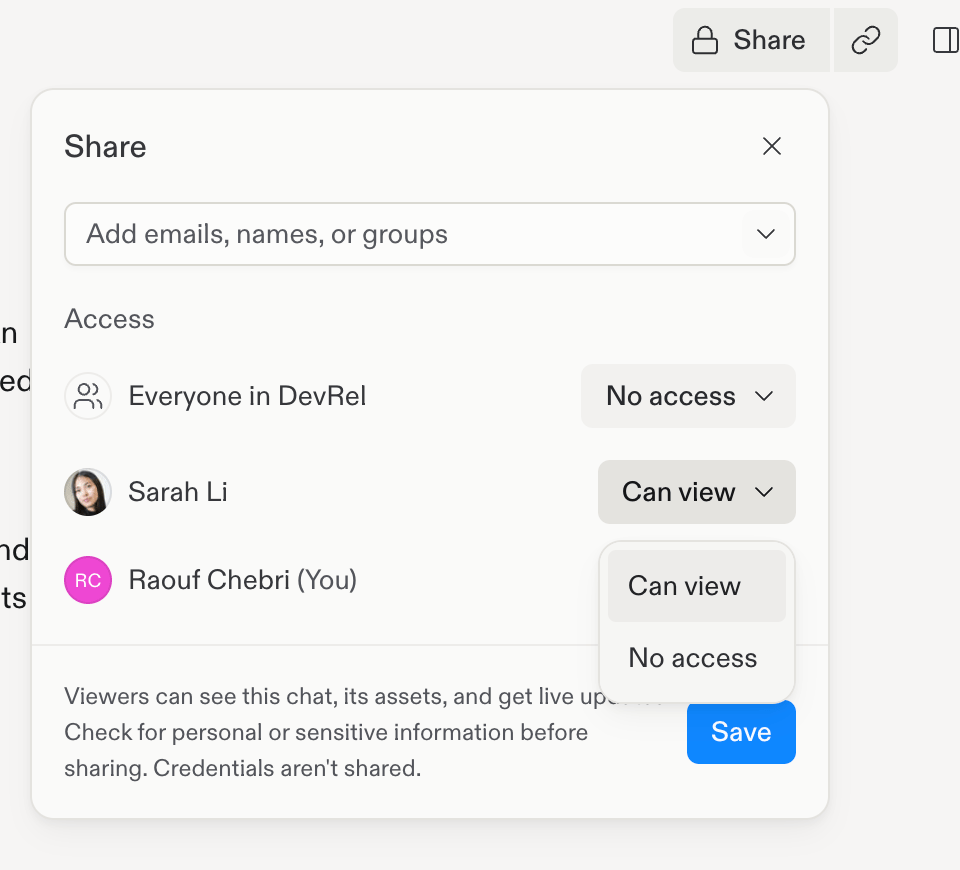
2
Grant workspace access
Under Access, change Everyone in your workspace from No access
to Can view. The audience label includes your workspace’s name.
3
Save the change
Select Save. While the change is saved, the panel displays
Saving changes…. When it finishes, the panel closes and the chat header
displays Shared.
Stop sharing with your workspace
1
Open the sharing panel
Open the chat’s sharing panel.
2
Remove workspace access
Change the workspace audience from Can view to No access, then
select Save.
3
Confirm access was removed
Reopen the panel to confirm the workspace audience has No access.
Share an individual asset
Share a report, image, or other asset without granting access to the conversation or its other assets. Viewers can see the selected asset and its updates.1
Find the asset
Find the asset under Assets in your chat. Open its three-dot menu.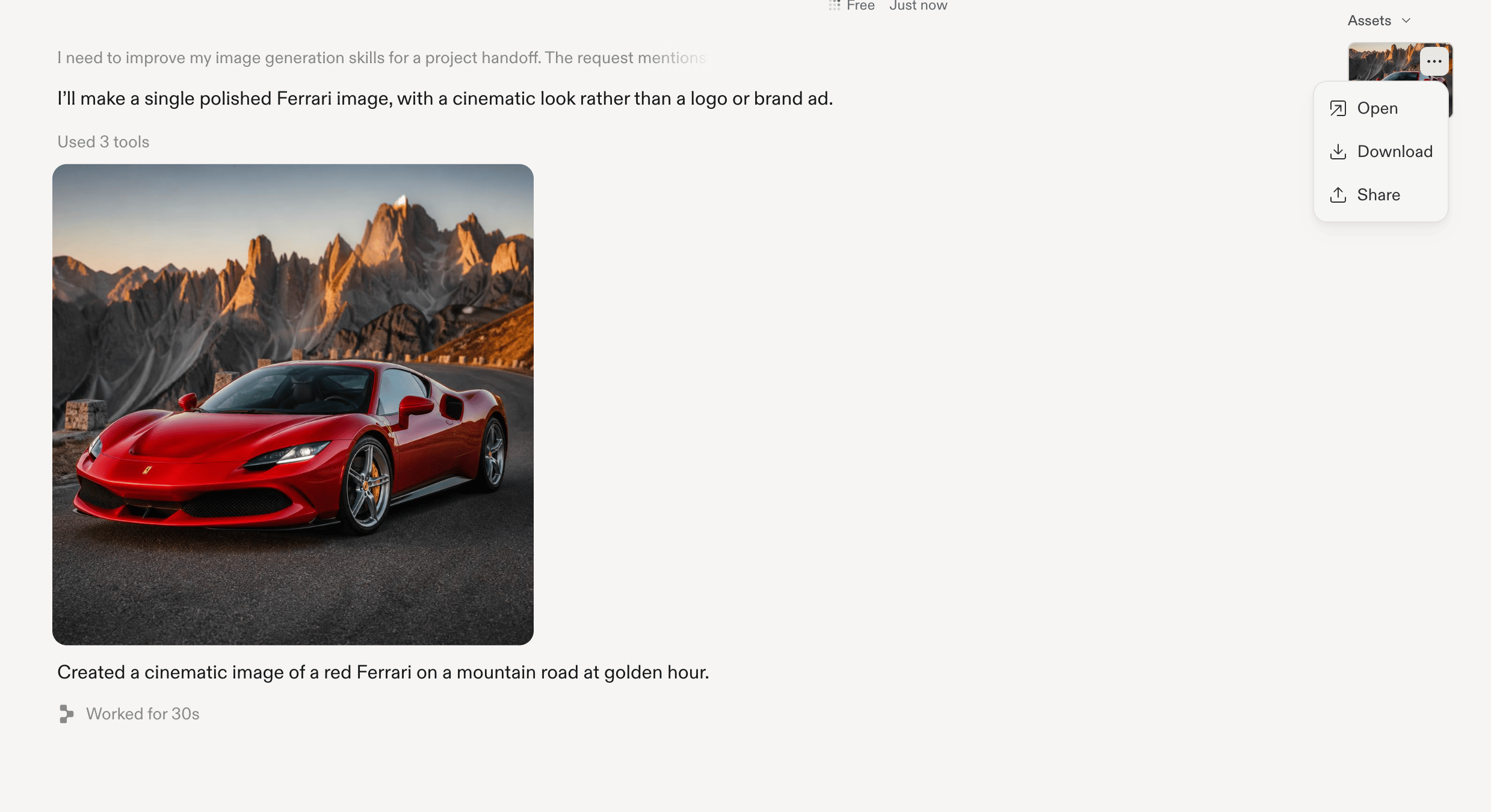
2
Open the sharing dialog
Select Share from the asset’s menu.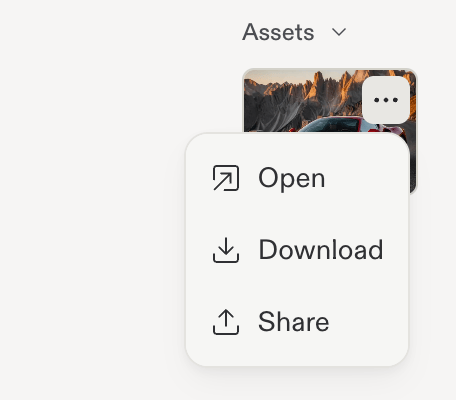
3
Choose who can view the asset
Under Access, change the workspace audience from No access to
Can view to share with your workspace. To choose recipients instead,
use Add emails, names, or groups and select the intended workspace
members or groups.Review the Sharing section to confirm the dialog names the single asset
you intend to share.
4
Save and copy the link
Select Save and wait for the change to finish. The asset dialog stays
open. Select Copy link to send the saved asset link to your teammates.
Copying the link does not grant additional access.
Asset-only sharing does not remove access someone already has to the whole
chat. Shared via conversation identifies access inherited from chat sharing.
Stop sharing an asset
Open the asset’s Share dialog, change its directly shared audience to No access, and select Save. Review every separate recipient entry you want to remove. If someone has access through the conversation, change the chat’s sharing permissions as well. Removing an asset’s direct permissions does not remove inherited chat access. Revoking access cannot remove copies someone already downloaded or saved.Troubleshoot access
- A teammate cannot open the link: Ask them to sign in with the account that belongs to the originating workspace. Review the audience in the sharing panel; copying a link does not grant access.
- Someone still has access after you remove workspace access: Review any separate people or group entries in the panel.
- A development URL is unavailable: Its server may no longer be running. Sharing access does not guarantee that a live development server stays available.
Limits
- Shared chats do not grant permission to edit the creator’s conversation.
- Sharing provides ongoing access, not a fixed snapshot or selected transcript range.
- Sharing the chat includes all of its development URLs.
- Shared development URLs are not a substitute for publishing an app.