

- Custom instructions: always-on guidelines that apply to every project in your workspace.
- Skills: reusable instructions that Agent loads only when a relevant task comes up.
Custom instructions vs. skills
Custom instructions load on every message; skills load only when Agent decides a task is relevant. Use custom instructions for the few guidelines that are always true, and skills for specific workflows, conventions, and reference material. For the reasoning behind that split — the context budget, what belongs where, and how to author skills well — see Agent skills. For how skills are structured and how Agent loads them, see Agent Skills.Custom instructions
Custom instructions are always-on guidelines injected into Agent’s context on every project and every session, before anyone types a prompt. Write them once in Workspace Settings, and Agent applies them everywhere in your workspace. They are best for guidelines that are always true, such as security and compliance requirements, approved libraries and frameworks, or data-handling policies. Keep them short. A focused, specific instruction is more likely to be followed closely, and it leaves more room for the work Agent is actually doing.Workspace custom instructions apply to every project in your Workspace. For project-specific context, use replit.md.
Skills
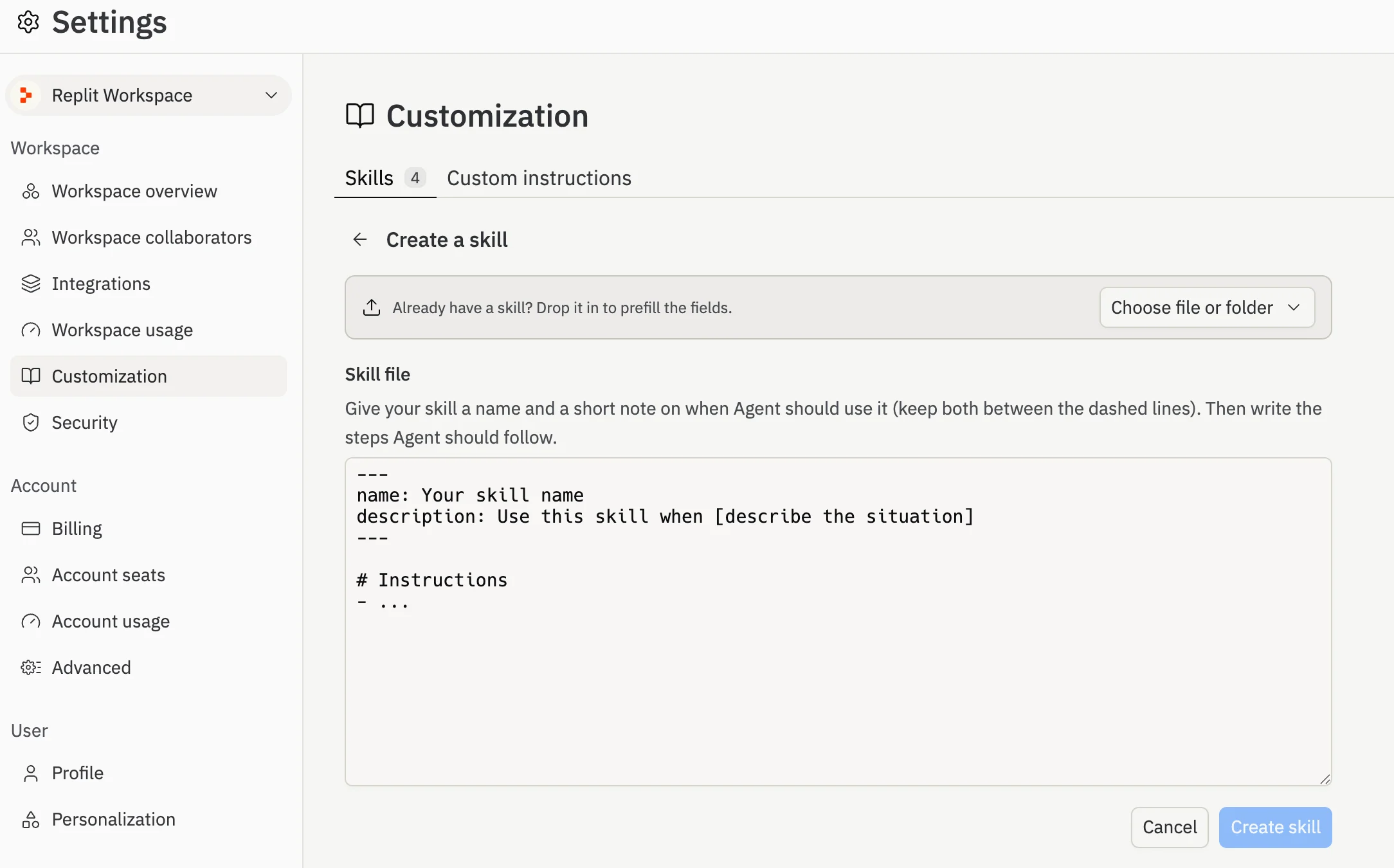
A skill is a reusable set of instructions Agent loads only when a relevant task comes up. Workspace skills appear at the top of the + menu in every project in your workspace, so your whole team shares the same set. You can create a skill three ways:- Upload an existing skill folder.
- Write a new skill directly in the form.
- Ask Agent to draft a skill for you, then refine it.
You can upload Skills drafted by Agent to your Workspace. Ask Agent to download the skill. Agent will package the skill as a downloadable
.zip archive with a Download file button (shown below). Download the zip and go to Customization in Settings. Select Skills, then upload it via Create skill → Choose file or folder so it’s shared across your workspace.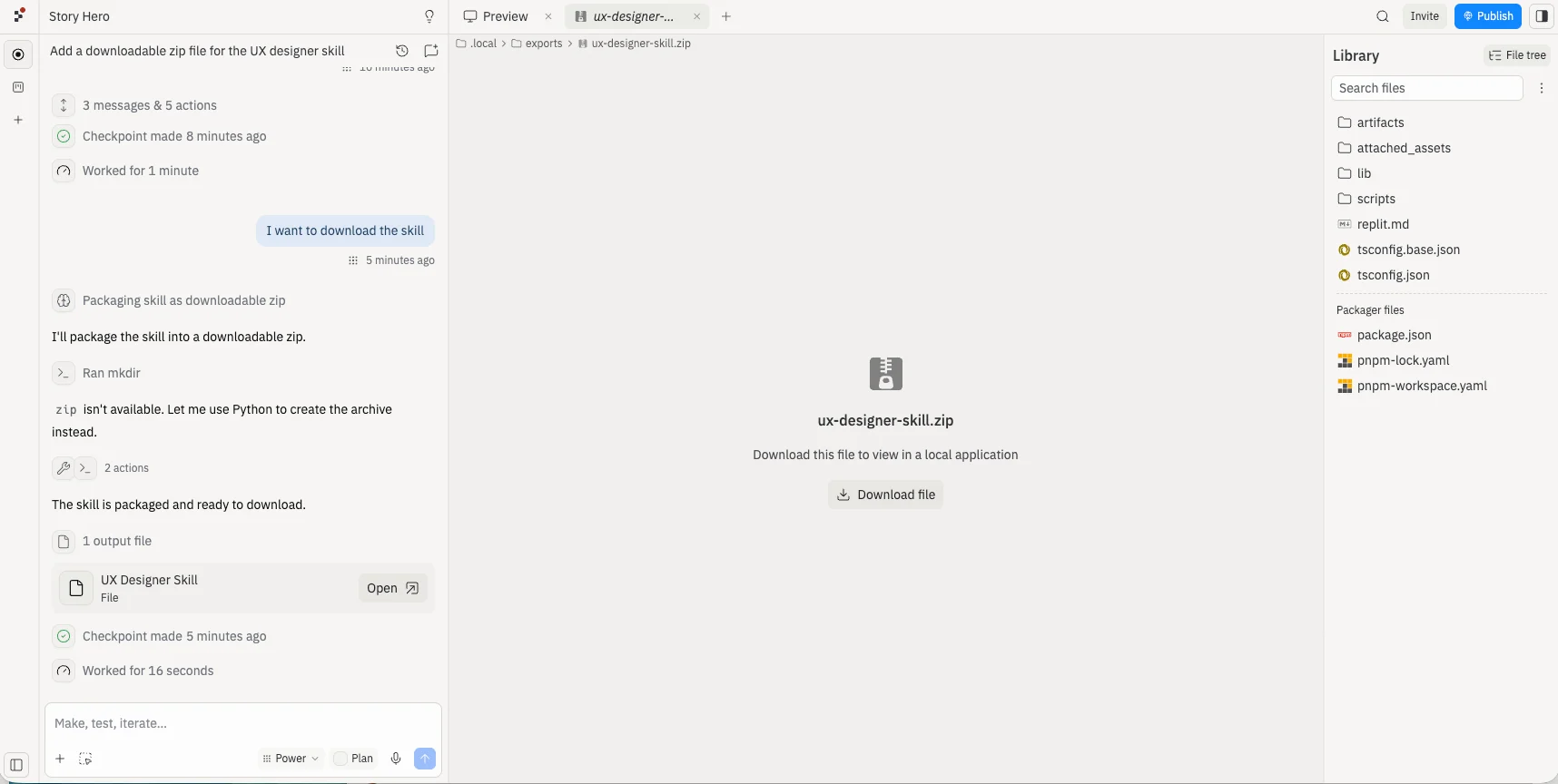
SKILL.md, supporting files, the open standard), see Agent Skills. To browse skills Replit and our partners have already built, see the Skills directory.
Use skills sparingly. Agent reads every skill’s name and description on each task, and too many (or overlapping ones) dilute its focus and can make it harder for Agent to pick the right one. Keep each skill tightly scoped, and remove ones you no longer need.
Availability and permissions
On Enterprise workspaces, only admins can create, edit, or delete custom instructions and skills. On Pro workspaces, any workspace member can. On Core workspaces, any member can manage skills — custom instructions aren’t available on Core. Either way, every member of the workspace can use the skills that have been created.
Create a custom instruction
1
Open Workspace Settings
Go to Customization in Settings.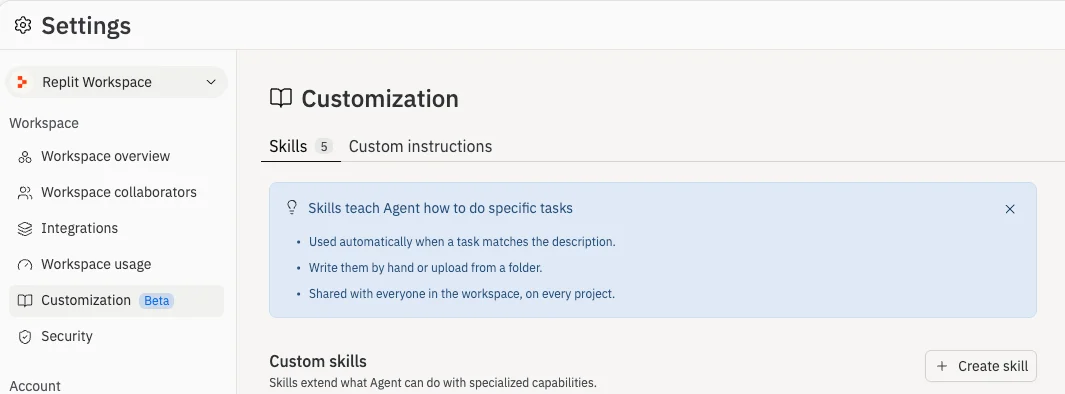
2
Write your instruction
In the Custom instructions section, write the guidelines you want Agent to apply across every project.
3
Save
Save your changes. The instruction applies to new projects in your workspace.
Create a skill
1
Open Workspace Settings
Go to Customization in Settings.
2
Create the skill
In the Skills section, click Create skill, then upload a skill folder, write the instructions, or ask Agent to draft one.
3
Write a clear description
Give the skill a sharp description that says when to use it — and when not to. This is what Agent reads to decide whether the skill applies.
4
Save
Save the skill. It becomes available in the + menu of every project in your workspace.
Use a workspace skill in a project
Sharp Skill description matters. Agent reads every workspace skill’s description and pulls one in automatically when your prompt roughly matches what the skill is for, so you don’t always need to pick a skill yourself. You can also select a skill explicitly when you want to be sure it’s applied. To select one manually:1
Open the skill picker
In a project, click the + button next to the chat input. Your workspace skills appear at the top, grouped together.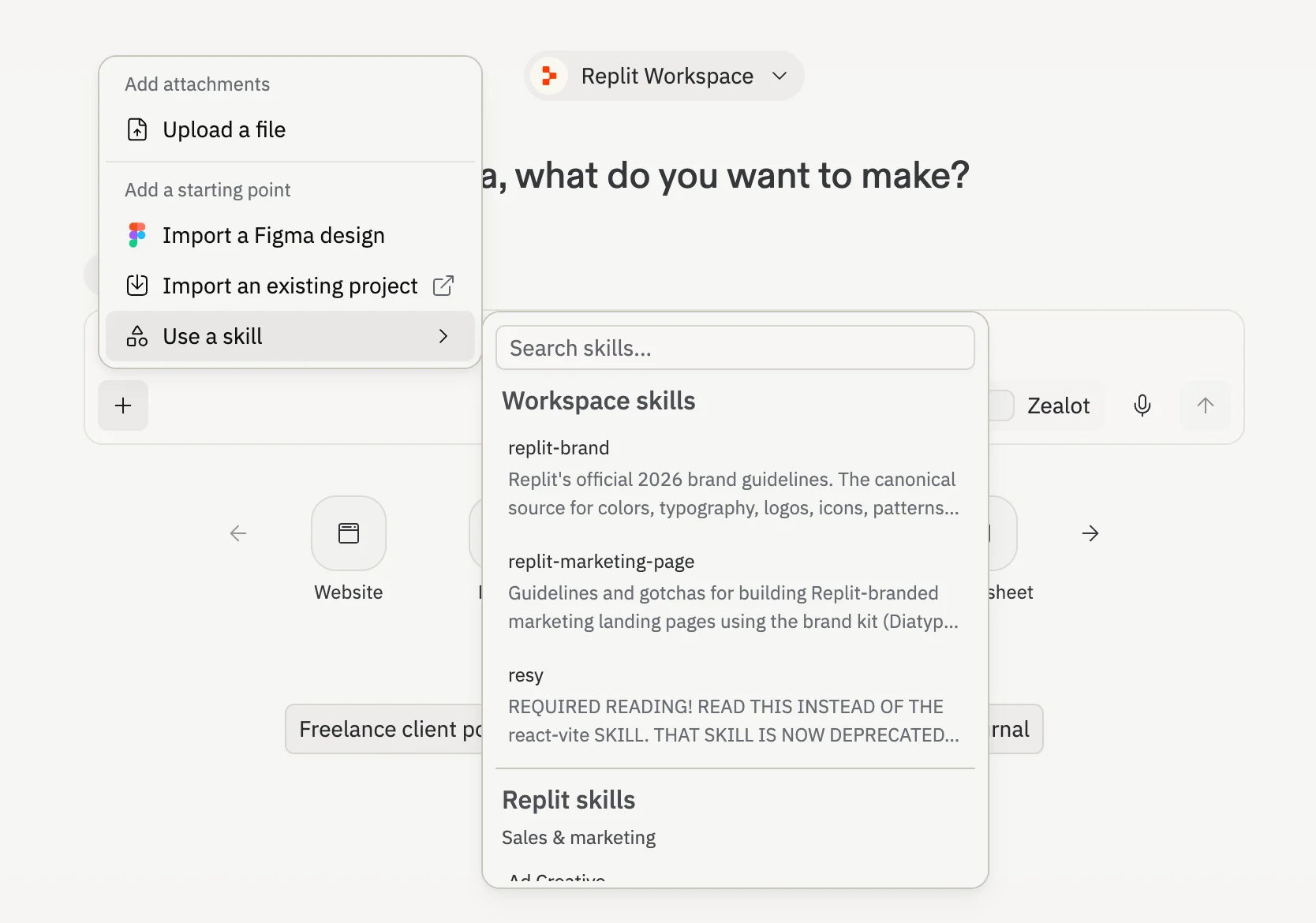
2
Select a skill
Choose the skill you want active. You can also type
/ followed by the skill name to invoke it directly.3
Keep prompting
Continue as normal. Agent uses the skill when the task matches its description.
Manage instructions and skills
All management happens in Customization in Settings. From there you can edit a custom instruction, and edit, disable, or delete any skill. Changes apply to future chats, not ones already in progress.Next steps
The mental model and best practices for writing instructions and skills that scale across your team.
How skills are structured and how Agent loads them.
Skills directory
Browse skills built by Replit and our partners, and learn how to install them.
Use a skill
Attach a skill to a message or install one in a project.