

Voice Mode turns your speech into text in the chat box. It does not read
Agent’s responses aloud — you still send a written message, and Agent replies
in the chat as usual.
How it works
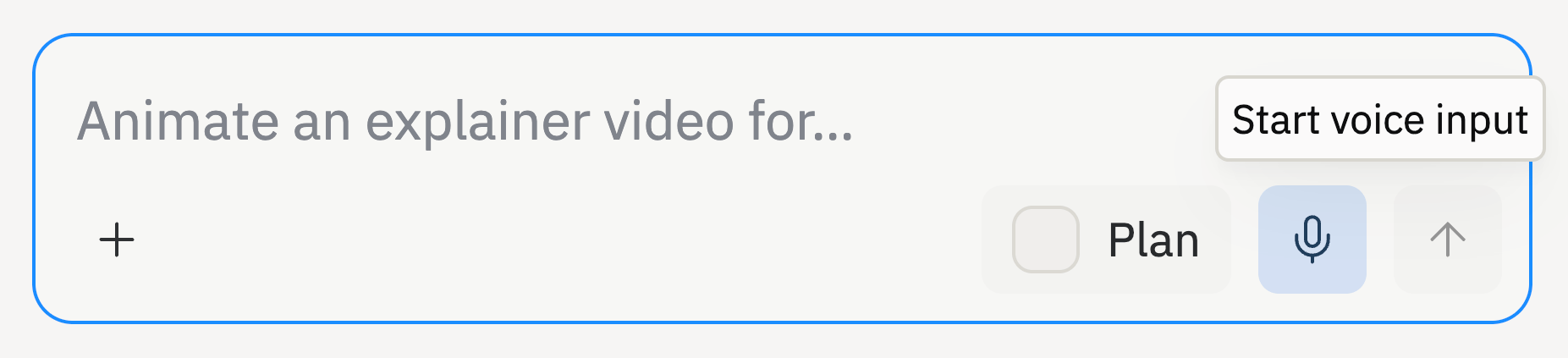
- Open Agent and select the microphone in the chat box.
- Allow microphone access if your browser or device prompts you.
- Speak your prompt. A waveform shows that Agent is recording.
- Stop recording when you’re done. Recording also stops automatically after a pause or when you switch away from the tab.
- Wait briefly while your speech is transcribed.
- Review the transcribed text, edit it if needed, then send your message.
Where you can use it
Voice Mode is available in the Agent chat box:- In the Project Editor when working with Agent on an app.
- When starting a new app from the Agent prompt on the home screen.
Good to know
Keep these details in mind when using Voice Mode:Availability
Voice Mode is available on all Replit plans. The microphone appears in the Agent chat box on browsers and devices that support audio recording, and you’ll be asked for microphone permission the first time you record.Next steps
Agent overview
Learn what Agent can do and how to prompt it effectively.
Open the overview →
Audio Generation
Generate music, sound effects, and speech for your apps with Agent.
Explore audio →