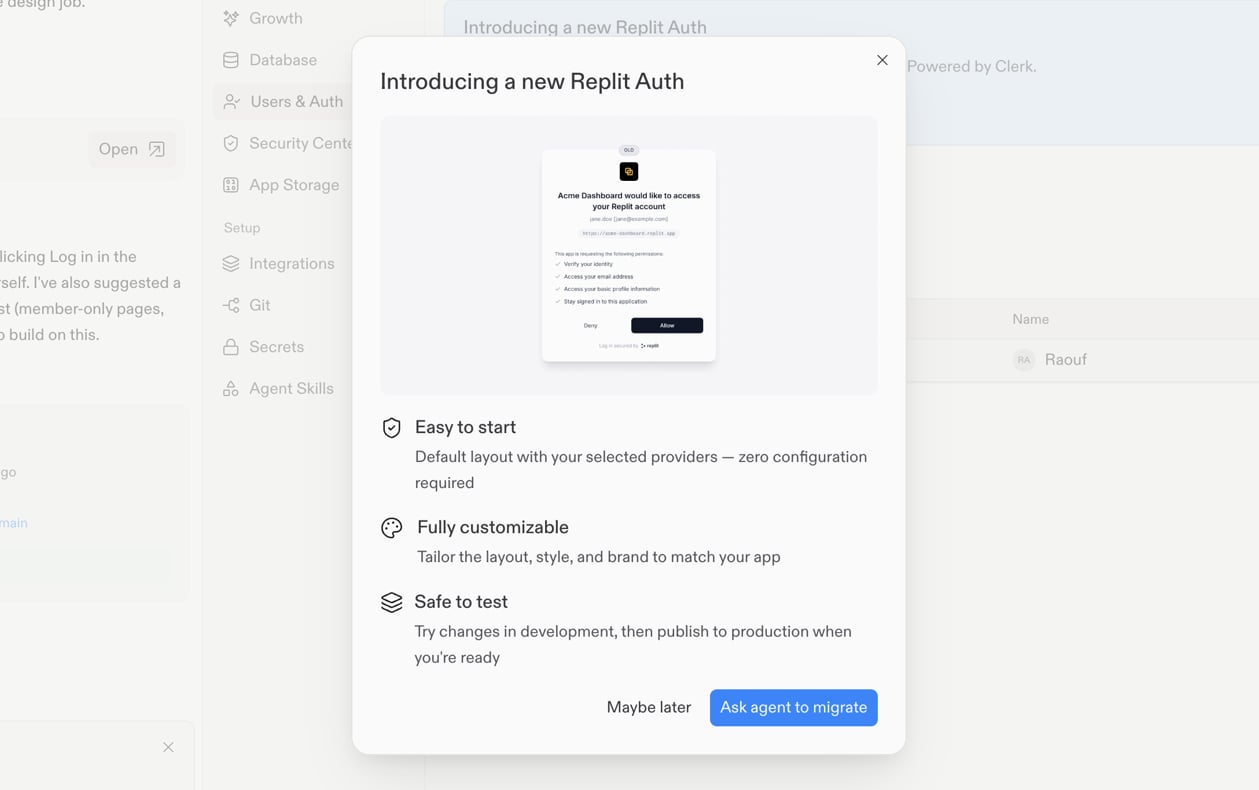
Use Agent to move an existing Replit Auth app to Clerk Auth while preserving your app’s user data.
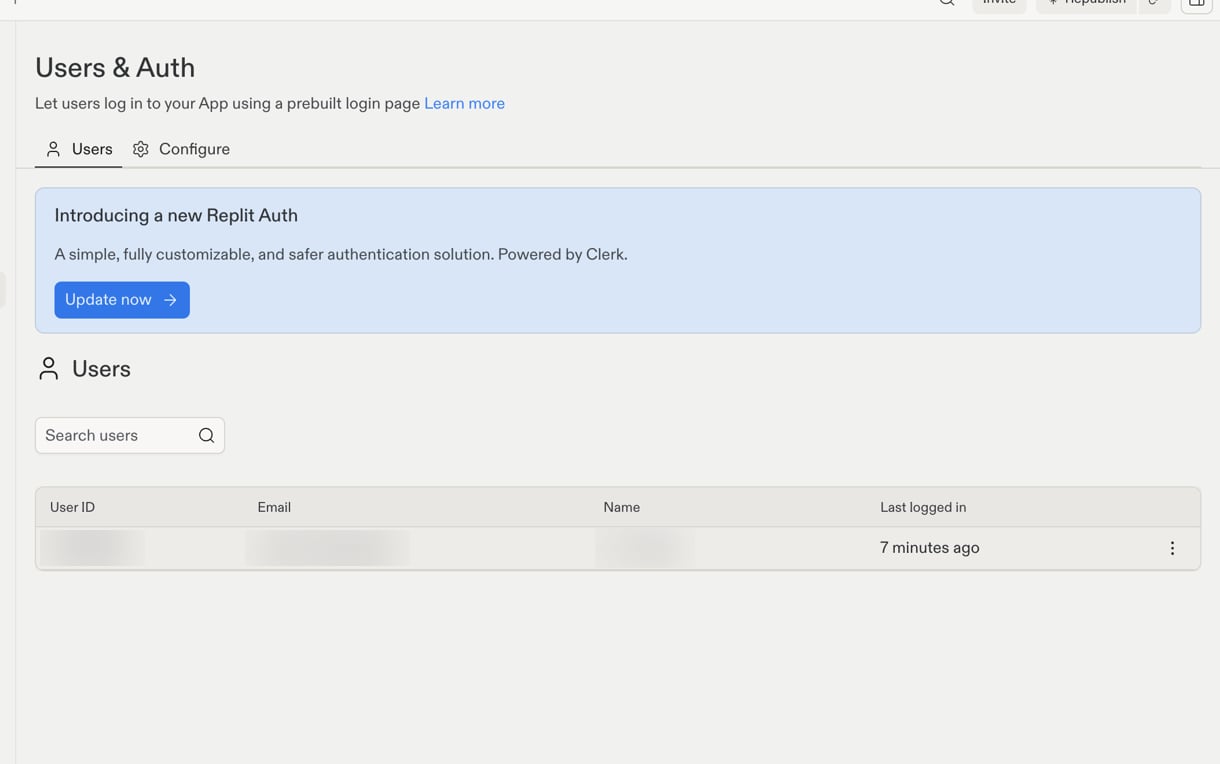
Use this guide to move an existing Replit Auth app to Clerk Auth. Agent handles the migration for eligible apps, so returning users keep access to their existing data.
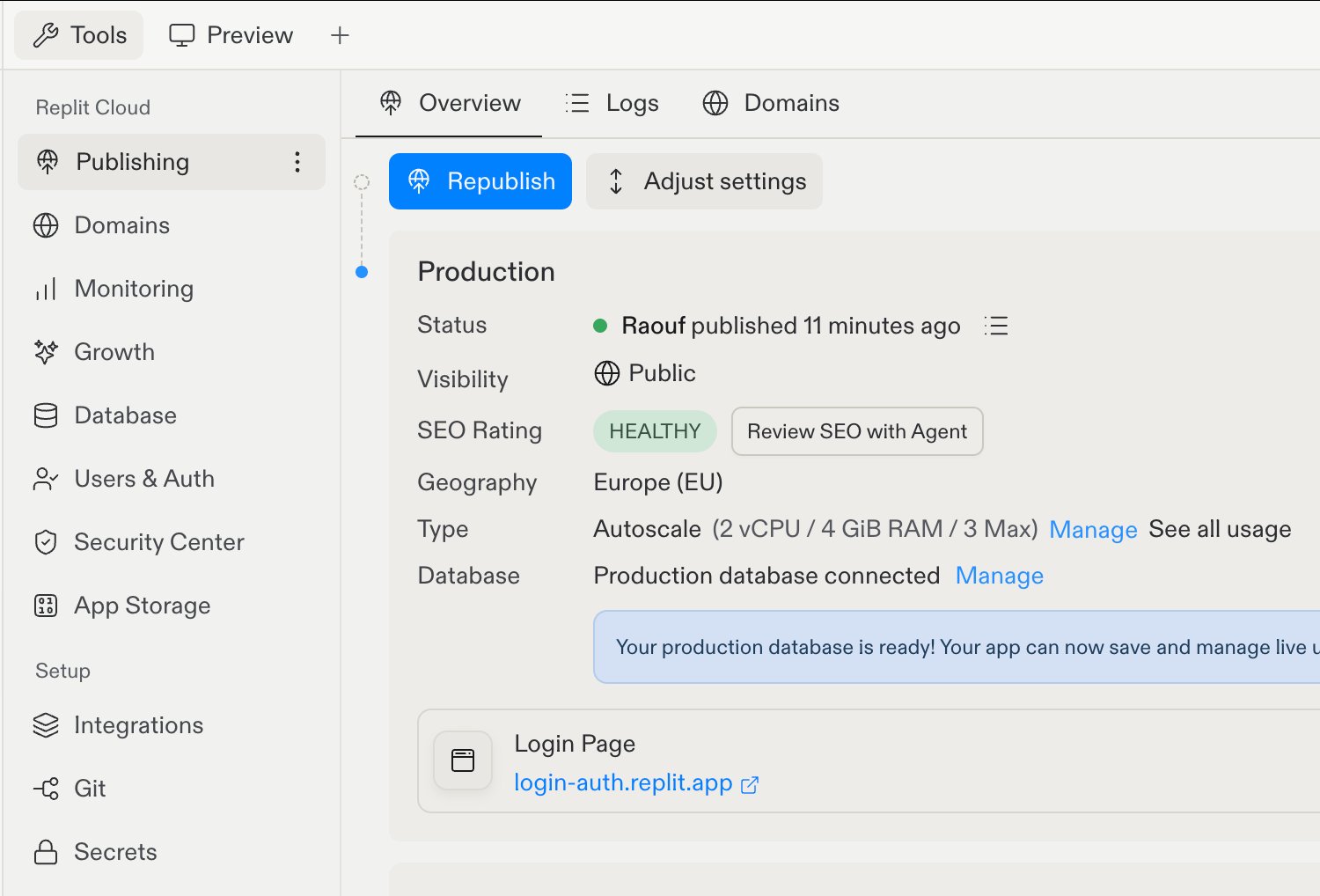
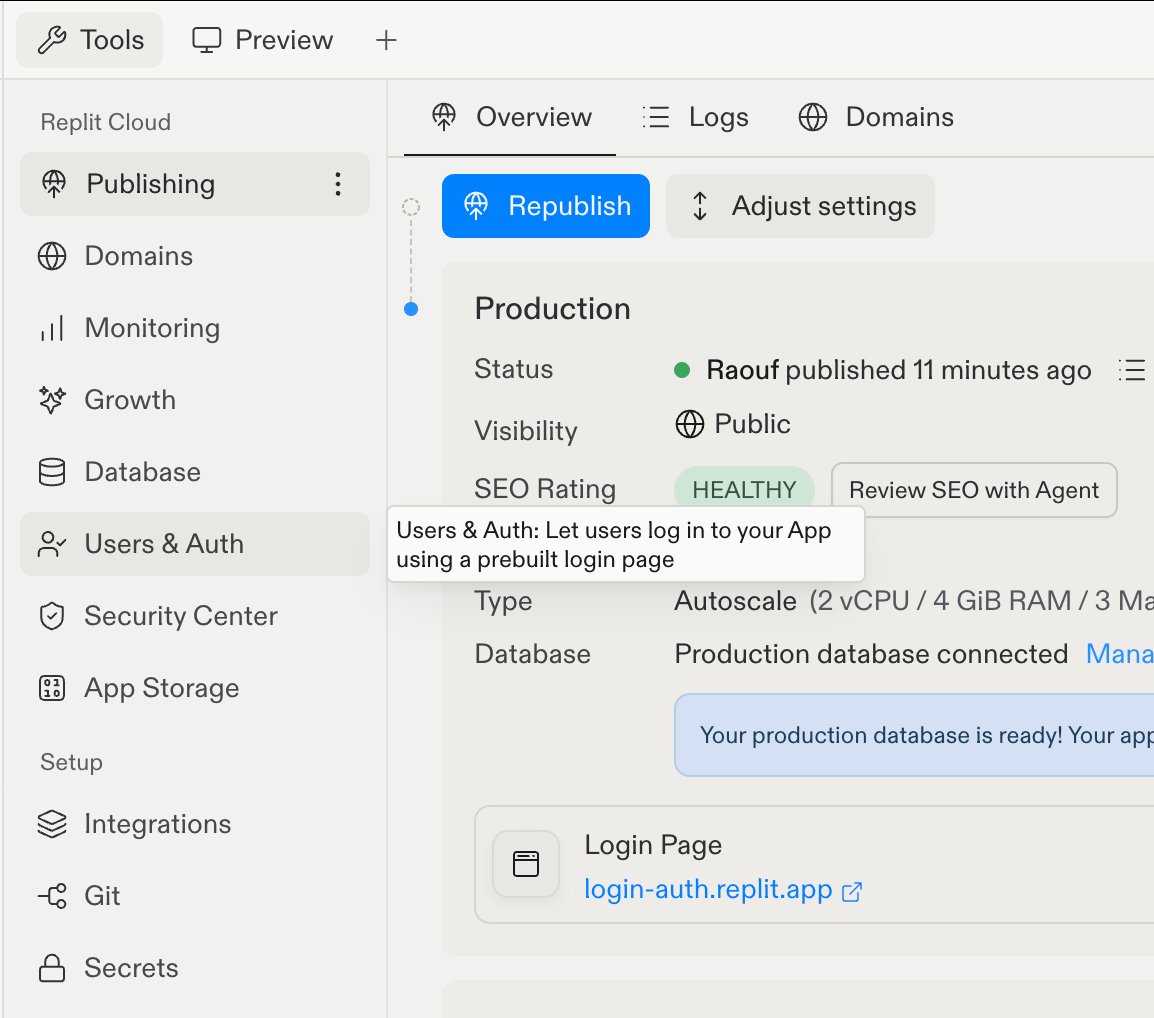
This automated migration is for apps that use Replit Auth. If your app uses a different authentication system, do not use this flow.
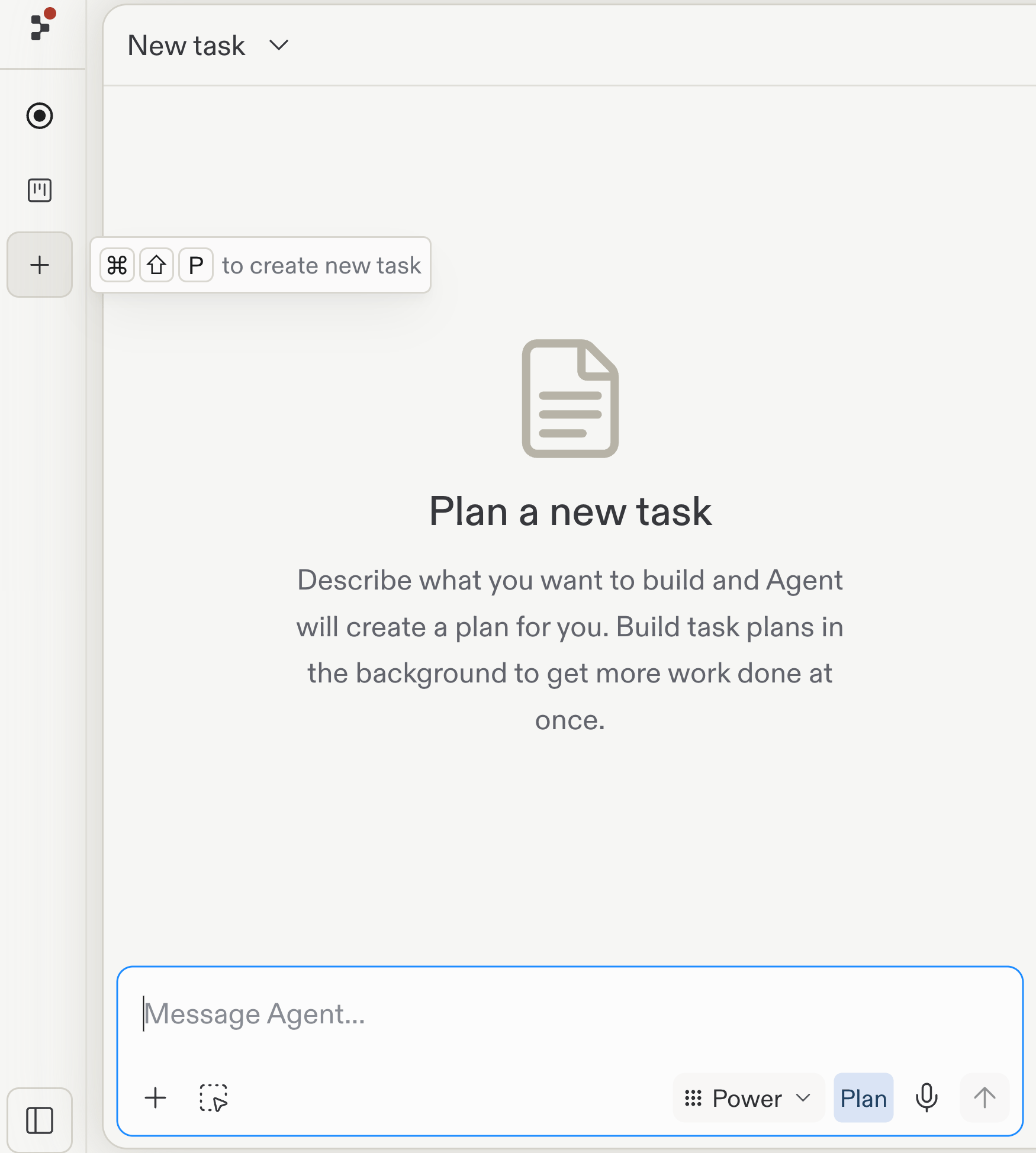
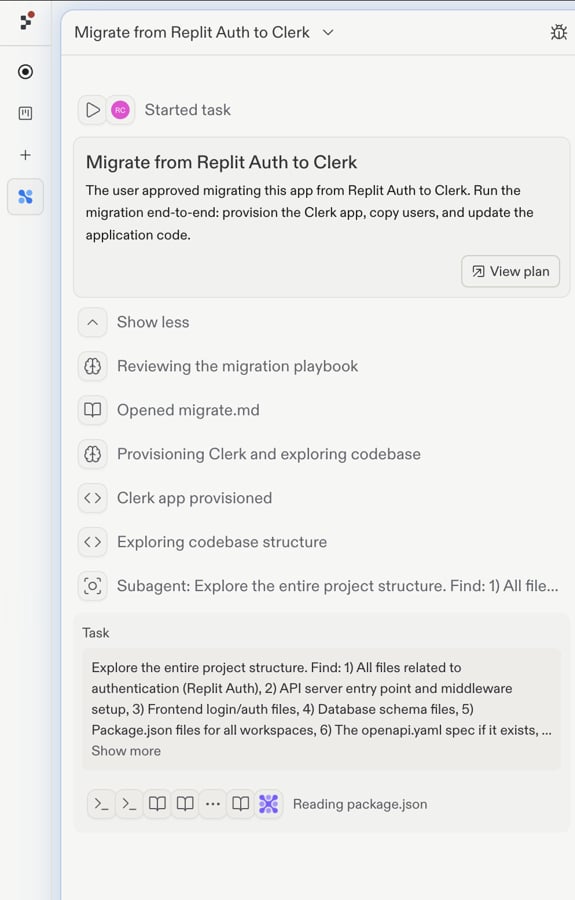
Whichever way you start, Agent creates the Migrate from Replit Auth to Clerk task and prepares the migration plan. Select View plan and review the plan before the task proceeds.
The Migrate from Replit Auth to Clerk task starts with a View plan action so you can review the migration playbook.
Do not change your app’s authentication code or Clerk credentials while Agent is working.
Agent changes only your app’s authentication code. It does not update your app’s existing database data or schema. Your tables and relationships remain intact.Your existing users remain connected to the records they already own, such as profiles, saved work, and permissions.
Expect Agent to work for 10 minutes to an hour. The data migration itself can take several minutes for smaller apps and up to a couple of hours for apps with many users. Agent does not begin changing your app’s code until that migration completes.