

What is a project?
A project is the container for everything you build on Replit. It holds your code, data, and all the artifacts you create — web apps, mobile apps, slide decks, data dashboards, and videos. When you tell Agent what you want, it sets up a project and builds the artifacts inside it. Think of a project like a workspace on your desk. Everything lives in one place and can share the same information, but each piece serves a different purpose. For example, if you ask Agent to build a fitness tracking app, it creates a project with a mobile app artifact along with the backend, database, and storage it needs to work. Key concepts:- Project: The container that holds everything — your code, data, and all your artifacts
- Artifact: A publishable output within a project (a web app, slide deck, video, etc.)
- Resources: Every artifact gets automatic access to a backend, database, and file storage — no setup required
Publishing pushes your entire project live at once. All artifacts go live together, so they always stay in sync.
What you can build
| Type | What it is | Example |
|---|---|---|
| Web app | A website or web application people visit in their browser | An online store, a booking tool, a portfolio site |
| Mobile app | A native app people install on their phone | A fitness tracker, a restaurant ordering app |
| Data Visualization | An interactive dashboard with charts, filters, and live data | A sales report, a metrics tracker, an analytics view |
| Slide deck | A presentation you can present or export | A pitch deck, a team update, a product overview |
| Animation | A motion graphics video you can export as MP4 | A product launch video, an explainer, social media content |
| 3D game | A 3D game, simulation, or interactive experience | A puzzle game, a physics simulation, an interactive experience |
| Design | Visual directions and prototypes explored on the design canvas | Mood boards, mockups, design exploration |
Managing your projects
Your Projects page lists every project you’ve created or been invited to. It’s the fastest way to jump back into recent work and find the right project in a busy workspace.See at a glance what’s inside each project
Every project card shows small icons for the artifacts it contains for each web app, mobile app, slide deck, data visualization, or animation in the project. Hover any icon to preview that artifact’s screenshot directly on the card, so you can tell projects apart without opening them.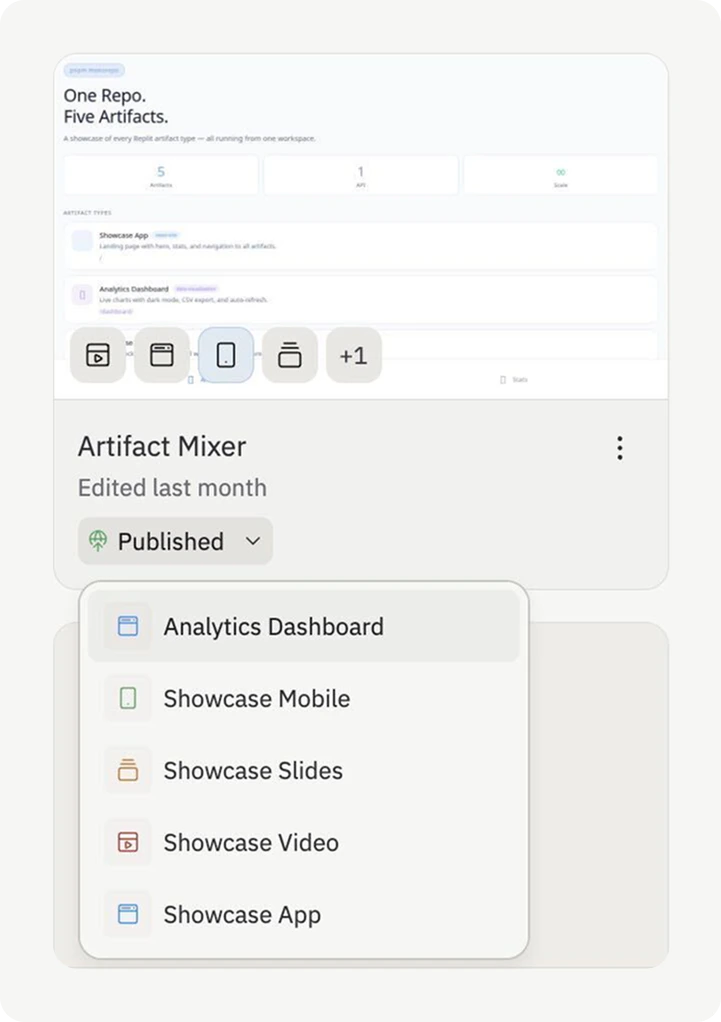
Filter by artifact
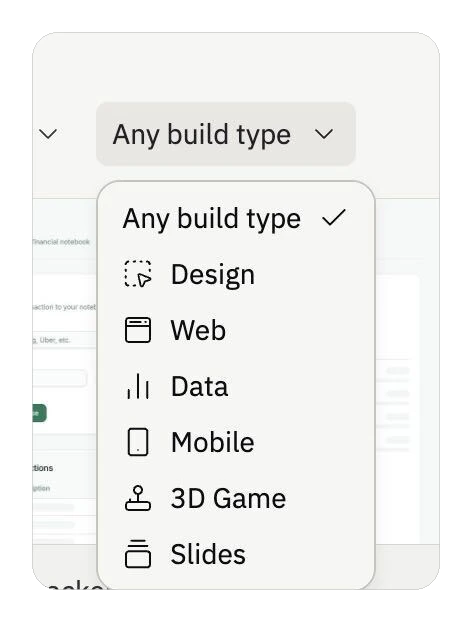
Use the Build type dropdown at the top of the Projects page to filter your list by artifact. Pick one to see only the projects that contain that kind of artifact:- Web — projects that contain a web app
- Mobile — projects that contain a mobile app
- Data — projects that contain a data visualization
- Slides — projects that contain a slide deck
- Design — projects in Design mode
- 3D Game, Agent & Automation, and more
Sort by last opened
The Projects page is sorted by last opened by you by default — the projects you’ve spent time in most recently appear at the top. This is especially useful in team workspaces, where other members’ recent edits would otherwise bury your current work. You can switch the sort by selecting a different column header (for example, Last updated or Name).Pin the projects you use most
Pin a project to keep it at the top of your list. Pins are private to you — pinning a project in a team workspace doesn’t change what other members see. To pin a project, open the overflow menu (three dots) on the project card and select Pin. Select Unpin from the same menu to remove the pin.Next steps
Artifacts
Learn how to create, switch between, and manage artifacts
Web Apps
Build full-stack web applications
Mobile Apps
Create native iOS and Android apps
Data Visualization
Build interactive dashboards and data exploration tools
Slide Decks
Create presentations through conversation