
Documentation Index

Fetch the complete documentation index at: https://docs.replit.com/llms.txt

Use this file to discover all available pages before exploring further.

Follow-up task suggestions

After you apply a task, Agent reviews your project context and suggests follow-up tasks you might want to build next. The Suggested next tasks dialog shows the top recommendation inline, so you can keep going without leaving the main thread.
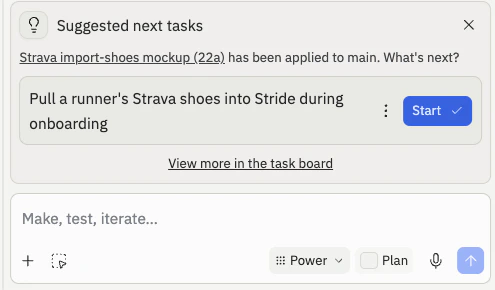
Suggested next tasks dialog showing a follow-up task with a Start button and a link to view more tasks in the task board
Follow-up suggestions can include:
  • New features to build: capabilities that pair naturally with what you just shipped
  • Performance improvements: optimizations Agent noticed while working on the task
  • User experience enhancements: polish and refinements that round out the feature
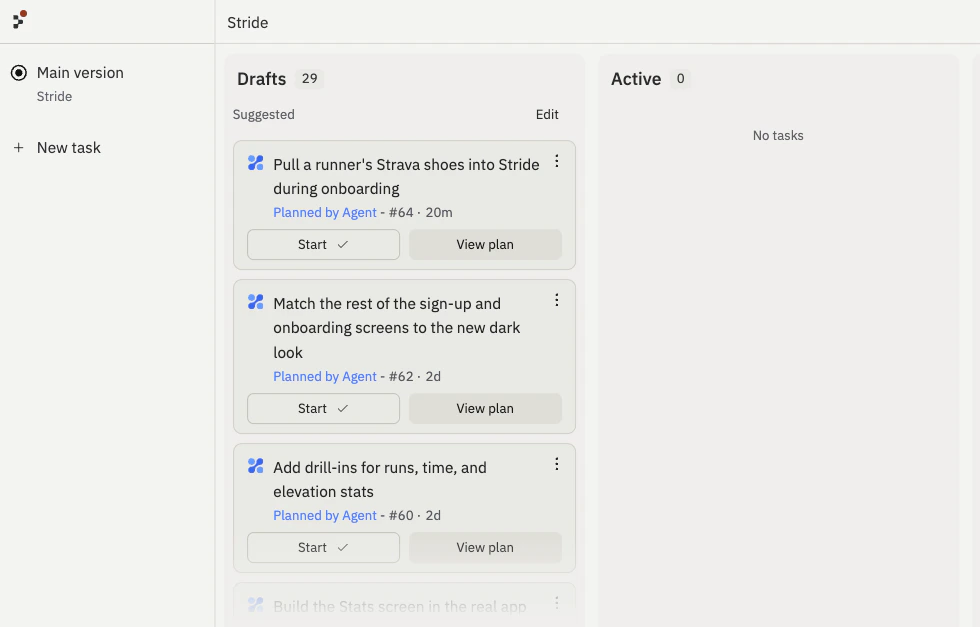
Select Start on a suggestion to send it to the background, or select View plan to inspect the proposed work first. To see every suggestion, select View more in the task board. Suggested follow-ups appear under Suggested in the Drafts column.
Task board showing many follow-up task suggestions under Suggested in the Drafts column
Closing the Suggested next tasks dialog cancels the suggestions. Agent does not show the dialog on the main version when a proposed plan is already waiting there, so the two prompts do not compete for your attention.

Managing many suggestions at once

For projects with many follow-up suggestions, open the task board and select Edit in the Drafts column. In edit mode, each suggested task gets a checkbox. Select the tasks you want, then use Start or Cancel to apply that action to every selected task. Select Done to leave edit mode.
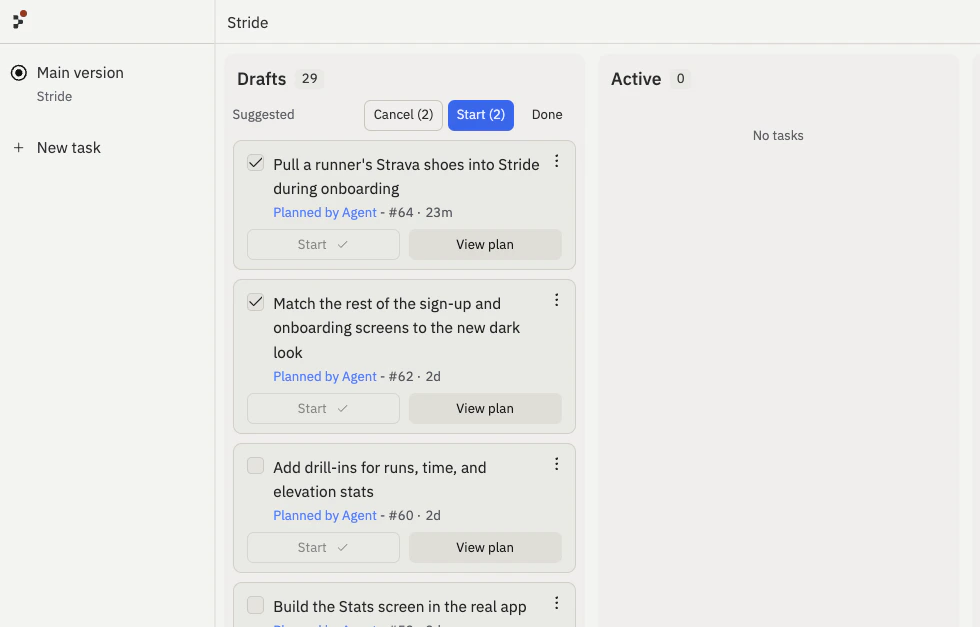
Task board edit mode showing selected follow-up task suggestions with bulk Start and Cancel actions