

What are Slide Decks?
Slide Decks let you create polished, professional presentations entirely through conversation with Agent. Describe what you want and get a complete, beautiful deck instantly — then iterate by chatting, editing visually, or exploring variations on the Design Canvas. Under the hood, slides are built with React, which means they export to pixel-perfect, fully editable PPTX, Google Slides, or PDF files. You can also publish your deck as a live, shareable URL. Key concepts:- One-shot generation: Describe your presentation and Agent creates a complete deck — layouts, text, and visuals included
- React-based: Slides are real React components, not static images, so they export cleanly to any format
- Export anywhere: Download as PPTX, Google Slides, or PDF — pixel-perfect and fully editable
- Deployable: Publish your deck as a live URL that anyone can view or present from their browser
How to use Slide Decks
Creating a slide deck
There are two ways to create a slide deck from the Replit homepage:- Type a prompt: Describe the presentation you want. Agent detects presentation-related prompts and selects the Slide deck stack automatically.
- Select from the dropdown: Open the app type dropdown, select Slides, then describe your presentation.
- “Create a pitch deck for my AI-powered fitness app”
- “Make a 10-slide investor presentation for a Series A raise”
- “Build a product overview deck for our team offsite”
Starting with brand guidelines or a reference
You can give Agent a head start:- Brand guidelines: Upload your brand guidelines so Agent matches your colors, fonts, and visual style across every slide.
- Reference file: Upload an existing presentation or document as a starting point. Agent uses it as a foundation and builds from there.
Iterating on your slides
After Agent generates the first version, refine it through conversation:- Adjust content: “Make the problem slide more concise” or “Add a competitive landscape slide after the market size section.”
- Change styling: “Use a dark theme with blue accents” or “Make the fonts larger and more minimal.”
- Add or remove slides: “Add two more slides about our roadmap” or “Remove the last slide.”
- Add visuals: “Add a chart showing projected growth” or “Include icons for each feature on slide 4.”
- Reorder or restructure: “Move the team slide to the end” or “Split the features slide into two slides.”
Editing slides directly
You can make hands-on edits without going through chat:- Visual Editor: Click on any element to adjust text, colors, spacing, and layout directly — no AI credits consumed.
- Duplicate or delete: Right-click any slide to duplicate or delete it.
Drag and drop for elements within a slide is not yet supported. To move or rearrange elements, ask Agent in chat.
Using Design Canvas for variations
You can use the Design Canvas to explore alternative designs for individual slides or sections, then bring your preferred version back to the main deck. This is useful when you want to compare multiple visual directions before committing.Presenting and publishing
When your deck is ready:- Presenter mode: Enter full-screen presentation mode to present directly from the preview pane. This is the same view your audience sees when you publish.
- Mobile support: Slides work on mobile devices, so your audience can view them from any screen.
- Publish: Publish your slide deck as a live, shareable URL. Anyone with the link can view or present the deck in their browser.
Exporting
Download your slides for use outside of Replit:- PowerPoint: Open and edit your
.pptxfile in PowerPoint or Keynote. Backgrounds, text, and graphics carry over reliably. - Google Slides: Open your deck directly in Google Slides. After the export finishes, select Go to Google Slides to open it in one step.
- PDF: Share a static, print-ready version. Photo-heavy decks export at a small file size, so you can email them without trouble.
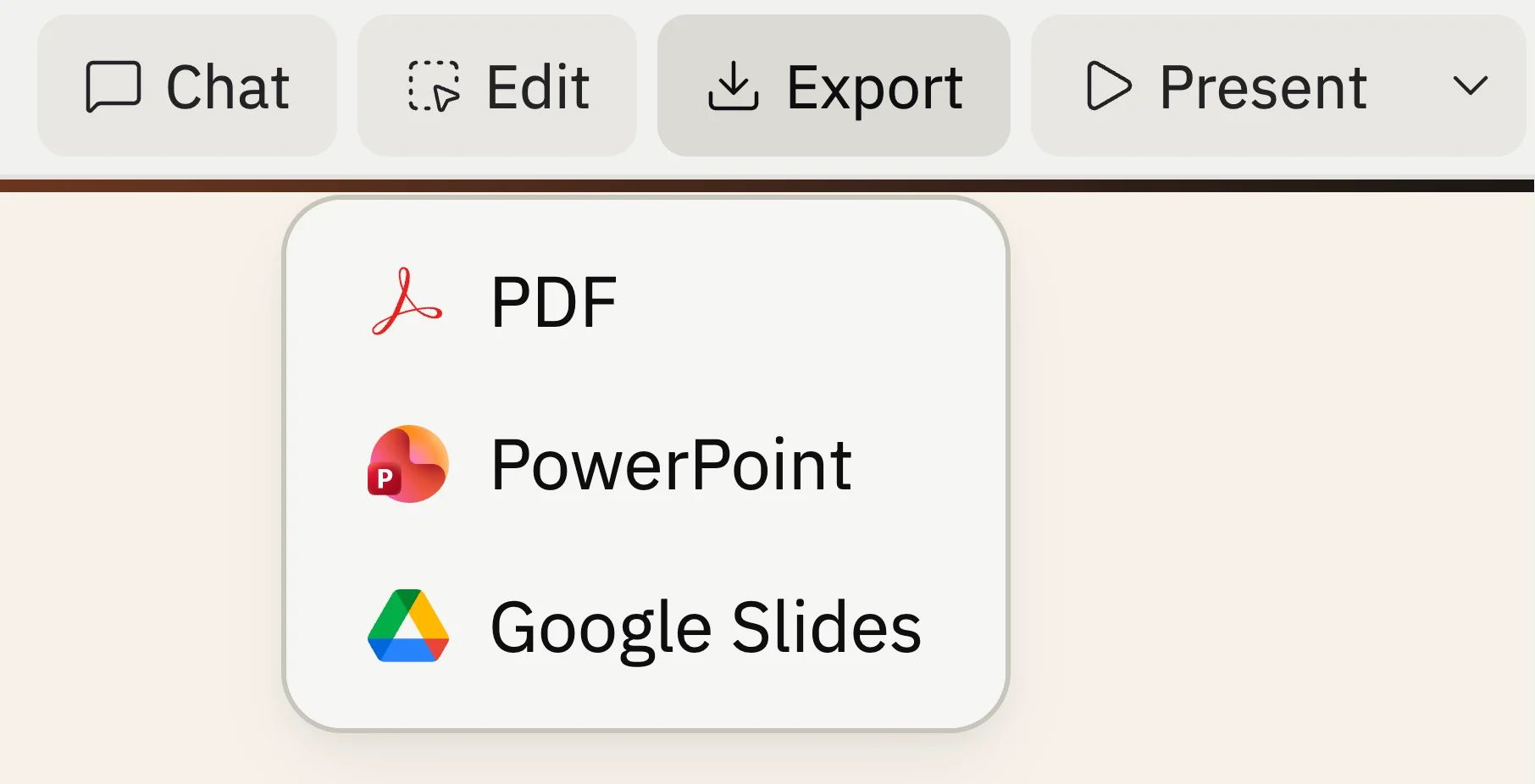
Export a deck to PDF, PowerPoint, or Google Slides.
.pptx file and its backgrounds, text, and graphics come through reliably.
Finding your slide decks
Your slide decks appear in your Projects list alongside your other apps. Open the Build type dropdown on the Projects page and select Slides to list only the projects that contain a slide deck artifact.What you can build

- Pitch decks: Create investor-ready presentations with clear narratives and professional design.
- Product overviews: Build decks that introduce your product’s features, architecture, or roadmap.
- Team presentations: Prepare slides for standups, offsites, or all-hands meetings.
- Sales decks: Design client-facing presentations with tailored messaging and visuals.
- Educational content: Create lecture slides, workshop materials, or training decks.
Frequently asked questions
Can I drag and drop elements on a slide?
Can I drag and drop elements on a slide?
Not yet. To move or rearrange elements within a slide, ask Agent in chat. You can use the Visual Editor to edit text, colors, and spacing directly.
What export formats are supported?
What export formats are supported?
You can export to PPTX, Google Slides, or PDF. All exports are pixel-perfect and fully editable.
Can I use my brand guidelines?
Can I use my brand guidelines?
Yes. Upload your brand guidelines when creating a deck and Agent matches your colors, fonts, and visual style across every slide.
Do slides work on mobile?
Do slides work on mobile?
Yes. Slides render on mobile devices, so your audience can view published or shared decks from any screen.
Can I publish my slides as a live URL?
Can I publish my slides as a live URL?
Yes. Publish your deck and it becomes a live, shareable URL that anyone can view or present from their browser.