

To build or preview a native iOS app, use the Project Editor at replit.com. Native mobile app work is also available in the Replit Android app where supported.
Getting started
You can get to a working mobile app in a few steps:1
Create a mobile app
On the Replit home screen, describe your app idea and select Mobile app as the app type.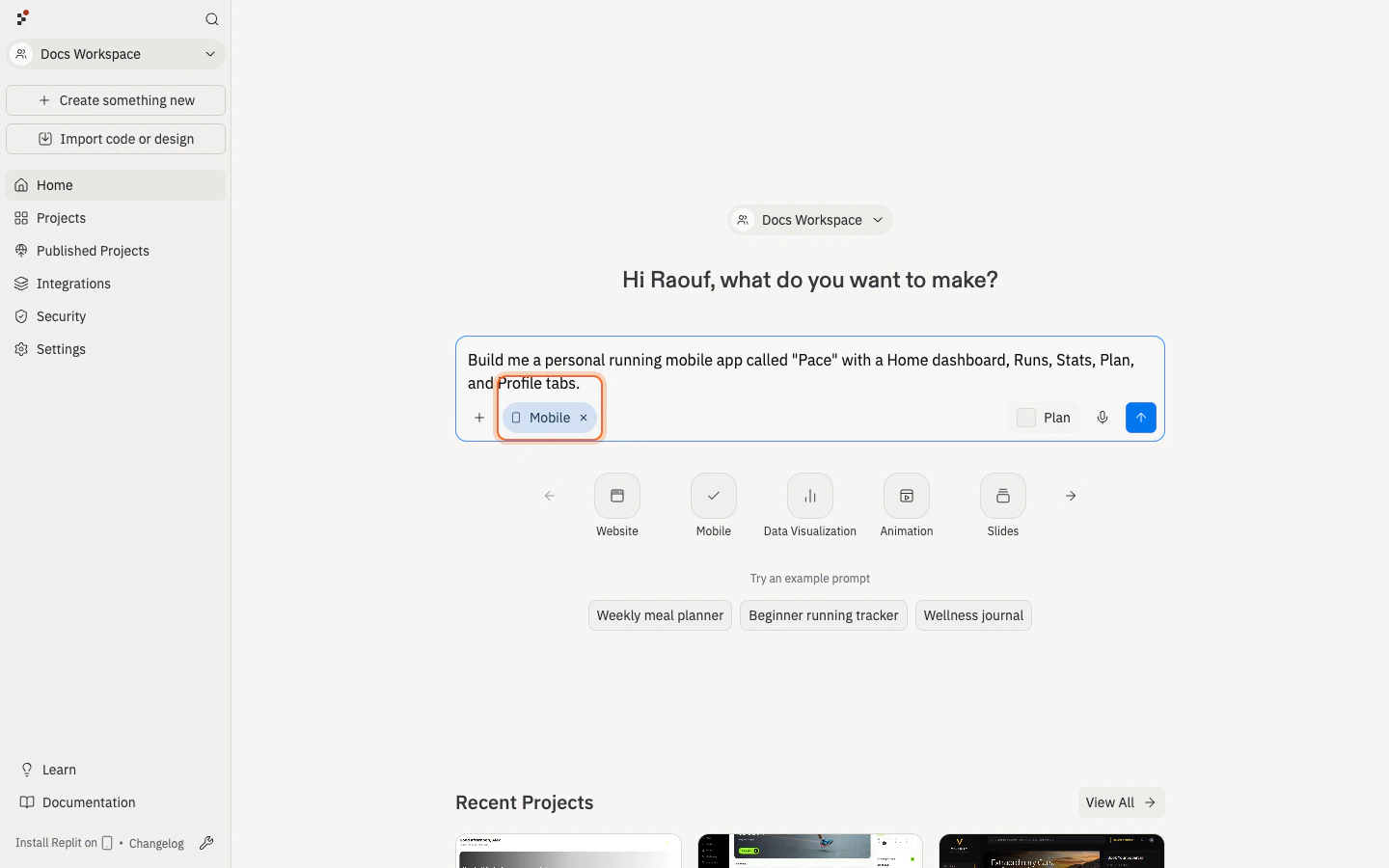
2
Test your app
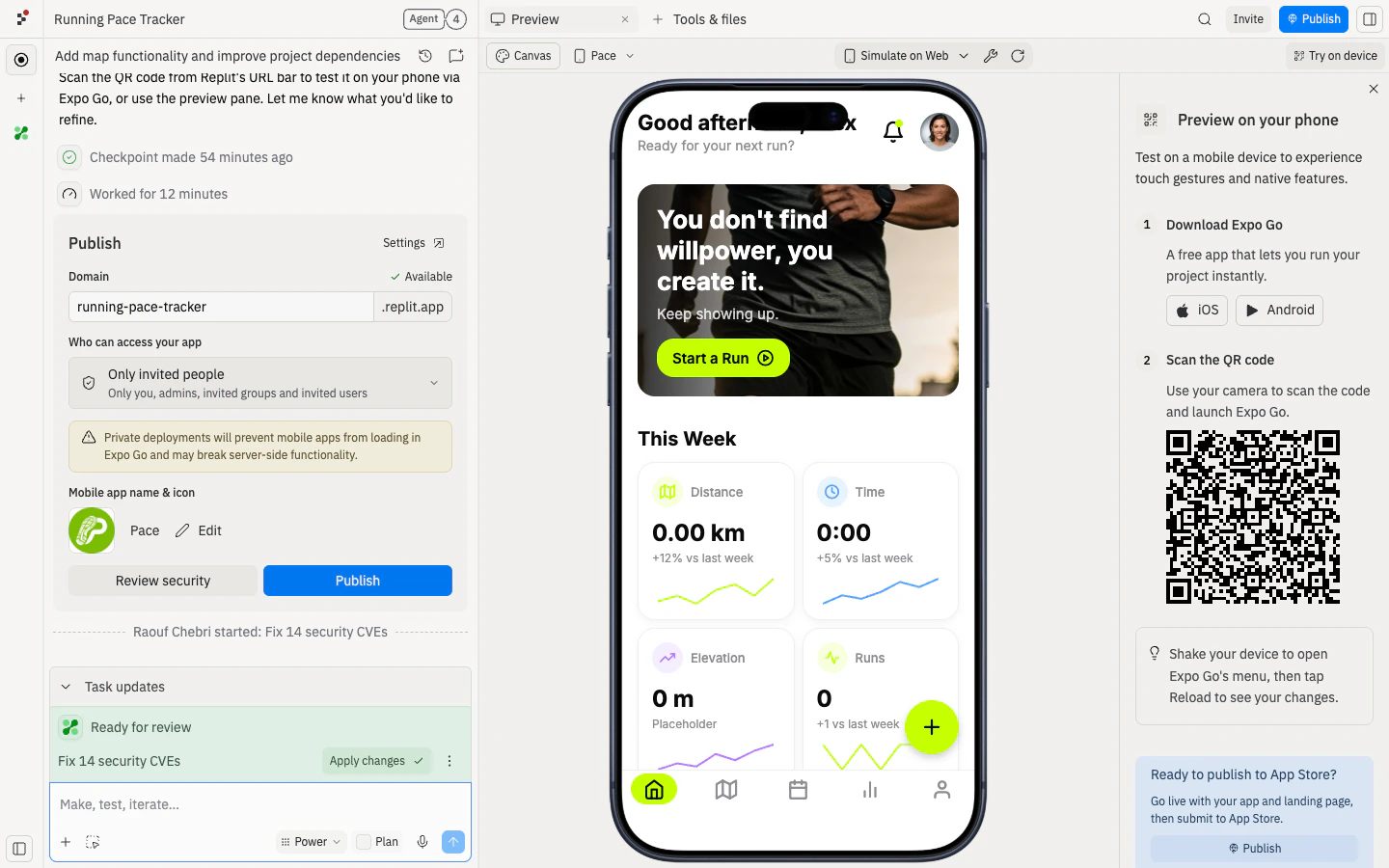
You have two ways to preview a mobile app while you build: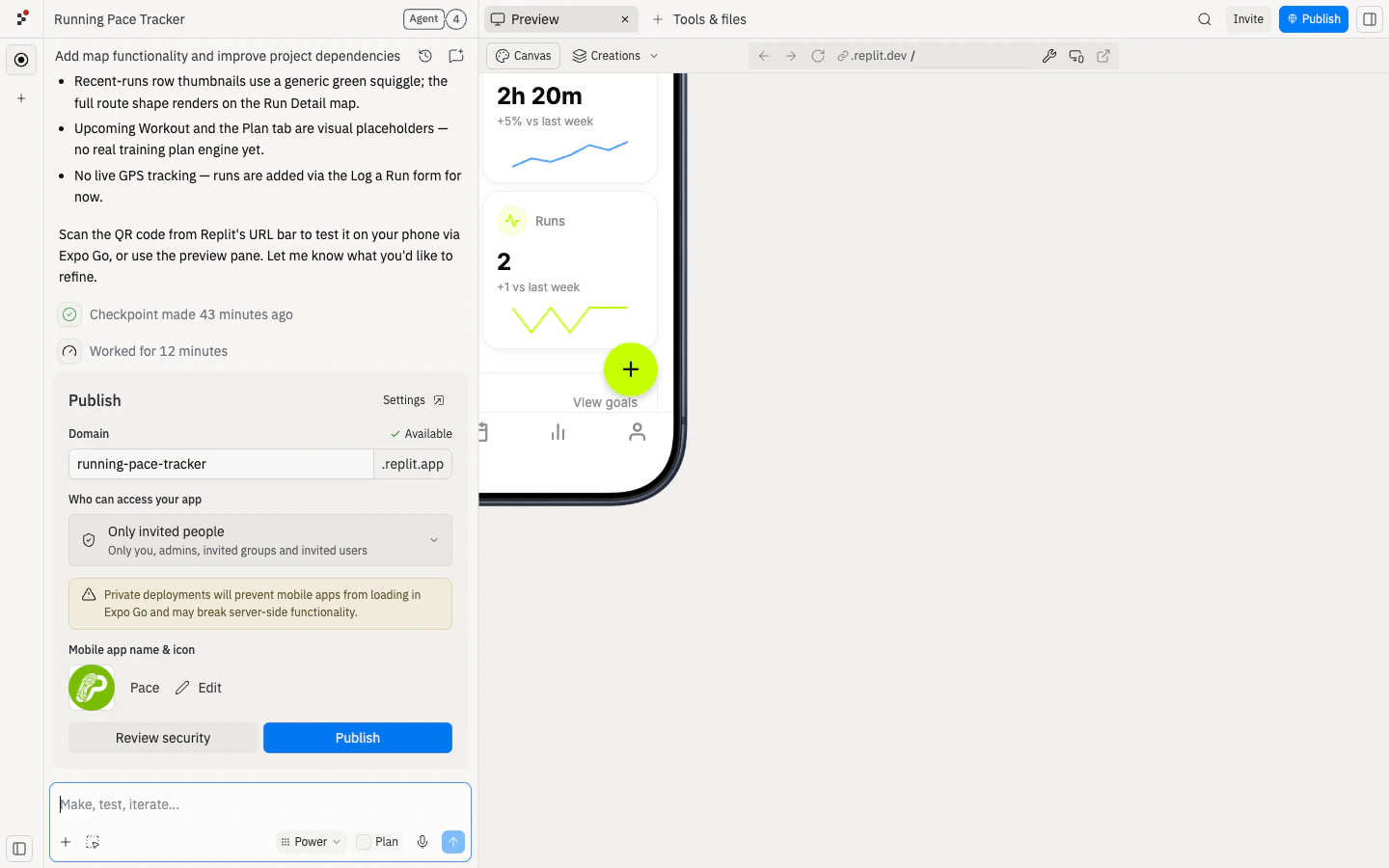
- In the Project Editor: In the Preview panel’s device selector, choose iOS Simulator or Android Emulator. A real simulator streams into the Project Editor so you can tap around without leaving Replit. No Xcode or Android Studio required.
- On a real phone with Expo Go: Install Expo Go on your iPhone or Android device. In the Project Editor, select Open in Expo Go in the Preview panel and scan the QR code.
3
Iterate with Agent
Ask Agent to add features, connect data sources, or integrate services. Keep testing in the simulator or on your phone as you iterate.
Preview on a simulator or emulator
Replit allows you to run and test your mobile apps on your phone using Expo. Alternatively, Replit streams a real iOS Simulator or Android Emulator right into the Preview panel. Changes you make with Agent hot-reload in the simulator, just as they do on a real device.iOS Simulator and Android Emulator previews are available to builders on Core, Pro, and Enterprise plans. Mobile apps only — the option is hidden for web-only projects.
How to open a simulator
1
Open your mobile project
Open a project that has a mobile artifact.
2
Pick your device
In the Preview panel’s device selector at the top, choose iOS Simulator or Android Emulator. The simulator boots in place of the web preview.
3
Interact like a real device
Tap, swipe, type, and navigate using your mouse and keyboard. Select Restart in the toolbar to reload the app without restarting the simulator.
Browser support
- Chrome, Safari, and Chromium-based browsers are fully supported.
- Firefox is not supported. The iOS and Android options appear disabled with a “Firefox not supported” note when you open Replit in Firefox. This is a limitation of the streaming technology that powers the simulator.
When to use Expo Go instead
Use Expo Go on a real phone when you need to test features that rely on real hardware or when you want to share a preview with someone who isn’t at your computer:- Camera, microphone, haptics, or other native sensors
- Push notifications
- Real-world GPS location
- Sharing a development preview with a teammate, tester, or investor
Fullscreen simulator
From a mobile artifact card, select More actions → Open in iOS Simulator or Open in Android Emulator to open the simulator in its own tab for a larger viewport.Why build a mobile app?
Build a mobile app when you want:- A native experience: Fast performance, smooth interactions, and platform-native UI.
- Device capabilities: Camera, push notifications, location, and more.
- App Store distribution: A shareable listing that people can discover and install after Apple’s App Review process.
Key features
- AI-first creation: Describe your app, and Agent scaffolds a working mobile app.
- Project Editor preview: Test on an iOS Simulator or Android Emulator without leaving Replit, or preview on your phone with Expo Go.
- Full-stack by default: Add server routes, a Database, App Storage, Connectors, and AI integrations as your app grows.
- Guided submission: Prepare builds for TestFlight and App Store submission without managing local iOS toolchains.
Development workflow
There are two stages for accessing your app, each with different audiences and capabilities:
Development: When you start your app, you can preview it in the Project Editor’s iOS Simulator or Android Emulator, or scan a QR code from the Preview panel to open it in Expo Go on your phone.
App Store: When you submit to the App Store, Apple reviews your app. After approval, people can download and install it from the App Store. This requires an Apple Developer account.
To put the app in someone else’s hands before App Review, distribute a build through TestFlight on iOS or Internal Testing on Android. Both need a store developer account and a build you’ve already uploaded.
Publishing overview
When you prepare an iOS release, the flow typically goes:- Publish from the Project Editor
- Submit a build to TestFlight
- Promote a TestFlight build to the App Store in App Store Connect
To submit builds to TestFlight and the App Store, Apple requires an Apple Developer Program membership.
Where to build native mobile apps
Your Replit environment runs in the cloud, not on your local machine. To build a native mobile app, use the Project Editor at replit.com. The mobile app workflow—Agent scaffolding, Expo Go previews, simulator and emulator testing, TestFlight builds, and App Store submission—runs in the Project Editor. Native mobile app work is also available in the Replit Android app where supported. If you’re using the Replit iOS app, open the project on replit.com to create, preview, build, or submit native mobile apps.How the technology works
Your mobile app is built with a stack of technologies that work together. This section explains what powers your app and how the pieces fit together.The technology stack
- React Native is an open-source framework that lets you write one codebase and compile it to iOS, Android, and web. It renders platform-native UI components, not a webview.
- Expo simplifies React Native development by handling builds, managing native modules, and providing tools like Expo Go for previews.
- Expo Go is a free app you install on your phone. It runs your development preview so you can test on a real device without building a full native binary.
Architecture: server and client
When you prepare a mobile app for preview or distribution, you’re working with two things:- A server that runs on Replit in the cloud. This handles your database, API routes, AI integrations, and backend logic.
- A client app that runs on a person’s phone. This is the native app previewed in Expo Go during development or distributed through app stores after review.
Considerations
- Publishing requirements: Apple sets the requirements for TestFlight and the App Store, and Apple reviews iOS apps before distribution.
- Android publishing: You can build and preview cross-platform apps for iOS and Android. Publishing to Google Play is not yet supported by Replit.
- Native changes: Changes like app icons or permissions usually require a new store build.
Troubleshooting
If you run into issues while developing your mobile app, see Mobile app troubleshooting for common problems and solutions.Next steps
- Learn how Agent works: Agent
- Explore integrations: Integrations
- Use Replit on mobile: Replit Mobile App
- Read more about Expo: Expo
- Manage TestFlight and submissions: App Store Connect
FAQs
What is Expo?
What is Expo?
Expo is what Agent uses to build your mobile app on Replit. It is an open-source platform and toolchain for building, running, and deploying cross-platform native apps with React Native. Learn more at https://expo.dev.
What is React Native?
What is React Native?
React Native is an open-source framework from Meta for building native iOS and Android apps using React and JavaScript or TypeScript. It renders platform-native UI components (not a webview), so your app looks and feels native.
What is Expo Go?
What is Expo Go?
Expo Go is a free app you install on your phone from the App Store or Google Play. It lets you preview your mobile app during development without building a full native binary. When you scan the QR code in the Project Editor, Expo Go downloads and runs your app code.
What's the difference between Expo Go and a dev build?
What's the difference between Expo Go and a dev build?
Expo Go is a pre-built app that runs your code. It’s fast to set up but only supports modules included in the Expo SDK.Dev builds are custom native binaries that can include any native module. They require more setup but offer more flexibility.Replit uses Expo Go for development previews. If you need native modules not supported in Expo Go, you may need to explore dev builds through Expo’s documentation. EAS CLI and EAS Build are not supported on Replit.
How is this different from a mobile-responsive web app?
How is this different from a mobile-responsive web app?
A mobile-responsive web app is a website that adapts its layout in the browser. A React Native app is a native application installed on the device that uses platform APIs (camera, haptics, push notifications), offers better access to hardware and offline capabilities, and is distributed via app stores. Responsive web can be great for reach and zero-install; native is best when you need device features, performance, or App Store distribution.
Do I need a Mac or Xcode?
Do I need a Mac or Xcode?
No. Replit and Expo manage the build process for you in the cloud.
Can I preview without an Apple Developer account?
Can I preview without an Apple Developer account?
Yes. You can preview in the Project Editor’s iOS Simulator or with Expo Go on your phone. You only need an Apple Developer account when you’re ready to submit to TestFlight or the App Store.
Is Android supported?
Is Android supported?
Yes, for building and previewing. You can build cross-platform apps for iOS and Android from the same codebase. Preview on an Android Emulator in the Project Editor or on an Android device with Expo Go. Publishing to Google Play is not yet supported by Replit.
What about servers and databases?
What about servers and databases?
Use Replit’s built-in PostgreSQL, Object Storage, Connectors, and AI integrations—no separate infrastructure required. Your server runs on Replit and your mobile app connects to it.
Should I test in the Project Editor simulator or on a real phone?
Should I test in the Project Editor simulator or on a real phone?
Use both at different times. The iOS Simulator and Android Emulator in the Project Editor show the native version of your app and cover most day-to-day testing — layout, navigation, native components, and platform styling. Switch to a real phone with Expo Go when you need to test features that depend on real hardware, like the camera, haptics, push notifications, or GPS location.