

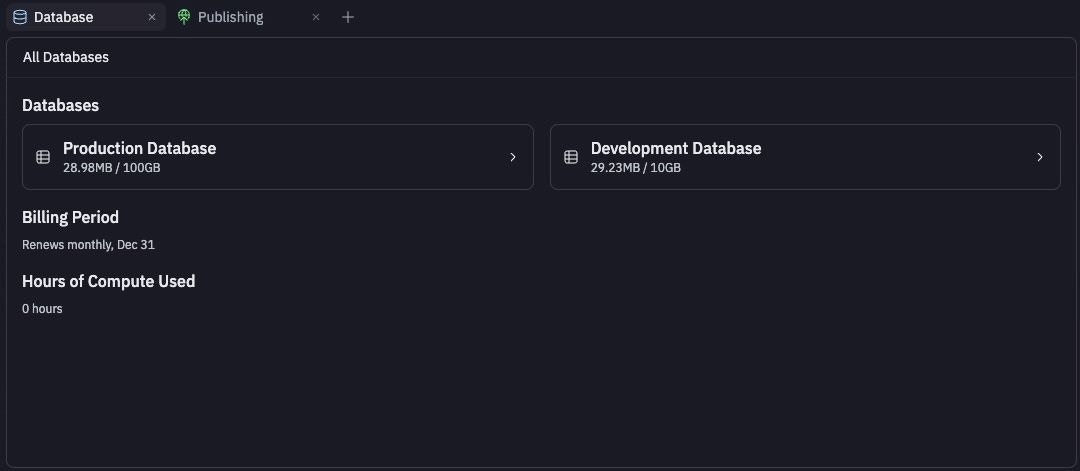
How they compare
Agent is not able to modify the production database. This restriction is in place so that your production database stays safe.Agent can make edits to your development database. At the time of publishing, any changes you’ve made with Agent to the structure of your development database (adding and deleting columns or tables) are applied to your production database.You can manually edit your production data at any time: open the Database tool, select the production database, open My Data, and toggle Edit.
Create a production database when you publish
Your published app gets its own production database, separate from the development database you use while building.- Current infrastructure (Helium): Replit automatically creates a production database when you publish, provided your development database contains data.
- Legacy Neon development databases: You create the production database from the publish settings. Open Production database settings while publishing, turn on Create production database, and optionally turn on Set up your production database with your current development data to copy your development data across.

Production database settings in Publishing
Connection pooling
By default, production databases do not have connection pooling enabled. Your app connects directly to the database using theDATABASE_URL connection string, so most frameworks should manage their own client-side connection pool.
Each Neon project includes a direct and a pooled connection string. A direct connection string looks like
postgresql://neondb_owner:<password>@<host>.<region>.neon.tech/<db>?sslmode=require.To use the pooled connection, append -pooler to the host: postgresql://neondb_owner:<password>@<host>-pooler.<region>.neon.tech/<db>?sslmode=require.Making safe changes to your production database
When you publish updates that include database changes, some changes need careful planning to avoid downtime or data loss.You may notice a brief downtime for your published app during publishing. Database changes sometimes require stopping your app temporarily to prevent conflicts and protect your data while the changes are applied.
- Removing database columns that your application code still references
- Changing column data types in ways that existing code cannot handle
- Adding required fields without default values to existing tables
- Renaming tables or columns that break existing queries
- Modifying constraints that could reject existing application logic
Test changes with a deployment preview
A deployment preview is a temporary, isolated copy of your production environment where you can test database changes and application updates before they affect real users. Use it to:- Verify your app still works with the database changes applied, across your major user flows
- Confirm existing data was properly migrated and new fields contain expected values
- Watch for performance regressions in query response times
Billing and resource usage
Production databases are billed based on usage through Neon, a serverless database provider. The database enters an idle state after five minutes of inactivity, pausing compute time billing, and instantly reactivates when it receives a query. The Database tool’s landing view shows your Billing Period and Hours of Compute Used. For per-database storage, open the database’s Settings tab. To see usage across every Replit App, go to Account usage in Settings and expand the PostgreSQL Storage and PostgreSQL Compute rows. To learn how Replit charges for database usage, see Deployments and Database Billing.Removing a production database
How to remove a database
How to remove a database
From the Database tool:
- Select the database, then open the Settings tab
- Select Remove database and confirm by selecting Yes, Remove database
Legacy development database
Prior to December 4th, 2025, the development database was hosted on Neon. All new development databases are hosted on Replit’s own infrastructure (Helium). You can check which one your app uses in the Settings tab: aDATABASE_URL containing neon.tech means legacy Neon; helium means current infrastructure.
Database infrastructure upgrade
Replit is upgrading development databases from Neon to Helium, Replit’s own managed PostgreSQL infrastructure. The upgrade is automatic, runs once per app when you open it in the Project Editor, and preserves all your data. What changes:- Lower latency and more storage: Your database runs on Replit infrastructure alongside your app, and your storage limit increases from 10 GB to 20 GB, or to 50 GB on Pro and Enterprise plans.
- Same database engine: Helium uses PostgreSQL 16, the same version as Neon. Your queries, schemas, and data work the same way.
- Connection updates automatically:
DATABASE_URLis updated to point to Helium. Your previous Neon connection string is saved asNEON_DATABASE_URLin your Secrets for reference. - Individual PG variables removed:
PGHOST,PGPORT,PGUSER, andPGPASSWORDare removed. UseDATABASE_URLinstead.
- Hardcoded Neon connection strings: Update code that references a
neon.techconnection string to use theDATABASE_URLenvironment variable instead. - Custom PostgreSQL roles: Roles and permissions migrate automatically, but role passwords can’t be copied. Reset passwords for custom roles on the new database.
SSL connection errors after the upgrade
If you see errors likeThe server does not support SSL connections, your connection code is forcing an SSL handshake. Neon required SSL; Helium runs locally alongside your app and doesn’t use it. Make the SSL setting conditional on the environment:
Forked apps that shared a database
Under the legacy Neon system, forking an app copied the original app’sDATABASE_URL, so both apps and their published versions connected to the same database. Shared legacy databases were shut down on June 8, 2026. If your published app stopped working or lost access to its data, see Fix a published app using a shared database or contact support.
Next steps
- Data recovery: Restore development or production data.
- Connection details: Find your database’s connection string.
- Work with your data: Browse, edit, and query your data.