

Economy Mode is no longer available. Power Mode replaces it at the same price.
Free Mode
Optimized for getting started. Free Mode helps you explore ideas, learn how Replit works, and begin a project. Keep in mind: Free Mode always uses intelligent model routing. To select a model manually, use Power Mode or Max Mode. When you reach the limit for your plan, Replit
shows when it resets.
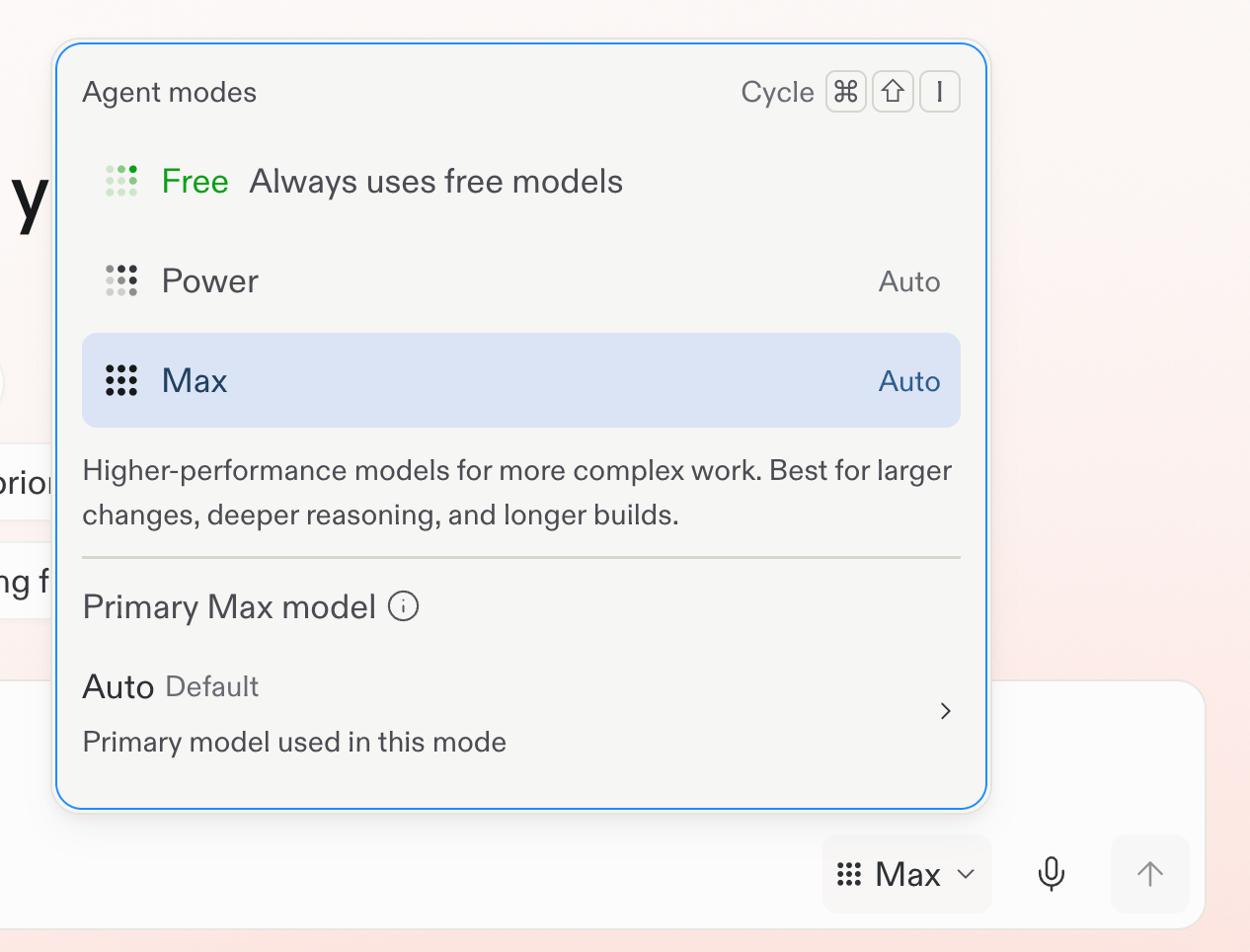
Choose Free Mode from the mode selector.
Intelligent model routing (Auto)
Optimized for automatic model selection. In Power Mode or Max Mode, Core and Pro builders can select Auto. Replit then chooses a model up to the selected mode’s capability for each task. See Use intelligent model routing. Auto is a paid alternative to Free Mode. It uses subscription credits like other Power and Max work. Enterprise workspaces use one Auto mode instead of Free Mode. Enterprise Auto can choose both the mode and an allowed model for each task.Power Mode
Optimized for cost. Power Mode uses fewer credits per task and is the best default when you want strong results without paying for the most capable models. Best for: Everyday builds, learning, and cost-conscious work across an existing project.Max Mode
Optimized for capability. Max Mode uses more capable models for complex tasks, larger codebases, and harder problems. Best for: Production-grade projects, complex features, and when you want the best results from Agent.Which mode should I use?
Use the following as a guide:
Use the Agent settings dropdown in the chat input to pick a mode. In Power or Max, Core and Pro builders can use Auto or set a primary model and Effort. No single mode is always best. Pick the mode that fits the task in front of you.
Settings in shared projects
Your Agent settings are tied to you, not to the project. When you invite a teammate into a project, each of you keeps your own choices for:- Mode (Free Mode, Power Mode, Max Mode)
- Primary model and Effort, when available
- Plan Mode
- Auto-merge for background tasks
- Auto-approve for plans
Check your Free Mode usage
Go to Usage in Settings to see your current Free Mode limit and reset timing. For practical guidance, see Get the most out of Free Mode.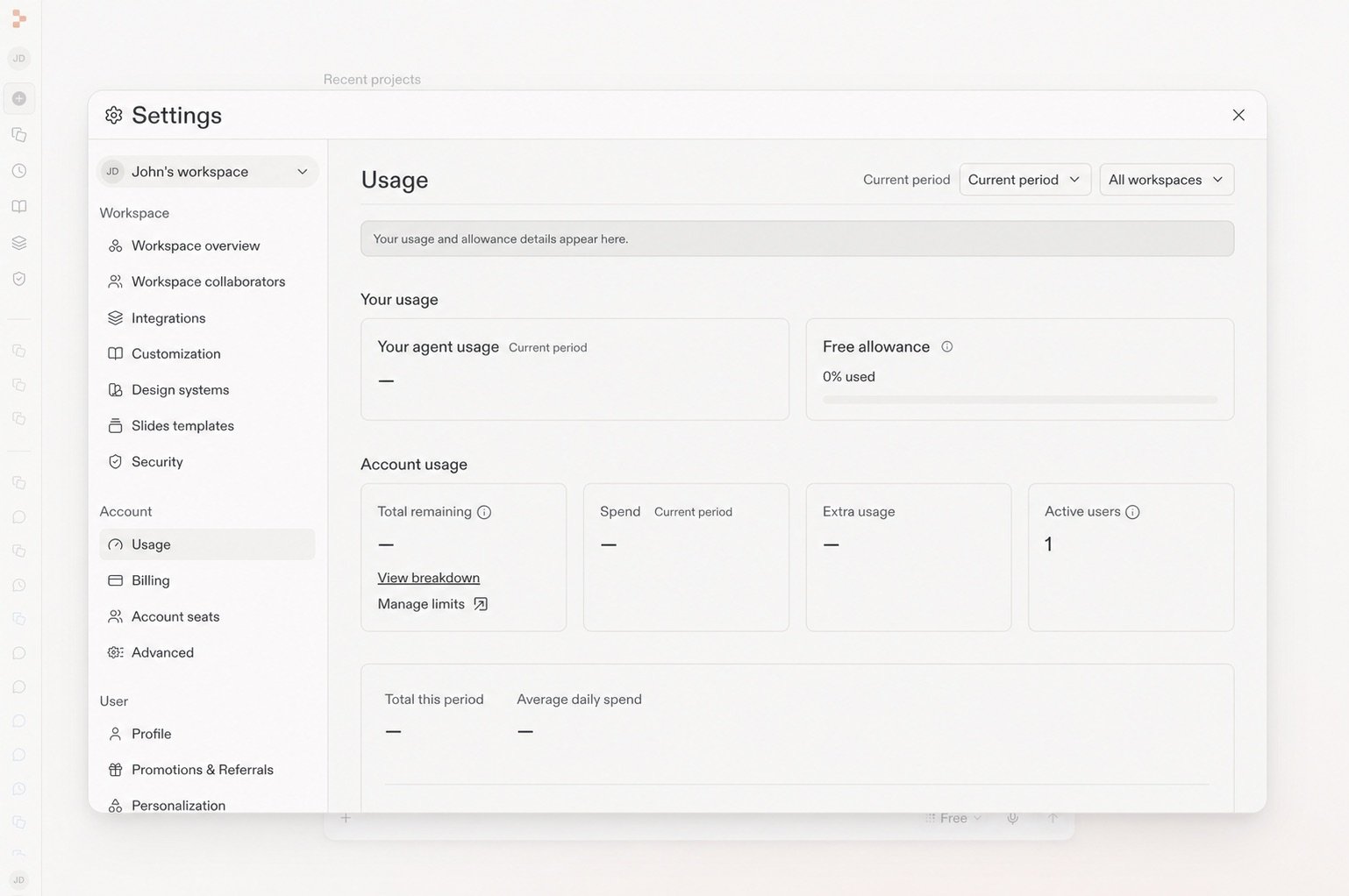
The Usage page shows your remaining Free allowance.
Related
- Managing your spend: Set alerts, budgets, and use Plan Mode for cost control.
- Intelligent model routing: Let Replit select a model for each task.
- Enterprise model controls: Control which models Auto mode can use.
- Replit Pro: Plan features and tiered credits.