

DATABASE_URL in Secrets panel still points to neon.tech.
Before you start
Your published app needs its own production database. The development database shown in the Database panel should not be used directly by published apps.
- Case 1: The data you want is already present in the database shown in the Database panel for your app.
- Case 2: The Database panel does not show the data you need, because your published app is still using the older shared development database.
How to tell if your published app is using a shared database?
Your published app is affected if any of the following are true:- Your published app shows database connection errors after the database upgrade
- Your app was remixed from another app that had a database before January 9, 2026
How to check if your published app is using the shared database from the source app?
Step 1: Open the Database panel in the source app
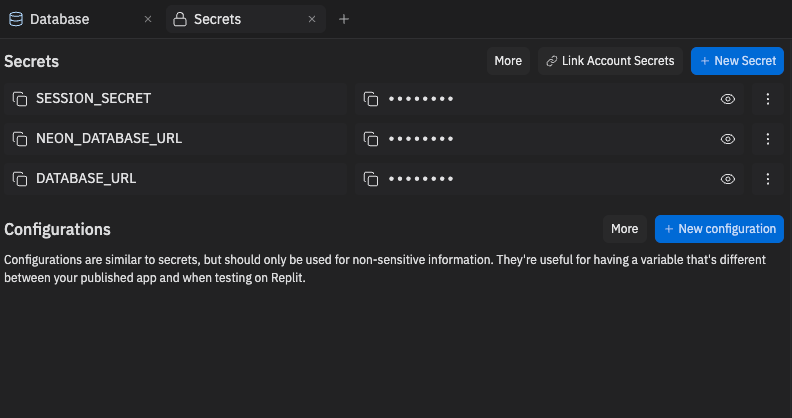
NEON_DATABASE_URL or from DATABASE_URL if NEON_DATABASE_URL does not exist.
Not every affected app will have
NEON_DATABASE_URL. If it is missing, that
usually means you should use the current DATABASE_URL from the published
app’s Secrets if it still points to neon.tech.Step 2: Open the Publish panel in the published app

- Open your app in Replit
- Open Publishing panel
- Open Adjust Settings
- Open Secrets
- Look for
DATABASE_URL
Step 3: Compare the database url from the source app in Step 1 and the remix app in Step 2
If they are the same, your published app is using a shared Neon development database from the source app.How to copy data from source app to the published app?
After confirming that your published app is using the shared development database from the source app, the next step is to transfer the necessary data to the published app. There are two scenarios to consider:- Case 1: The Database panel in the published app already contains the required data.
- Case 2: The Database panel in the published app does not contain the required data.
Case 1: The Database panel already shows the data you need
This is the easiest path if the data you need is already visible in the Database panel for your app.Step 1: Confirm the data is present
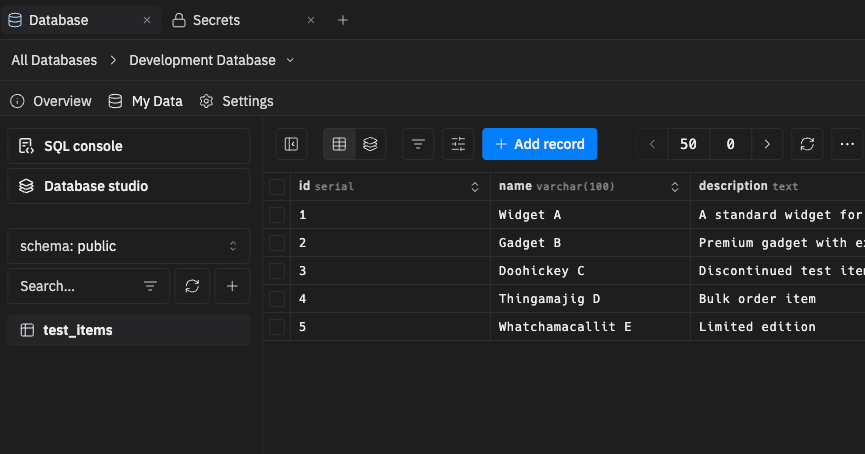
Step 2: Publish or republish with a production database
- Open your app in the Project Editor
- Select Publish or Republish
- Turn on Create production database
- Turn on Set up your production database with your current development data
- Complete the publish flow
DATABASE_URL to the new production database. You do not need to update that secret manually during this flow.

Step 3: Verify the published app
Open your published app and confirm that your data is accessible and the app works correctly.Case 2: The Database panel in the published app does not show the data you need
Follow these steps to export the data if you do not see the needed data in your published app’s Database panel. If your published app is still connected to a database from another app, you’ll see an “external database detected” warning in the Database panel.
Step 1: Export the data from the old database

database_url is the database URL obtained from Step 1: Open the Database panel in the source app.
Step 2: Remove the old DATABASE_URL from your app’s Secrets
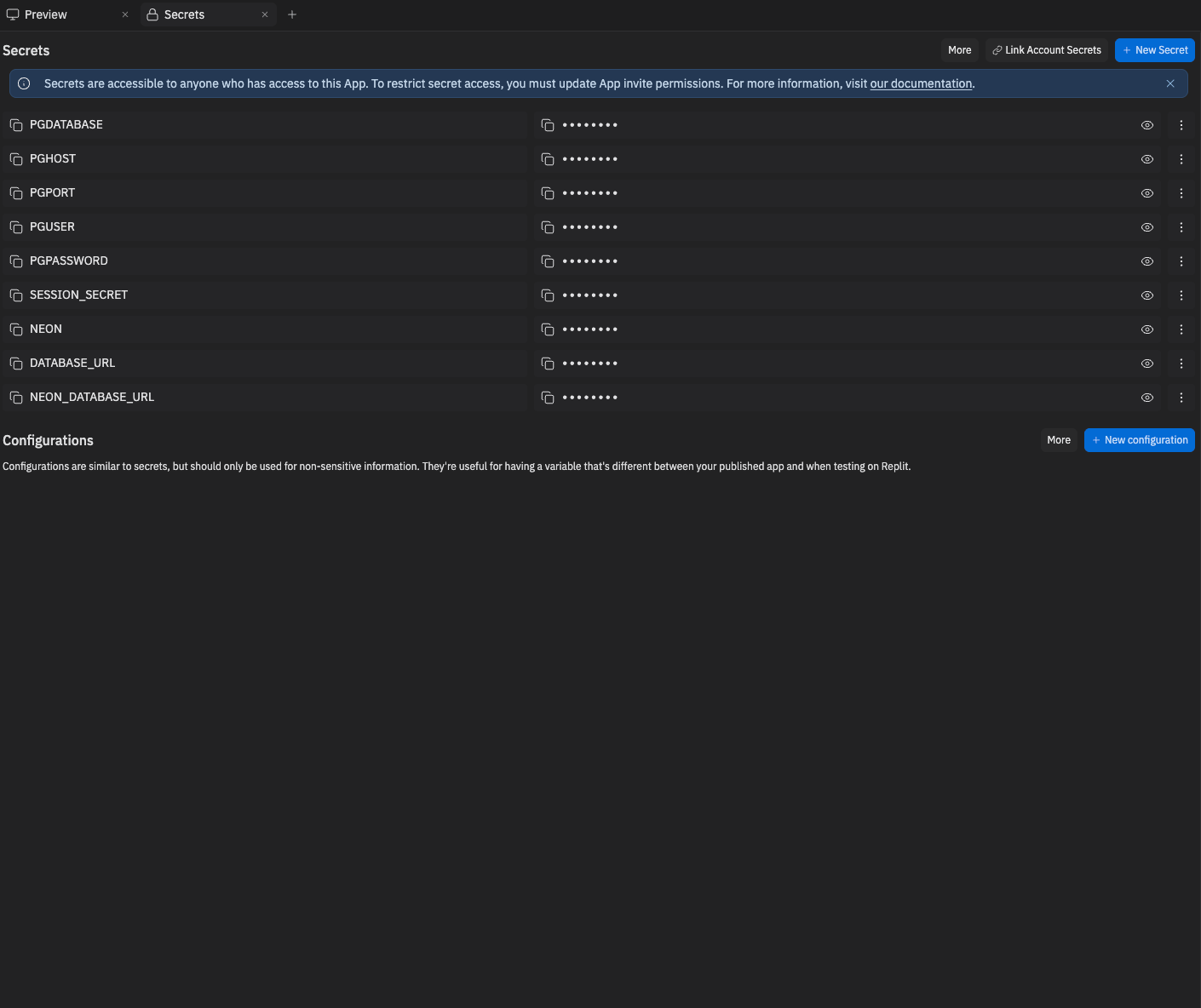
- Open the Secrets tool in the Project Editor
- Find the old
DATABASE_URL - Delete it
- Refresh the page or reopen the Database panel
Step 3: Import the data into your app’s current development database

DATABASE_URL secret is removed, your app’s current development database should be available again as $DATABASE_URL in the Project Editor.
Return to the Shell in the Project Editor and run:
Step 5: Follow Case 1 to publish or republish with a production database
Once the Database panel shows the correct data, follow Case 1 to publish or republish with Create production database and copy that data into production.Step 6: Verify the published app
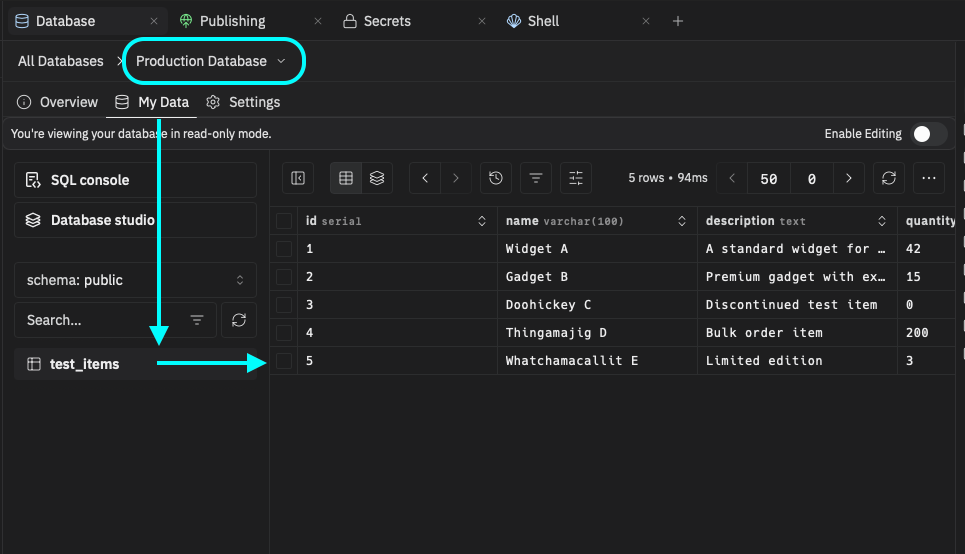
Troubleshooting
The import fails because tables already exist
Thepg_restore --clean --if-exists command above drops and recreates matching objects from the dump before restoring them.
The import fails with role or policy errors
If your database uses custom PostgreSQL roles or role-based policies, the import may fail because those roles do not exist in the new database yet. Replit’s automatic Helium migration attempts to recreate role stubs before restoring, but the manual process above does not. If you run into role-related errors duringpg_restore, contact support for help.