What’s new
- Layout controls in the Visual Editor
- Agent settings stay yours in shared projects
- Agent suggests Power Mode when you’re stuck
- Cleaner task settings dropdown
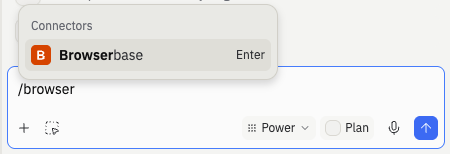
- Two new connectors: Quiver AI and Browserbase
Workspace
Layout controls in the Visual Editor
The Visual Editor now has dedicated Layout controls so you can adjust flexbox layout visually instead of asking Agent to rewrite the styles. Select any container, expand the Layout section, and choose a flex direction, alignment, and justification. Set a pixel gap between items, or flip on the Space between toggle to push children to opposite edges. The editor pane has also been regrouped into clearer Text, Image, Layout, Color, and Border sections so the control you need is easier to find.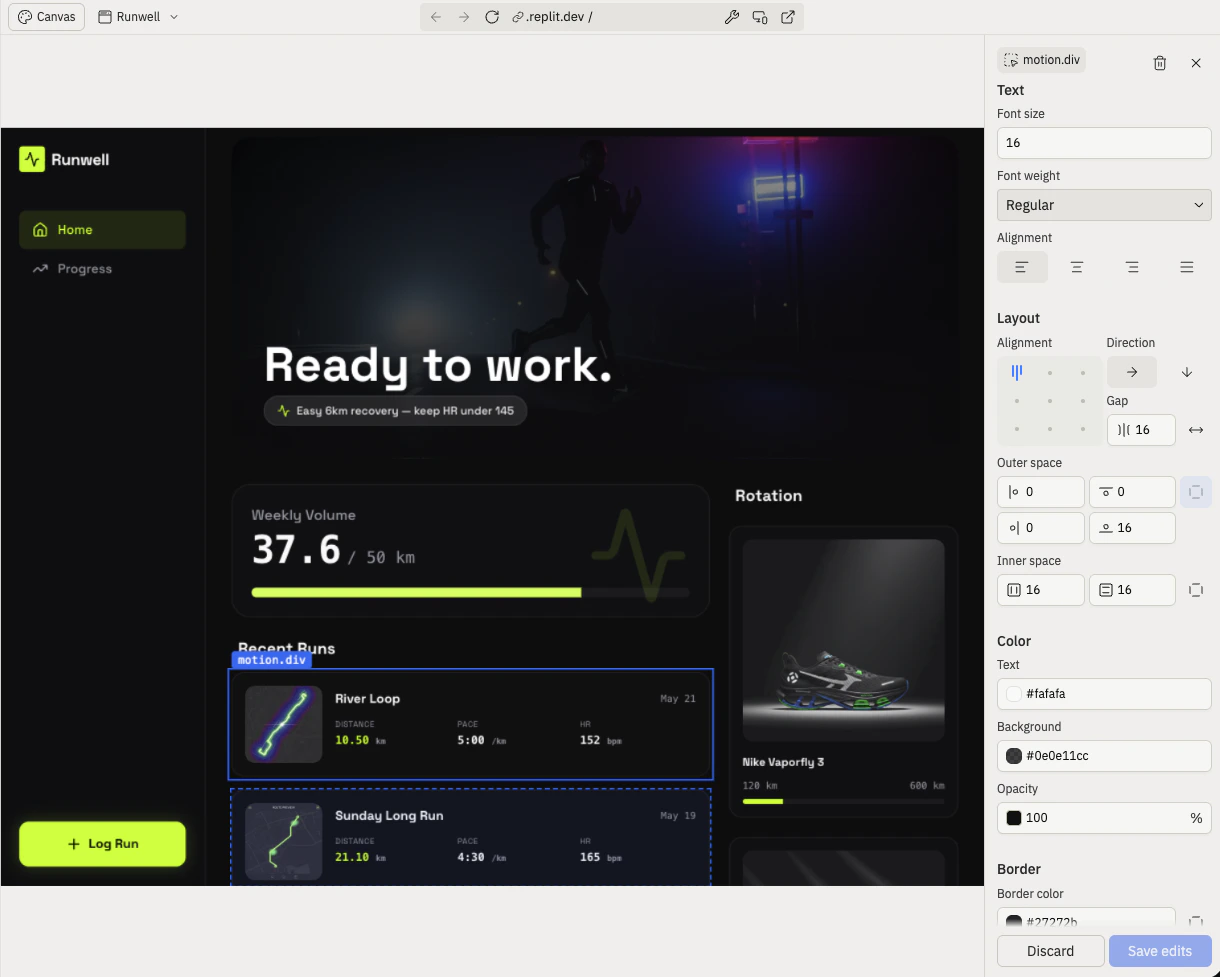
Agent
Agent settings stay yours in shared projects
Your Agent preferences, such as model tier, plan mode, auto-merge, and auto-approve-plan, now stick to you instead of being shared with everyone in the project. A teammate switching to Power Mode on their tasks no longer flips your settings too. The setting you pick is the setting Agent uses when you send the next message, even in projects with many collaborators. Learn more about Agent Modes.Agent suggests Power Mode when you’re stuck
When Agent notices you’re hitting the same problem over and over in Economy Mode, it will now suggest switching to Power for your next message. The suggestion looks for repeated requests, or code that keeps failing, and it shows up at most once per project. Agent skips the suggestion in planning sessions, when you’ve already mentioned a budget concern, or when you’re on the free plan.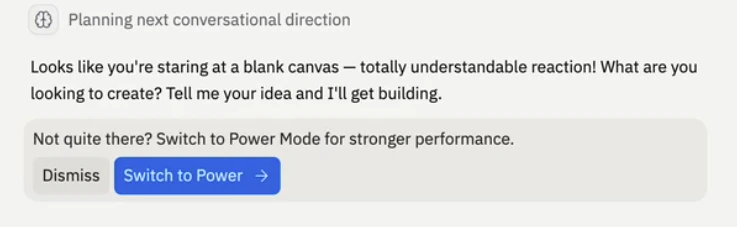
Cleaner task settings dropdown
The dropdown that opens from a task’s header is easier to use. The active task or planning title now sits at the top with inline rename, automation settings (auto-apply, auto-approve) live in their own section between the title and actions, and the popover has a fixed width so it stops shifting around as task names change. Disabled automation rows are hidden so the menu only shows what applies to the current task.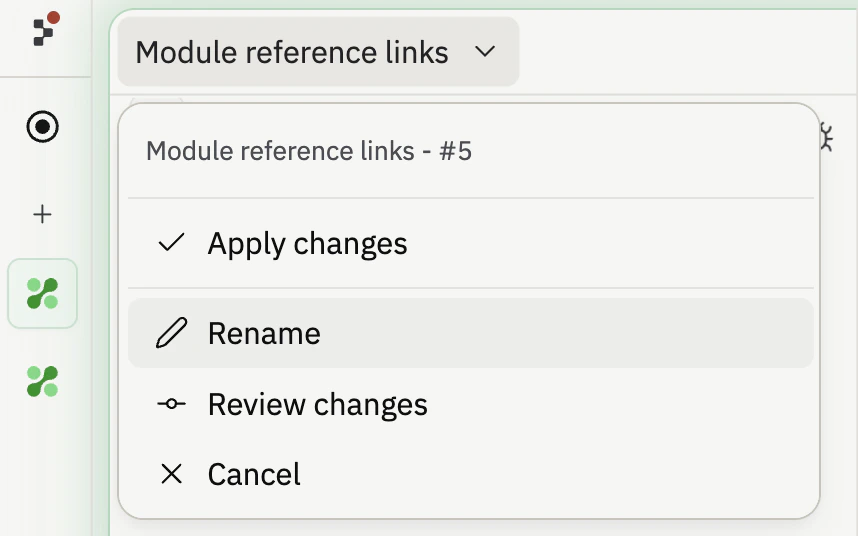
Integrations
Two new connectors: Quiver AI and Browserbase
Two more services are now available in the connector catalog. Open the Integrations panel and select Add new integration to connect either one.- Quiver AI: Generate SVG illustrations and vectorize raster images through a managed API. Useful when Agent needs a clean SVG asset on demand.
- Browserbase: Run managed headless browsers for fetch, search, and full session automation. Useful when Agent needs to load a real web page, run JavaScript, or interact with a site that blocks plain HTTP requests.