

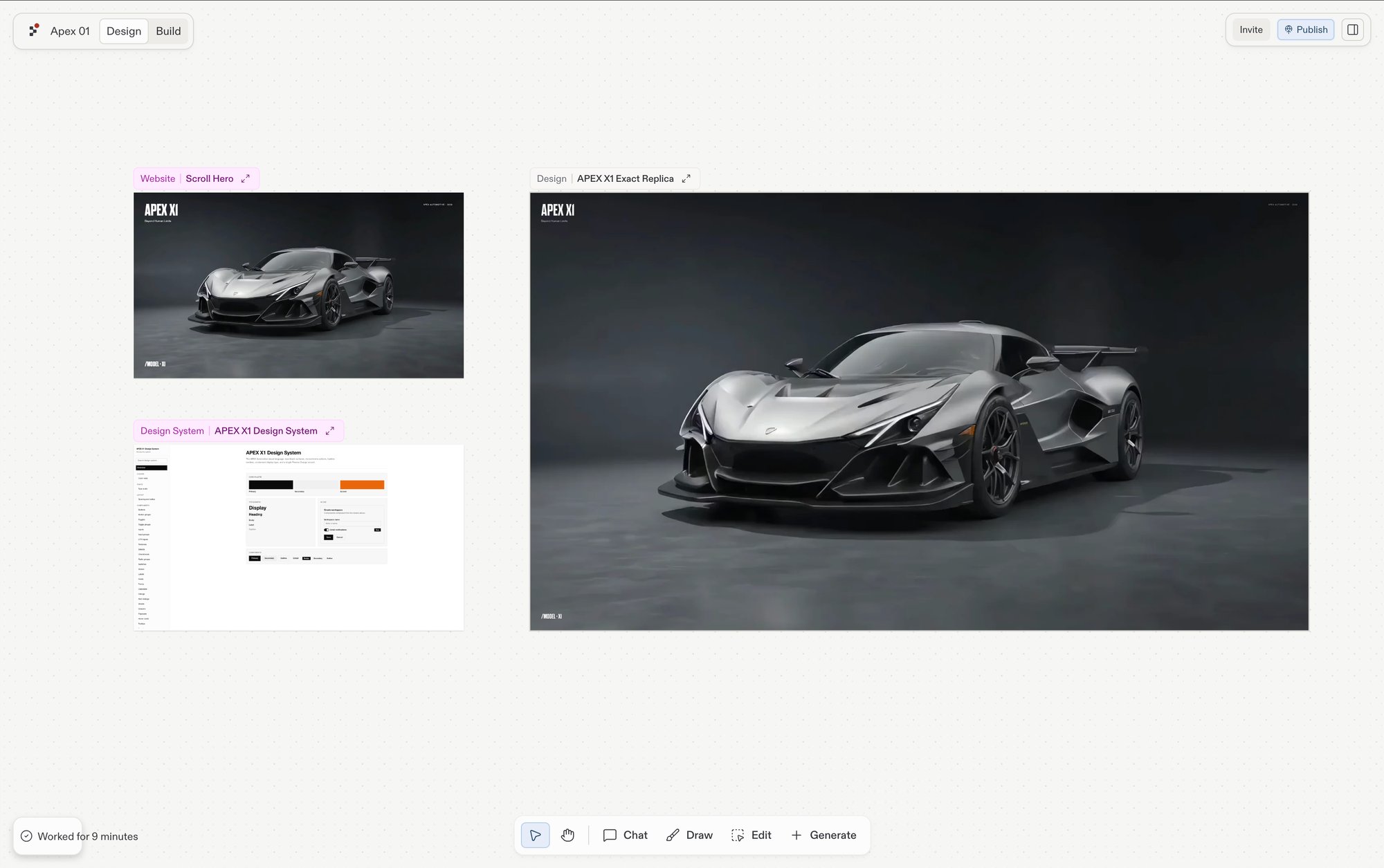
Open the canvas
The canvas is the first thing you see in Replit Design. In a project, select Design in the header and the canvas fills the pane; select Build to switch back to your running app.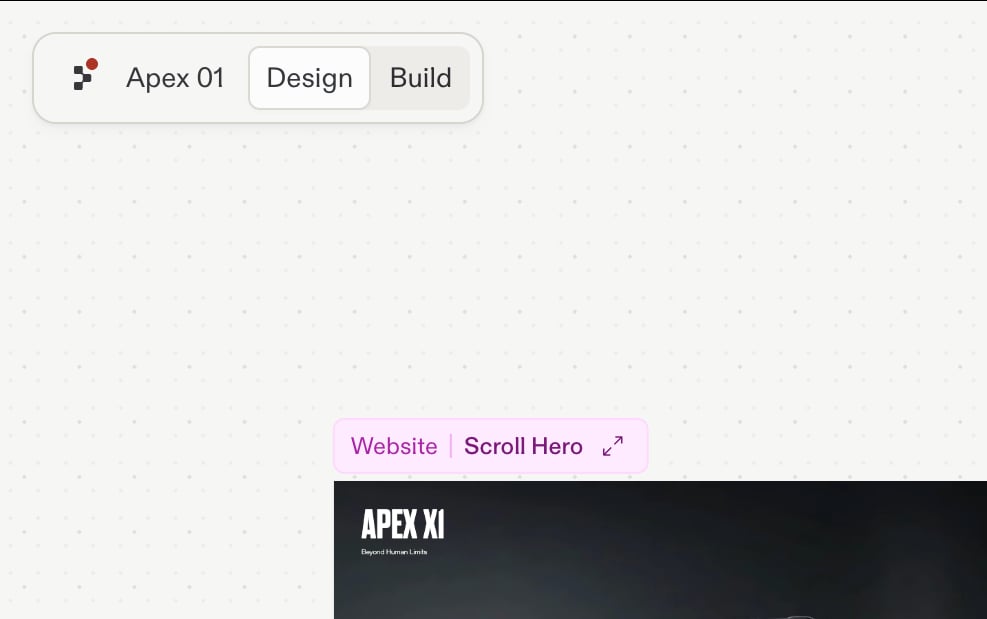
What lives on the canvas
- Frames: every tile on the board. A frame can be a design mockup, a web app, a mobile app, slides, an image, a video, or a vector graphic. Generate them from a chat prompt, the toolbar’s Generate menu, or the library panel. Everything you do to a frame, Build, Focus, suggestions, happens through the frame itself: see Frames.
- Drawings and notes: markup you add with the Draw tool, such as sketches, arrows, shapes, and sticky notes. Agent reads your markup, so you can circle a problem area and ask for a change.
- The chat panel: Agent chat docked alongside the canvas. Selecting frames before sending a message attaches them as snapshots so Agent has visual context.
Navigate the board
Pan, zoom, and select work from any tool unless noted. Panning:- Trackpad: two-finger drag.
- Mouse: middle-click-and-drag, or hold spacebar and left-click-drag.
- Pan tool: click-and-drag with the left mouse button.
- Trackpad: pinch.
- Mouse:
Ctrl(orCmdon macOS) + scroll wheel. - Keyboard:
Cmd/Ctrl++to zoom in,Cmd/Ctrl+-to zoom out,Cmd/Ctrl+0to reset zoom.
- Single frame: click it with the Interact tool.
- Multi-select: hold
Shiftand click each frame, or drag a marquee rectangle across the board. - Deselect: click an empty area, or press
Escape.
Keyboard shortcuts
Right-click menu
Right-click anywhere on the board to open a context menu. The menu is contextual, so the actions adapt to what’s under the cursor: a frame gets frame actions, while empty canvas gets board-level actions, and app frames add Refresh artifact. On a selected frame the menu includes: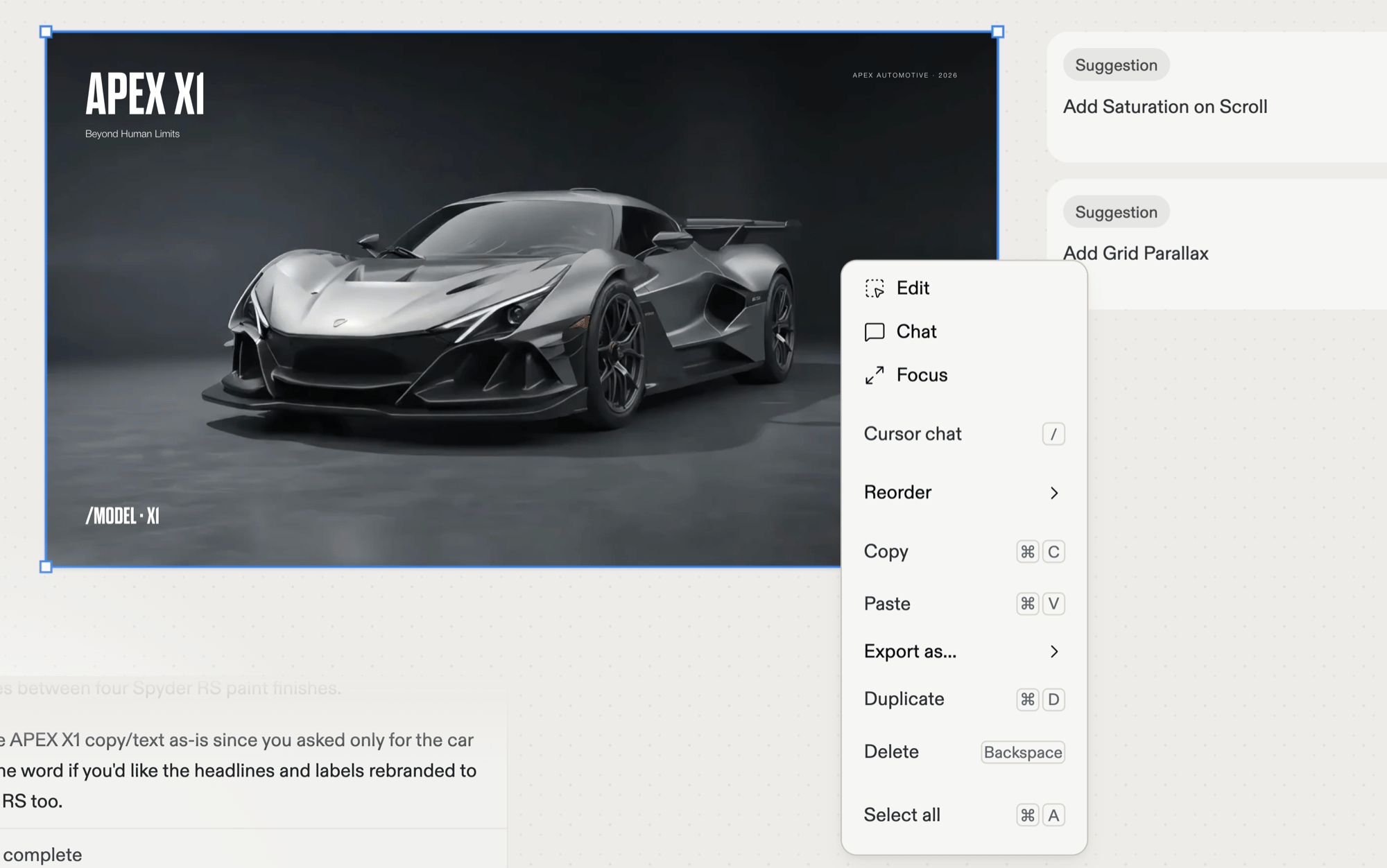
The right-click menu on a selected frame.
Export a frame as PNG
Save any artifact or design frame as a PNG image. This is useful for sharing a preview in a doc or chat, capturing a snapshot before you iterate further, or sending a screenshot to a teammate.1
Select the frame
Select the artifact or design frame you want to export, then wait for it to finish loading.
2
Choose Export
Select Export in the frame’s action bar. You can also right-click the frame and select Export as… > PNG. The image downloads to your computer with a filename based on the frame’s name.
Cmd+Shift+C (or Ctrl+Shift+C on Windows and Linux).
The exported PNG matches what the frame currently shows on the canvas. If your app or design is still loading, wait for it to fully render before exporting.
The canvas and the live app
The canvas and the live app preview share the same pane, and a few modes bridge them:- Focus mode: the Focus action on a selected frame expands it to fill the view. Select Exit focus at the top of the board to return to the canvas.
- Read-only mode: when the canvas is locked inside a background-task context, iteration actions hide and only Focus remains.
Building a new app from a Design frame requires Core or Pro; every other canvas capability works on every plan. See Billing for plan details.
- Components overview: the building blocks and how they fit together.
- Frames: frame kinds; the per-frame action bar; Build and Focus.
- Elements: the individual pieces inside a frame.
- Toolbar: the full tool catalog.
- Explore suggestions: branch new directions from a selected frame and apply the winner to your app.
- Design vs. Build: when to use each surface.