

What it is and who it’s for
SCIM workspace access is built for Enterprise admins who provision members through a SCIM-connected identity provider. It gives you a focused place to answer questions like:- Which synced groups can access each workspace, and with what role?
- Which group holds the account admin role across the organization?
How to structure your workspaces
Before you map groups to workspaces, decide how many workspaces your organization actually needs. As a rule, your members should live in a single workspace rather than being spread across many, and anyone who needs to collaborate should be in the same workspace. Your IdP groups sync into Replit as custom groups. You then use those synced groups to apply workspace-level features — for example, workspace-group budgets that allocate a shared enterprise budget across teams (such as a 100K budget for the Revenue team). Reserve multiple workspaces for genuinely separate boundaries, such as distinct business units that should not share members, groups, or budgets. For more on organizing access within a workspace, see Groups & Permissions.Prerequisites
Before you can open SCIM workspace access, your organization needs:- An Enterprise plan. SCIM workspace access is part of Replit Enterprise. You can purchase Enterprise directly from the pricing page or contact sales.
- SAML SSO configured. Authentication is handled through your IdP. See SAML SSO.
- SCIM directory sync active. Your IdP directory must be connected and syncing through SCIM. It only appears once SCIM is Active.
- Account admin access to your account’s settings.
How to access SCIM workspace access
- Open the workspace switcher and select your Enterprise workspace.
- Open Settings, then select Advanced.
- Expand the Identity & Governance section and find the Automatic member provisioning (SCIM) card.
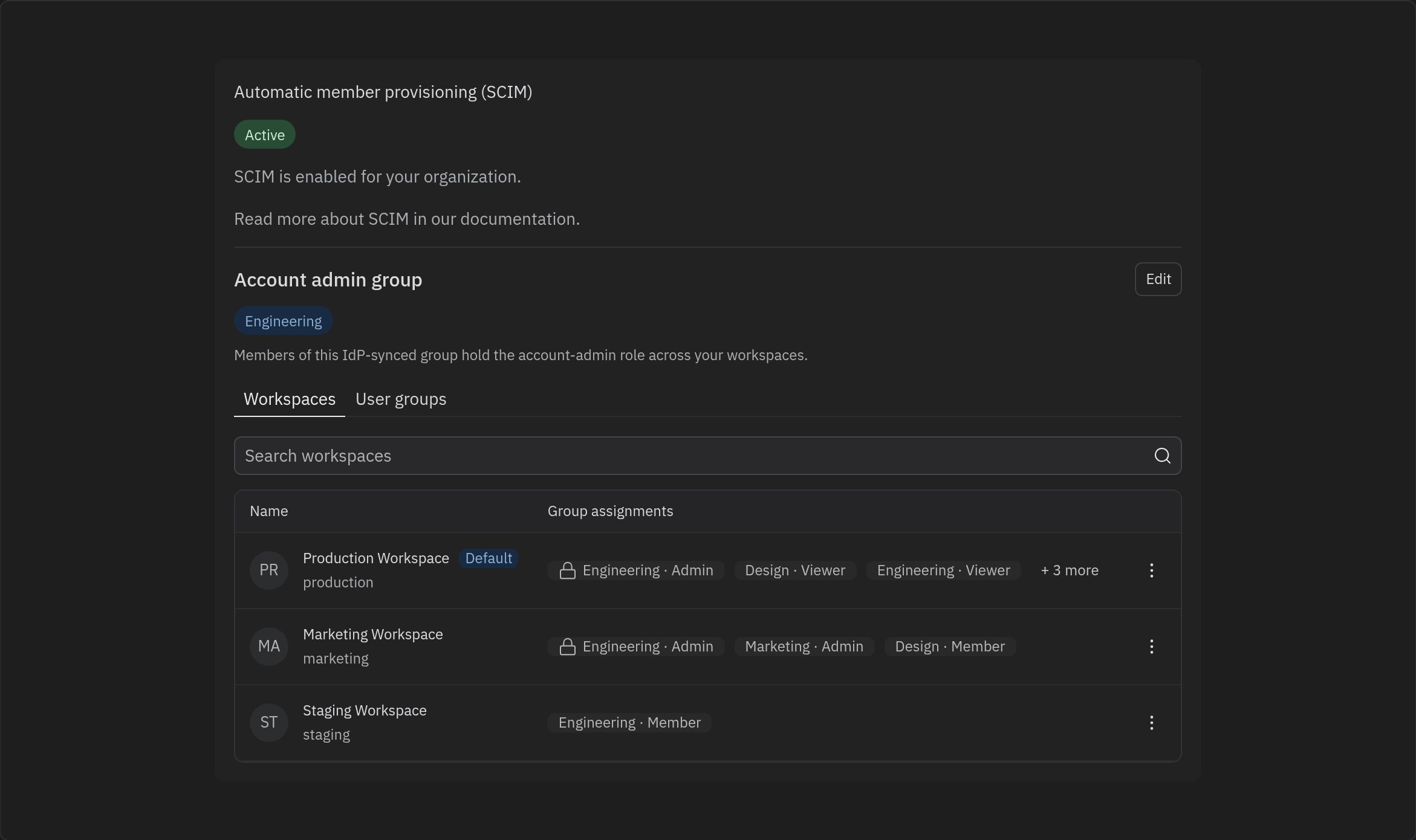
- When SCIM is Active and your account is enabled, the management surface appears directly inside this card.
Core tasks
View and manage workspace assignments
The Workspaces tab lists every workspace in your organization alongside the synced groups assigned to it and each group’s role. The default workspace is marked with a Default pill.- Use the search box to filter workspaces by name.
- Each row shows its group assignments as chips in the form Group · Role (for example, Engineering · Admin). When a workspace has more assignments than fit on one row, a + N more chip indicates the remainder.
- The row’s ⋮ menu lets you edit assignments or set or remove the workspace as the organization default. Setting a workspace as the default grants every synced group at least Viewer access there.
Assign groups to workspaces and set roles
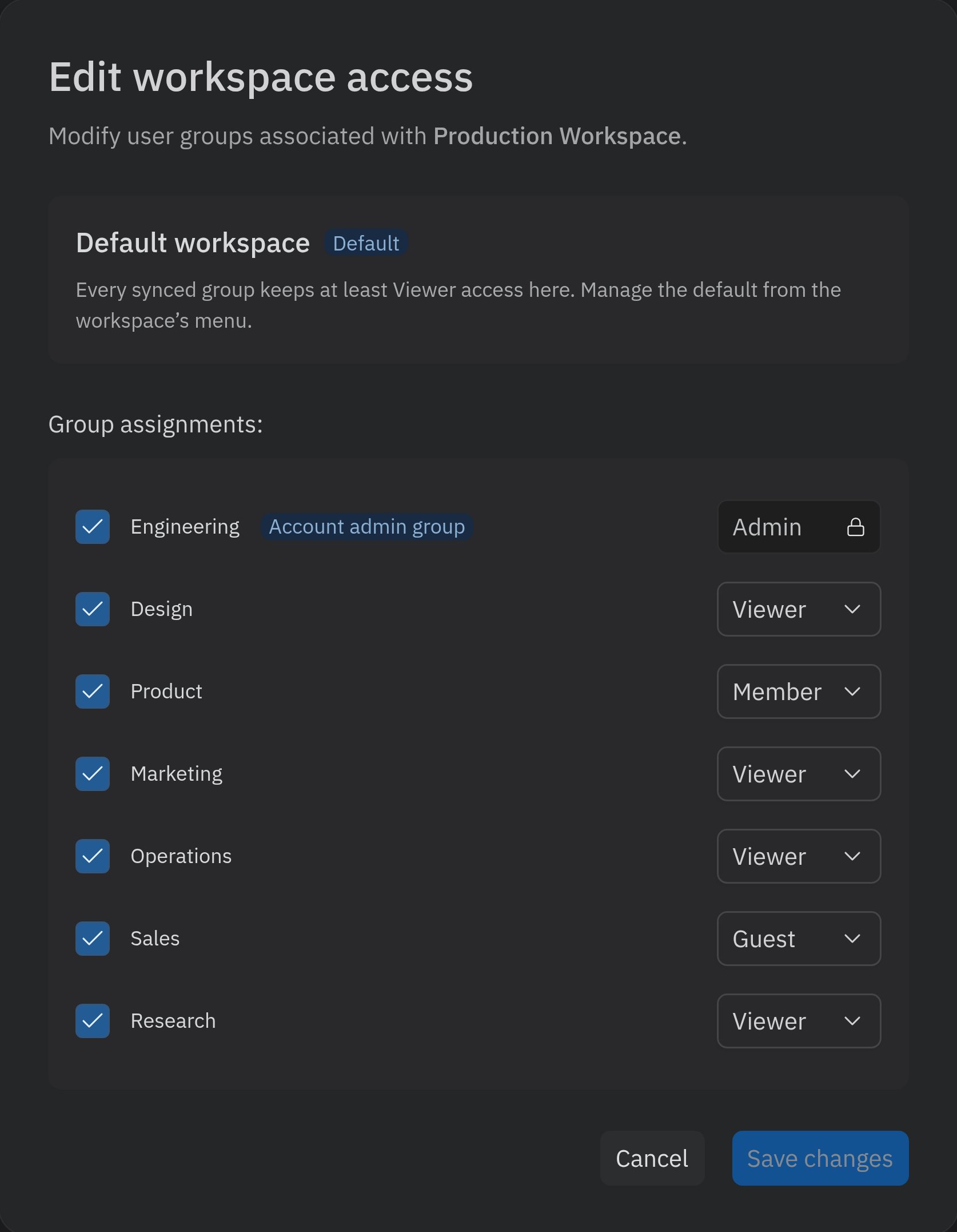
Select Edit assignments from a workspace row’s ⋮ menu to open the Edit workspace access dialog. Here you choose which synced groups have access to the workspace and the role each group receives:- Admin — full administrative access to the workspace’s settings and resources.
- Member — can create and edit Replit Apps.
- Viewer — read-only access to apps and deployments.
- Guest — can only access apps shared with them.
Designate the account admin group
The Account admin group block at the top shows which IdP-synced group holds the account admin role across all of your workspaces. Members of this group are account admins everywhere in the organization. Select Edit to choose a different synced group. Designating a group is a cutover: the new group becomes the account admin group and the previous group’s account admin role is revoked. Because account admins are powerful, the change requires confirmation before it takes effect.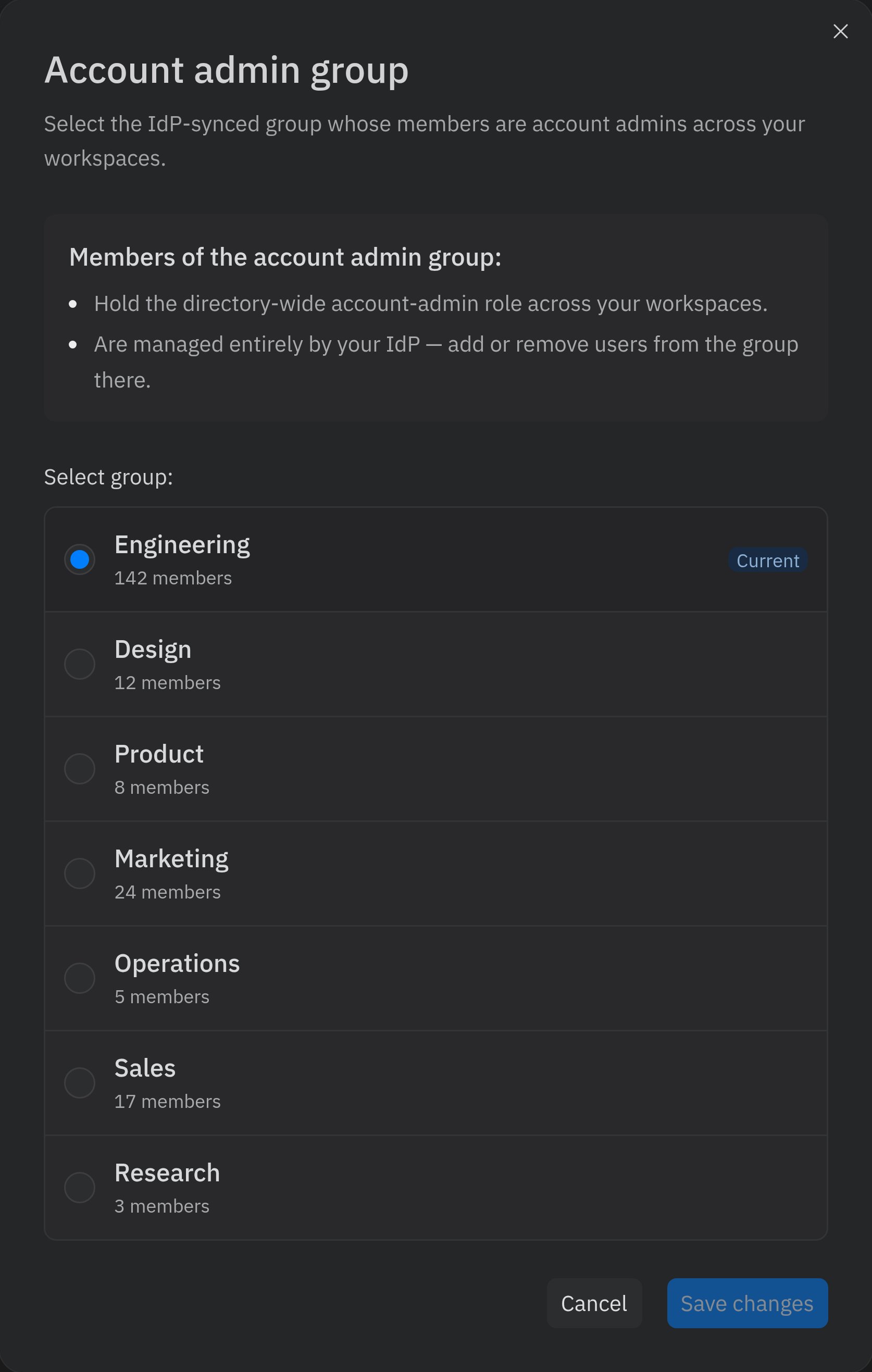
Membership of the account admin group is managed entirely in your identity provider. To add or remove account admins, change who belongs to the designated group in your IdP — SCIM workspace access reflects that membership but does not edit it.
View group members and assigned workspaces
The User groups tab is a table of your synced groups, with columns for the group Name, its Assigned workspaces (shown as Workspace · Role chips), and its Member count. The group designated as the account admin group is marked with an Account admin group chip. When you have many groups, the table is paginated — use the page controls at the bottom to move between pages.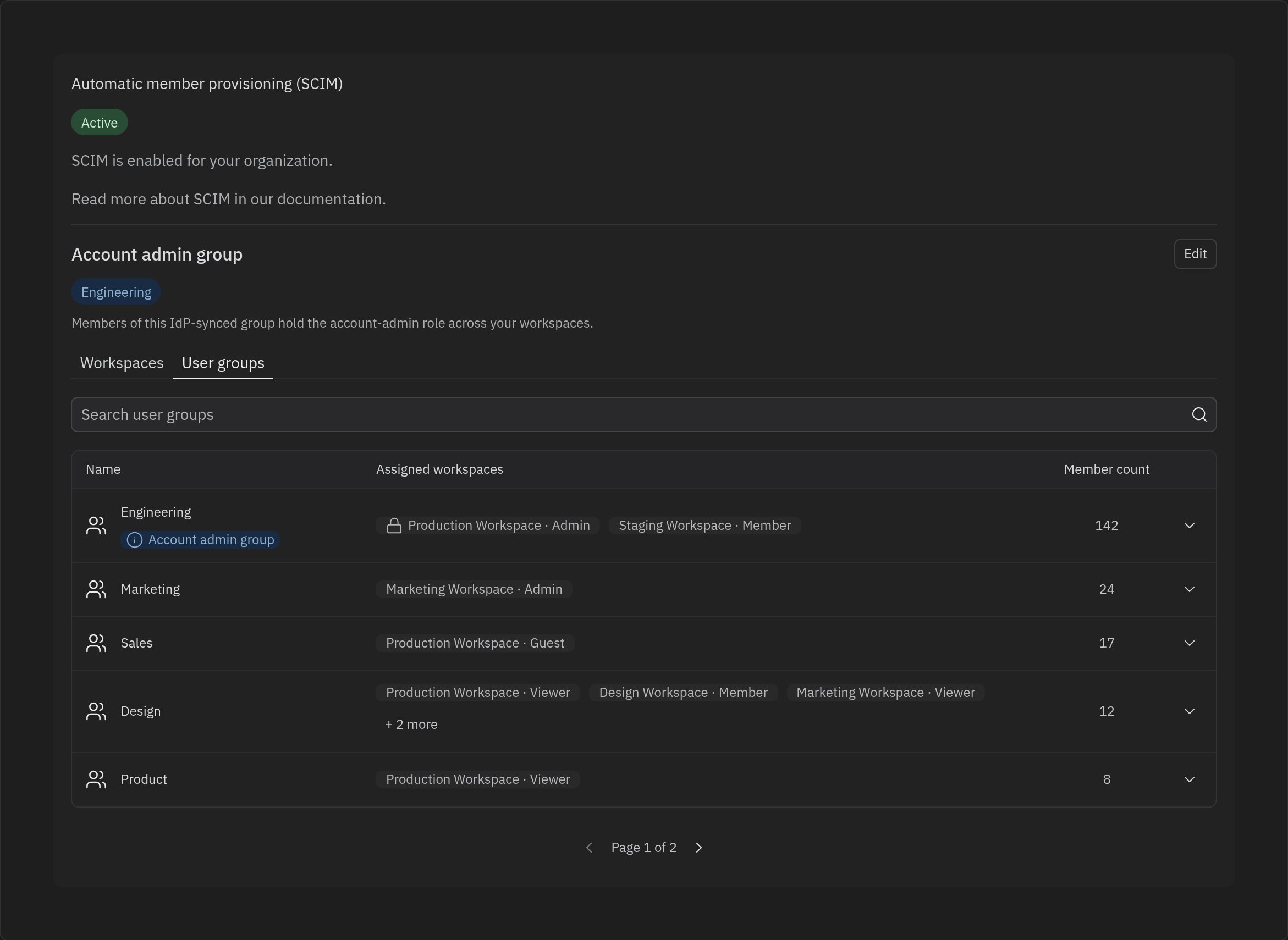
Known limitations and beta caveats
- Beta surface. SCIM workspace access is under active development. Layout, labels, and available actions may change between releases.
- IdP remains the source of truth. Adding, removing, and provisioning members — and editing group membership — happens in your identity provider. SCIM workspace access manages workspace and role assignments for groups that already exist in your synced directory.
- Account admin group can be changed but not cleared. You can designate a different account admin group, but there is no option to leave the organization without one.
FAQs
Why don’t I see it?
SCIM workspace access only appears when your organization is on Enterprise, SCIM directory sync is Active, and your account is enabled for it. If SCIM is enabled but not finished, complete SCIM onboarding first. If SCIM is active but you still don’t see it, contact your account manager — access is being rolled out during the beta.Can I add or remove members here?
No. Membership and provisioning are managed in your identity provider. SCIM workspace access manages how synced groups and members map to workspaces and roles. For day-to-day member management outside of SCIM, see Managing Members.How are roles different from groups?
Groups are synced from your IdP. Roles (Admin, Member, Viewer, Guest) describe what a group can do in a specific workspace. The same group can hold different roles in different workspaces — for example, Member in one workspace and Viewer in another.Does changing the account admin group affect other roles?
Designating a new account admin group changes only the organization-wide account admin role. Other group-to-workspace assignments and their roles are unaffected. For more on how the account admin role works, see Account and Workspace Admins.Related resources
SCIM
Set up and manage SCIM provisioning for your organization.
Groups & Permissions
Understand how groups and roles control access.
Account and Workspace Admins
Learn what account admins and workspace admins can do.
SAML SSO
Configure single sign-on through your identity provider.