

The Project Editor includes layout management and integrated tools that power your app-building experience. These Project Editor features specialize in handling specific aspects of the development process, letting you focus on creating instead of configuring.Documentation Index
Fetch the complete documentation index at: https://docs.replit.com/llms.txt
Use this file to discover all available pages before exploring further.
Customizable Project Editor layout
The Project Editor layout management tools let you customize the components of the development environment. It consists of the following user interface element types:| Element | Description | Capabilities | Use Cases |
|---|---|---|---|
| Windows | Browser tabs that contain one or more panes |
|
|
| Panes | Sections of a window that contain one or more tabs |
|
|
| Tabs | Contain exactly one Project Editor tool, such as the file editor, Preview, or Agent |
|
|
File tree
The file tree lists all the files and directories in your Replit App.How to access the file tree
How to access the file tree
Select the  folder icon on the left to toggle
the file tree’s visibility.
folder icon on the left to toggle
the file tree’s visibility.
folder icon on the left to toggle
the file tree’s visibility.- Select a folder to display its contents
- Select a file or drag it to a pane to open it in a file editor
- Perform file operations such as duplicating, renaming, moving, downloading, or deleting
Tools dock
The tools dock lets you search for and open Project Editor tools in new tabs.How to access the tools dock
How to access the tools dock
Select from commonly used tools or select the  All tools
icon to open the tools search popup menu.
All tools
icon to open the tools search popup menu.
All tools
icon to open the tools search popup menu.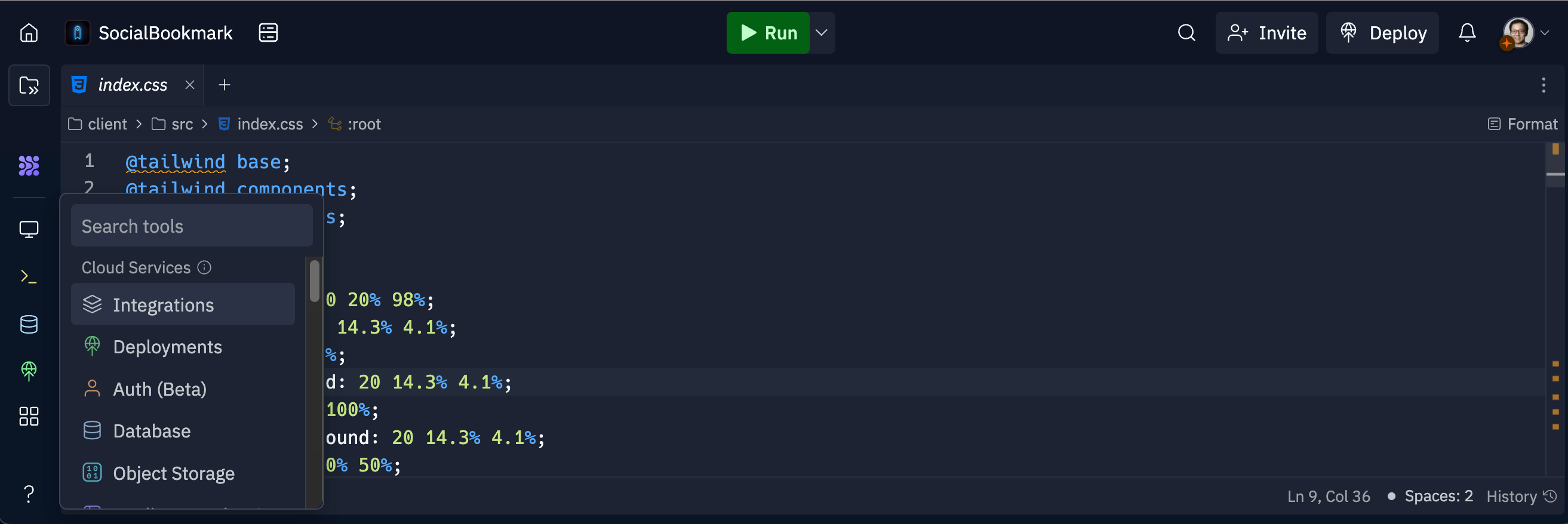
Run button
The Run button executes the Replit App’s selected workflow.How to access the run button
How to access the run button
Spotlight page
The spotlight page lets you view and modify your Replit App cover page and access sharing options.How to access the spotlight page
How to access the spotlight page
Select your project name in the top left of the Project Editor to toggle the spotlight page.
Options menu
The options menu lets you perform the following types of layout actions:- Window management: Open the Project Editor for the Replit App in a new window
- Pane management: Add panes, move a pane, maximize a pane, and toggle between floating and fixed positions
- Tab management: Open or select other tabs, move a tab to another pane, and close a tab
How to access the options menu
How to access the options menu
Select the  three vertical dots
located in the top right corner of the active tab to open the options menu.
three vertical dots
located in the top right corner of the active tab to open the options menu.
three vertical dots
located in the top right corner of the active tab to open the options menu.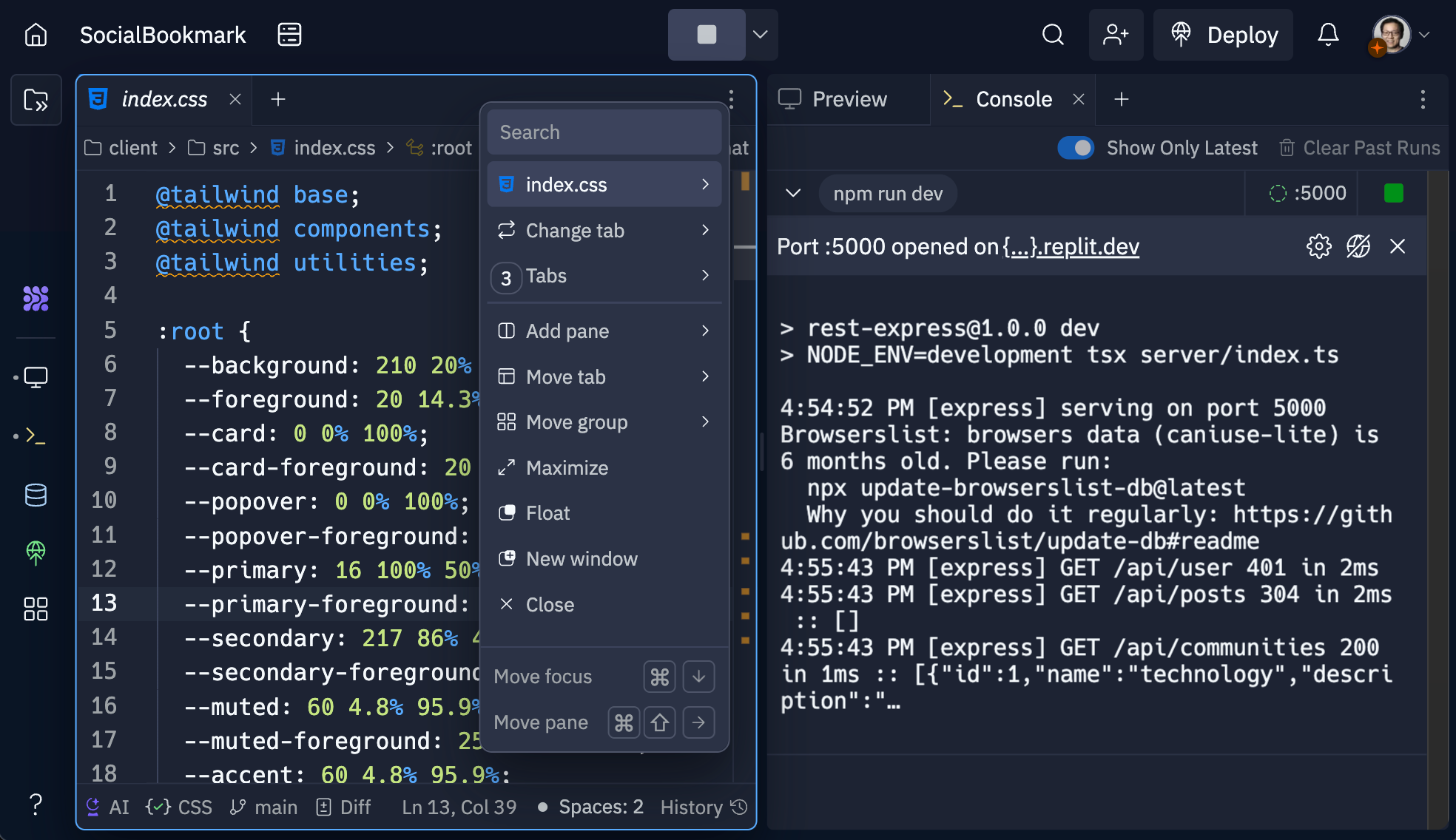
Search bar
The search bar lets you find files, text, or tools within the Project Editor.How to access the search bar
How to access the search bar
- To open the search bar, select the
 magnifying glass icon at the top.
 - Enter your search text and select from the auto-complete suggestions.
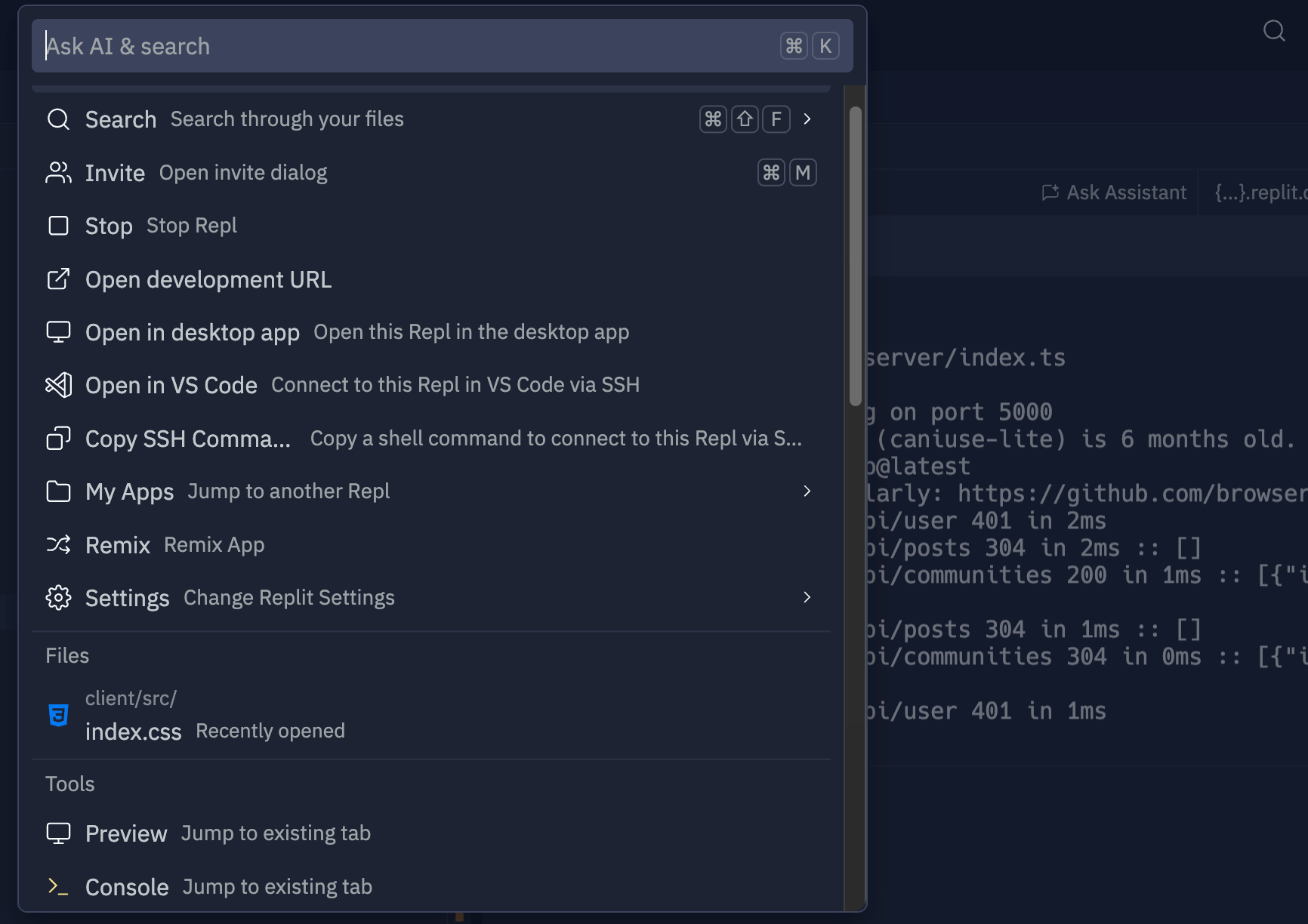
Resources panel
The resources panel displays your development environment’s computing resources and usage, including RAM, CPU, and storage. This information can help you estimate and optimize your Replit App’s publishing requirements.How to access the resources panel
How to access the resources panel
- Select the
 resources icon located next to your app’s name to toggle the panel.
 - Hover over the Compute or Storage line items for more detail.
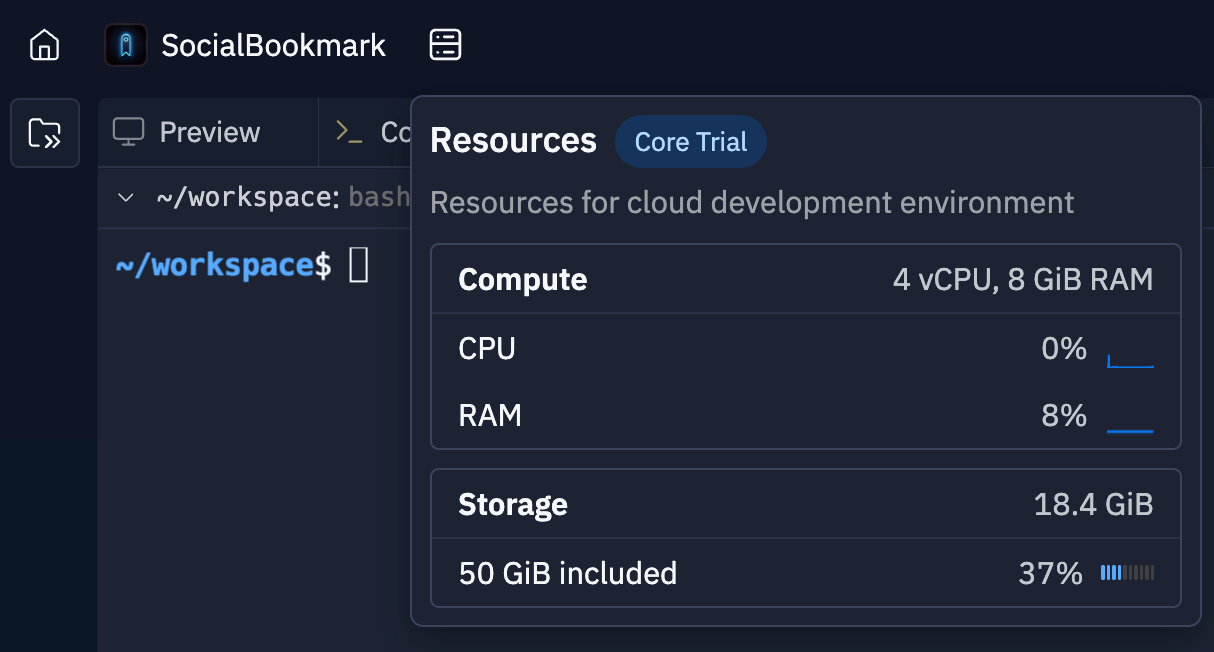
Tools
To learn more about other Project Editor tools, select from the following list:Secrets
Safeguard your app’s API keys, credentials, and passwords.
File History
Rewind time to recover lost edits with Replit’s version tracking feature.
Multiplayer
Code together in real-time with two or more users.
User Settings
Customize your coding experience through the Settings tool.
Console
View your Replit App’s output
Shell
Interact with the Project Editor using a command-line interface.
Preview
Preview and debug your web application.