

⏰ Estimated time: 5 minutes · Follows from Build and publish your first app The Canvas is a visual workspace where you can ask Agent to generate alternative looks for an app you’ve already built, compare them side by side, and apply the one you want. It’s the fastest way to explore visual direction without committing to a rebuild. This guide uses the Runwell running tracker from Build and publish your first app as the running example, but the same flow works on any project.Documentation Index
Fetch the complete documentation index at: https://docs.replit.com/llms.txt
Use this file to discover all available pages before exploring further.
Before you start
You need an existing app in Replit. Either:- Complete Build and publish your first app so you have Runwell open, or
- Use any other project — the steps below work the same.
Explore design variations
Open Canvas and pick your frame
Open the Canvas tab in the Project Editor. Your app appears as a frame on the Canvas. Select the frame to surface the Reimagine… and Preview controls.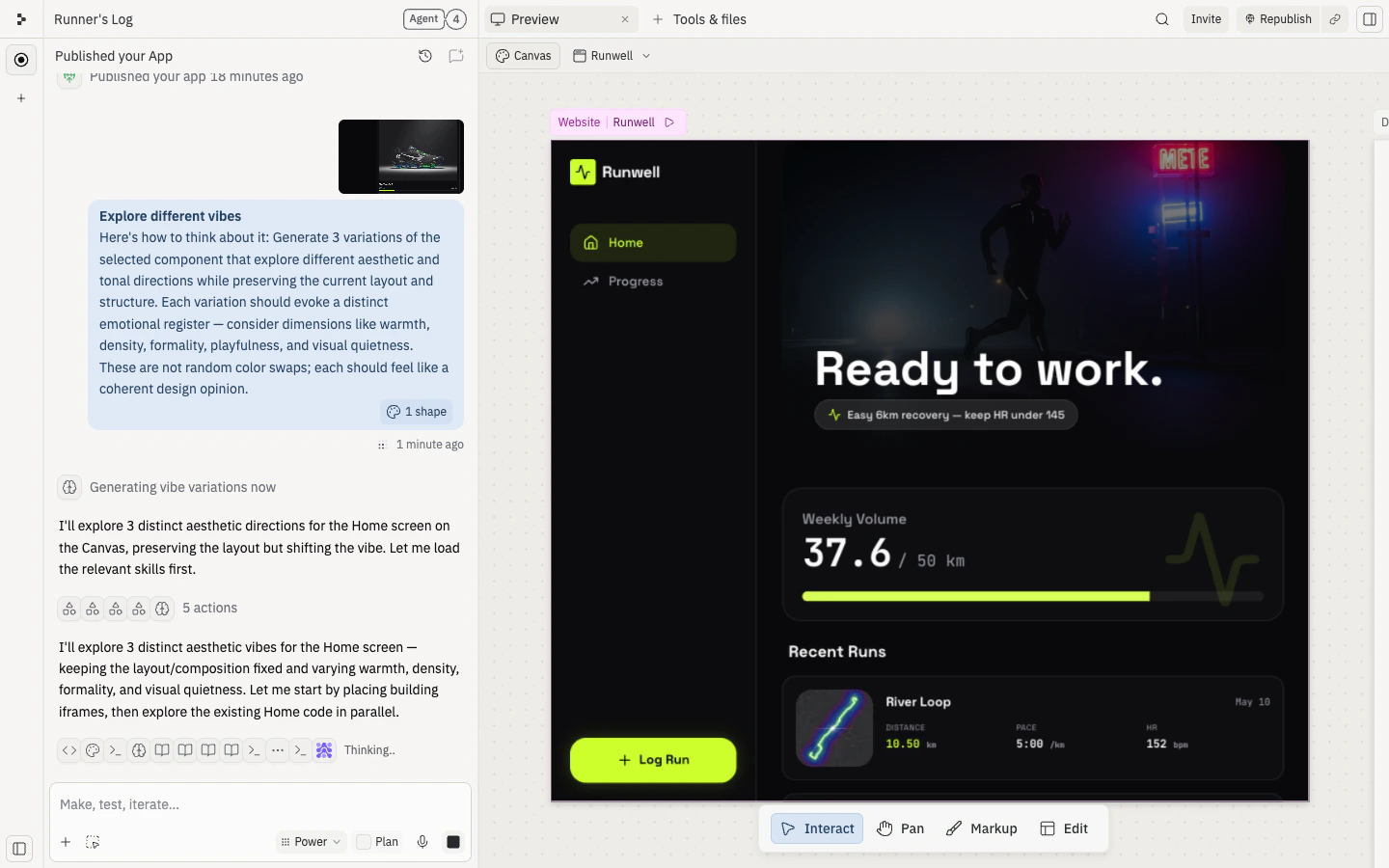
Reimagine the design
Click Reimagine… to open a menu of directions Agent can explore. Pick one — for Runwell, try Explore different vibes. Agent generates three aesthetic variations, each preserving the layout but shifting the visual feel.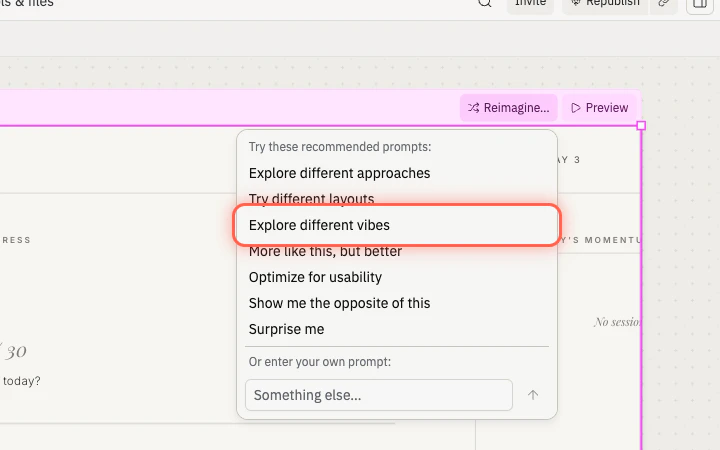
- Explore different approaches
- Try different layouts
- Explore different vibes
- More like this, but better
- Optimize for usability
- Show me the opposite of this
- Surprise me
Compare the variants
Pan or zoom out on the Canvas to see the variations alongside the original. Compare them, and decide which direction you want to apply.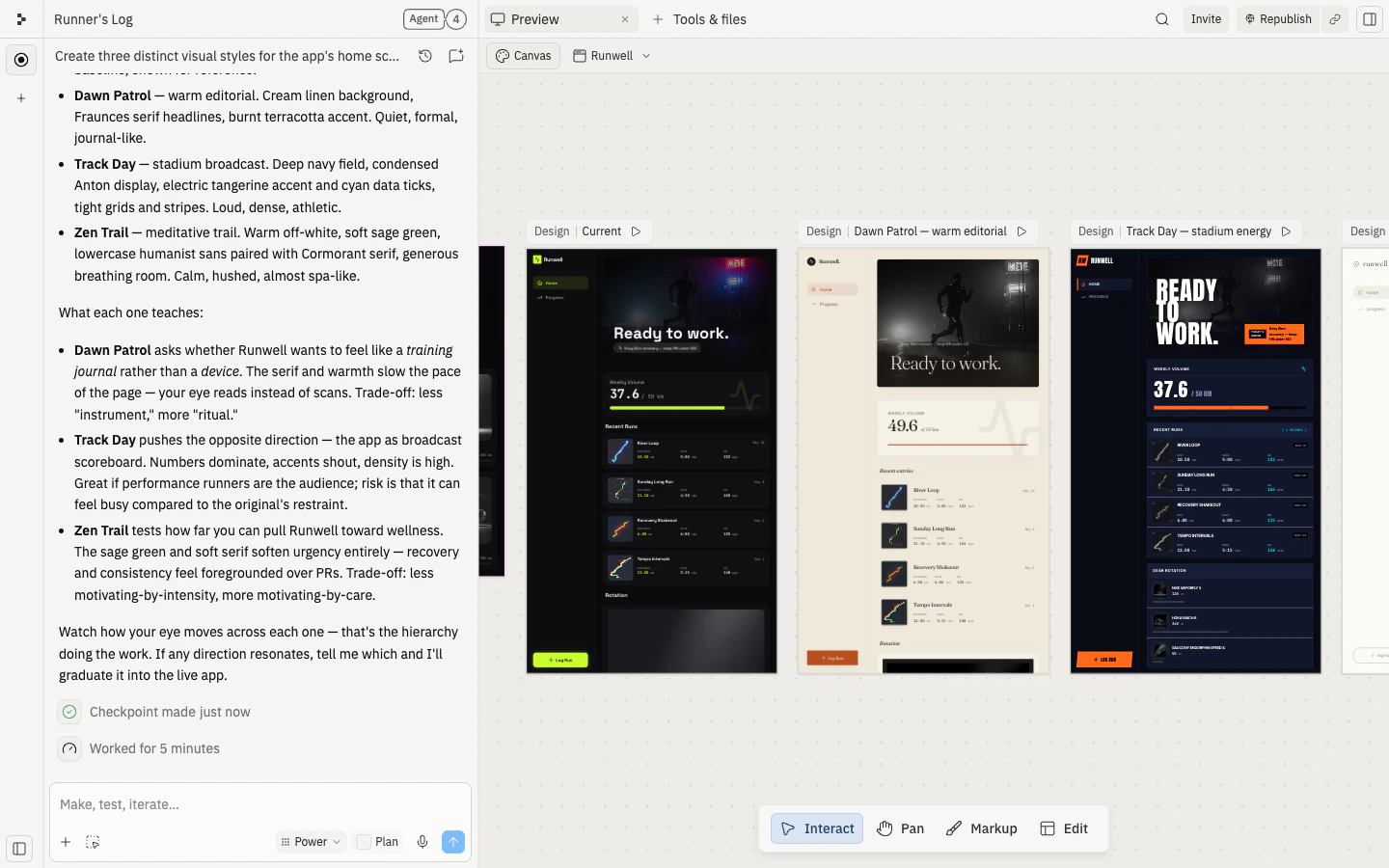
Apply the design to your app
Select the variant you want, then click Build… at the top of the frame. In the dialog, choose your existing app (e.g., Runwell) to apply the new design in place — rather than creating a separate copy.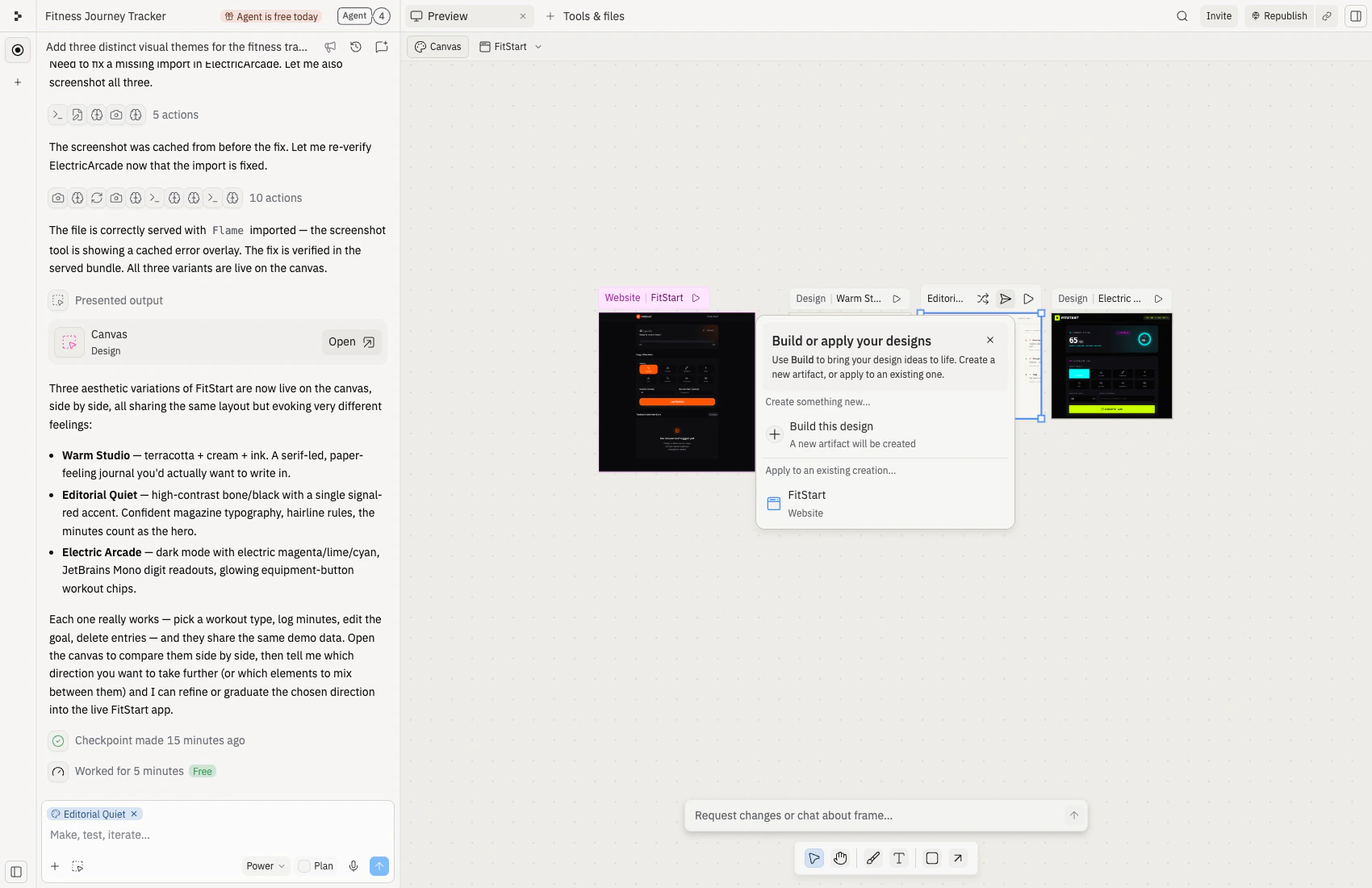
Publish the updated design (optional)
Happy with the new look? Publish from the Agent chat or the Publishing tile in the Tools & files panel. Your public URL stays the same — visitors see the updated version immediately.See the Publish your app step in Build and publish your first app if you need a refresher on the publishing flow.
What to try next
Canvas
Deep dive into Canvas features and workflows.
Visual Editor
Make fine-grained tweaks to colors, text, and layout.
Vibe coding 101
Learn how to guide Agent from idea to working app.