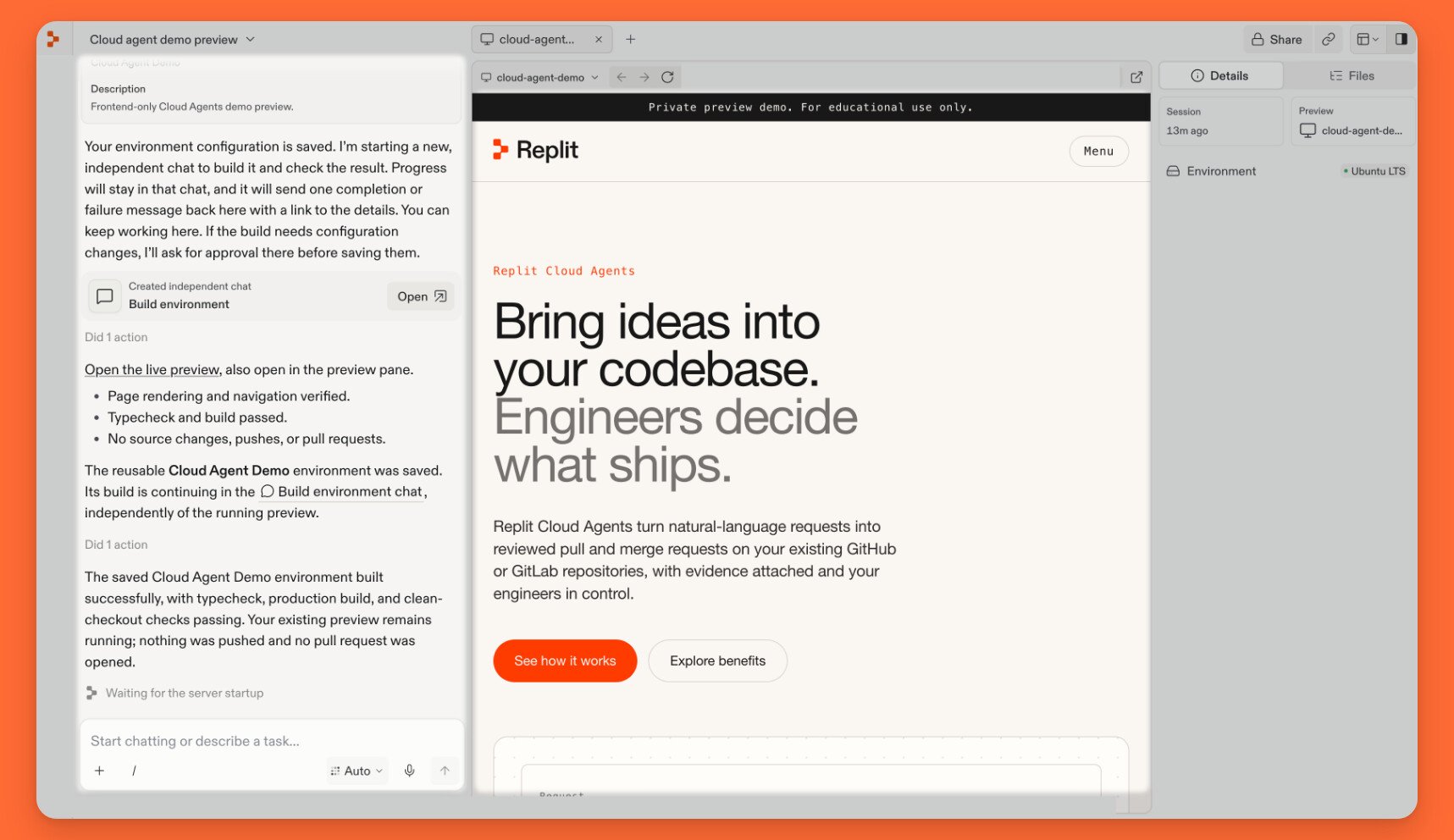
Use the editor to give Replit a task, try the result, and review the work. Chat sits beside your open tabs, with Details and Files in the sidebar. Chat beside the running app preview, with the Details sidebar on the right.

Chat and layout

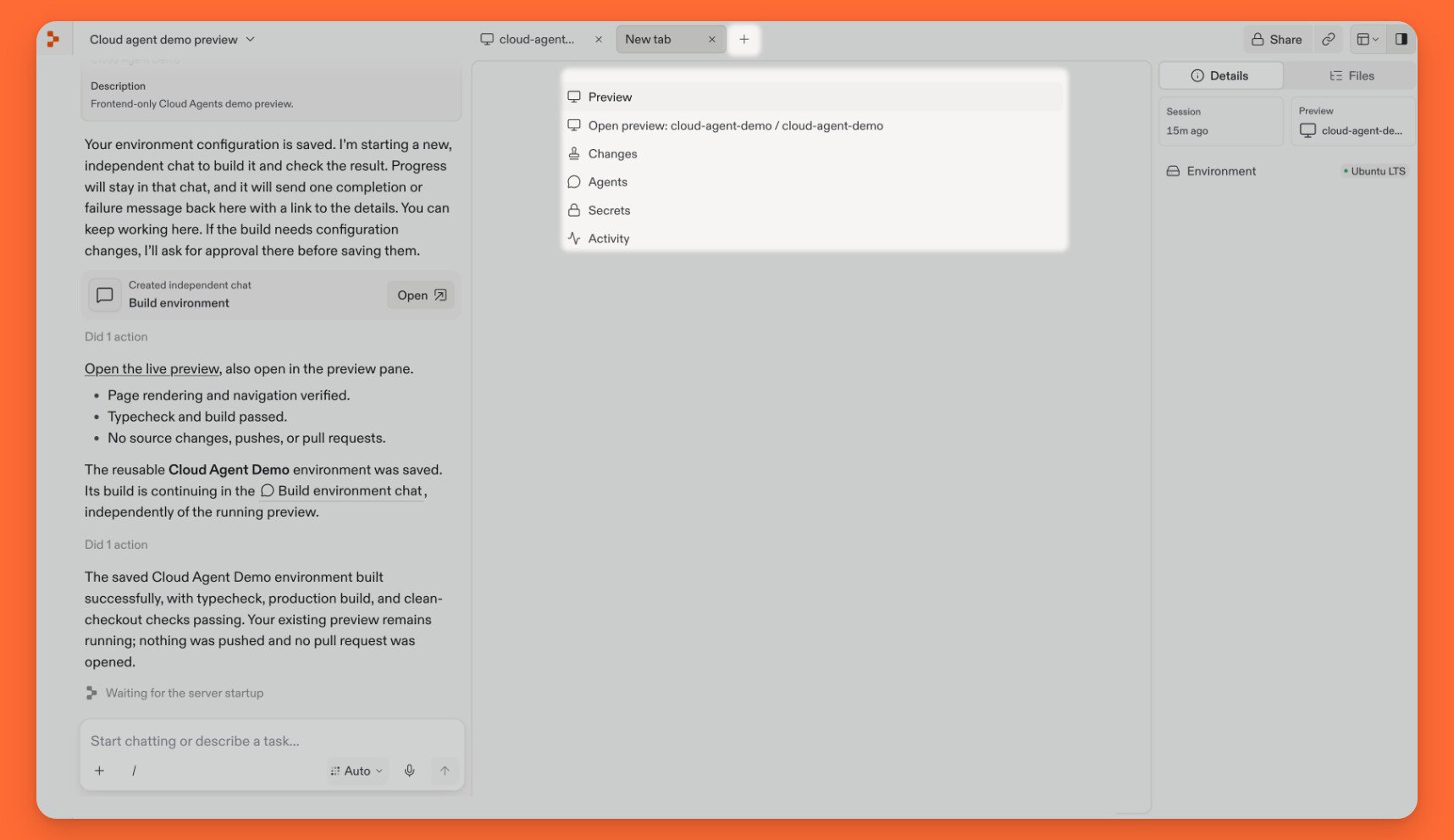
Write requests and feedback in the prompt box at the bottom of the chat. Its controls let you attach files, use voice, and choose from the Agent modes available to your plan and workspace. Use the layout menu in the upper-right corner to choose Chat for discussion, Editor for chat alongside your tabs, or Focus for tabs alone. The menu also lets you show or hide Tabs and Sidebar. Changing the layout does not change your code or publish your app. Select + beside your open tabs to open Preview, Changes, Agents, Secrets, or Activity. Available tools can vary with the chat. The new-tab menu lists Preview, Changes, Agents, Secrets, and Activity.
Preview

Use Preview to try the app running in your sandbox. Select Open in a new tab to use the same app in a separate browser tab. A preview is not production. It does not publish the app, and a pull request does not deploy it. Use test accounts and development data: credentials can still give the app access to real services. If the preview stops loading, ask Replit to check the development server and preview link. Libraries and command-line tools may not have a web preview. See Run your app in Replit for a walkthrough.

Files and environment

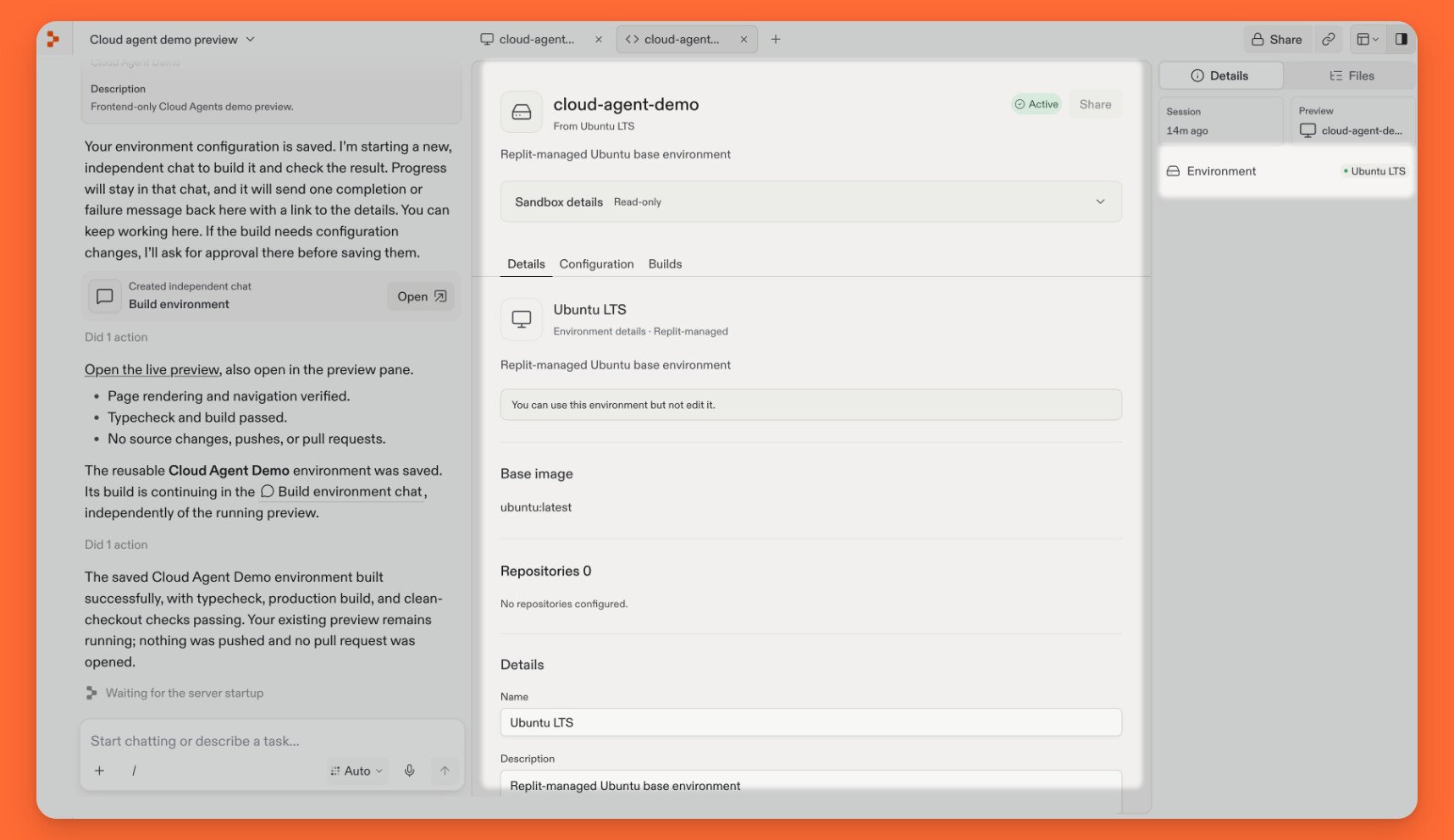
Select Files in the sidebar to browse the sandbox’s filesystem. The tree can include system directories as well as your repository; not every file belongs to Git or will appear in a pull request. In Details, select Environment to inspect the environment name, base image, and configuration. The Environment entry in Details opens information about the attached sandbox's setup. An environment is a reusable setup of repositories, tools, dependencies, and setup commands. A build prepares an image, and a sandbox is a running development machine created from it. Rebuilding an environment does not update an existing sandbox. To save or configure a setup, see Create a reusable environment. For access and isolation considerations, see Security.
Changes and pull requests

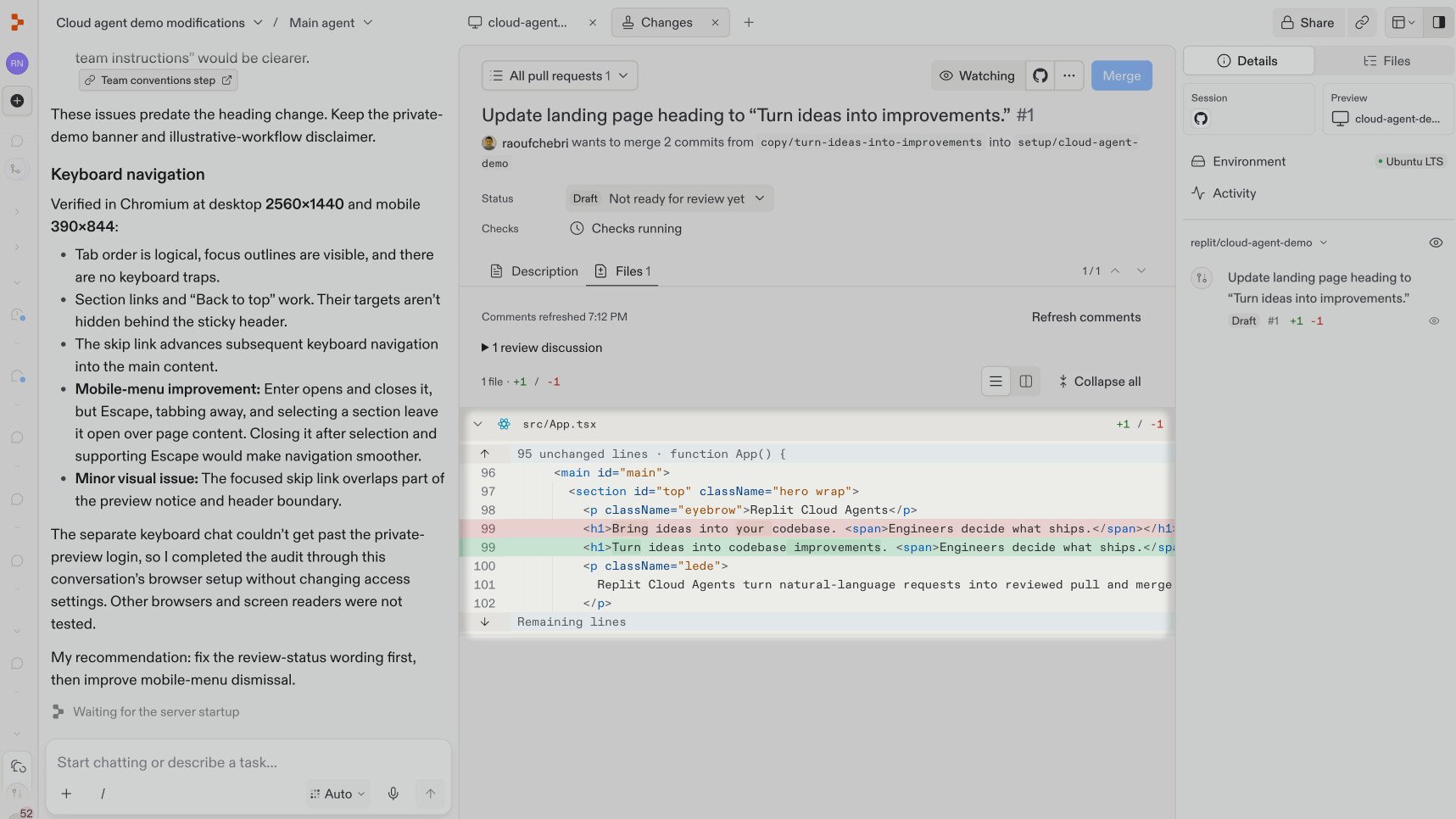
Open Changes, then use its selector to choose Local changes or a linked pull request. Review the request’s description and branches, then select Files to inspect its diff. Red marks removed code; green marks added code. The Files tab shows removed and added heading text in a linked pull request. Linked pull requests also appear in Details. If a request is missing, give Replit its URL and ask to link it. Use the Git provider link for GitLab merge requests or diffs the pane cannot display. Review feedback can appear in the chat alongside the linked pull request. Ask Replit to address it, then check the updated preview and test results. See Respond to review.
Agents

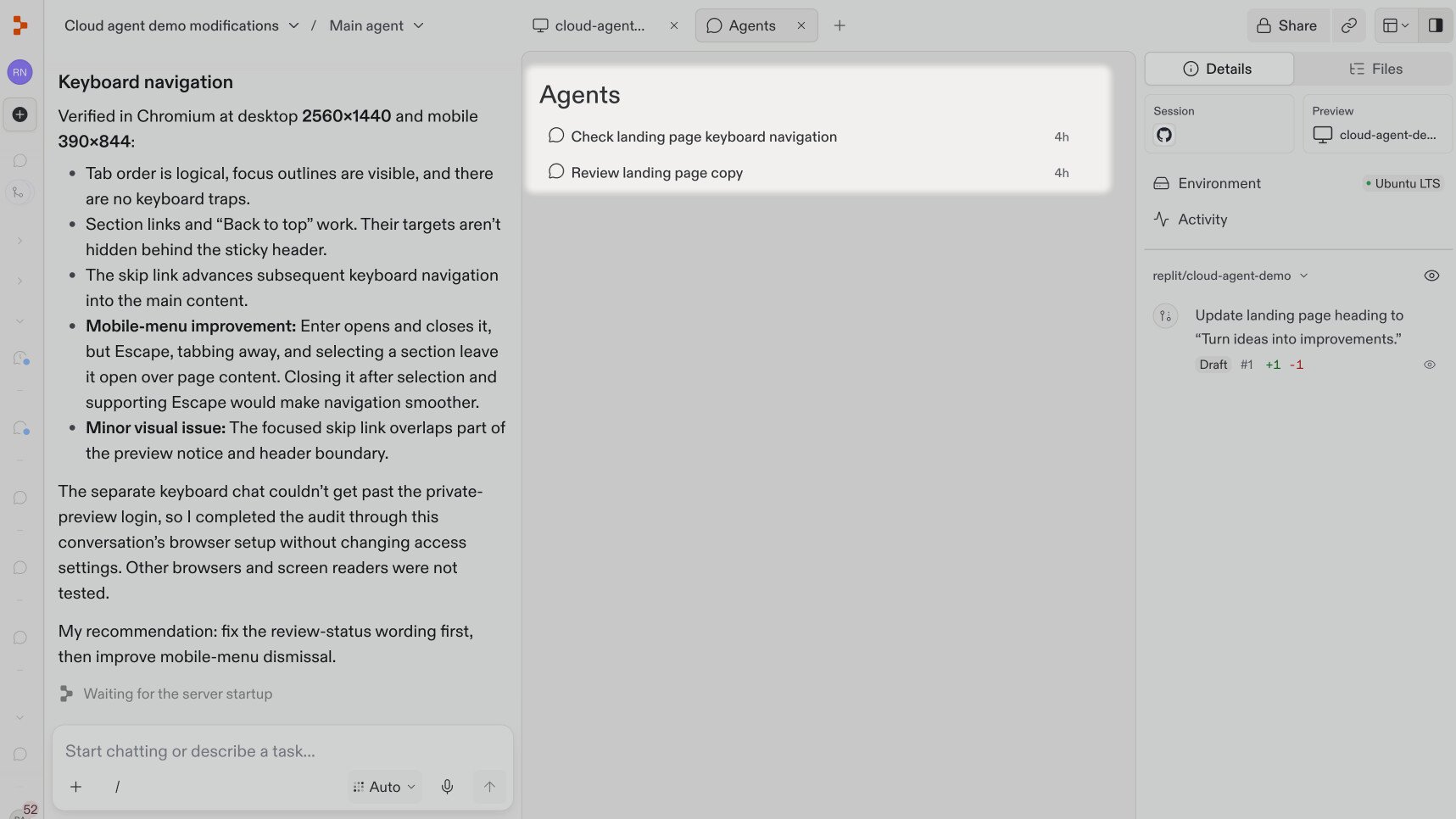
Open Agents to find worker chats connected to your main chat. Open a worker to follow progress or give task-specific feedback; use the main chat to steer the overall goal. The Agents tab lists worker chats for keyboard navigation and landing-page copy. Worker chats can use separate sandboxes. Their files, running servers, and chat secrets are not automatically shared, and code changes still need to be brought together and reviewed. See Work with a team of agents.
Secrets

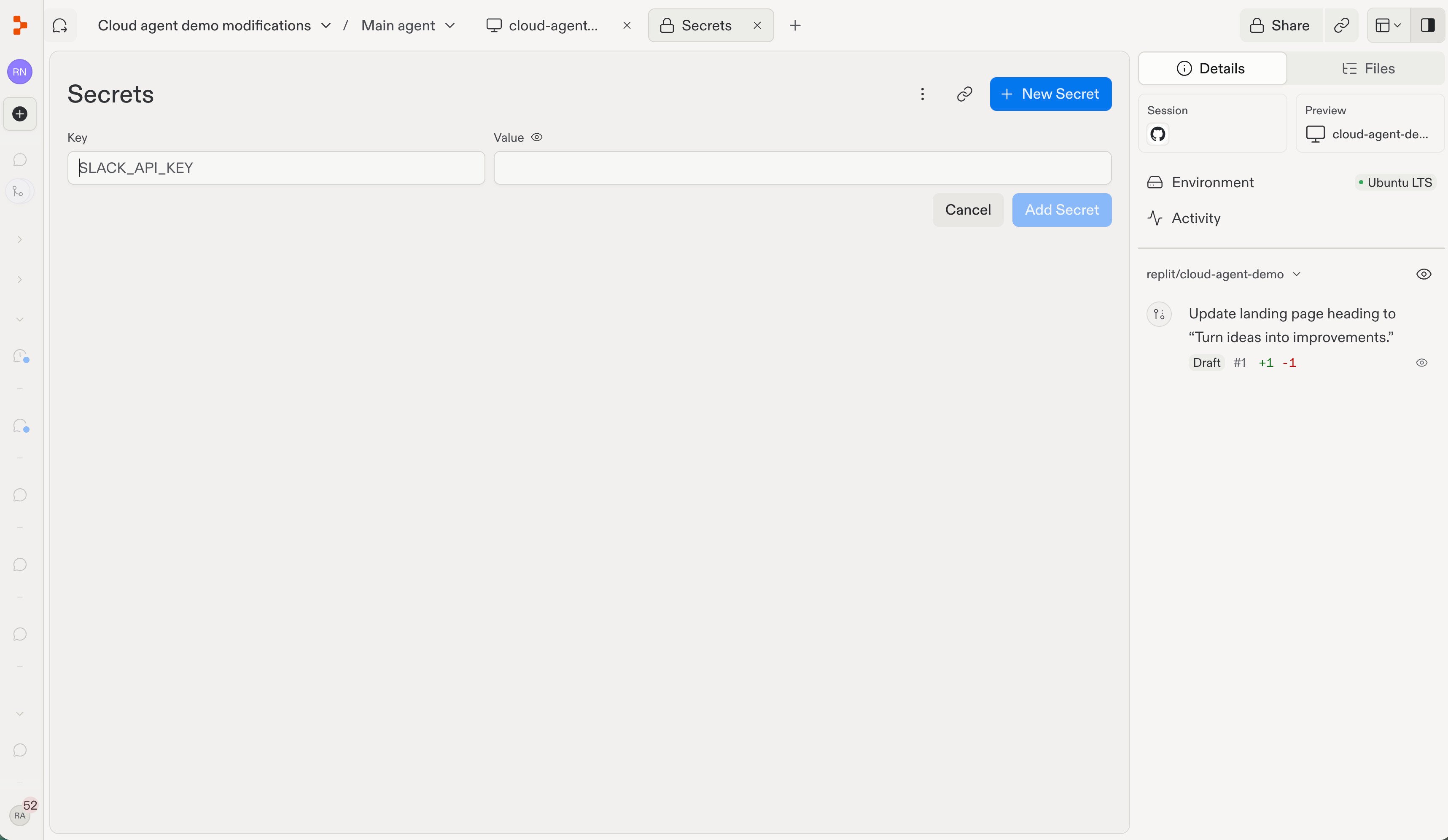
Open Secrets, select New Secret, and enter the variable name in Key and its development credential in Value. Select Add Secret. You can also ask Replit to open a secure secret-entry form. The New Secret form with Key and Value fields and an Add Secret button. These secrets belong to the current chat, not every chat or environment build. Keep values out of chat messages, screenshots, and Git. Ask Replit to verify the app’s access without printing the credential. For repeatable access through an external secrets manager, see Add secrets to environments. That setup is separate from adding a chat secret.
Activity

Open Activity for a summary of tasks, blockers, results waiting for review, and accepted work, with links to the relevant chats and contributions. It is also available from Details when the Activity entry appears. An unchecked item may be finished but waiting for your review; read its status text. Activity summarizes the work, not every command, and does not replace checking the result.