

Connect your personal account
Connect GitHub or GitLab through Replit’s integrations. Replit uses your authorized access to inspect code and, when requested and permitted, push branches and open pull or merge requests. Ask Replit: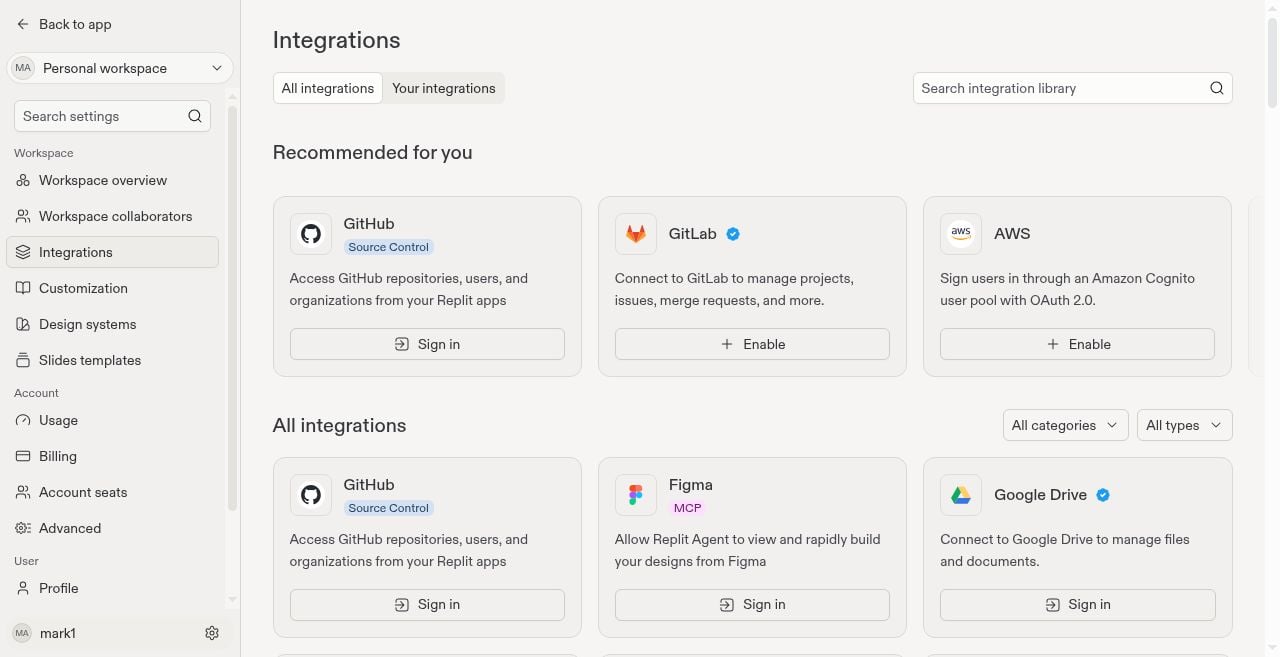
Configure workspace access
A workspace administrator configures repository grants for background environment builds. Your personal sign-in does not replace this shared setup. Open Repositories, find the provider card, and select Manage. If the card shows Connect, sign in first. Under Workspace connection(s), choose Connect to sign in for workspace setup or Configure to manage existing access. Only workspace administrators can configure shared access. Members can view it and manage their own personal sign-in. Availability can differ by workspace.GitHub: install and connect the app
- Sign in to GitHub in the workspace connection editor to see your organizations.
- Choose Add GitHub organization, then select the organization and repositories for the Replit GitHub App. Your GitHub administrator may need to approve it.
- Return to Replit, select Refresh if needed, and choose Connect beside the installed organization. Installation alone does not connect it to the workspace.
- Confirm the organization shows Connected before building an environment.
GitLab: connect a group
GitLab uses group and project grants, not a GitHub-style app installation.- Sign in to GitLab in the workspace connection editor to see your groups.
- Choose Configure beside a group, select the projects to share, then choose Connect group.
- Confirm the group shows Connected. Use Edit to change the selected projects later.
Disconnect shared access
In Repositories > Manage > Configure, choose Disconnect for the workspace grant. This removes the workspace’s access through that grant, not your personal sign-in or the provider-side GitHub App installation. Builds and projects that rely on the grant lose repository access. Disconnecting a GitLab group also removes its Replit service account, memberships, and webhooks, and revokes existing build tokens. To remove only selected GitLab projects, use Edit instead. Removing projects revokes their workspace access and may invalidate existing build tokens.Troubleshoot access
- Chat cannot read or push: Check the connected personal account and its repository permissions.
- Environment build cannot fetch code: Check the workspace connection and selected repositories.
- App cannot reach a service: Repository access does not supply application credentials. See Add secrets to environments.