Now that you’ve run your app in Replit, it’s time to make a contribution. Continue in the same chat, using the same repository from GitHub or GitLab. This walkthrough uses the Cloud Agent Demo to make a small change to the landing page. If you’re using your own repository, choose a similar change.

Make and propose a change

1

Ask for a change

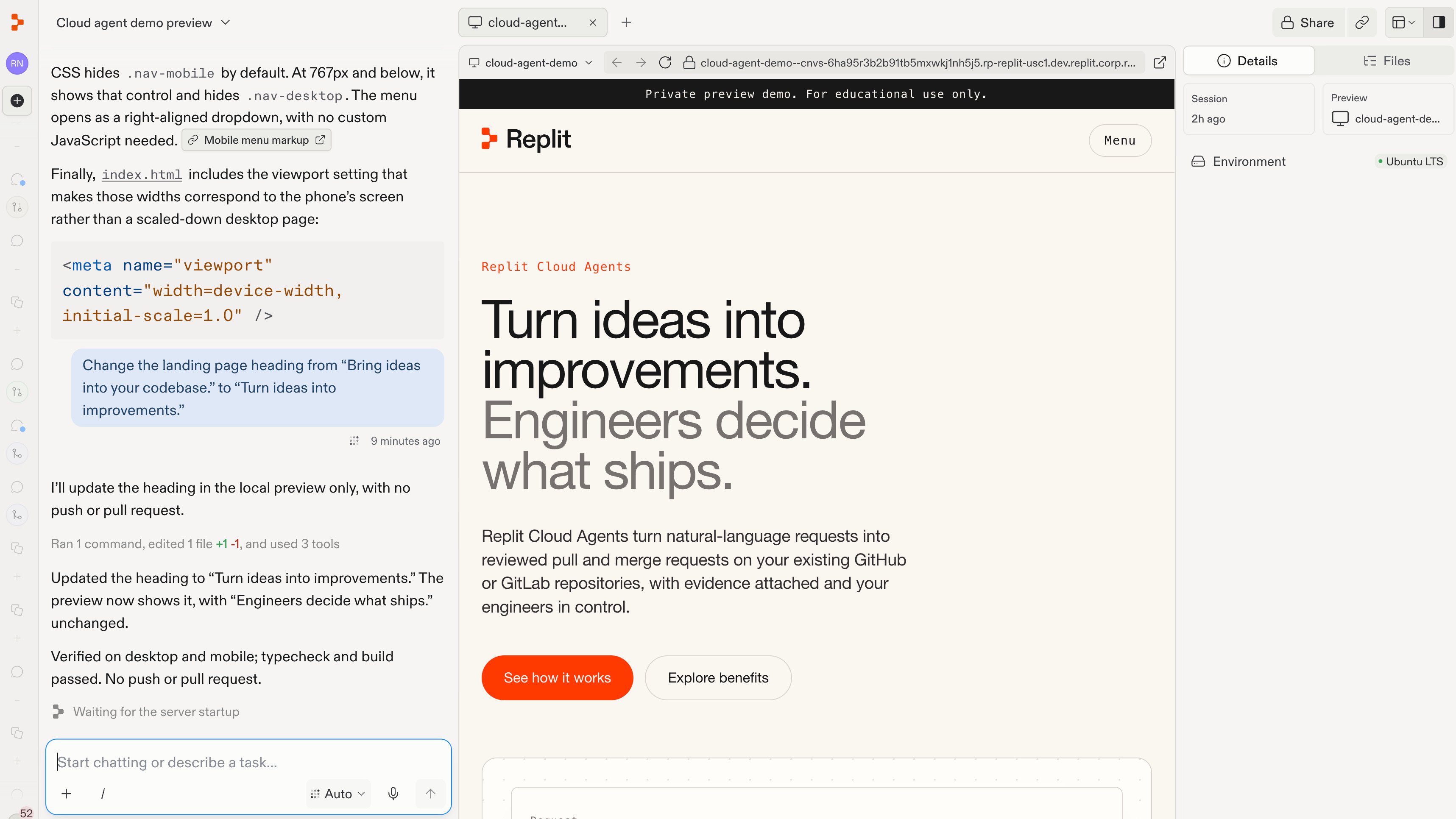
Ask Replit to update the landing page’s main heading:Replit finds the relevant code, updates the heading, and shows the change in your preview.A request to change the landing page heading, with the updated heading shown in the preview.For now, you’re working on a local copy in your cloud development environment. Later, you’ll open a pull request to propose your changes to the repository.Optional: If your app needs API keys or other credentials, add them securely using Secrets, not in chat. The demo does not require any.
2

Test your changes

Check the preview to make sure the change looks right and behaves as expected.
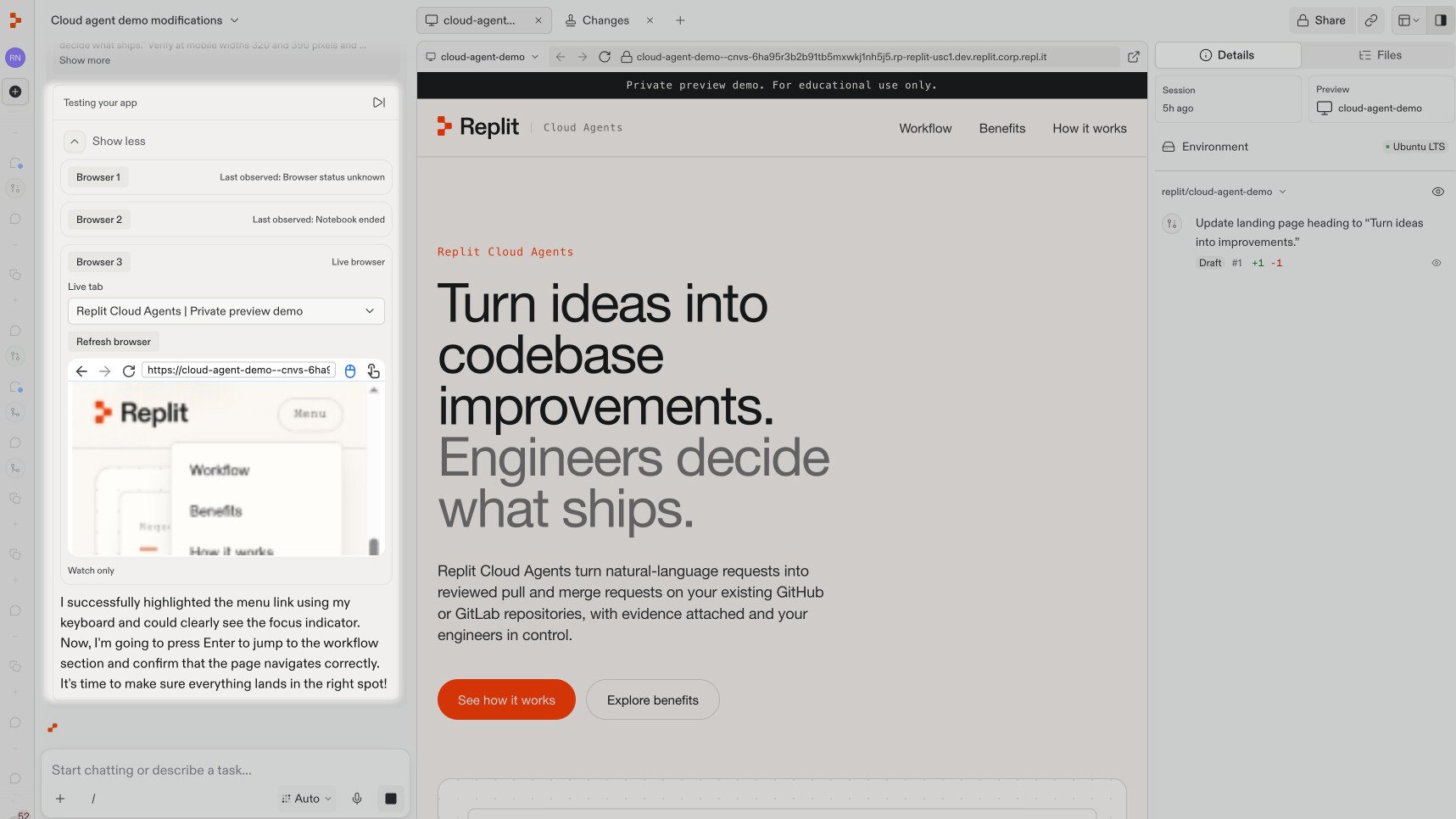
  • Appearance: Check that the heading is readable on desktop and mobile, without clipped or overlapping text.
  • Behavior: Try the page’s buttons and links to confirm they still work.
  • Tests: Ask Replit to run the relevant checks and explain any failures.
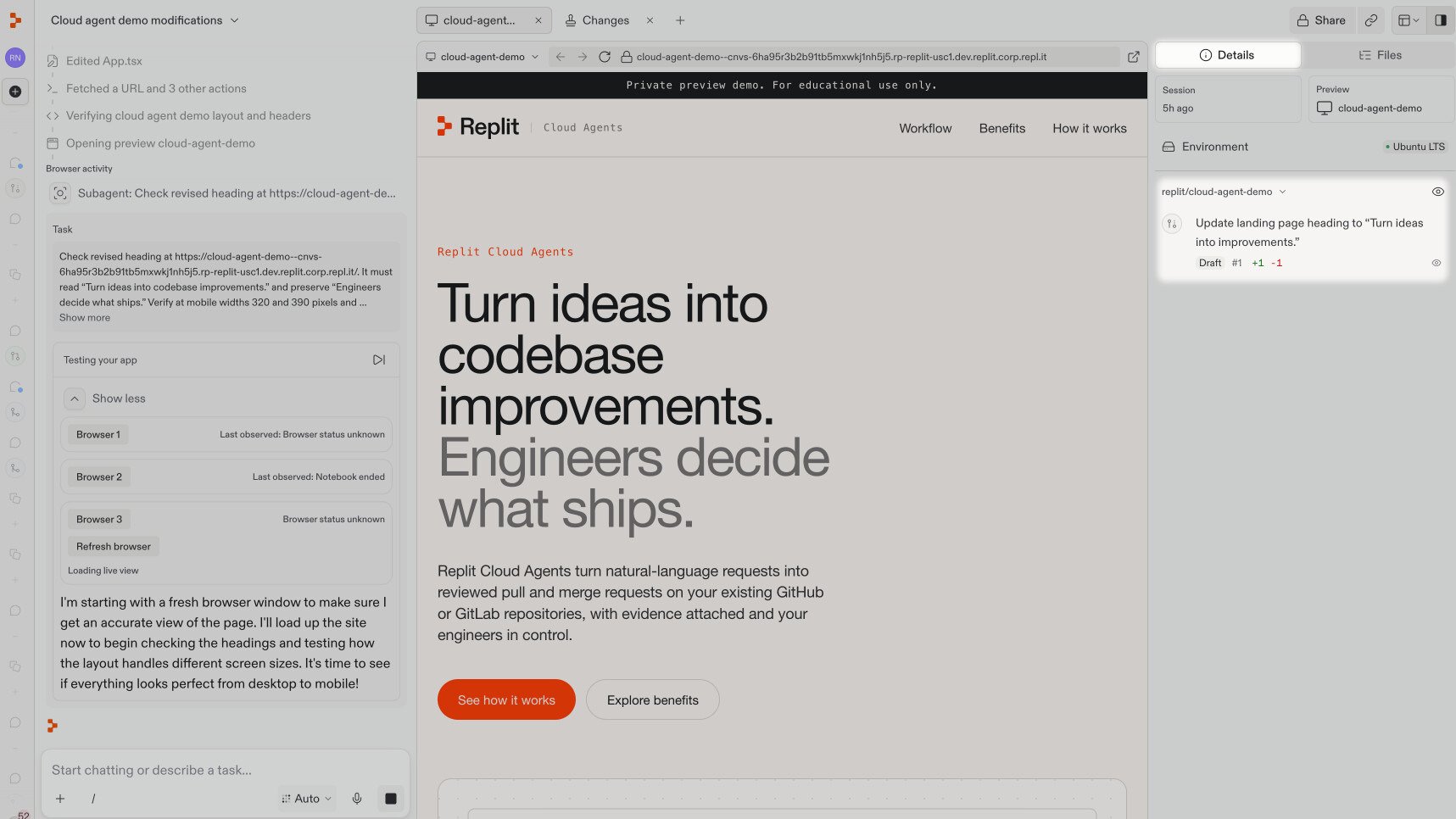
Replit can test your changes in a browser against the running preview. The Testing your app activity in chat shows its browser sessions and what it is checking. In this example, Replit checks the mobile menu and keyboard navigation.The testing activity in chat is highlighted, showing browser sessions and a mobile menu being checked.This shows a check in progress, not a completed test result. Read Replit’s final report to see what passed and what it couldn’t verify.Optional: Make a focused follow-up change. If you want to refine the result, ask for one change you can check, such as a clearer label, a fixed link, or a small styling adjustment. Describe what should change and what should stay the same. For example:Contributions can be as simple as a text change or as comprehensive as an entire feature. For larger changes, describe the outcome you want, then work through the details with follow-up requests.Check the updated preview and relevant test results after each follow-up change. For changes without a visual interface, review the test results and code diff instead.
3

Push your changes

Once you’ve checked the result, ask Replit to propose the changes to your team:
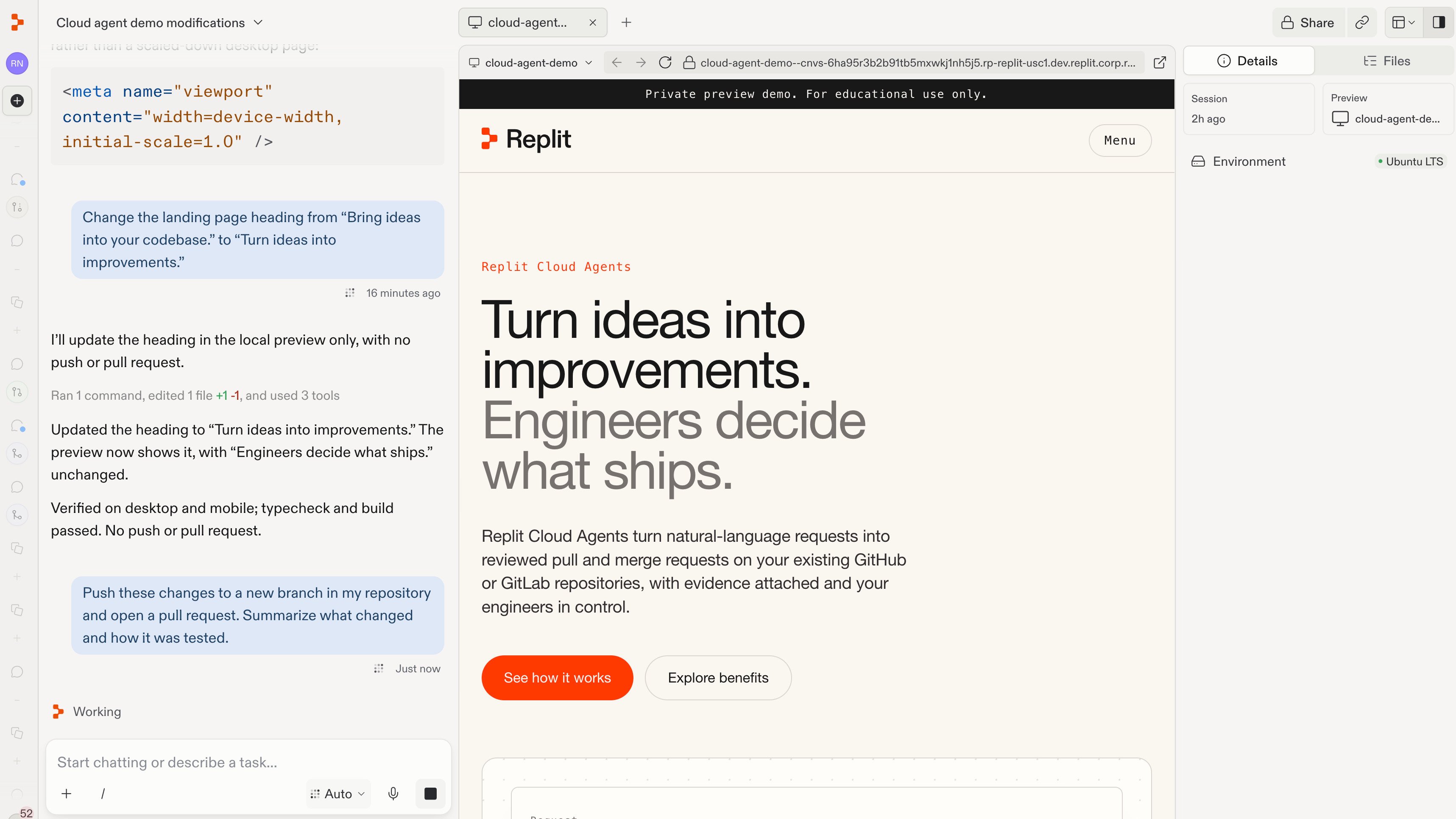
If you’re using the demo, create your own independent repository before this step. Keep practice contributions out of the original demo repository.
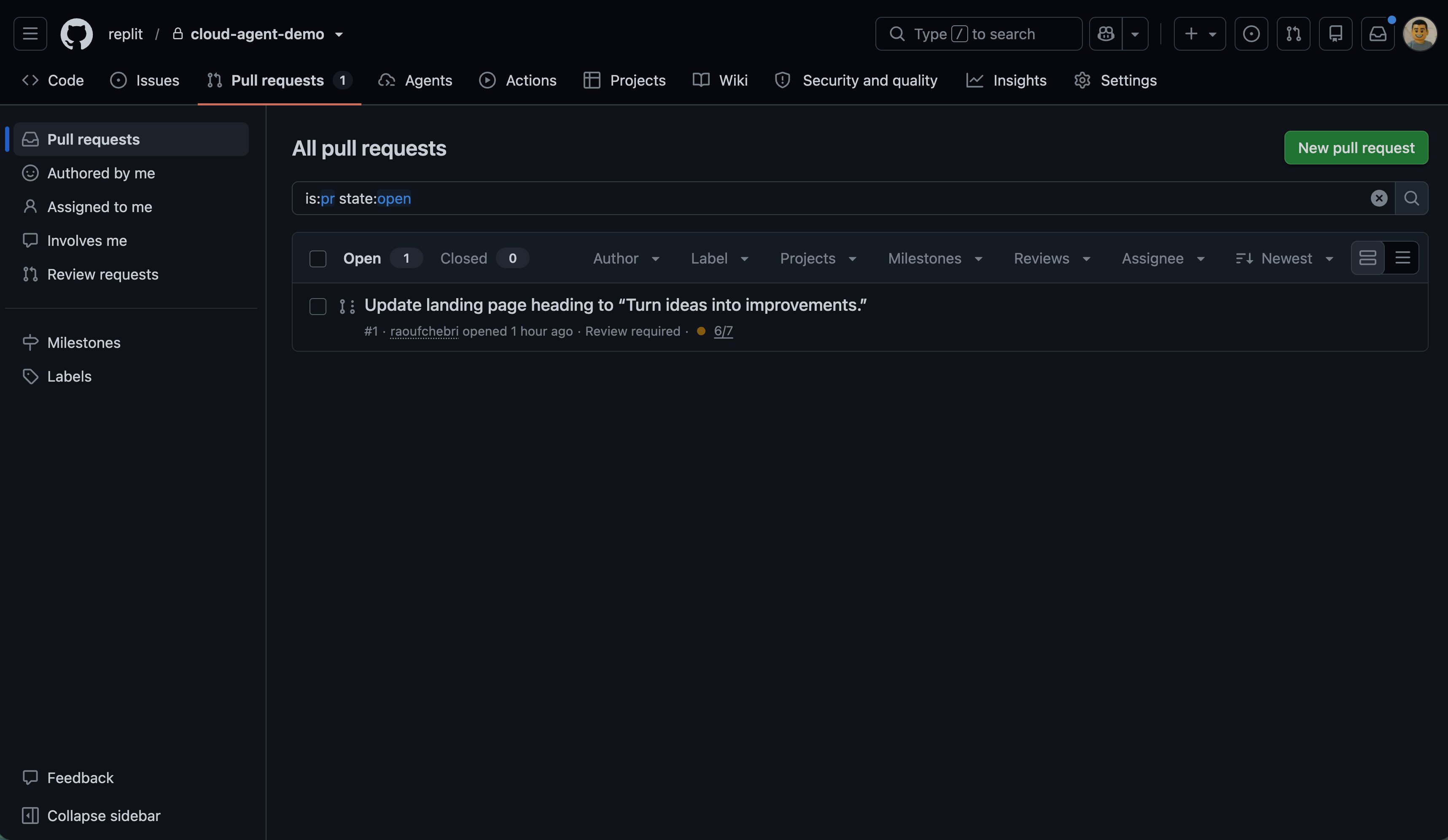
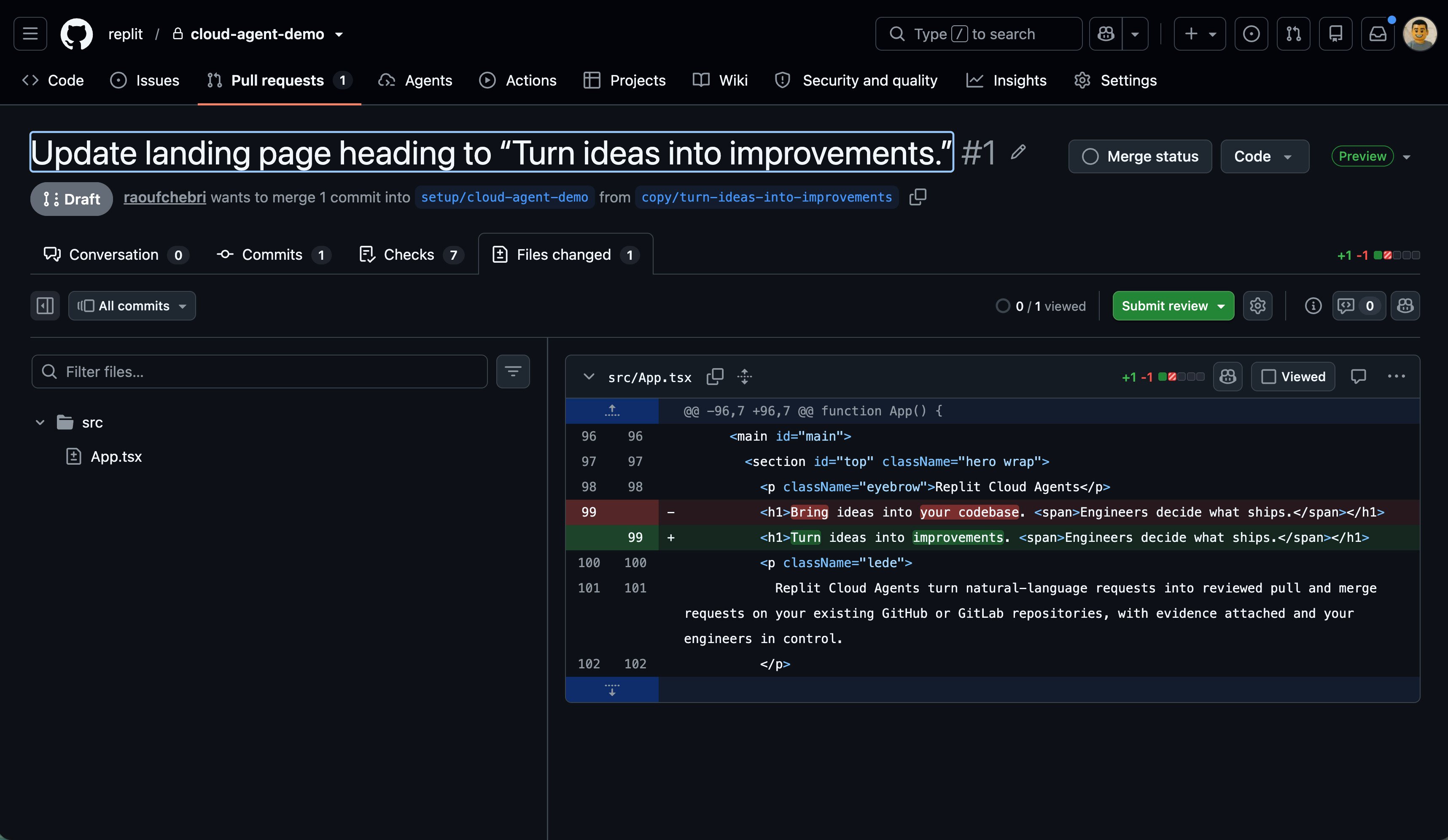
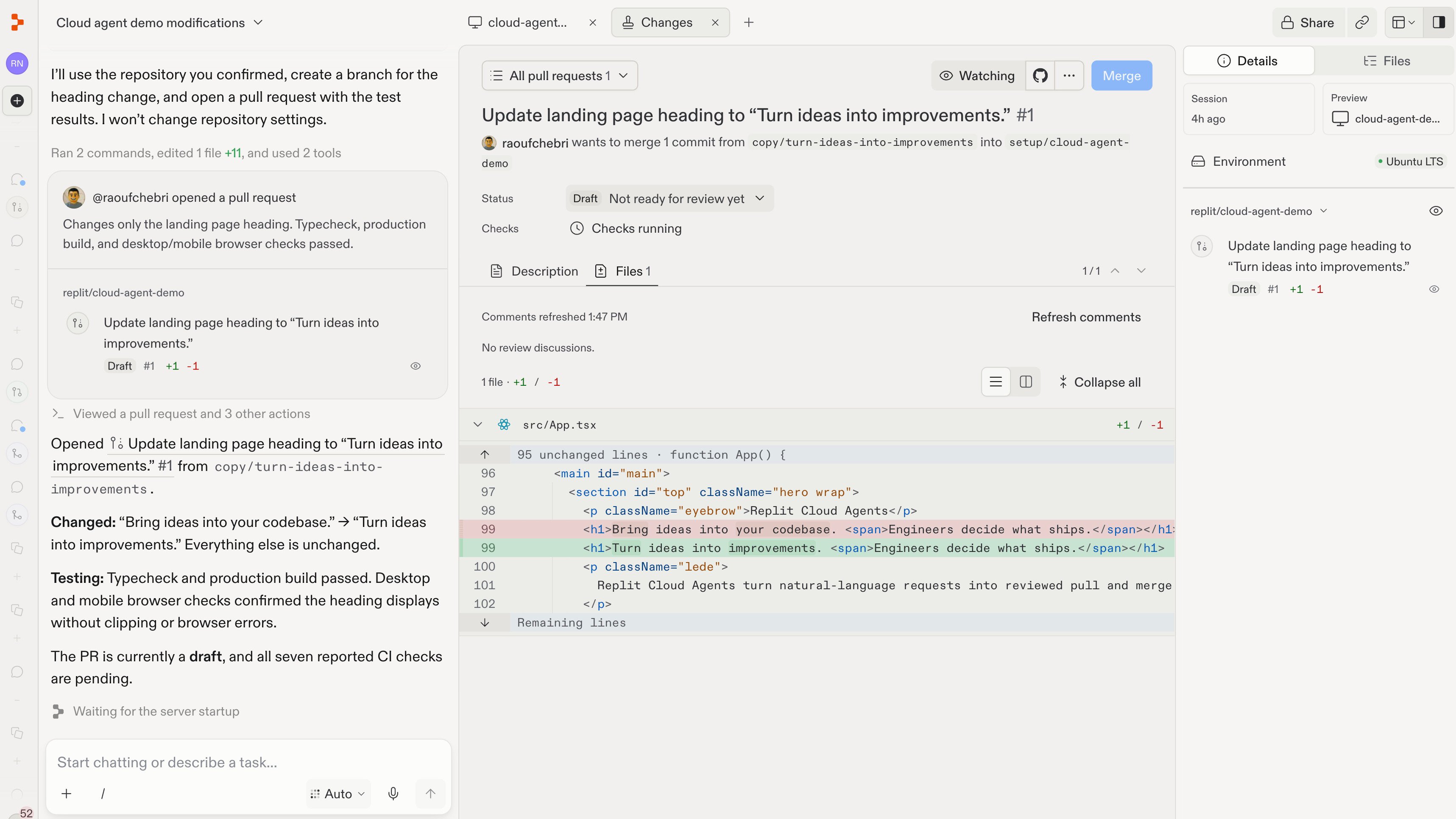
Asking Replit to push the heading change to a new branch and open a pull request.Replit pushes the branch and opens a pull request. In this example, the Changes pane shows the heading update: the removed text in red and its replacement in green.Replit shows the opened pull request and the heading change in the Changes pane.You can also find the request in your repository’s Pull requests tab on GitHub.The heading-change pull request highlighted in GitHub's pull request list.Open it and select Files changed to review the diff. Here, only the heading has changed; the rest of the page stays the same.GitHub's Files changed tab shows the old heading replaced with Turn ideas into improvements.For GitLab, ask for a merge request. Your team can review the changes before merging them. Opening a request does not merge or deploy your changes.The Details sidebar lists pull requests linked to this chat, below the environment. Select a request to return to its changes and review status.The Details sidebar shows the environment and a pull request linked to the current chat.This screenshot shows the same request during a later revision. Next, you’ll learn how to respond to that review feedback.
Next, learn how to respond to review feedback.