

Don’t have a repository to try? You can use the Cloud Agent Demo if you have been granted access. The example repository is currently private, not public.
Run your app
Before starting, connect to your repository if your GitHub or GitLab account is not already connected.1
Ask Replit to run the app
For the demo, copy this prompt:If you have your own repository, paste its link in place of the demo URL.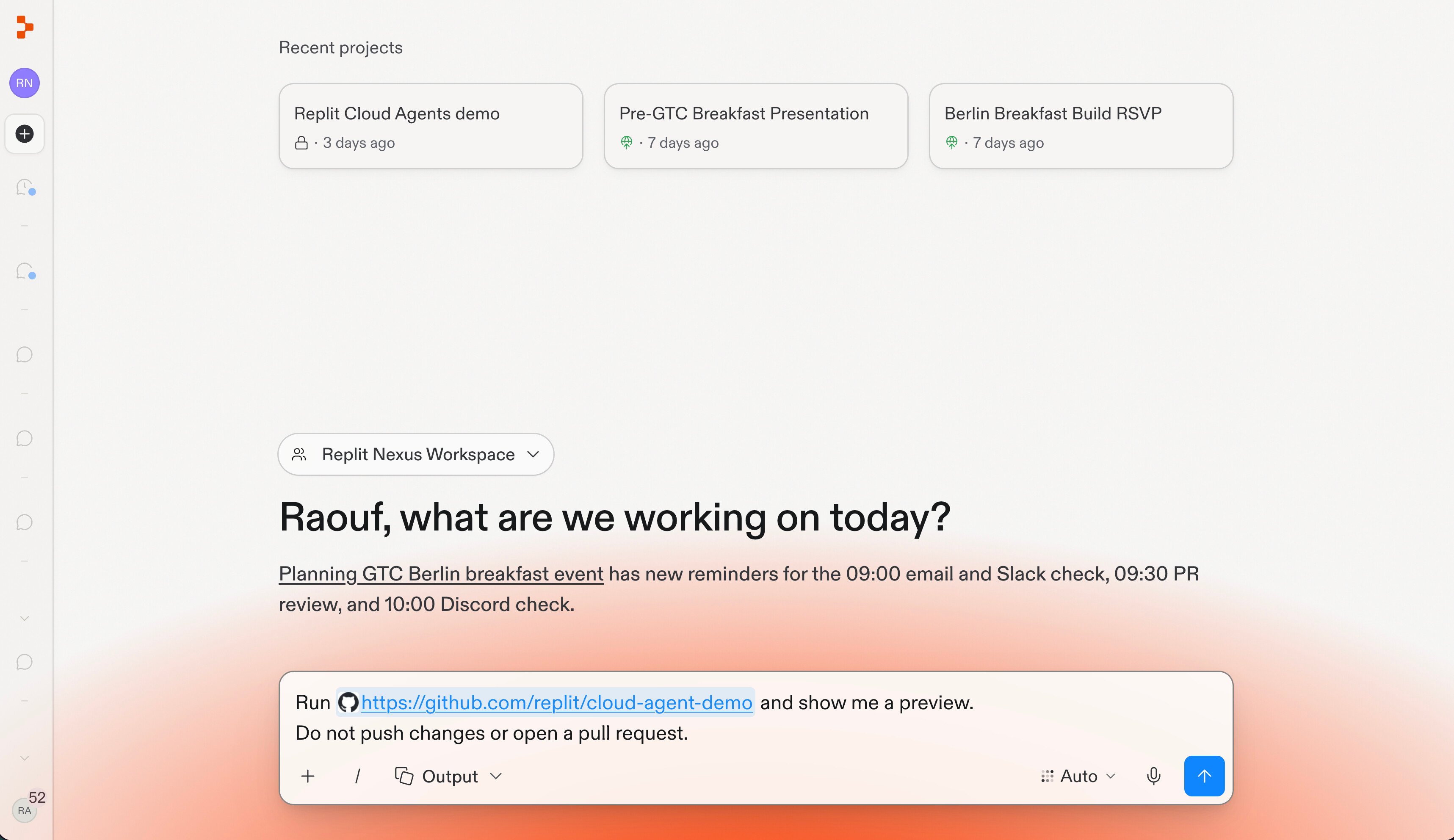
2
Preview and save the environment
Try the running preview. Once the app works, you can optionally save its setup so future chats can start with the repository, runtime, tools, and dependencies prepared.When Replit offers to save it, confirm the repository, branch, and proposed setup with Replit. Review the environment name and description in the form, then select Save environment.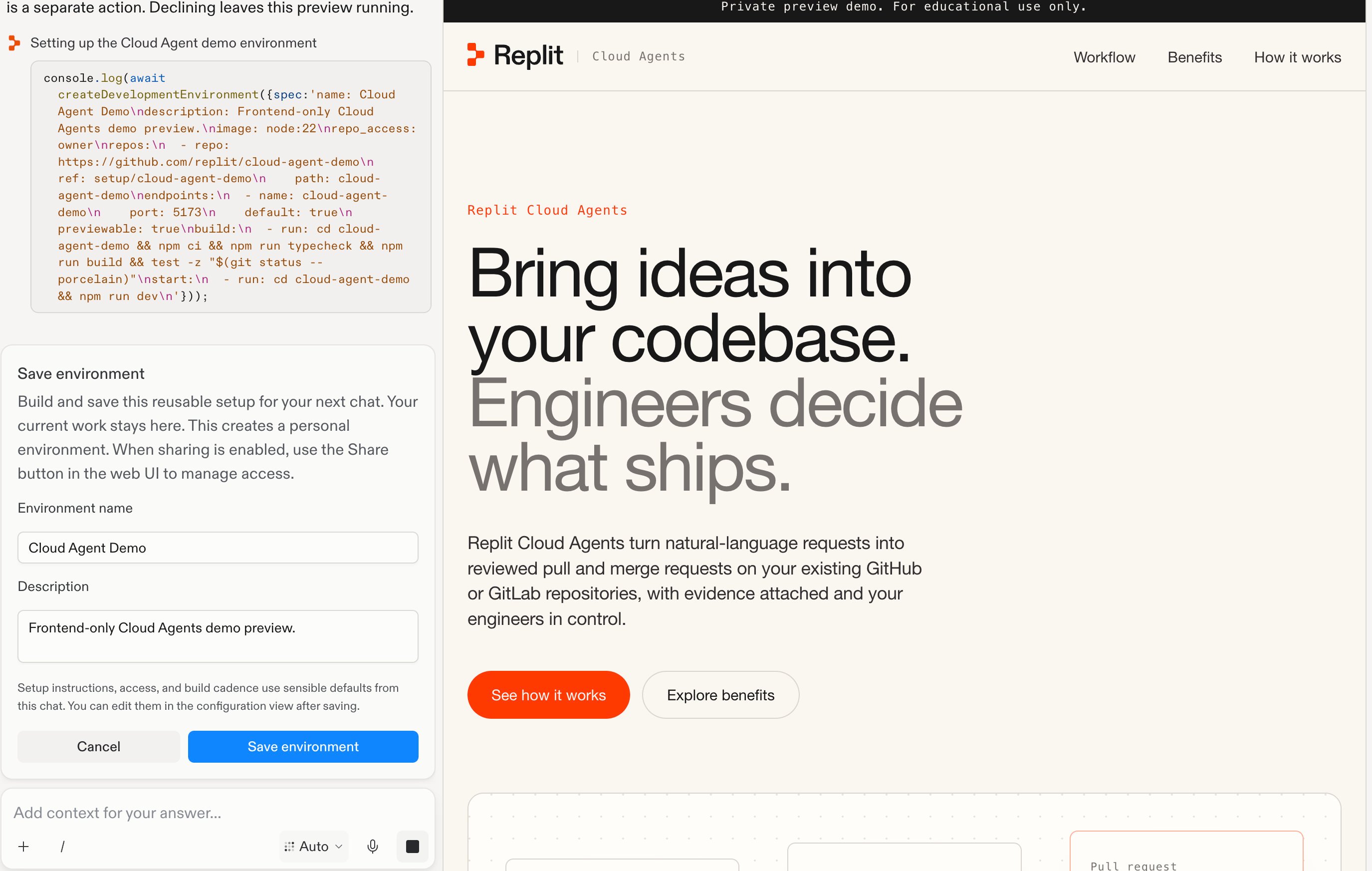
Background builds need workspace repository access, separate from your personal Git connection. An administrator may need to configure it. You can keep using your current preview without saving a reusable environment.
3
Open the preview in a new tab
Select Open in a new tab in the upper-right corner of the preview toolbar. Hover over the button to see its tooltip.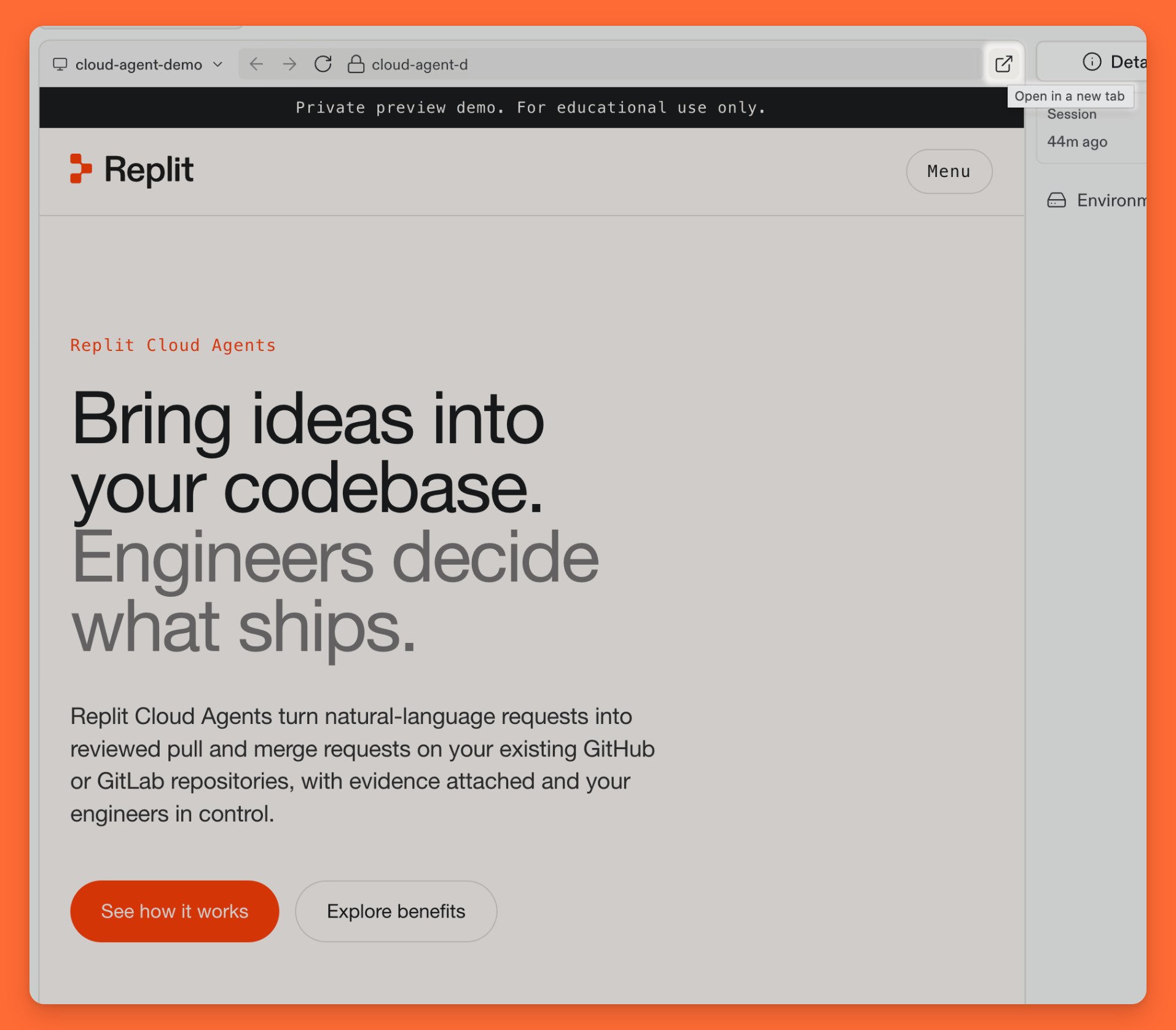
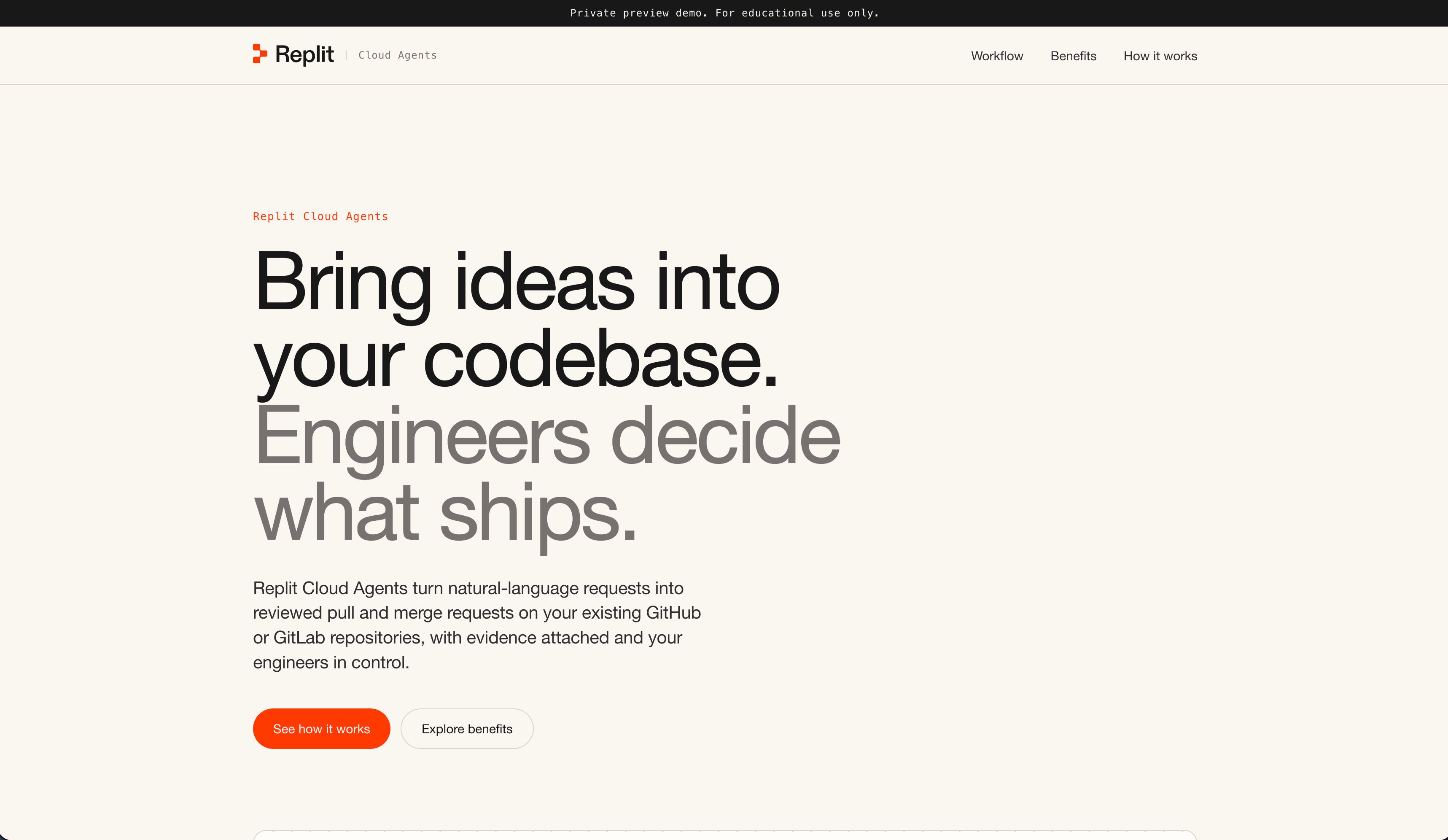
- Try the navigation: Select the links to jump to the page’s sections.
- Explore the content: Find the workflow, benefits, and how-it-works sections.
- Check the layout: Resize the preview to see how the page adapts to a smaller screen.