

1. Prepare your app for review
Work through this checklist before submitting your build. If you change the app, upload a new build and test it again with TestFlight. Keep your published backend available throughout testing and review.This checklist covers common review issues, not every requirement. Review
Apple’s App Review Guidelines
for requirements specific to your app. Completing these checks does not guarantee approval.
Test the finished app on a real device
- Complete the main flow on an iPhone using your TestFlight build, not only a simulator or Expo Go.
- Test sign-up, login, navigation, and any camera, location, notification, or payment features your app uses.
- Check what happens when someone denies a permission or loses their connection.
- Fix crashes, broken links, and buttons that do nothing. Remove placeholder text and unfinished screens from the submitted version.
- Make sure the app provides useful, phone-friendly functionality. Using a native framework alone does not satisfy Apple’s minimum functionality requirements.
Add account deletion if your app supports account creation
Let people initiate account deletion from inside the app. Deactivating an account or only signing out is not a substitute for deletion. Test the deletion flow with a disposable account. Explain what happens to associated data and any information you must retain. See Apple’s account deletion guidance.Moderate content people can share
If your app lets people share photos, comments, or other content, add:- A way to filter objectionable content before it is posted.
- A way to report offensive content, with a process for responding promptly.
- A way to block abusive accounts.
- Published contact information so people can reach you.
Publish your privacy policy and support information
Provide a live privacy policy URL in App Store Connect and an easily accessible link inside your app. Describe the data your app and third-party services collect, how you use it, and your retention and deletion practices. Make sure your support URL works and includes a way to contact you. Add terms of service or license terms where applicable to your app. You can ask Agent to draft these pages, but review them for accuracy before publishing.Review security before sharing the build
Run an Agent security scan, review the findings, and ask Agent to help fix vulnerabilities. Verify the fixes and retest affected flows before distributing an updated build. A security scan is a recommended development check, not an Apple approval or a guarantee that your app is secure.2. Complete the App Store listing
Fill in the listing
In App Store Connect, add screenshots for each supported device size, a description, keywords, and an age rating questionnaire. See generate an app icon and generate App Store screenshots if you need these.Add privacy details
Apple’s App Privacy section asks what data your app collects and how it’s used. This can include account information, location, and photos. Answer accurately so the disclosures match your app. You can ask Agent to help inventory data collection and draft answers. Verify those answers against your app, backend, and third-party services before submitting them. Make sure the disclosures match your published privacy policy.Give the reviewer working access
If your app requires login, provide an active demo account and instructions in App Store Connect’s App Review Information section. Include any setup steps needed to reach the features under review. Test those instructions from a fresh installation. For passwordless login, make sure the reviewer can complete authentication without access to your personal email or phone. Do not add a universal verification code or disable authentication for real accounts. Use a dedicated demo account with non-sensitive sample data. Keep the demo account active until review is complete. See Apple’s App Review information reference.3. Submit for review
With the listing complete, select Add for Review at the top right of the version page.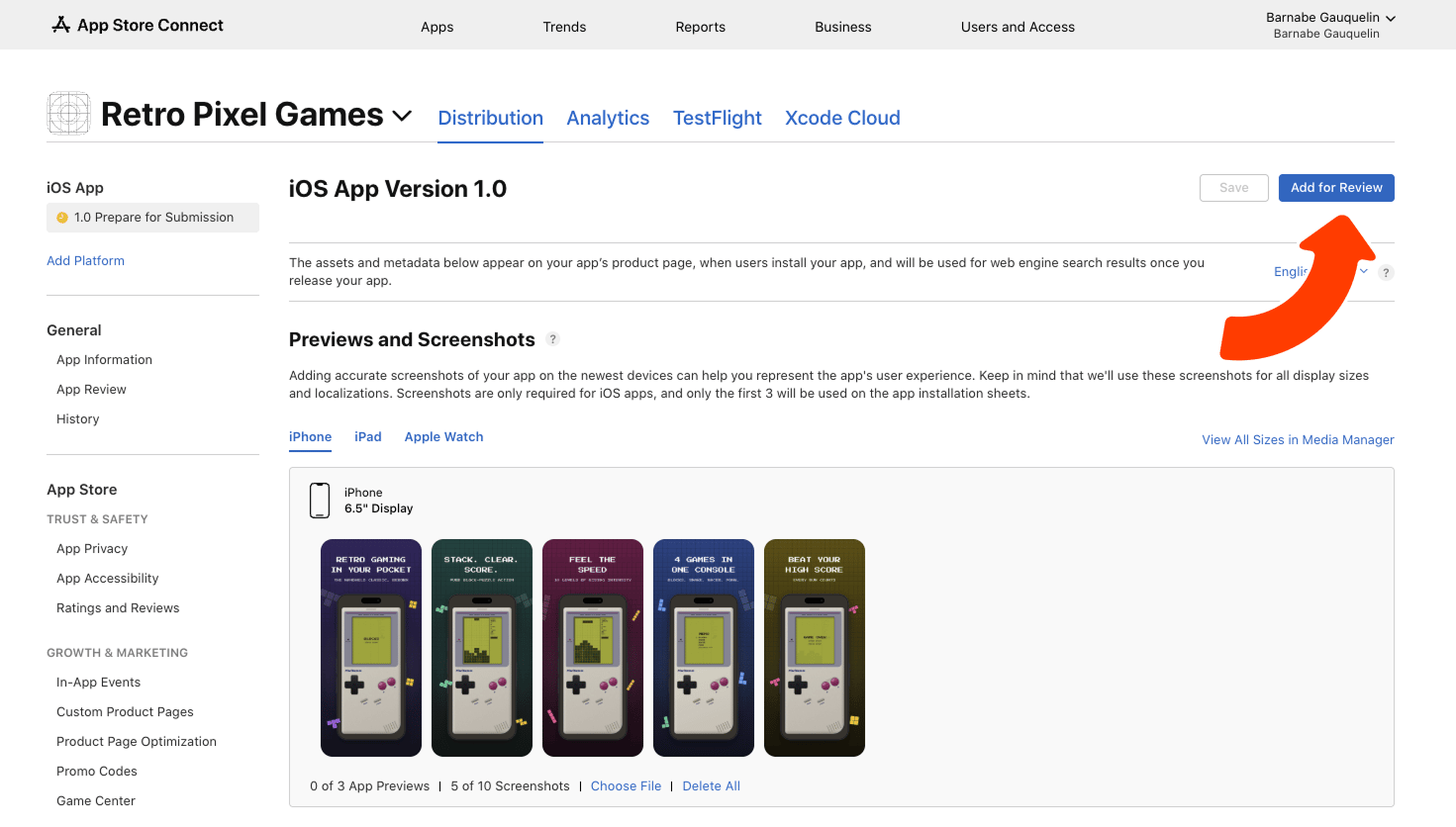
Add for Review on the iOS App Version page, once screenshots and metadata are in.
Troubleshooting
- Rejected by Apple: paste the reviewer’s notes into Agent and ask it to fix the smallest issue that caused it.
- Stuck in review: review times aren’t fixed. Check App Store Connect for the current status rather than resubmitting.
- Privacy details mismatch: if a feature was added after the listing was filled in (a new permission, a new data type collected), update the privacy section before resubmitting.
What’s next
Collect reviews and ratings
Encourage people who enjoy your app to rate it.
Add features and grow your app
Keep improving your app after launch.