

What’s a Routine?
A Routine is a scheduled run attached to a chat. It can use connected tools, create projects or tasks in connected services, and send messages. For example, you could ask Replit to review your Slack each morning and return your priorities for the day.How Routines run
Set work to repeat hourly, daily, or weekly without starting a new request each time. Routines default to deterministic code for predictable tasks and bring in Agent when the work needs reasoning. This reduces token use for repetitive work instead of keeping an Agent running continuously. Routines can work across your Replit Projects and connected tools, such as Slack, Gmail, Calendar, and Linear. Create and manage the schedule in a chat, even when the work involves a Project.You can create multiple Routines in one chat. Routines remain part of
that chat and cannot be created inside a Project.
What you can do
Use a Routine for recurring work that Replit can complete in a chat. For example, you can:- Gather information from connected tools and summarize what changed.
- Create projects or tasks in connected services.
- Send a message through a connected tool.
Example requests
Describe the information to use, the schedule, and the result you want. For example:- Morning priorities: “Every weekday at 8 AM, review actionable messages in my Gmail and summarize my to-do list in this chat.”
- Calendar preparation: “Every morning at 9 AM, summarize today’s calendar and send it to me on Slack.”
- Customer feedback: “Every six hours, summarize new feedback in the Slack channels I choose. Group it into bugs, feature requests, and questions.”
- Competitive research: “Every Monday morning, summarize industry news about my competitors and include links to the sources.”
Permissions and results
A Routine remains personal to you. It inherits the chat’s permissions and access to connected tools. Each run returns its results to the chat. If Replit needs help or a run fails, it asks for your attention there. If other work is running when a Routine is due, the Routine waits. Replit does not add another pending run for the same Routine.Availability and limits
Routines are available on Core, Pro, and Enterprise plans. They are not available on Starter.- Routines can run at intervals of one hour or more.
- Core plans can have up to five active Routines per user. Pro plans can have up to 10.
- Routines run in Power or Max Mode. They do not run in Free Mode.
Control spending
On Core and Pro, set a per-run budget for each Routine. This applies to each scheduled run, not the Routine’s total lifetime spending. Choose a schedule and budget that match how often you need the result. Replit checks the budget after each step. If a step is already in progress, such as an API call, Replit finishes it before stopping. A run can therefore go slightly over its budget. Enterprise Routines do not have a per-run budget.Create a Routine
Before you start, make sure the mode below the prompt box is set to Power or Max. Routines cannot be created or run in Free Mode.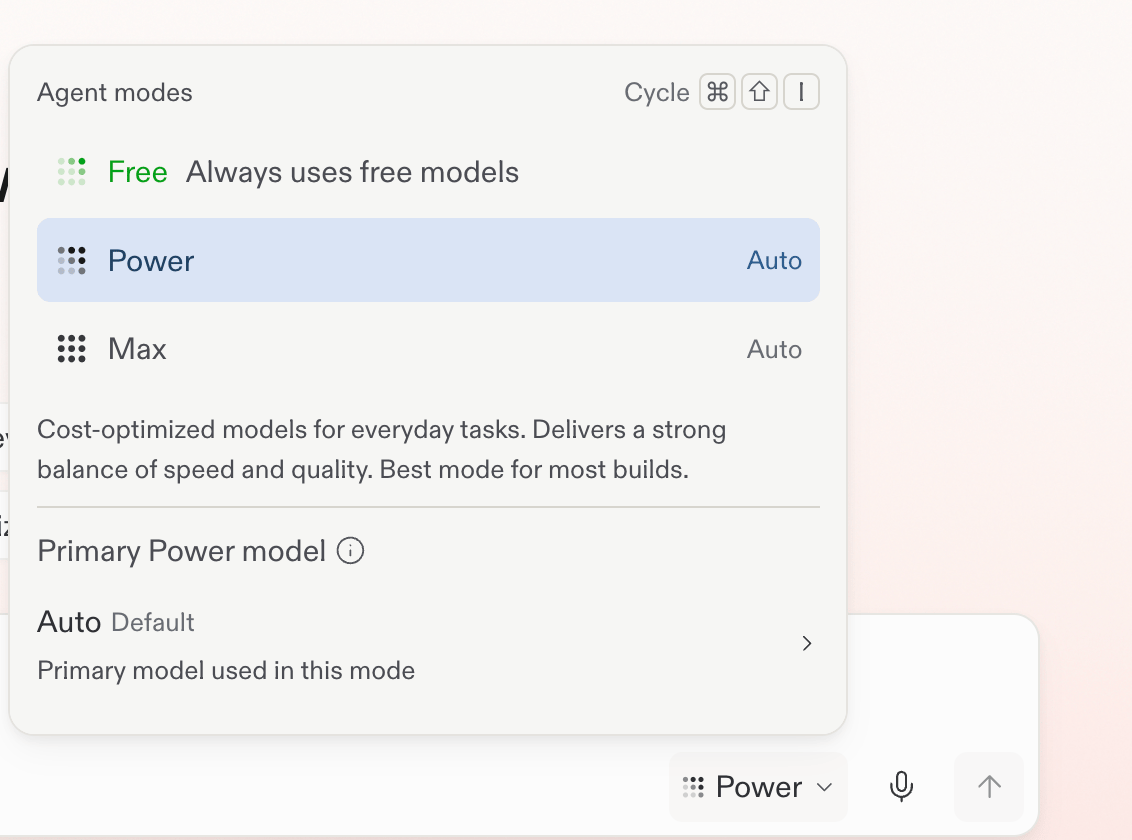
Select Power or Max before creating a Routine.
1
Write the recurring request
Ask Replit to monitor the information that matters to you. For example:
2
Clarify the schedule and focus
Answer Replit’s follow-up questions about when the Routine should run and
what it should monitor. For example, choose Monday morning and ask it to
watch the chosen neighborhood, comparable cafés, and local events.
Specify a time and whether it should run every day or only on weekdays.
Replit uses your device’s time zone when you confirm the schedule.
3
Review and create the Routine
Review the proposed instructions, schedule, and, on Core and Pro, per-run budget. Adjust them
if needed, then select Create routine.For budget behavior and the Enterprise exception, see Control spending.
4
Review the result and refine your plan
Replit confirms the Routine’s details.
Each later result returns to this chat, where you can decide what to
change next.
Find and manage Routines
Follow Schedule a routine for a complete calendar-to-Slack example.1
Open Routines
Select Routines in the Replit sidebar.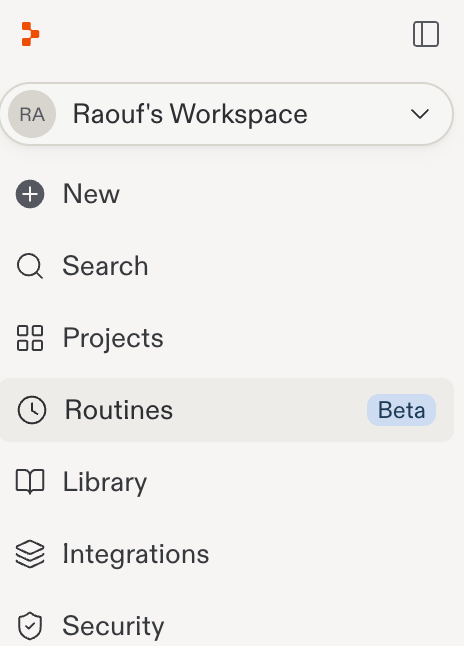
2
View your Routines
Review your scheduled Routines, their schedules, active status, and run
history.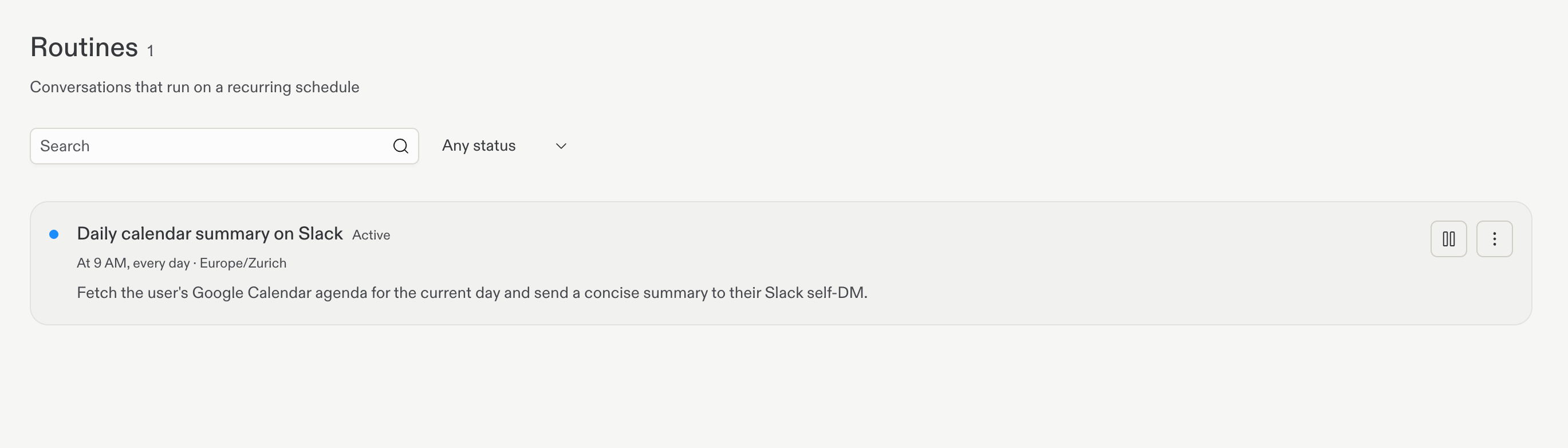
3
Manage a Routine
Open a Routine’s action menu to run it now or delete it.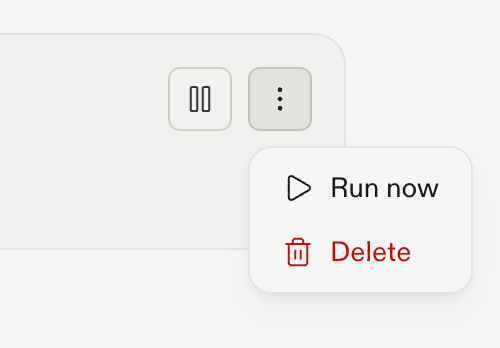
When a Routine needs attention
Return to the Routine’s Conversation to review the result or any request for help.- A connected tool is unavailable: Check the connection and its access to the information the Routine needs.
- A run reaches its budget: On Core and Pro, increase the per-run budget or narrow the task before running it again.
- A scheduled run is waiting: Other work may still be running in the Conversation. The Routine waits rather than adding duplicate pending runs.
- The result needs adjustment: Clarify the sources, scope, and expected output in the Conversation.
Next steps
Schedule a routine
Follow the quickstart to create and schedule recurring work.
Open the quickstart →
How Routines run
Scheduled Routines run in Power or Max Mode, not Free Mode.
Learn about Agent Modes →