

What is Plan Mode?
Plan Mode lets you brainstorm, ask questions, and plan your work with Agent—without modifying any code. Think of it as a collaborative planning session where you can explore ideas freely. Plan Mode is perfect for:- Brainstorming ideas: Explore different approaches before committing to one
- Breaking down complex projects: Get a structured task list before building
- Learning and understanding: Ask questions about technologies, patterns, or your codebase
- Planning architecture: Design your app’s structure before writing code
In Plan Mode, Agent reads your project and provides guidance, but it won’t make any changes to your files. When you’re ready to implement, switch to Build Mode or approve a plan to start building automatically.
What is Build Mode?
Build Mode is the default mode where Agent writes code, modifies files, and implements features directly in your project. This is where ideas become reality. Use Build Mode when you’re ready to:- Create new features: Let Agent write the code for your next feature
- Set up your app: Install dependencies, configure databases, and connect services
- Fix issues: Let Agent debug and resolve problems in your codebase
- Refactor code: Improve existing code structure and organization
Using both modes together
Plan Mode and Build Mode work best as a sequence. Start by planning to clarify your thinking, then build with a clear direction.1
Start in Plan Mode
While building a Replit App, select the Plan toggle at the bottom right of the chat input. Describe what you want to build. Agent helps you explore requirements and approaches without changing your code. Plan mode isn’t available directly from Conversations.
2
Generate a task list
Ask Agent to create a development plan. It will break down your project into specific, actionable tasks with clear priorities and dependencies.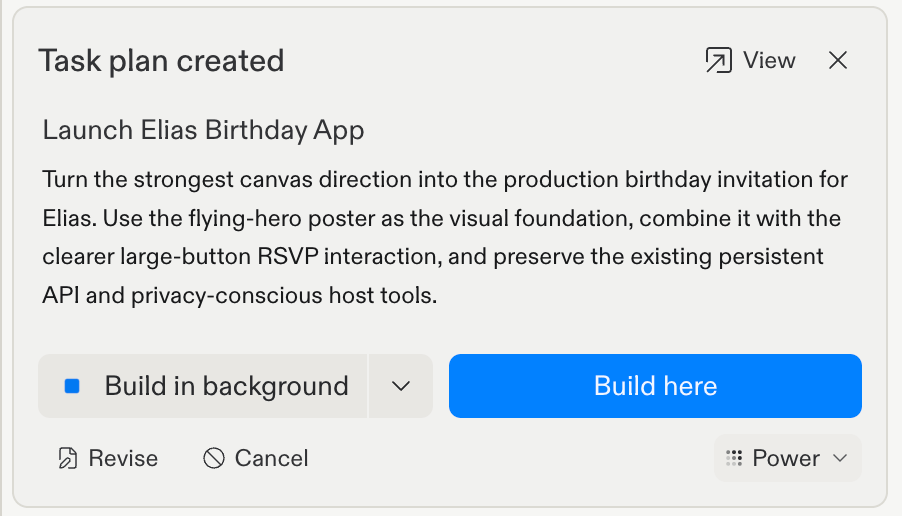
3
Review and refine
Review the proposed plan. Select Revise to refine it with Agent, or Cancel to discard it.
4
Start building
Select Build here to implement the approved plan in the current Agent session. Select Build in background to run it as a separate task.By default, background tasks wait for you to review and apply their changes. You can enable Automatically apply changes in the background build options.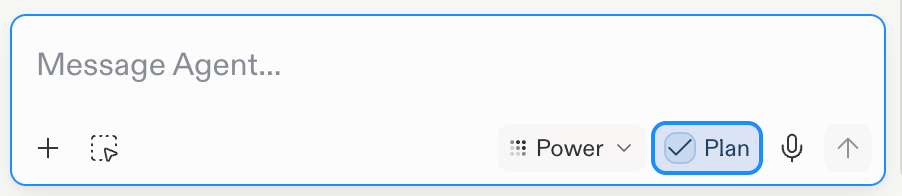
Before your project’s first checkpoint, the approval button is Start building instead of the two build options.
5
Track progress
Monitor Agent’s progress as it works through the task list. Each completed task creates a checkpoint, so you can review changes and roll back if needed.
When to use each mode
Use Plan Mode when
- You’re starting a new project and need direction
- You want to explore different approaches
- The task is complex and needs breaking down
- You want to learn before implementing
- You’re unsure about the best solution
Use Build Mode when
- You know exactly what you want
- You have a clear plan ready to execute
- You’re making quick fixes or small changes
- You’re following an approved task list
- Speed of implementation is the priority
Key differences
Best practices
Getting the most from Plan Mode
- Be specific about requirements: The more detail you provide, the better the plan
- Ask follow-up questions: Clarify suggestions you don’t understand
- Request examples: Ask Agent to show code snippets or patterns
- Discuss trade-offs: Explore pros and cons of different approaches
- Iterate on ideas: Refine the plan until it feels right
Seamless transitions
- Review before building: Always review the task list before approving
- Start small: Begin with a subset of tasks if the full plan feels overwhelming
- Use checkpoints: Agent creates checkpoints as it builds, so you can always roll back
Next steps
Plan Mode
Deep dive into planning features
Agent
Explore all Agent capabilities
Checkpoints
Learn about rollbacks and recovery
Effective Prompting
Write better prompts for Agent