

What is the Project Editor?
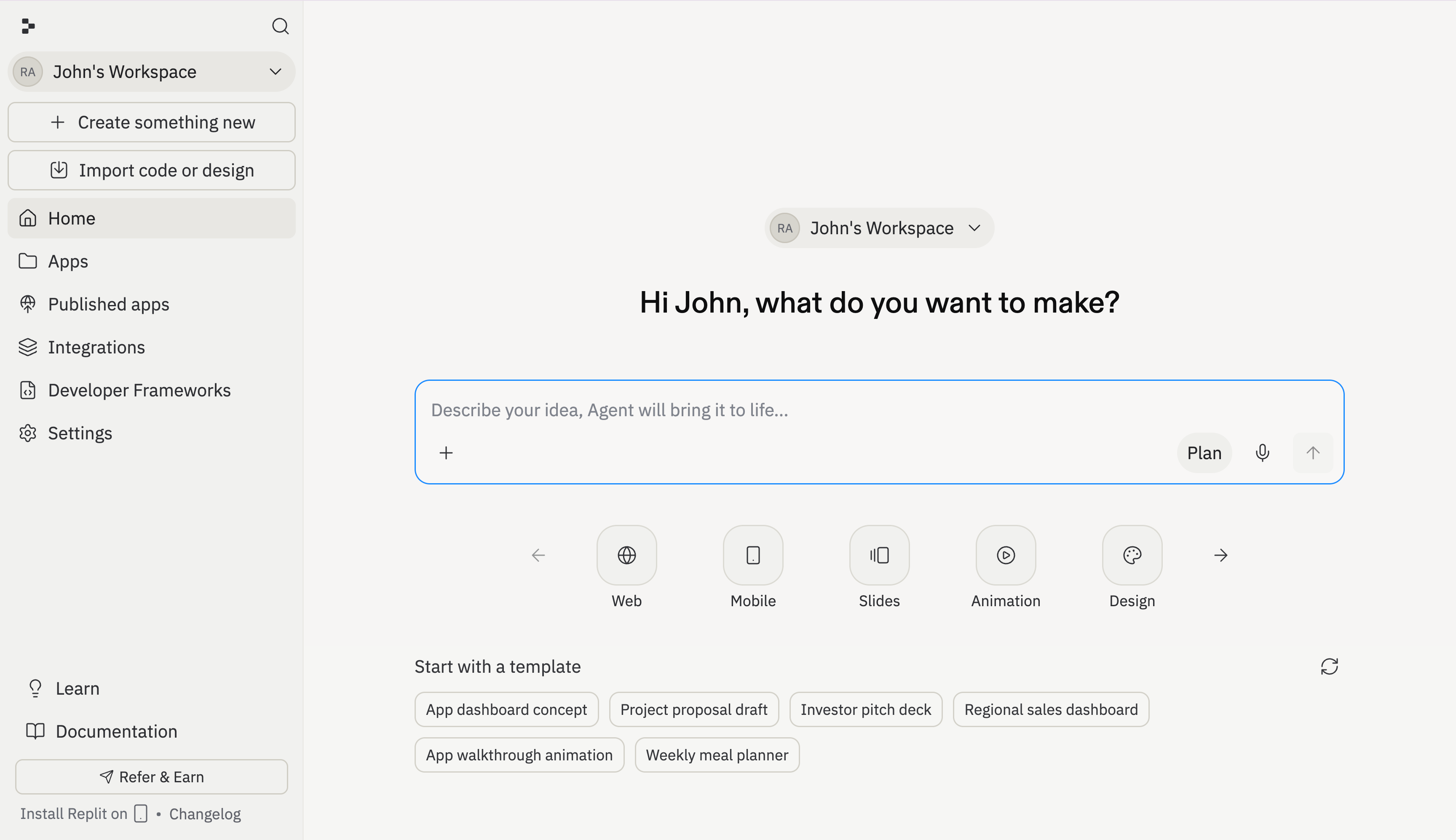
The Project Editor is your home base on Replit: the environment where you start building, manage your projects, and see your apps come to life. From here, you can describe what you want to build, and Replit takes it from there, writing code, setting up your project, and showing you a live preview in real time.Getting started
Type what you want to build into the prompt box. Describe your idea in plain language: “a budget tracker that charts my spending”, “a landing page for my coffee shop”, or “an AI comic book generator for kids”. Replit handles the rest. You can also select a project type from the carousel to tell Replit what kind of output you want: web app, mobile app, slides, design, and more. Or skip the selection entirely and just describe your idea; Replit figures out the right setup automatically. To jump right in, follow Build your first app.Plan before building
Ask Replit to plan in plain language to brainstorm, ask questions, and map out your project. Replit often plans proactively when the work needs it. Ask Replit to wait before implementing, then review and refine the approach./plan is an optional shortcut. Learn more in the planning guide.
What you can build
Select a project type to tell Replit what you want, or just describe your idea and let Replit pick the right setup.- Web apps — Dashboards, internal tools, SaaS products, landing pages
- Mobile apps — iOS and Android apps from a single prompt
- Slides and presentations — Generate decks with rich layouts
- Animations — Interactive walkthroughs and motion graphics
- Designs — Visual mockups and prototypes on the Design Canvas
- Data visualizations — Charts, dashboards, and database-backed tools
- Documents — CSVs, PDFs, PowerPoint files, Markdown docs
- Spreadsheets — Data tables and structured outputs
The Project Editor
Once Replit starts building, the Project Editor is where you see your project take shape. It’s split into panels: your chat with Replit on one side, and a live preview of your app on the other.Threads
Every chat with Replit happens in a thread. Your main thread is where you describe what you want and watch Replit build it. When you use the task system, each background task gets its own thread, so Replit can keep task work isolated without mixing up the chats.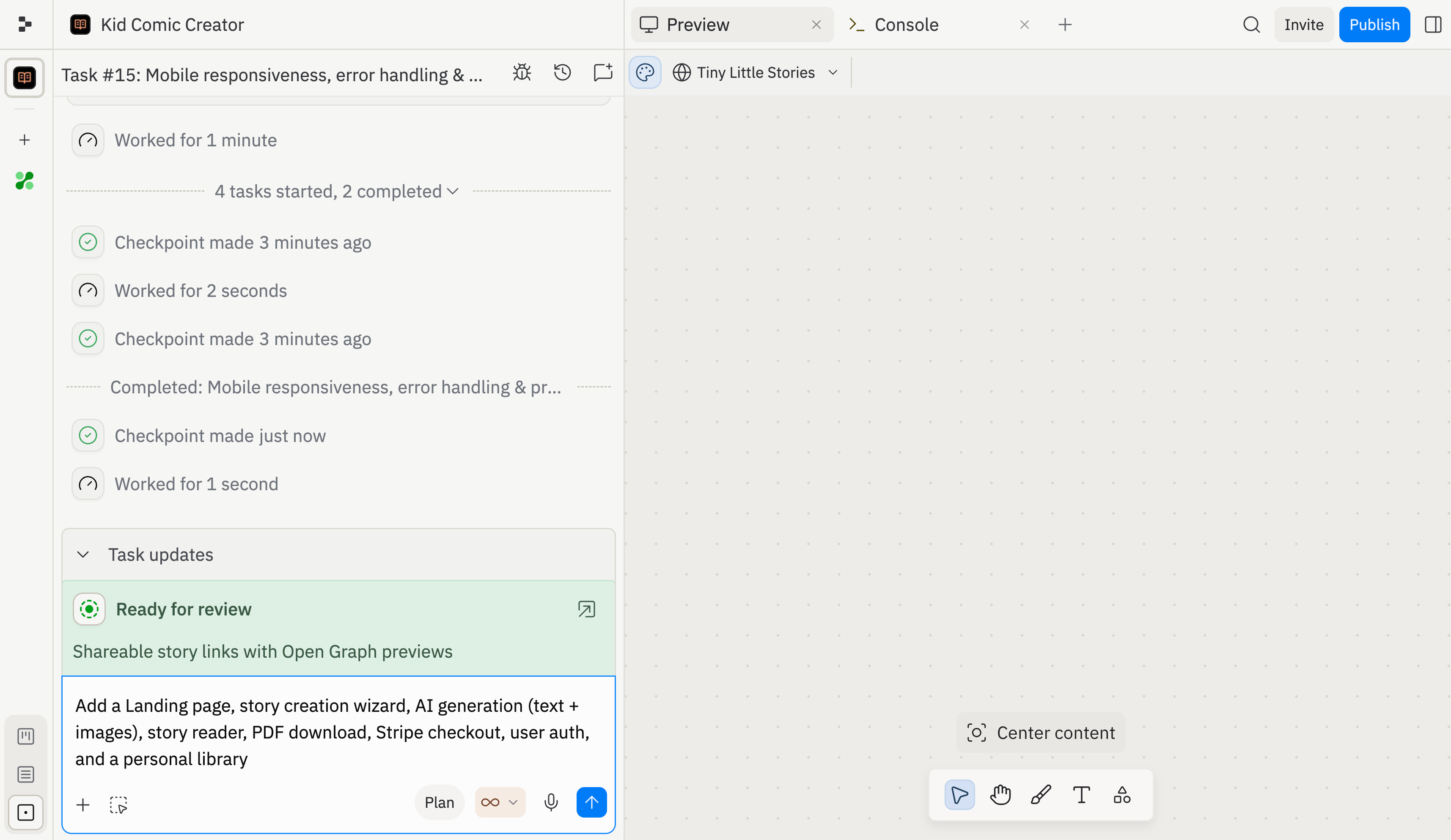
Task board
The task board organizes your work into columns: Drafts, Active, Ready, and Done. Each task moves from left to right as it progresses, so you can see at a glance what’s planned, what Replit is working on, and what’s finished. Learn more in Task system.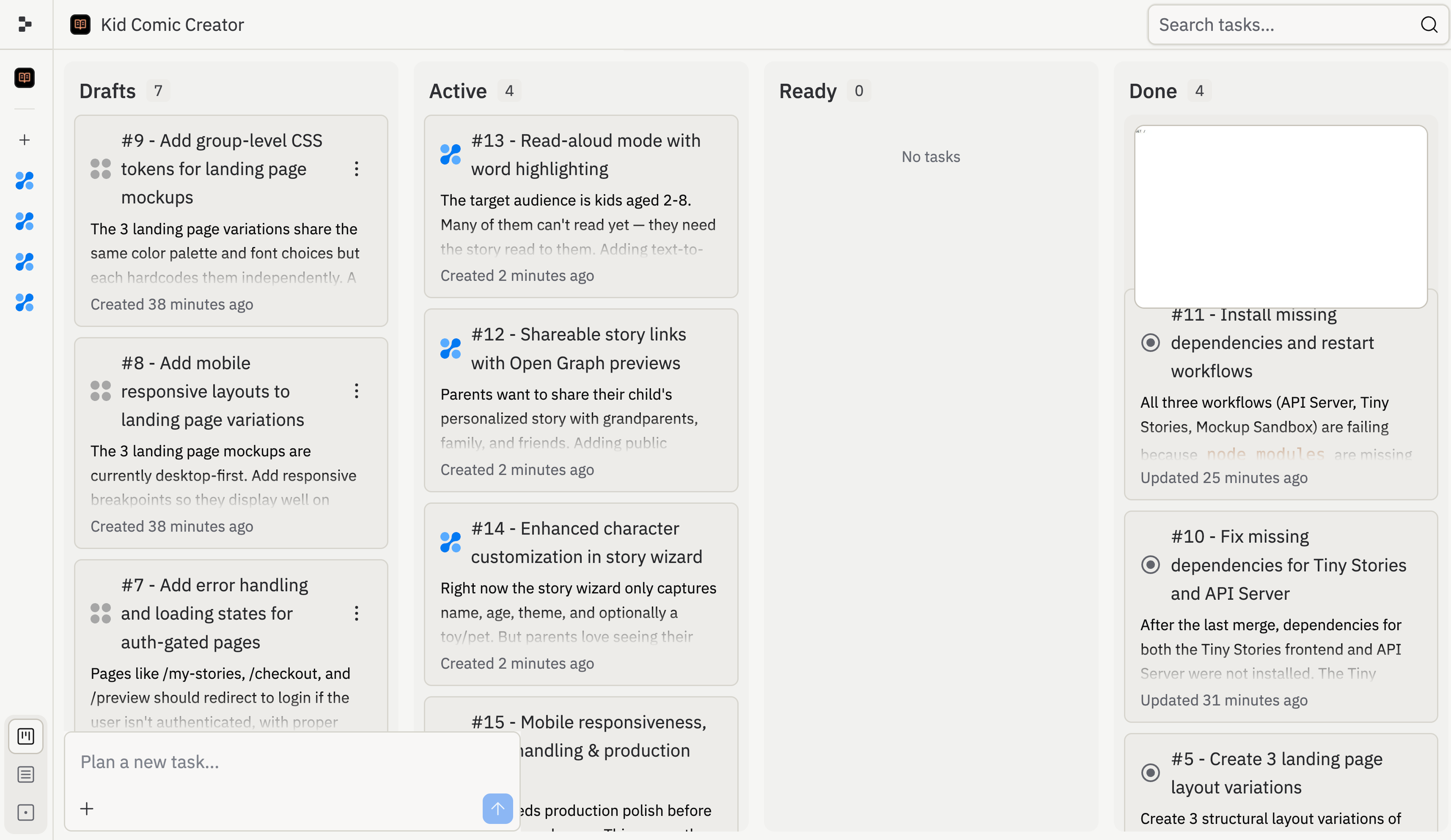
Design Canvas
The Design Canvas is a visual editor where you can create and refine mockups before committing to code. Drag elements, adjust layouts, and iterate on your design, then let Replit turn it into a working app. Learn more in Design Canvas.Collaboration
Create a Team Workspace to build together. Invite teammates, share projects, and work on the same app in real time. See Team workspaces for team setup and Invite teammates for project-level collaboration.Import code and design
Already have a project? Bring it into Replit from GitHub, Figma, or upload files directly. Replit can pick up where you left off and continue building from your existing code or design. See Import to Replit.Next steps
Editor & tools
The main panels where you see your app’s preview, console output, and other
tools
App setup
Configure your app’s settings, dependencies, secrets, and environment
Version control
Track changes, roll back to earlier versions, and manage your app’s history
Publishing
Deploy your app to a live URL so anyone can use it
Frequently asked questions
Do I need to know how to code?
Do I need to know how to code?
No. Describe what you want in plain language and Replit handles the technical
details. You can also make direct edits if you want to.
What happens when I close my browser?
What happens when I close my browser?
Your project is saved in the cloud. Come back any time and pick up right where
you left off: your files, history, and running app are all preserved.
Can I work with other people?
Can I work with other people?
Yes. You can invite collaborators to a specific project or create a Team
Workspace where members access all projects. See Team
workspaces and Invite
teammates.
How do I publish my app?
How do I publish my app?
When your app is ready, publish it to a live URL directly from the Project
Editor. See Deployments.