

Five tips for building with Agent
Use these habits when you work with Agent:- Be specific.
- Plan the work.
- Add context.
- Review and test.
- Use checkpoints.
Be specific
Agent can handle complex work, but it needs clear direction. A useful request explains what you want, what matters, and what should stay the same. It does not need to describe every implementation detail, but it should give Agent enough direction to make good decisions. Instead of: Try: The second prompt gives Agent a goal, a focus area, and constraints. When your request has several parts, say what matters most. Agent can break that work into steps, but your direction tells it what success looks like. For more examples of specific instructions, see Effective prompting.Plan the work
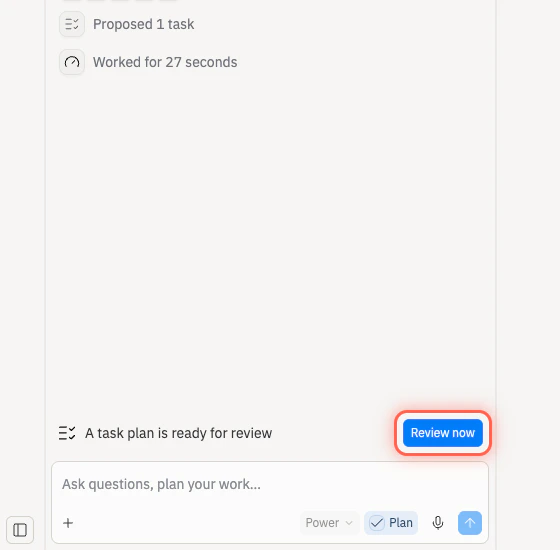
Planning helps when the work has uncertainty, multiple steps, tradeoffs, or anything you want to approve before files change. You can ask Agent to make a plan in the conversation: Use Plan mode when you want Agent to think first and wait for your approval before changing files. Toggle Plan in the prompt composer before submitting.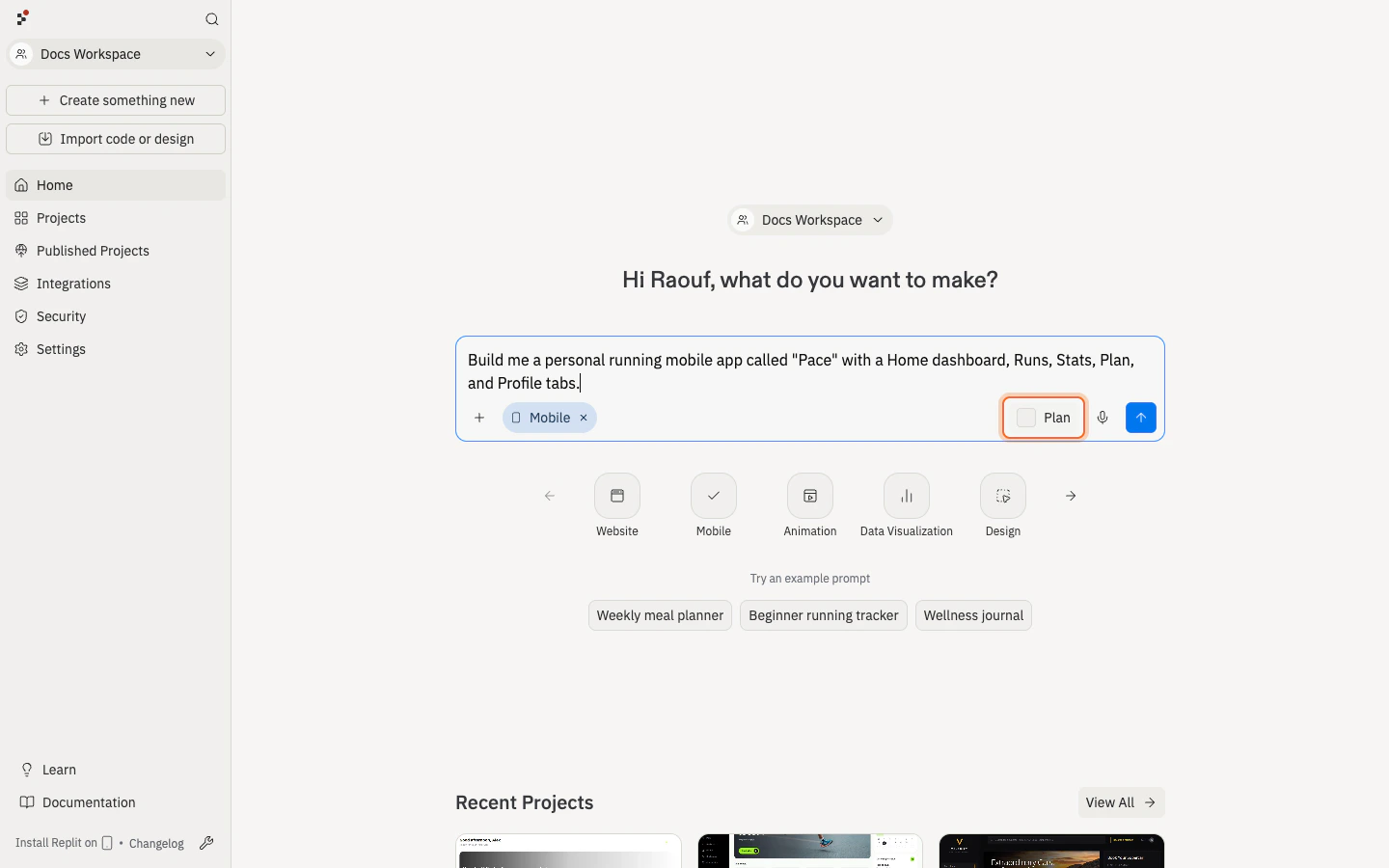
Add context
Context helps Agent understand what matters. You can add context with text, screenshots, sketches, files, data, errors, or Canvas annotations. Use the format that best explains the problem. Use text when the change is about behavior, goals, or constraints: Use screenshots or sketches when layout is hard to describe in words: Use Canvas annotations when the change is visual and you want to point to a specific part of the app.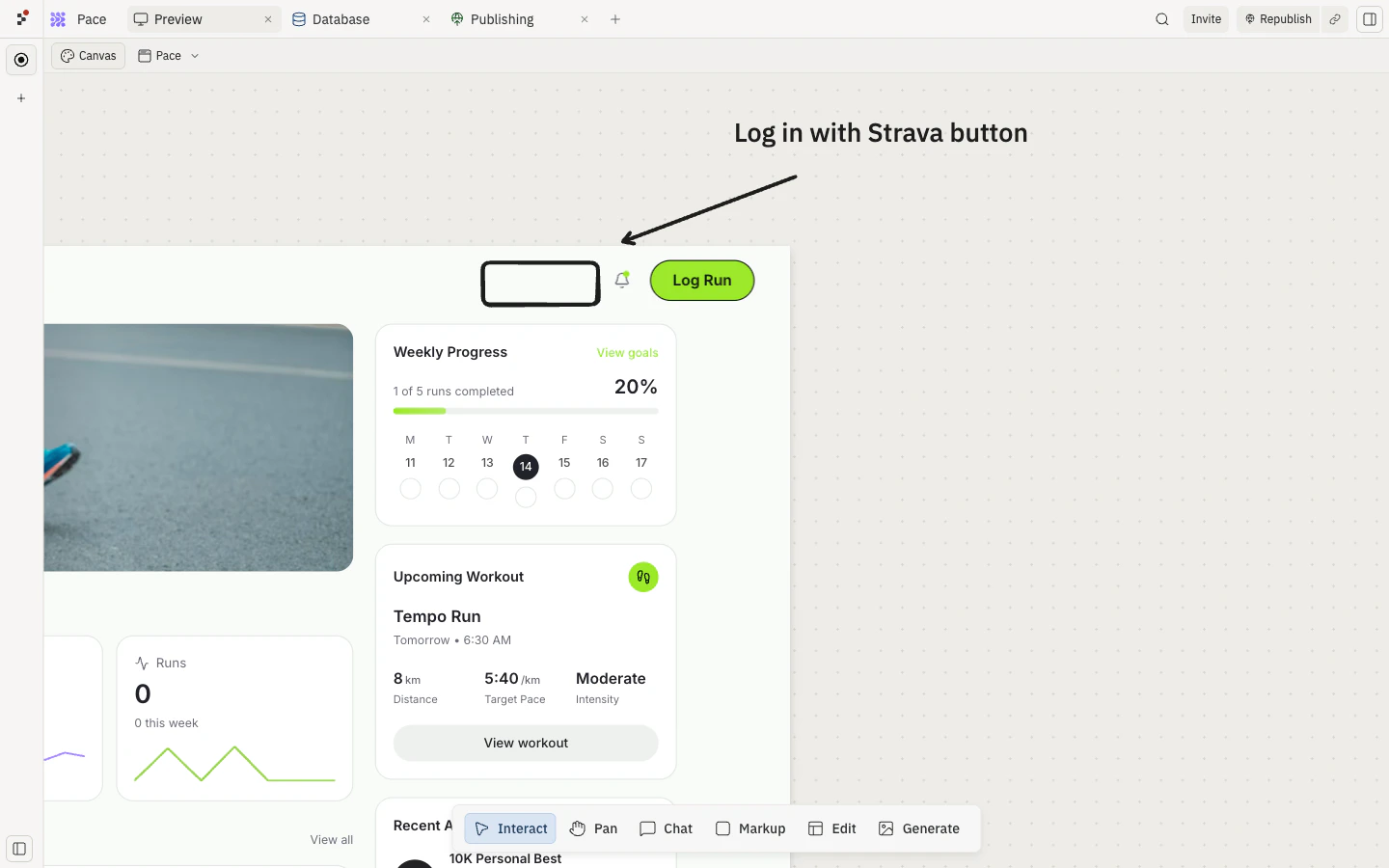
Review and test
Agent may propose a plan before building, and it may summarize what changed afterward. Read both. Open the plan by selecting View on the task plan card. The expanded plan shows what Agent intends to build, the success criteria, what is out of scope, and the steps Agent will follow.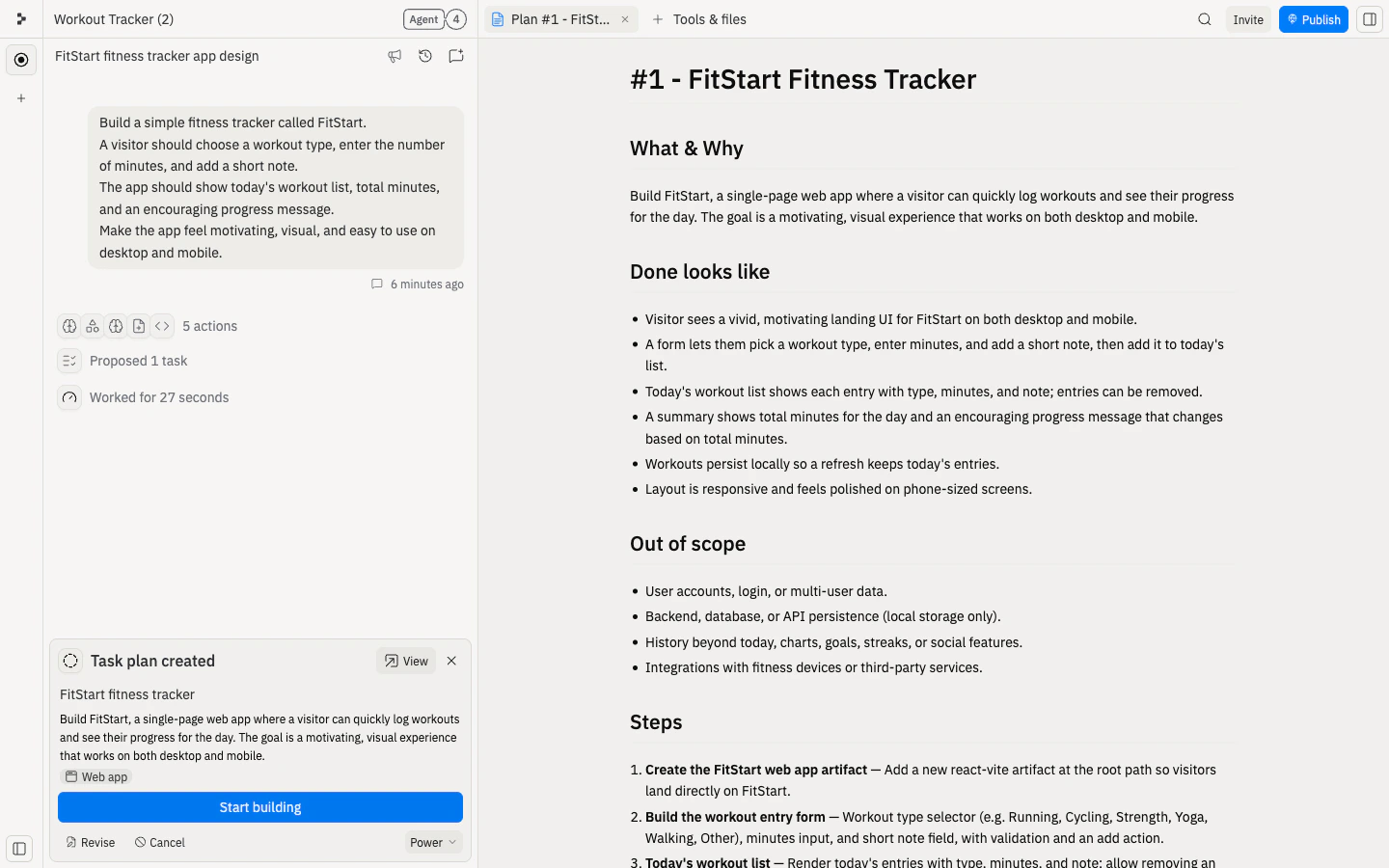
- Does this solve the right problem?
- Is anything missing?
- Is anything out of scope?
- Is there a smaller version to build first?
- Does it explain how you should test the result?
- Can someone complete the main action?
- Did the requested change happen?
- Does the app still work on mobile?
- Did any important behavior break?
- Did Agent change something unrelated?
- Is the result good enough to keep building on?
Use checkpoints
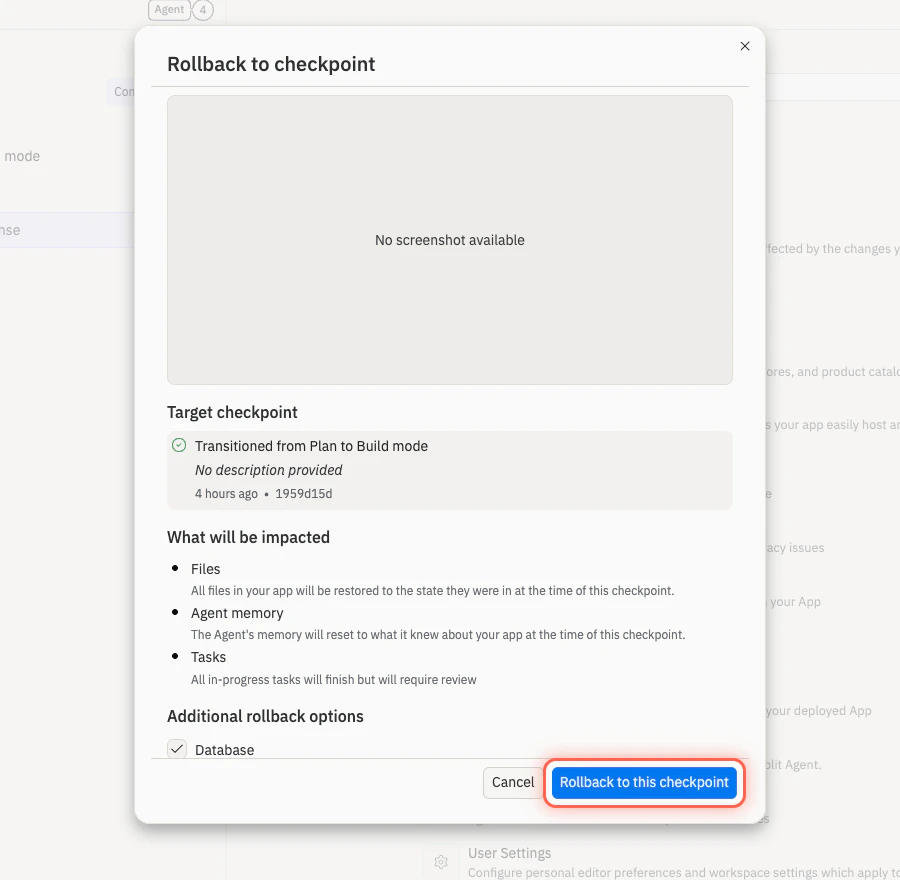
Checkpoints help you recover when a change goes in the wrong direction. Use focused feedback when the result is close: Use a checkpoint when the app is worse than before, important behavior broke, or Agent changed more than expected. Open History in the Agent panel to see checkpoints. Each checkpoint shows what changed, with Rollback here and Changes controls.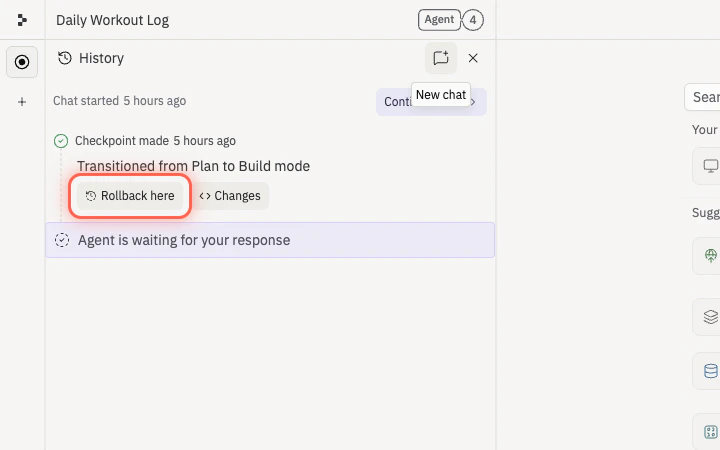
What good Agent collaboration feels like
You are on the right track when:- Your requests explain the goal and constraints
- Agent’s plan is clear enough to review
- You add screenshots, files, or Canvas notes when words are not enough
- You test important flows after changes
- You give focused feedback when something is off
- You use checkpoints instead of trying to untangle a bad change forever
Next step
Learn how to write clearer instructions that Agent can act on confidently.
Build your first app
Practice working with Agent from the first prompt through a focused
refinement.
Checkpoints and rollbacks
Learn how to return to a safer state when needed.