

Overview
Replit Animation lets you create polished motion graphics entirely through conversation with Agent. These are programmatic animations built with React — Remotion is not used; instead, Animated Videos rely on a combination of website animation libraries and custom Agent skills. This is not AI-generated video like Runway or Sora. Your videos can include text overlays, smooth transitions, AI-generated images, and more. Videos auto-play in a loop in the Preview pane, and you can iterate on them by chatting with Agent, just like building any other app. Available to all builders, including the free tier.Creating an animated video
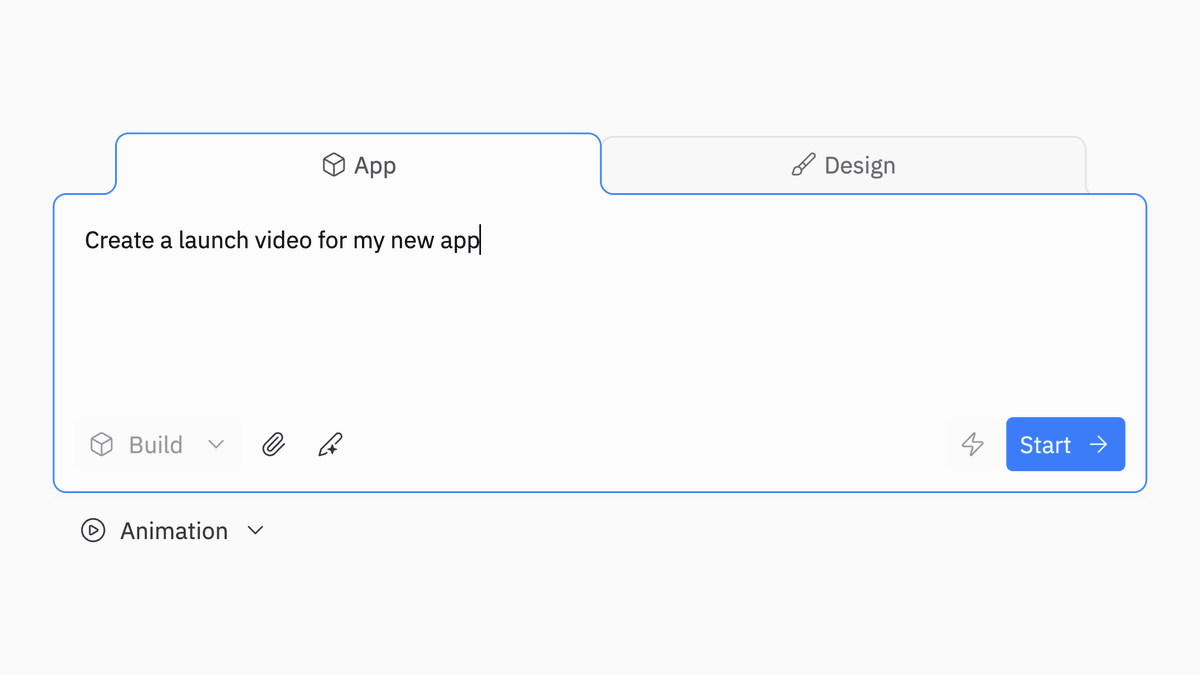
You can start creating an animated video in two ways from the Replit homepage:Option 1: Type a prompt
Select the App tab on the homepage and type a prompt that describes the video you want. Agent will automatically detect video-related prompts and select the Animated Video stack. Example prompts:- “Make a promo video for my new sparkling water brand”
- “Create a 30-second explainer video for how large language models work”
- “Make a cinematic promotional video for the city of Austin, Texas”
Option 2: Select from the dropdown
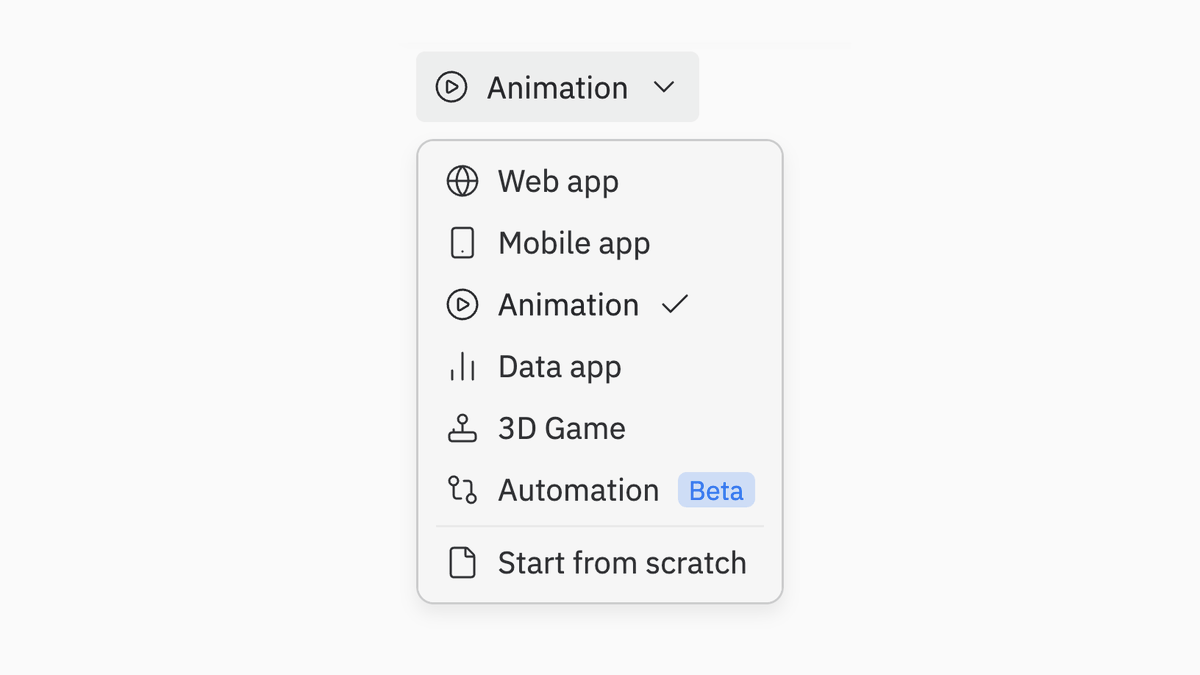
- Go to the App tab on the homepage.
- Open the app type dropdown.
- Select Animation.
- Type a description of the video you want to create.
Iterating on your video
After Agent generates the first version, you can refine it through conversation. A few approaches that work well:- Use the Enhance Prompt button in the chat input, which is tuned specifically for video prompts.
- Ask for improvements — saying something like “make it better” or “add more complex animations within the scenes, be more creative” after reviewing the first version tends to produce strong results.
- Be specific about what you want changed — for example, “make the transitions smoother,” “change the color scheme to dark blue and gold,” or “add a logo reveal at the end.”
Exporting your video
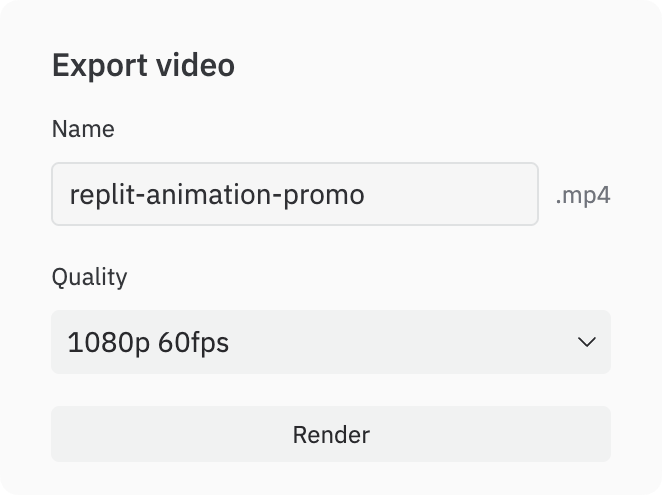
When your video looks good, you can export it as an MP4 file.- Locate the Export button in the top right of the Preview pane.
- Select your preferred quality settings:
- Resolution: 720p or 1080p
- Frame rate: 30fps or 60fps
- Select Export. Rendering may take a few minutes depending on the complexity of the video.
- Once rendering is complete, the MP4 file downloads automatically.
Use cases
Animated Videos work well for a range of creative and professional needs:- Product launch videos — announce a new app, feature, or product release with a polished promo.
- Brand and cinematic videos — create visually rich videos for companies, cities, universities, or events.
- Explainer videos — break down how a product, feature, or concept works in 30–60 seconds.
- Social media content — make scroll-stopping motion graphics for Twitter/X, LinkedIn, Instagram, or TikTok.
- Landing page videos — add animated hero sections or background videos to your website.
- Fundraising and investor updates — create professional announcement videos for milestones.
Video specifications
Common questions
- Can I pause or play the video? The Preview does not include built-in pause/play controls. Videos always auto-play in a loop. If you want pause/play (or scene selection) in your video, you can ask Agent to add them — though adding these controls can sometimes degrade design quality, so you may prefer to keep the default loop.
- Is there scene selection? There is no built-in scene selector in the preview. You can ask Agent to add scene selection or other controls if you want; the same tradeoff applies as above.
Limitations
Animated Videos is a new feature and has some current limitations to be aware of:- Programmatic animation only: Videos are React-based motion graphics. This is not AI-generated video (like Runway or Sora) — though it can generate videos and use those in the code.
- Rendering time: Complex animations may take several minutes to export. Simpler videos render faster.
- Iteration may be needed: While many prompts produce great results in one shot, you may need to iterate through 2–3 versions to get the exact result you want. Using the Enhance Prompt button for the initial prompt and giving feedback after the first checkpoint helps.
Next steps
- Try example prompts: Start with one of the demo prompts above to see what Animated Videos can do.
- Use Enhance Prompt: The Enhance Prompt button in chat is tuned for video prompts and tends to improve results.
- Publish or download: Export your finished video as MP4, or publish it to share a link.
- Explore other app types: Learn about building apps with Agent or creating visual designs with Canvas.