

Documentation Index
Fetch the complete documentation index at: https://docs.replit.com/llms.txt
Use this file to discover all available pages before exploring further.
Overview
If you see the error message “This app is blocked” when attempting to connect a Google Workspace service (Drive, Docs, Sheets, Calendar, or Gmail) through Connectors, it is typically caused by a misconfiguration of Google’s OAuth settings within your organization’s Google Workspace. This guide walks you through resolving the issue so you can connect Google services to your Replit apps.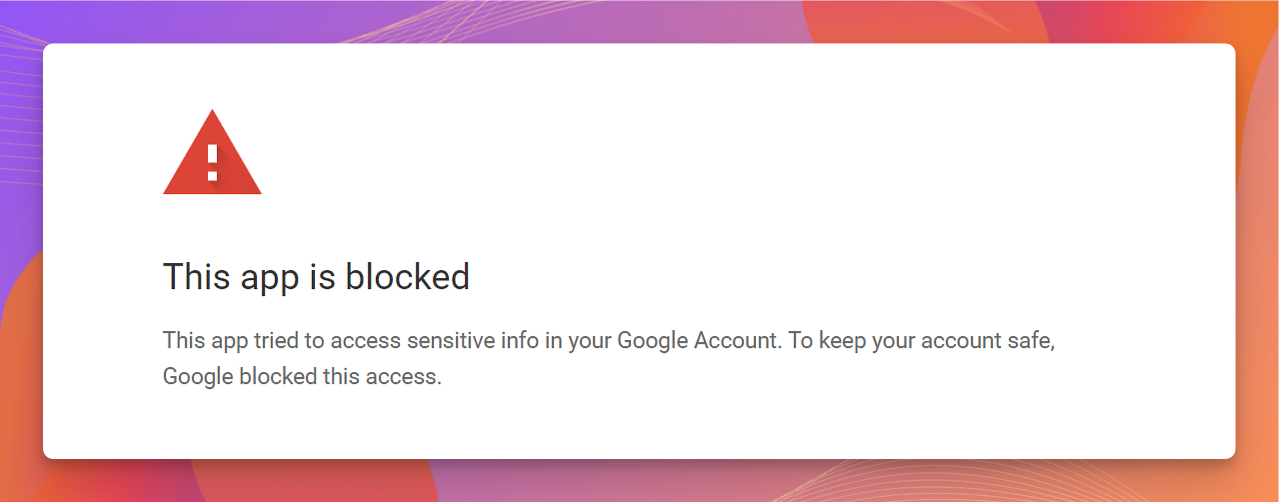
Troubleshooting steps
Step 1: Try Incognito mode
Browser extensions or cached data can interfere with the OAuth flow. Using Incognito mode bypasses these issues.Sign in to Replit
Log in to your Replit account at replit.com.
Step 2: Verify OAuth settings in Google Workspace
You need access to your organization’s Google Admin console for this step. Contact your IT team if you do not have admin access.
Open the Google Admin console
Log in to your organization’s Google Admin console.
Confirm the user exists
Navigate to the Users section and confirm that the account attempting the Replit connection is listed.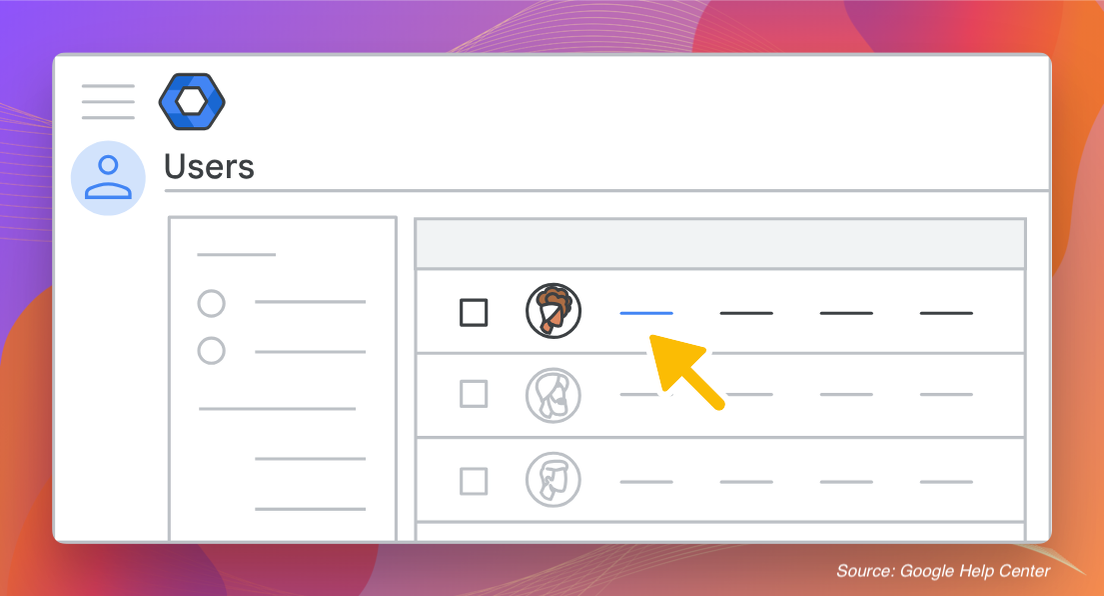
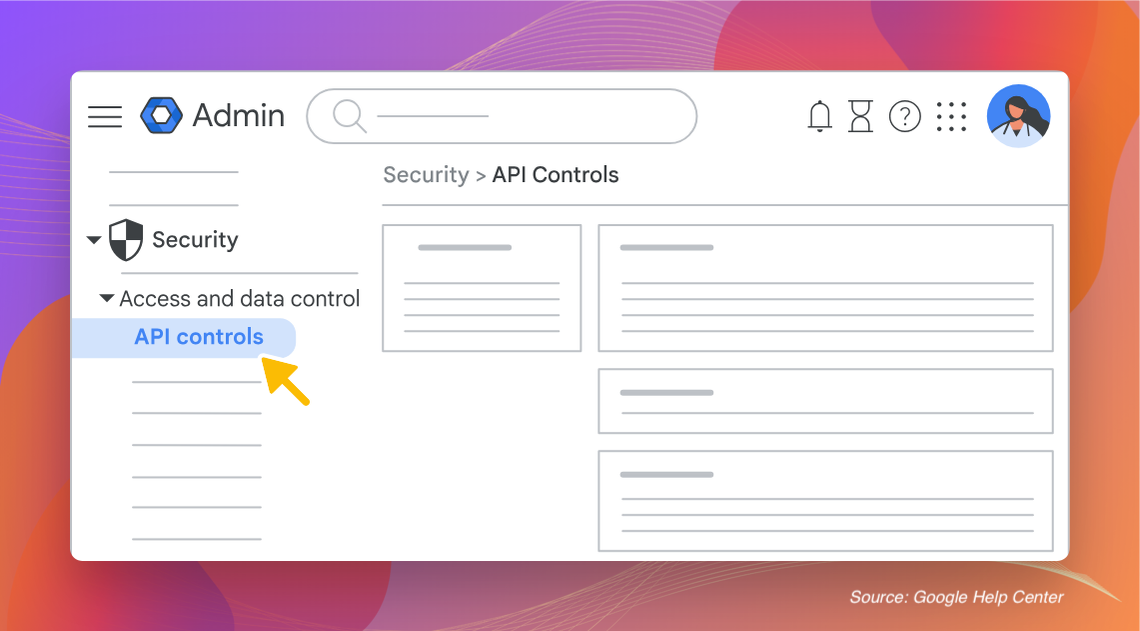
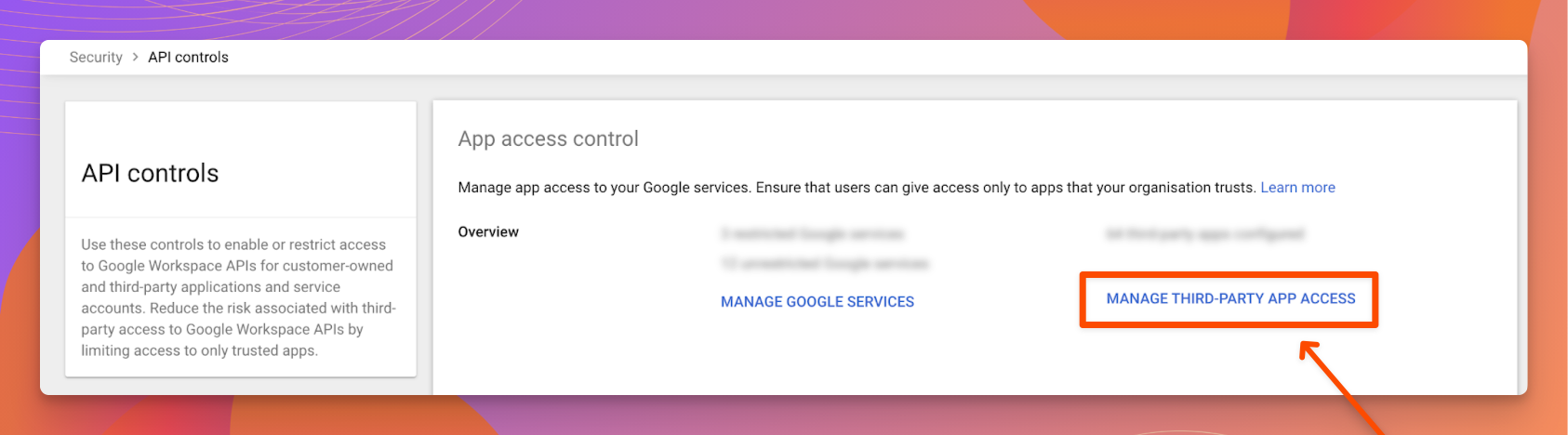
Step 3: Add Replit as a trusted OAuth client
If your organization restricts third-party app access by default, you need to explicitly trust Replit.Open the Google Admin console
Log in to your organization’s Google Admin console.
Search for Replit
Enter the Replit Client ID:Select Search. When the Replit app appears in the results, select it.
Still blocked?
If you have completed all three steps and the error persists:- Double-check the organizational unit (OU): Google Workspace policies can be scoped to specific OUs. Make sure the OAuth and trusted-app settings apply to the OU that contains the user trying to connect.
- Review Google Workspace alerts: In the Admin console, check Reporting > Audit and investigation > OAuth log events for any denied requests related to Replit.
- Contact Replit support: If the issue is not on the Google Workspace side, reach out to Replit support for help.
Related documentation
- Connectors overview — Learn about all integration types, including Google Workspace connectors
- Managing your connectors — Admin setup for Workspace and organization connectors
- Google Workspace Admin Help: Control third-party app access — Google’s official guide to managing OAuth app access
Special thanks to the Element451 team for their original guide on resolving this error, which served as the basis for this article.