In this quickstart, you create a Routine that sends a daily calendar summary to Slack. Read more about Routines.

Create a calendar summary Routine

1

Start a new Conversation

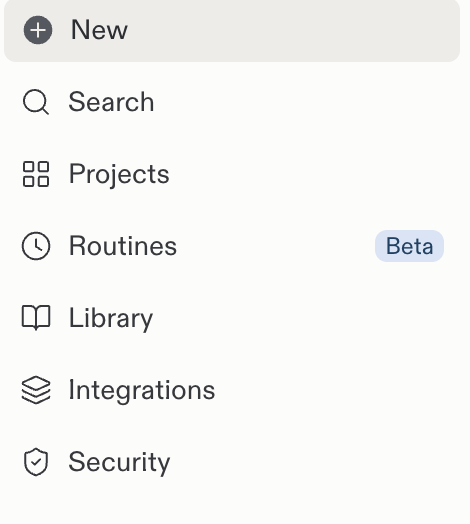
Select New in the Replit sidebar.
Replit sidebar with the New button above Search, Projects, Routines, and other navigation entries
2

Write your request

Enter: “Schedule a routine that sends me my daily calendar summary on Slack.”

Replit prompt box with a request to schedule a daily calendar summary on Slack
3

Clarify the details

Answer Replit’s follow-up questions about the schedule. Specify a delivery time and whether the Routine should run every day or only on weekdays.
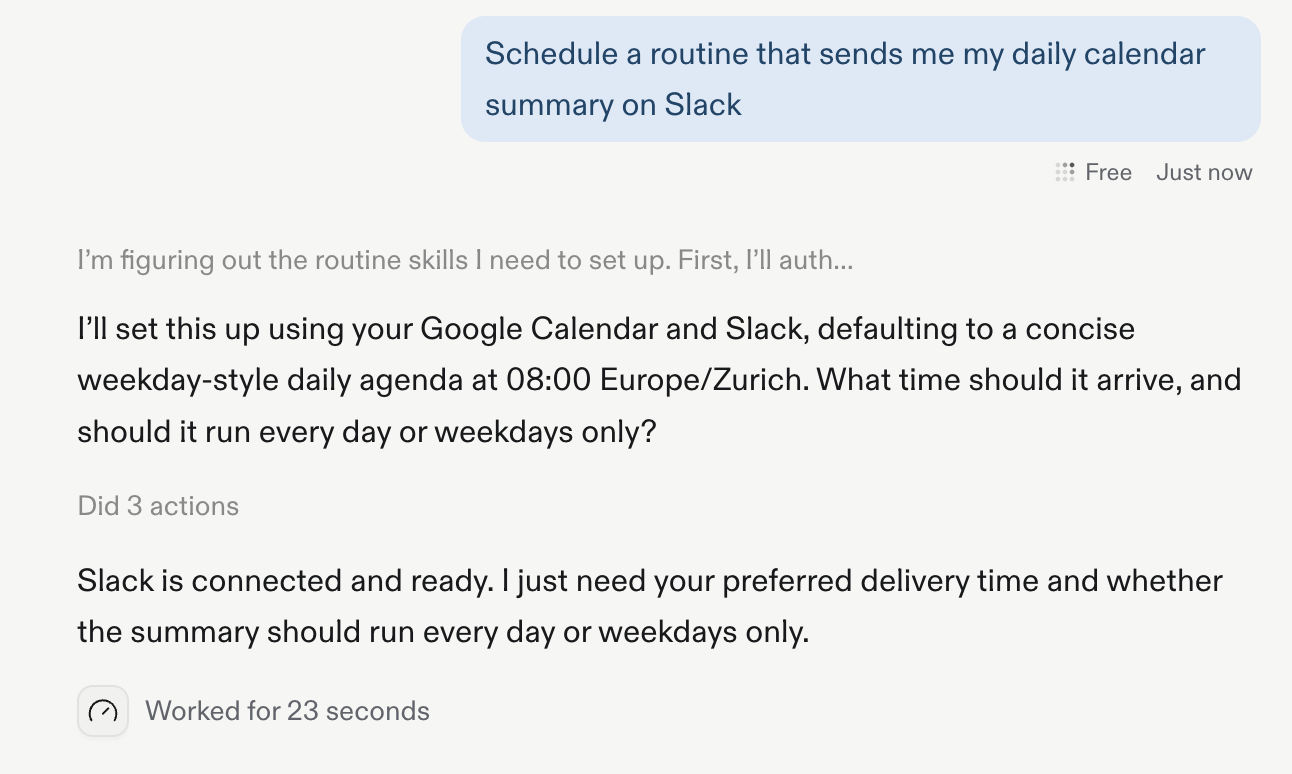
Replit asks what time the calendar summary should arrive and whether the Routine should run every day or on weekdays
4

Review and accept

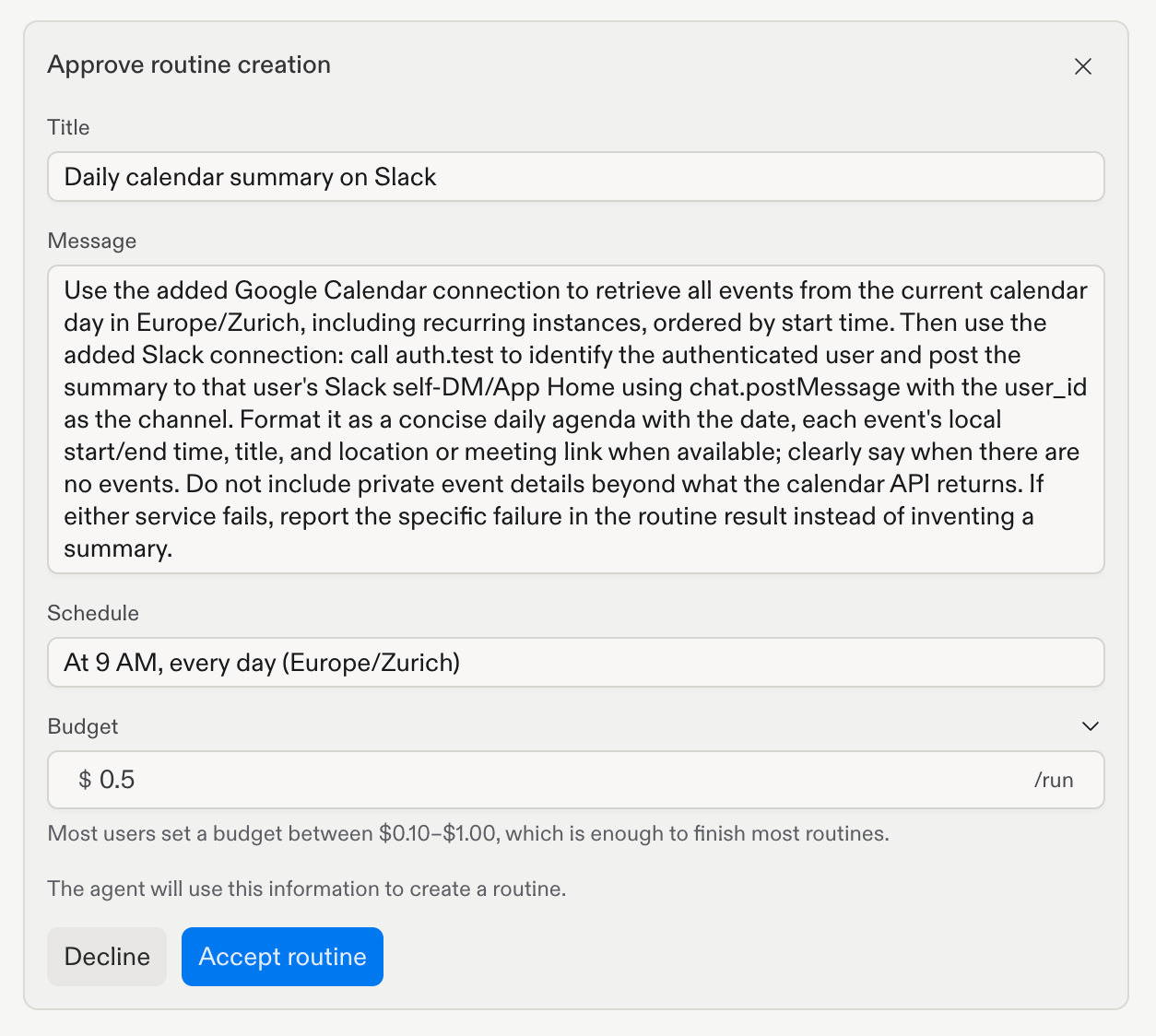
Review the proposed Routine and schedule, then select Accept routine. Replit uses your device’s time zone when you confirm it.To change the per-run budget, edit it in the Budget section or ask Replit to change it in the Conversation.
Routine approval dialog showing the title, instructions, schedule, and Accept routine button
5

Confirm the Routine

Check the confirmation to verify that the Routine was created with the schedule you approved.
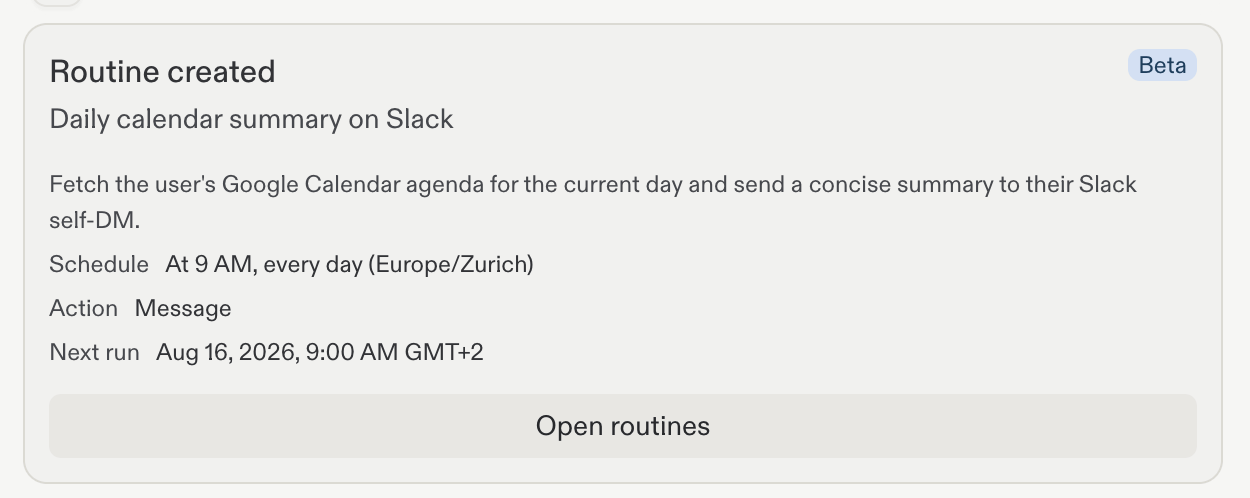
Routine created confirmation for a daily calendar summary on Slack with its approved schedule
6

Open Routines

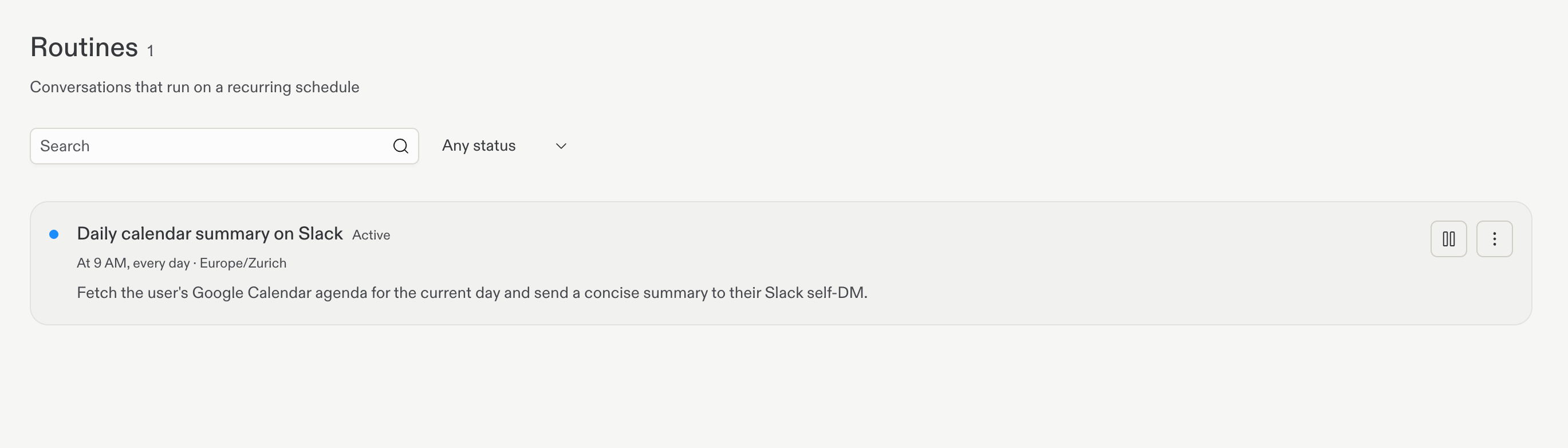
Select Routines in the Replit sidebar to view your scheduled Routines.
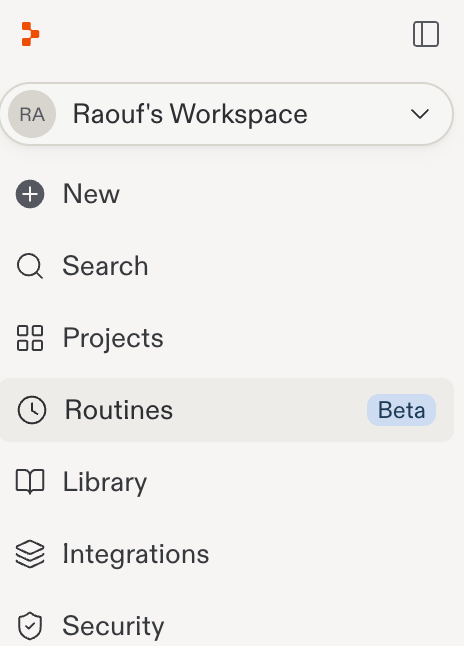
Replit sidebar with Routines selected
Routines page listing the active daily calendar summary on Slack and its schedule
7

Manage the Routine

Open the Routine’s action menu to run it now or delete it.
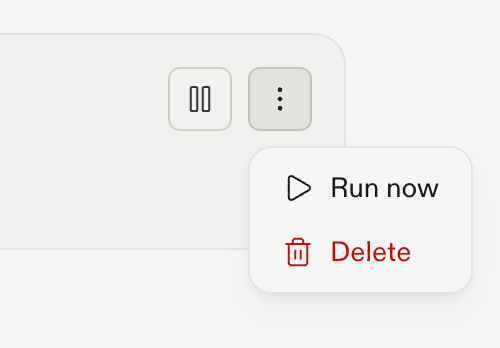
Routine action menu with Run now and Delete options
Learn more about permissions, results, availability, and limits in Routines. Next, compare Conversations and projects to decide where continuing work should live.