

Documentation Index
Fetch the complete documentation index at: https://docs.replit.com/llms.txt
Use this file to discover all available pages before exploring further.
How the task board works
The task board gives you one place to review, start, monitor, and apply Agent tasks. Use it when Agent breaks a large request into multiple pieces, when you want to run work in the background, or when you need to understand what has already changed in your project.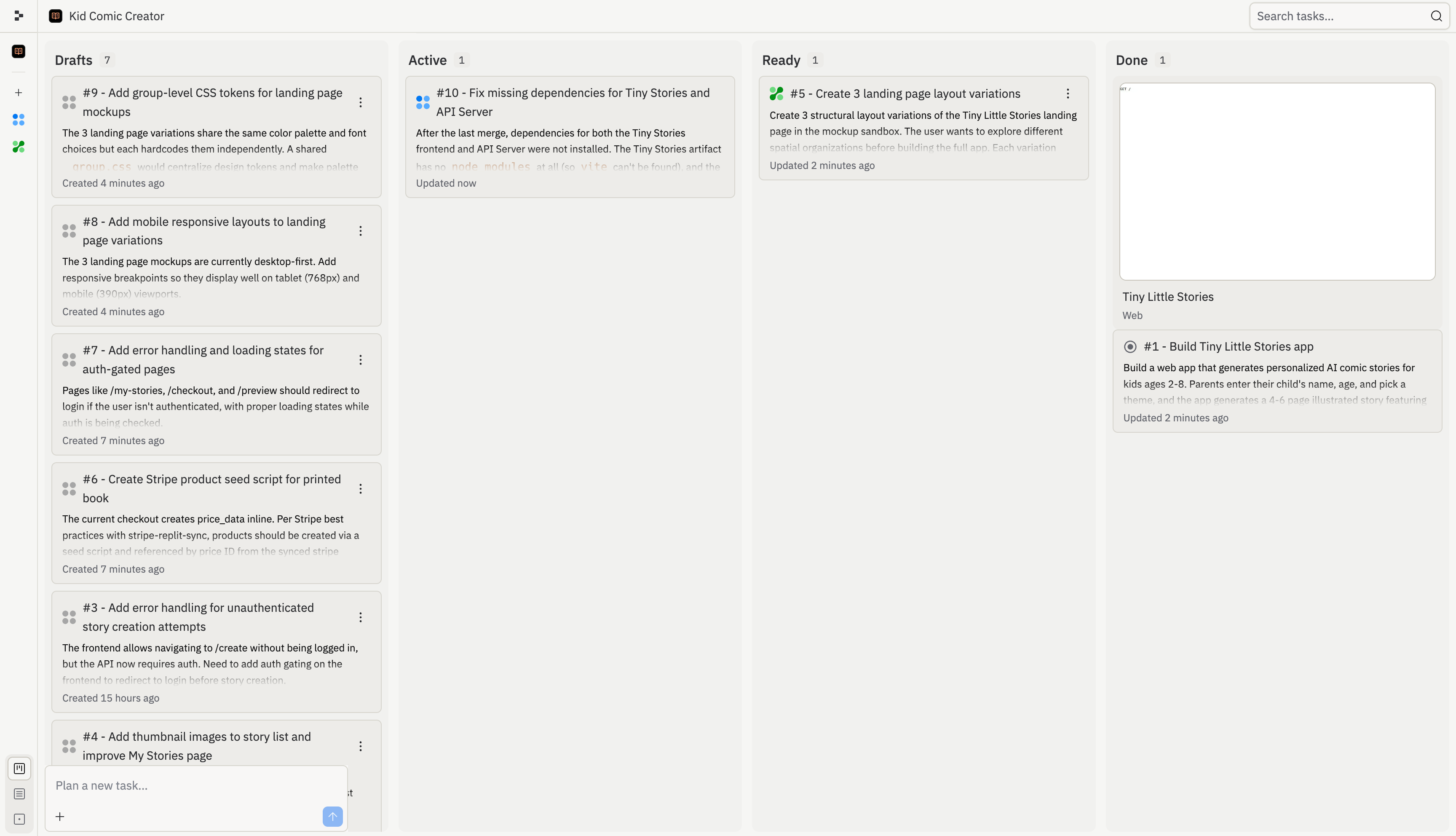
- Drafts: tasks Agent has planned but has not started
- Active: tasks Agent is building now, including tasks queued behind your active task limit
- Ready: tasks Agent has finished and are ready for your review
- Done: tasks that are finished, archived, or cancelled
Drafts
Drafts are planned tasks that Agent has not started building yet. Each draft includes a title, description, and step-by-step plan. Use Drafts to review Agent’s proposed approach before work starts. You can inspect the plan, ask Agent to adjust it, or start the task when you’re ready. Drafts are useful when you want to plan a larger feature before committing background work. For example, Agent might split an onboarding project into separate drafts for authentication, profile setup, dashboard UI, and deployment polish.Active
Once you accept a task, it moves to the Active column and Agent starts building. Each task runs in its own isolated copy of your project, so nothing changes in your main version until you apply the work. Some tasks depend on others. For example, a task that builds a dashboard may need the database schema task to finish first. Dependent tasks wait as Queued until their prerequisites finish. Tasks also queue if you reach your plan’s active background task limit.Ready
When a task finishes building, it moves to Ready. This means the work is complete, but nothing has changed in your main version yet. You can apply changes in two ways:- From the thread: open the task’s thread and select Apply changes to main version to bring the work into your project, or Dismiss to discard it
- From the board: select the three-dot menu on any Ready task card, then select Apply changes