> ## Documentation Index
> Fetch the complete documentation index at: https://docs.replit.com/llms.txt
> Use this file to discover all available pages before exploring further.

# Routines

> Schedule recurring work from a Conversation and receive the results in the same thread.

export const AgentModesCardVisual = () => <CardScene>
    <Panel style={{
  width: 118,
  height: 82,
  display: "flex",
  alignItems: "center",
  justifyContent: "center"
}}>
      <DotGrid />
    </Panel>
  </CardScene>;

export const AiPrompt = ({children}) => {
  return <CodeBlock className="relative block max-w-full overflow-x-hidden font-sans !whitespace-pre-wrap !break-words" style={{
    overflowWrap: "anywhere",
    wordBreak: "break-word"
  }}>
      <div className="pr-7" style={{
    whiteSpace: "pre-wrap",
    overflowWrap: "anywhere",
    wordBreak: "break-word"
  }}>
        {children}
      </div>
    </CodeBlock>;
};

export const CoffeeShopScreenshotFrame = ({src, alt}) => <div style={{
  margin: "28px 0",
  overflow: "hidden",
  borderRadius: "24px",
  background: "radial-gradient(circle at 50% -18%, rgba(255,255,255,.82), transparent 42%), radial-gradient(circle at 4% 96%, rgba(255,184,146,.48), transparent 38%), linear-gradient(140deg, #ff764d, #ff3c00 60%, #c92d00)",
  boxShadow: "0 16px 32px rgba(112,36,13,.18)"
}}>
    <div style={{
  padding: "clamp(10px, 2vw, 18px)",
  background: "linear-gradient(180deg, rgba(255,255,255,.14), rgba(255,255,255,0) 48%, rgba(111,24,0,.2))"
}}>
      <a href={src} target="_blank" rel="noreferrer" aria-label={`Open ${alt} at full size`} style={{
  display: "block",
  overflow: "hidden",
  border: "1px solid rgba(255,255,255,.62)",
  borderRadius: "16px",
  background: "rgba(255,255,255,.96)",
  boxShadow: "0 12px 28px rgba(55,27,18,.2)",
  cursor: "zoom-in"
}}>
        <img src={src} alt={alt} style={{
  display: "block",
  width: "100%",
  height: "auto"
}} />
      </a>
    </div>
  </div>;

export const RoutinePlanAvailability = () => <>
    Routines are available on{" "}
    <a href="/billing/plans/replit-core">Core</a> and{" "}
    <a href="/billing/plans/replit-pro">Pro</a> plans. They are not available on
    Starter.
  </>;

<div className="chat-mkt" role="img" aria-label="Conversation bubble with clock hands set to 4:00, representing a scheduled Routine" style={{ margin: "28px 0 42px", borderTop: 0, paddingTop: 0 }}>
  <div className="chat-use-case-visual" style={{ aspectRatio: "auto", minHeight: "clamp(220px, 34vw, 320px)" }}>
    <div
      aria-hidden="true"
      style={{
    position: "relative",
    zIndex: 1,
    display: "flex",
    alignItems: "center",
    justifyContent: "center",
    gap: "clamp(18px, 4vw, 28px)",
    color: "#fff",
    filter: "drop-shadow(0 8px 18px rgba(73,18,0,.42))",
  }}
    >
      <svg width="96" height="96" viewBox="0 0 24 24" fill="currentColor">
        <path d="M12 6.25a.75.75 0 0 1 .75.75v4.932l3.666 2.443a.75.75 0 0 1-.833 1.248l-4-2.666a.75.75 0 0 1-.333-.624V7a.75.75 0 0 1 .75-.75" />

        <path fillRule="evenodd" d="M5.751 3.253a10.75 10.75 0 1 1 9.043 19.128 10.75 10.75 0 0 1-7.302-.623 1.25 1.25 0 0 0-.658-.056l-3.367.985-.018.005a1.753 1.753 0 0 1-2.118-1.165 1.75 1.75 0 0 1-.045-.88 1 1 0 0 1 .022-.08l1.049-3.242a1.25 1.25 0 0 0-.06-.702A10.75 10.75 0 0 1 5.75 3.253m6.984-.473a9.25 9.25 0 0 0-9.046 13.286c.202.51.248 1.069.13 1.604l-.02.07-1.046 3.229a.25.25 0 0 0 .075.213.25.25 0 0 0 .233.06l3.398-.993.065-.015c.442-.088.899-.066 1.329.064l.182.062.051.021A9.252 9.252 0 0 0 18.501 5.42a9.25 9.25 0 0 0-5.766-2.64" clipRule="evenodd" />
      </svg>

      <span
        style={{
      fontSize: "clamp(34px, 7vw, 58px)",
      fontWeight: 600,
      letterSpacing: "-0.03em",
      lineHeight: 1,
    }}
      >
        Routines
      </span>
    </div>
  </div>
</div>

A **Routine** schedules Replit to repeat work from within a [Conversation](/chat/conversations). Results return to the same Conversation, so you can review and continue the work.

## What's a Routine?

A Routine is a scheduled run attached to a Conversation. It can use connected tools, create projects or tasks in connected services, and send messages.

For example, you could ask Replit to review your Slack each morning and return your priorities for the day.

<Note>
  You can create multiple Routines in one Conversation. Routines remain part of
  that Conversation and cannot be created inside a Project.
</Note>

## What you can do

Use a Routine for recurring work that Replit can complete in a Conversation. For example, you can:

* Gather information from [connected tools](/features/integrations/overview) and summarize what changed.
* Create projects or tasks in connected services.
* Send a message through a connected tool.

## Permissions and results

A Routine remains personal to you. It inherits the Conversation's permissions and access to connected tools.

Each run returns its results to the Conversation. If Replit needs help or a run fails, it asks for your attention there.

If other work is running when a Routine is due, the Routine waits. Replit does not add another pending run for the same Routine.

## Availability and limits

<RoutinePlanAvailability />

* Routines can run at intervals of one hour or more.
* Core plans can have up to five active Routines per user. Pro plans can have up to 10.
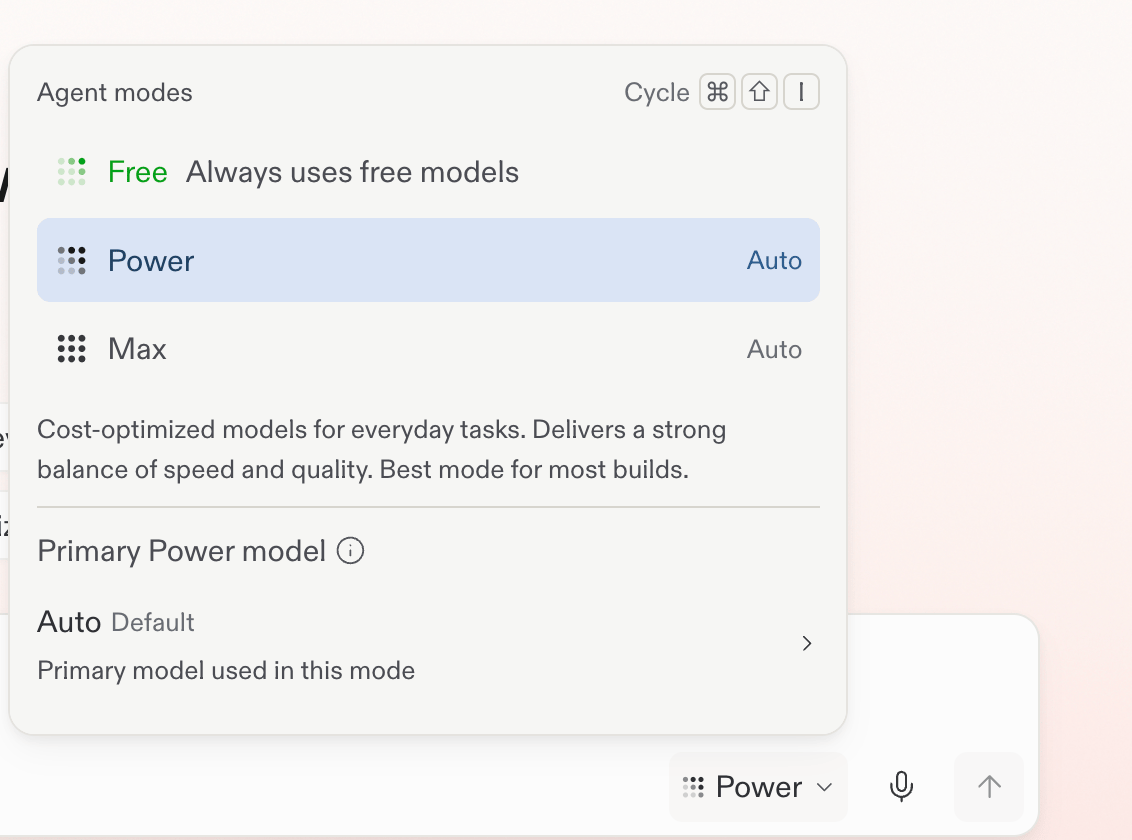
* Routines run in Power or Max Mode. They do not run in Free Mode.

Each Routine needs a budget for every run. Replit checks the budget after each step. If a step is already in progress, such as an API call, Replit finishes that step before stopping. A run can therefore go slightly over its budget.

Routines can schedule work that Replit can complete in a Conversation. They cannot schedule publishing.

## Create a Routine

Before you start, make sure the mode below the prompt box is set to **Power** or
**Max**. Routines cannot be created or run in Free Mode.

<Frame caption="Select Power or Max before creating a Routine.">
  <img src="https://mintcdn.com/replit/teDUL4A-lNO7dv1O/images/chat/routine-power-mode.png?fit=max&auto=format&n=teDUL4A-lNO7dv1O&q=85&s=62c0194cfb8c12b38d06cf510dcf13dc" alt="Replit mode selector with Power selected and Free and Max also available" width="1132" height="840" data-path="images/chat/routine-power-mode.png" />
</Frame>

<Steps>
  <Step title="Write the recurring request">
    Ask Replit to monitor the information that matters to you. For example:

    <AiPrompt>
      Every Monday, review local events, nearby coffee shops, and changes that
      could affect my neighborhood café launch. Summarize what changed, explain
      why it matters, and recommend any updates to my launch plan in this
      Conversation.
    </AiPrompt>
  </Step>

  <Step title="Clarify the schedule and focus">
    Answer Replit's follow-up questions about when the Routine should run and
    what it should monitor. For example, choose Monday morning and ask it to
    watch the chosen neighborhood, comparable cafés, and local events.
  </Step>

  <Step title="Review and create the Routine">
    Review the proposed instructions, schedule, and per-run budget. Adjust them
    if needed, then select **Create routine**.

    Every Routine needs a budget for each run. Replit checks the budget after
    each step. If a step is already in progress, such as an API call, Replit
    finishes that step before stopping. A run can therefore go slightly over
    its budget.

    <CoffeeShopScreenshotFrame src="/images/coffee-shop-launch/review-routine.png" alt="Replit's routine approval screen showing a title, instructions, Monday schedule, per-run budget, and Create routine button" />
  </Step>

  <Step title="Review the result and refine your plan">
    Replit confirms the Routine's title, schedule, budget, and monitoring scope.
    Each later result returns to this Conversation, where you can decide what to
    change next.

    <CoffeeShopScreenshotFrame src="/images/coffee-shop-launch/routine-created.png" alt="A created routine named Lausanne café launch watch, showing its Monday schedule, per-run budget, and the local changes it monitors" />
  </Step>
</Steps>

## Find and manage Routines

Follow [Schedule a routine](/schedule-a-routine) for a complete calendar-to-Slack example.

<Steps>
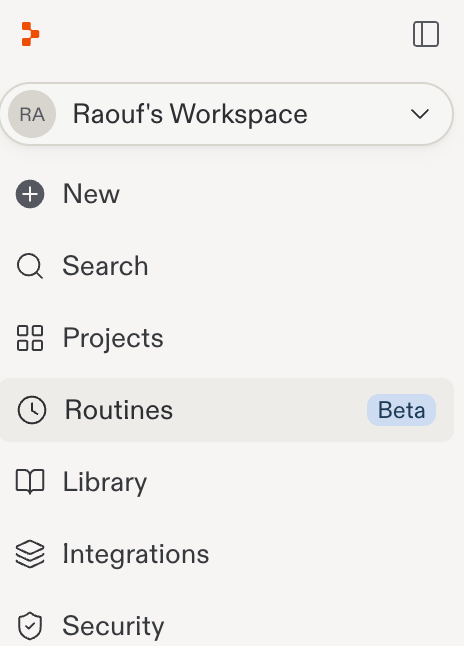
  <Step title="Open Routines">
    Select **Routines** in the Replit sidebar.

    <Frame>
      <img src="https://mintcdn.com/replit/teDUL4A-lNO7dv1O/images/chat/open-routines-sidebar.png?fit=max&auto=format&n=teDUL4A-lNO7dv1O&q=85&s=ce7e70b2818edbf8d584b8122421fc0f" alt="Replit sidebar with Routines selected" width="464" height="646" data-path="images/chat/open-routines-sidebar.png" />
    </Frame>
  </Step>

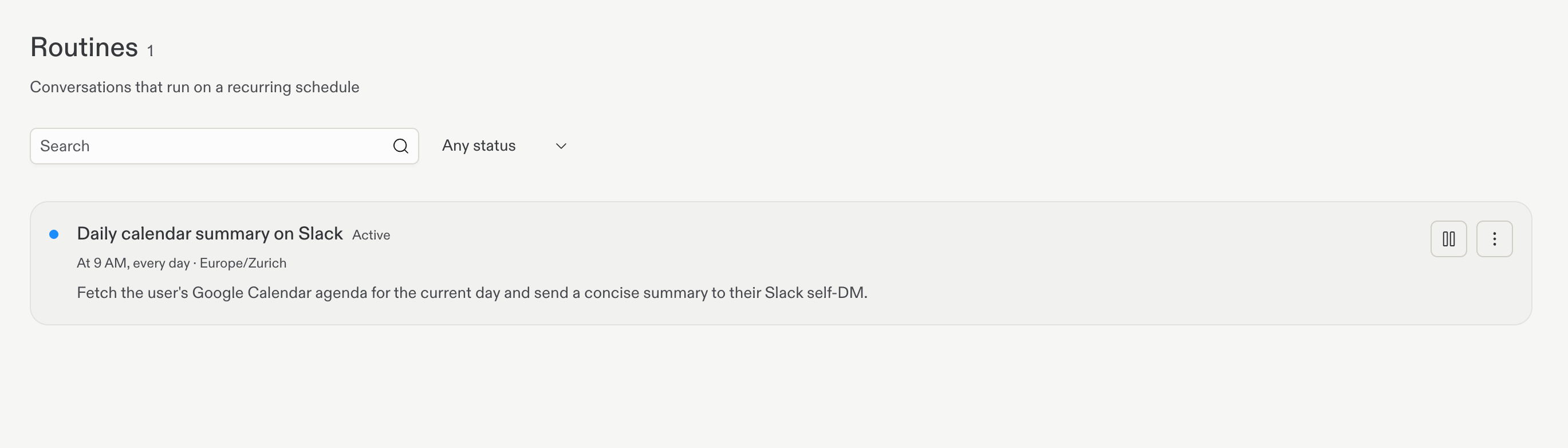
  <Step title="View your Routines">
    Review your scheduled Routines, their schedules, active status, and run
    history.

    <Frame>
      <img src="https://mintcdn.com/replit/teDUL4A-lNO7dv1O/images/chat/routines-management-page.png?fit=max&auto=format&n=teDUL4A-lNO7dv1O&q=85&s=5deba6a1bed0f65c81b60c626ceb7c0b" alt="Routines page listing the active daily calendar summary on Slack and its schedule" width="2738" height="782" data-path="images/chat/routines-management-page.png" />
    </Frame>

    You can change a Routine's per-run budget in two ways: ask Replit in the
    Conversation, or edit the **Budget** input directly in the Routines
    sidebar for that Routine.
  </Step>

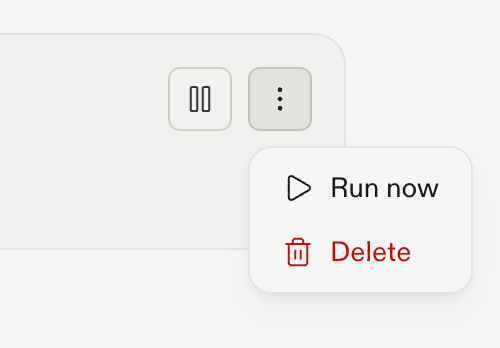
  <Step title="Manage a Routine">
    Open a Routine's action menu to run it now or delete it.

    <Frame>
      <img src="https://mintcdn.com/replit/teDUL4A-lNO7dv1O/images/chat/routine-action-menu.png?fit=max&auto=format&n=teDUL4A-lNO7dv1O&q=85&s=f602a4594363fbce5f759abb54d4a415" alt="Routine action menu with Run now and Delete options" width="500" height="348" data-path="images/chat/routine-action-menu.png" />
    </Frame>
  </Step>
</Steps>

## Next steps

<section className="chat-mkt chat-workflow-grid has-visuals">
  <a className="chat-example has-visual" href="/schedule-a-routine">
    <div className="chat-use-case-visual palette-orange">
      <div className="chat-use-case-window">
        <i />

        <i />

        <i />

        <b />

        <b />

        <b />
      </div>

      <em>
        <Icon icon="calendar-clock" size={24} color="#ffffff" />
      </em>
    </div>

    <span>
      <Icon icon="calendar-clock" size={19} />
    </span>

    <div className="chat-card-title">Schedule a routine</div>
    <p>Follow the quickstart to create and schedule recurring work.</p>
    <div className="chat-card-link">Open the quickstart →</div>
  </a>

  <a className="chat-example has-visual" href="/chat/agent-modes">
    <AgentModesCardVisual />

    <span>
      <Icon icon="bolt" size={19} />
    </span>

    <div className="chat-card-title">How Routines run</div>

    <p>
      Scheduled Routines run in Power or Max Mode, not Free Mode.
    </p>

    <div className="chat-card-link">Learn about Agent Modes →</div>
  </a>
</section>

After deciding what should run, compare [Agent Modes](/chat/agent-modes) to choose how Replit approaches the task.
